
Help Editor guide Pages
Undo and getting things back
If something goes wrong on a page, you can usually get it back. This article covers Undo, a page's version history, resetting a page to its design, and restoring pages you deleted.
Undo and Redo
In the page editor, the Undo and Redo arrows sit at the corner of the page, beside the zoom controls: top right in Manual mode, bottom right in Auto mode. On a phone they are at the bottom right of the page.
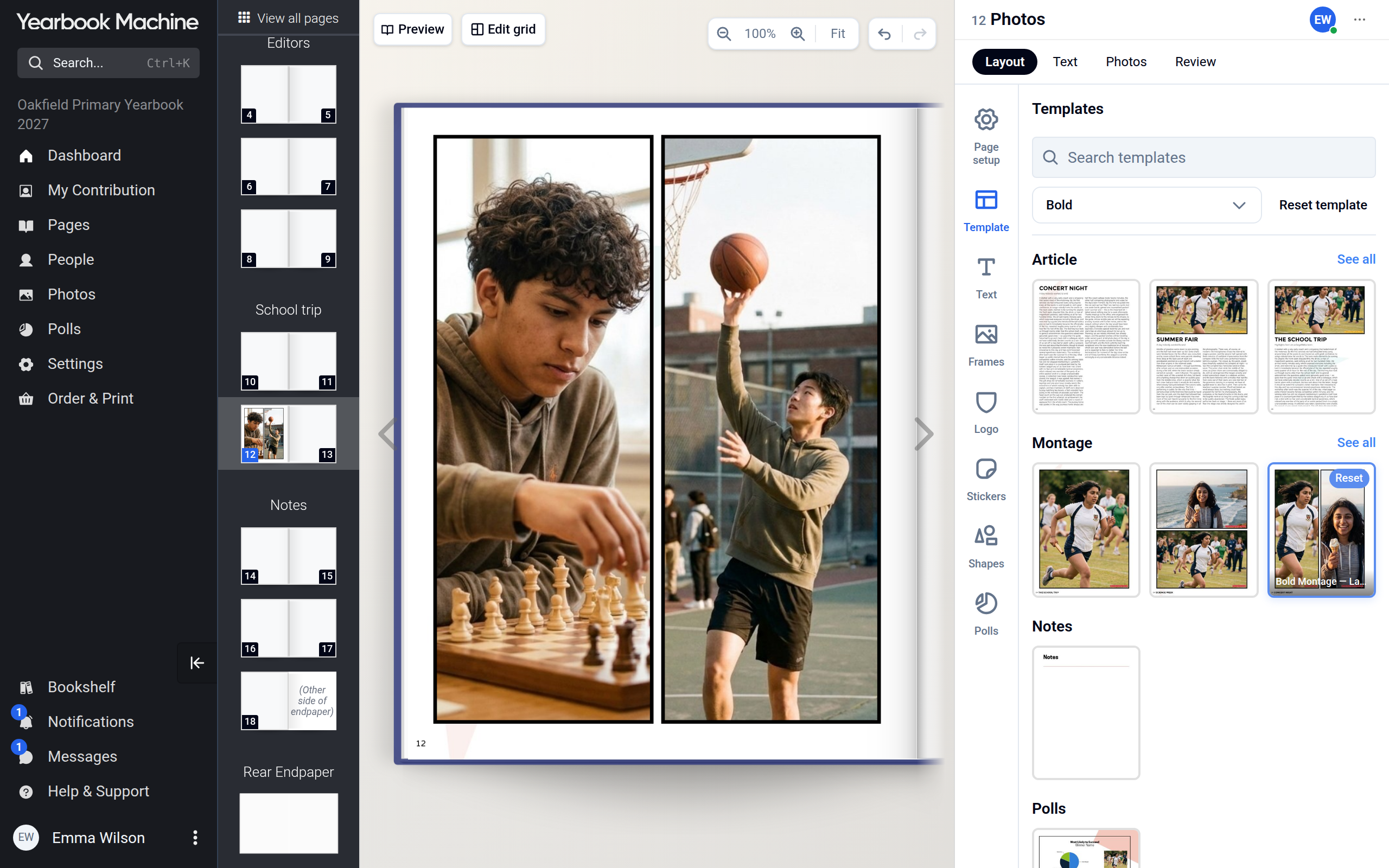
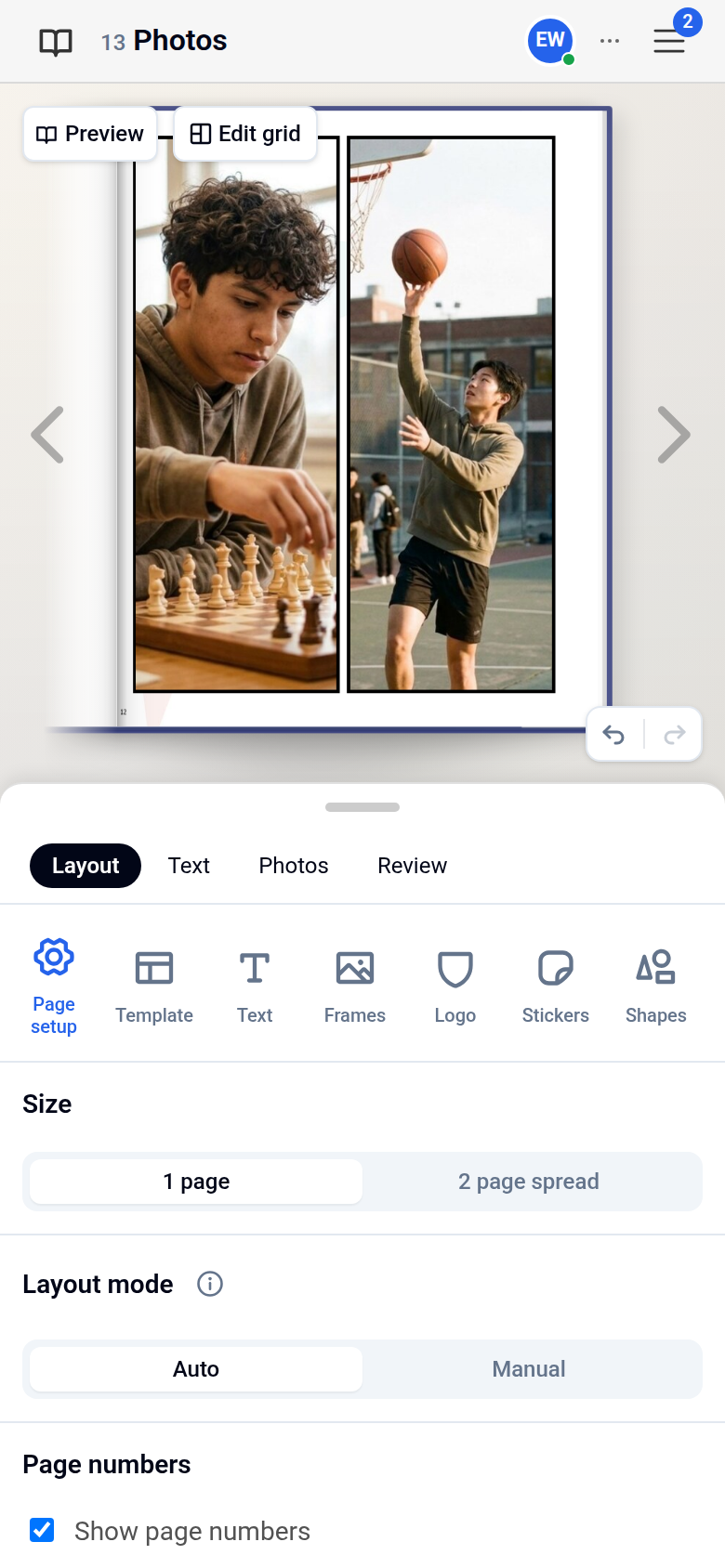
- Undo: Ctrl+Z (Cmd+Z on a Mac). Redo: Ctrl+Shift+Z (Cmd+Shift+Z).
- Undo goes back through the changes you have made to the page since you opened it. In Auto mode it goes back up to 30 changes.
- Each page has its own Undo. Once you move to another page or reload, your edits can't be undone this way: use Version history instead.
Some bigger changes, such as switching design, resetting the page or restoring a version, can still be undone later. If someone else made the change, or you made it in an earlier session, Undo asks you first.
Going back to an earlier version
- Open the page in the editor.
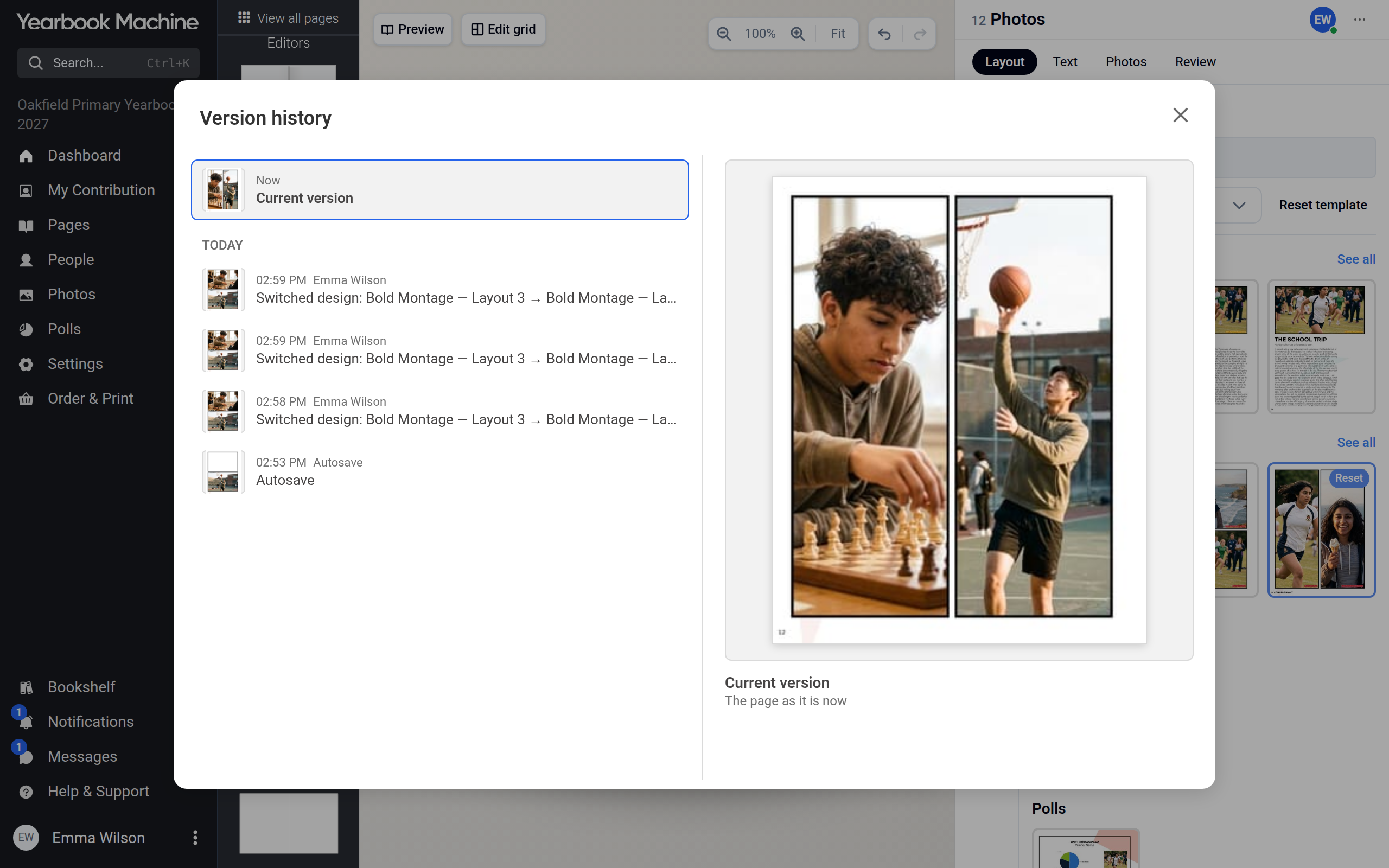
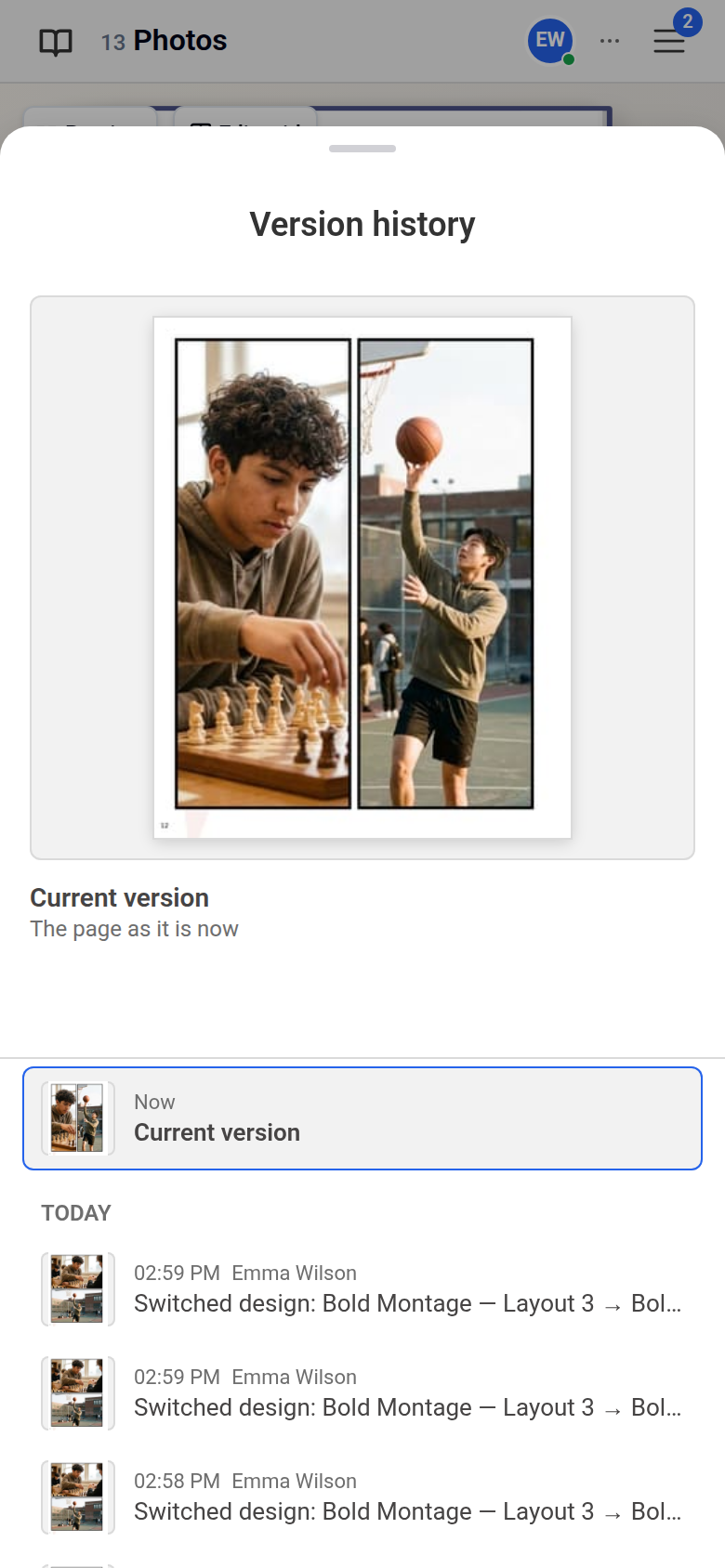
- Click the three dots (Page actions) at the top of the panel and choose Version history. On a phone the three dots are in the top bar, next to the page name.
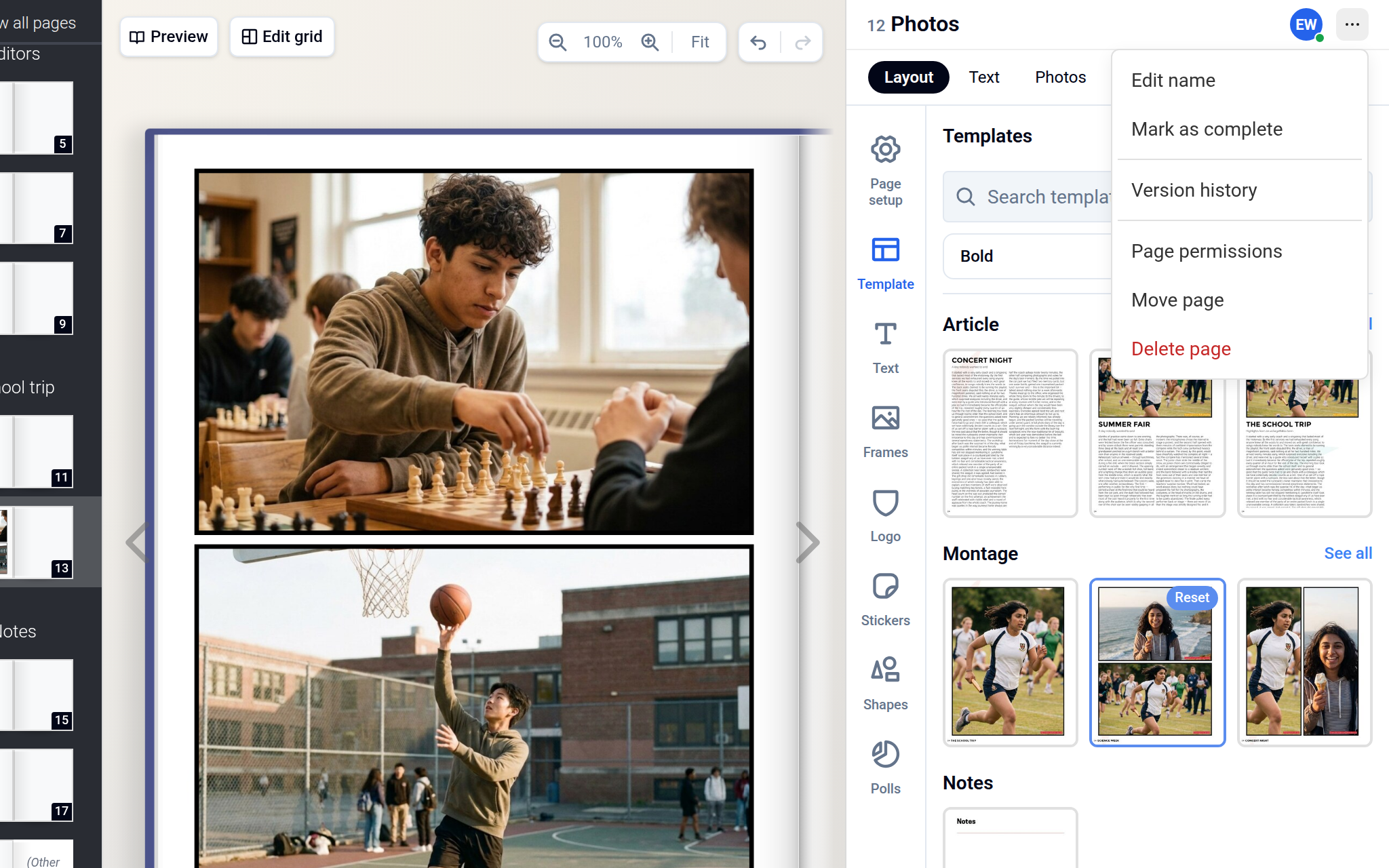
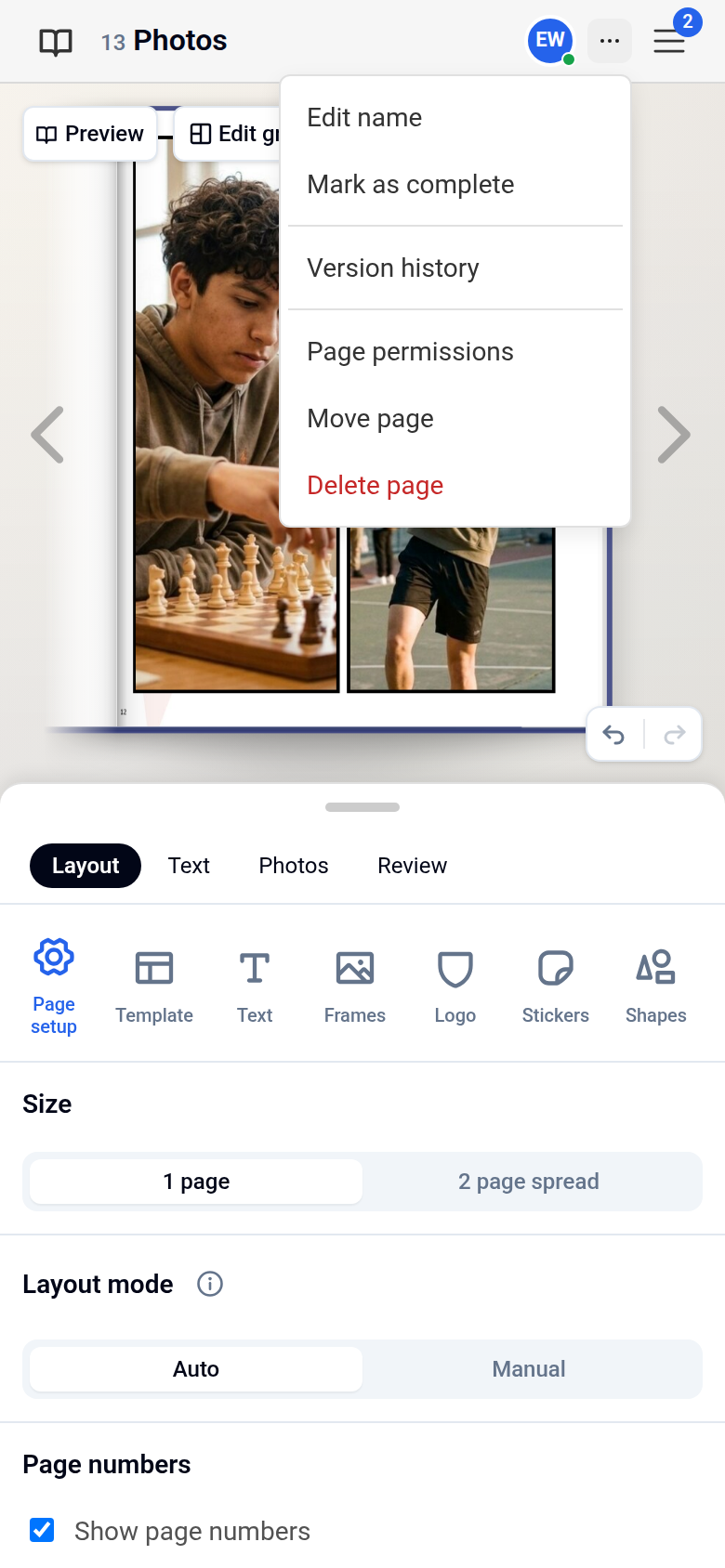
- Click a version in the list to preview it. The list shows autosaves, taken every 10 minutes while the page is being changed, and bigger changes such as a design switch, with who made them.
- Click Restore this version, then Restore.
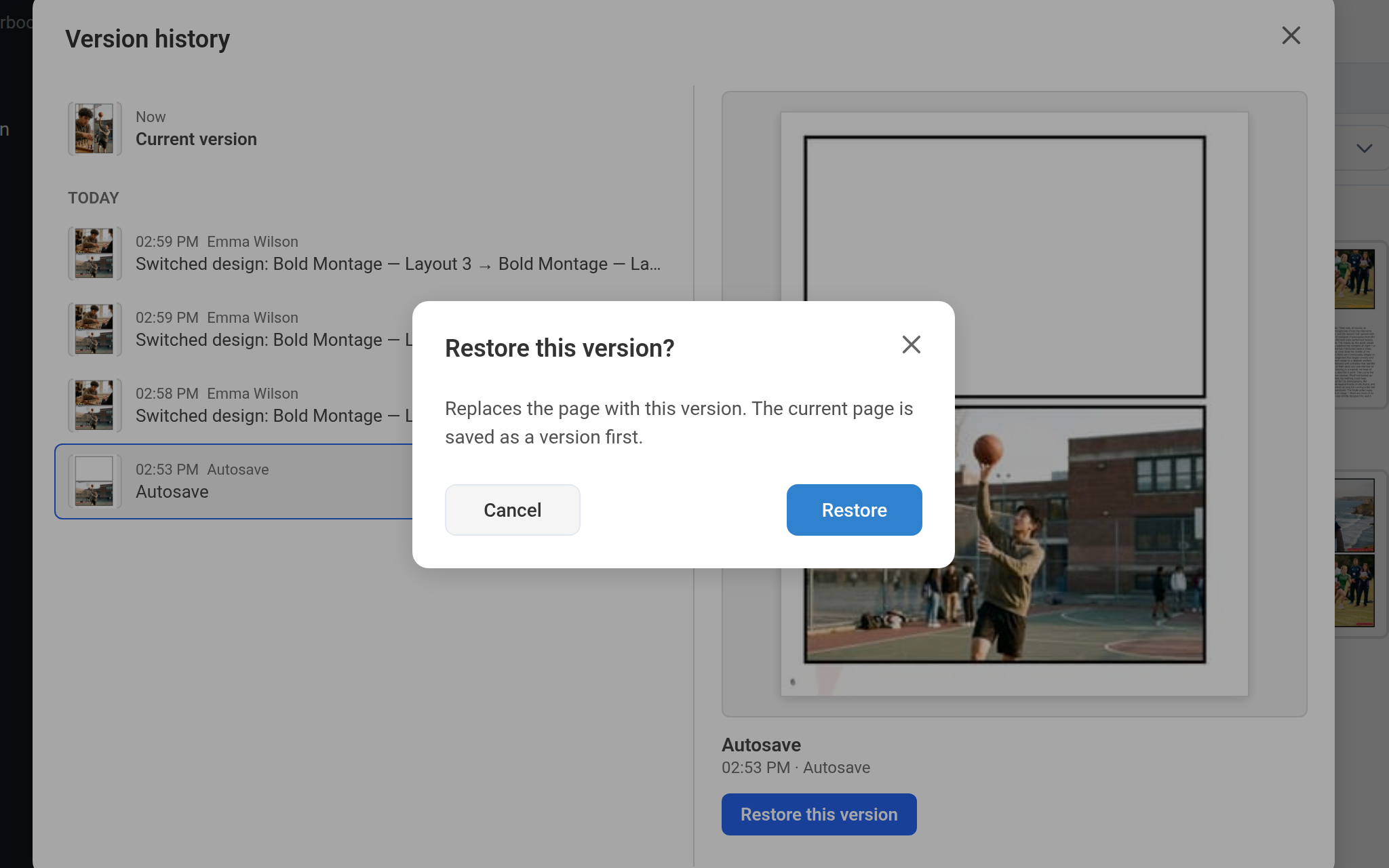
The page as it was is saved as a version first, so you can change your mind. Any photo deleted from the library since then is left as an empty frame. On a profile page you can look at earlier versions but not restore them.
Resetting a page to its design
If a page has got into a muddle, open the Layout tab and click Reset template (or click the page's current design, marked Reset). Then click Reset page.
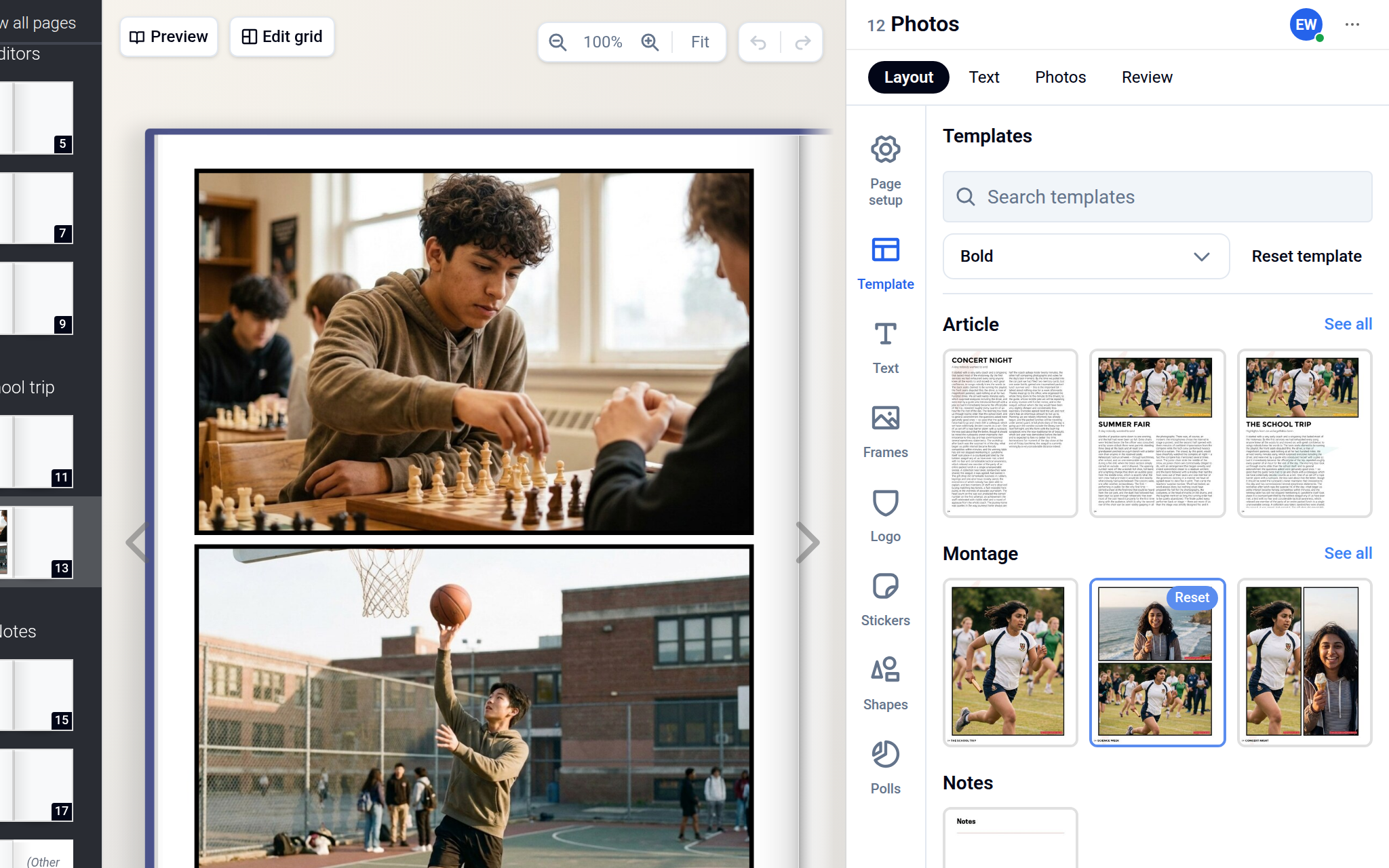
Every box goes back to where the design puts it, and the design's own words come back. Photos stay in the design's photo frames. Anything you added to the page is removed. You can undo a reset.
Restoring a deleted page or section
Deleted pages and sections stay in Recently deleted for 30 days. Editors who can edit the whole book can open it.
- Click Pages in the main menu.
- Open the three-dot menu on any section's heading and choose Recently deleted.
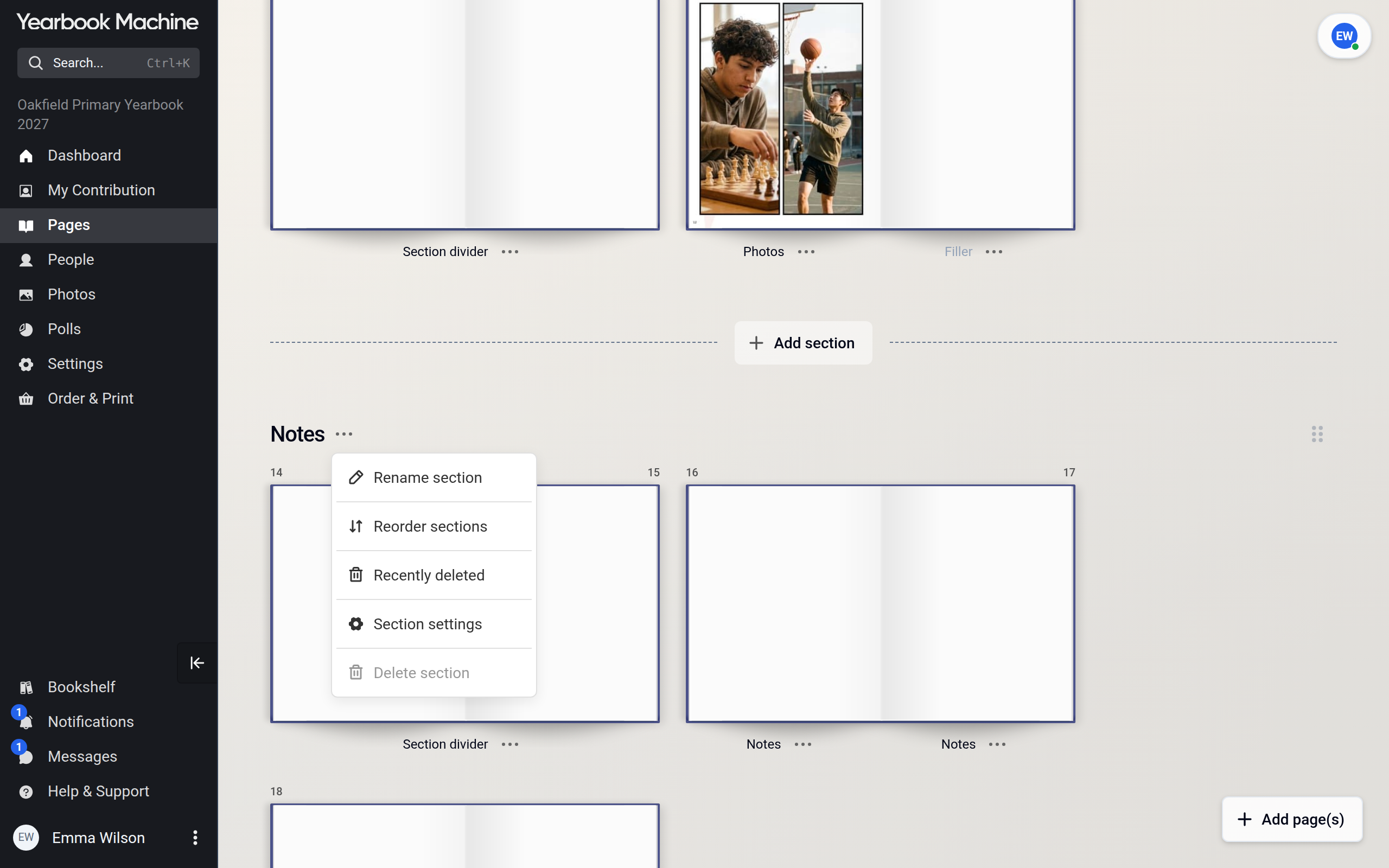
- Click Restore beside the page or section.
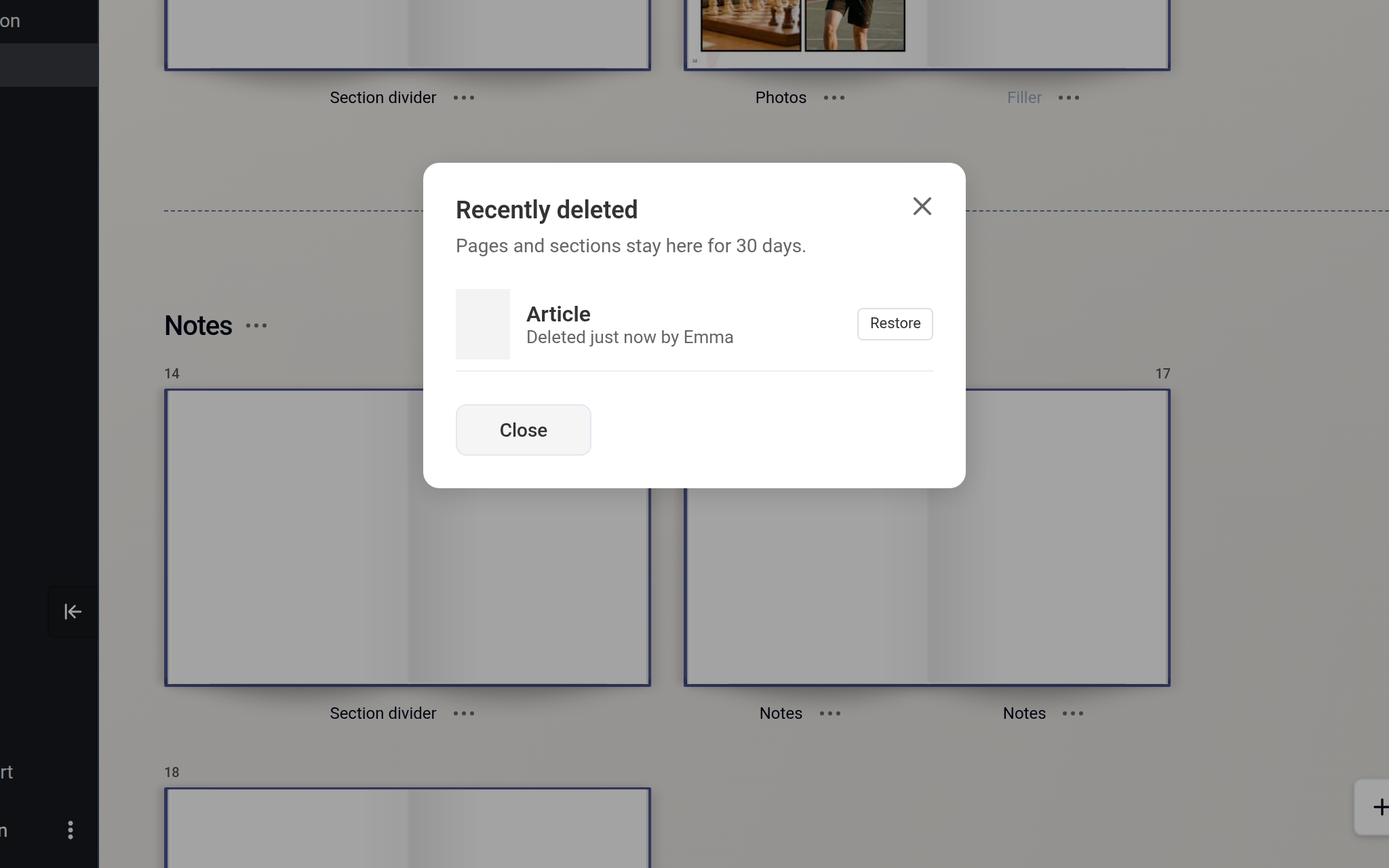
A message confirms it, and the page goes back where it was, or as near as it can. Restoring a section brings back the section and its divider, but not its pages: restore each page as well.
Profile pages, blank pages and index pages don't go to Recently deleted, so deleting one is final.
Common questions
Can I get back a deleted photo?
No. Deleting a photo can't be undone. Deleting a page doesn't delete its photos: they stay in the Photo library under Unlinked Photos.
Can I save a version myself?
No. The list holds the autosaves and changes the editor records for you.
How far back does Version history go?
Each page keeps its newest 50 autosaves, for up to 90 days, and its last 50 bigger changes.
Was this article helpful?
Sorry, that didn't send. Please try again in a little while.
Thanks. That helps us improve this article.
Any other questions?
Email support@yearbook.com and we'll help you out.