
Reviewing and approving your yearbook proof
Before your yearbook goes to print, you'll review and approve a final proof. This is your chance to check that your pages, cover, text and photos look exactly as you want them in the printed book.
Setting up your order
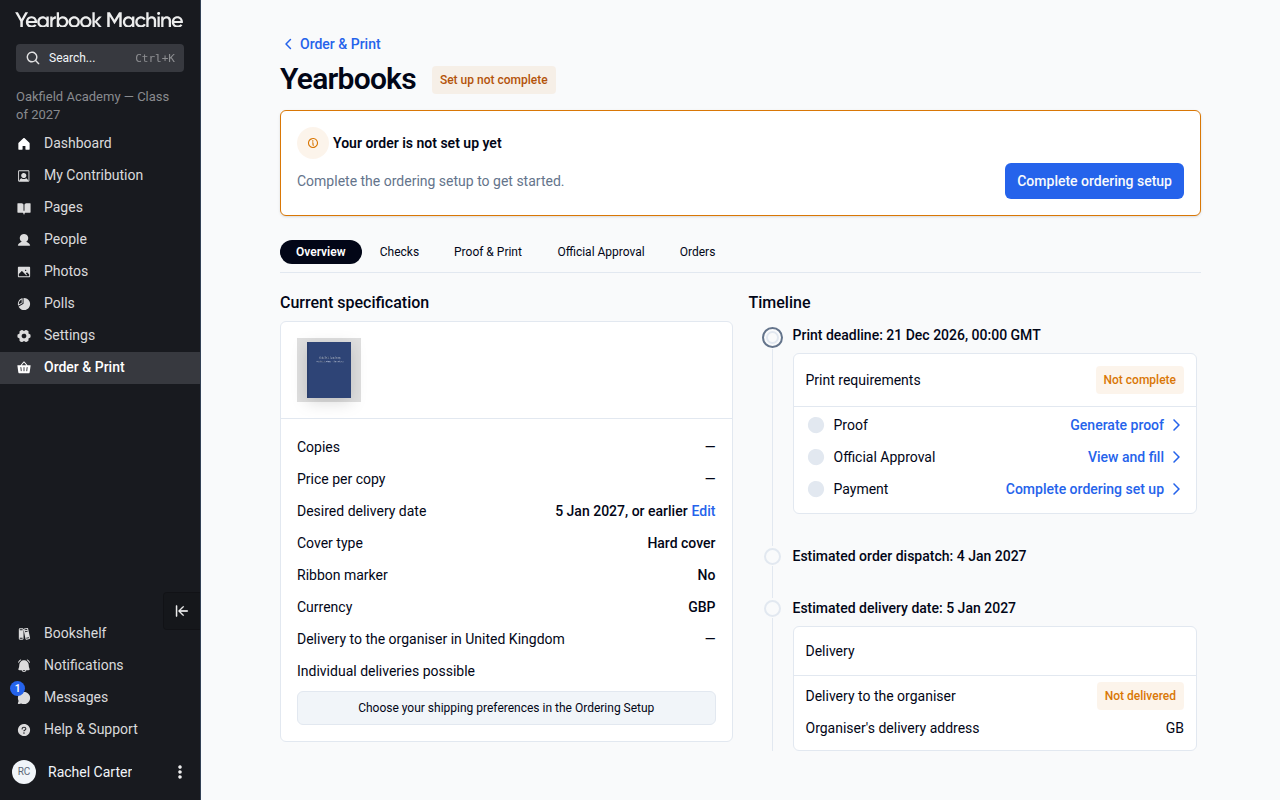
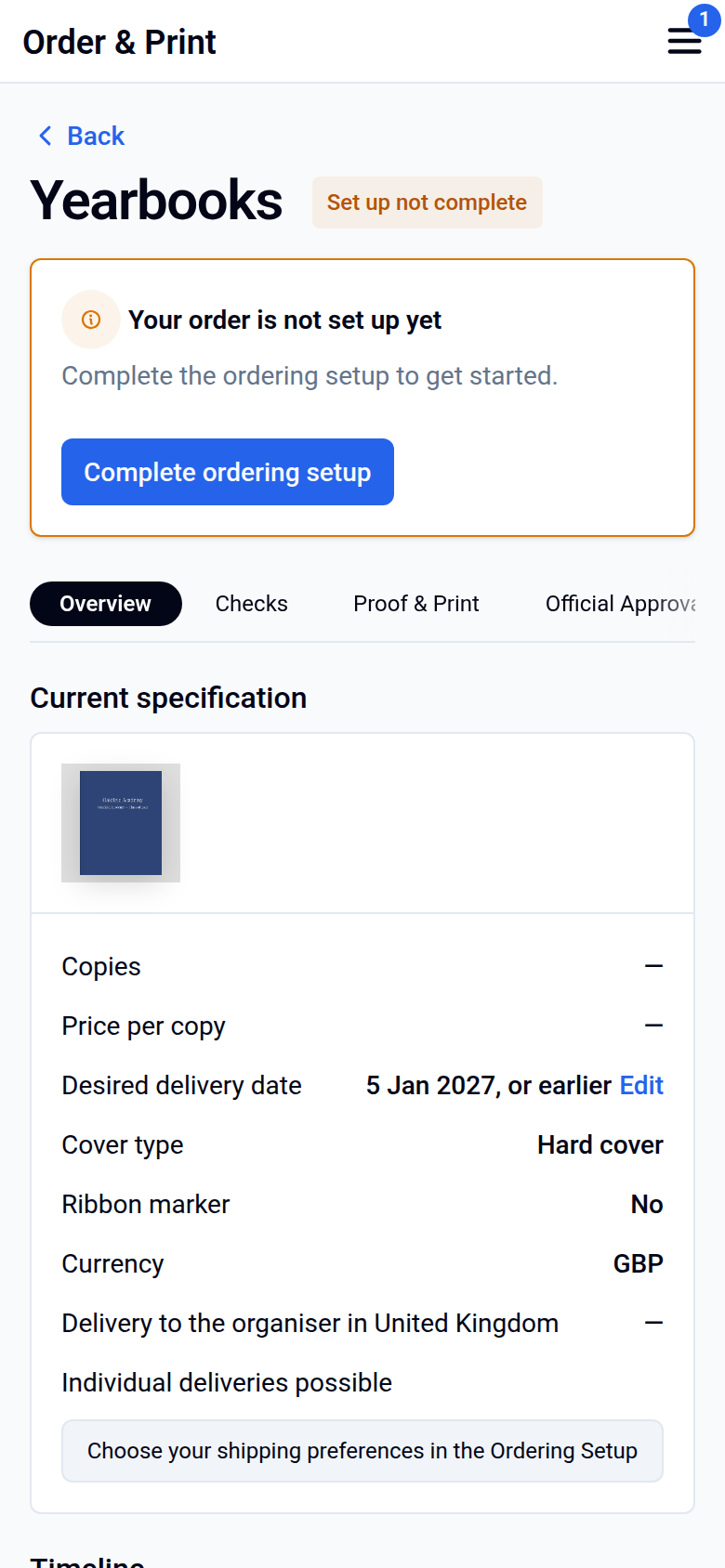
When your pages are finished, an editor sets up the order:
- Go to Order & Print and click Yearbooks.
- Go through the Ordering setup. In it you choose whether the school places one order or each person orders and pays through a storefront, and how you'd like to pay.
- Enter the number of copies you need.
Getting your proof
- In Order & Print, click Yearbooks and open the Proof & Print tab.
- Click Generate proof.
- Your proof is usually ready within minutes.
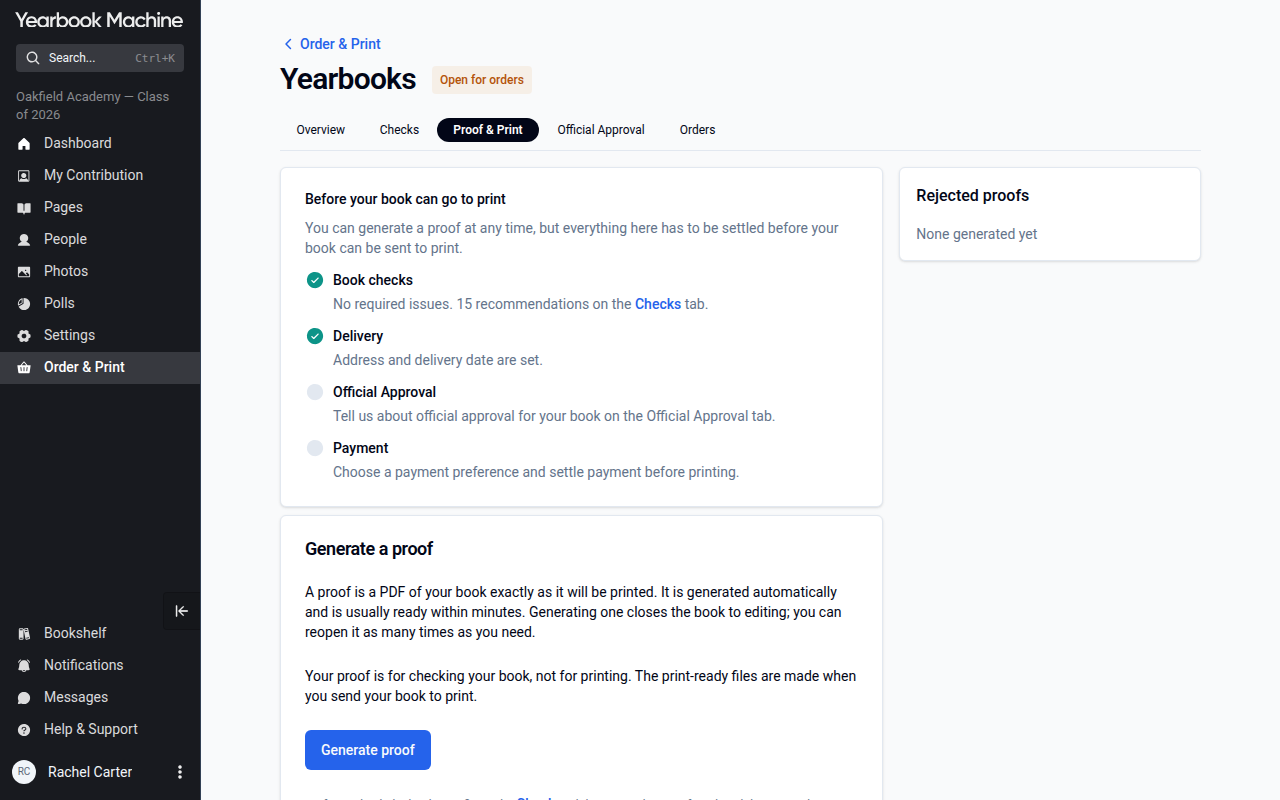
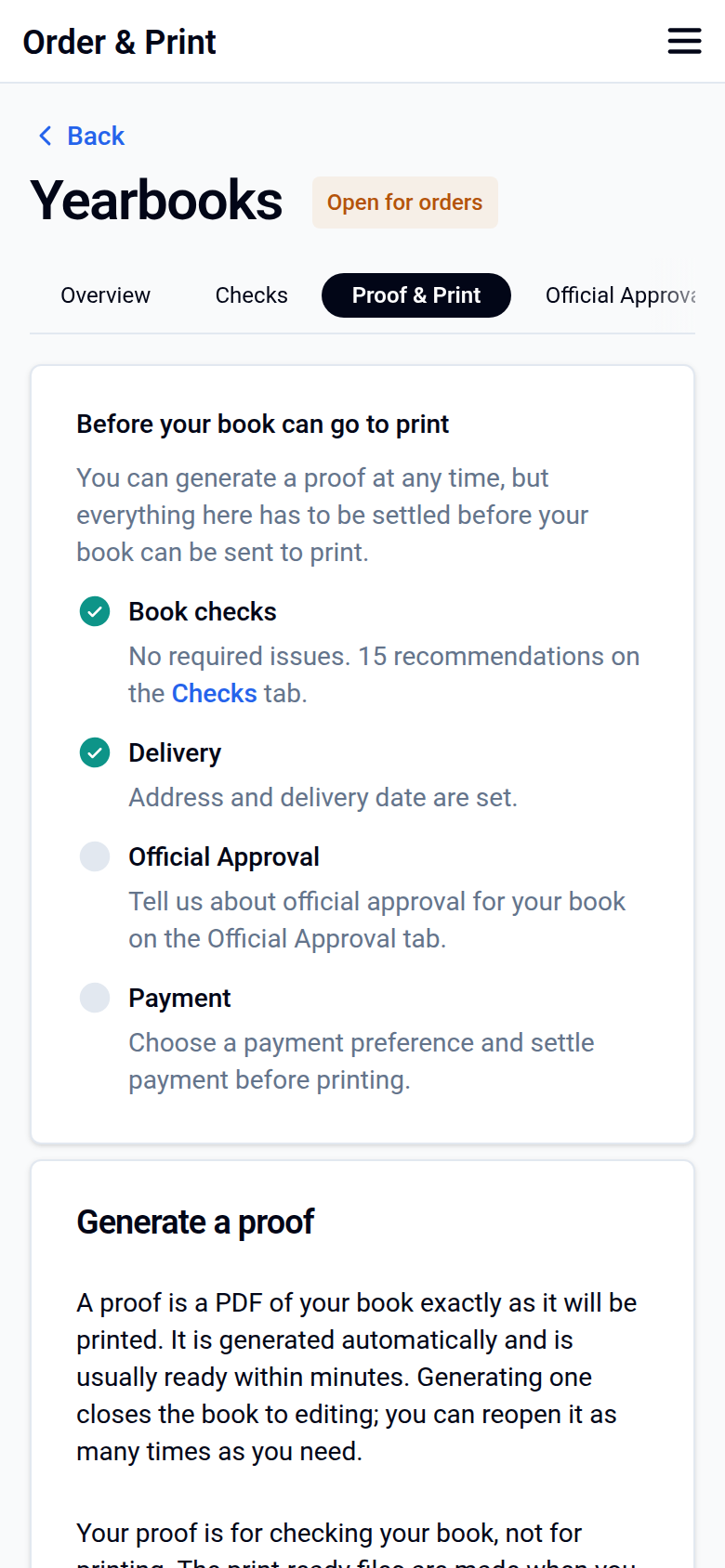
Generating a proof closes the book to editing until you reopen it for changes from the same tab.
Your proof includes your cover, so this is the place to check how your latest cover looks.
When do I need to finish? You can keep editing your book until its print deadline, which is shown on the Overview tab of Order & Print › Yearbooks and on your Dashboard. If that date has passed, choose a later delivery date (see Payment and delivery below).
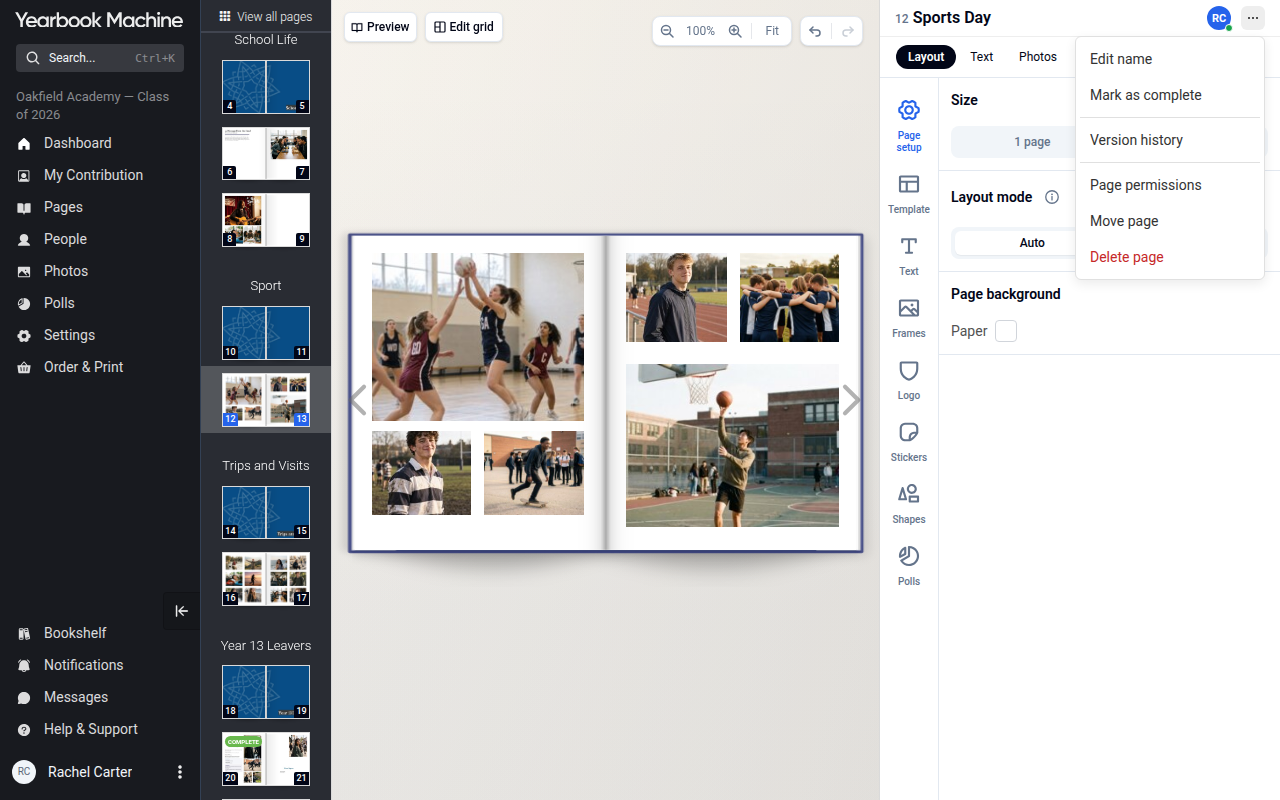
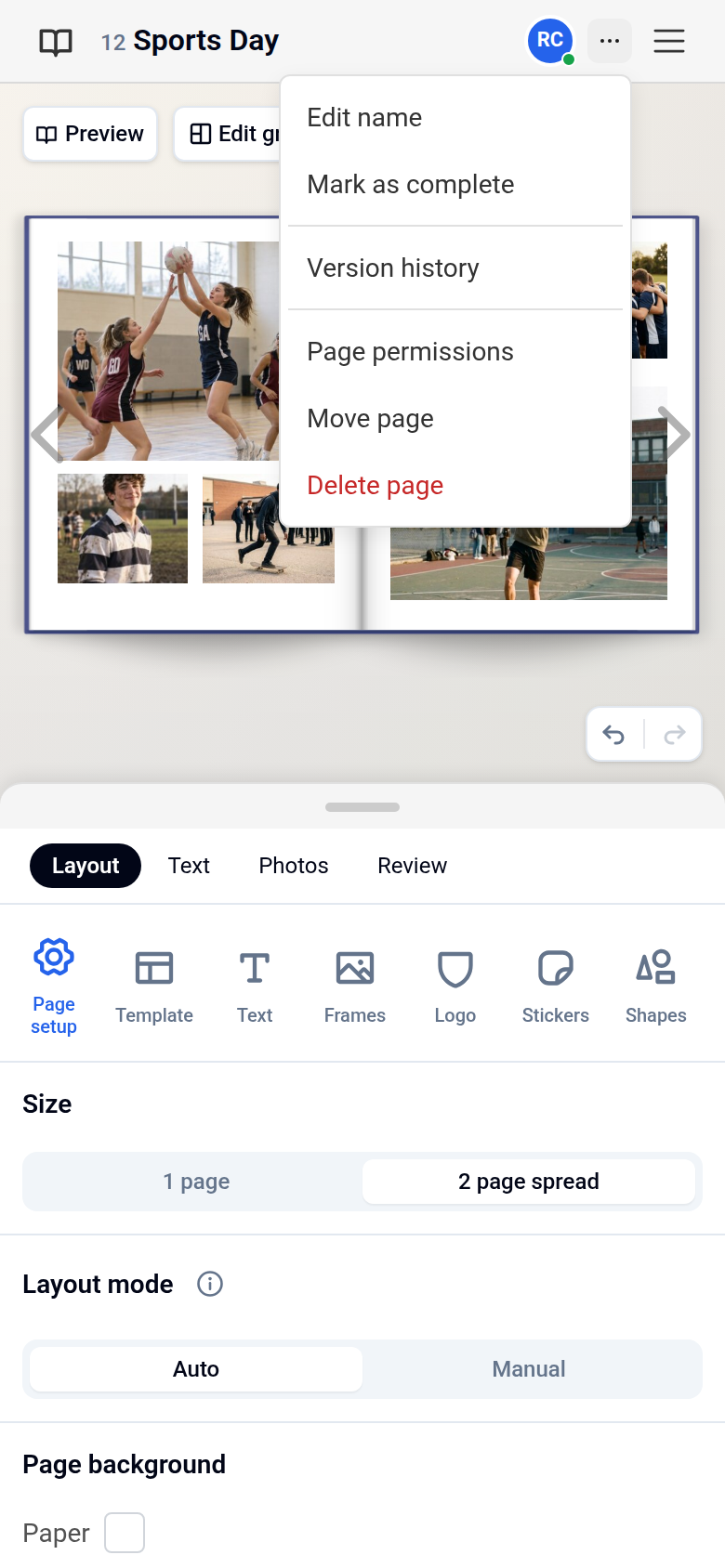
Who can generate and approve a proof? Only editors can do this. If you're a contributor, you can let your editor know your part is ready instead:
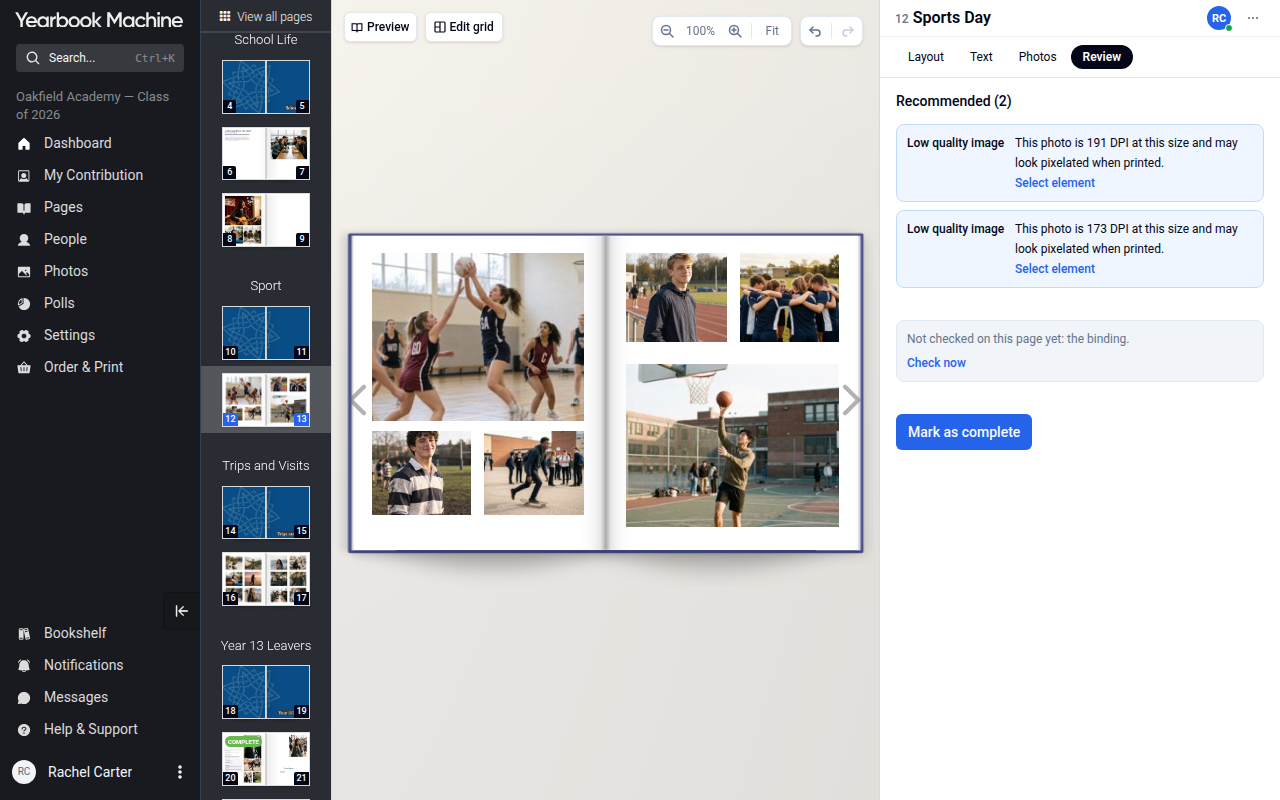
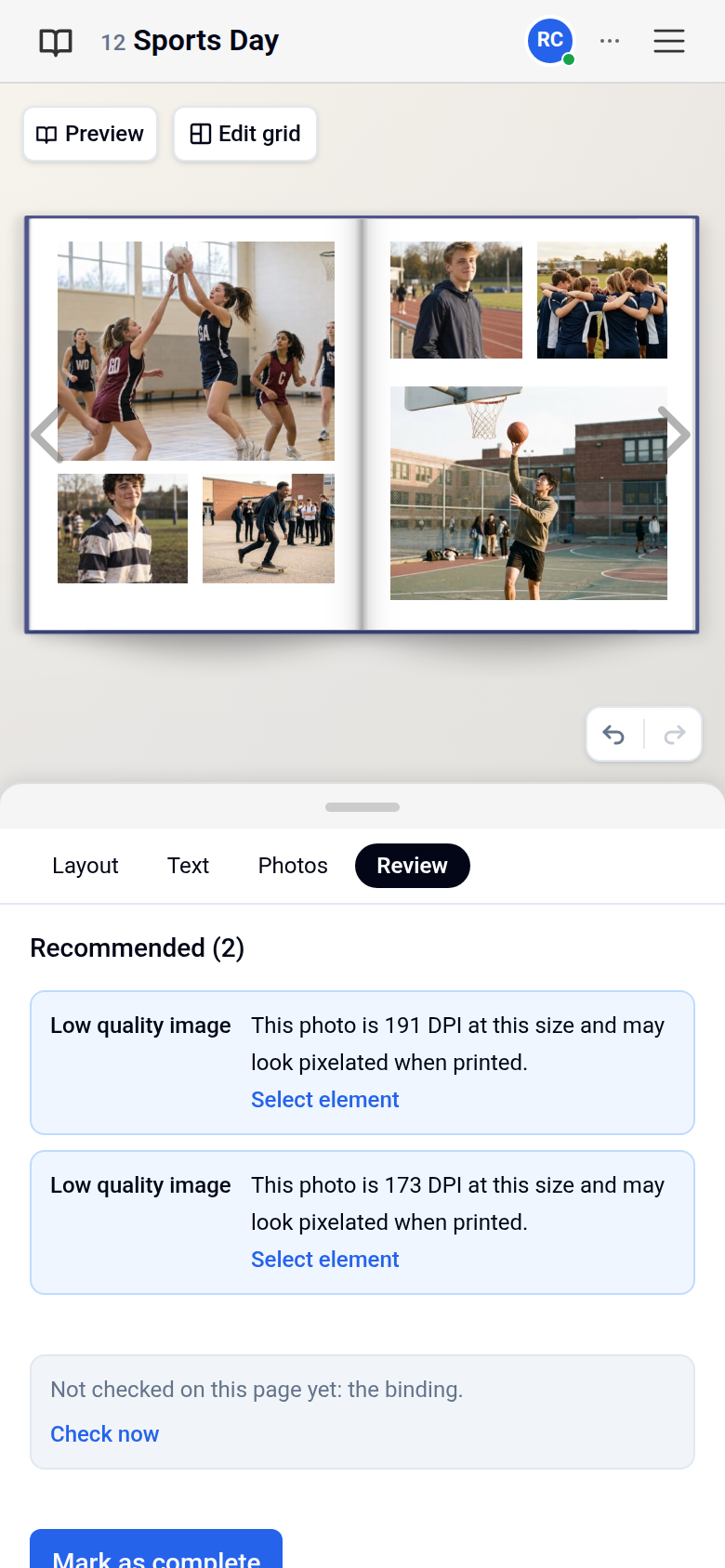
- Click the three dots at the top right of your screen and select Mark as complete. This opens the Review tab.
- Click Mark as complete on the Review tab.
Asked us to remove something? If you've asked for an element to be removed or adjusted, our designers will take care of it before printing.
Checking your proof
Go through your proof carefully:
- Cover alignment and cropping: Your cover proof shows the cover exactly as it will be printed. The extra edge needed for wrapping has already been allowed for, so nothing you can see in the proof will be cropped further. If it looks right in the proof, it will look right in print.
- Text and spelling: Read titles, headings and captions closely – small typos are easy to miss.
- Non-Latin text: Text such as Hebrew that looks reversed or shows as question marks in the editor preview will display correctly in your proof, so always judge it from the proof itself. If you'd rather our design team formats this text consistently throughout the book, just get in touch.
- Blurry pages or content near the spine: If a page looks unclear, or text or photos sit close to the spine, get in touch before you approve and we'll take a look.
Approving your proof
Once you're completely happy with your book and cover:
- Go to Order & Print, click Yearbooks and open the Proof & Print tab.
- Download and check your latest proof.
- Click Approve for print, tick both statements, then click Approve for print again.
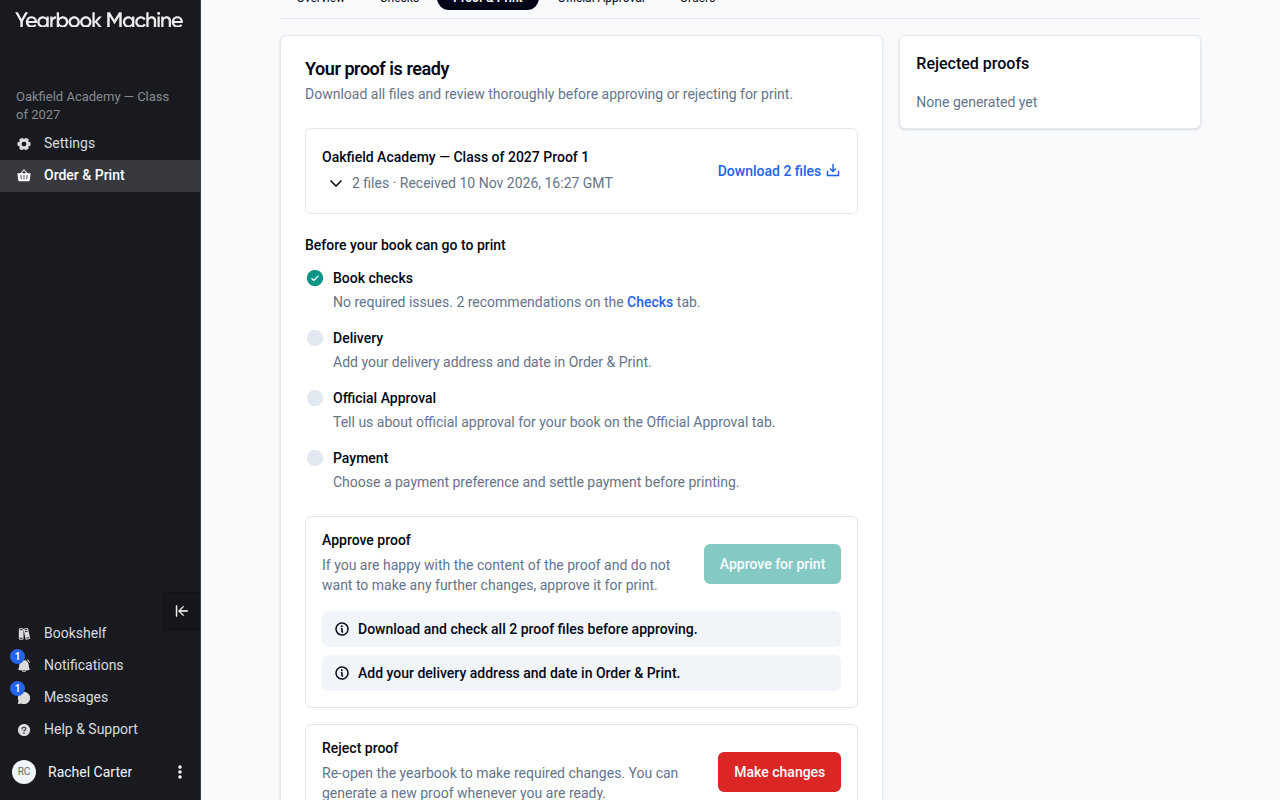
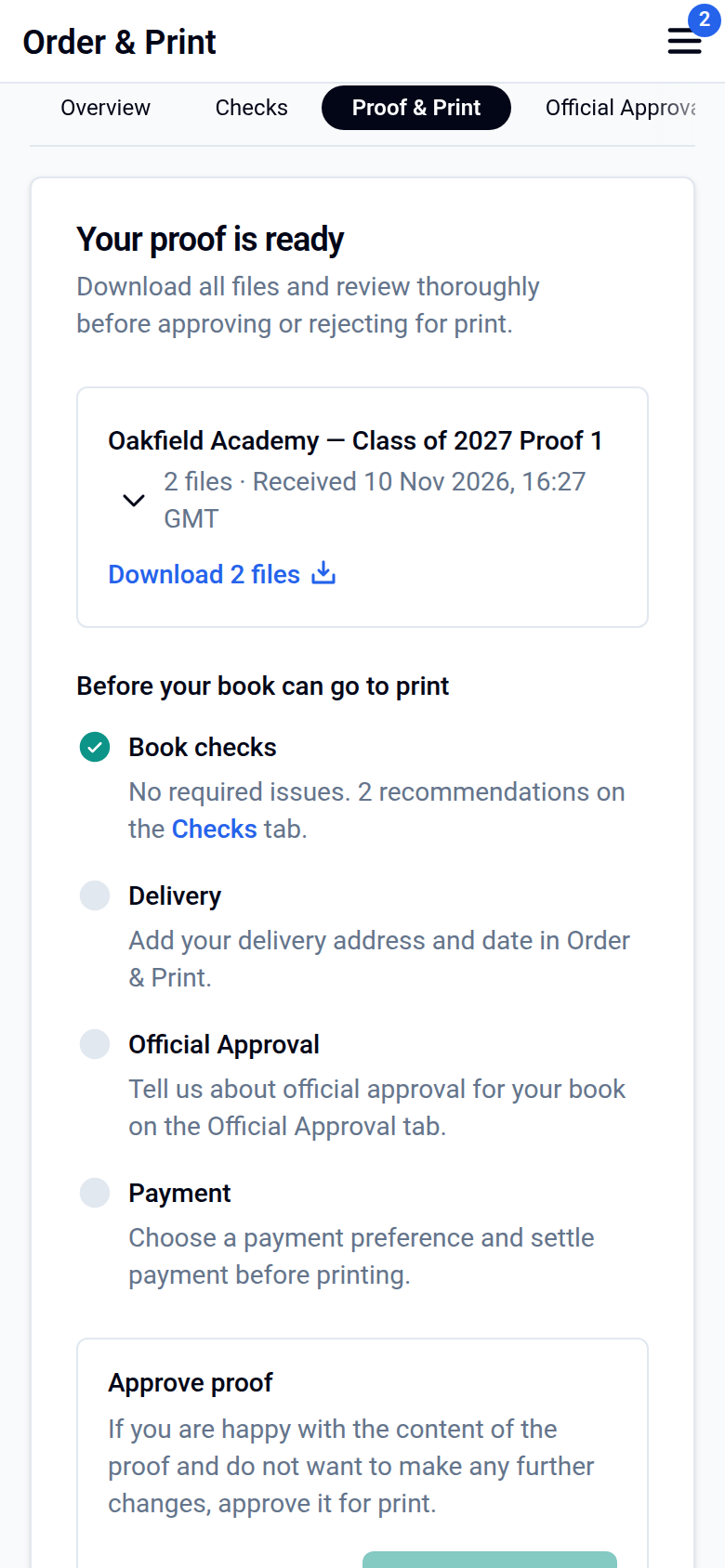
Important: telling us in a chat or email that you're happy isn't enough on its own – you'll still need to approve the proof yourself on the Proof & Print tab for your book to go ahead. This applies even if we've updated your cover or other options for you.
Making changes after your proof
If you spot something you'd like to change:
- On the Proof & Print tab, click Make changes, then click Confirm.
- Edit your book.
- Click Generate proof to create a new proof, then check it again.
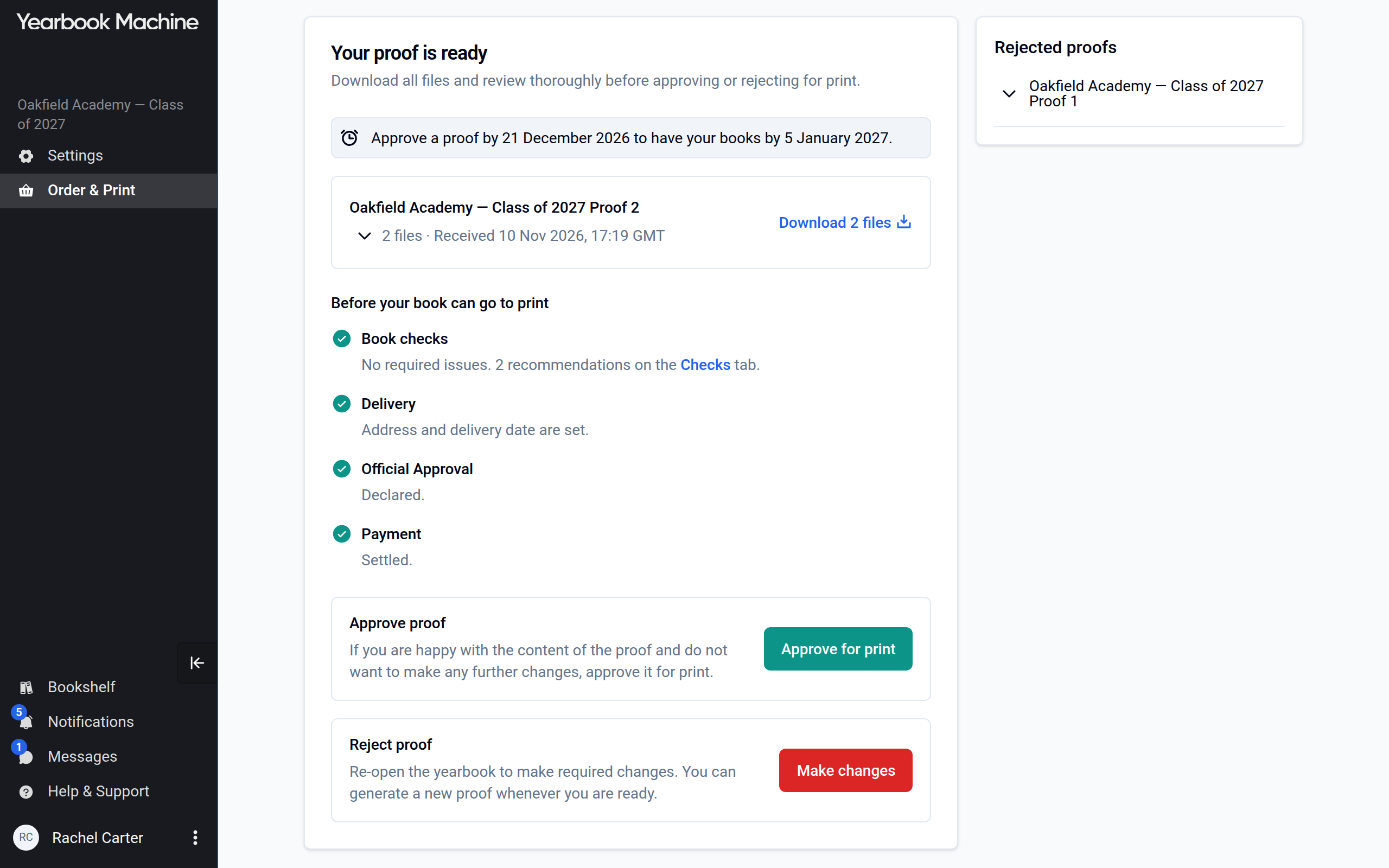
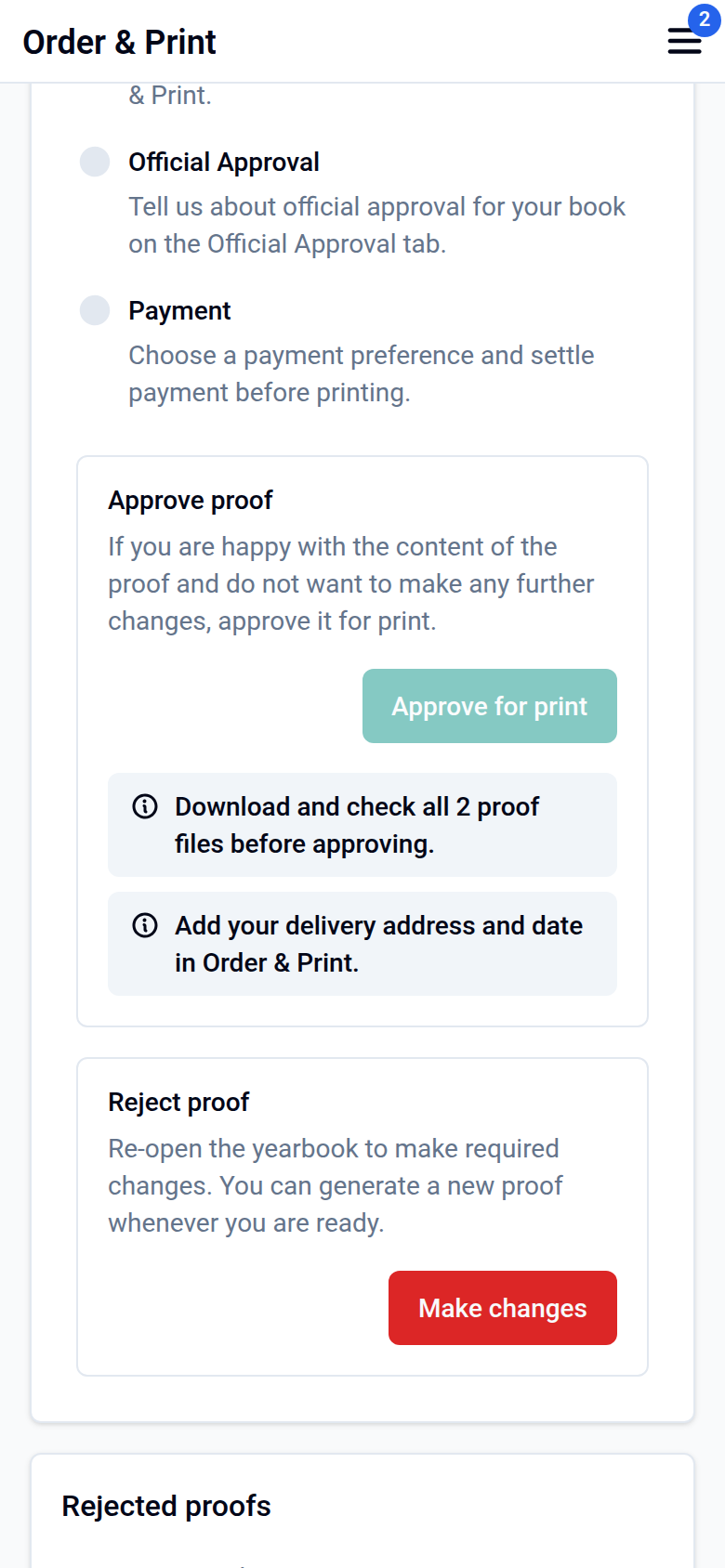
Please note:
- Your edits only appear in a proof once you generate a new one. If you can't see your changes, generate a fresh proof.
- For a small typo, you can simply let us know and we'll correct it for you before you approve.
- If you've already approved your proof, you can click Withdraw approval on the Proof & Print tab within 24 hours to reopen your book. After that, contact us and we'll help.
- If you've uploaded new cover artwork and would like us to check something like colour matching, let us know, then generate a new proof once you're happy.
- If your storefront is already open, adding or removing pages or changing the cover type may affect the price, so check with us first.
Payment and delivery
- Your books go to print only once your proof is approved and payment has been received, so pay promptly to avoid delivery delays.
- Printing takes about 4 working days for softback, 6 for hardback and 11 for leatherette after approval and payment, plus delivery time.
- If you're selling through a storefront, the price per book is based on your minimum target. If more copies are sold than your target, the price per book can drop, and the book's main editor chooses whether the surplus is refunded to every buyer or transferred to a bank account.
- Approving and paying before your print deadline can mean your books are ready and delivered earlier than planned.
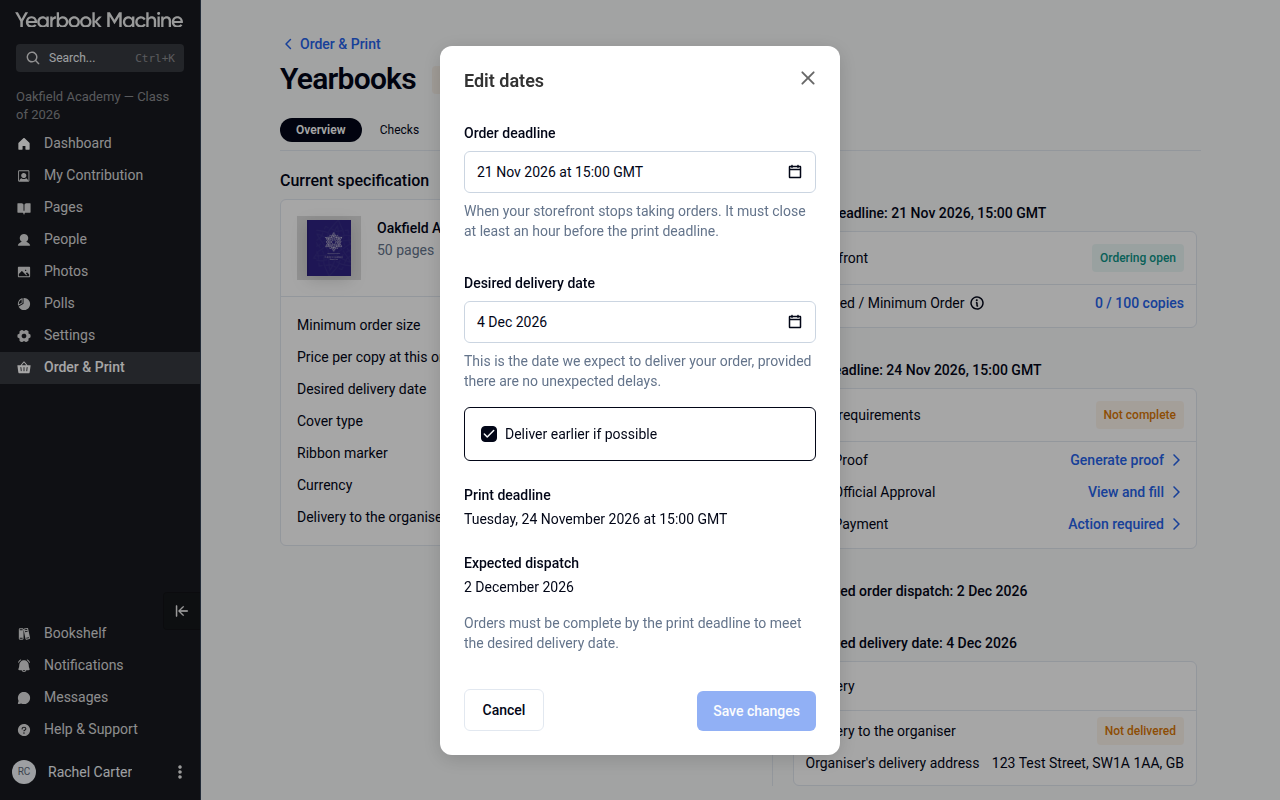
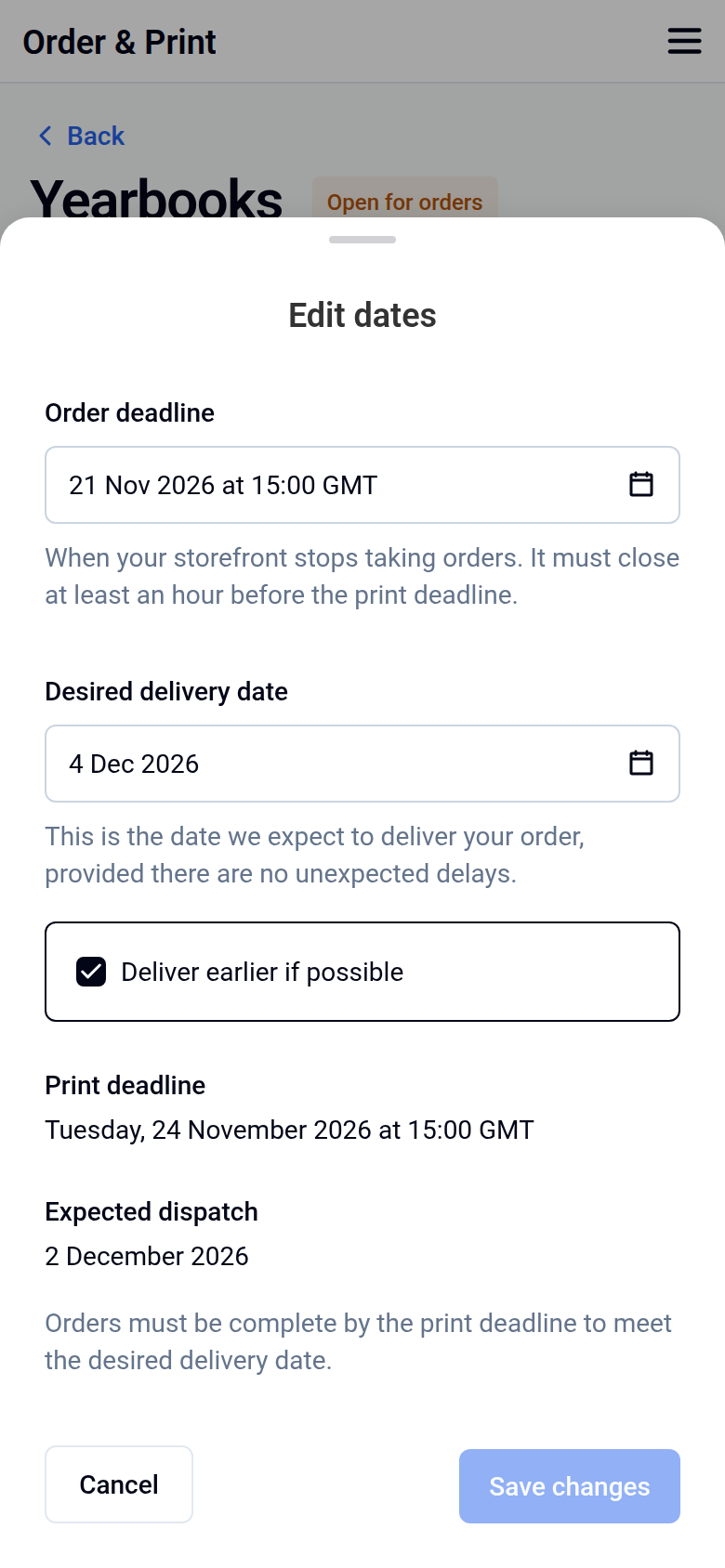
- To change the date you'd like your books delivered, go to Order & Print, click Yearbooks and change the Desired delivery date on the Overview tab. In Edit dates, choose the new date and click Save changes. The date can be changed until your book goes into production.
- Your books will arrive by courier between 9am and 5pm on the delivery date.
Official school approval
If your yearbook includes the school's name, an authorised teacher or staff member must approve it before it's printed:
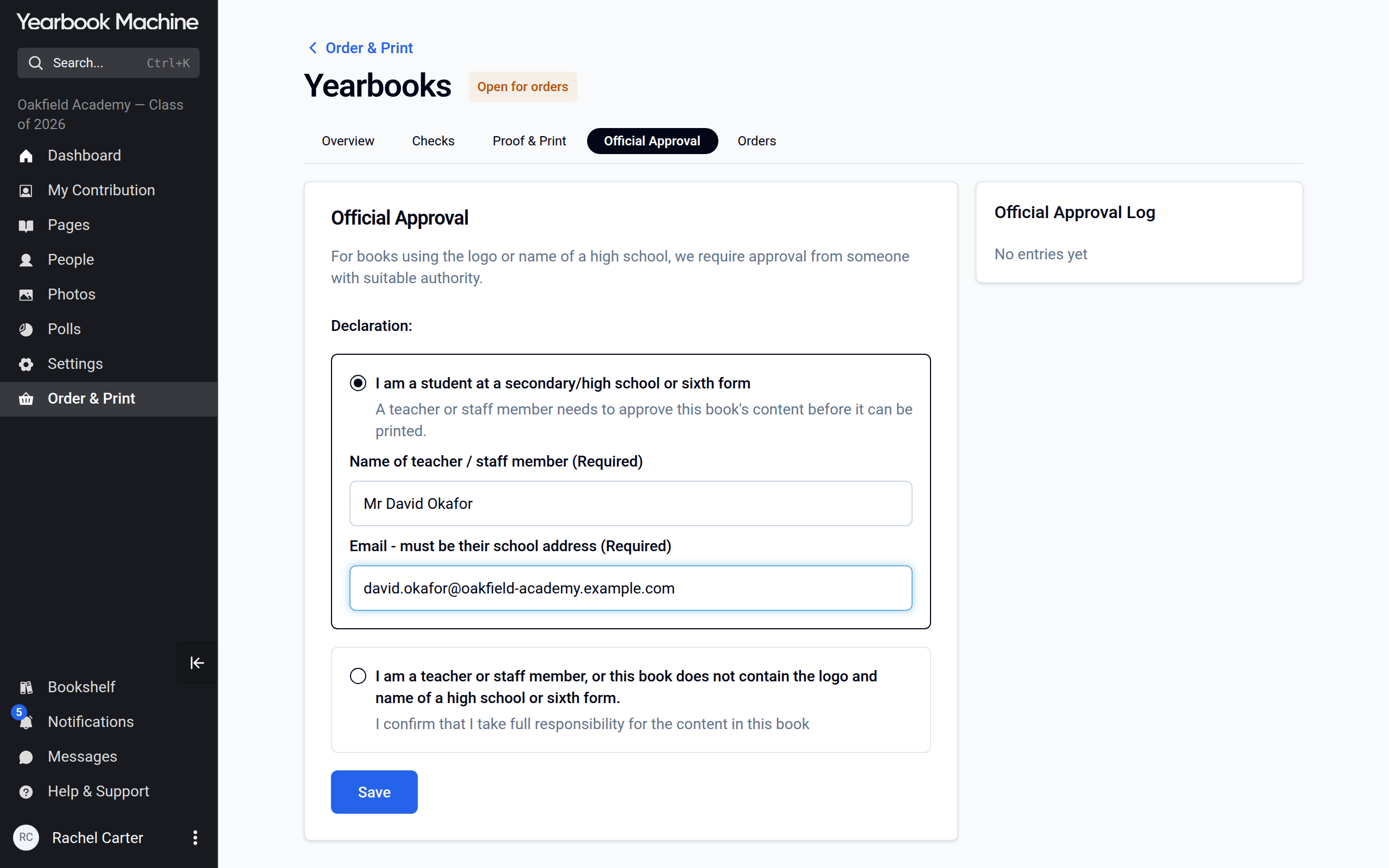
- In Order & Print, open Yearbooks and select the Official Approval tab.
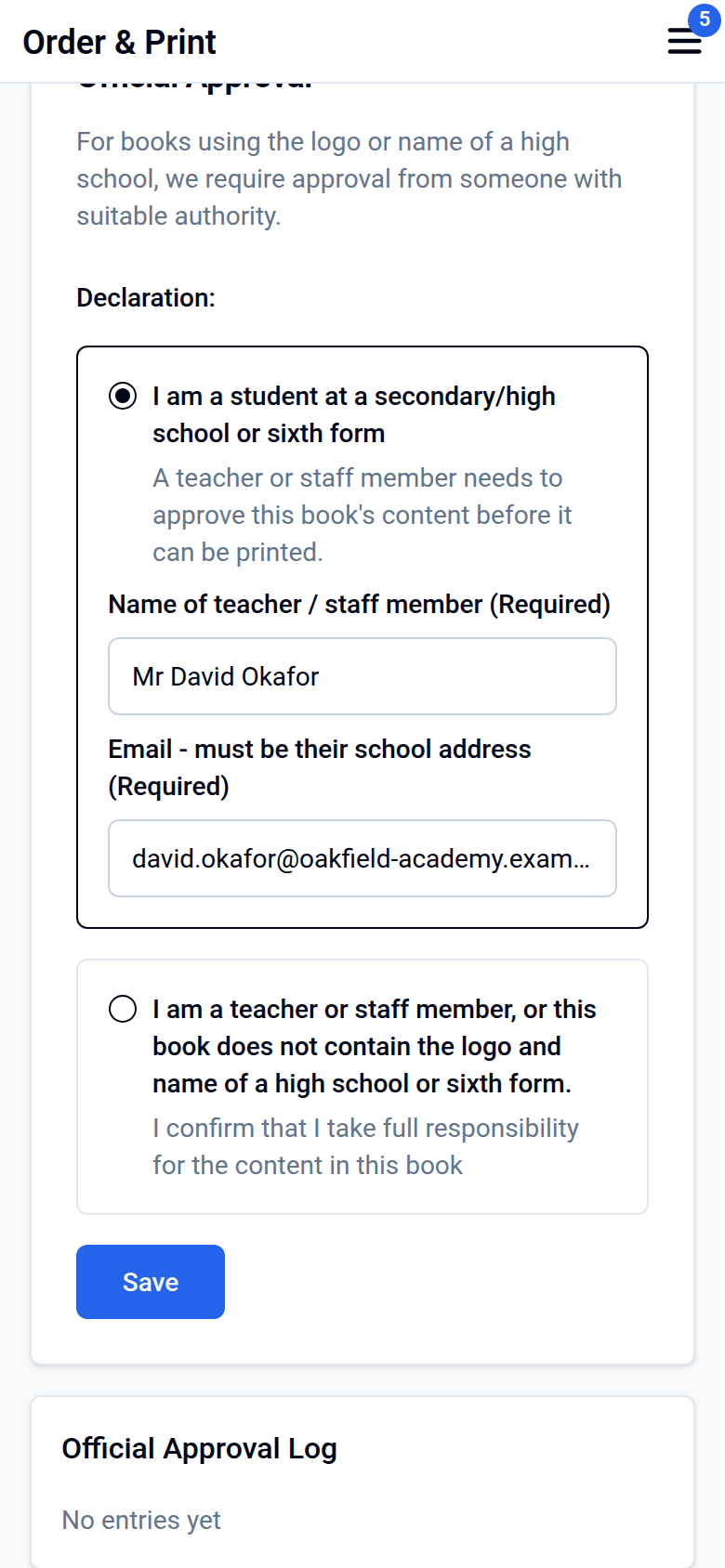
- If you are a student at a secondary school or sixth form, choose that option. Enter your teacher's name under Name of teacher / staff member (Required) and their school email address under Email - must be their school address (Required). We will ask them to approve the book's content before it is printed.
- If you are a teacher or staff member, or the book doesn't contain the school's name and logo, choose the second option to confirm that you take responsibility for the content.
- Click Save.
Students featured in the yearbook can't give official approval.
Spotted an error after printing?
Contact us and we'll reopen your book so you can make corrections. If you'd like help with a fix, such as making an endpaper photo fill the whole page, just ask. You can then choose between:
- A replacement sticker page – a lower-cost option (around £15) that covers the affected page.
- A reprint – single copies and small reprints are possible. There usually isn't a minimum, and we confirm each request with our printer. A reprint is priced for its own quantity.
You'll receive a new proof to approve and an invoice to pay before the order goes to production.
Need a copy after the book has gone to print?
If someone missed ordering, single copies and small reprints are possible – contact us and we'll check the order with our printer. With the editor's permission, we can also share a PDF of the cover and pages.
Was this article helpful?
Sorry, that didn't send. Please try again in a little while.
Thanks. That helps us improve this article.
Any other questions?
Email support@yearbook.com and we'll help you out.