
Changing the profile layout
This article explains how to change the way profiles look: how much space each takes, its style, which sections appear, and the arrangement of photos and text on a single profile. Book-wide changes are made by editors in Settings. A contributor can change the arrangement of their own profile page. For filling in a profile, see Completing your profile.
Changing the profile size and style (editors)
- Click Settings in the main menu and open the Contributions tab.
- In the Profile style card, choose a Profile size: how much space each profile takes. Sizes range from Double page, one profile across two facing pages, through Full page and Half page down to sizes such as Ninth of a page, which fit several profiles on one page.
- Under Style, choose the design style for your profiles. The open book beside it shows how profiles will look.
- If you chose Full page and the style has both kinds of layout, choose the Full-page layouts to use:
- Horizontal only: every full-page profile uses the style's horizontal layouts.
- Vertical only: every full-page profile uses the style's vertical layouts.
- Both: profiles can use either.
- Click Save.
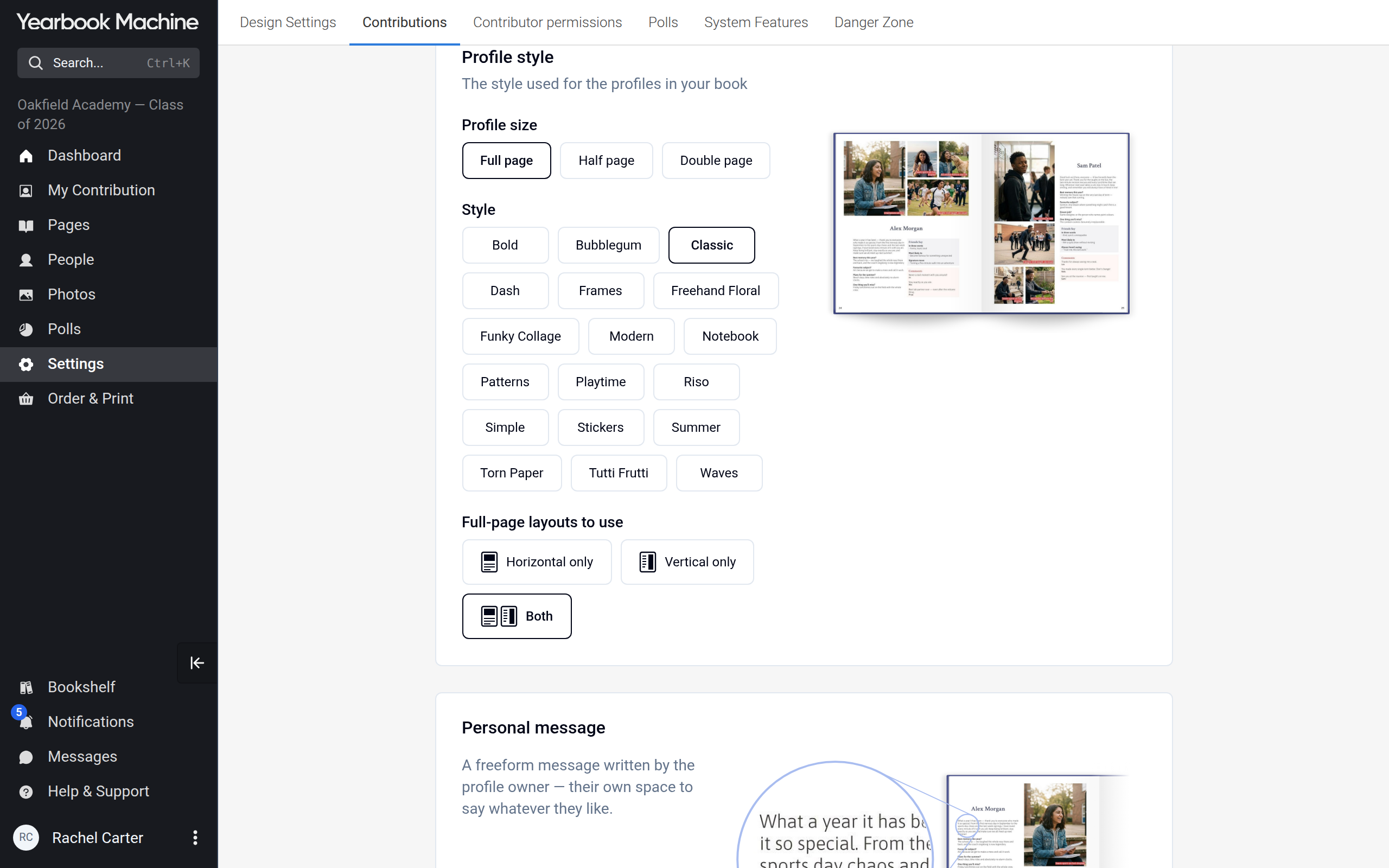
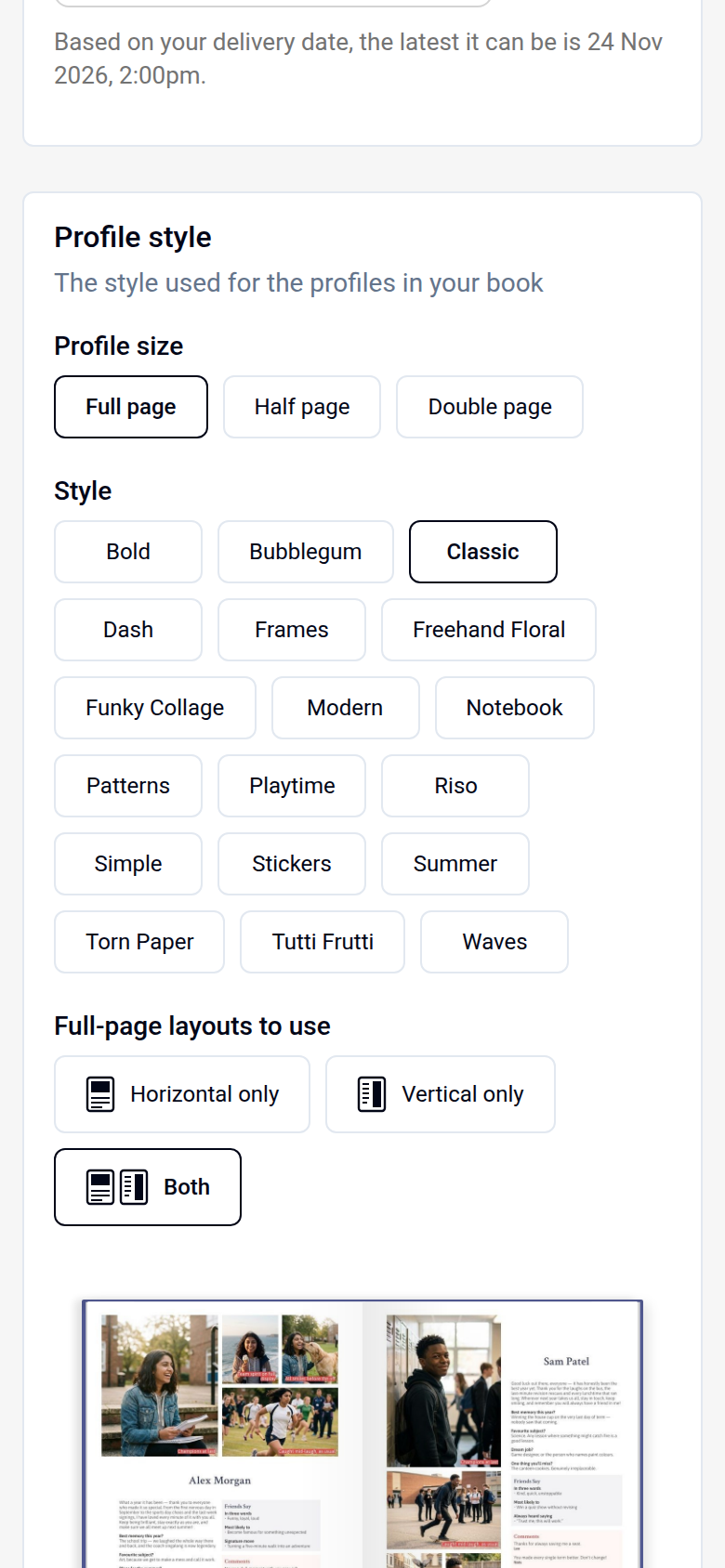
Changing the size, style or full-page layouts re-lays out every profile page in the book. Placed photos move to the new layout where possible. A larger size gives each contributor more room but adds pages to your book.
Choosing which sections appear on profiles (editors)
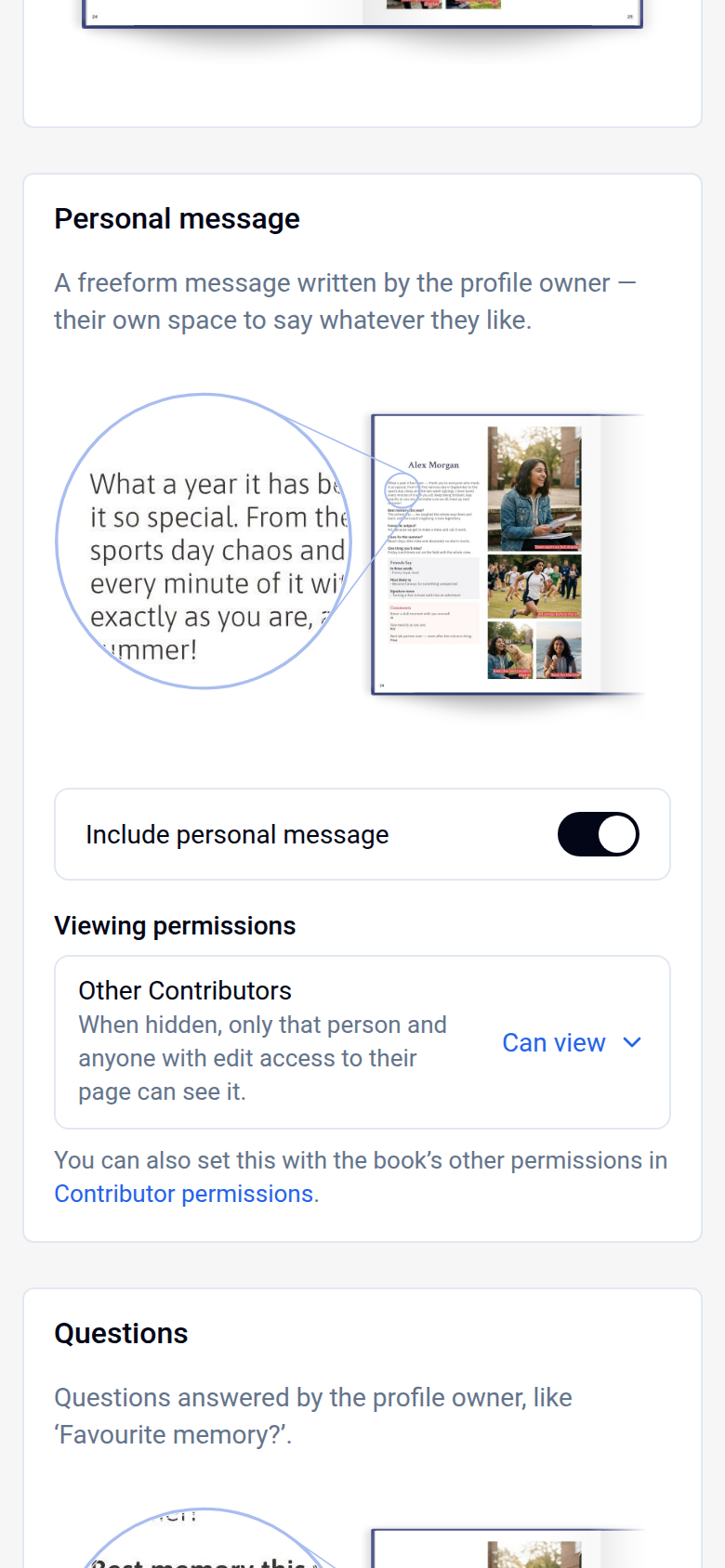
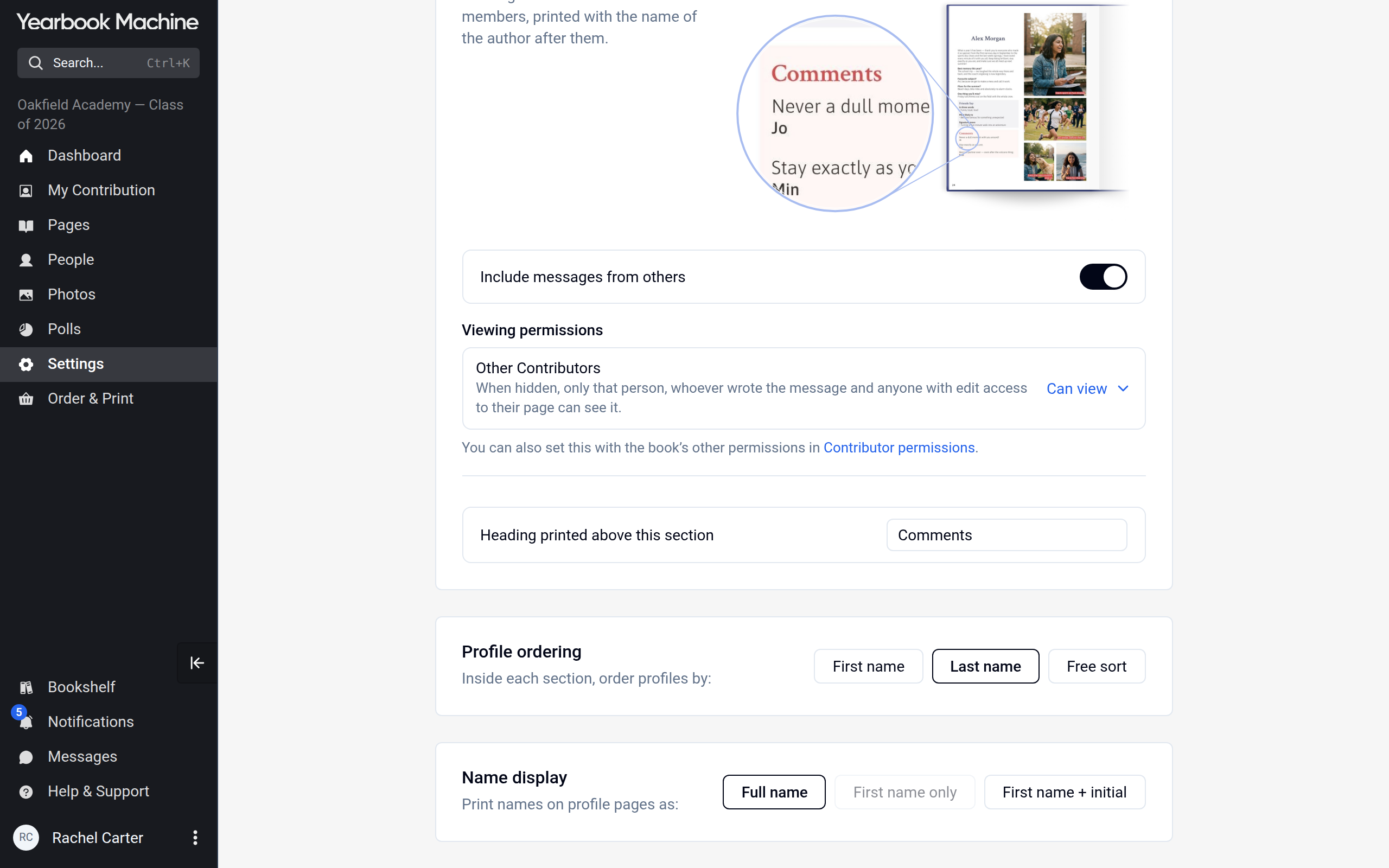
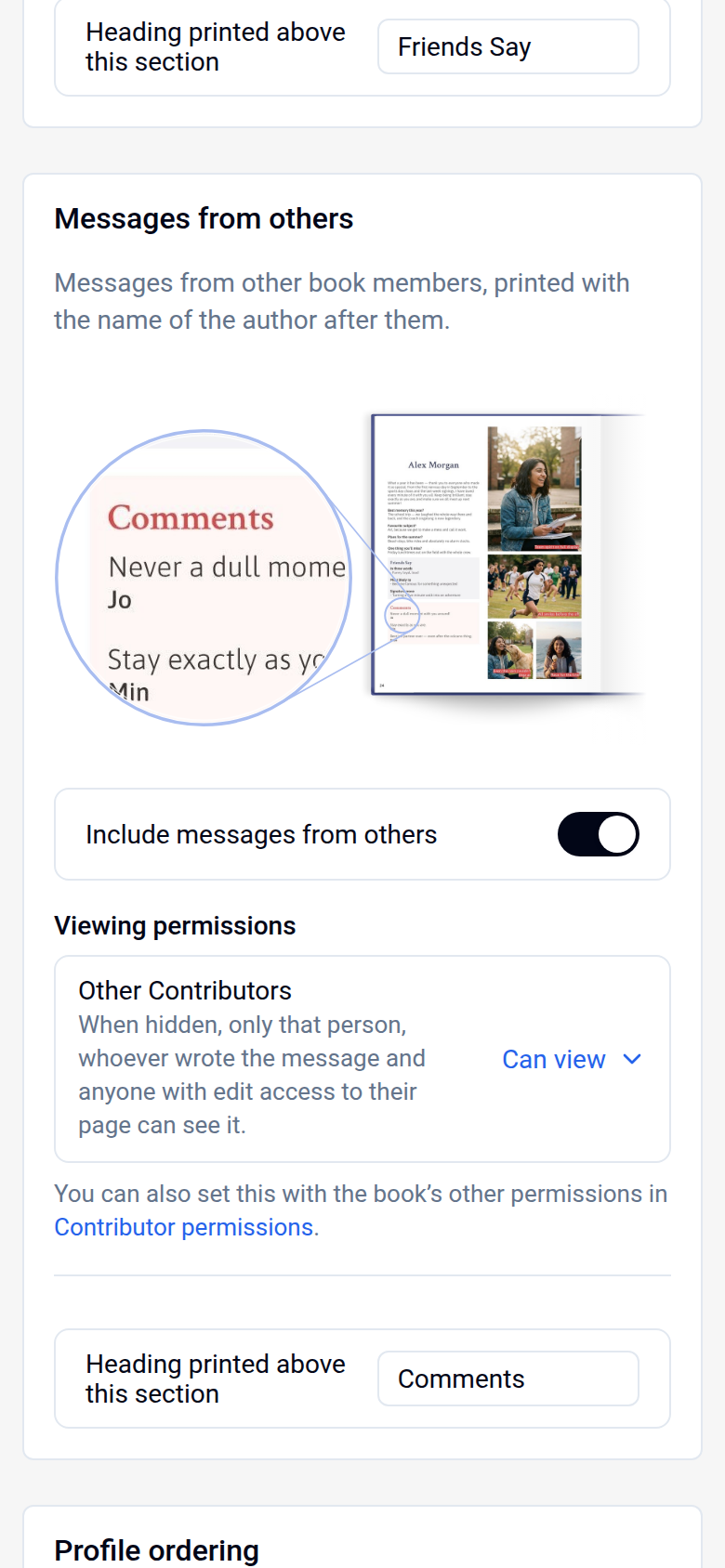
The rest of the Contributions tab controls what each profile contains. Each section you switch on also has Viewing permissions, where you choose whether Other Contributors can see that section. It saves straight away, and you can set it with the book's other permissions in Contributor permissions too.
- Include personal message: a free message written by the profile owner.
- Include questions: questions the profile owner answers about themselves.
- Include questions answered by others: topics other members of the book answer about the profile owner.
- Include messages from others: messages other members leave on the profile, printed with the author's name.
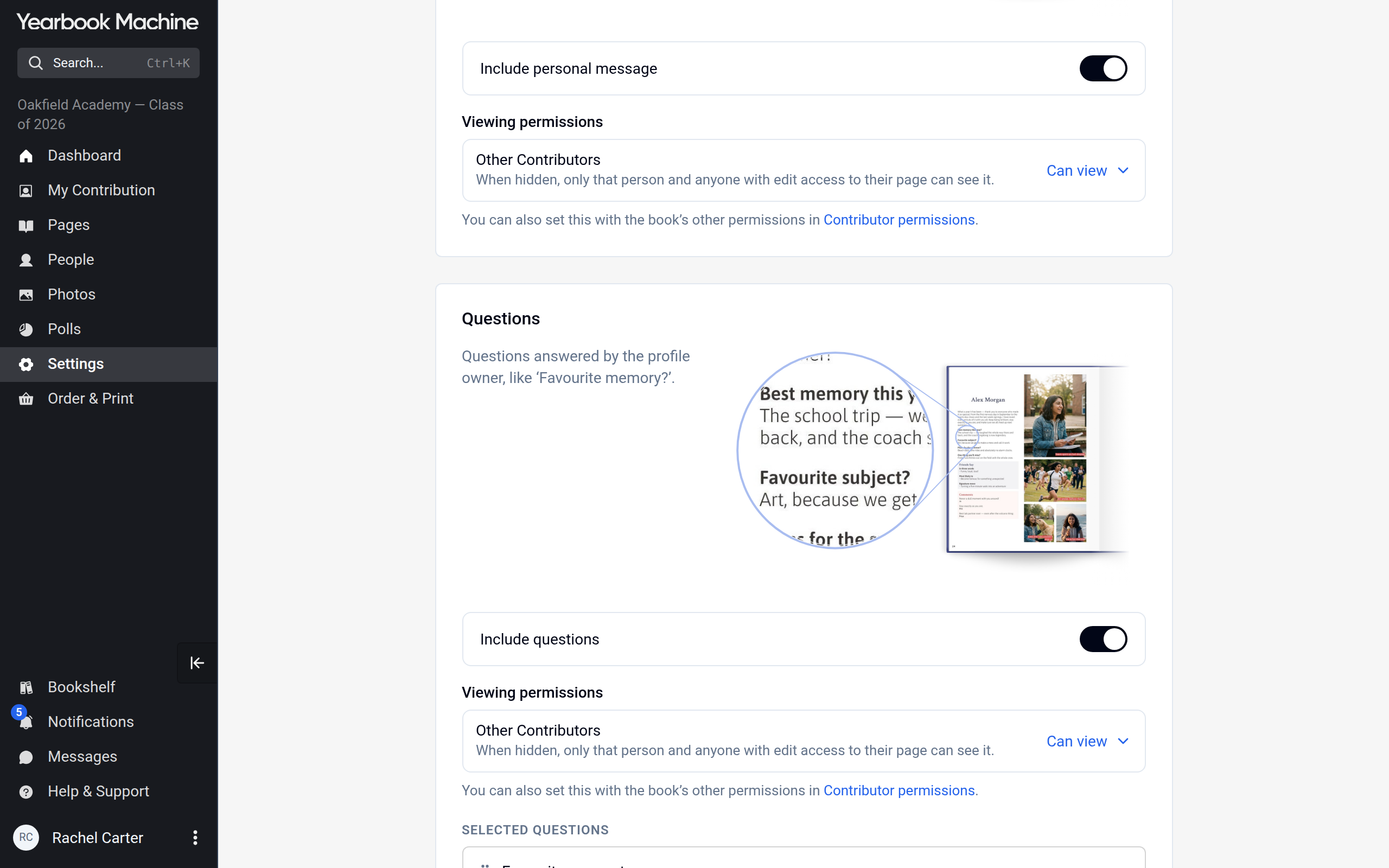
For each set of questions, Selected questions shows what contributors will be asked. Remove or reorder them there, and add more from Add questions. Allow contributors to add their own questions lets each person add questions to their own profile. You can also change the Heading printed above this section for questions answered by others and messages from others.
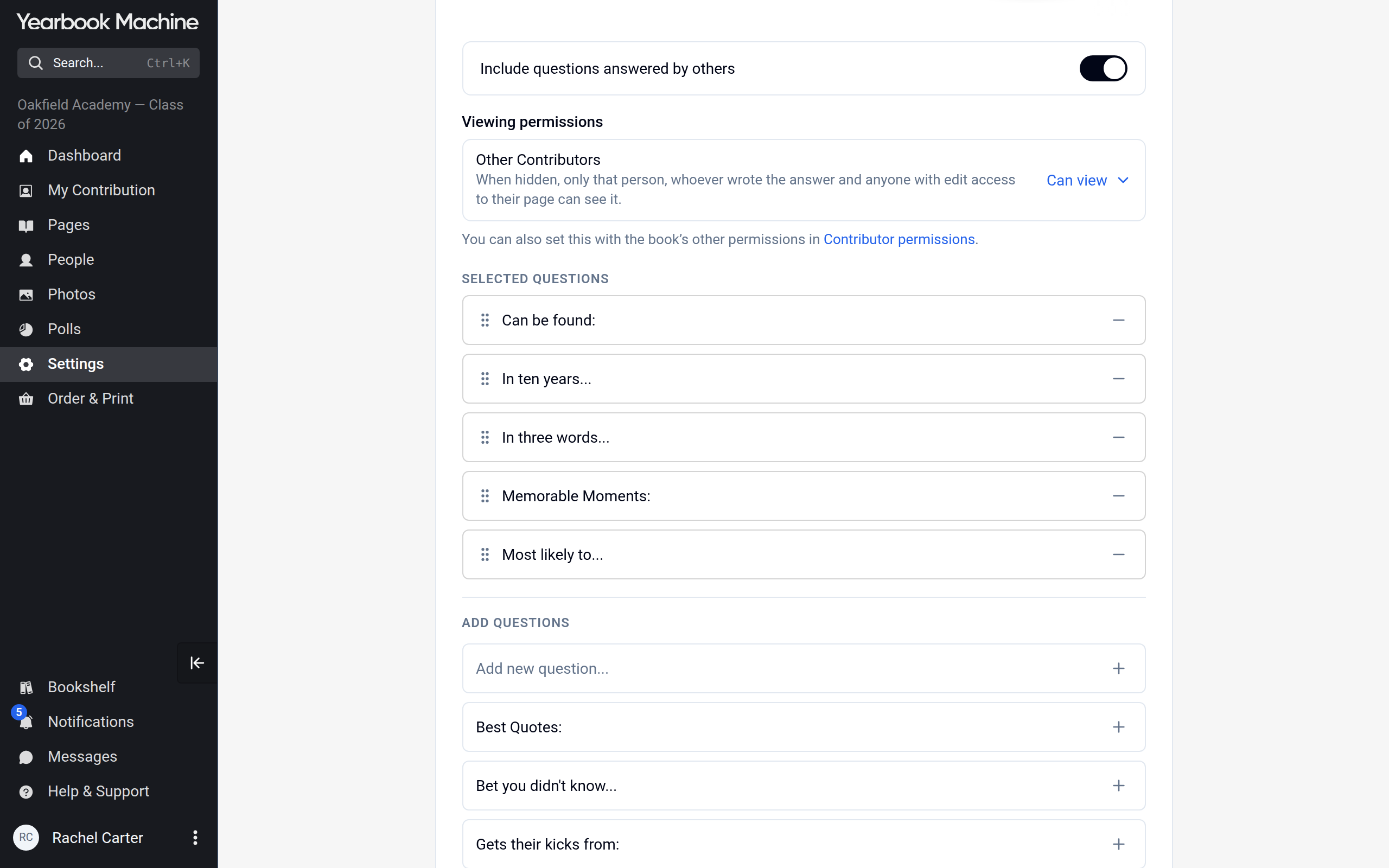
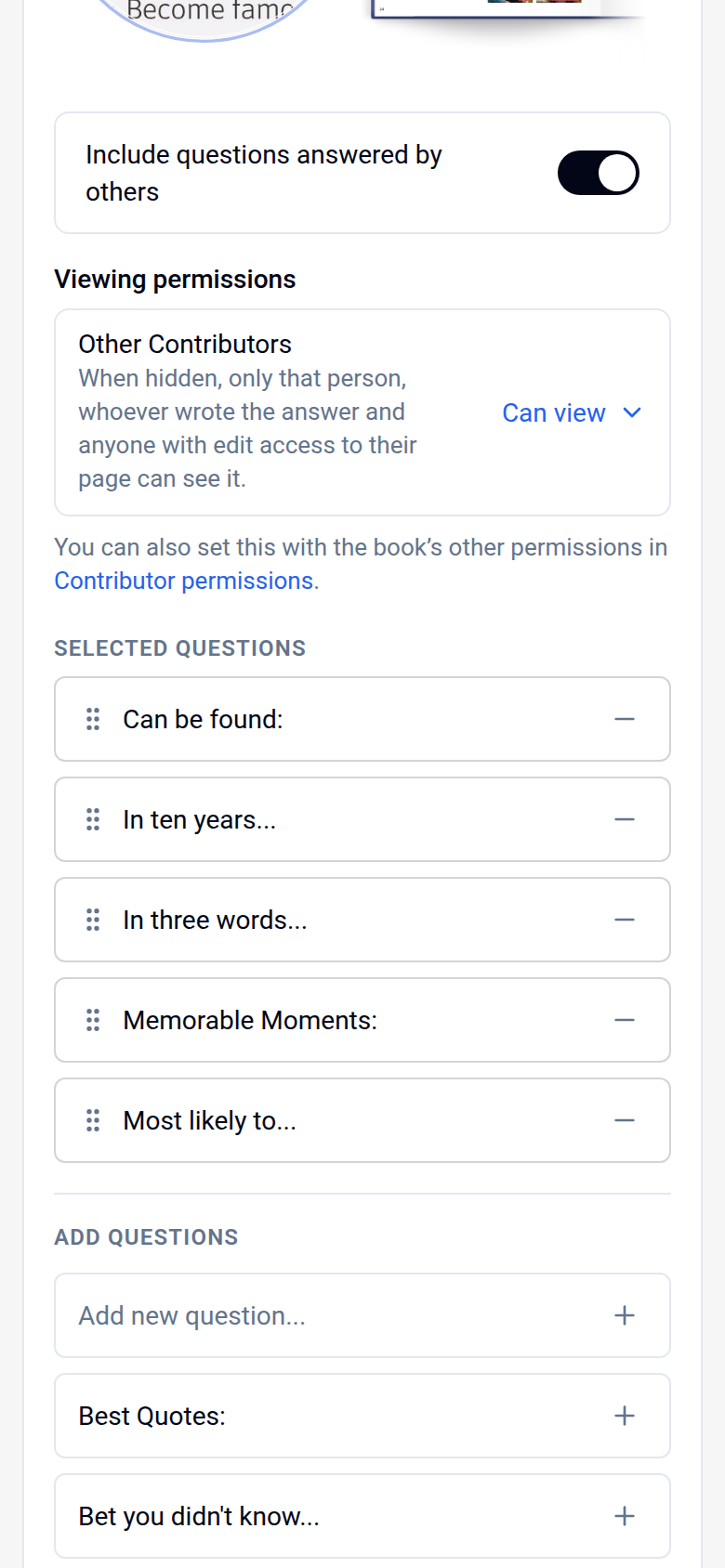
Profile ordering sets the order of profiles within each section, and Name display sets how names are printed. Click Save when you have finished.
Changing the arrangement of one profile
Most styles offer several arrangements of photos and text at each size. You can choose one for a single profile.
- Open the profile page in the page editor, the screen for working on a single page.
- Open the Layout tab. Each card under Templates shows a different arrangement. If your book uses both full-page layouts, the cards are grouped under Vertical and Horizontal.
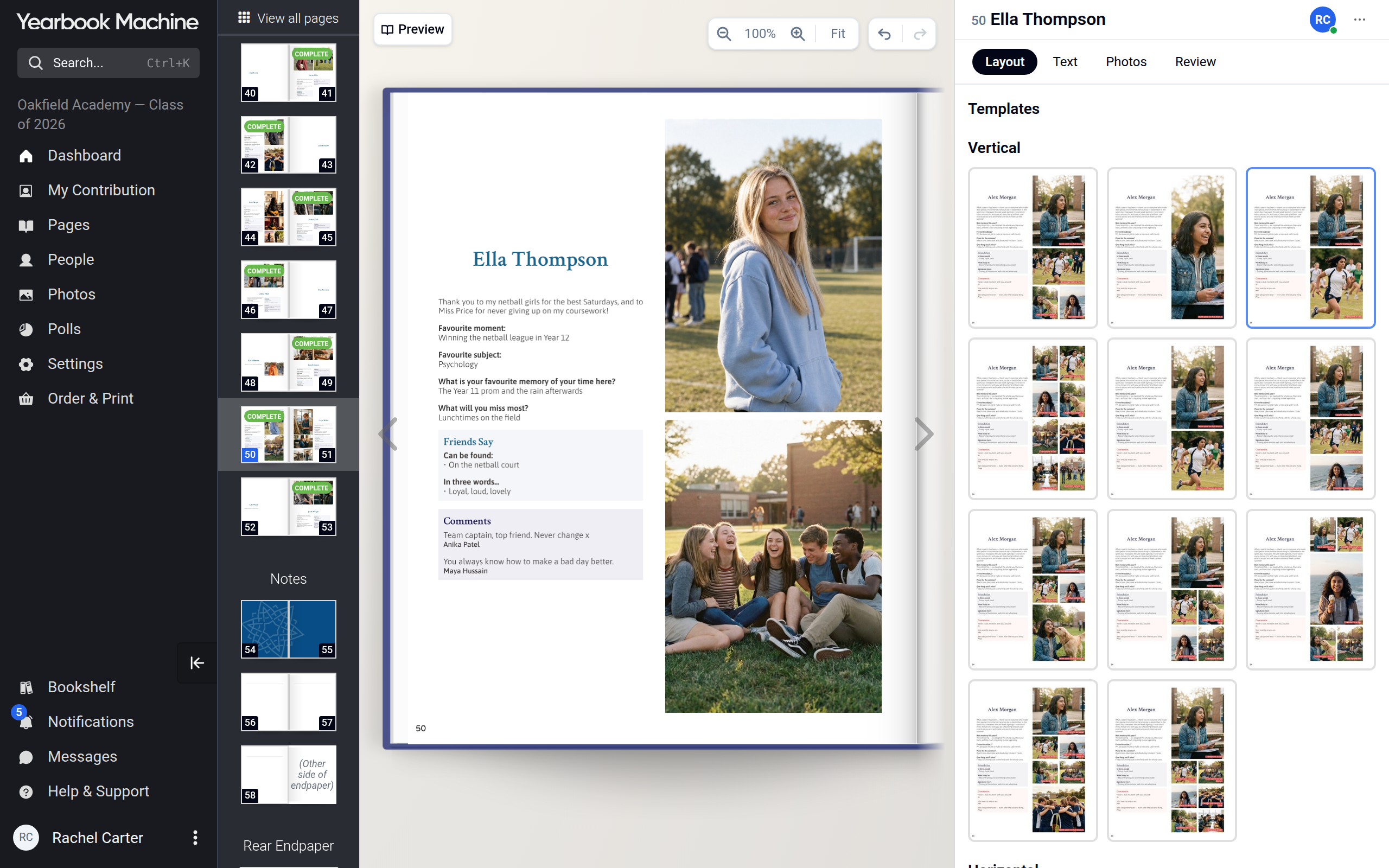
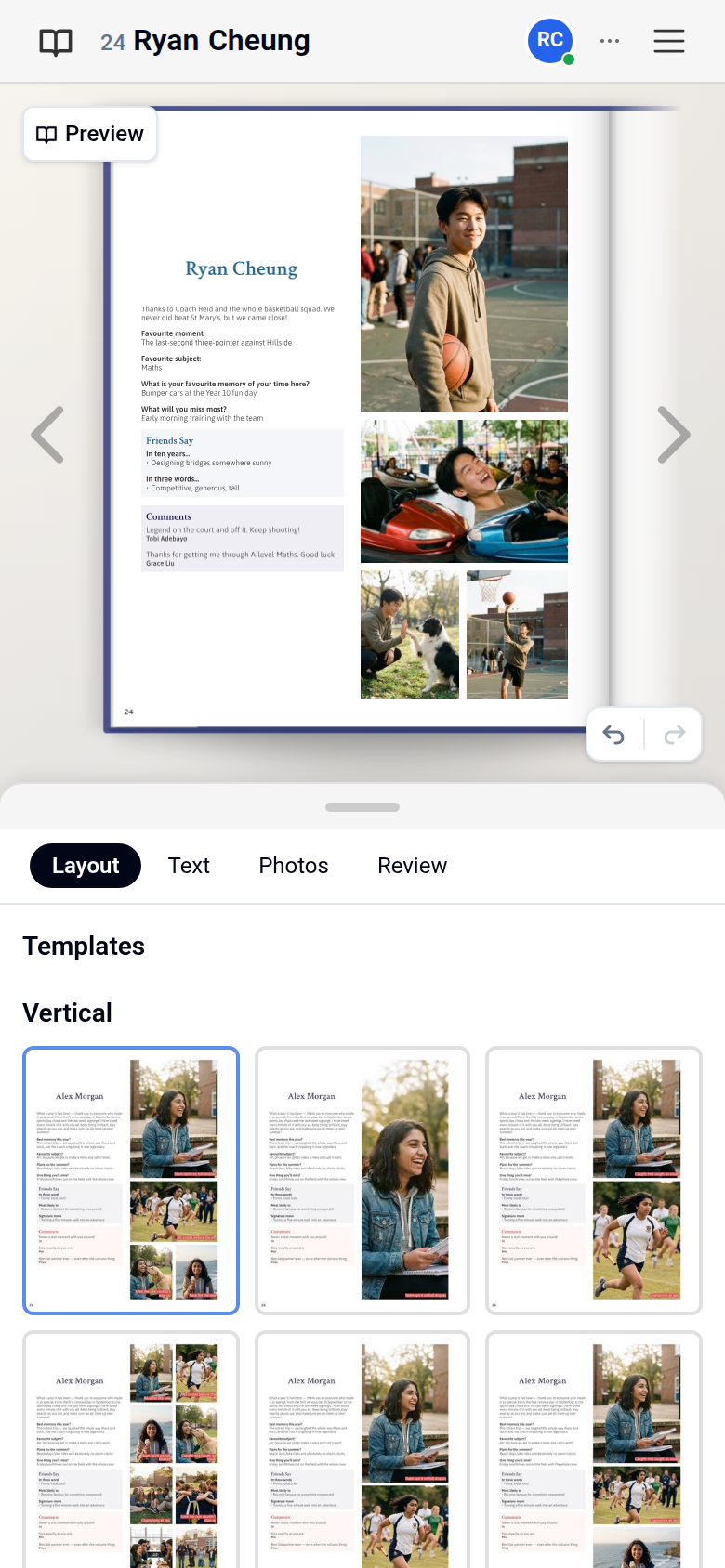
- Click the arrangement you want. If some of your photos won't fit it, you are asked Apply this arrangement? Click Apply arrangement to go ahead. Photos that don't fit go back to the Photos tab.
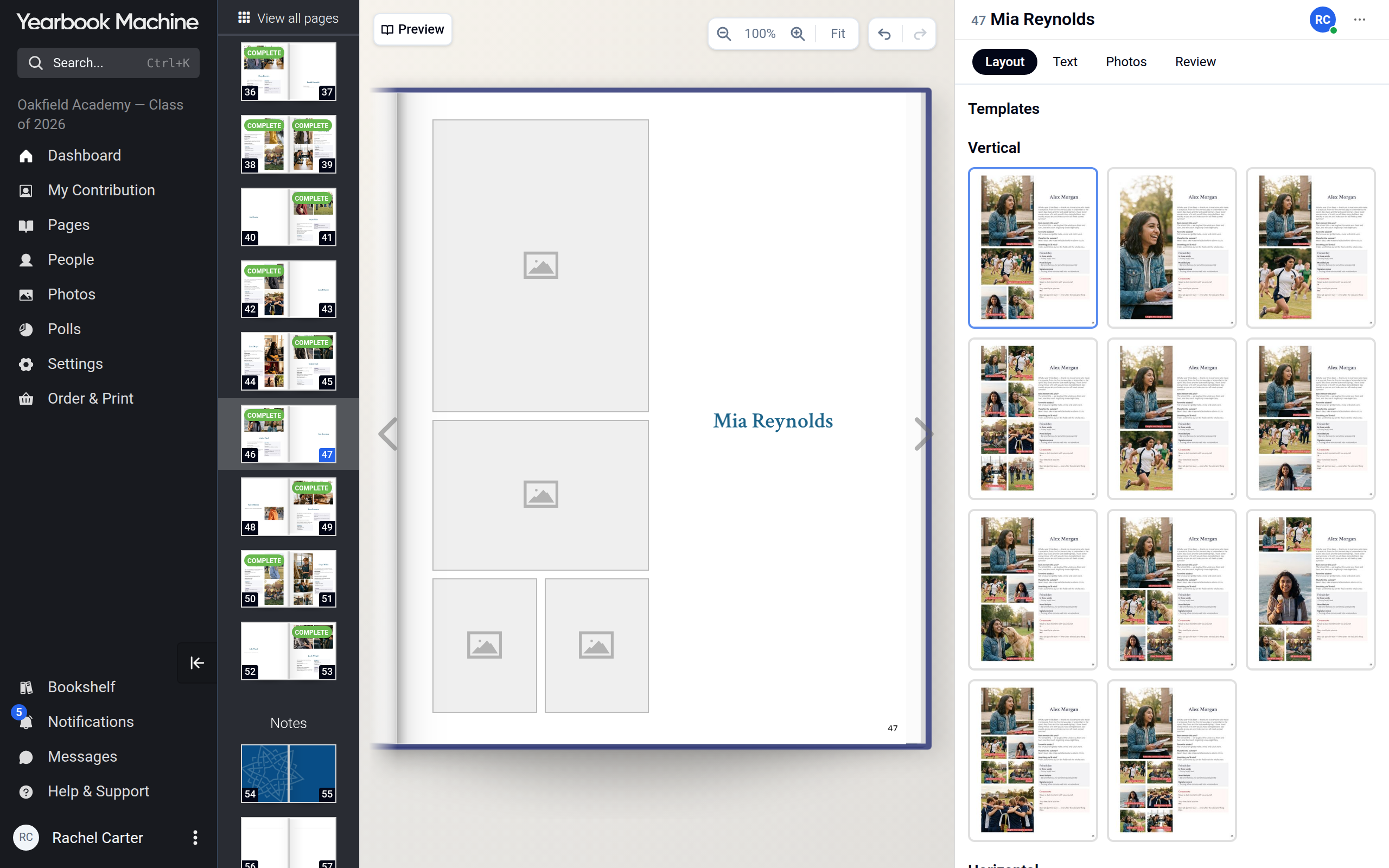
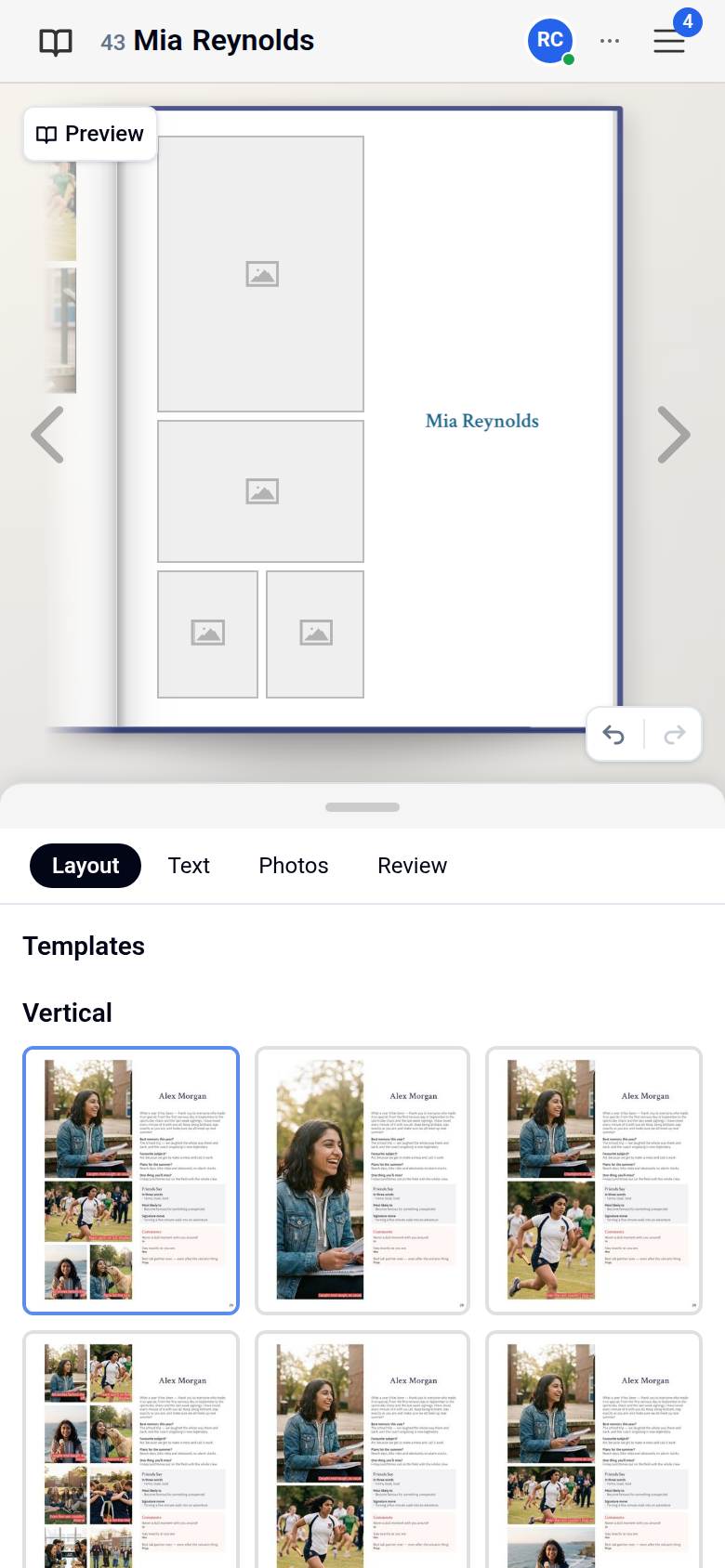
If the Layout tab is missing, your book's style offers only one arrangement at this profile size.
Common questions
Can we move the text and photos around freely on a profile?
No. Profiles are laid out automatically from each contributor's answers and photos. Choose a different arrangement, size or style instead, or untick Print? beside items to leave them out.
Why can't anyone add a profile yet?
Profiles can't be added until contribution setup is done. On the Contributions tab, click Set up now to be guided through it, or choose a Profile style and save the settings yourself.
Will changing the size lose our contributors' answers?
No. Answers and messages are kept, and placed photos move to the new layout where possible.
Can contributors change the profile size?
No. Only editors can open Settings. Contributors can choose an arrangement for their own profile page.
Was this article helpful?
Sorry, that didn't send. Please try again in a little while.
Thanks. That helps us improve this article.
Any other questions?
Email support@yearbook.com and we'll help you out.