
Help Editor guide Ordering and payment
Setting up your order
Before your books can be printed, an editor sets up how they are ordered, paid for and delivered. This article walks through that setup in Order & Print.
Starting the setup
- Click Order & Print in the main menu.
- On the Products tab, click the Yearbooks panel.
- Click Complete ordering setup.
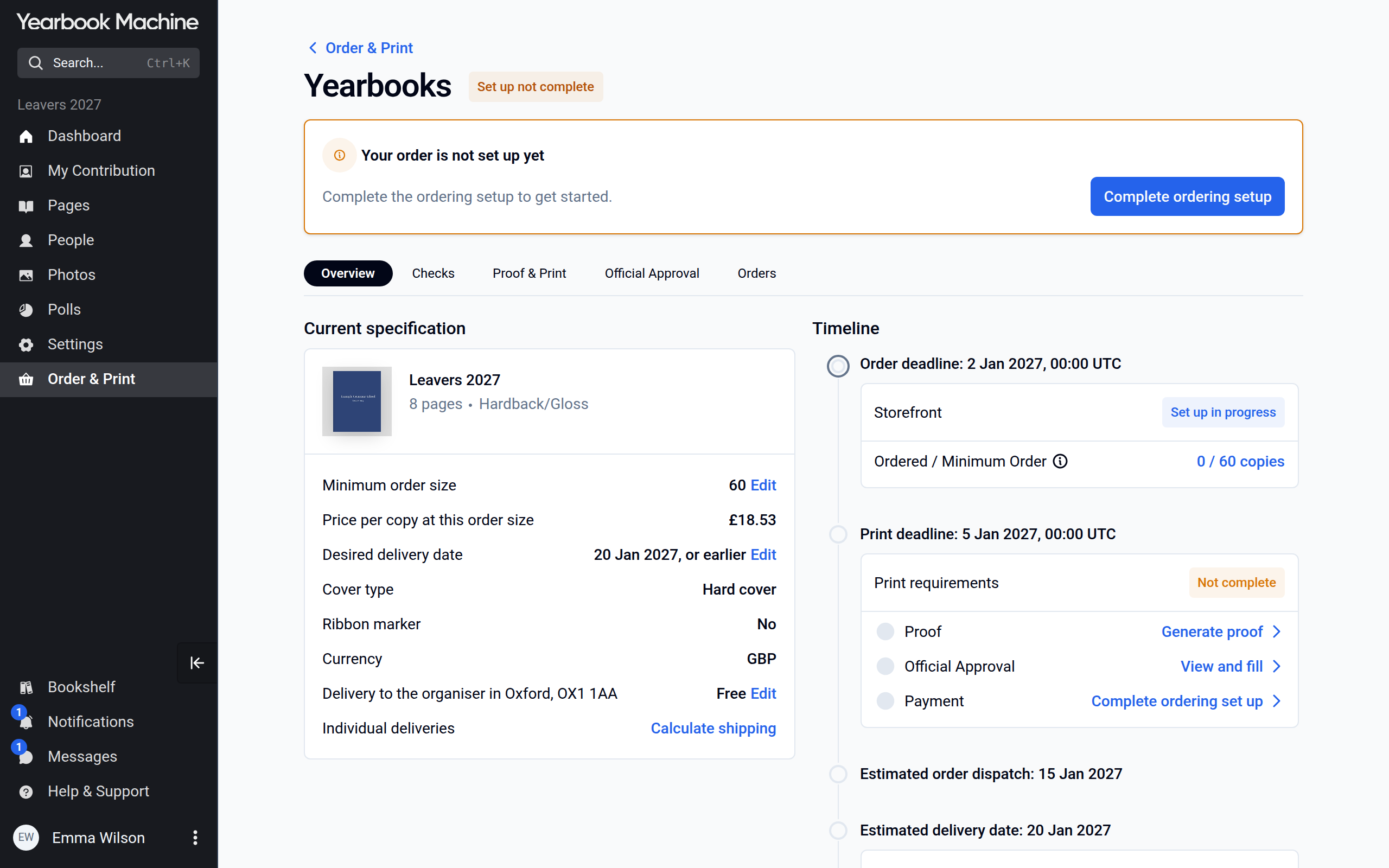
You can leave at any point with Save and exit, and carry on later from the same step.
Confirm the book specification
Enter the number of copies, the country the books go to and the currency. The price updates as you go. The pages, cover type and extras come from your book, so finish those first. Tick I confirm this is the final specification, then click Set up ordering.
Books are priced from 30 pages, the fewest that can be bound, so a shorter book costs the same as a 30-page one.
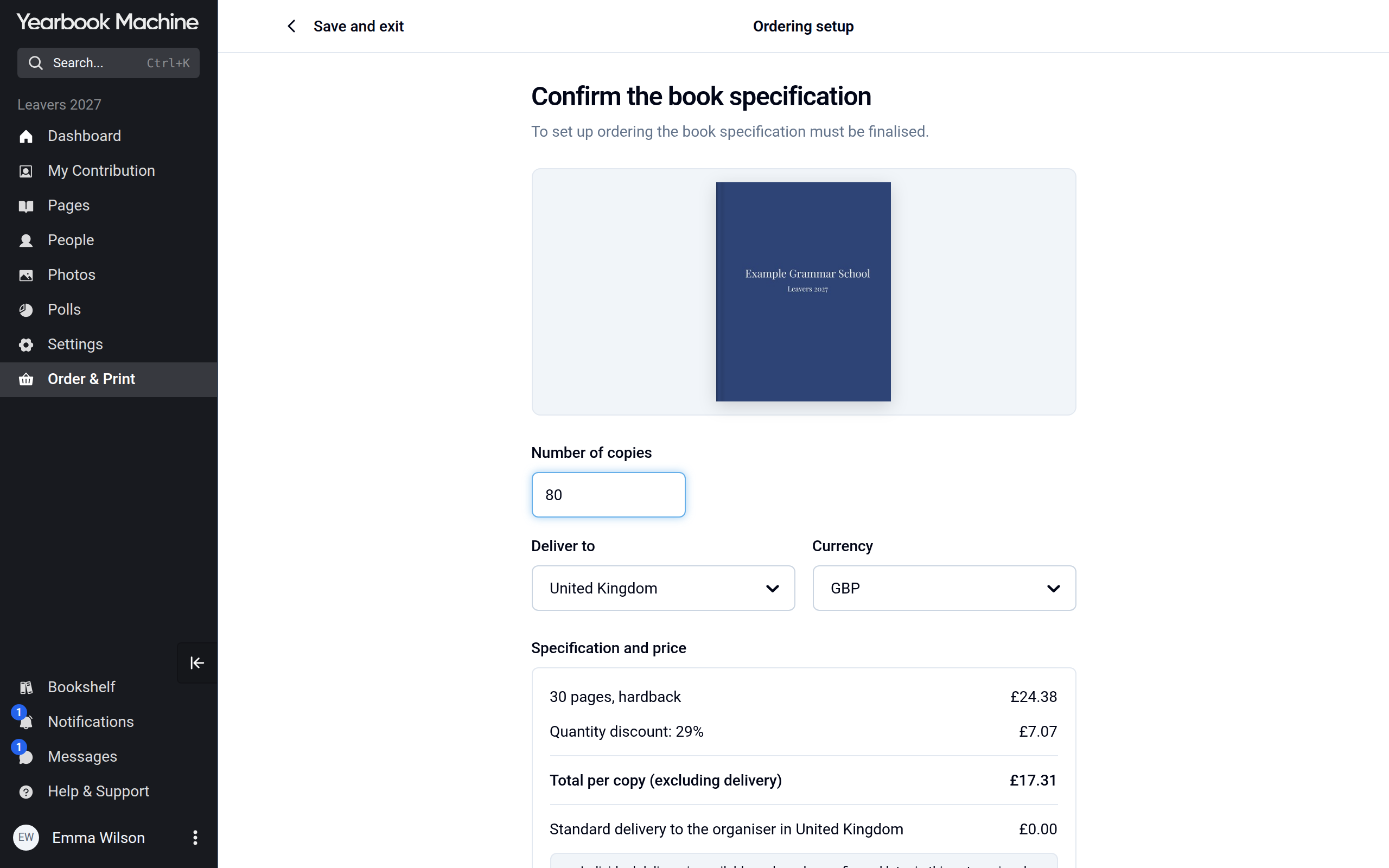
For 10 copies or fewer, the setup skips straight to the delivery address, shipping and the summary.
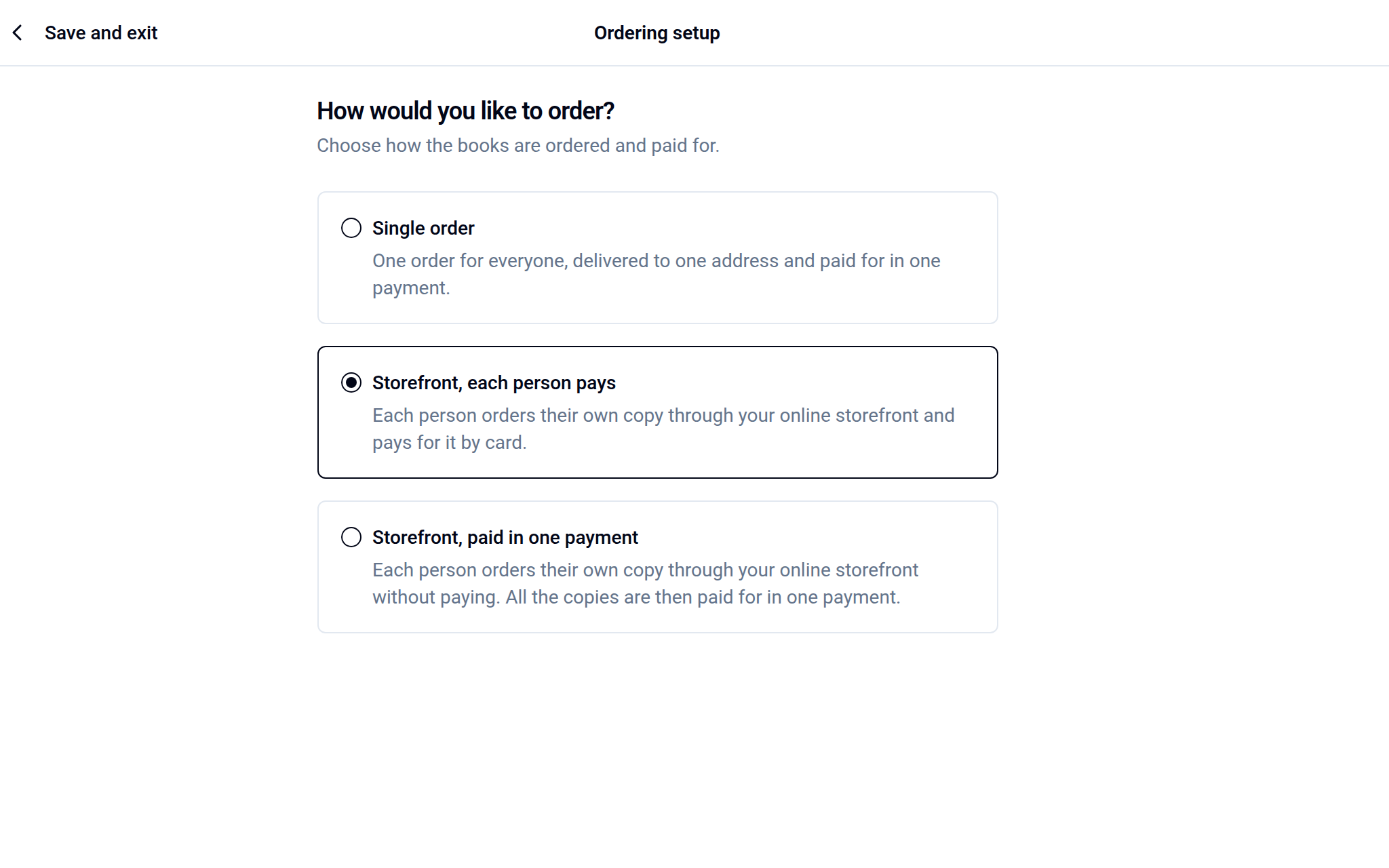
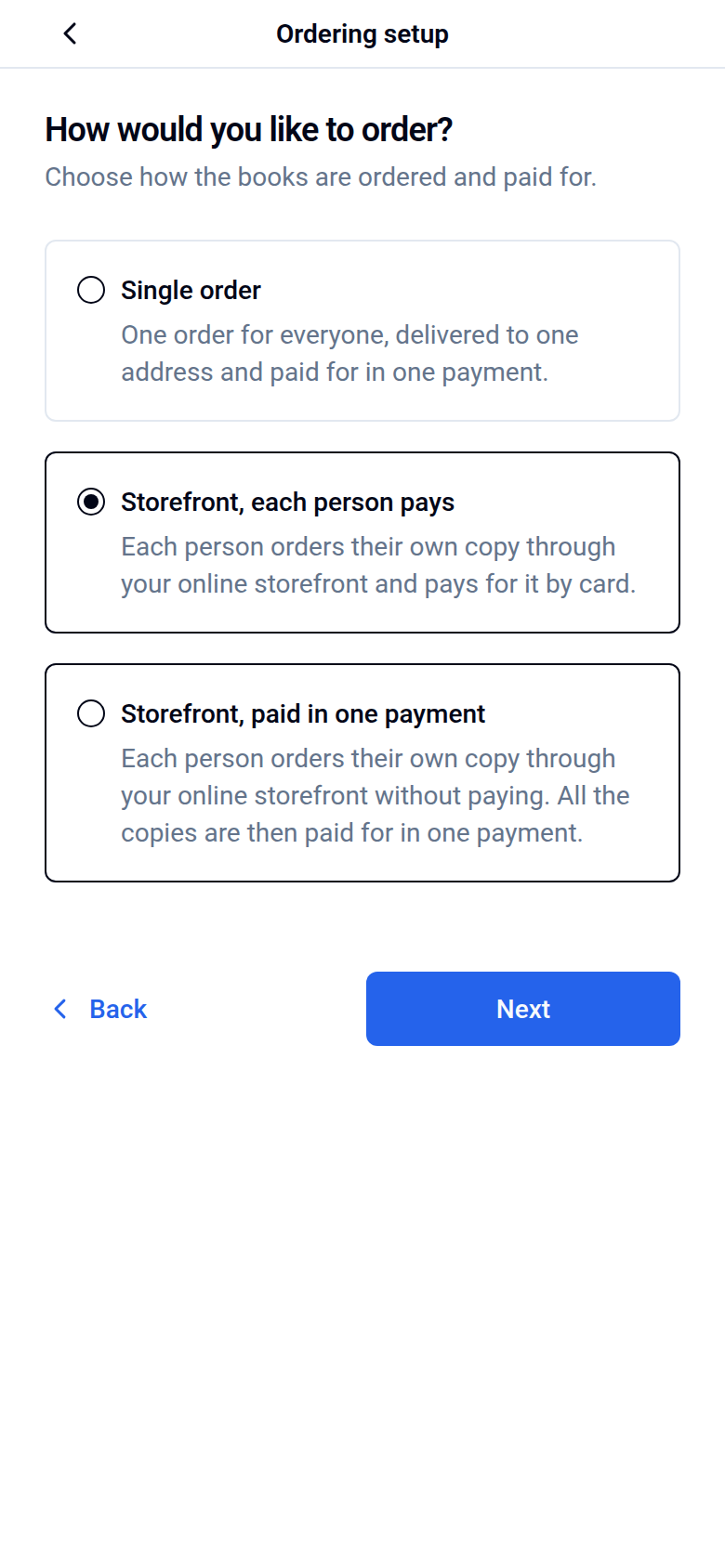
How would you like to order?
- Single order: one order for everyone, delivered to one address and paid in one payment.
- Storefront, each person pays: each person orders their own copy from your online storefront and pays by card.
- Storefront, paid in one payment: each person orders without paying, and all the copies are then paid for in one payment.
The remaining steps
Which steps you see depends on your choice.
- Where the books are delivered (storefront only): to the organiser's address, to each buyer's home, or both.
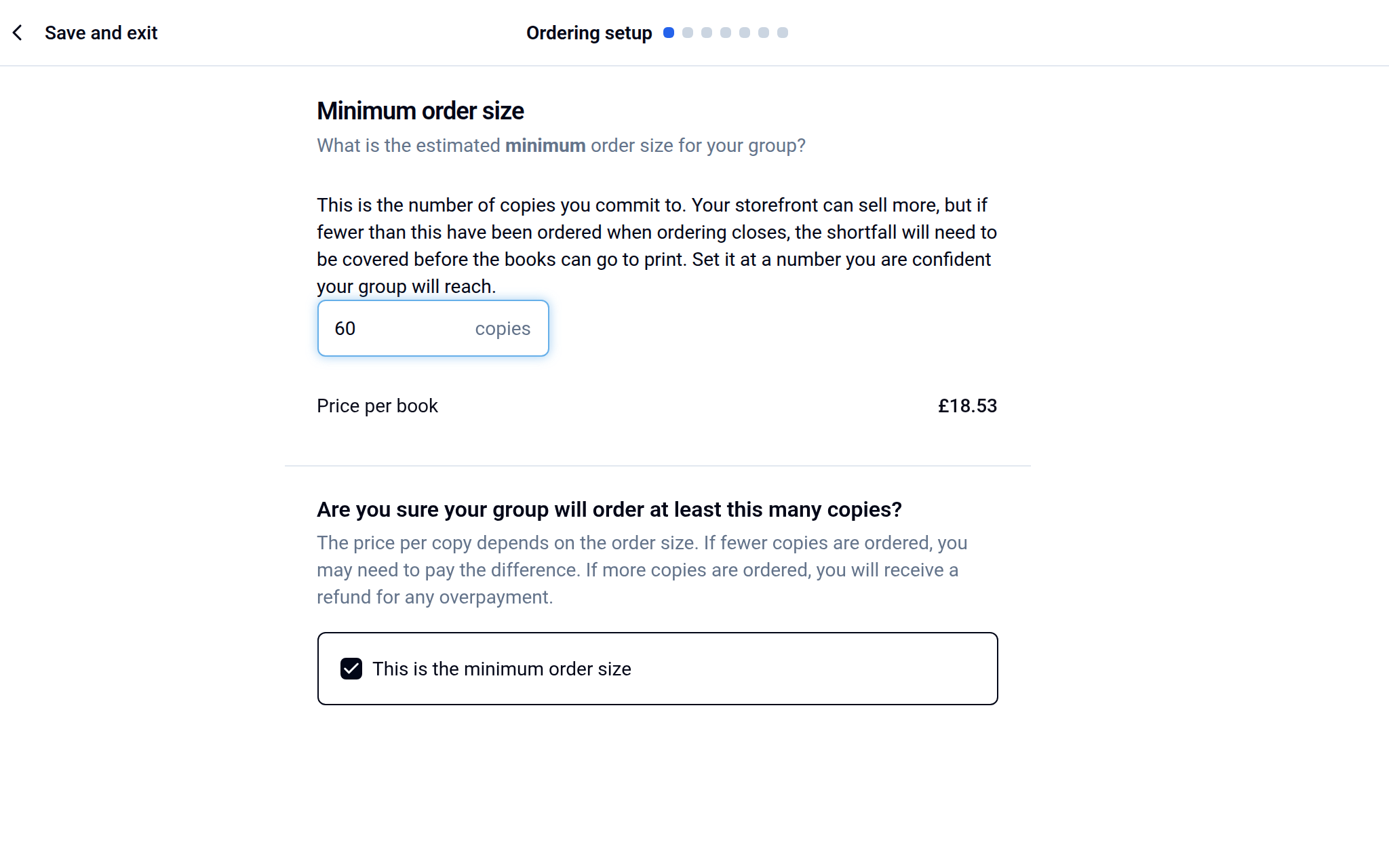
- Minimum order size (each person pays): the number of copies you commit to. If fewer are ordered by the deadline, the shortfall must be paid before printing. For a storefront paid in one payment, you give an estimate instead, and you're billed for the copies actually ordered.
- Organiser's delivery address, then Shipping: choose a delivery service.
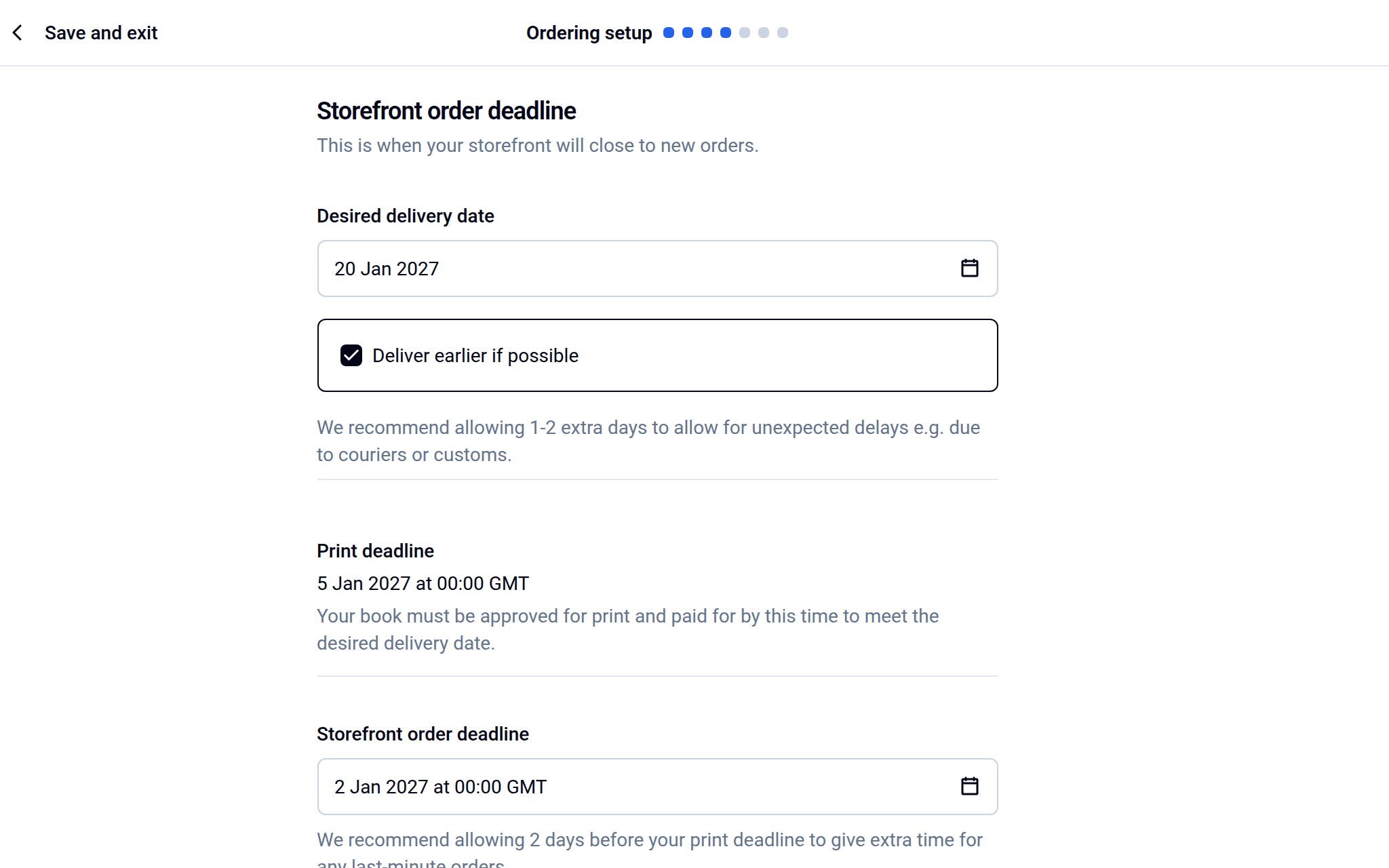
- Dates: your desired delivery date, and the print deadline worked out from it. A storefront also has an order deadline, when it closes to new orders.
- Payment email preferences: who gets emails about payment.
- Emails to contributors (storefront only): whether we email contributors when the store opens, with reminders before it closes.
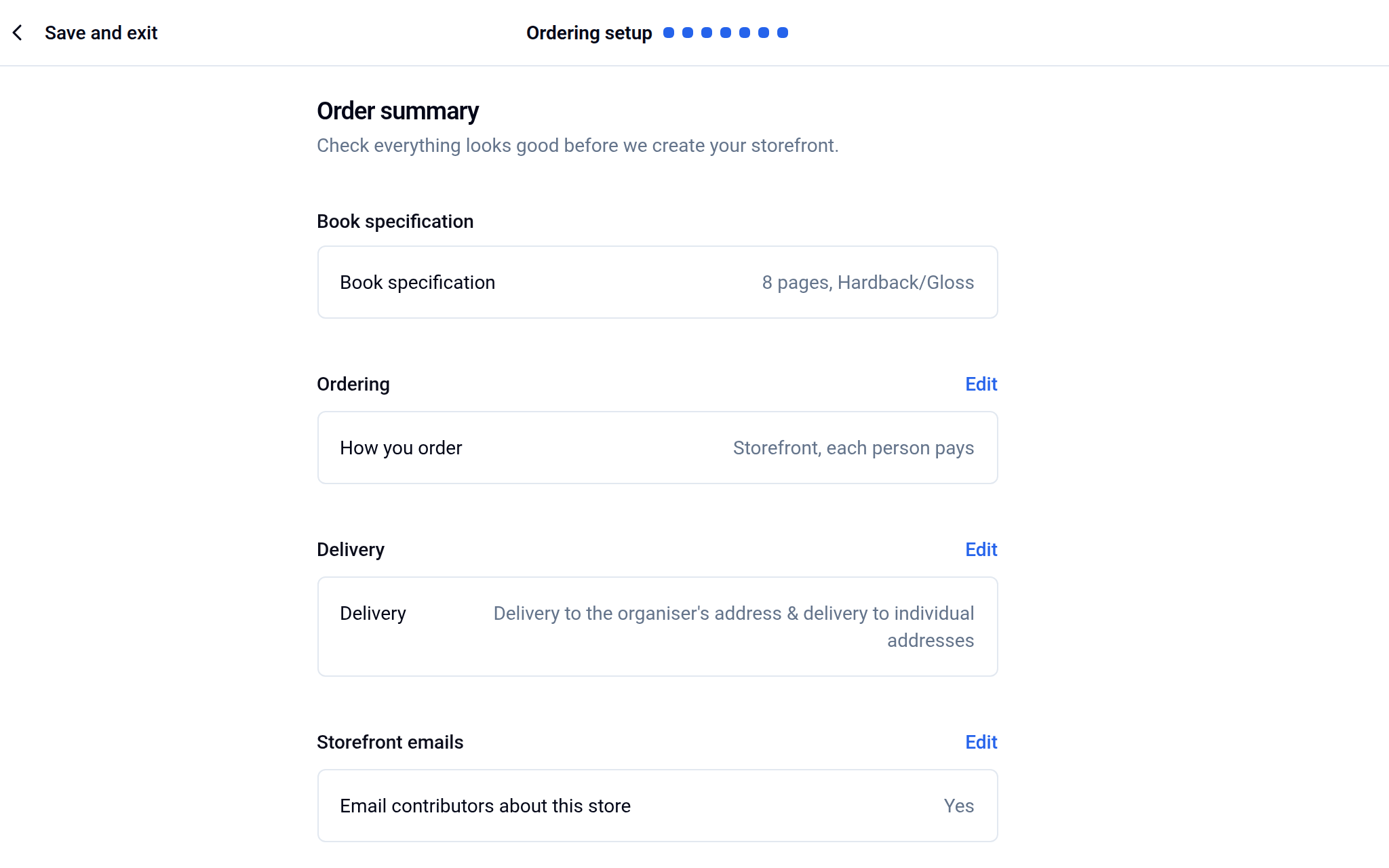
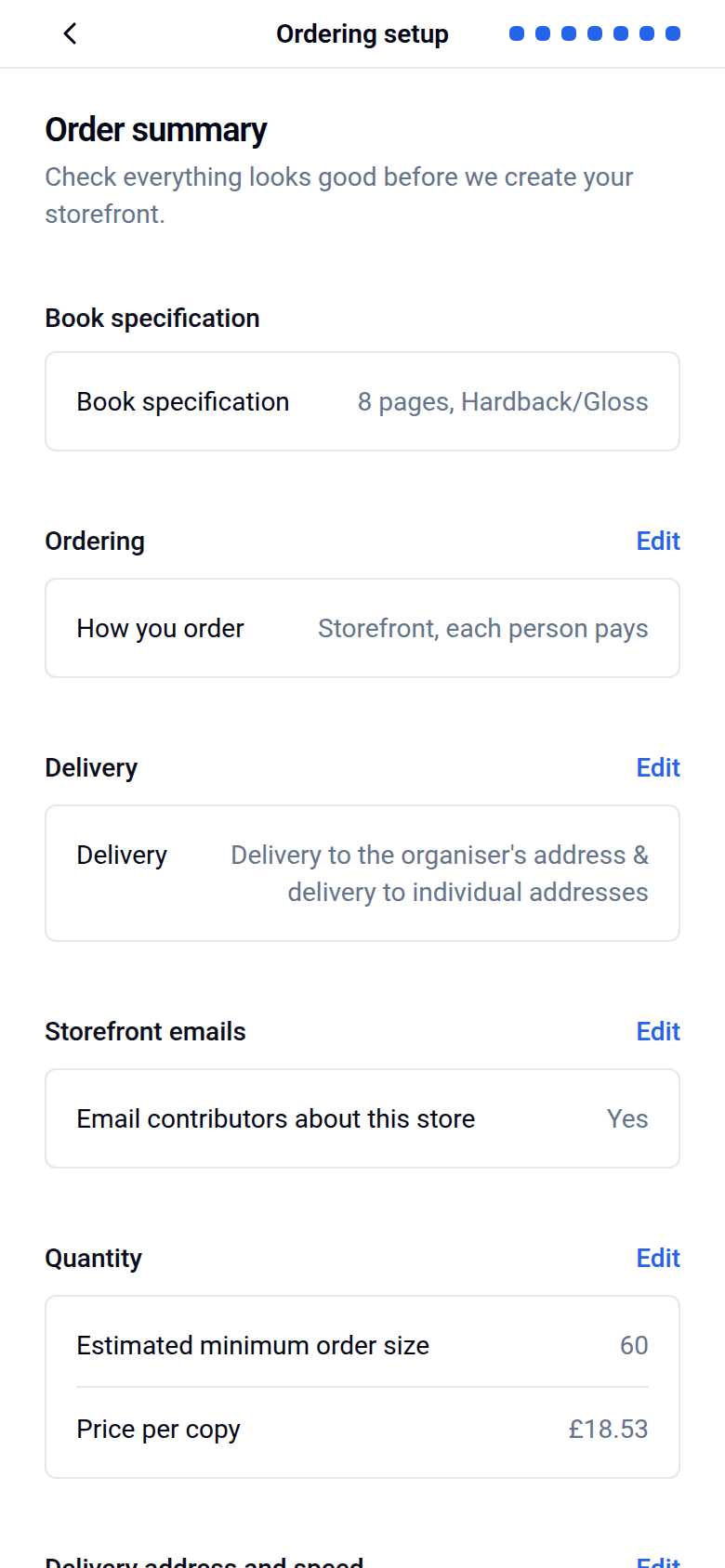
Order summary
Check each card and use Edit to change anything. For a single order, you can enter a promotion or deposit code here. Tick the box under Please complete, then click Continue to payment (single order) or Create storefront.
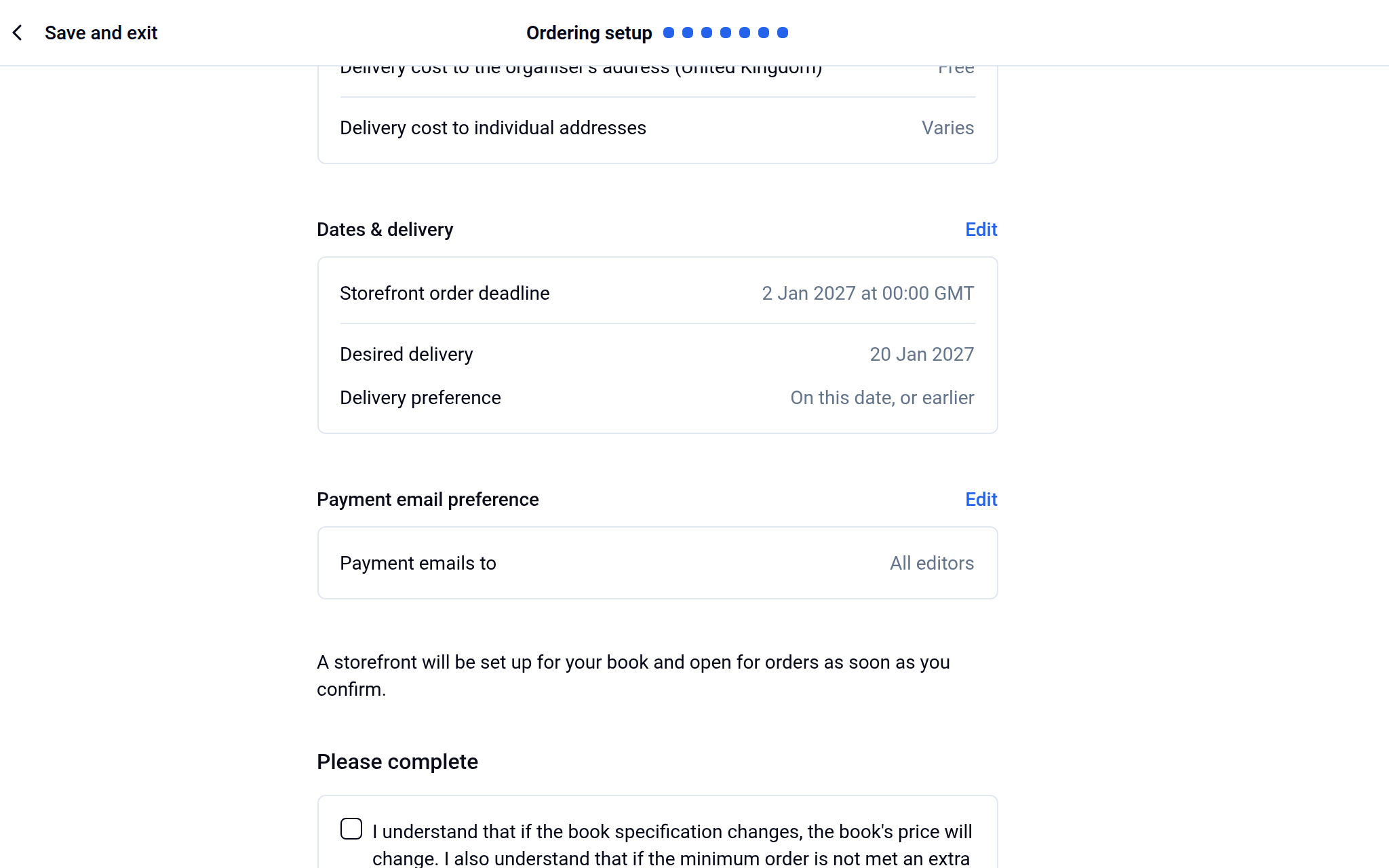
A single order goes on to payment, by card or bank transfer. A storefront opens for orders straight away.
Changing things later
- Dates, copies, address and currency: use Edit under Current specification on the run's Overview tab. The currency can't change once there are orders or a storefront.
- Single order to storefront: on the run's Orders tab, click Switch to storefront. This works until the order is paid or sent to print. A storefront set up from the start can't switch to a single order.
- More copies after printing: click Start a new print run. Choose to reprint the same book, or to make changes, which means approving a new proof.
Was this article helpful?
Sorry, that didn't send. Please try again in a little while.
Thanks. That helps us improve this article.
Any other questions?
Email support@yearbook.com and we'll help you out.