
Help Editor guide Ordering and payment
Setting up clothing in the app
Editors can set up leavers' hoodies or quarter zips for their group from the book's Order & Print page. You tell us what you'd like, and we prepare the design and send it to you to approve. For prices, sizes and designs, see Ordering custom leavers hoodies.
Starting the setup
- Click Order & Print in the book's menu (on a phone, under More).
- Click Add new product.
- Tick Clothing, then click Next.
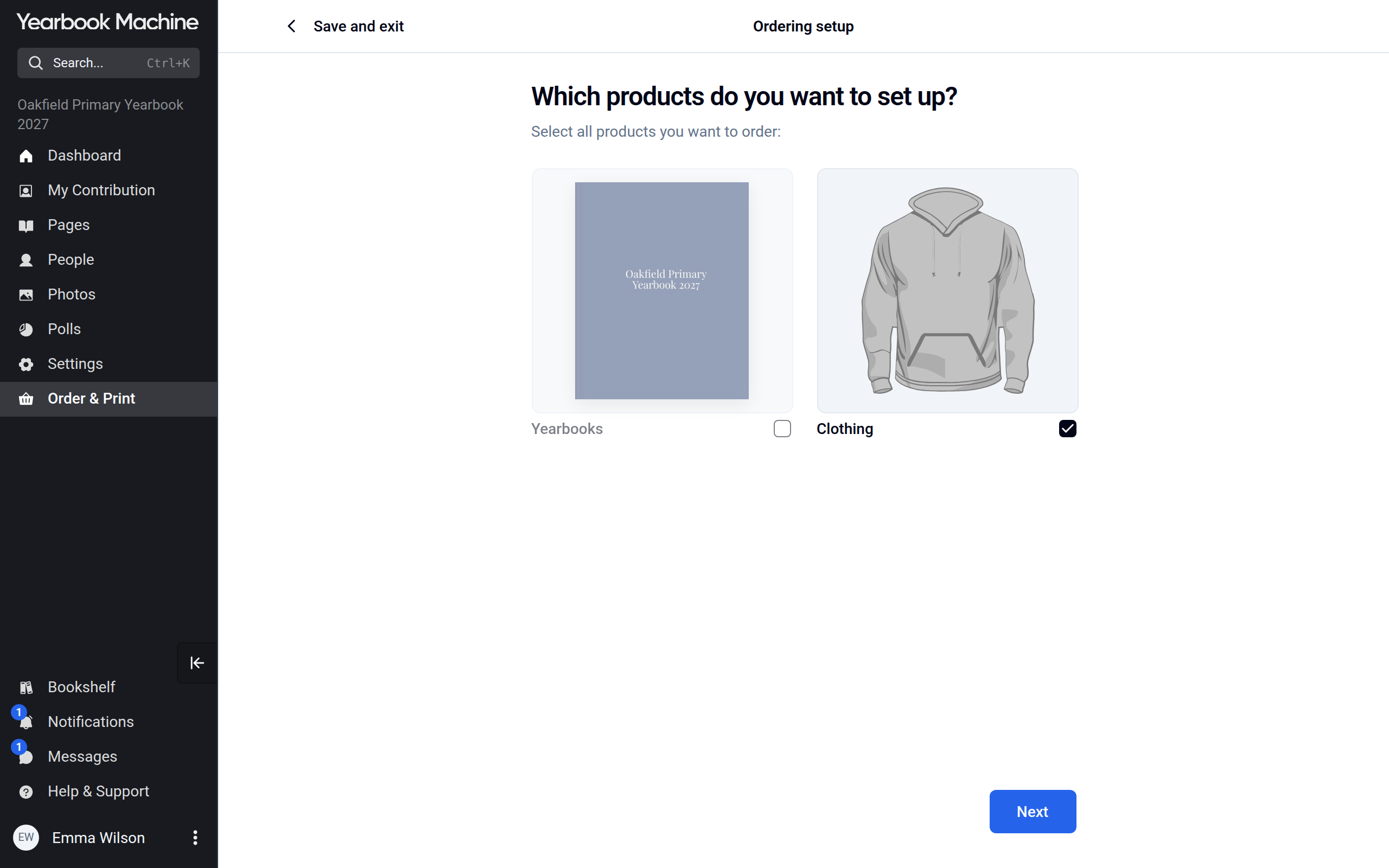
You can leave at any point with Save and exit, and carry on later from the Clothing card on Order & Print. A book can have one clothing run being set up or taking orders at a time.
The setup steps
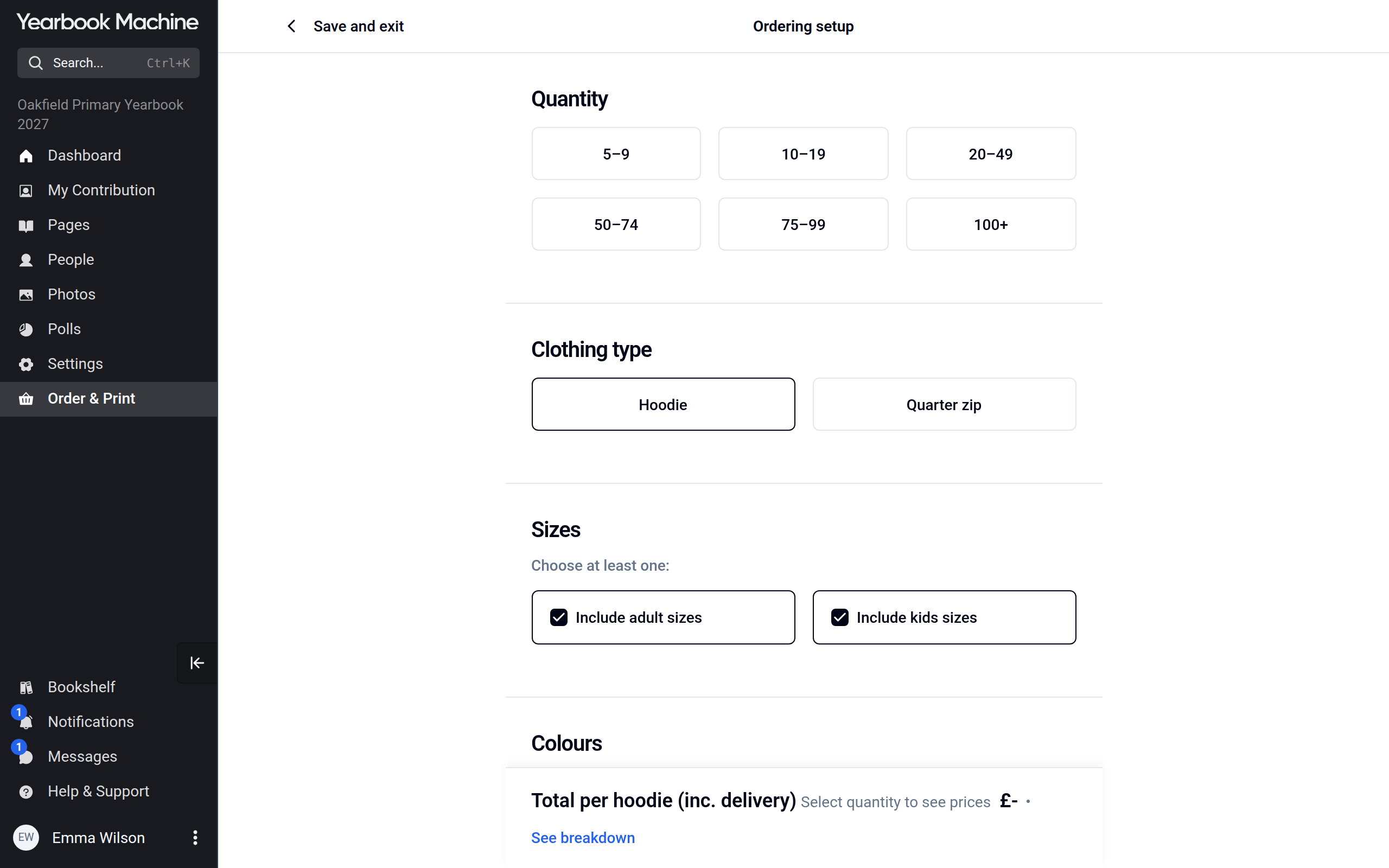
- Design choices: your quantity band, Hoodie or Quarter zip, adult or kids sizes (quarter zips are adult only), your colours, and the country and currency. The price per hoodie shows at the bottom as you choose.
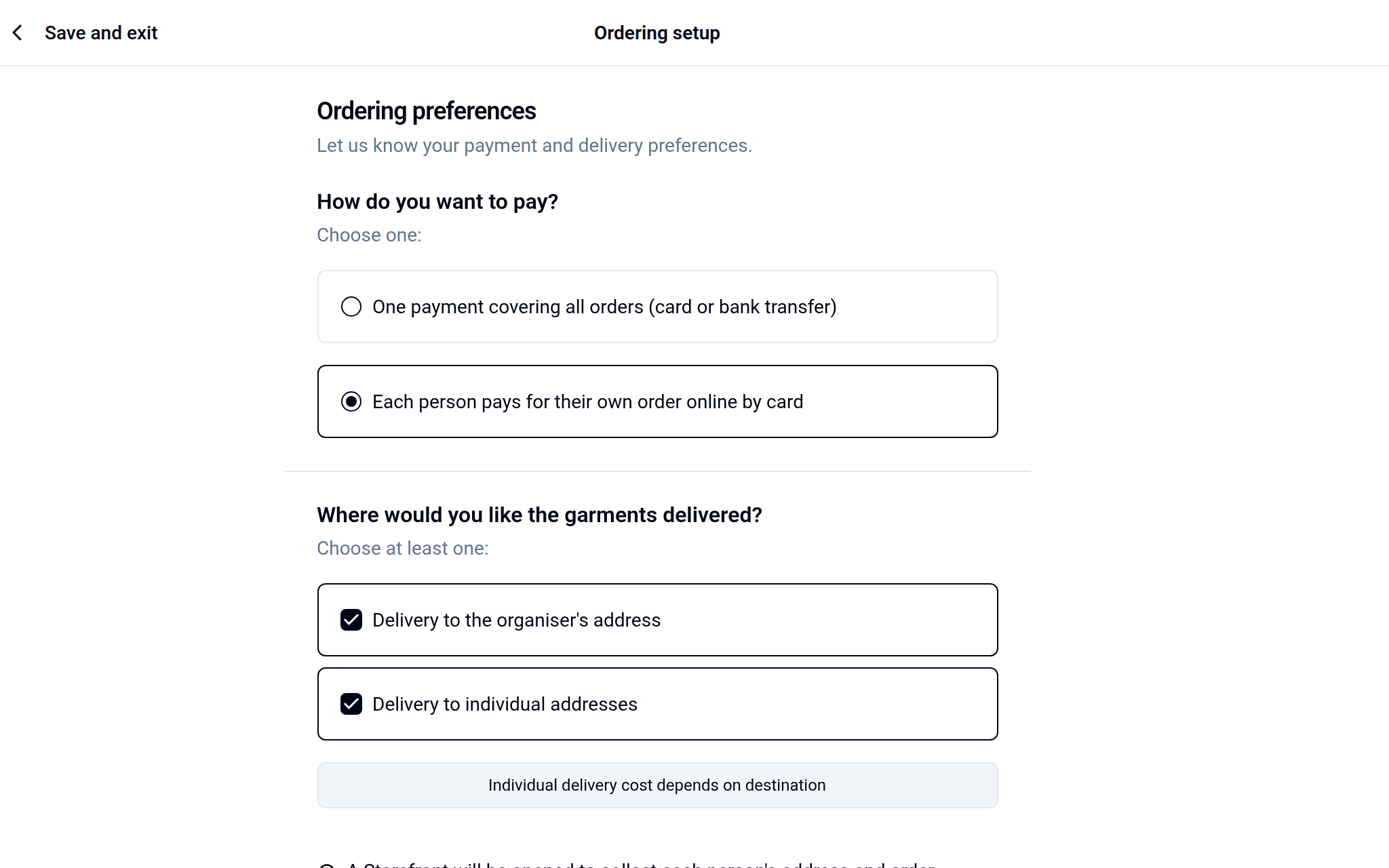
- Ordering preferences: whether one payment covers everyone or each person pays by card, and whether garments go to you or to each person's home. Clothing is always sold through a storefront, so each person chooses their own size.
- Delivery address, if the garments come to you.
- Storefront order deadline: your desired delivery date, the production deadline worked out from it, and when the storefront closes to new orders.
- Contact information: who we should get in touch with, and how.
- Order summary: check each part, then click Complete setup.
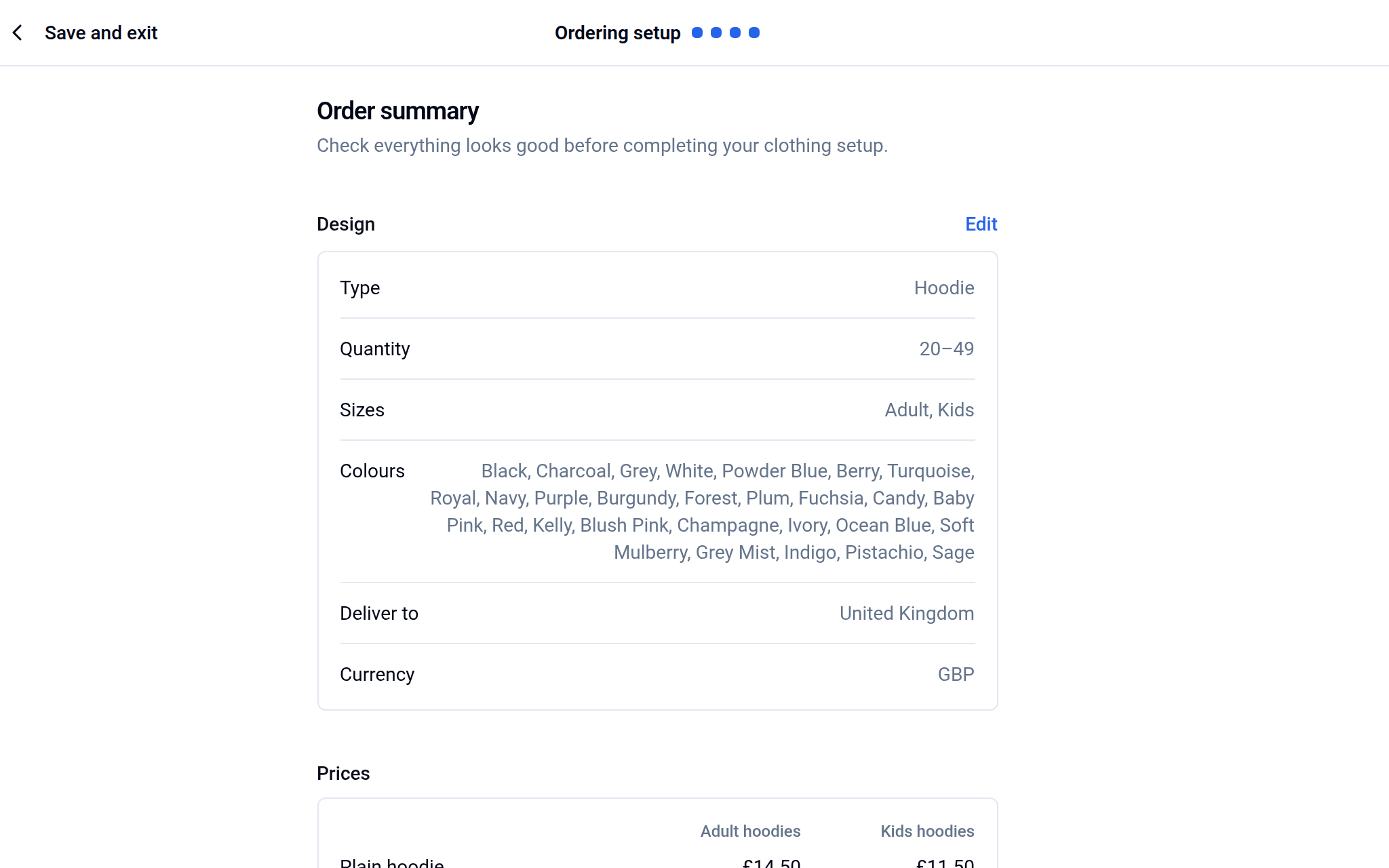
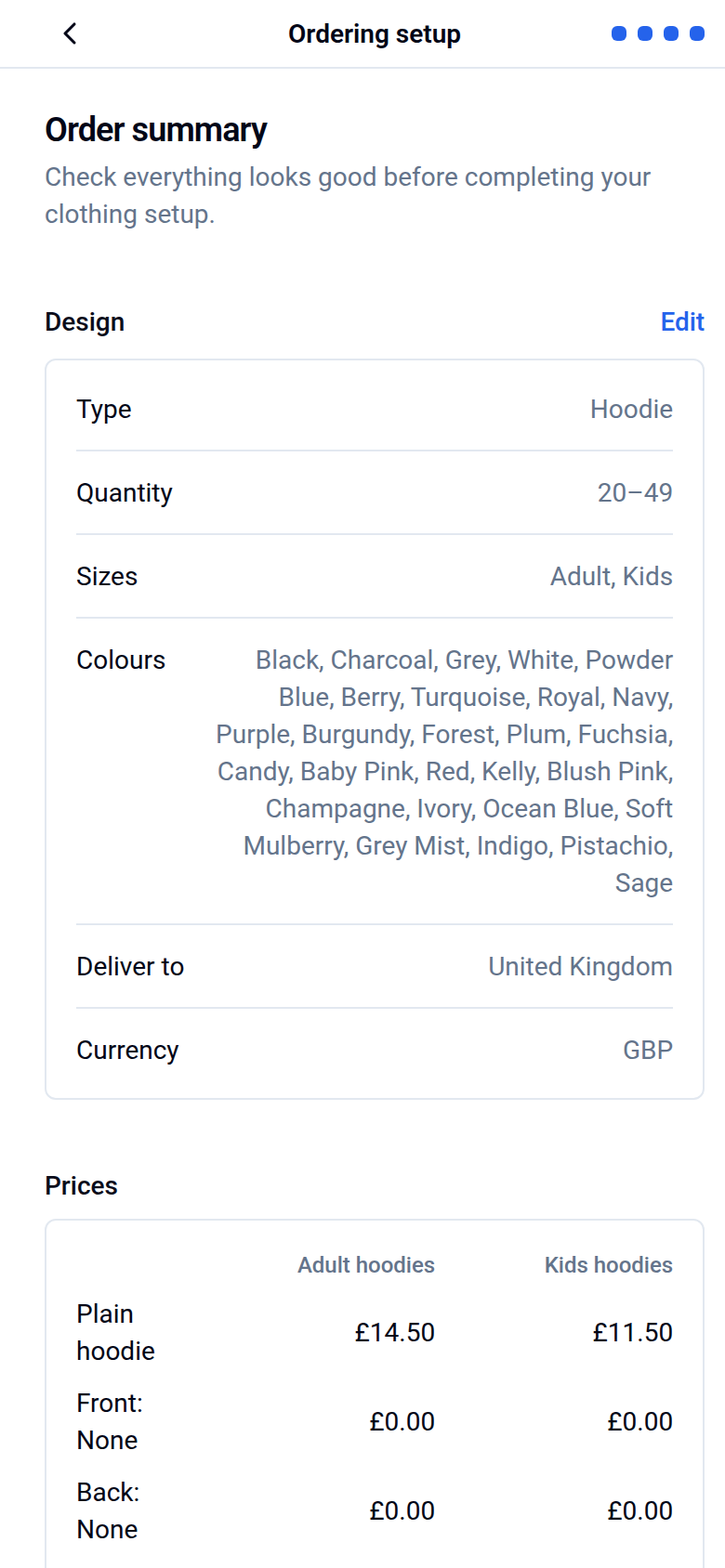
There's nothing to design in these steps. Print positions, names and artwork are part of the design we prepare.
After you complete the setup
We get in touch to confirm the details, then send you a link to approve the design. Once it's approved, your storefront opens for orders. To cancel a setup before you complete it, open the Clothing card and click Discard setup.
Clothing orders without a yearbook
If you're ordering clothing without a yearbook, we set up a clothing order for you. Find it under Clothing orders in the menu on your Bookshelf.
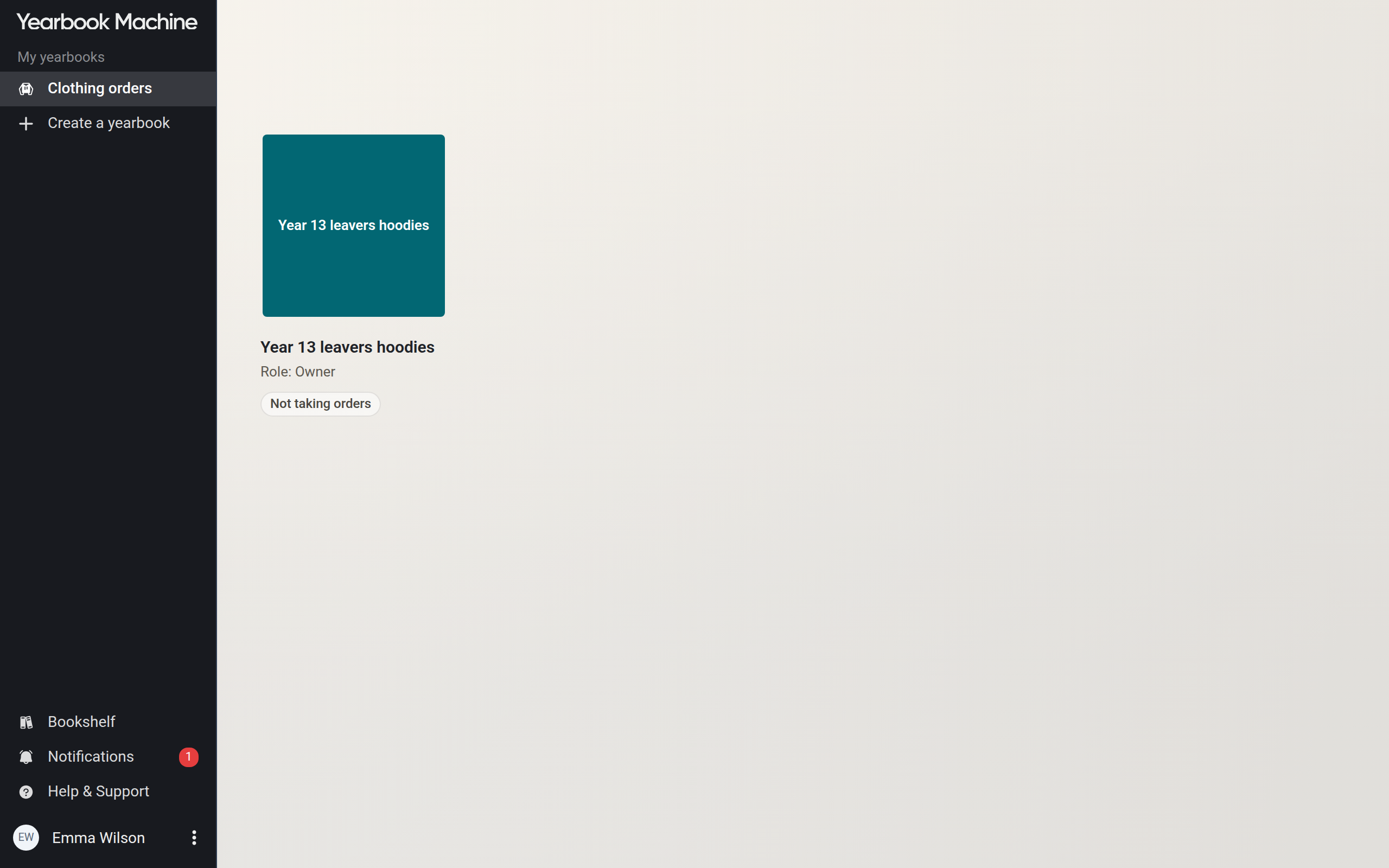
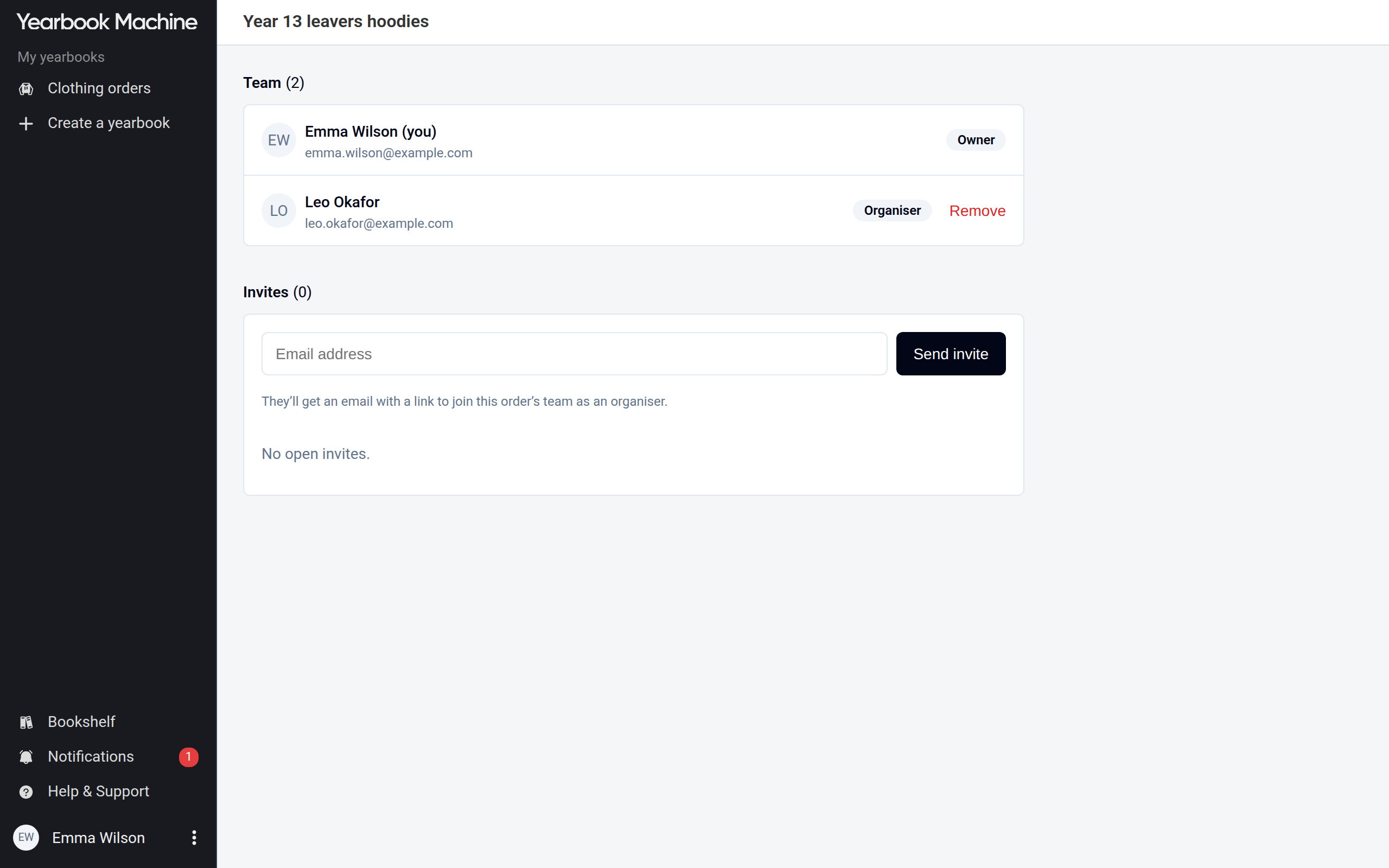
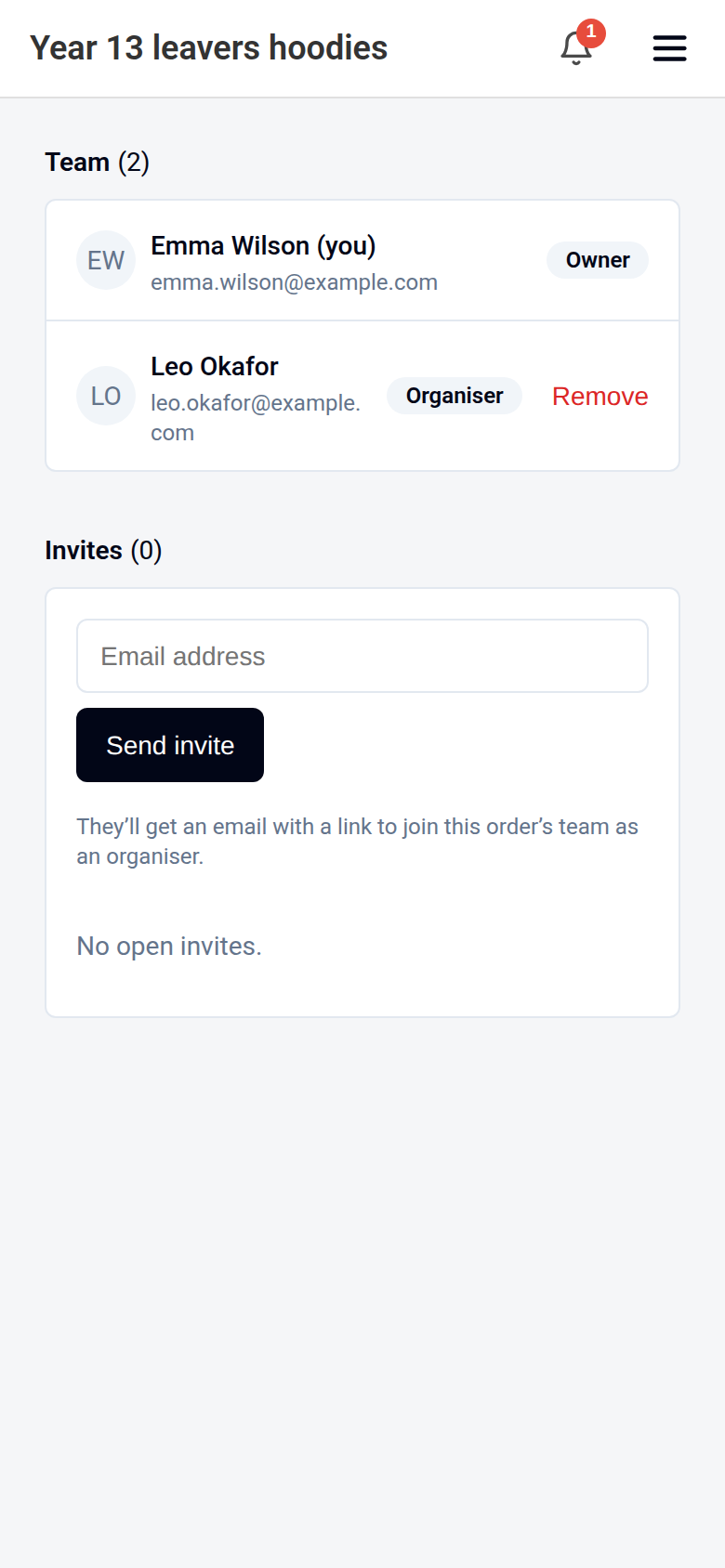
Open the order to see its team. The person we set it up for is the Owner, and they can add Organisers to help.
- To add someone, type their email address under Invites and click Send invite. They get an email with a link to join, which lasts 14 days.
- To remove an organiser, click Remove beside their name. The owner can't be removed.
Common questions
I can't see Order & Print.
Only the book's editors can set up clothing. Ask an editor of your book.
Why can't I start a new clothing run?
The book already has one being set up or taking orders. It has to go to production before another can start.
Was this article helpful?
Sorry, that didn't send. Please try again in a little while.
Thanks. That helps us improve this article.
Any other questions?
Email support@yearbook.com and we'll help you out.