
Book formats and print specifications: sizes, covers, binding and page set-up
Planning a yearbook and not sure what size, cover or extras to choose? This guide covers our standard page size, cover styles, page counts and how to set up your pages so they print exactly as you designed them.
Standard yearbook page size
Yearbook pages made in our online editor are 203mm wide by 254mm high. If you're designing pages elsewhere, build them at this size so they fit without stretching or cropping.
If you want full control over where things sit on article and montage pages, switch to manual mode in the editor.
Choosing a cover
You can choose from three cover styles:
- Softback
- Hardback
- Foil stamped leatherette (a minimum order of 20 copies)
Optional extras are Printed front endpapers, Printed back endpapers, a Ribbon marker and Foil stamping on the back cover. Foil stamping on the back cover is only available with leatherette covers. You can't add it to a hardback or softback.
Page counts
- Page counts must always be an even number, because every sheet has a front and a back. If you ask for an odd number, we'll round it up to the next even number.
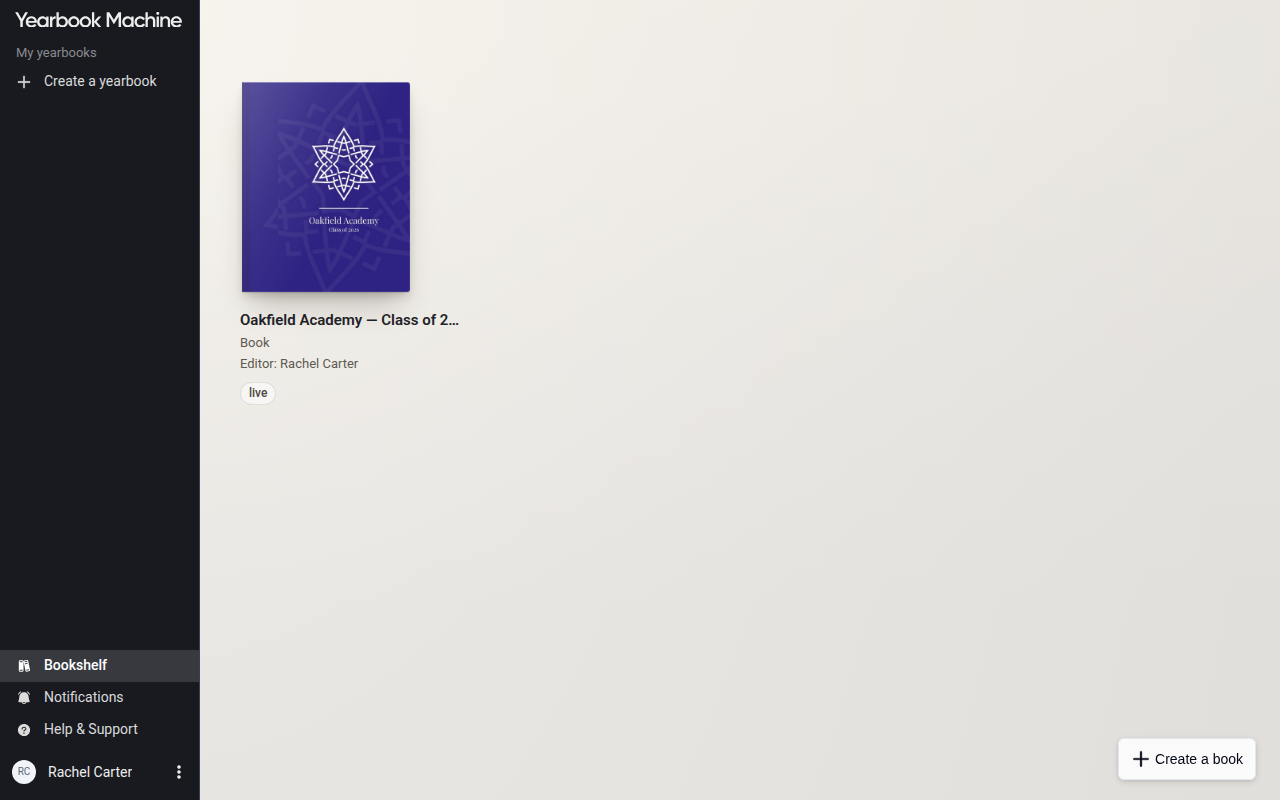
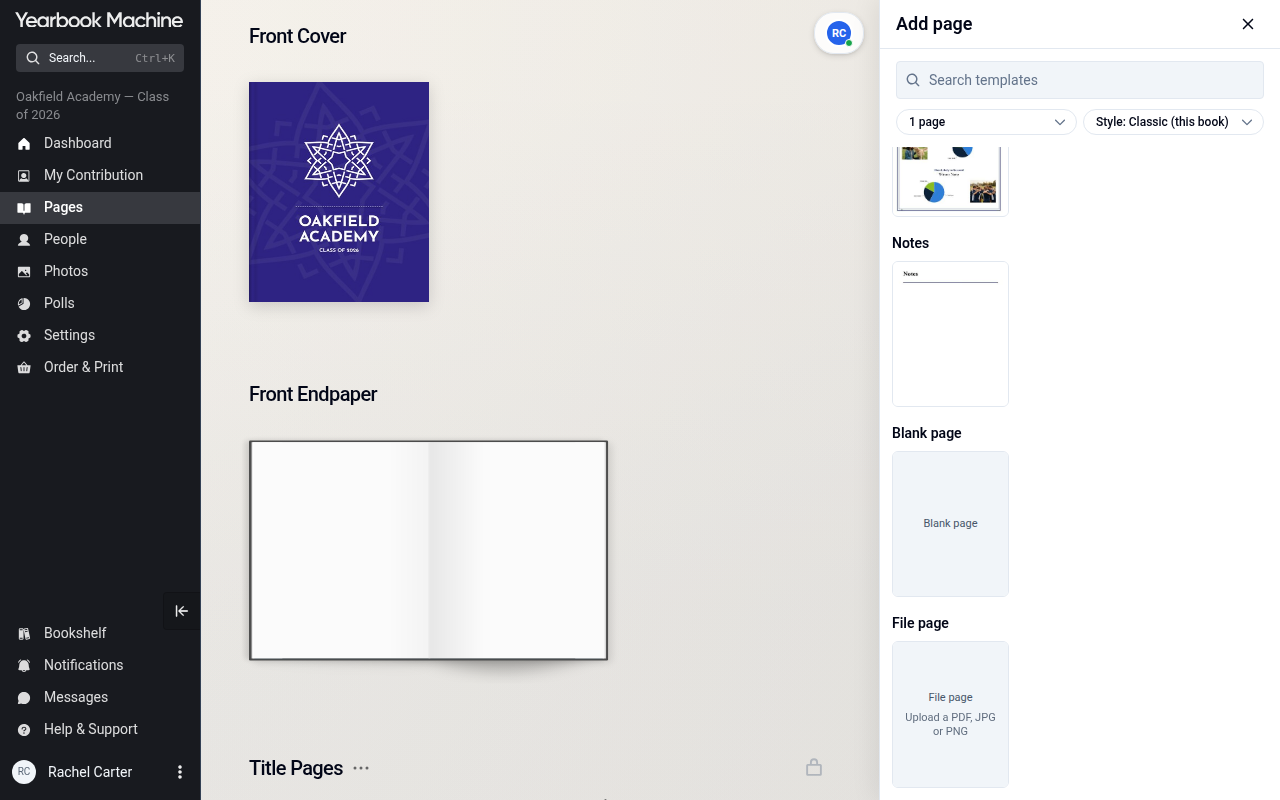
- You can add or remove pages while you're working on your draft. Log in, open Bookshelf, select your yearbook, then click Pages in the main menu.
- Your page count is fixed once your proof is approved and payment is arranged, so make sure you're happy with it before then.
Getting a price for a standard yearbook
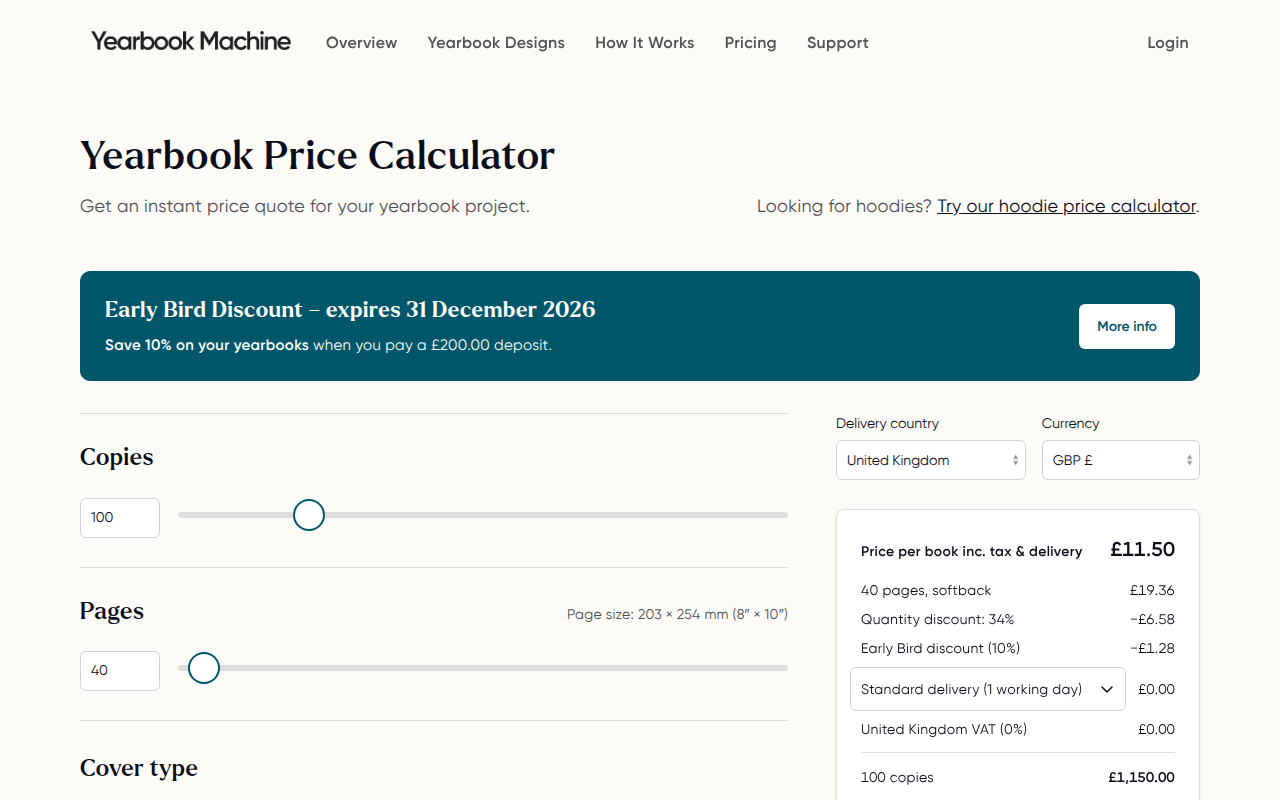
You can get a price straight away from our calculator at yearbook.com/pricing. You'll need:
- Your page count.
- The number of copies.
- Your cover style (softback, hardback or leatherette).
- Where the books are being delivered.
- Any extras, such as printed front or back endpapers, a ribbon marker or foil stamping on the back cover (leatherette only).
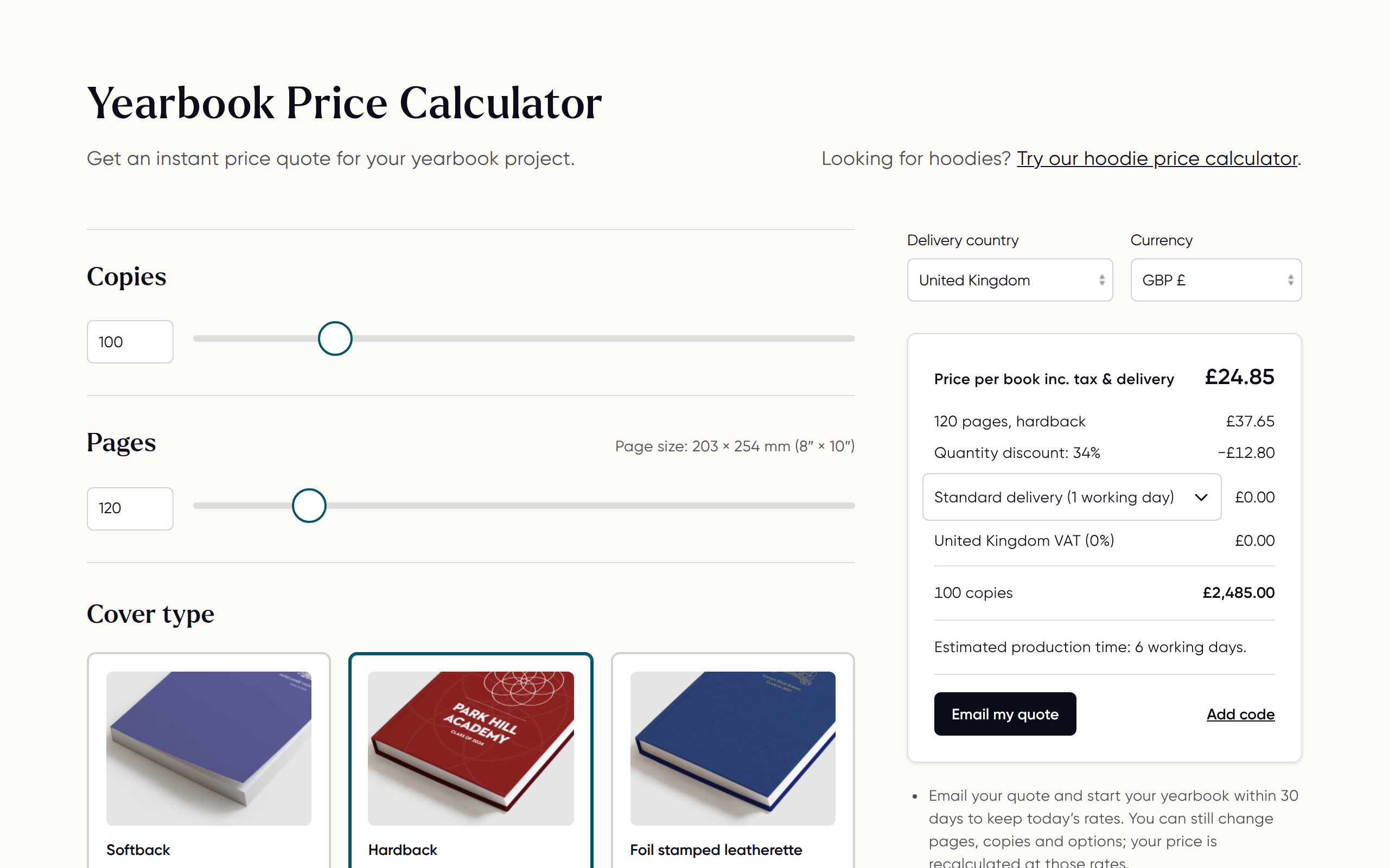
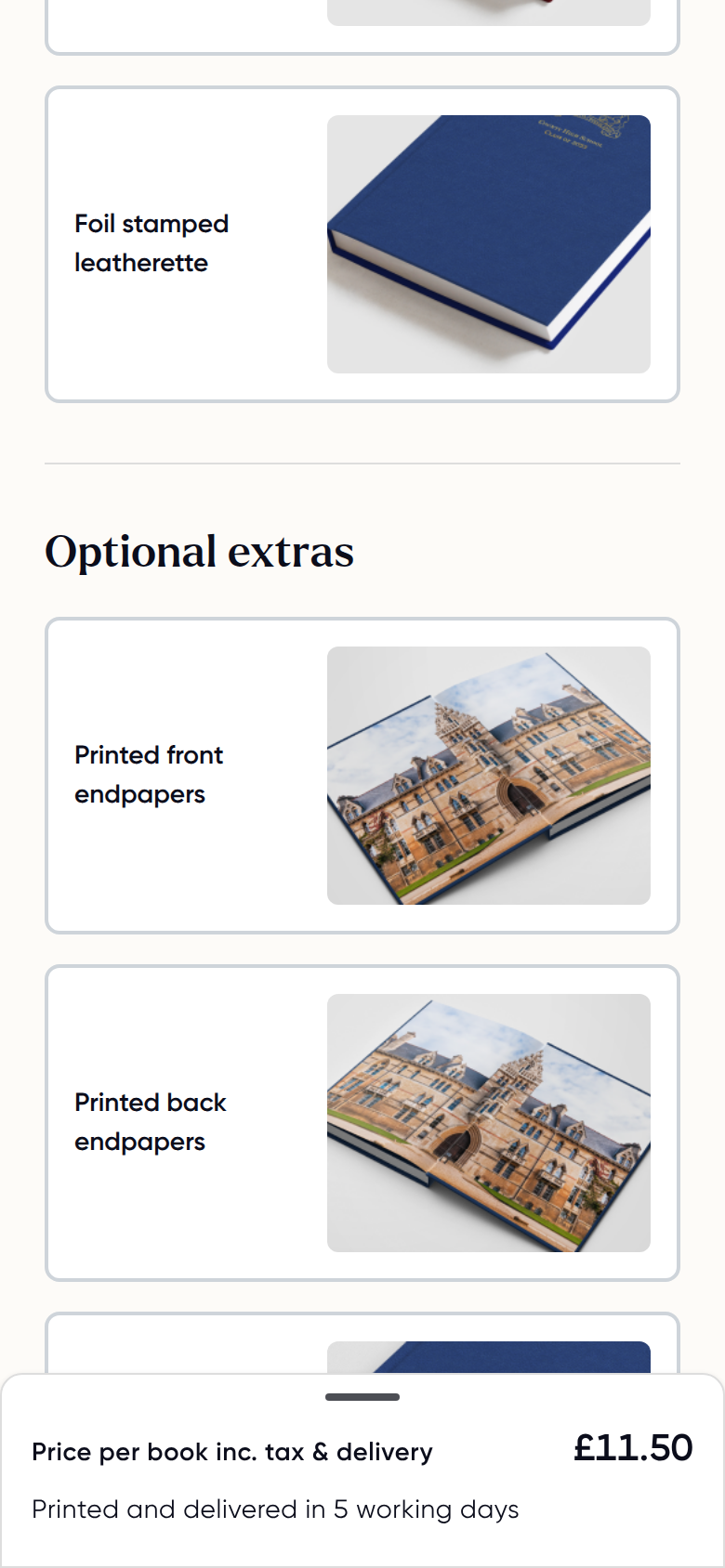
Your price will show the cost per copy and the total, along with any discount you qualify for and what deposit is needed.
Early Bird discount
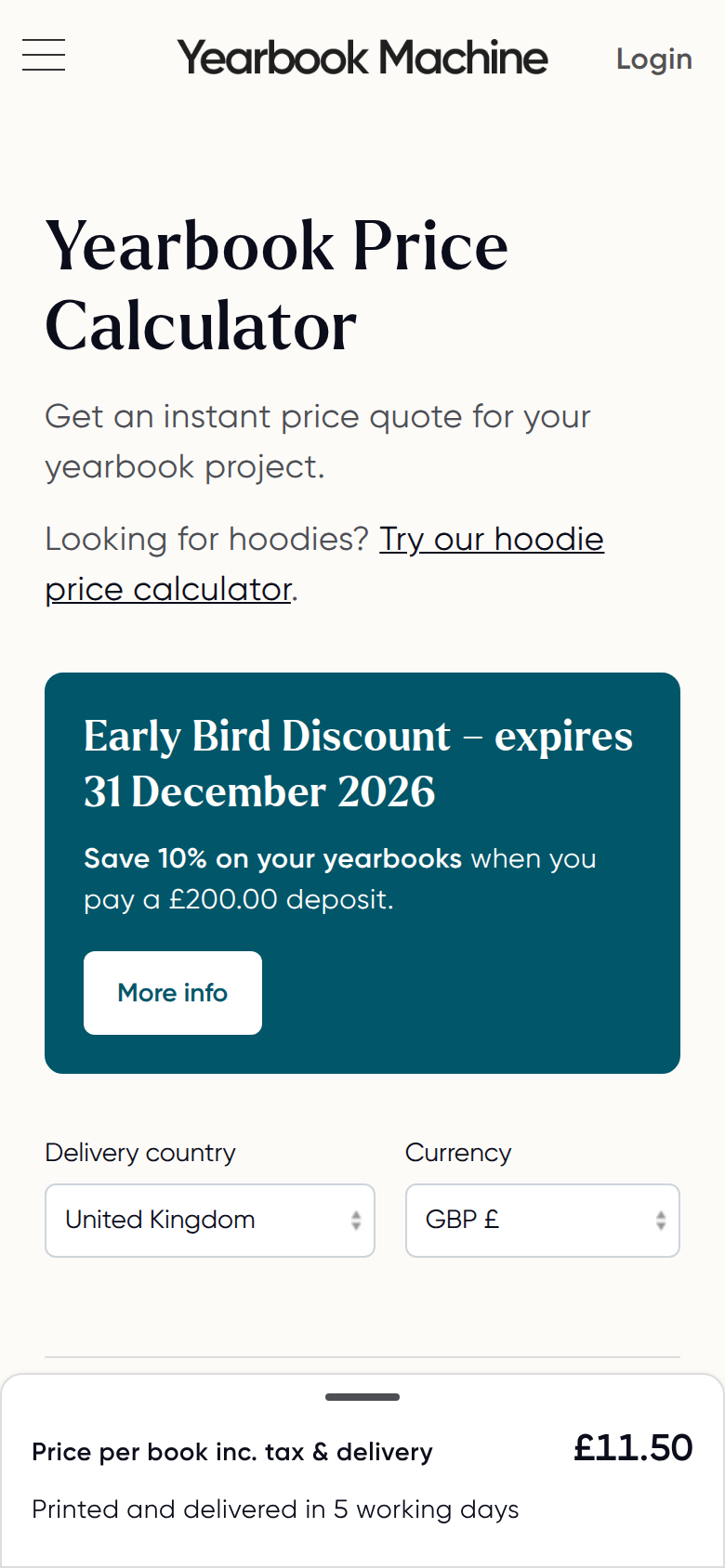
If you pay a £200 deposit before 31 December, you get 10% off your yearbook order, and the £200 is taken off your final invoice. To claim it, price your book on the pricing page, select Email my quote, and pay the deposit using the link in the email.
Prices given over the phone
Our phone assistant prices your book with the same calculator as the pricing page. It can email you the same quote the pricing page would send. If your order needs a quote made by hand, for example for delivery to individual addresses, it can pass on a message so we get back to you.
Designing pages in Canva
If you'd like to design pages in Canva, use our official template so your pages don't come out distorted.
- Ask us for the latest Canva template link. Older templates can cause distortion.
- Copy or drag your Canva designs into the template.
- Keep the top and bottom margins even, or make the bottom margin slightly larger. This usually looks more balanced.
- Download your finished design from Canva as a PDF or an image.
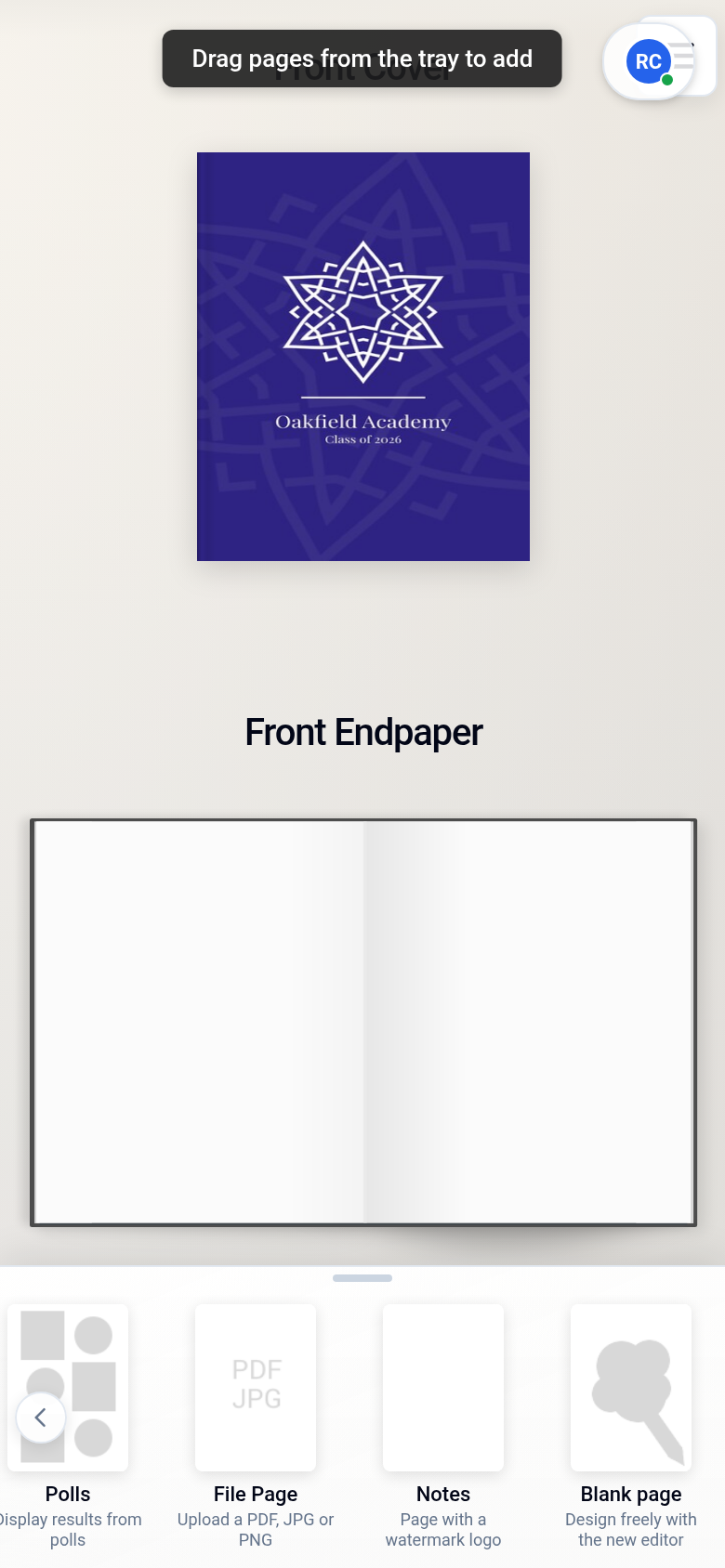
- Upload it to a File page in the yearbook editor.
If you can't move or copy anything into the template, the link may be view-only. Let us know and we'll send you a link you can edit.
Still unsure?
If you're not sure which cover or extras suit your project, get in touch and we'll help you choose.
Was this article helpful?
Sorry, that didn't send. Please try again in a little while.
Thanks. That helps us improve this article.
Any other questions?
Email support@yearbook.com and we'll help you out.