
Page permissions
This article is for the book's editors. If you are a contributor and want to know why you cannot see a page, see What can I see on other people's pages?.
Page permissions decide what contributors can do with each page of your book: edit it, view it, or not see what is on it. Editors are not affected. Editors can always edit every page.
Book-wide defaults
Editors set the defaults for the whole book in Settings › Contributor permissions.
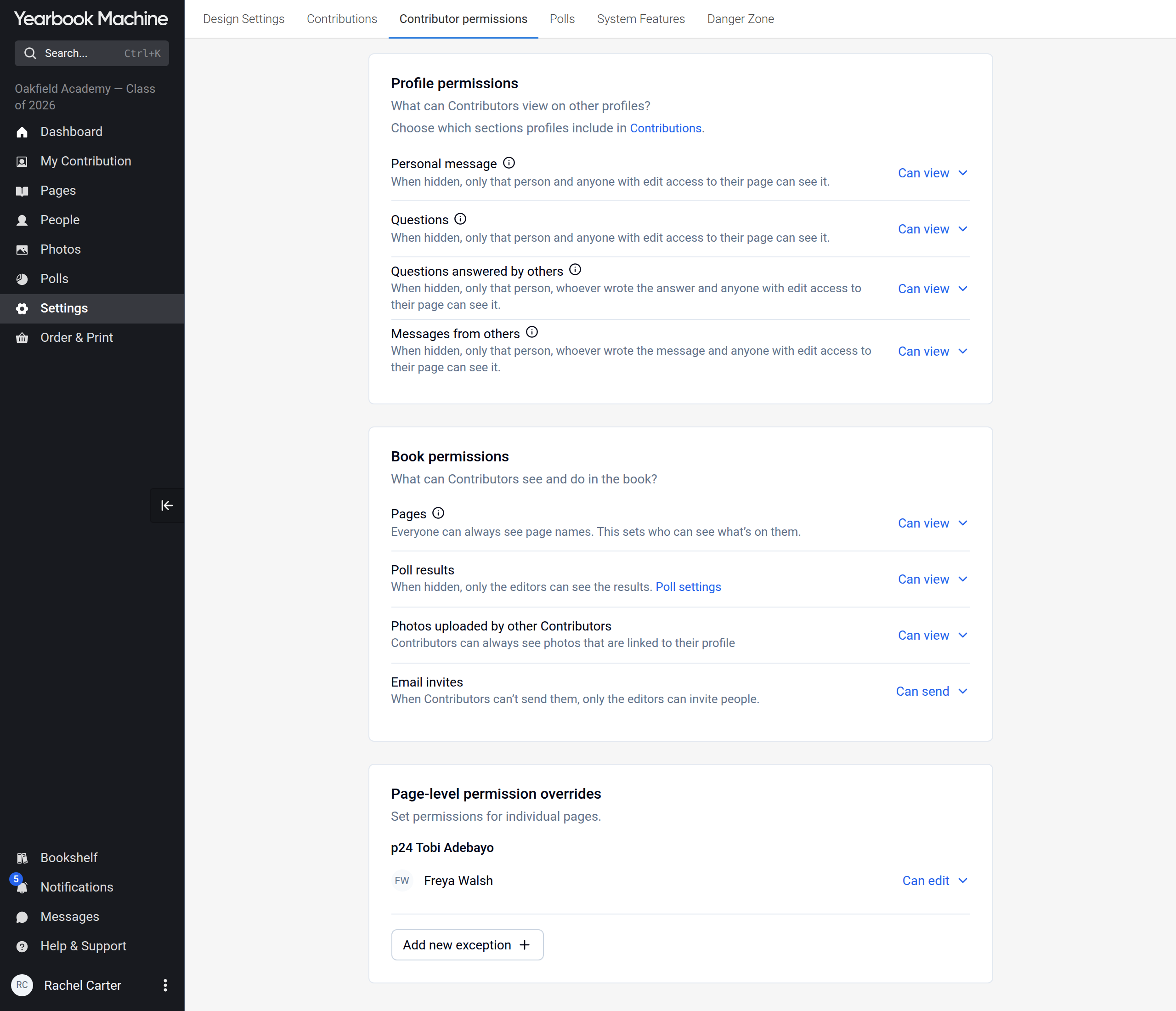
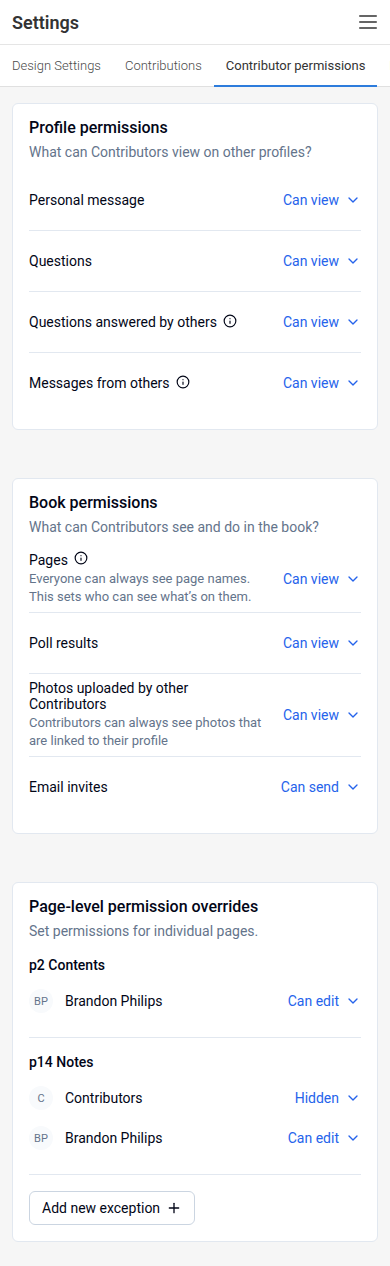
- Profile permissions set what contributors can view on other people's profiles, section by section.
- Pages: Can view or Hidden. Everyone can always see page names. This setting decides who can see what's on them.
- Poll results and Photos uploaded by other Contributors set who can see those. Contributors can always see photos that are linked to their own profile.
- Email invites: Can send or Cannot send, which decides whether contributors can invite other people by email.
These defaults apply to every page unless a page has its own permissions.
Private profile sections
A profile page includes every part of the profile. So while any row under Profile permissions is private, each person sees their own profile page as normal, but other contributors see a pattern of question marks in place of the content of someone else's profile page, with the note What's on this page is hidden by the book's privacy settings. They can still answer questions and leave messages where the book allows it. Editors always see every page.
To let everyone see profile pages again, set every row under Profile permissions to Can view. What's in those parts of each profile will then be visible to everyone in the book.
Permissions for one page
To give a page different permissions from the rest of the book, add an override. An override applies to one contributor, or to all contributors, on that page. It gives them one of:
- Can edit: they can change the page.
- Can view: they can see what is on the page but not change it.
- Hidden: they see the page name but not what is on it.
You can add one in two places.
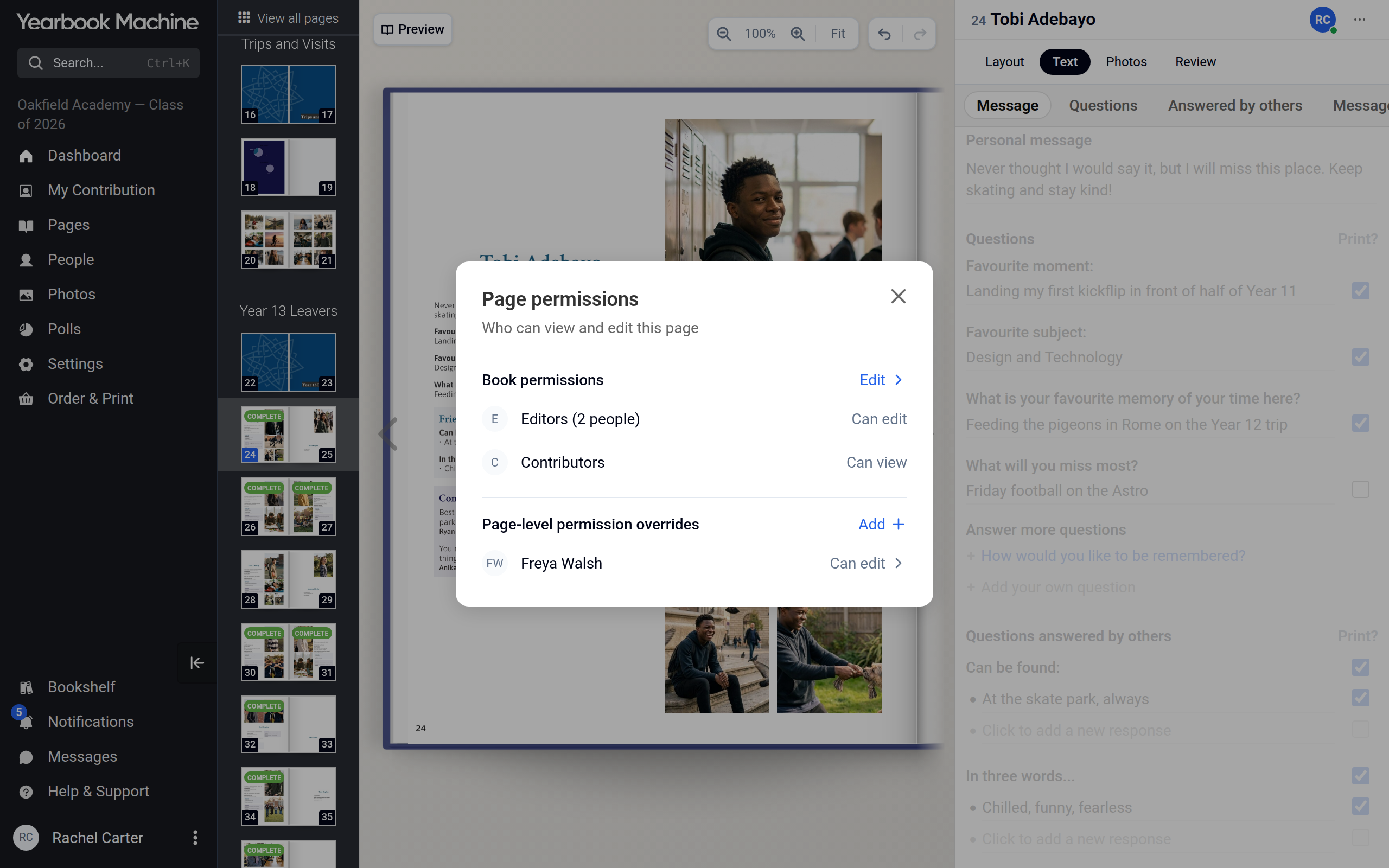
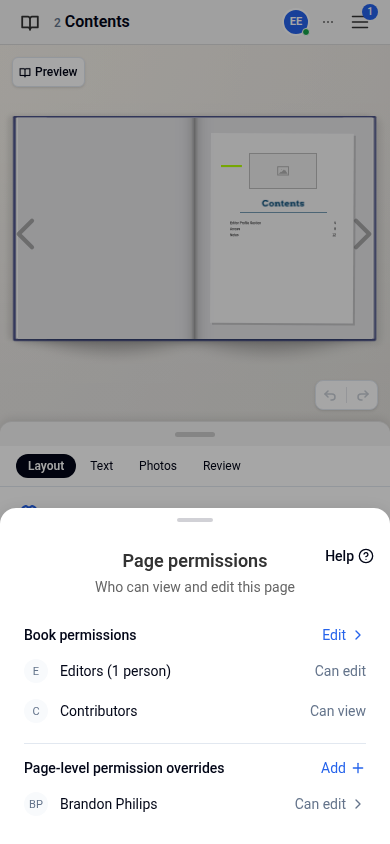
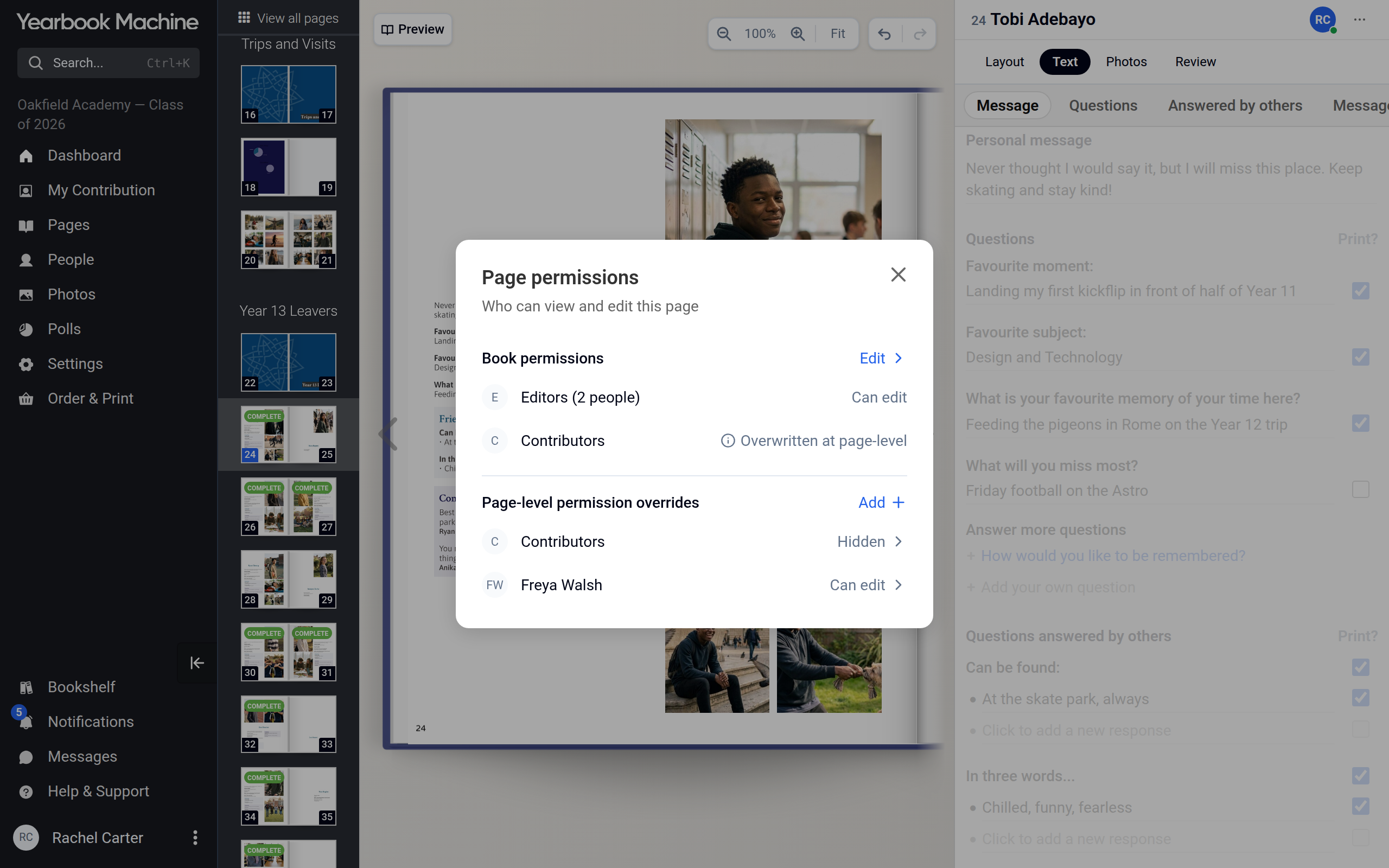
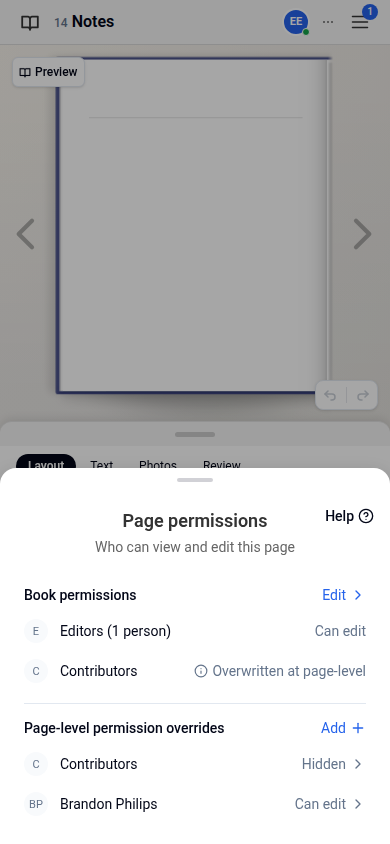
From the page. Open the page, choose Page permissions from the page's menu, then choose Add next to Page-level permission overrides. The sheet shows the book's own permissions for the page, with an Edit link to Contributor permissions, and lists the page's overrides below.
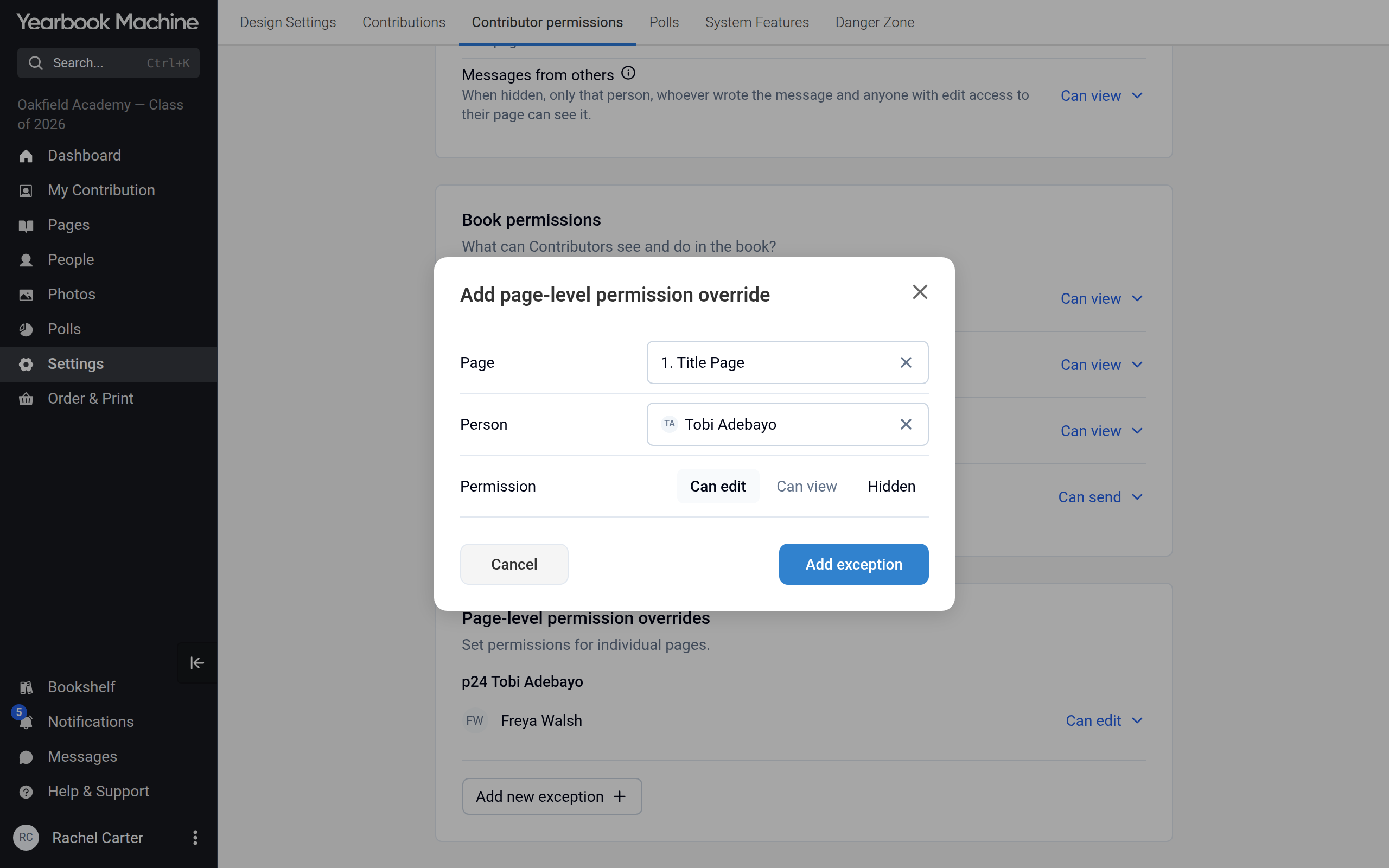
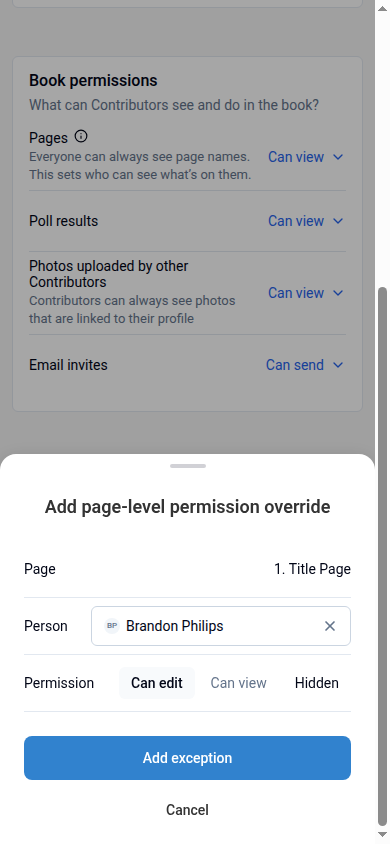
From Settings. In Settings › Contributor permissions, choose Add new exception under Page-level permission overrides. Pick the page, the person (or all contributors) and the permission, then choose Add exception.
When an override changes what all contributors can do on a page, the Contributors row under Book permissions in that page's sheet shows an ⓘ note: Overwritten at page-level.
To change or remove an override, choose it in the sheet. Remove permission takes it off.
Letting a contributor edit a page
To let a contributor work on a page, open the page's Page permissions and give them Can edit.
You can also do this from the People page: open the person's menu, choose Edit page permissions, pick someone under Give someone else access to this page and select Add. That person can then edit the profile page as if it were their own, and it shows in the page's Page permissions.
Profile pages
A person can always edit their own profile page. Because of that, they are never listed in that page's permissions.
Pages with linked text
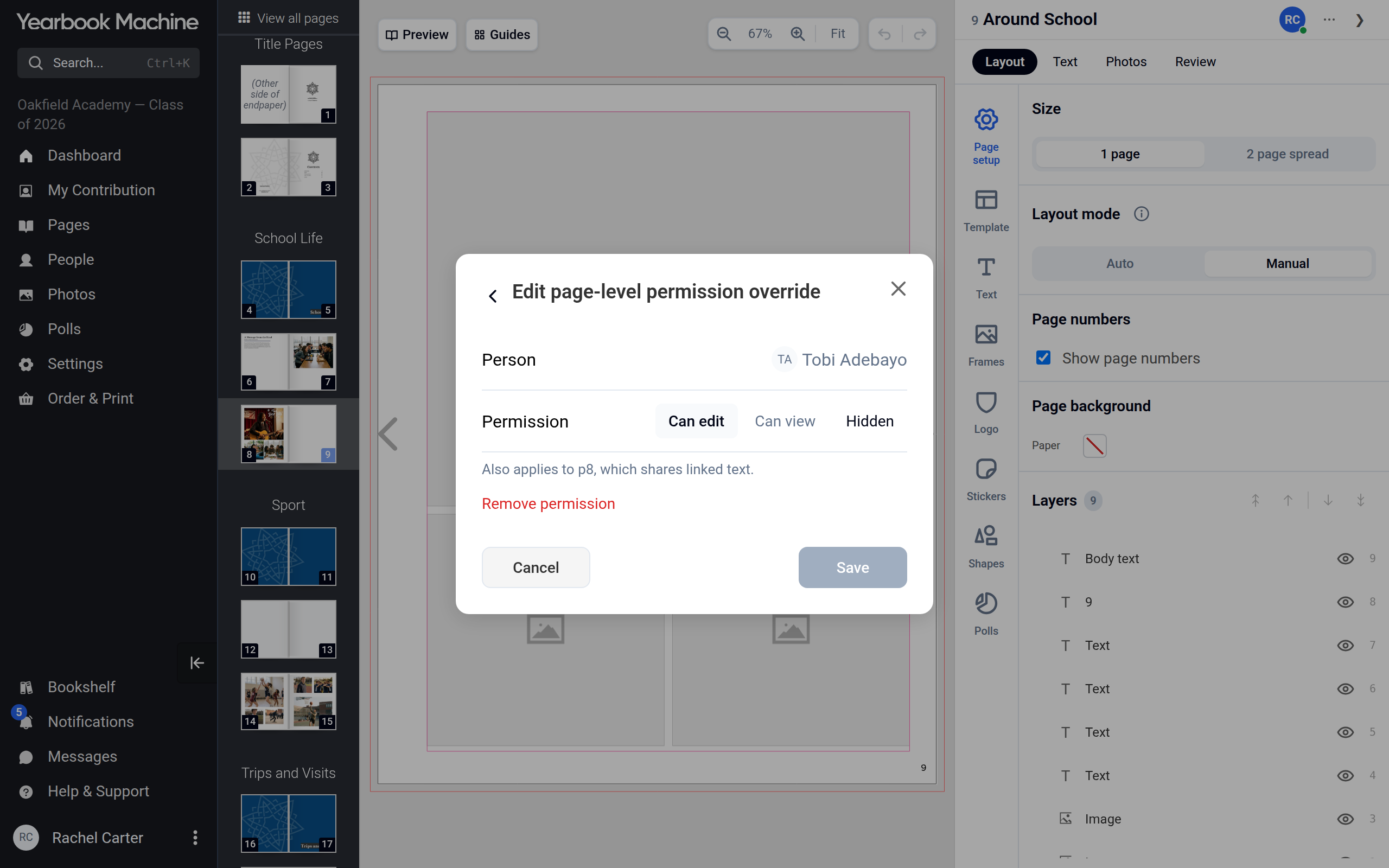
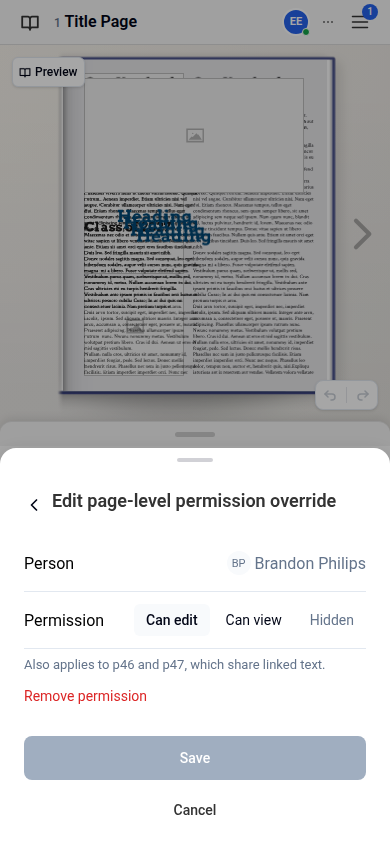
Pages that share linked text always share permissions, so a change on one applies to the others. When you change an override on one of those pages, the box says so, for example: "Also applies to p46 and p47, which share linked text."
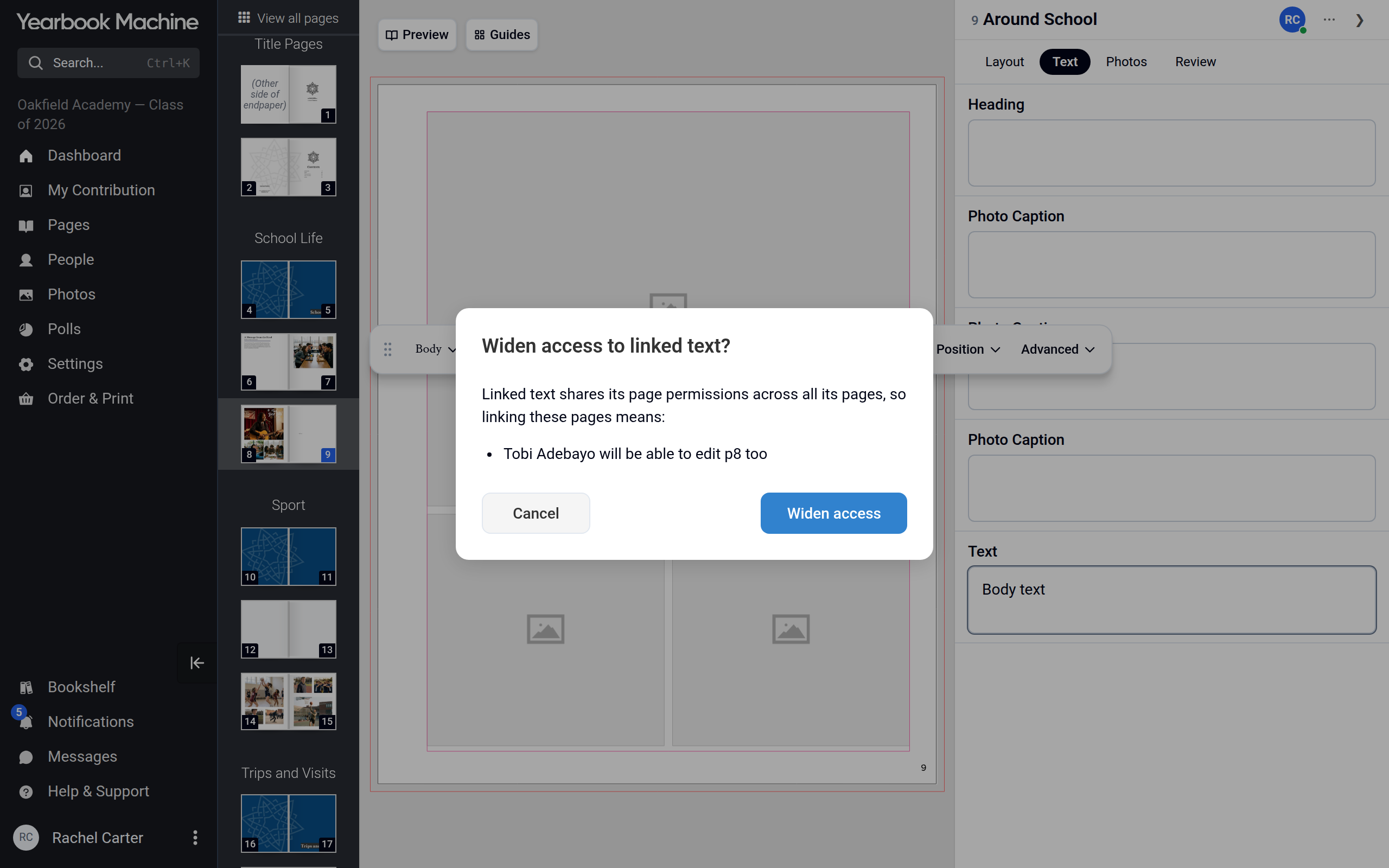
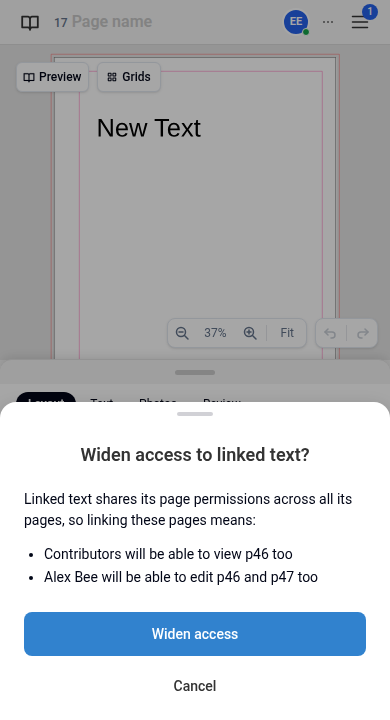
If you link text onto a page whose permissions differ, you are asked first. The message lists who would gain what access. Choose Widen access to link the text and give everyone on the linked pages the wider access, or Cancel to leave everything as it is. Cancel links nothing.
What contributors see
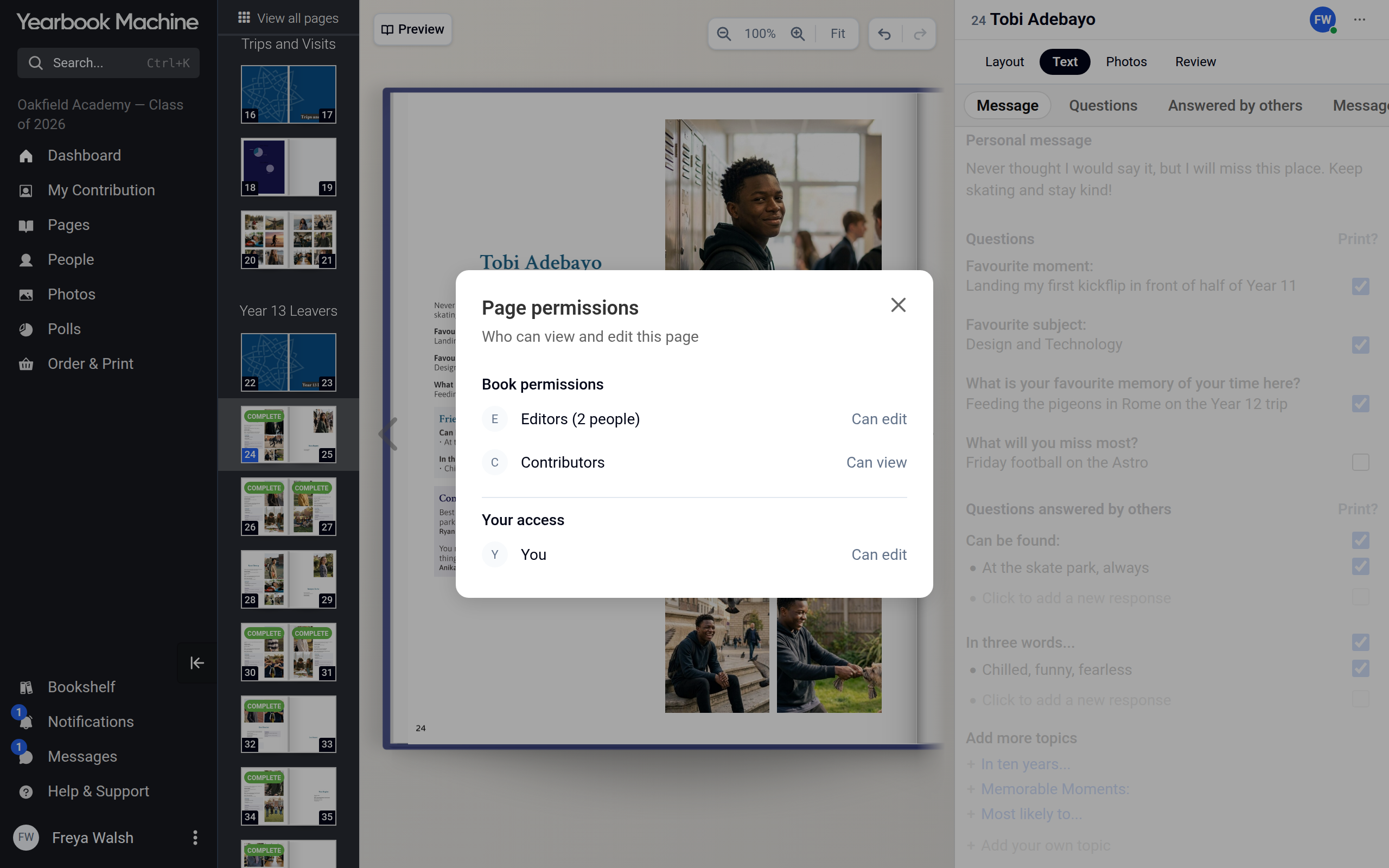
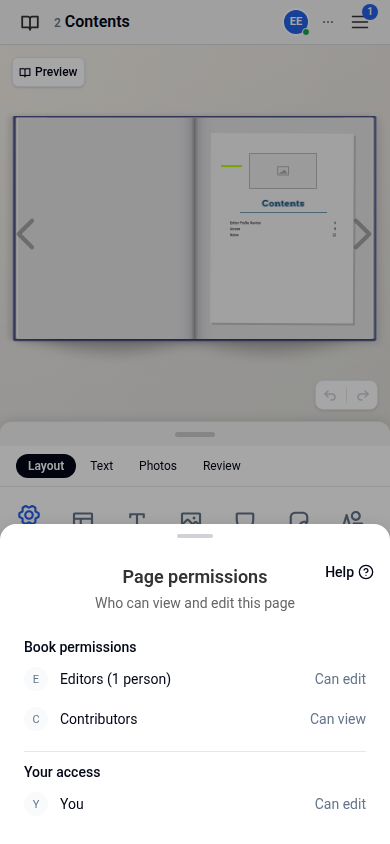
Contributors can open Page permissions from a page's menu too. For them it is read-only: it shows the book's permissions for the page and, under Your access, what they themselves can do. To change it, they ask one of the book's editors.
Was this article helpful?
Sorry, that didn't send. Please try again in a little while.
Thanks. That helps us improve this article.
Any other questions?
Email support@yearbook.com and we'll help you out.