
Inviting people to your yearbook
This article explains how to bring people into your yearbook: by sharing an invitation link, by email, or by username, and how to keep track of the invitations you have sent. Editors can invite both editors and contributors. Contributors can share the invitation link with other contributors too, unless the editors have turned that off.
Opening the invite window
- Click People in the main menu, then click Add people. You can also start from Invite collaborators in the to-do list on your book's Dashboard.
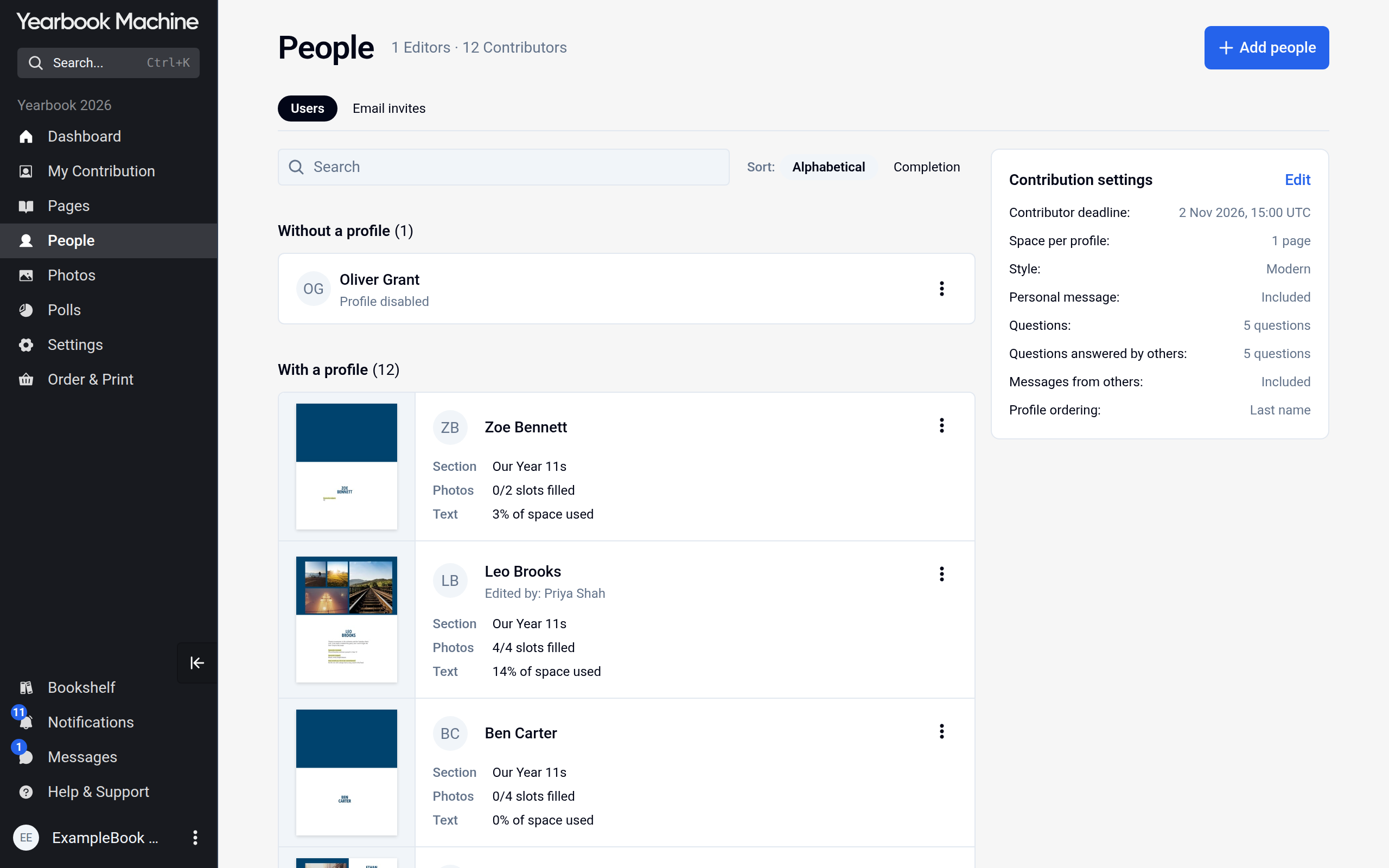
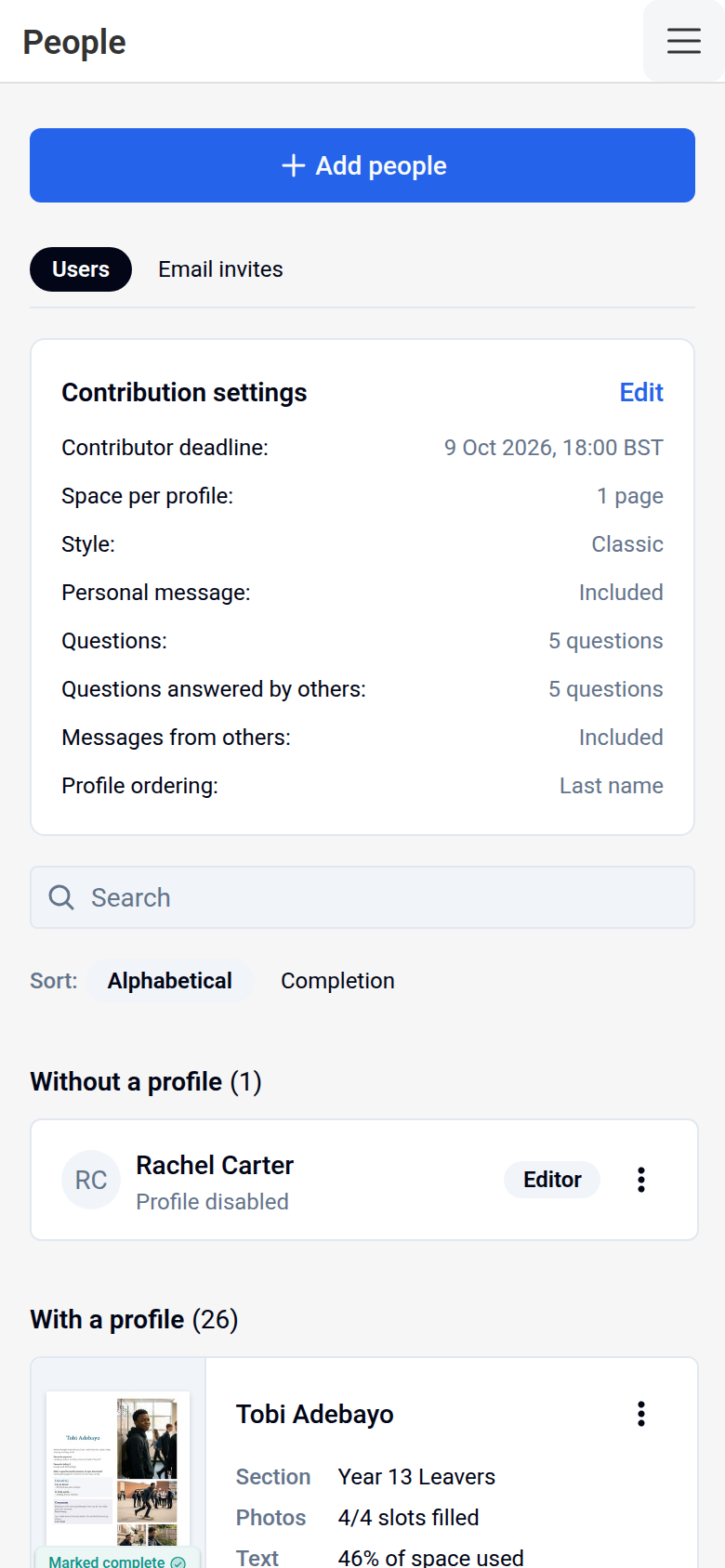
-
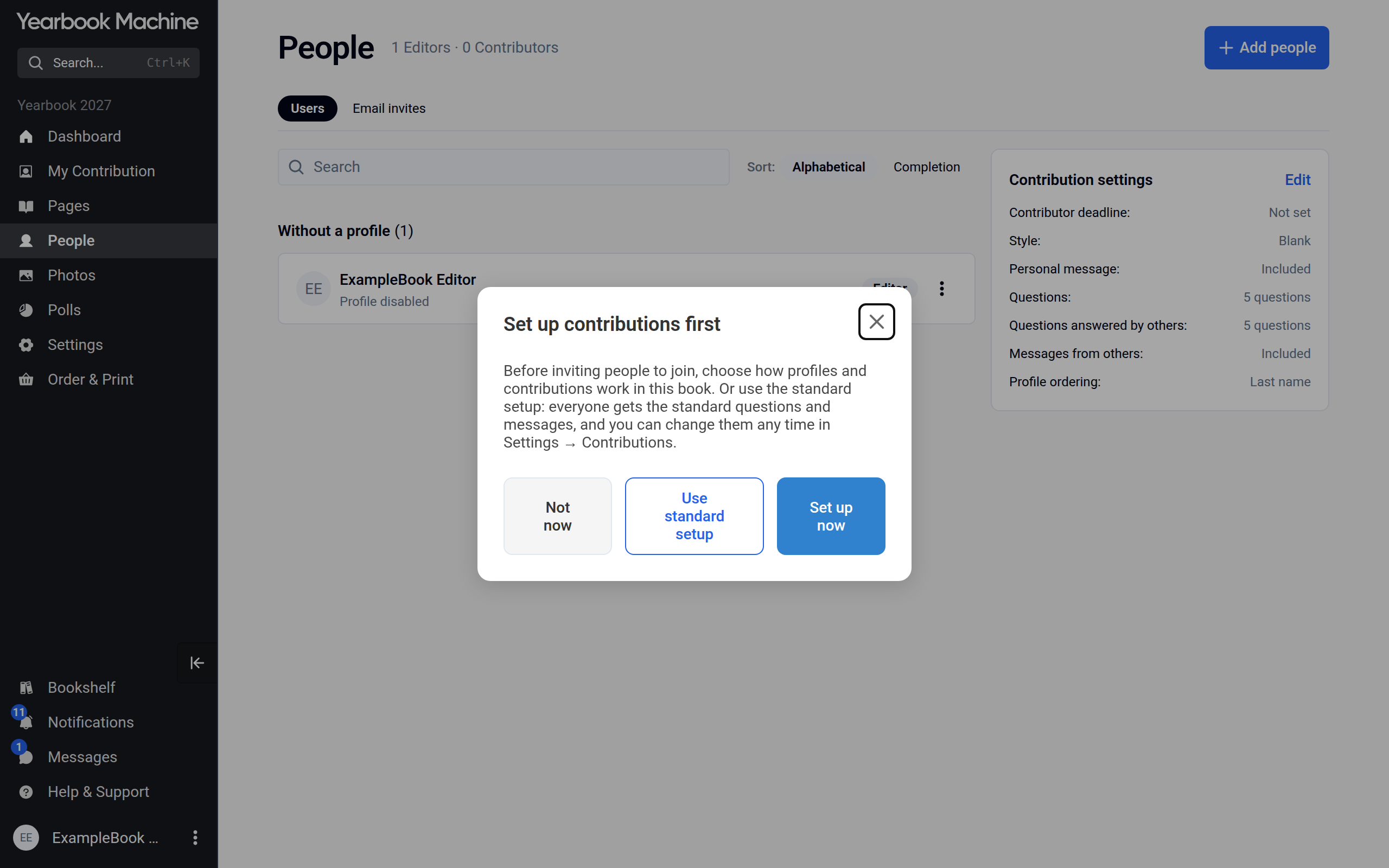
The first time, you may be asked to Set up contributions first, meaning decide what people will add before you invite them:
- Set up now: you choose how profiles and contributions work in your book.
- Use standard setup: you skip the set-up and start with the standard questions and messages.
You can change either later in Settings.
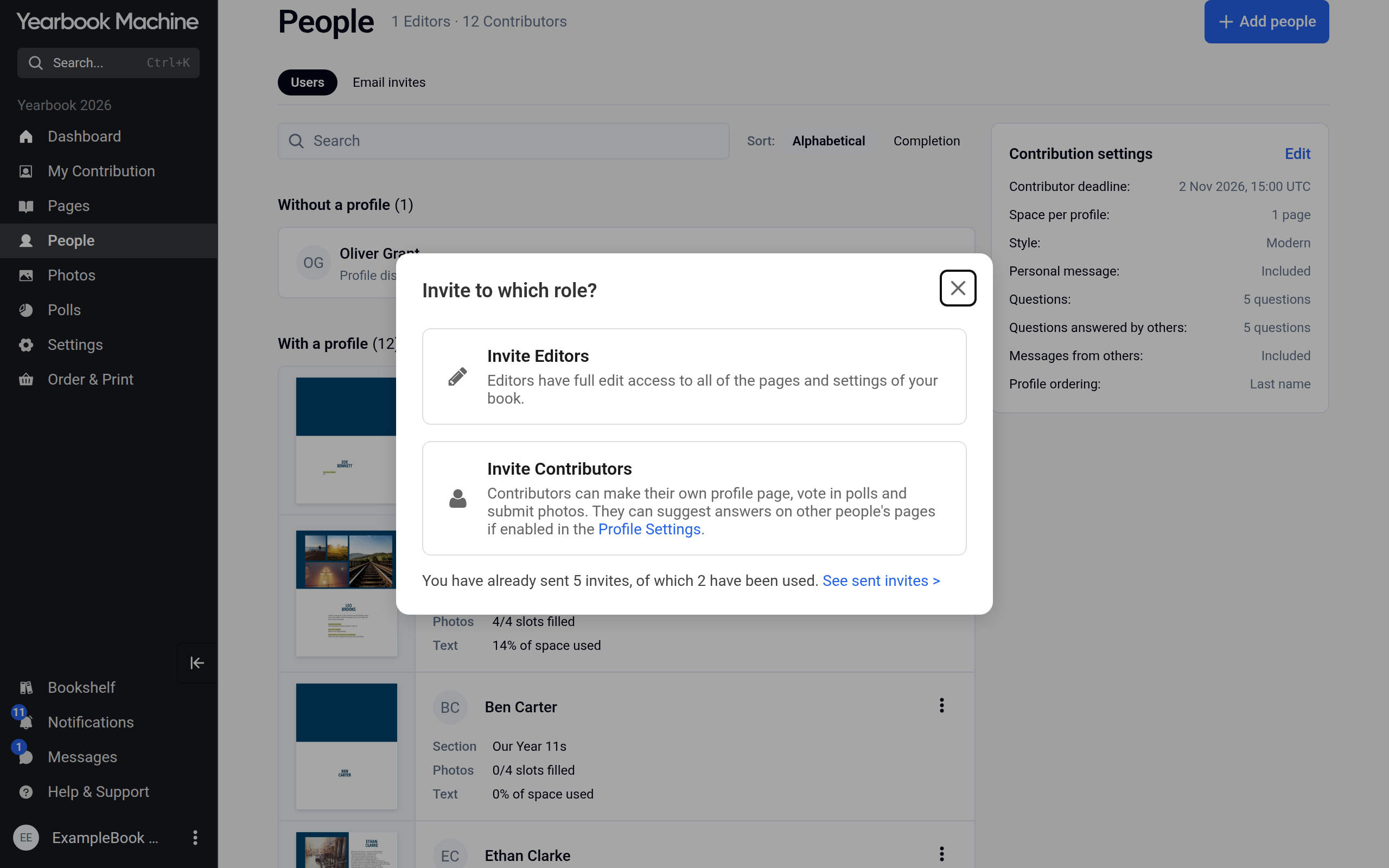
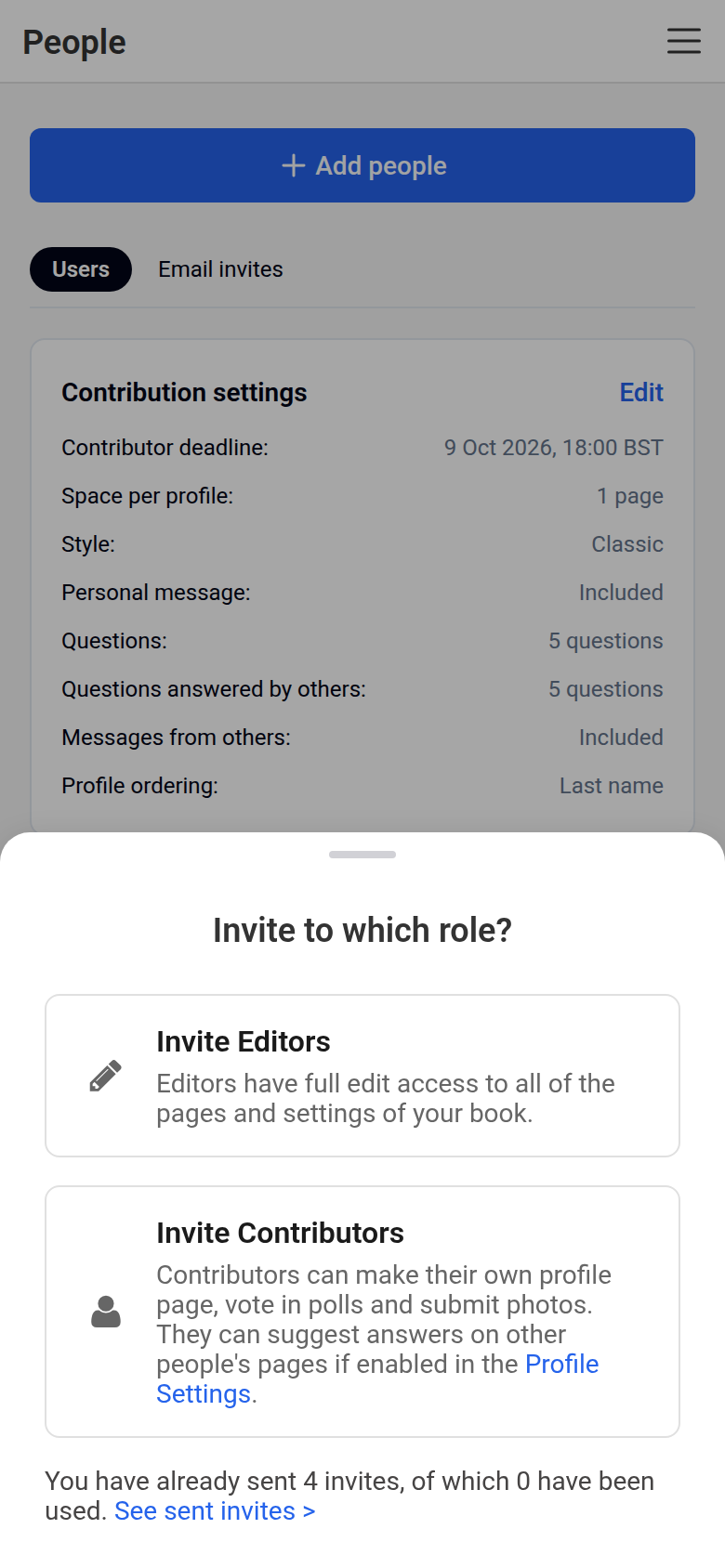
- Choose who you are inviting:
- Invite Editors: the people you invite will run the book with you. Editors have full edit access to all pages and settings, so only invite people you trust.
- Invite Contributors: the people you invite will take part in the book: filling in their own profile page, adding photos and voting in polls.
Sharing the invitation link
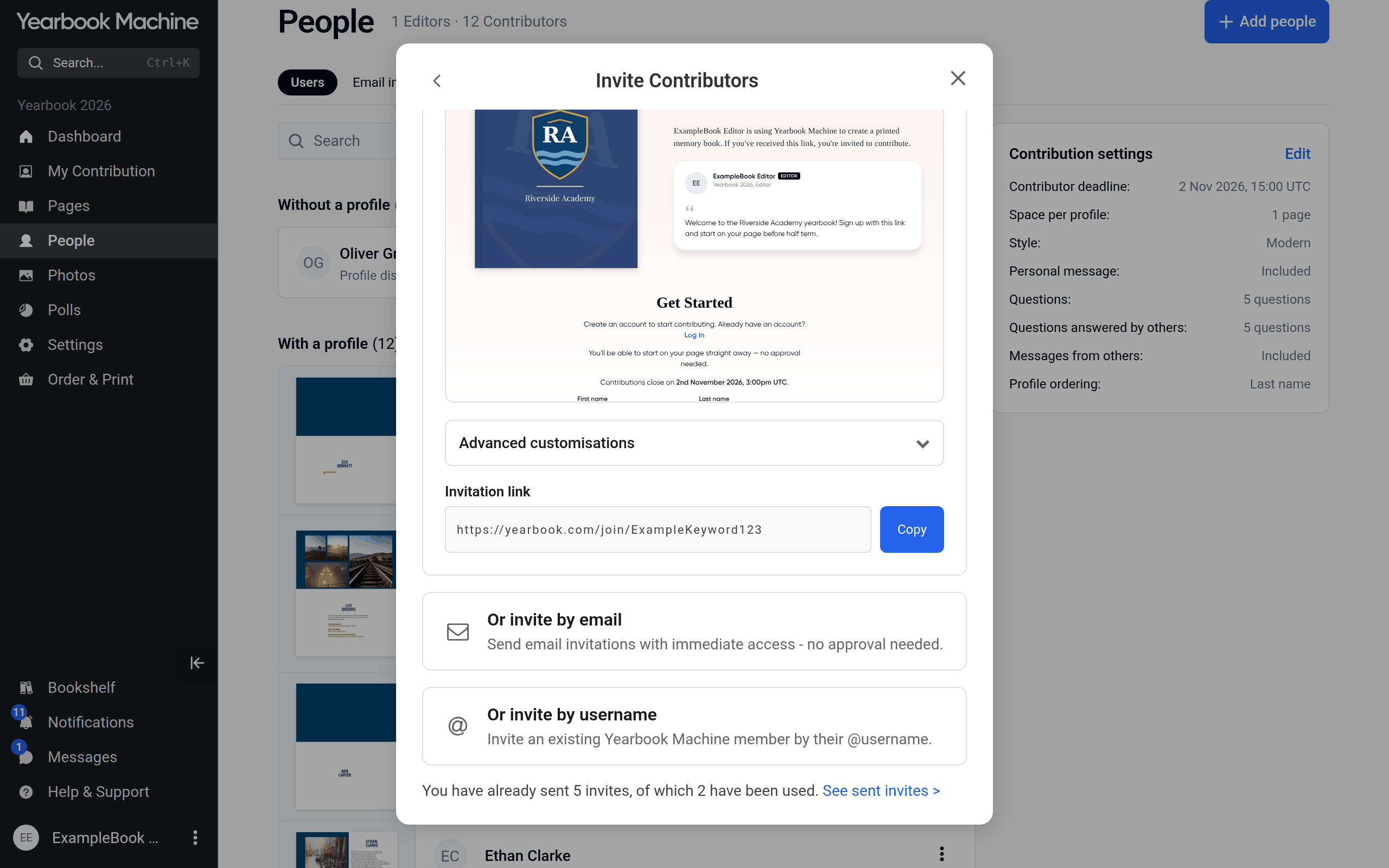
The quickest way to reach a whole group is the invitation link: one web address everyone can use to join. It is under Invite Contributors.
- Decide whether people who join by link can start straight away, using the switch New members can start contributing straight away (no editor approval). It is on for new books.
- When it is on, anyone who opens the link and signs up is in the book at once.
- When it is off, each person waits until an editor approves them.
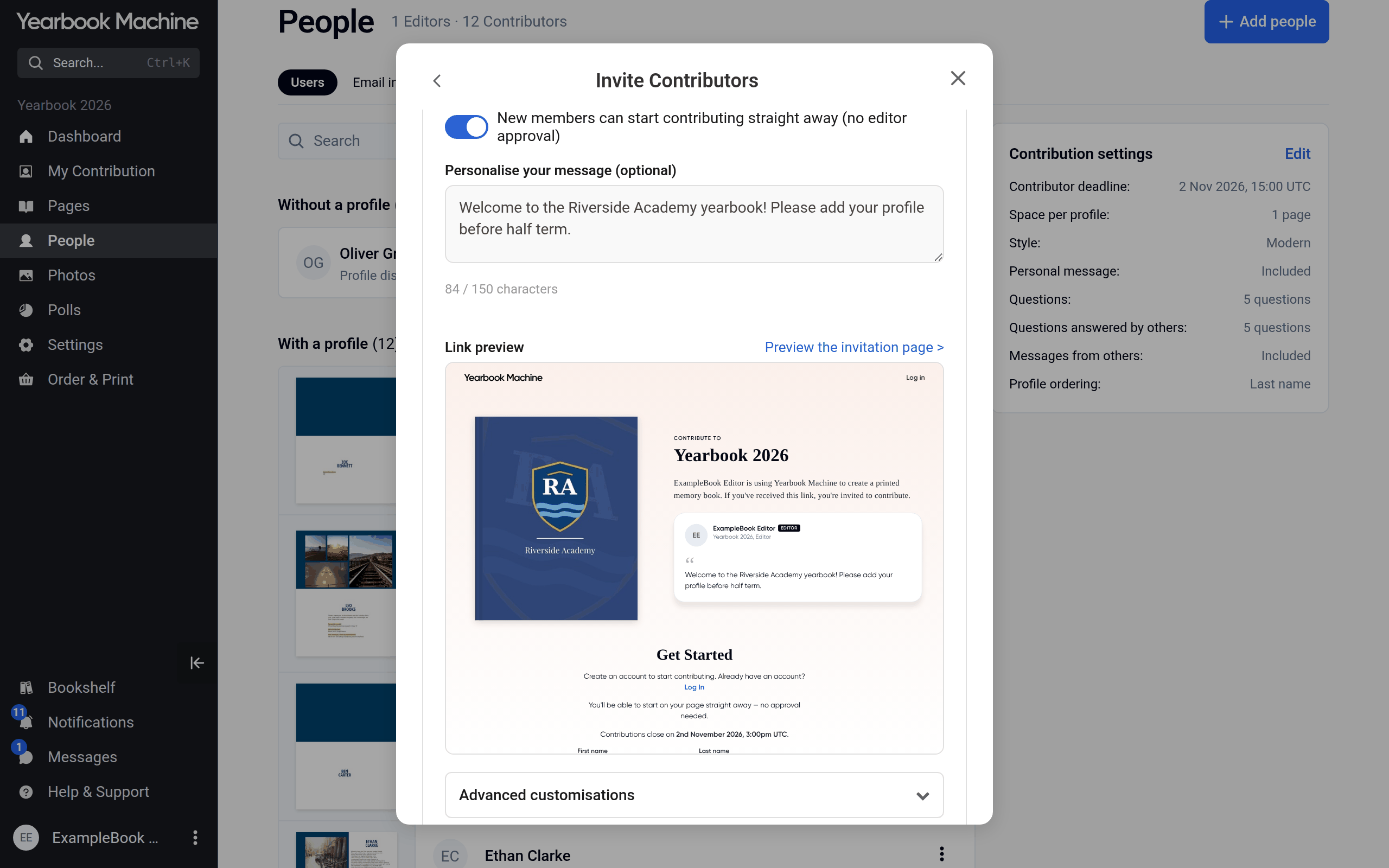
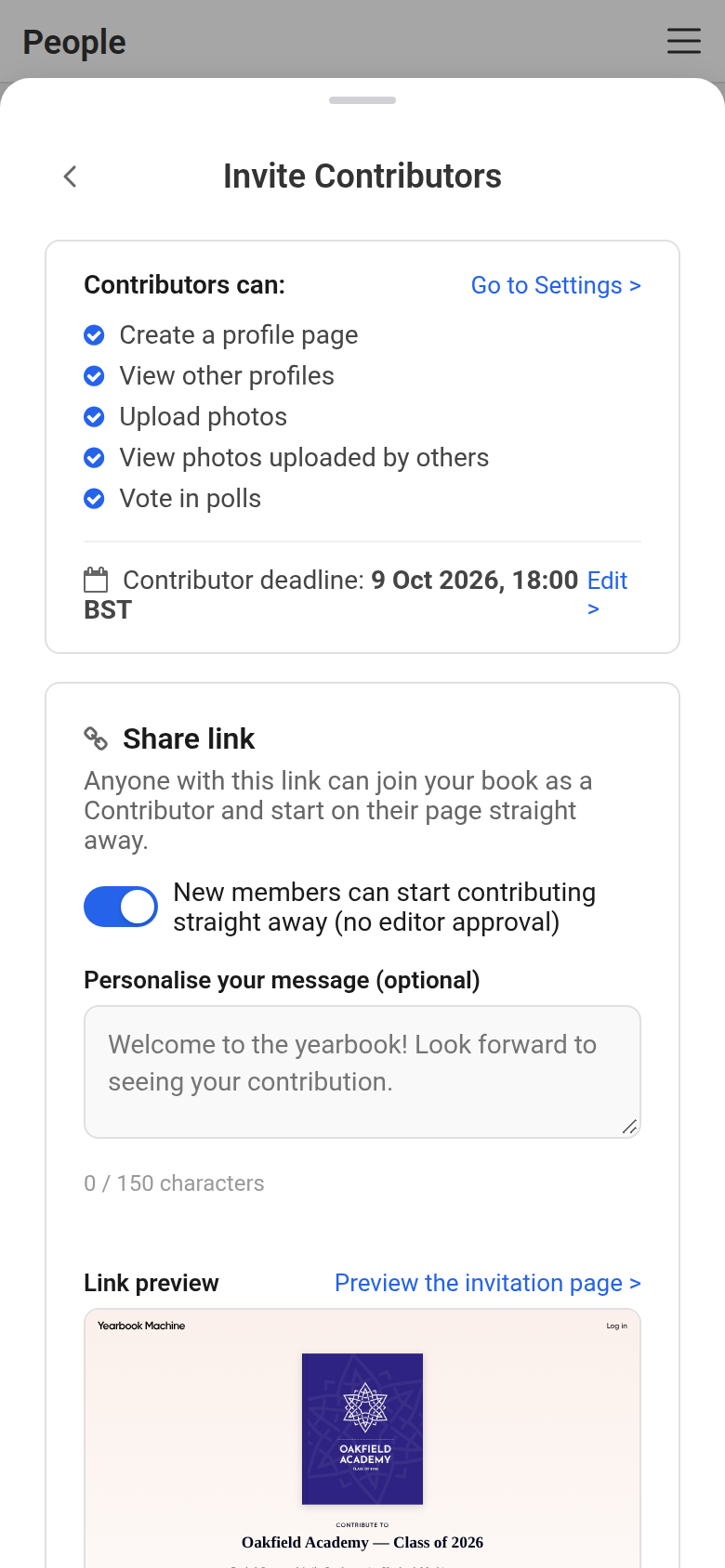
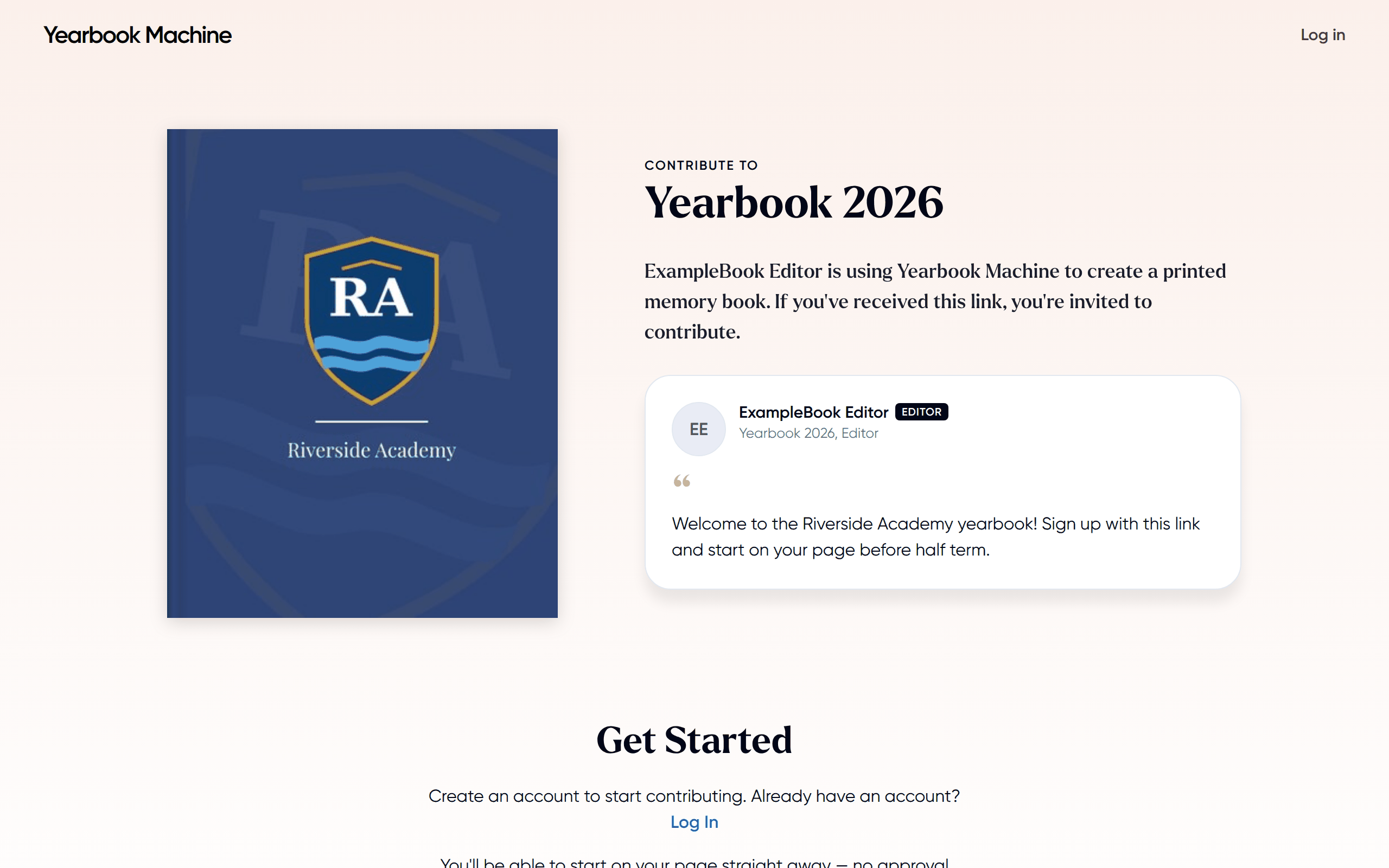
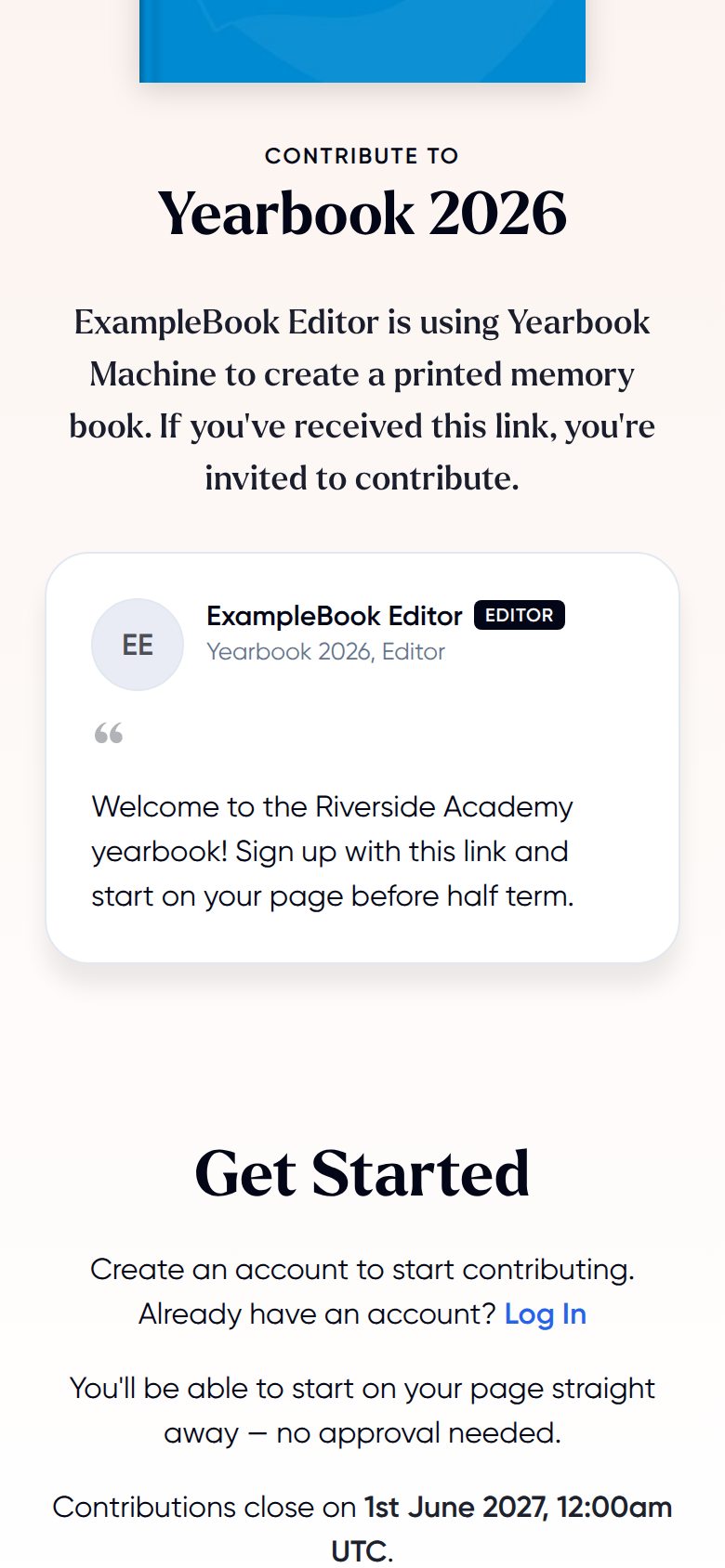
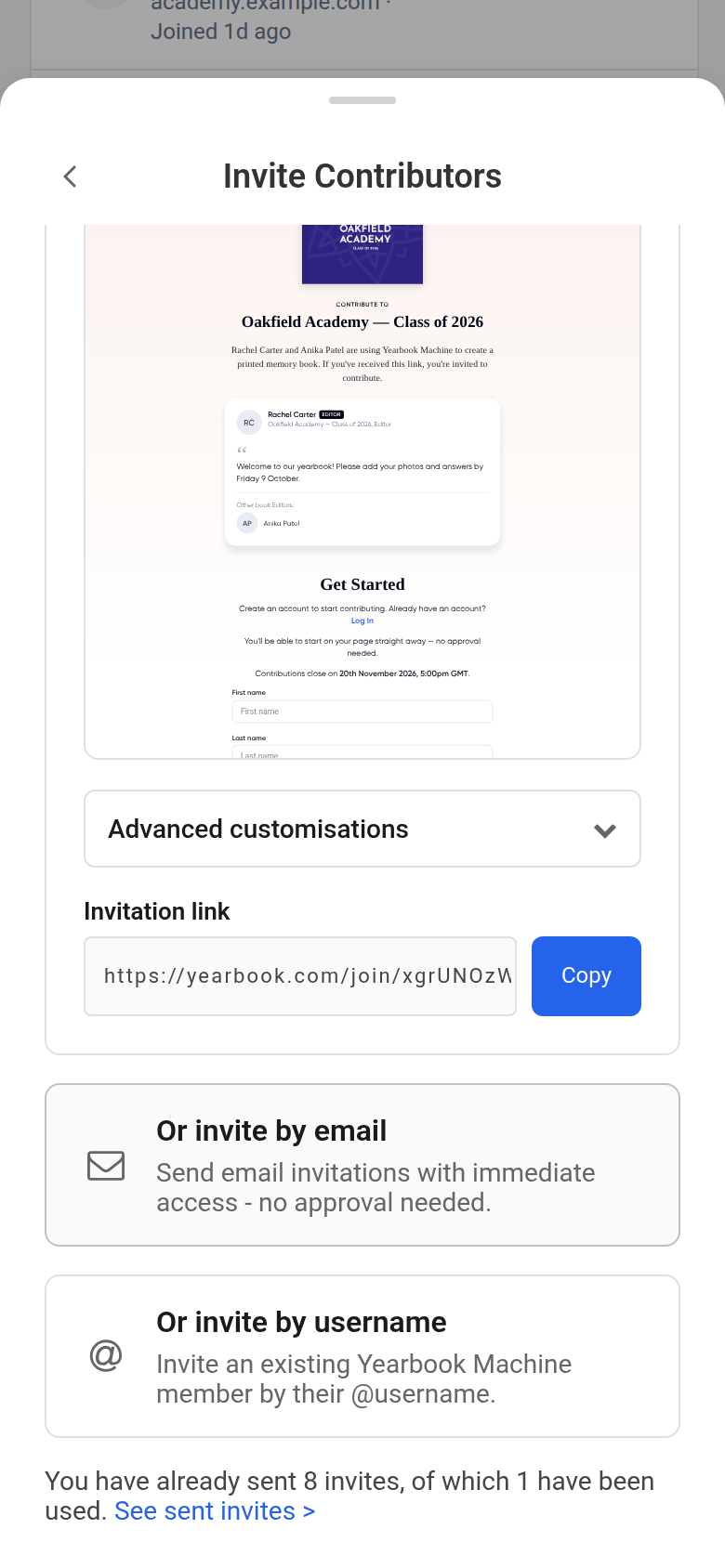
- Optionally, write a welcome under Personalise your message (optional) and click Save message. It appears on the invitation page, and Saved - shown on the invitation page confirms it.
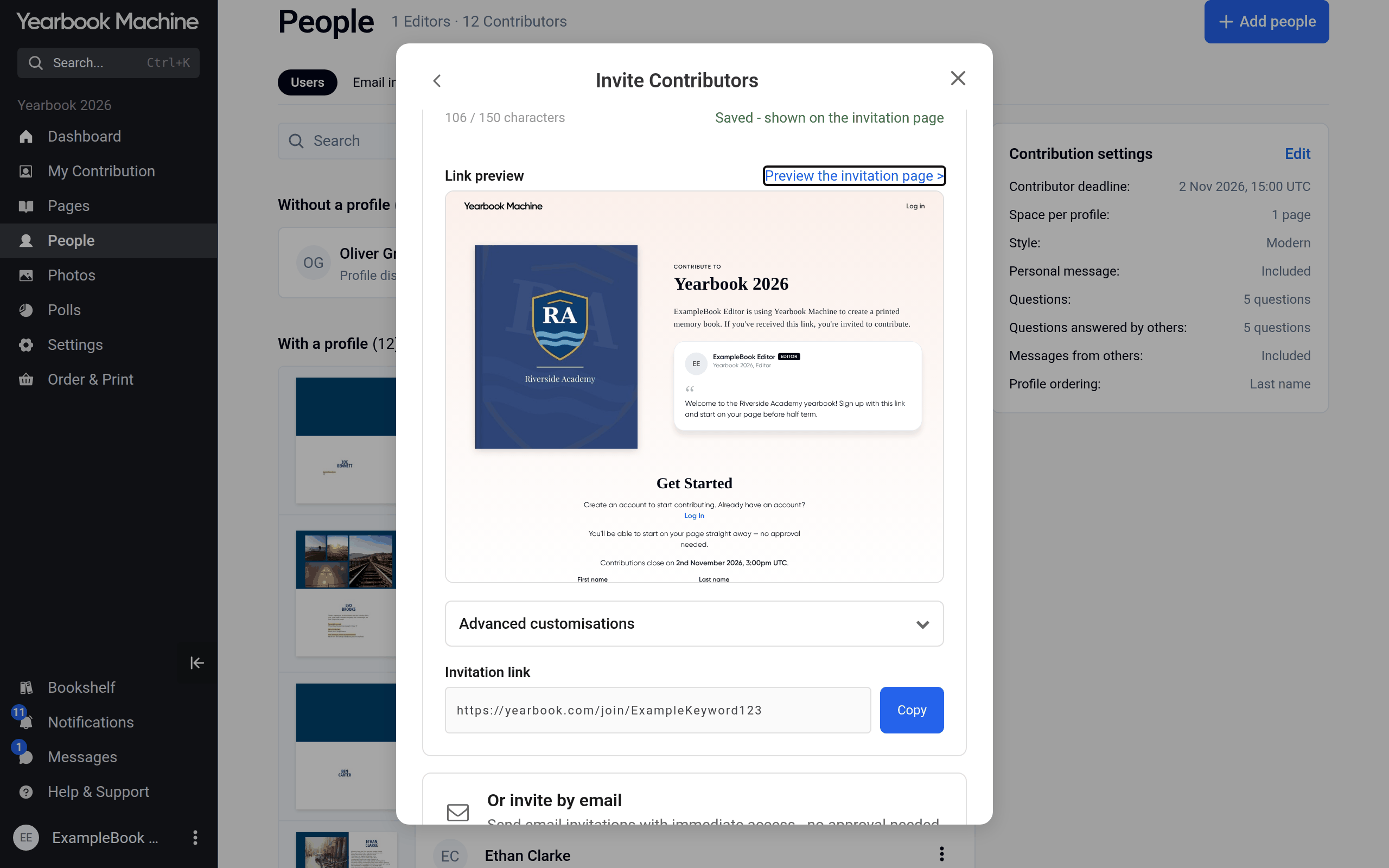
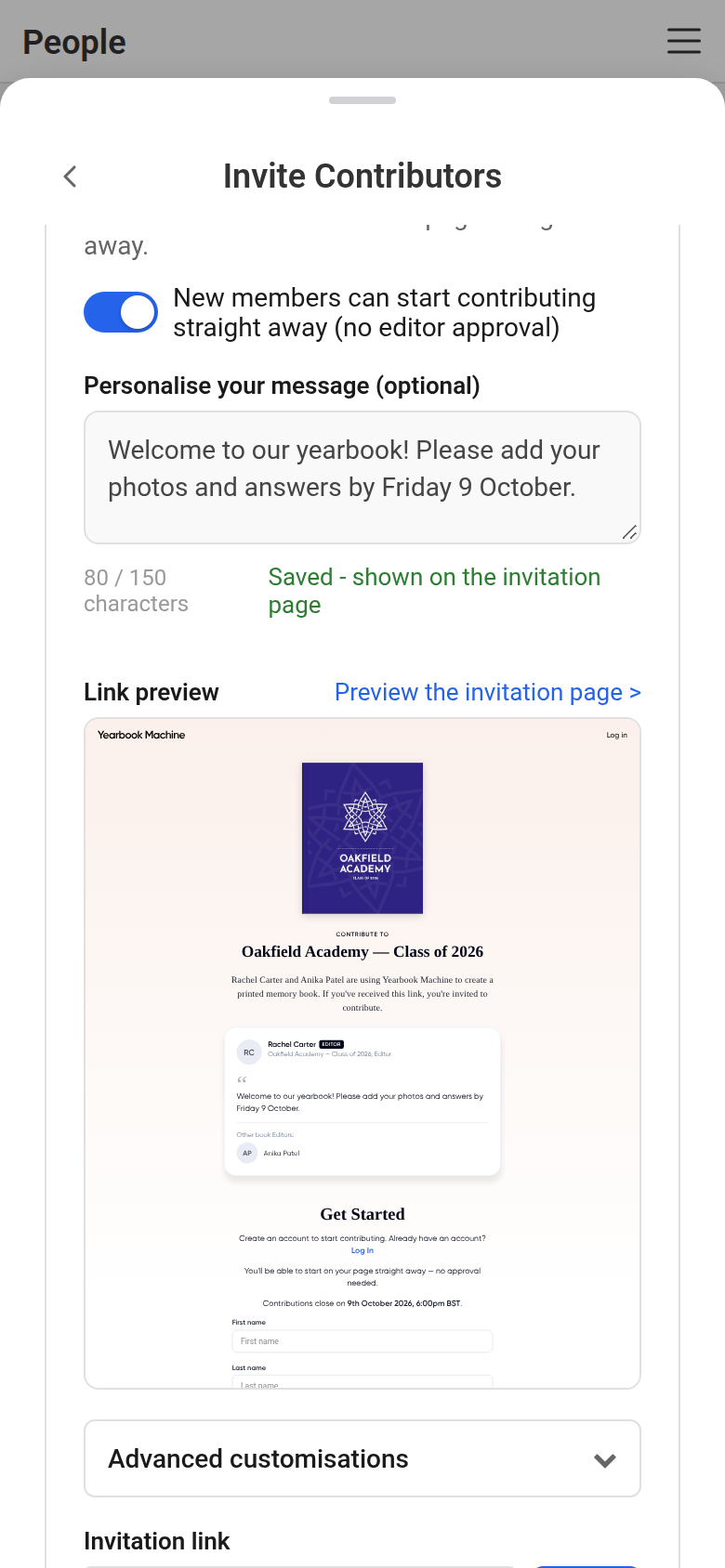
- Click Preview the invitation page to see what people will see.
- Click Copy next to the Invitation link and share it however suits your group: by email, message or a printed notice.
Choosing which section new profiles go in
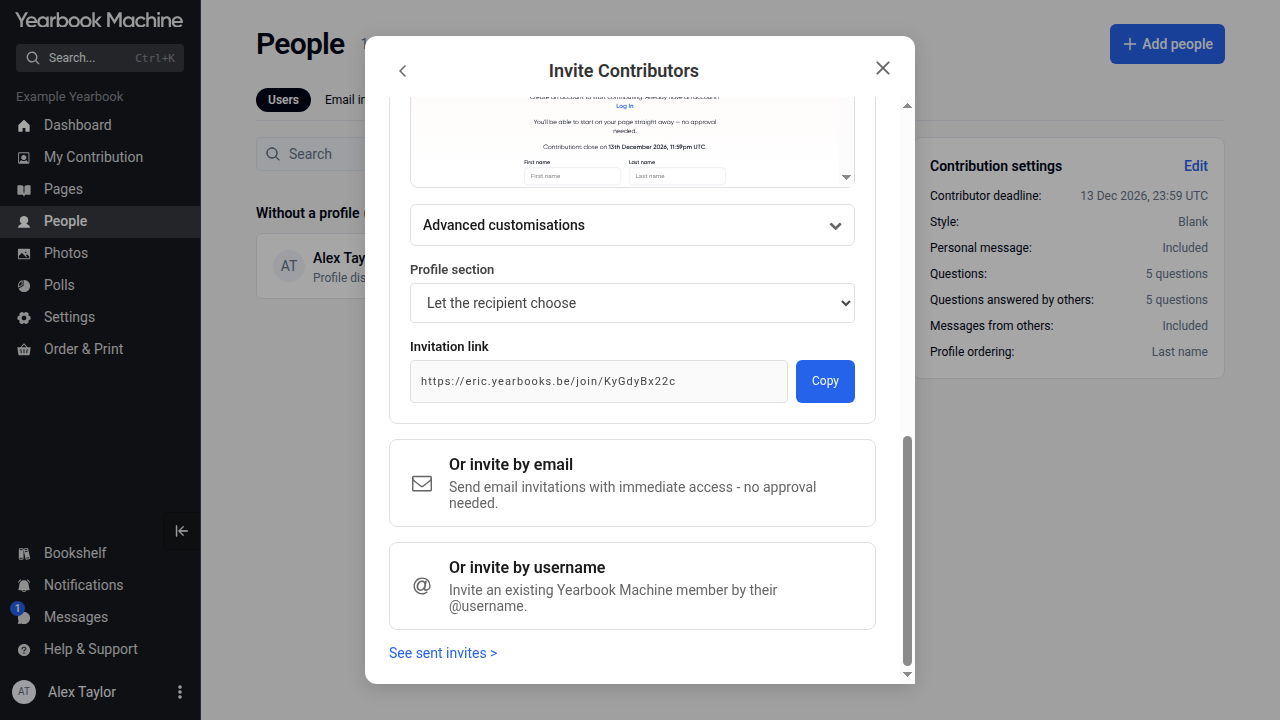
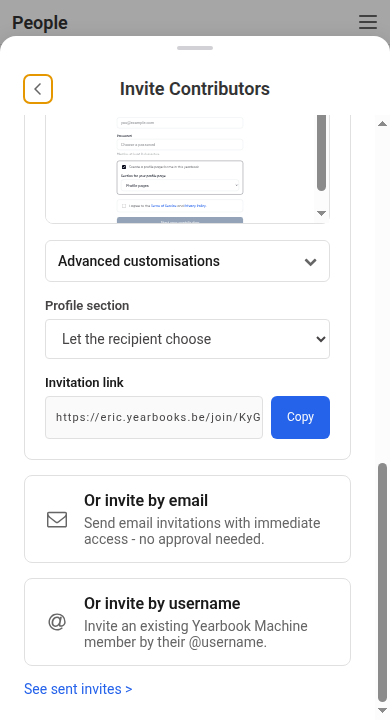
If the profile sections in your book are set up differently, for example with different questions, a Profile section box appears above the Invitation link. If every section is set up the same way, there is no box, and people choose their own section when they join.
- Let the recipient choose is the default. Each person picks the section for their profile page when they sign up.
- To put everyone who joins in one section, choose that section, for example Staff. The Invitation link changes to a link for that section, so copy it after choosing. People who join with it are told which section their profile will be in, and cannot pick another.
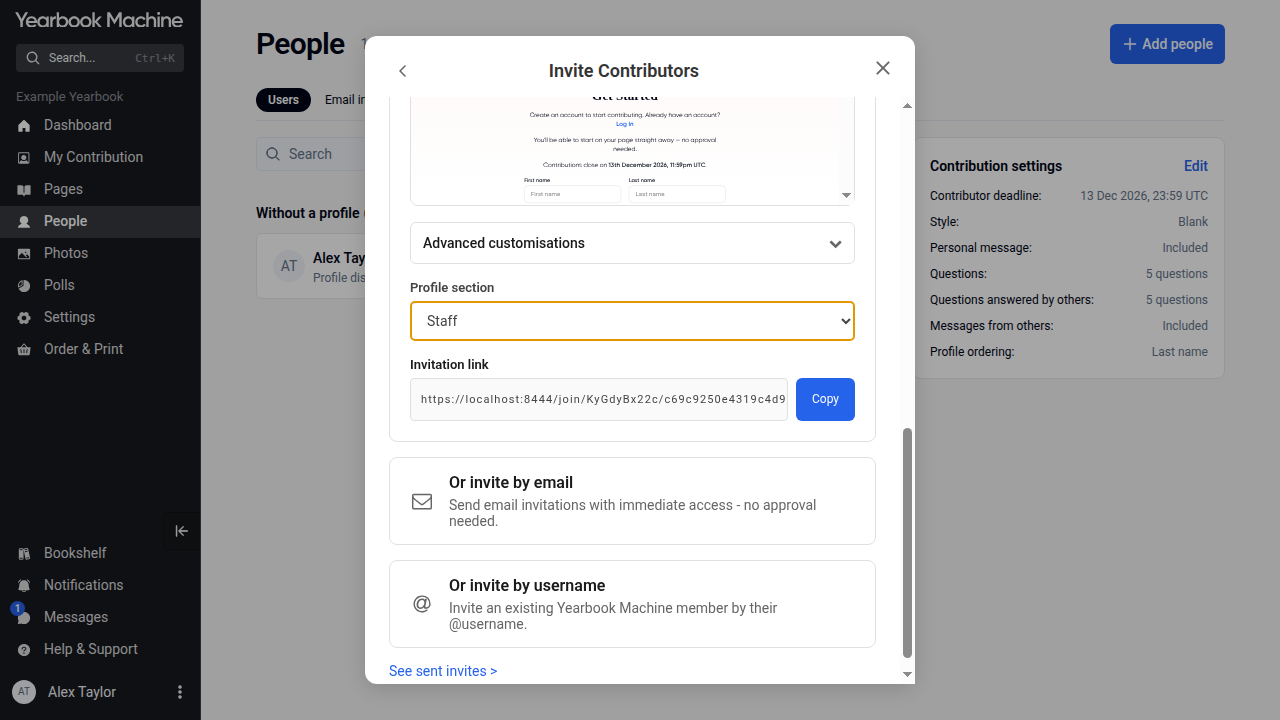
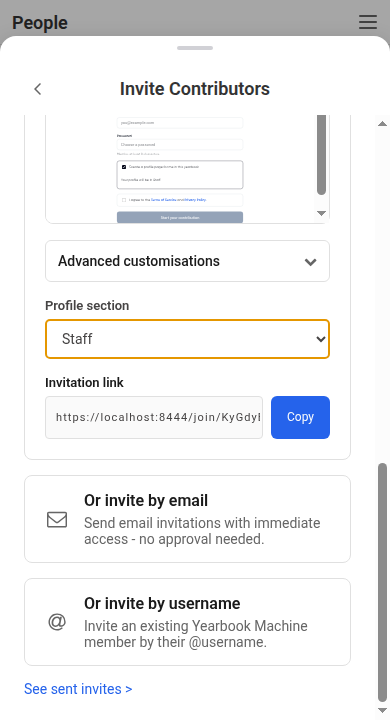
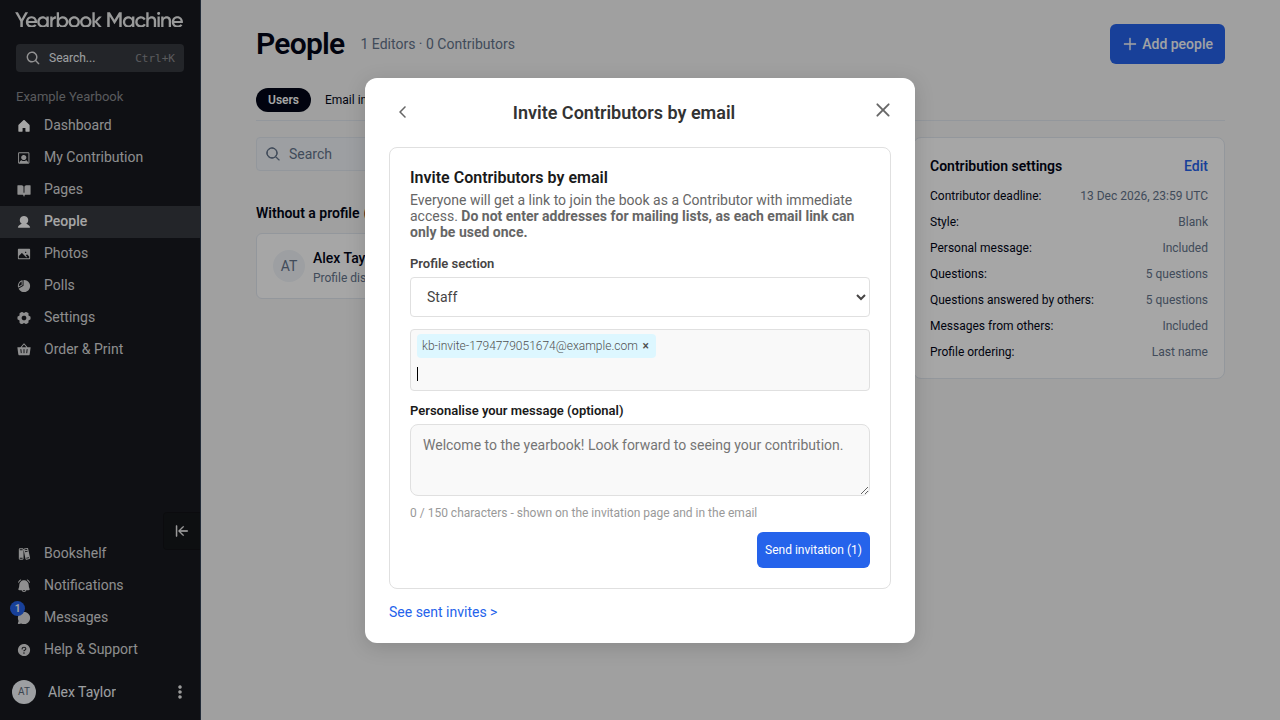
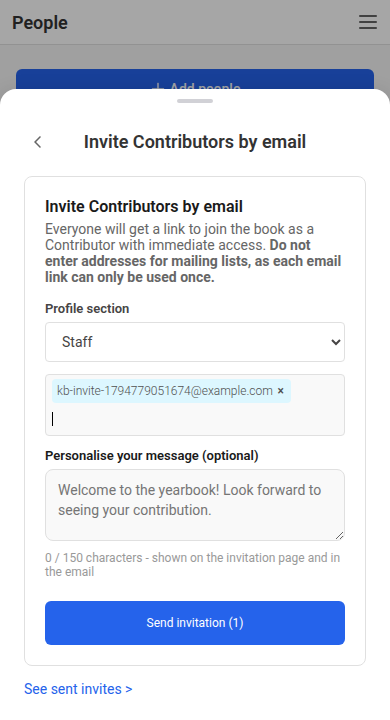
The email form under Or invite by email has the same Profile section box. Everyone you invite in that send goes into the section you choose.
Inviting by email
- Under Invite Editors, the email form is shown straight away. Under Invite Contributors, click Or invite by email.
- Enter the email addresses, separated by spaces or commas. You can paste a list.
- Optionally, add a message.
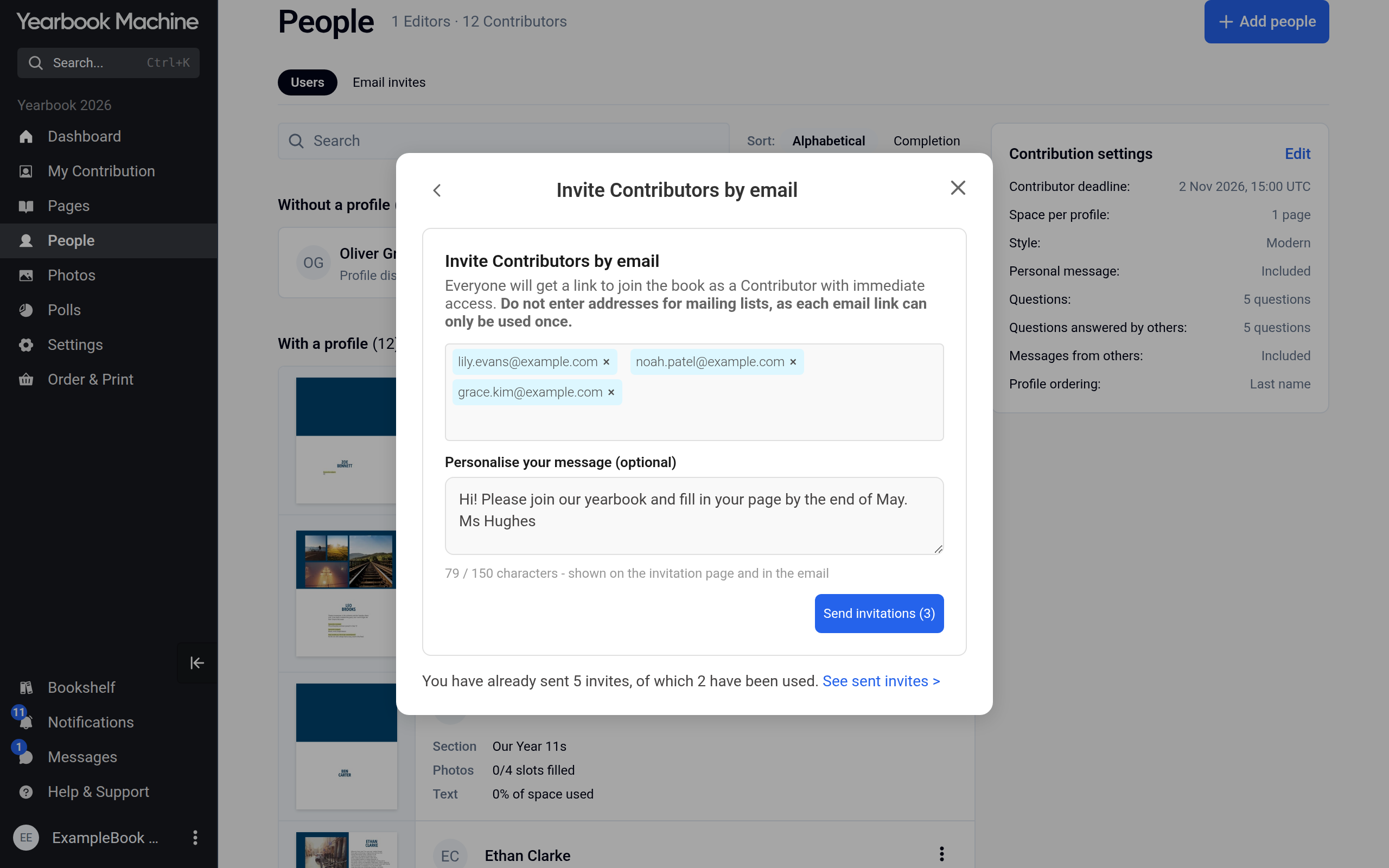
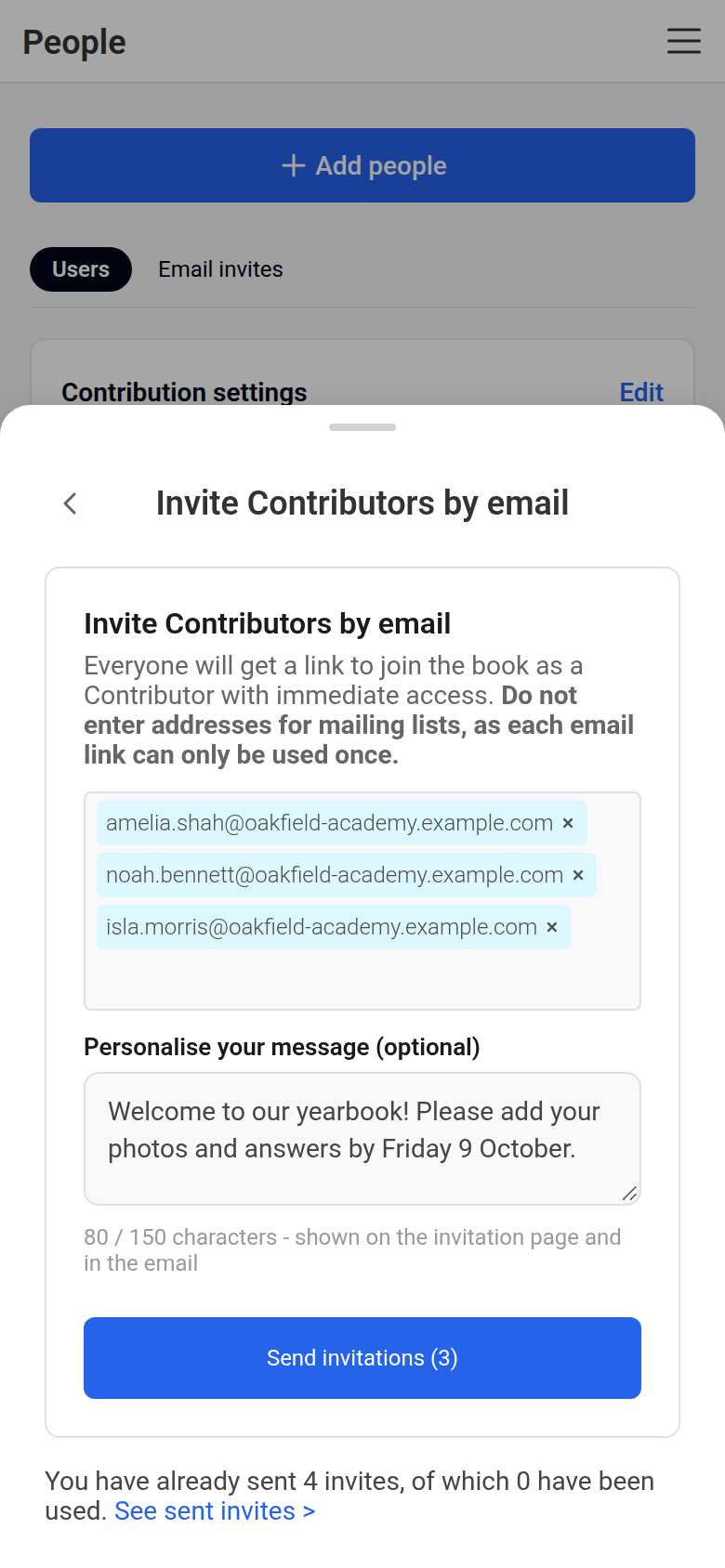
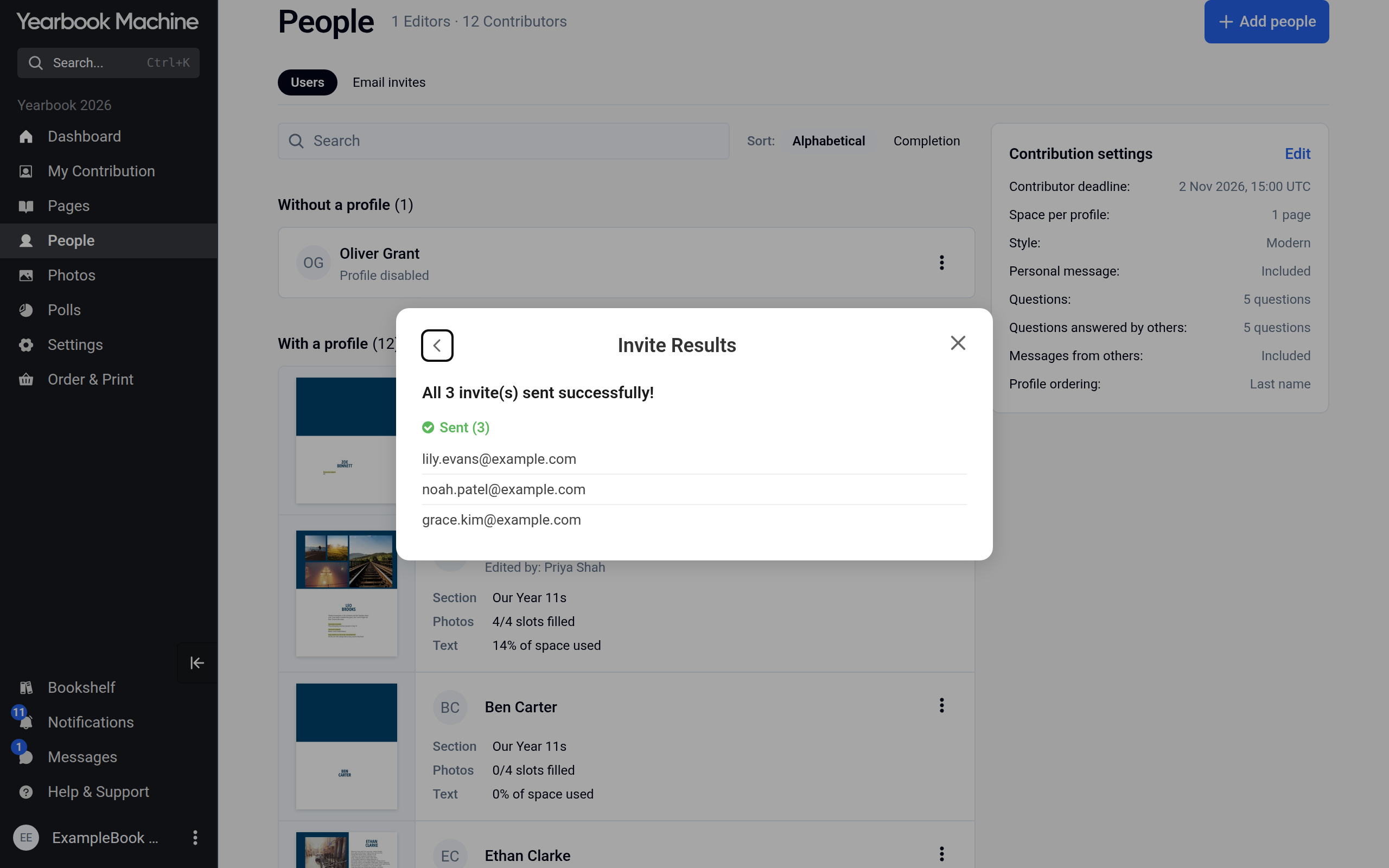
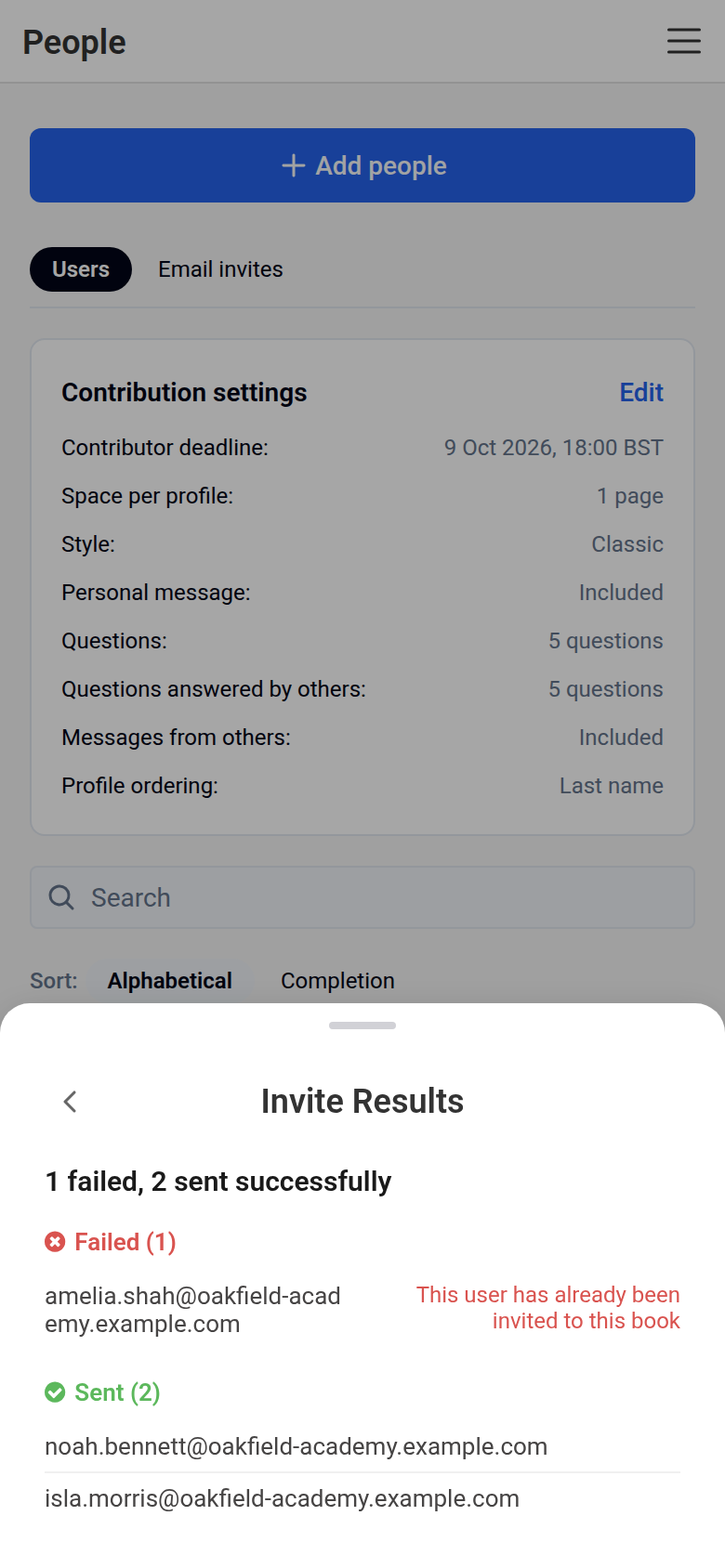
- Click the send button, which shows how many invitations will go, for example Send invitations (3). A summary shows which invitations were sent and which failed, with the reason.
People invited by email get immediate access, with no approval needed. Each email link can only be used once, so do not send invitations to mailing list addresses. If someone already has a Yearbook Machine account, they receive a notification in their account instead.
Inviting by username
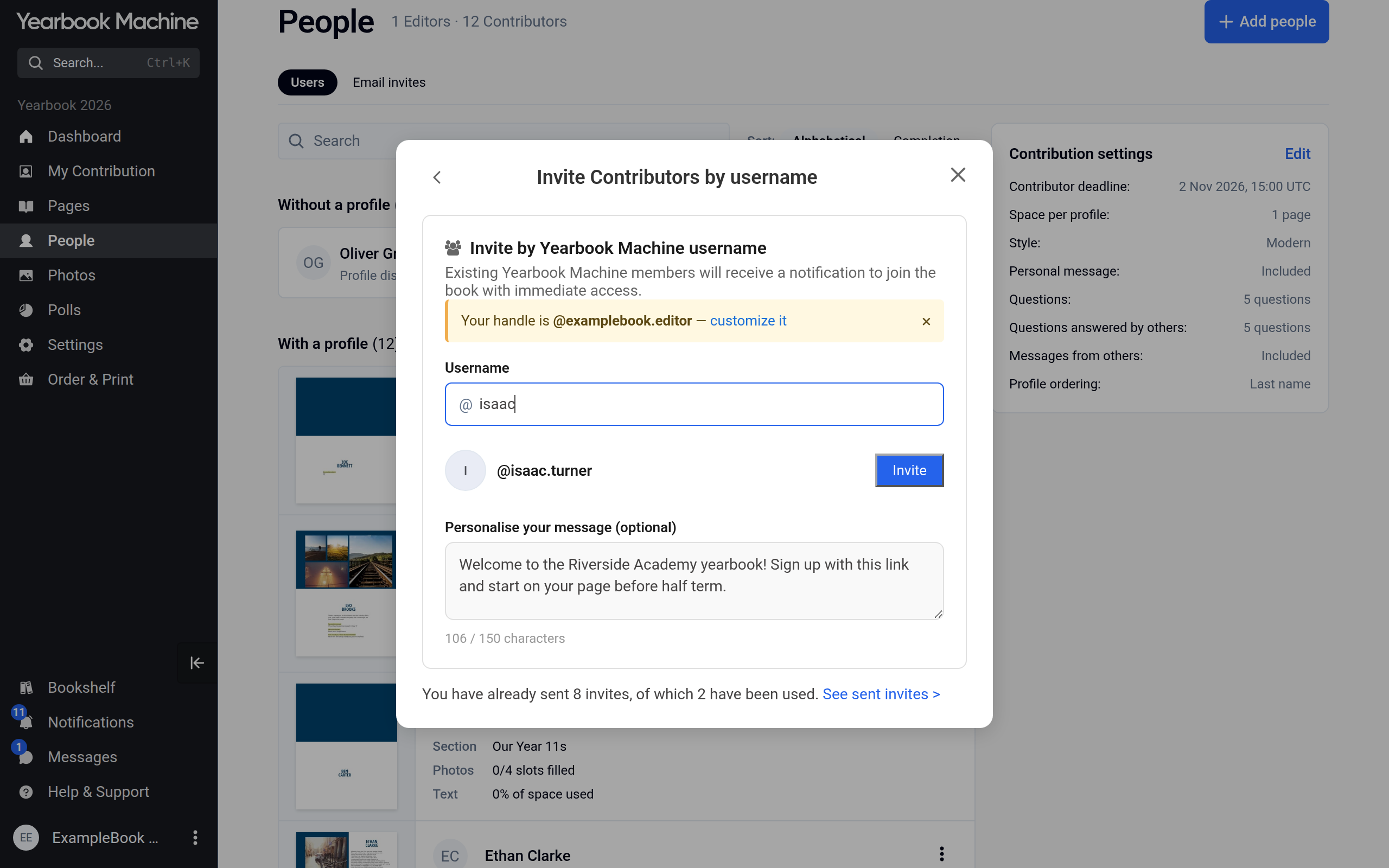
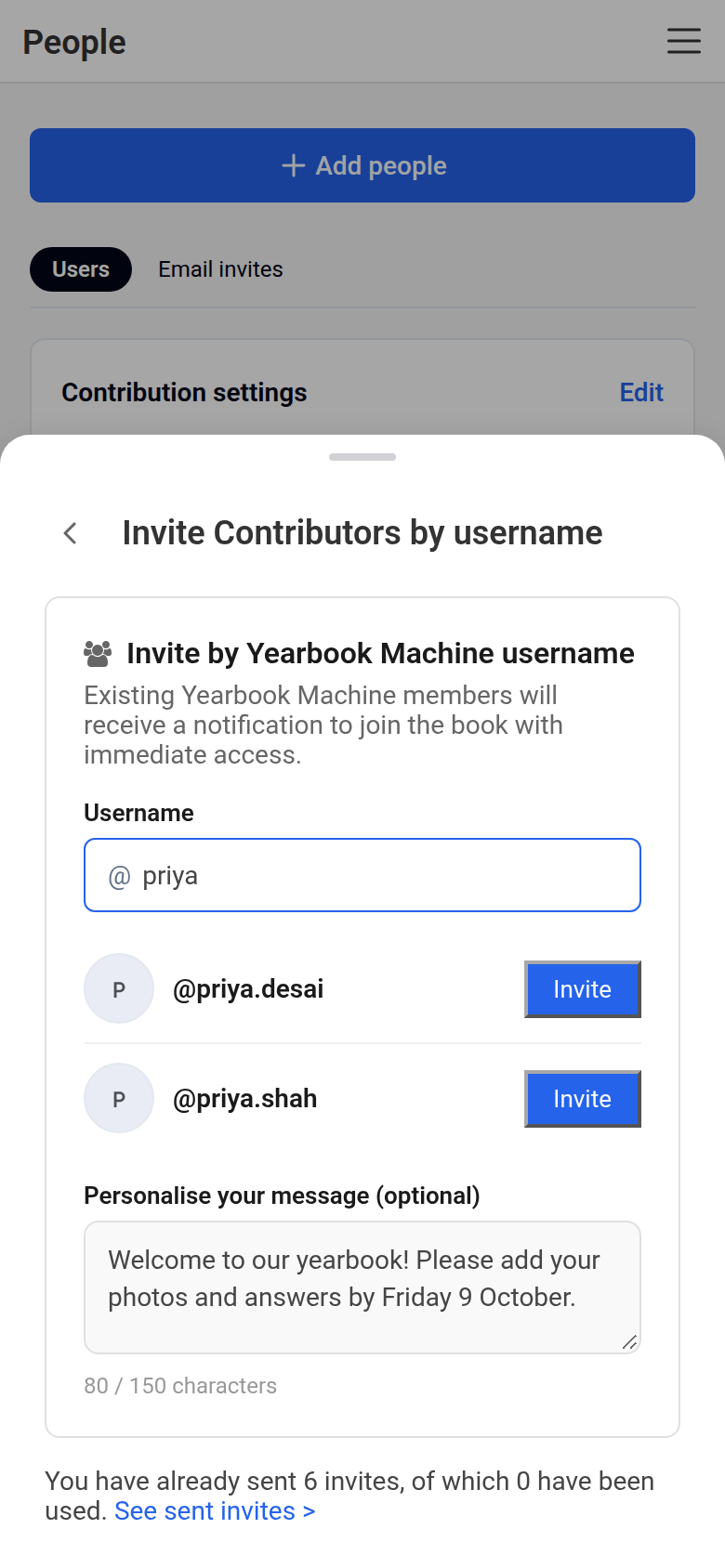
- Click Or invite by username.
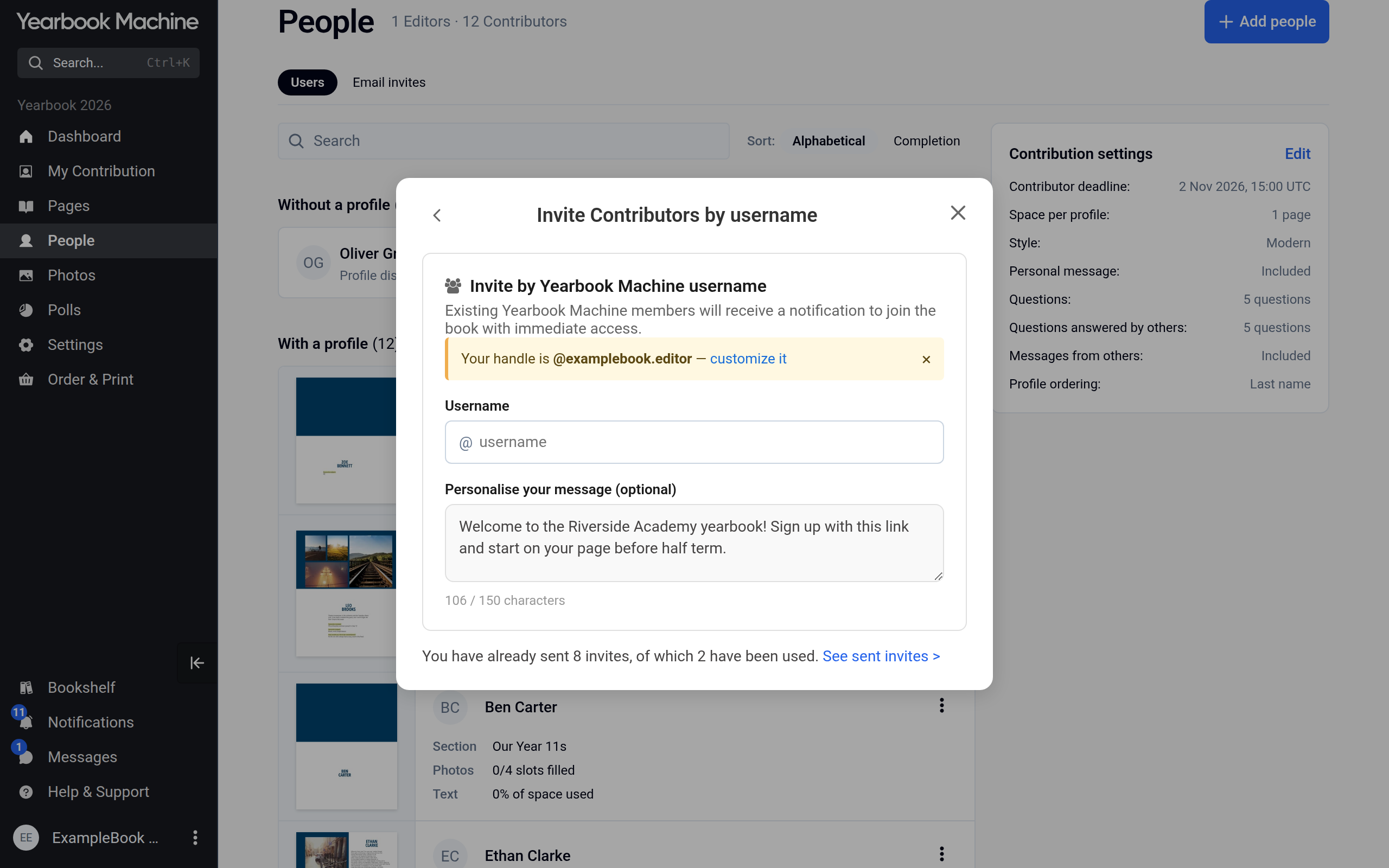
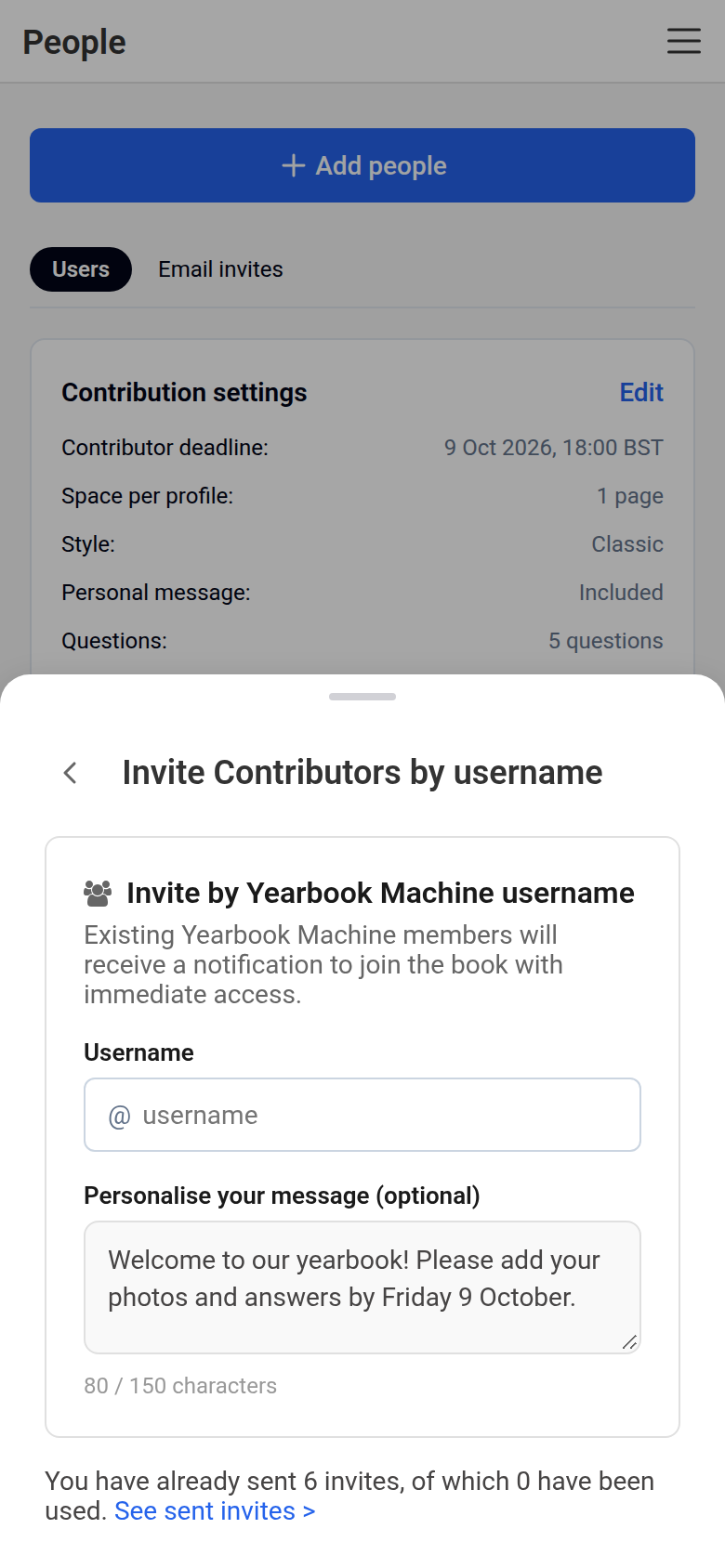
- Start typing the person's username and click Invite next to the right person.
Approving people who joined by link
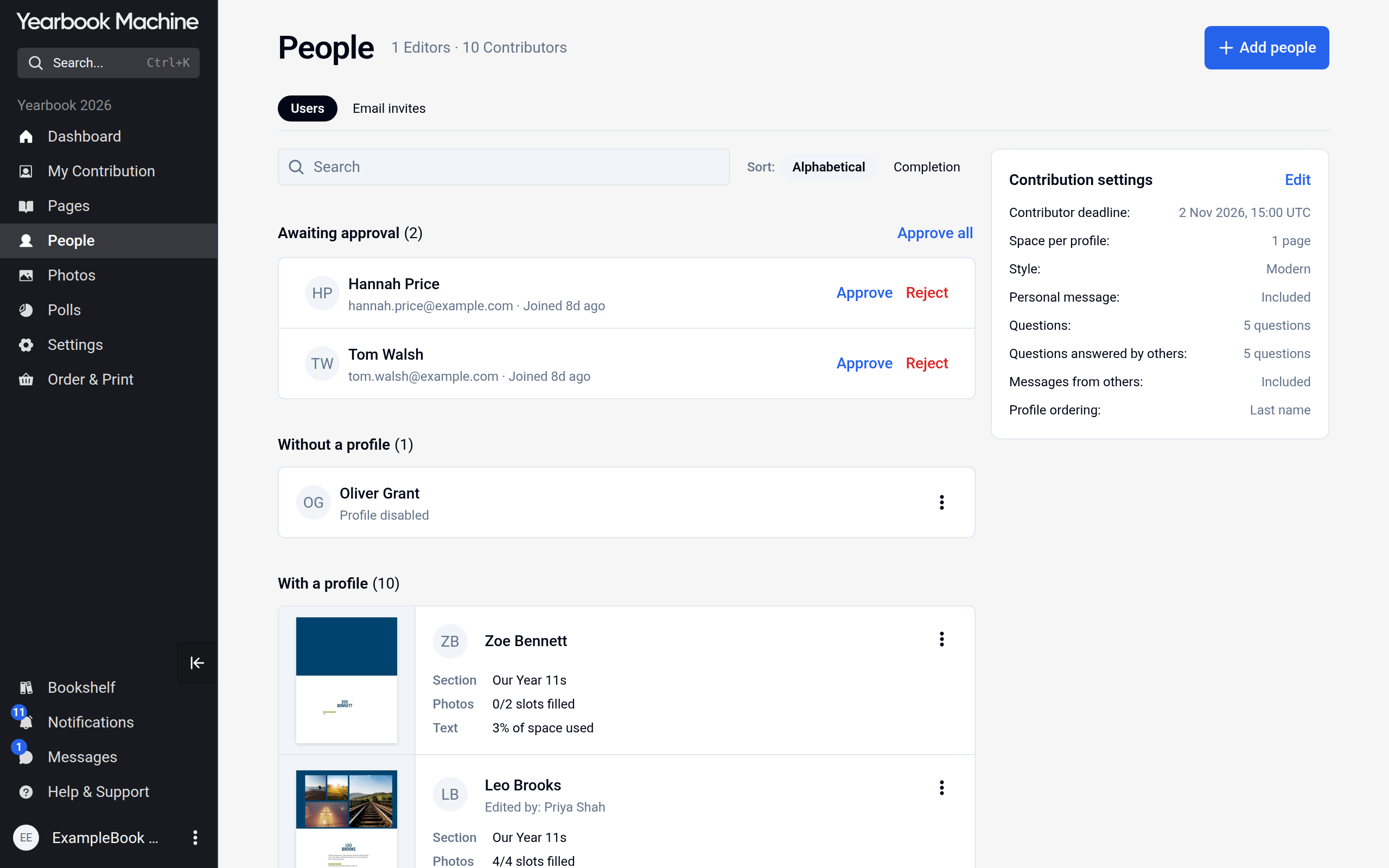
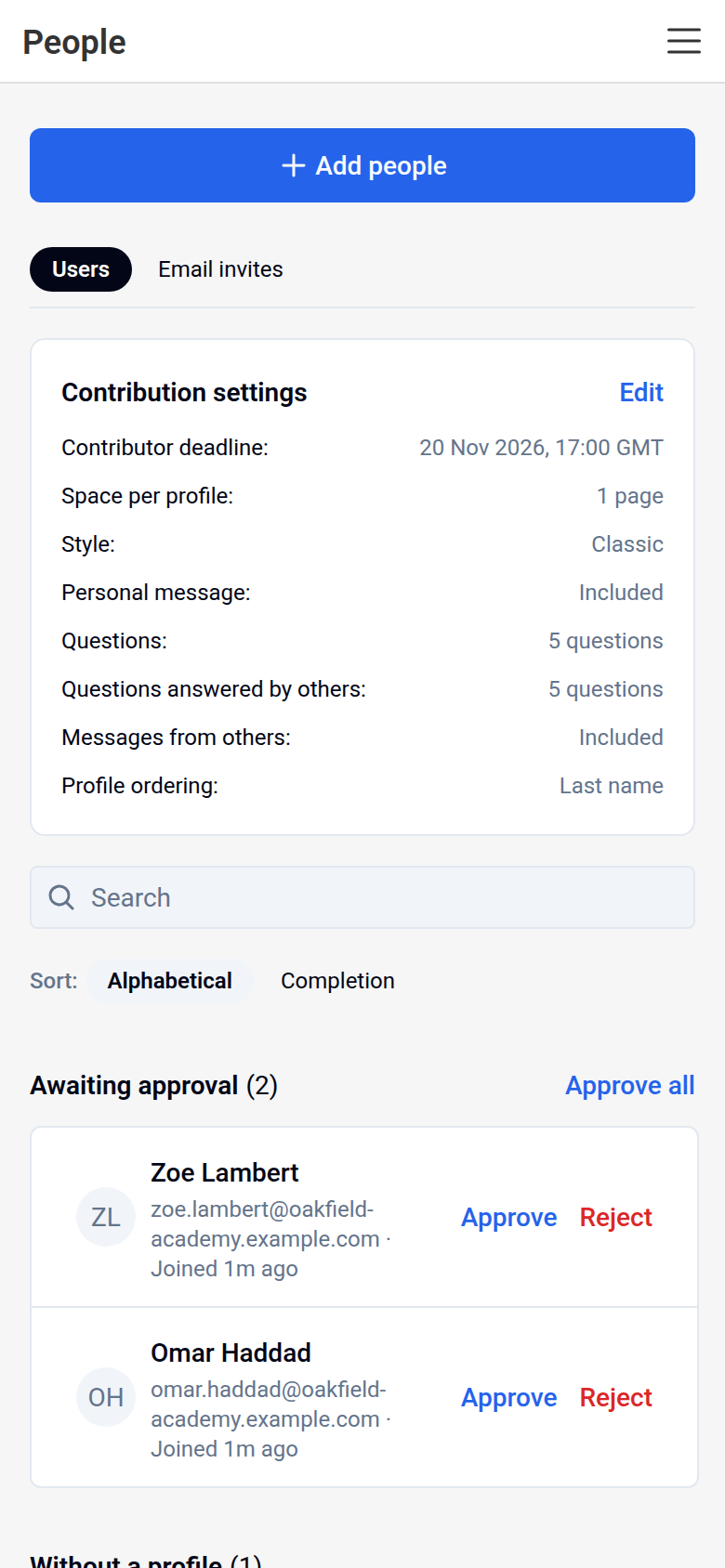
If new members need approval, they wait under Awaiting approval at the top of the People page. Editors are also notified of each request. For each person:
- Approve lets them into the book.
- Reject turns their request down.
- Approve all lets everyone on the list in at once.
Checking, resending and cancelling invitations
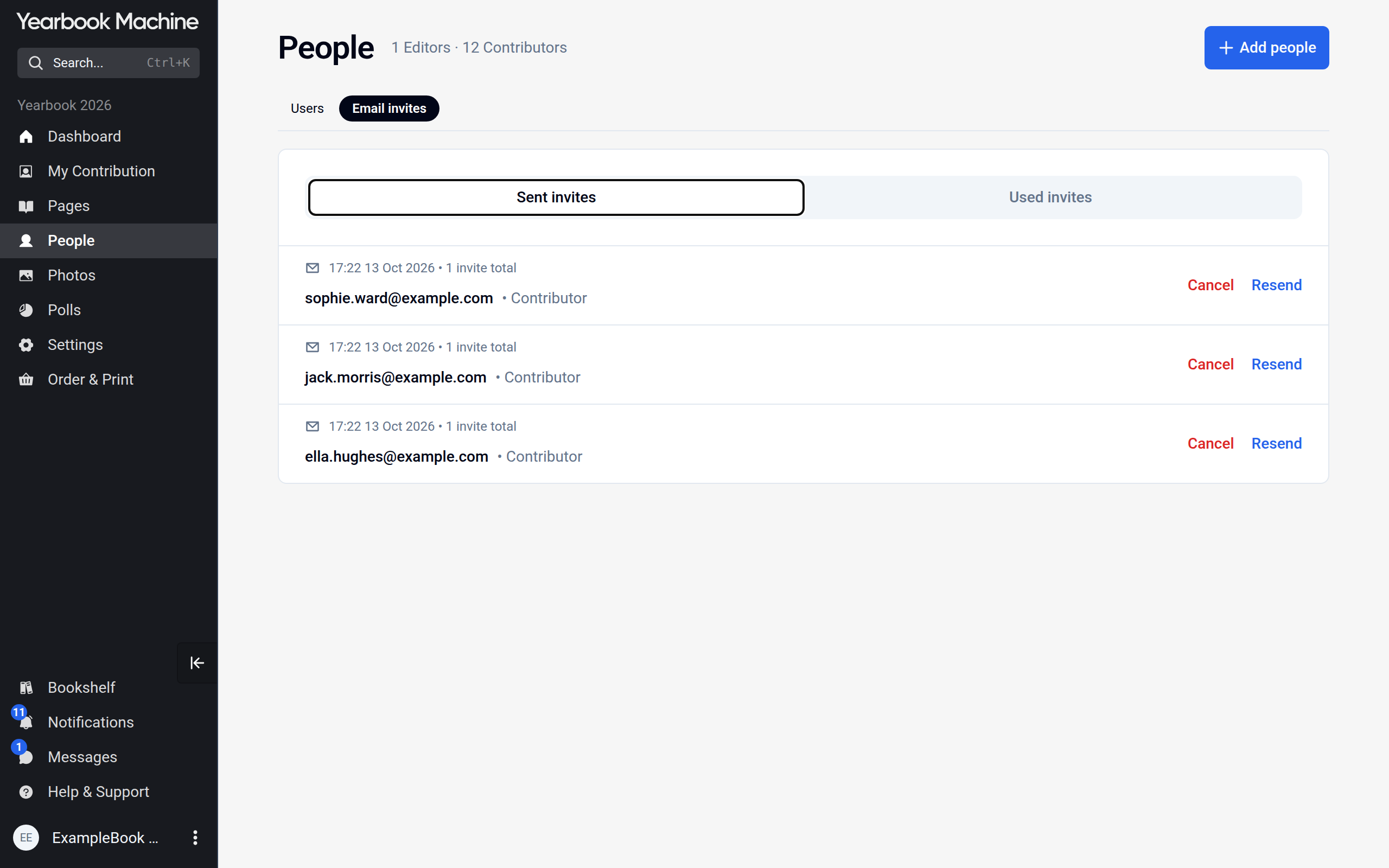
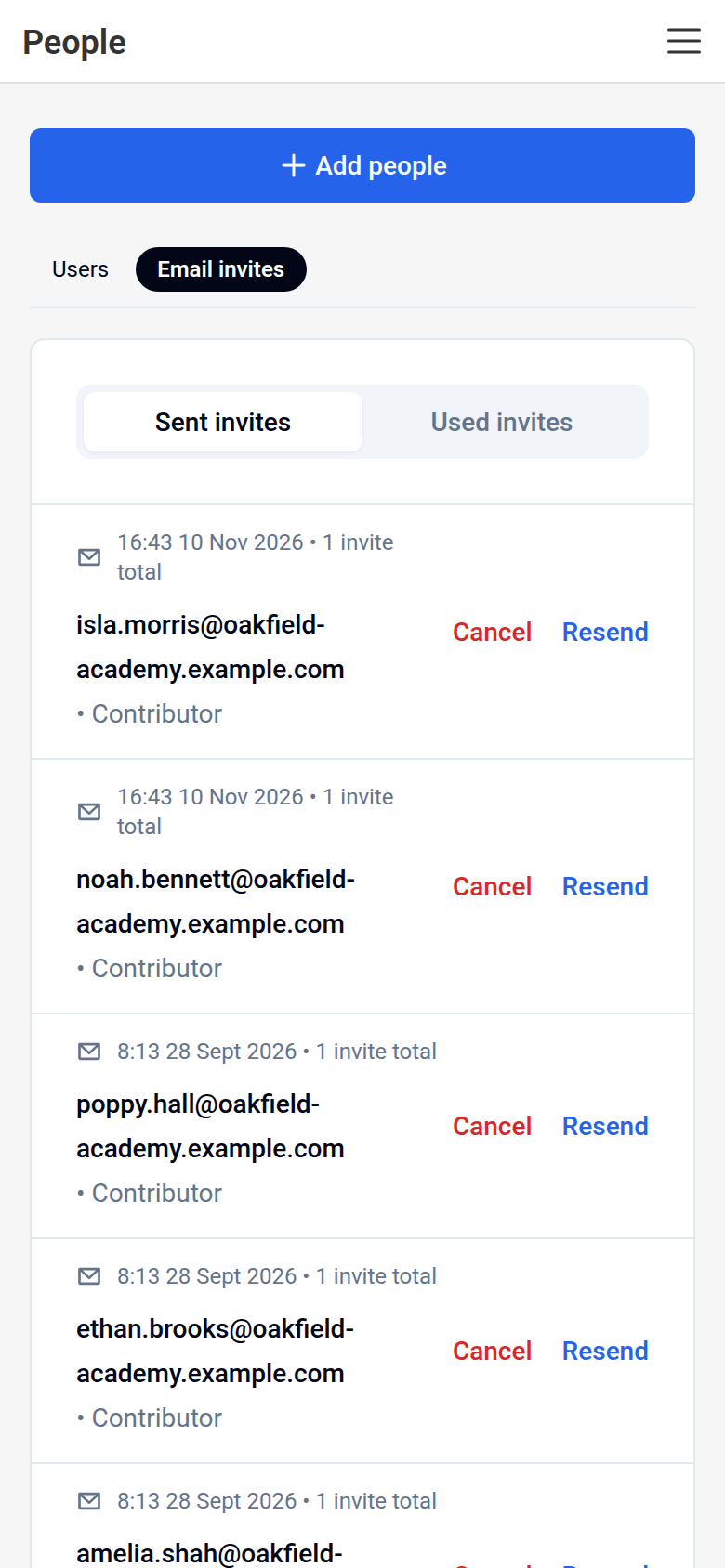
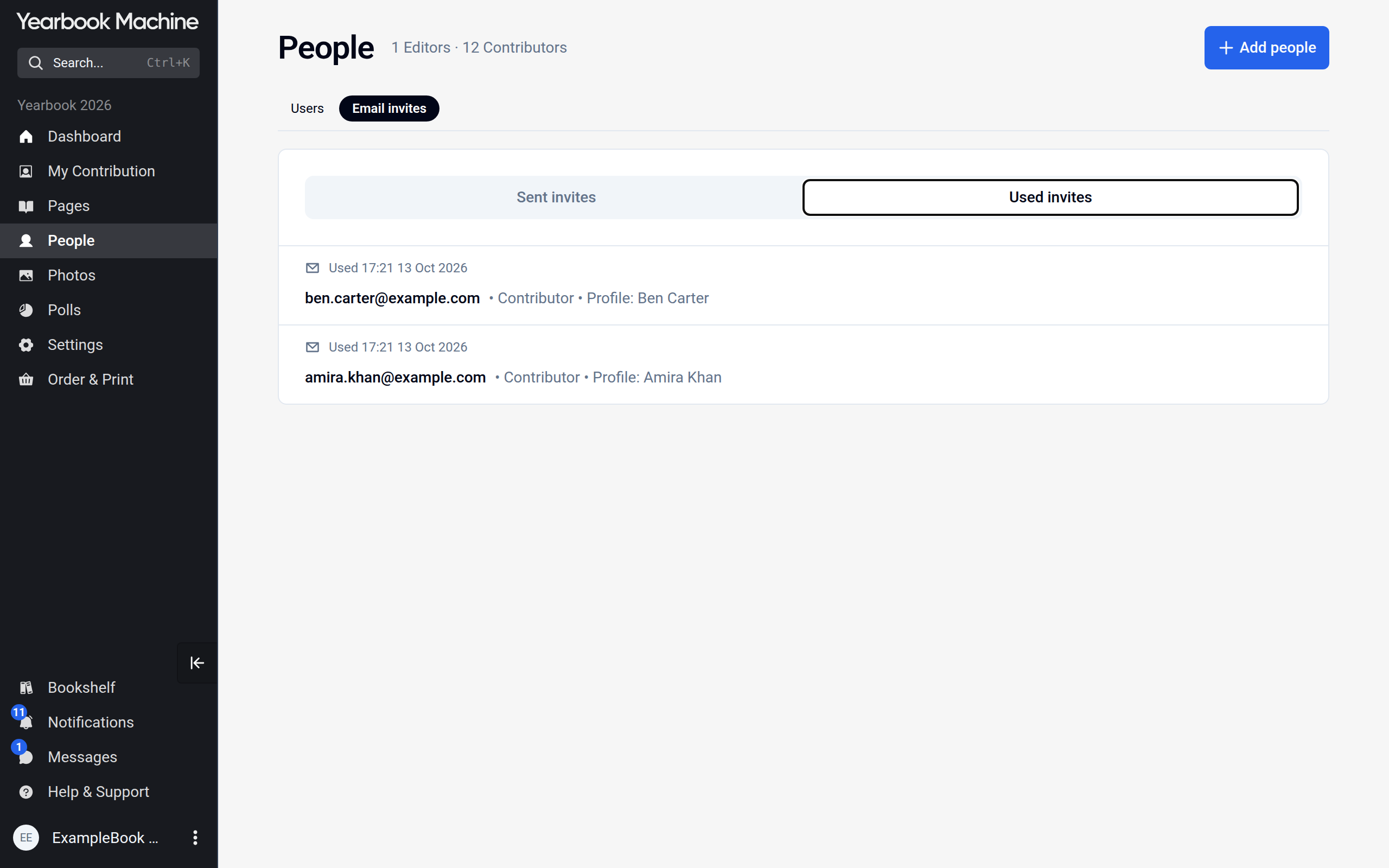
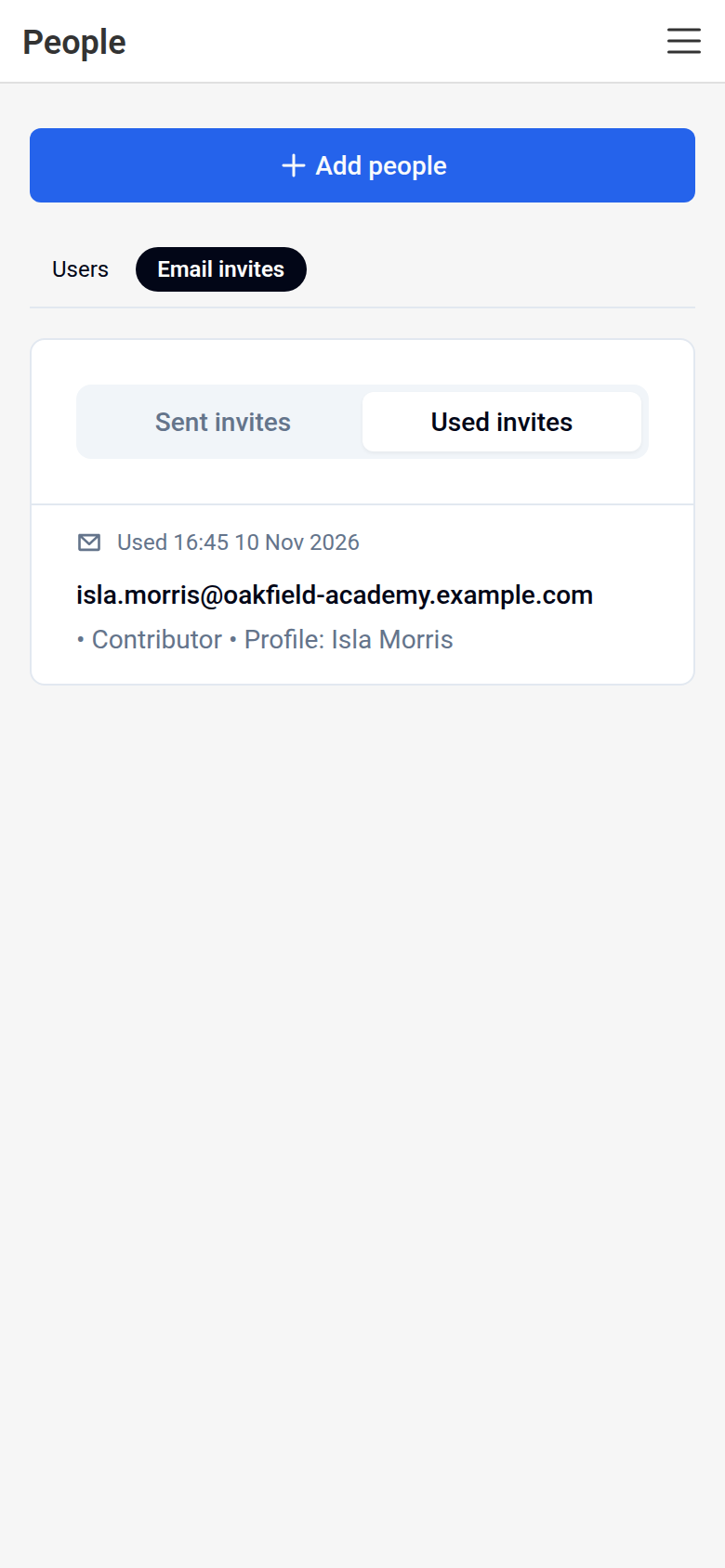
Editors can open the Email invites tab on the People page. It has two tabs of its own:
- Sent invites lists invitations nobody has used yet. Click Resend to send one again, or Cancel to withdraw it.
- Used invites lists invitations that have been accepted, and whose profile each one created.
Common questions
Someone says they did not receive their invitation.
Ask them to check their spam folder. Then click Resend under Sent invites, or send them the invitation link instead.
Can contributors invite people?
Yes. Contributors can click Add people and share the invitation link with other contributors. They cannot invite editors, send email invitations or change the approval setting. This is controlled in Settings > Contributor permissions, on the Email invites row:
- Can send: contributors can share the invitation link. This is the default.
- Cannot send: only editors can invite anyone.
An invitation failed with "Book's quota exceeded" or "Today's quota exceeded".
A book can only send so many invitations: the first message means the book has reached its total, the second its limit for the day. Contact us and we will help.
How do we get everyone signed up in time?
Invite people early, and use more than one method: the link for the whole group, and email for anyone who has not joined. Set a contributor deadline (the date by which contributors must finish) well before your real deadline, so you have time to chase anyone late.
Was this article helpful?
Sorry, that didn't send. Please try again in a little while.
Thanks. That helps us improve this article.
Any other questions?
Email support@yearbook.com and we'll help you out.