
Submitting your book for printing
When your book's content is finished, you send it to print from Order & Print: this article covers checking your book, getting and approving your proof, and following your order. A proof is a PDF showing exactly how your book will be printed, which you check and approve before printing. Only the book's editors can do this.
Open your yearbook order
- Click Order & Print in the main menu.
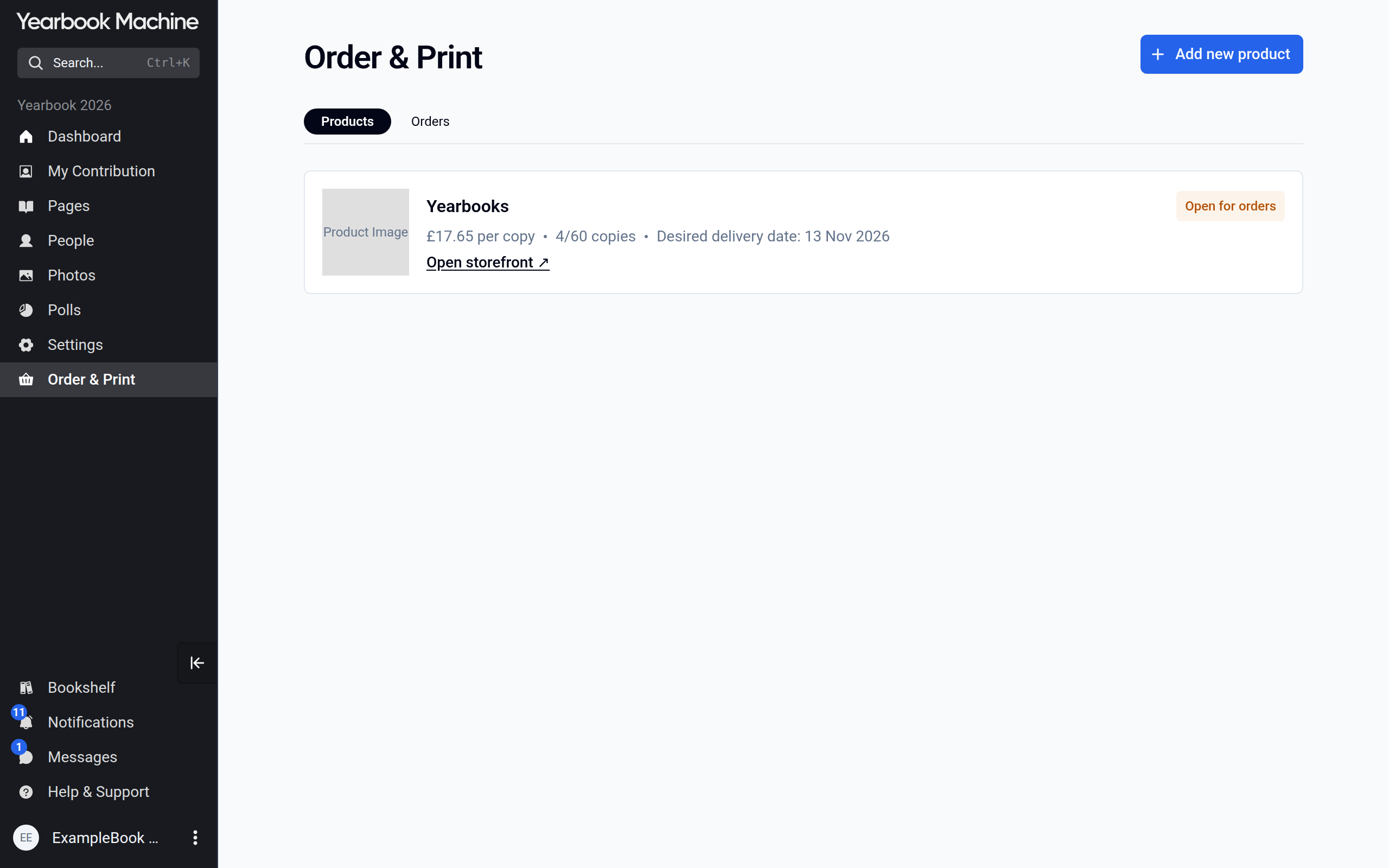
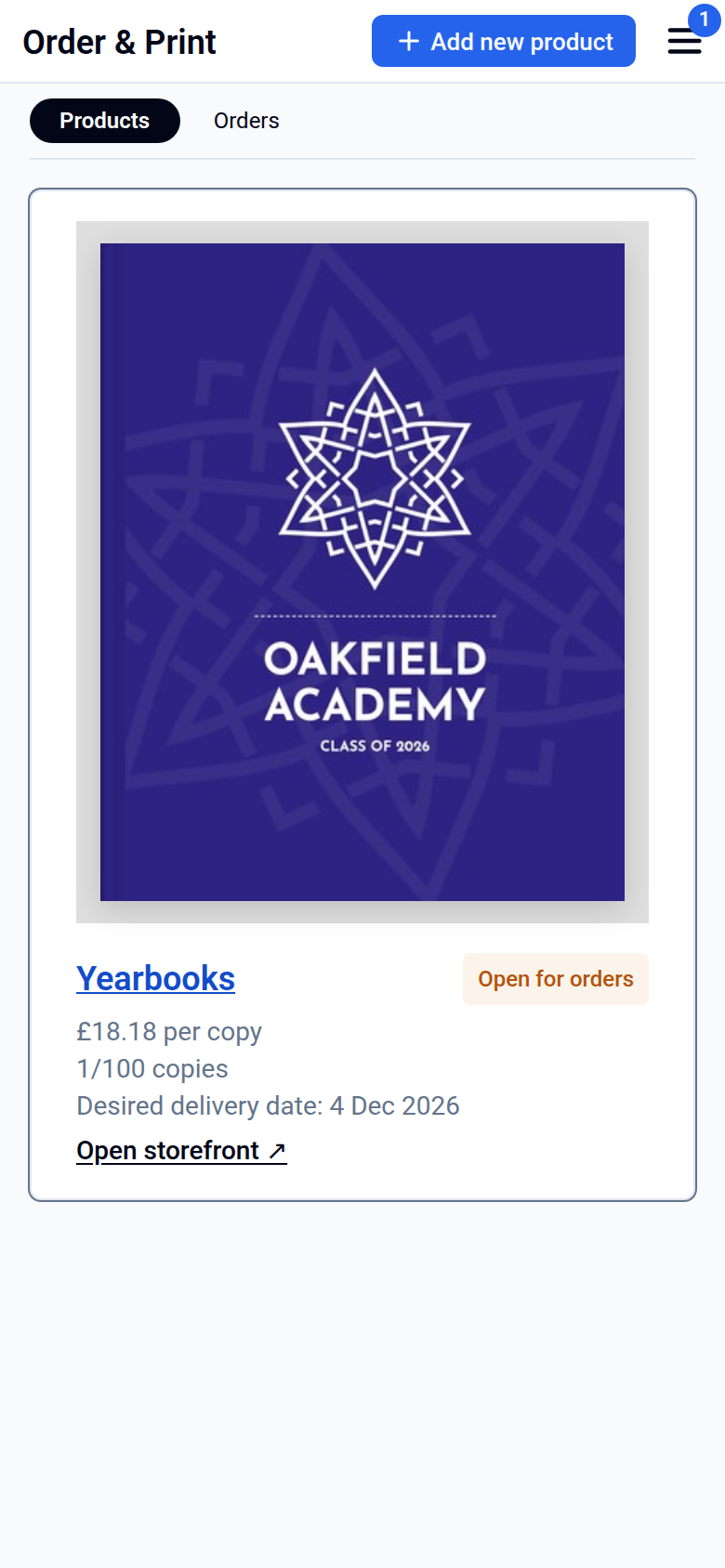
- On the Products tab, click Yearbooks. If it shows Your order is not set up yet, click Complete ordering setup and finish the Ordering setup first: it covers copies, delivery and how you will pay.
The tabs are:
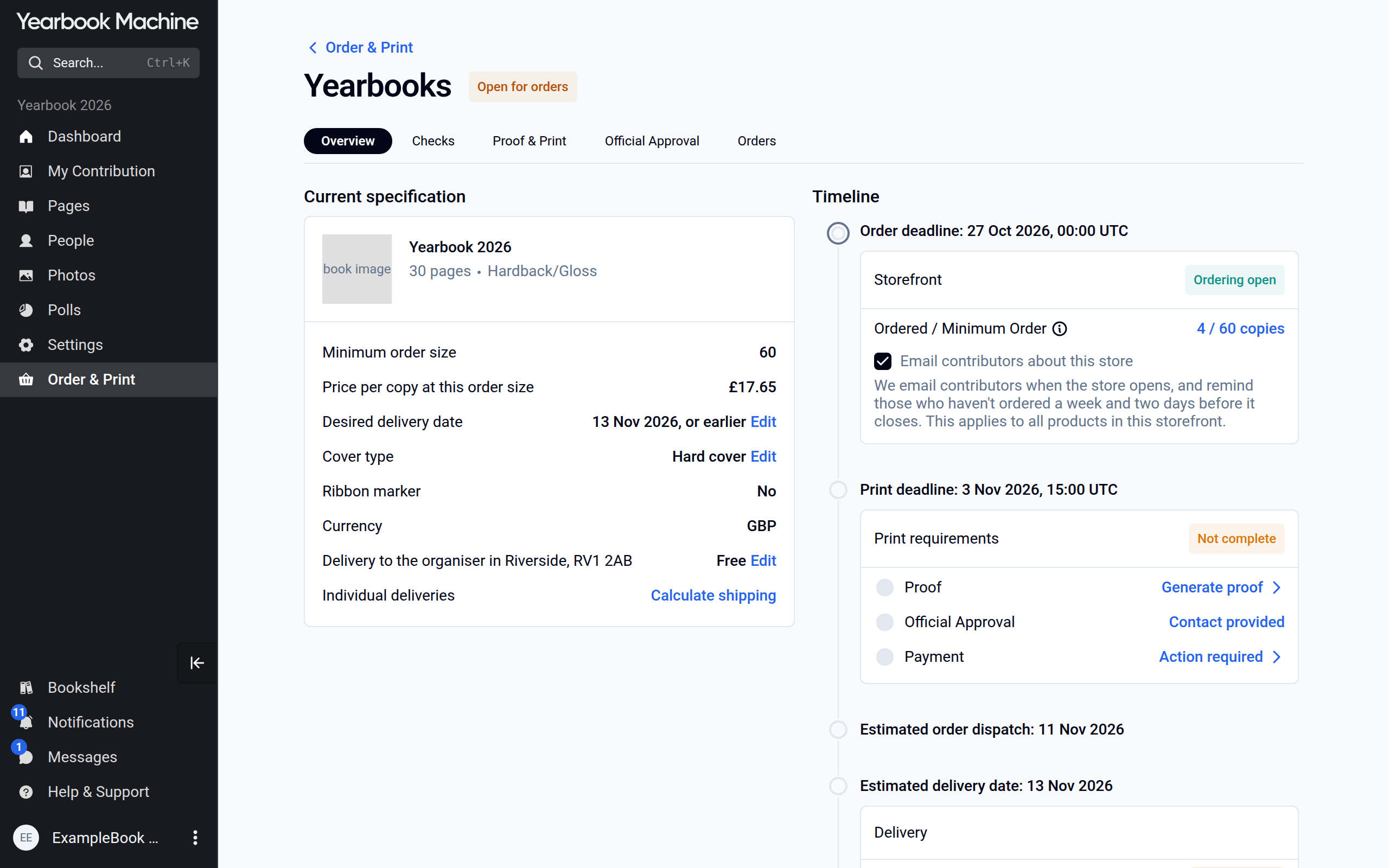
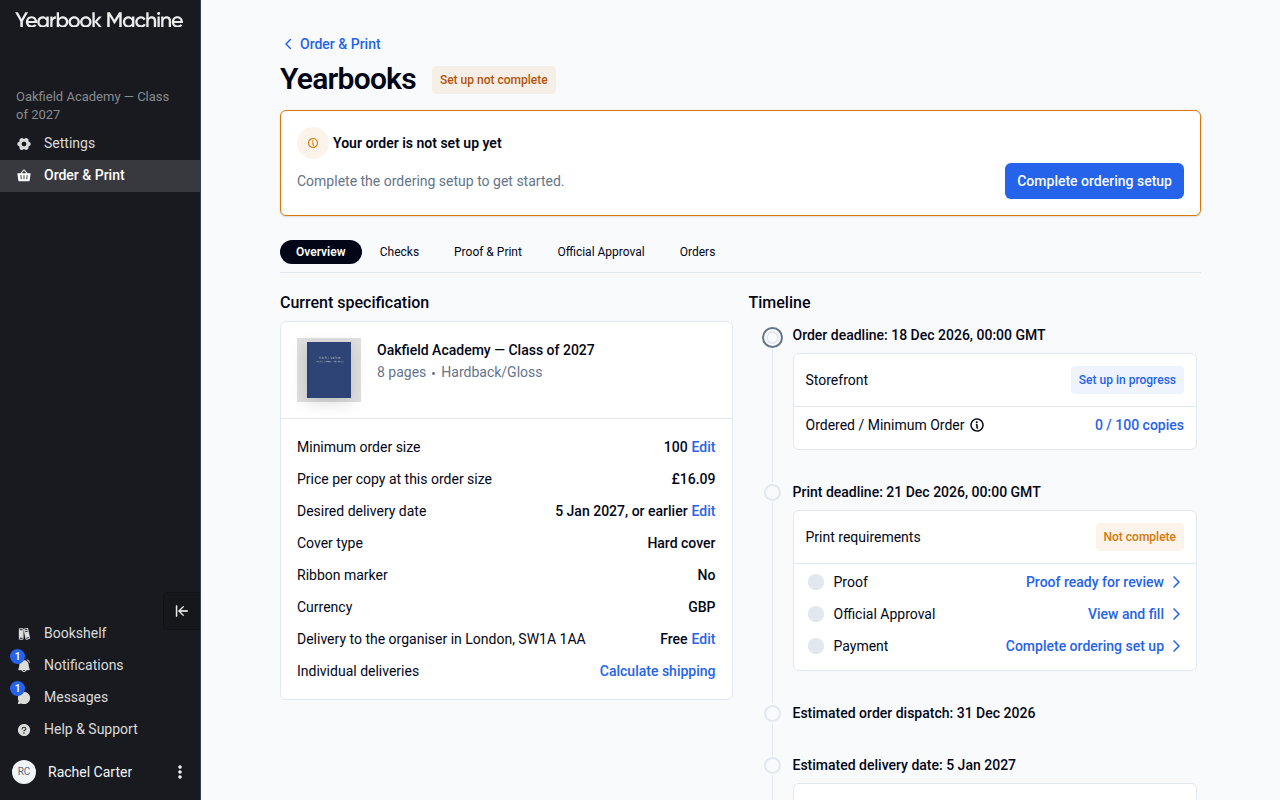
- Overview: a summary of your order, described below.
- Checks: the problems we found in your book.
- Proof & Print: your proof, and where you approve it for print.
- Official Approval: secondary school books only. This is where you arrange a teacher or staff member's permission to print the school's name and logo.
- Orders: the orders for your yearbooks.
Check your book
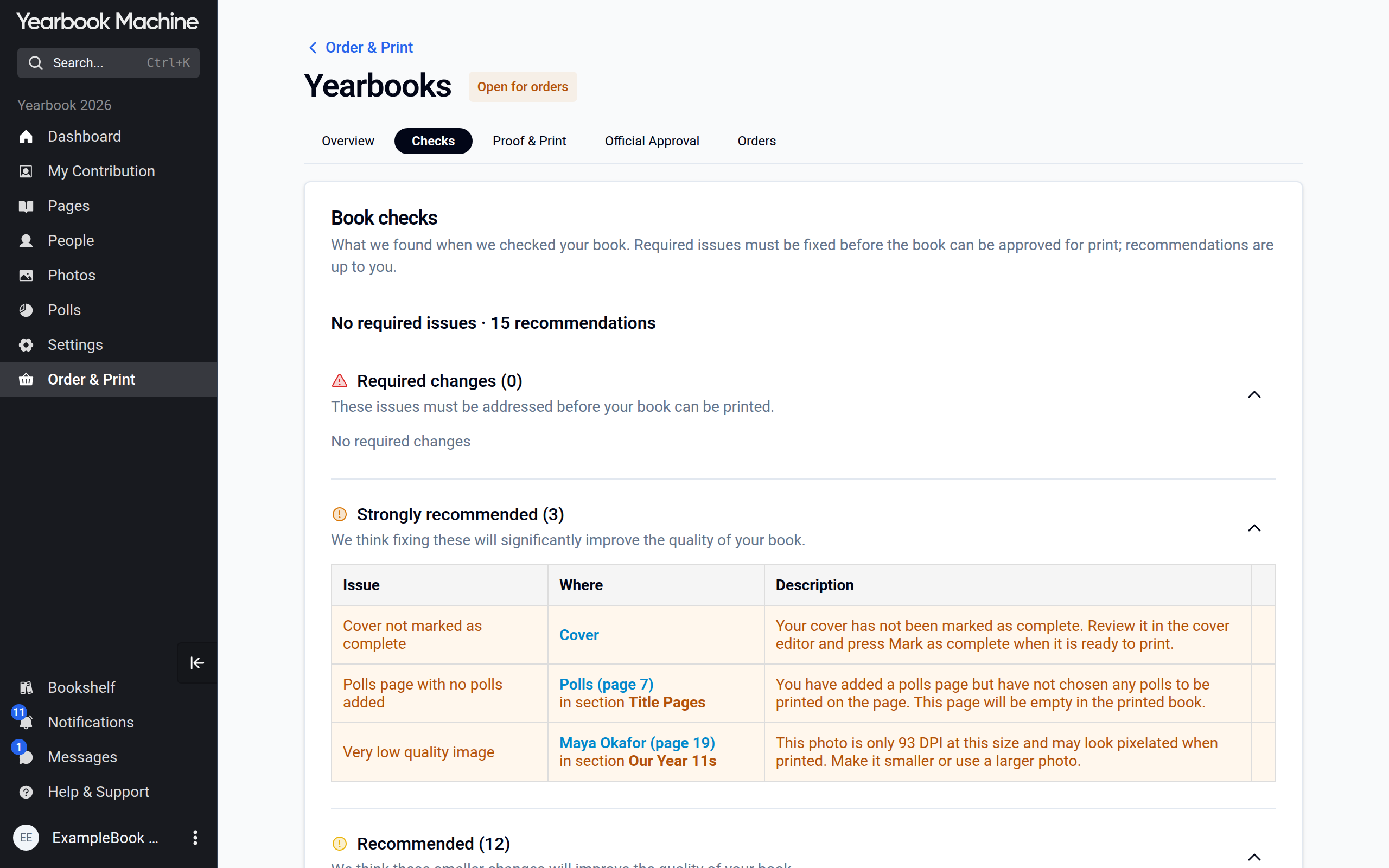
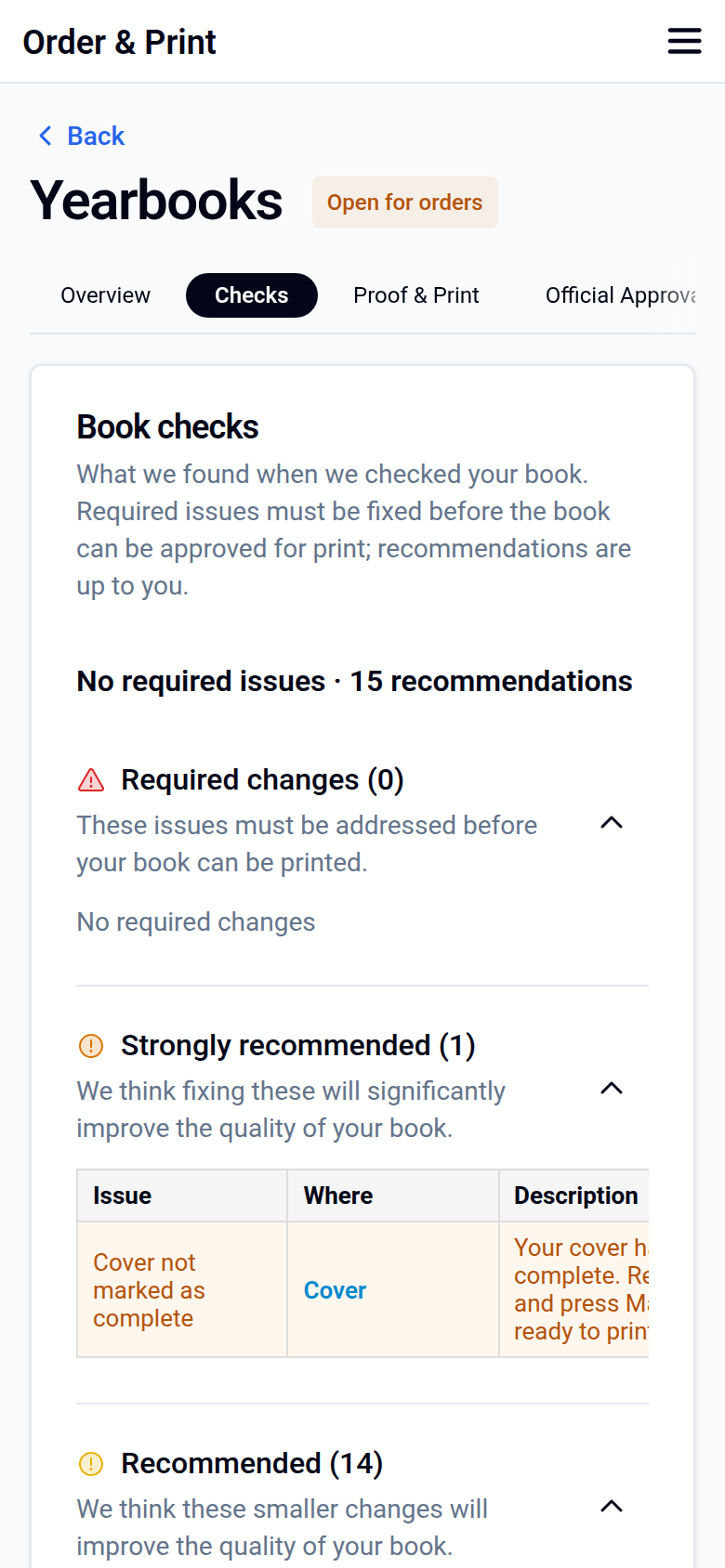
The Checks tab lists the issues we found, in three groups:
- Required changes must be fixed before your book can be printed.
- Strongly recommended and Recommended are suggestions. They are up to you, and nothing needs ticking.
Fix issues in your book, then come back to see the updated list.
Generate a proof
- Open the Proof & Print tab.
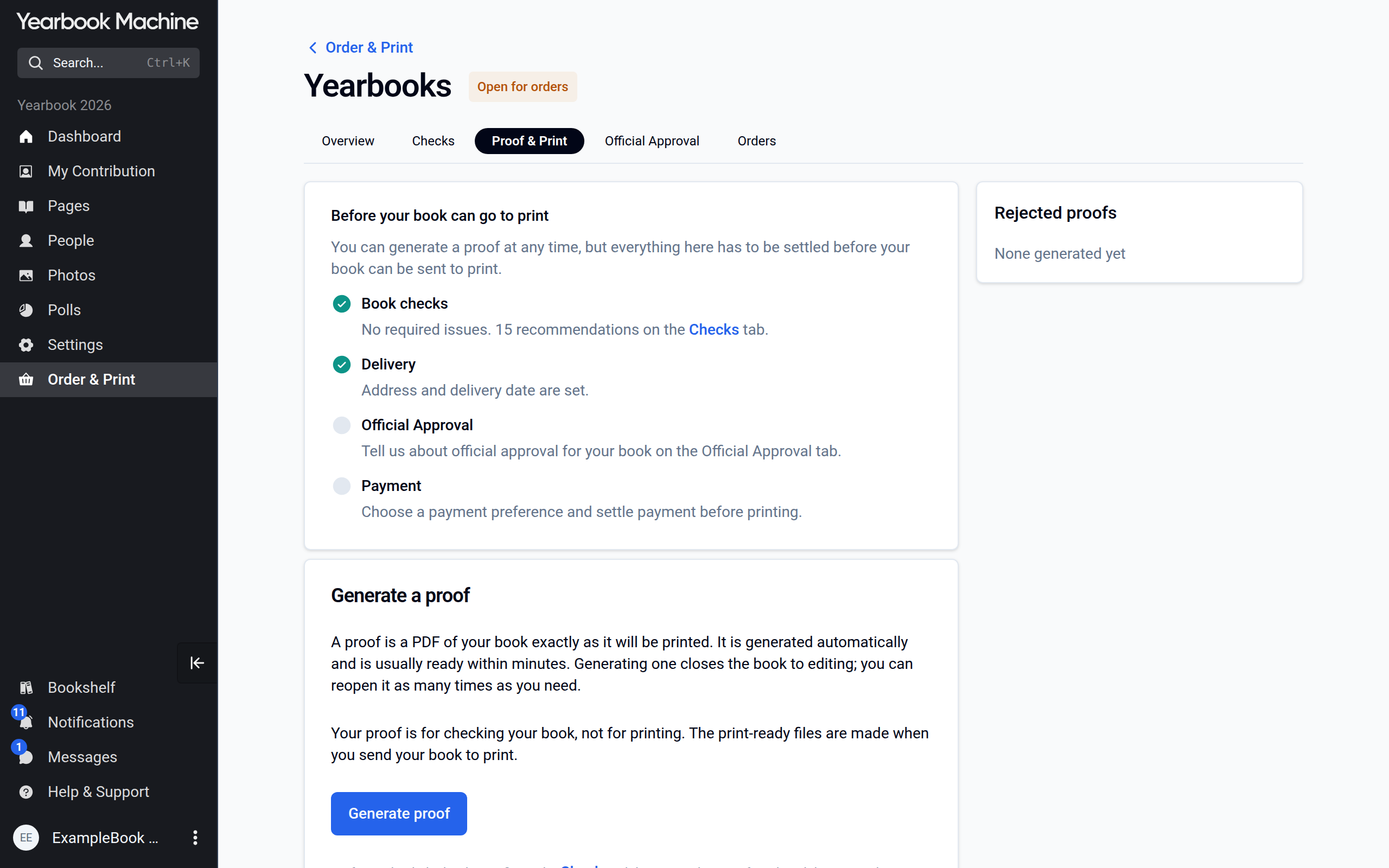
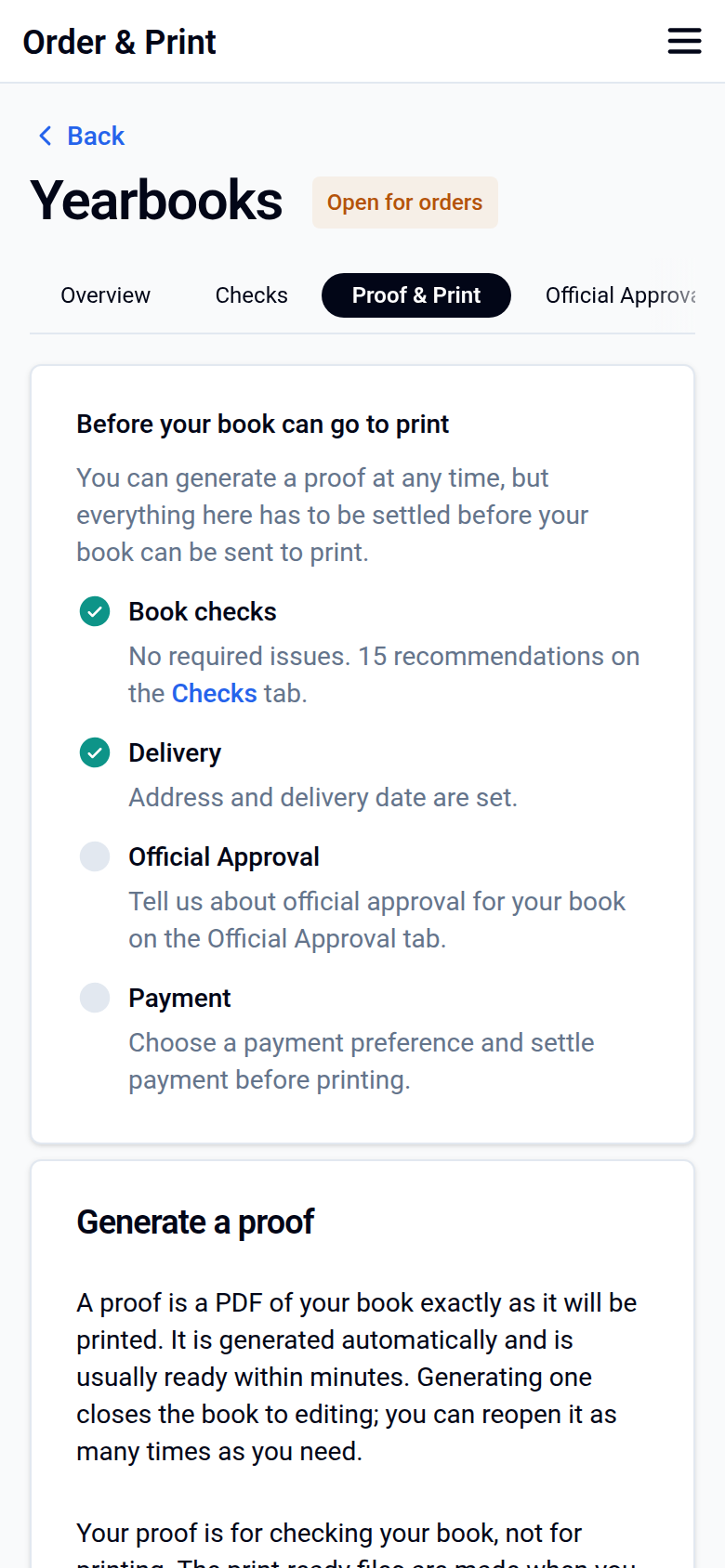
- Click Generate proof. Your proof is usually ready within minutes.
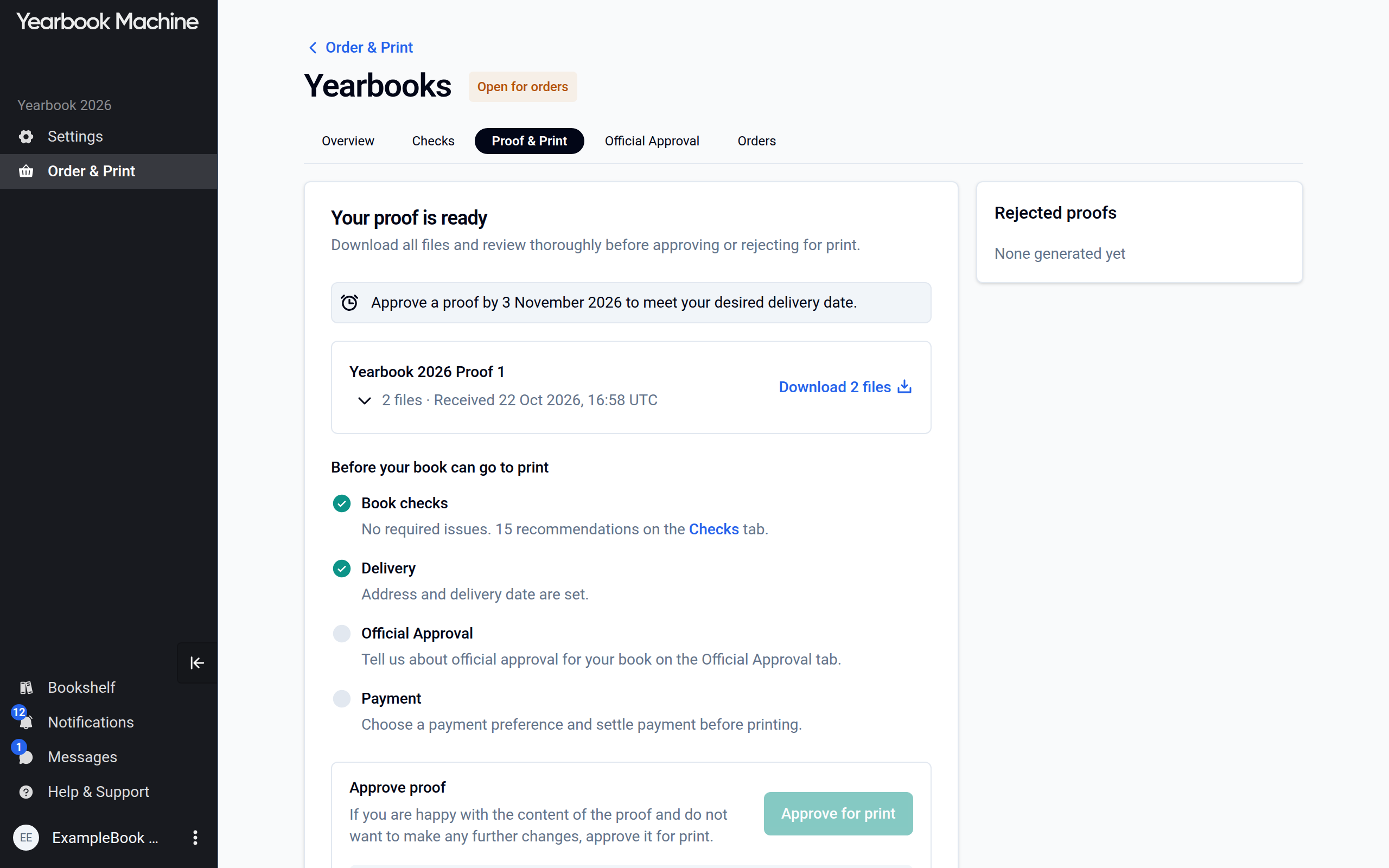
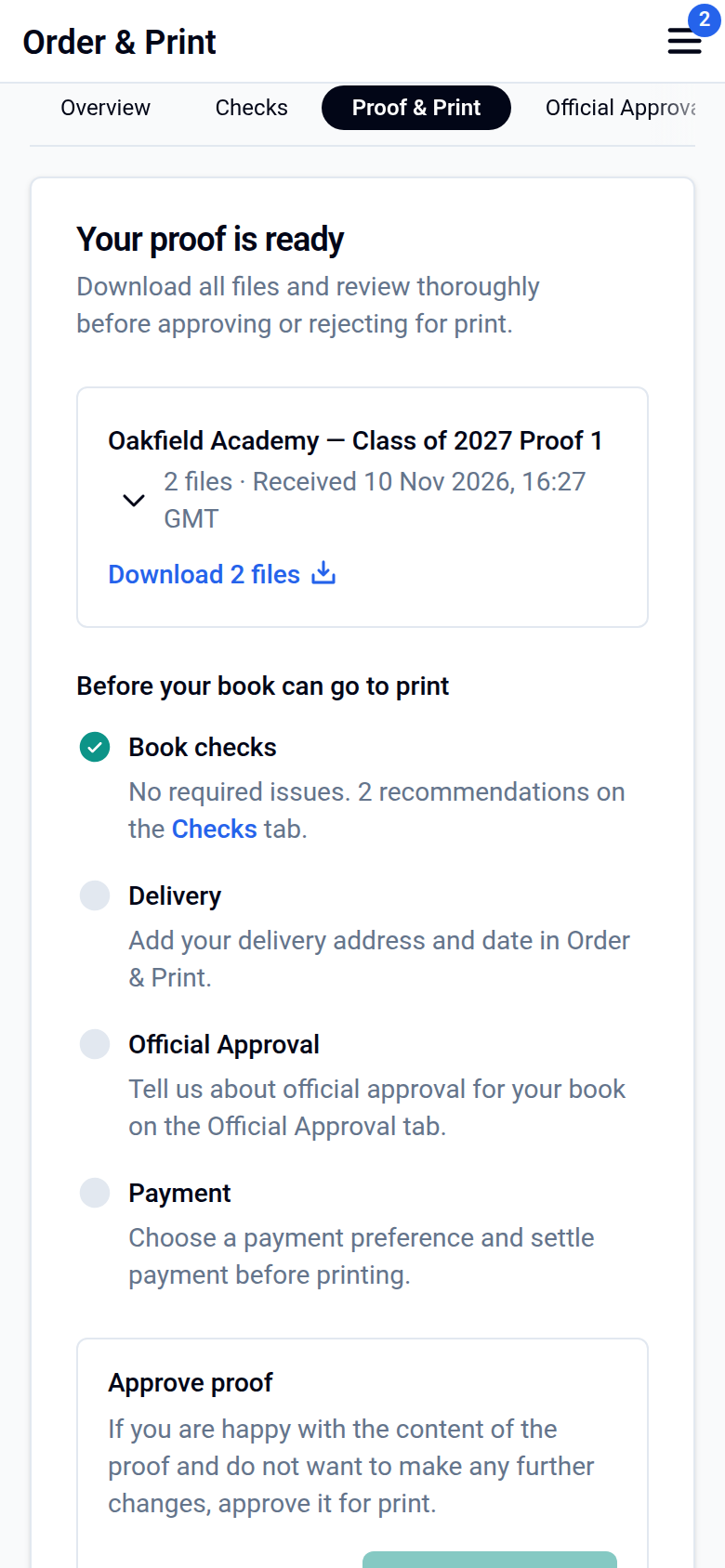
Under Before your book can go to print, the tab also lists what must be settled first. Book checks is done when no required issues are left on the Checks tab, Delivery when your delivery address and date are set, Official Approval (only if your book needs it) when you have made your declaration, and Payment when payment is settled. You cannot approve the proof for print until each of these is done.
Approve your proof and go to print
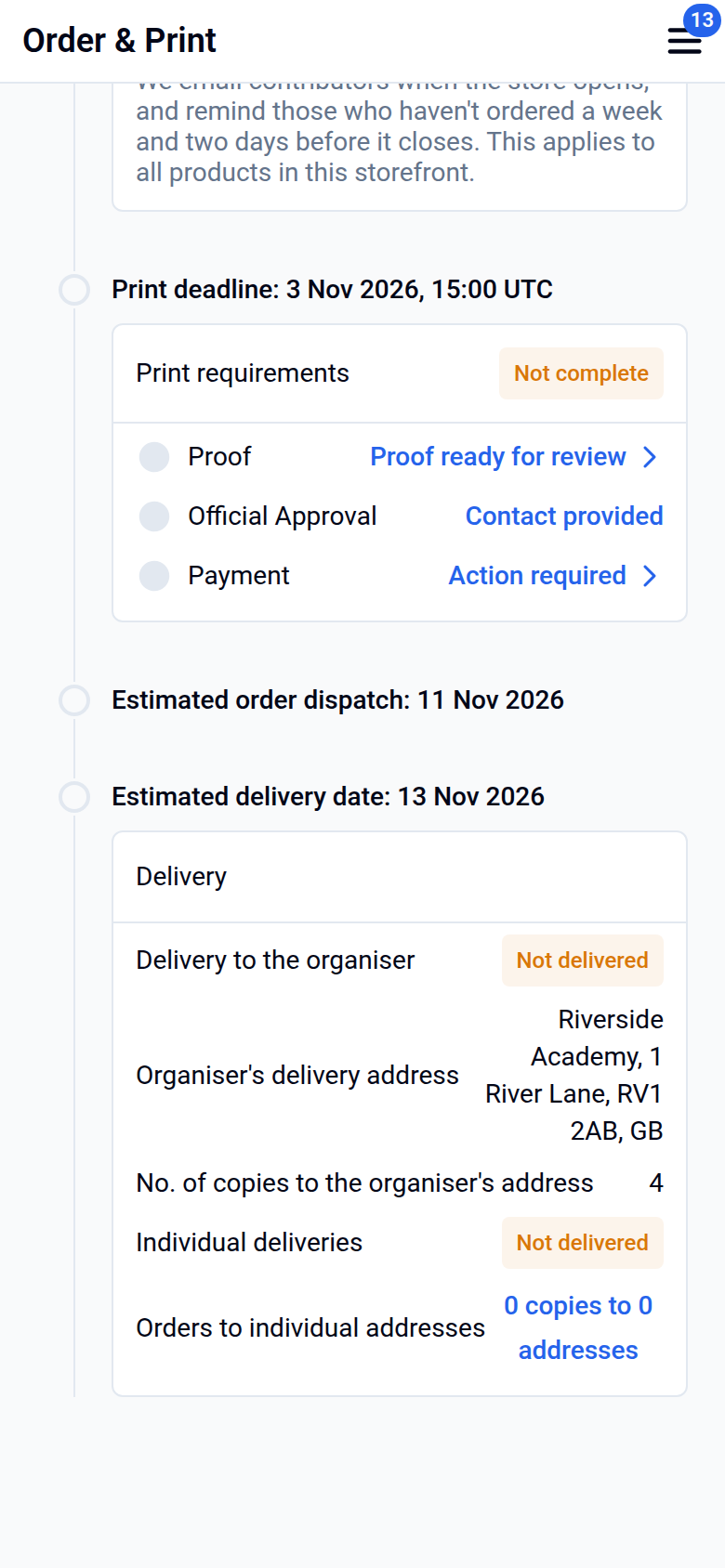
Review the proof on the Proof & Print tab and click Approve for print. After that, no further changes can be made. Your book is sent to print once the proof is approved, official approval is granted (if needed) and payment is complete, through a single payment or your storefront. The Print requirements panel on the Overview tab ticks each one off. The status at the top of the page tells you where things stand: Action required means something is still outstanding, In production means your order is with the printer, and Complete means the order is finished.
Follow your order
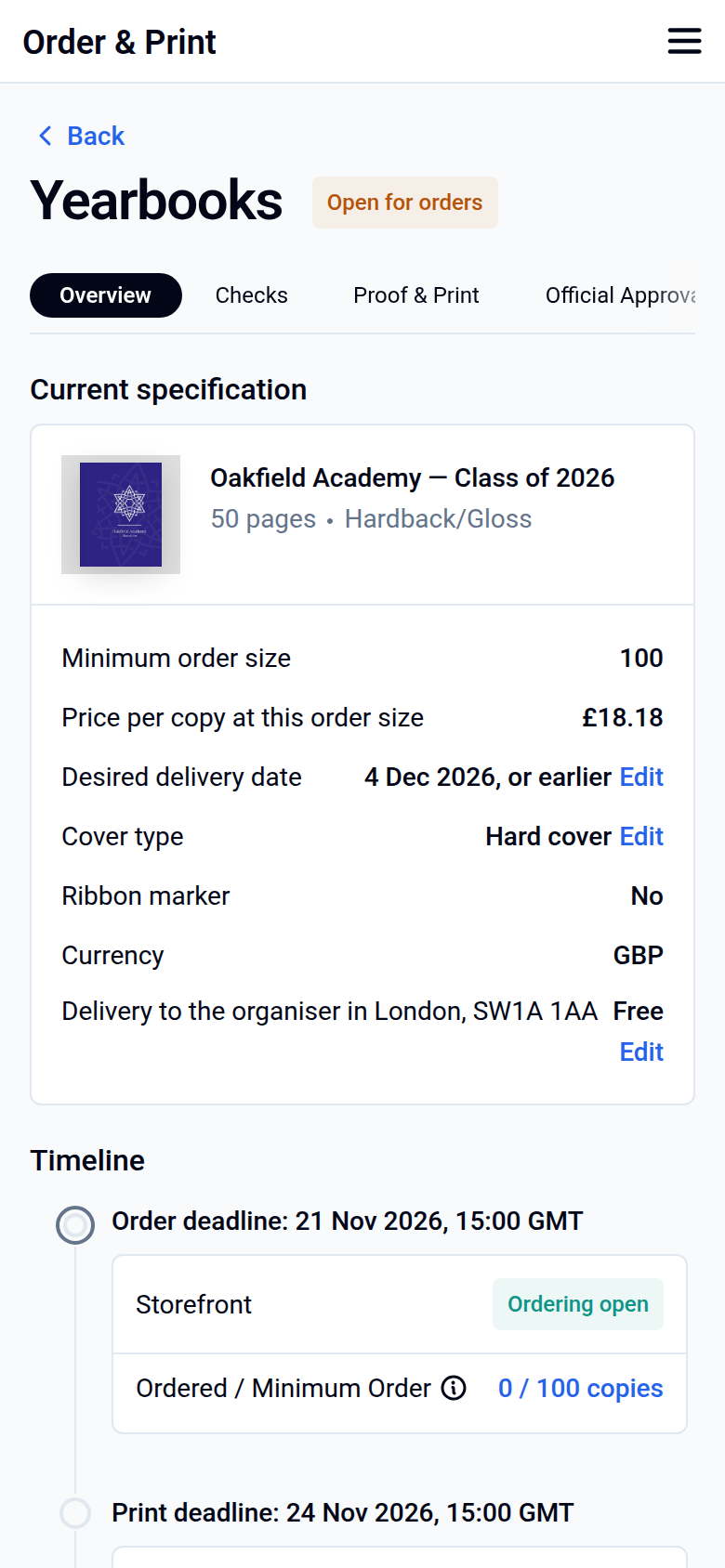
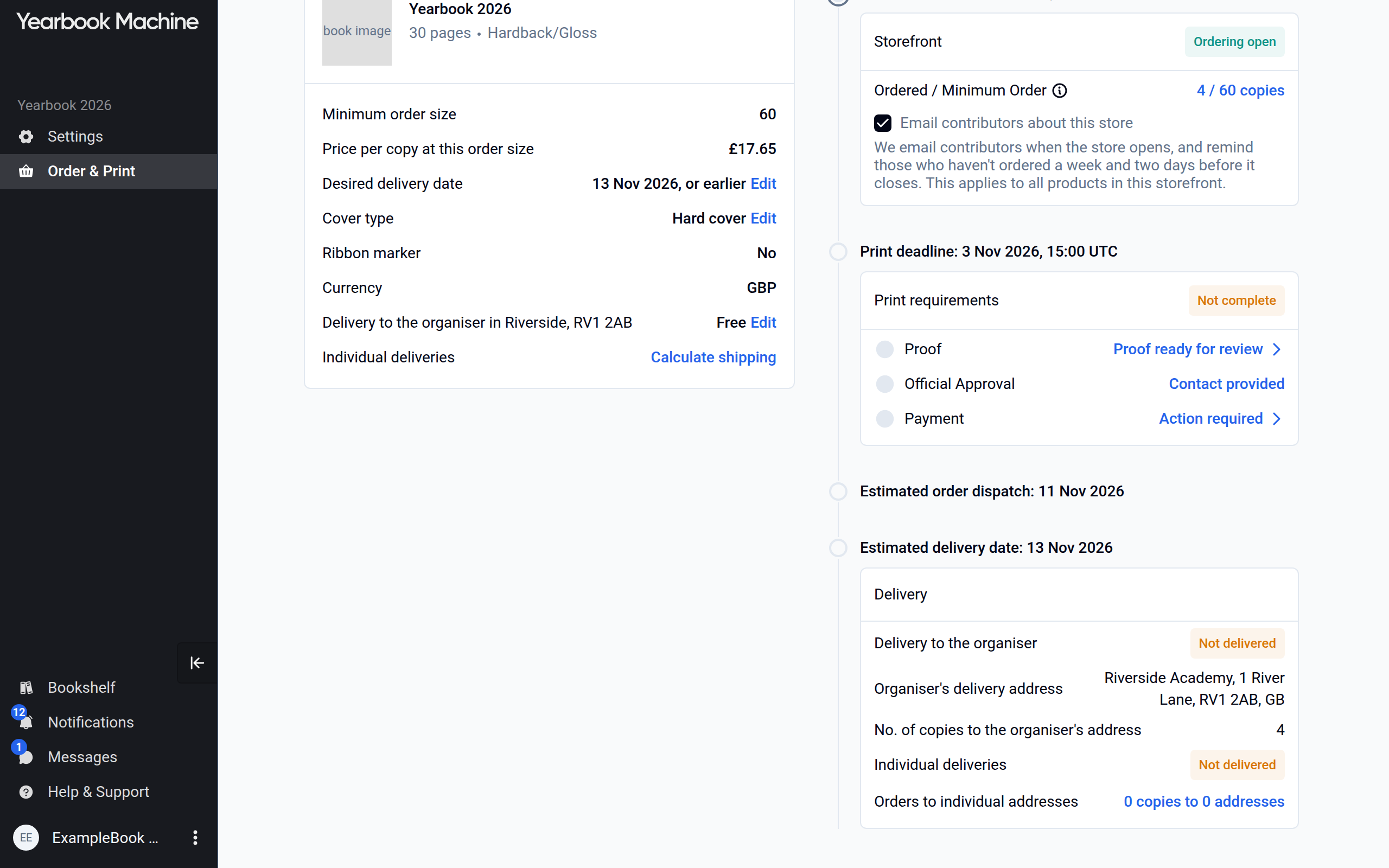
The Overview tab shows:
- Current specification: copies, price per copy, cover type and delivery choices.
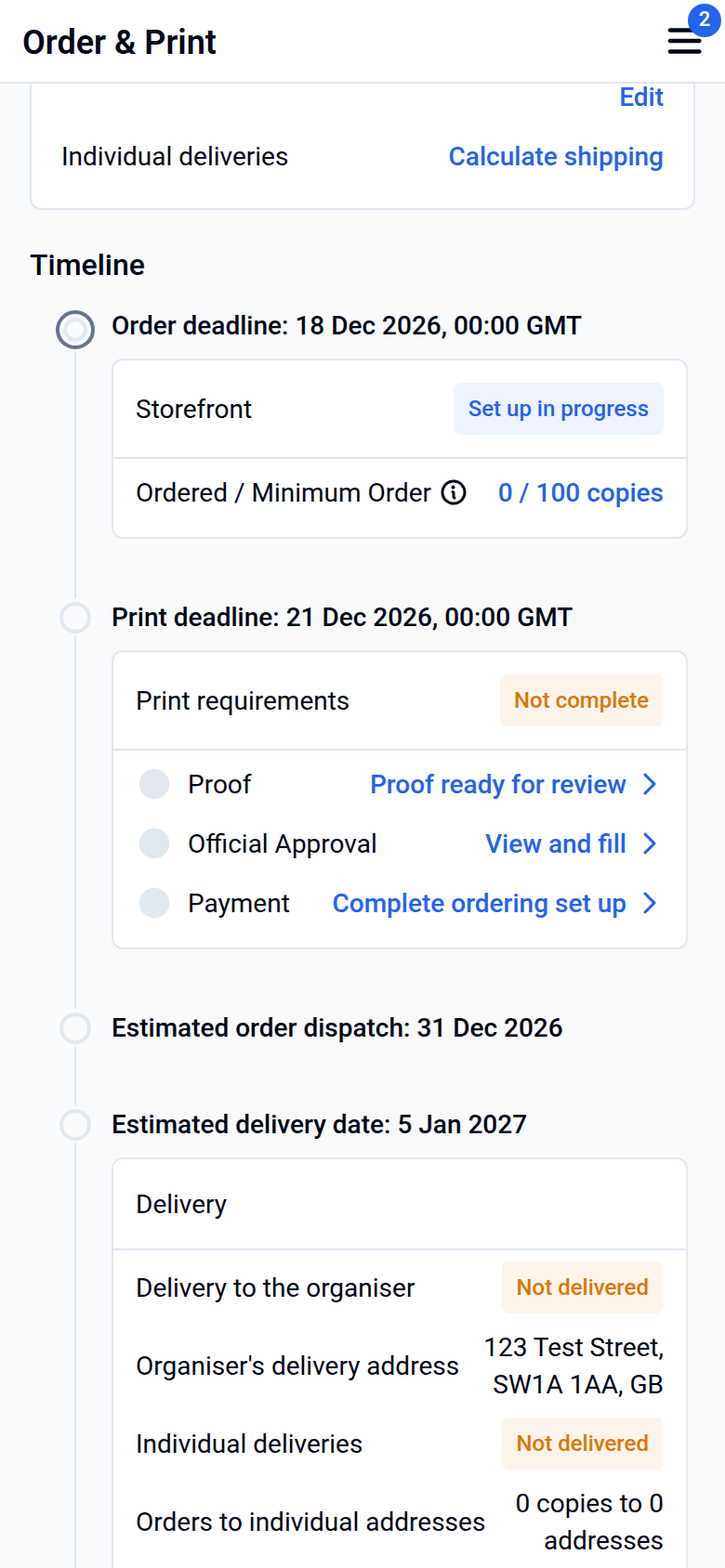
- Timeline: your Print deadline, Estimated order dispatch and Estimated delivery date. The print deadline is the date by which your proof must be approved to meet your desired delivery date.
- Delivery: your Bulk delivery address, the organiser's address, with its delivery status and, once the books have been sent, the courier and tracking number. With a single order, all the copies go to this address. With a storefront, only the copies ordered for delivery to the organiser's address go there.
If you offer Delivery to individual addresses, those copies are posted straight to each buyer. The Delivery panel then shows how many copies are going to how many addresses, with a link to the Orders tab, and an Individual deliveries badge that changes from Not delivered to Delivered once the whole print run is complete. Tracking for parcels sent to individual addresses isn't shown to editors. See Delivery: how long it takes and where we deliver.
Common questions
What happens if I miss the print deadline?
The Overview tab shows a warning with the delivery date you can now expect. Click Edit delivery date to choose a later date.
Can I change the number of copies or the specification?
For a single-payment order, click Edit beside Copies on the Overview tab until your book goes to print. If the tab says Your book has a fixed specification. Please contact support to change it., contact us.
Can I make changes after generating a proof?
Yes, until you approve it. Click Make changes on the Proof & Print tab to reopen the book, then generate a new proof.
Where is my delivery address?
On the Overview tab under Delivery: that is the address the bulk delivery goes to. With a storefront, copies that buyers chose to have sent to their own address go to the address each buyer gave at checkout instead. See Delivery: how long it takes and where we deliver for the delivery options. Contact us if an address needs to change after your book has gone to print.
Was this article helpful?
Sorry, that didn't send. Please try again in a little while.
Thanks. That helps us improve this article.
Any other questions?
Email support@yearbook.com and we'll help you out.