
Adding, removing and hiding profiles
A profile is a person's own page in the yearbook. This article covers adding profiles, moving them to another section, hiding them, removing people from the book, finding someone's profile, and sharing a profile with more than one person. Anyone can find profiles. Only editors can add profiles by hand, move, hide or share other people's profiles, or remove people; contributors can hide their own.
How profiles are added
Each person who joins the book gets a profile page automatically once they are in, so the usual way to add profiles is to invite people (see Inviting people to your yearbook).
If you have already collected everyone's content, editors can create manual profiles: pages not linked to anyone's account, which editors fill in.
- Click Pages in the main menu to open the Pages screen, then click Add page(s).
- Drag the Profile card into the section the profiles should go in. On a phone, press and hold the card in the tray at the bottom, then drag it up into the book. If your book's profiles are not set up yet, you are asked to do that first.
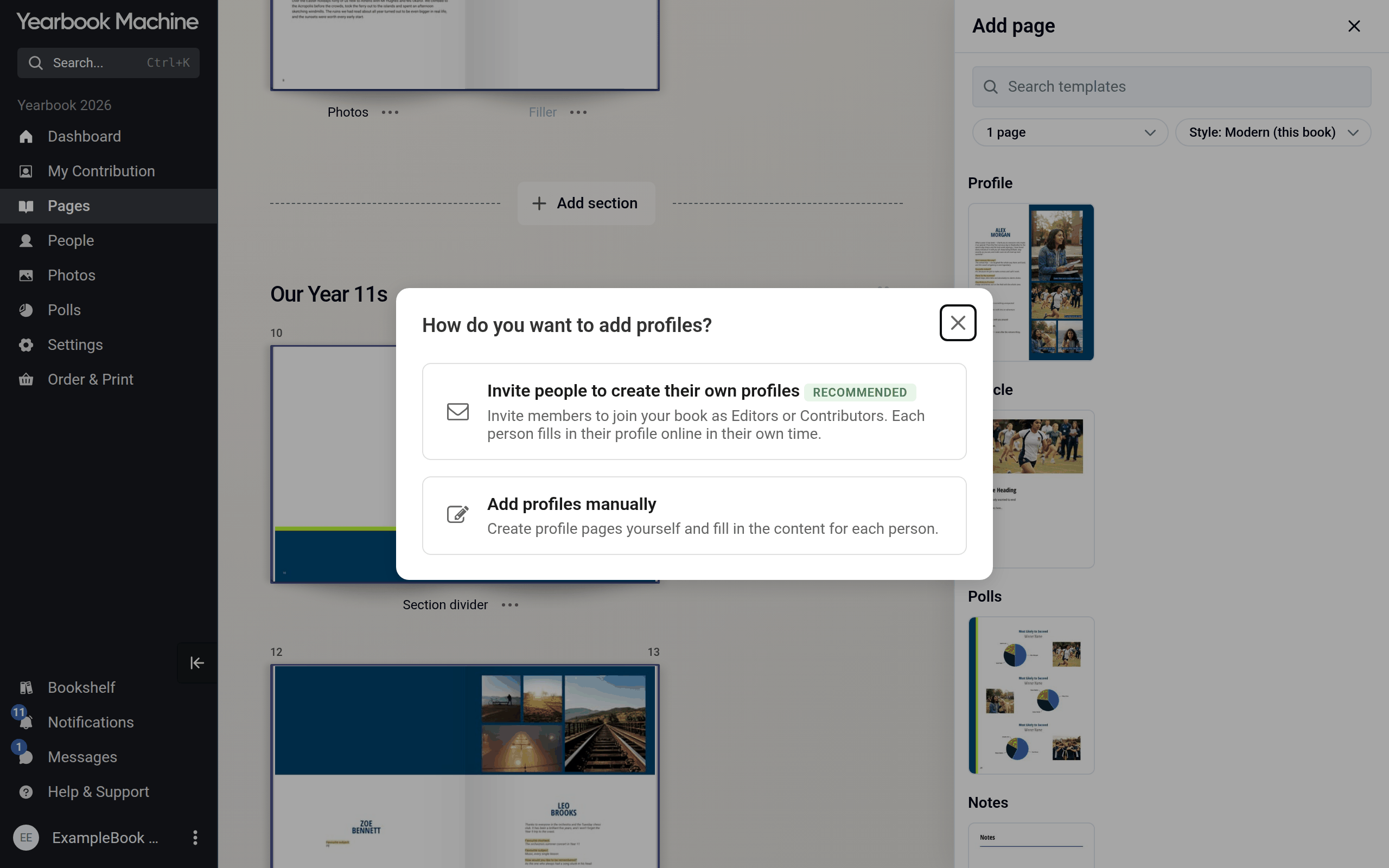
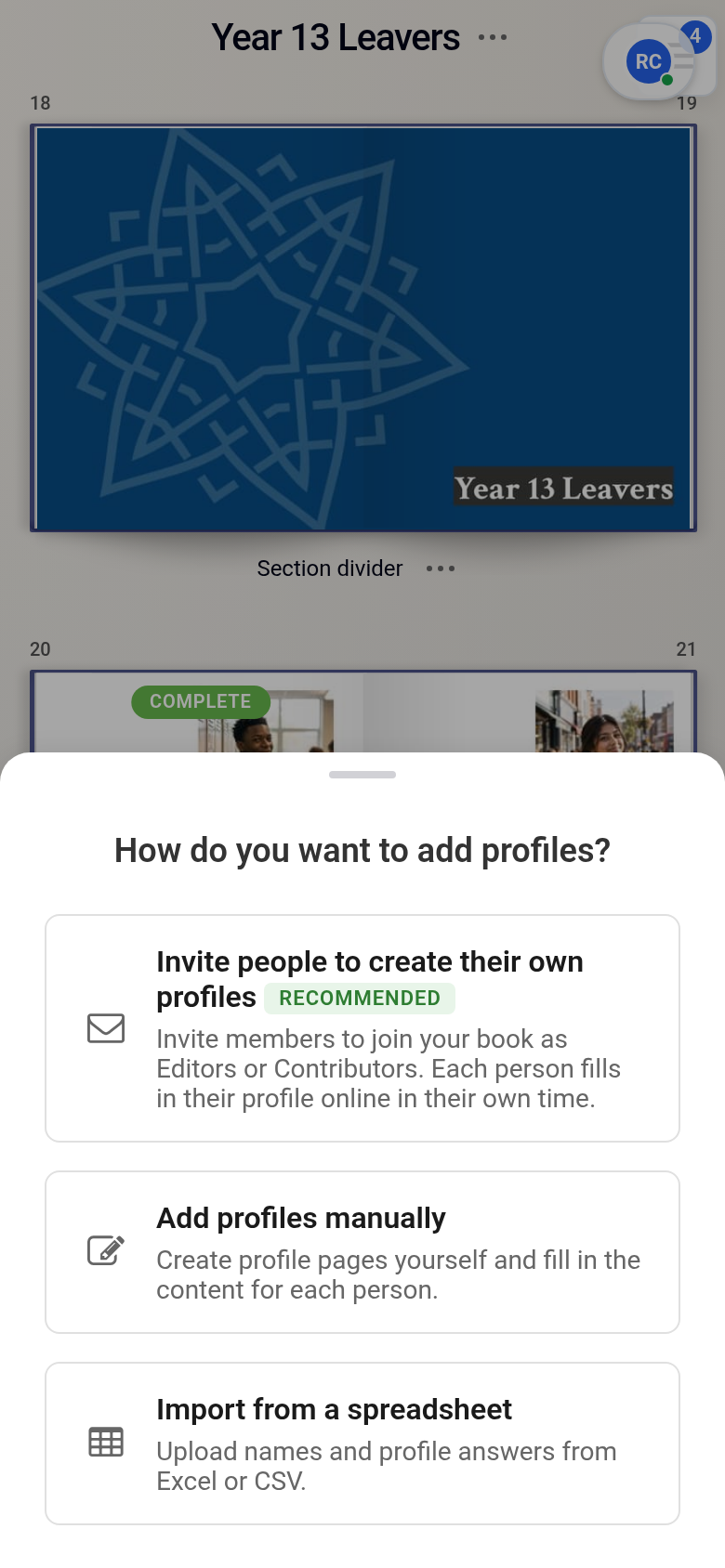
- Under How do you want to add profiles?, choose one of:
- Invite people to create their own profiles: each person fills in their own.
- Add profiles manually: you type in the names, below.
- Import from a spreadsheet: upload names and profile answers from an Excel or CSV file.
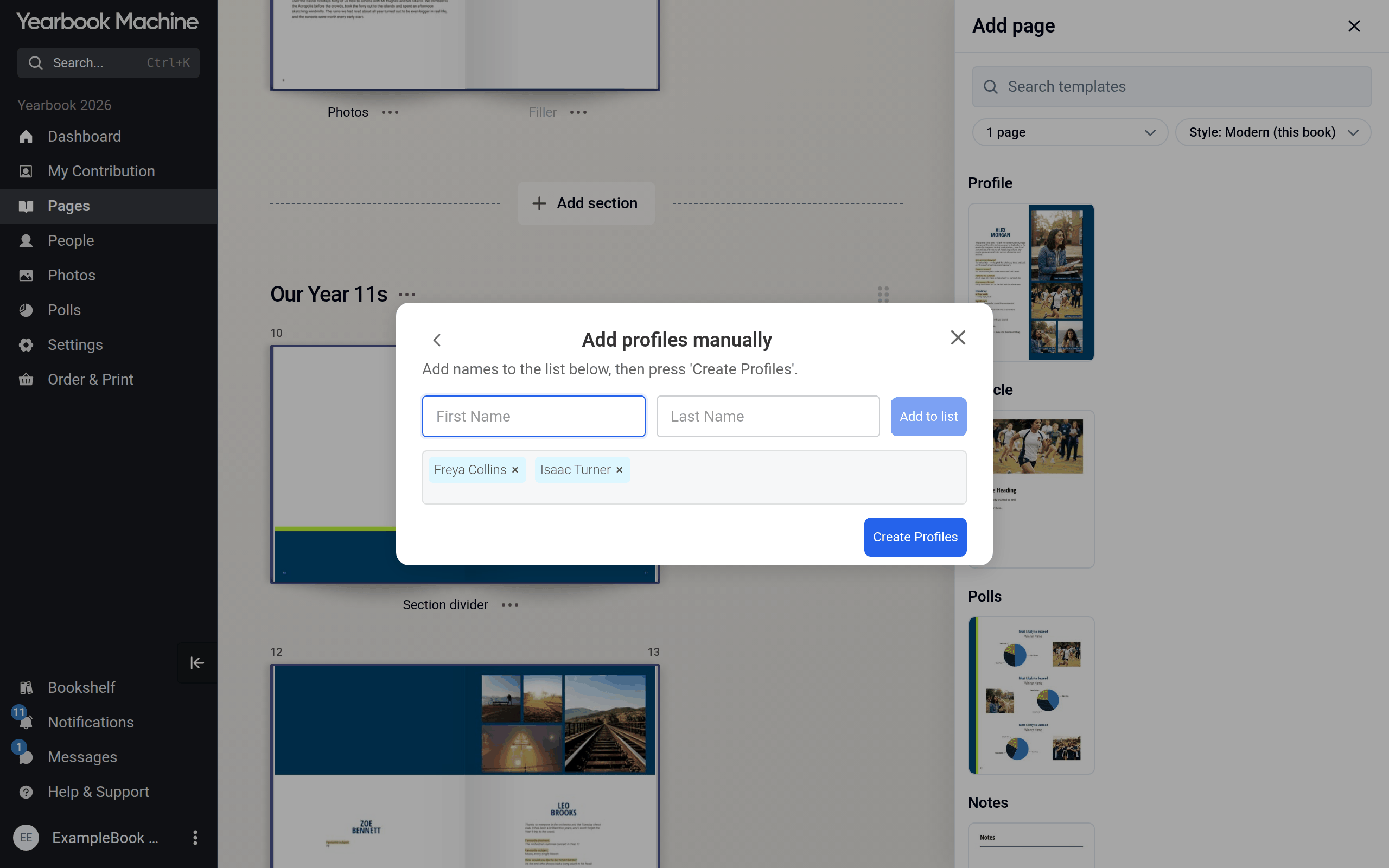
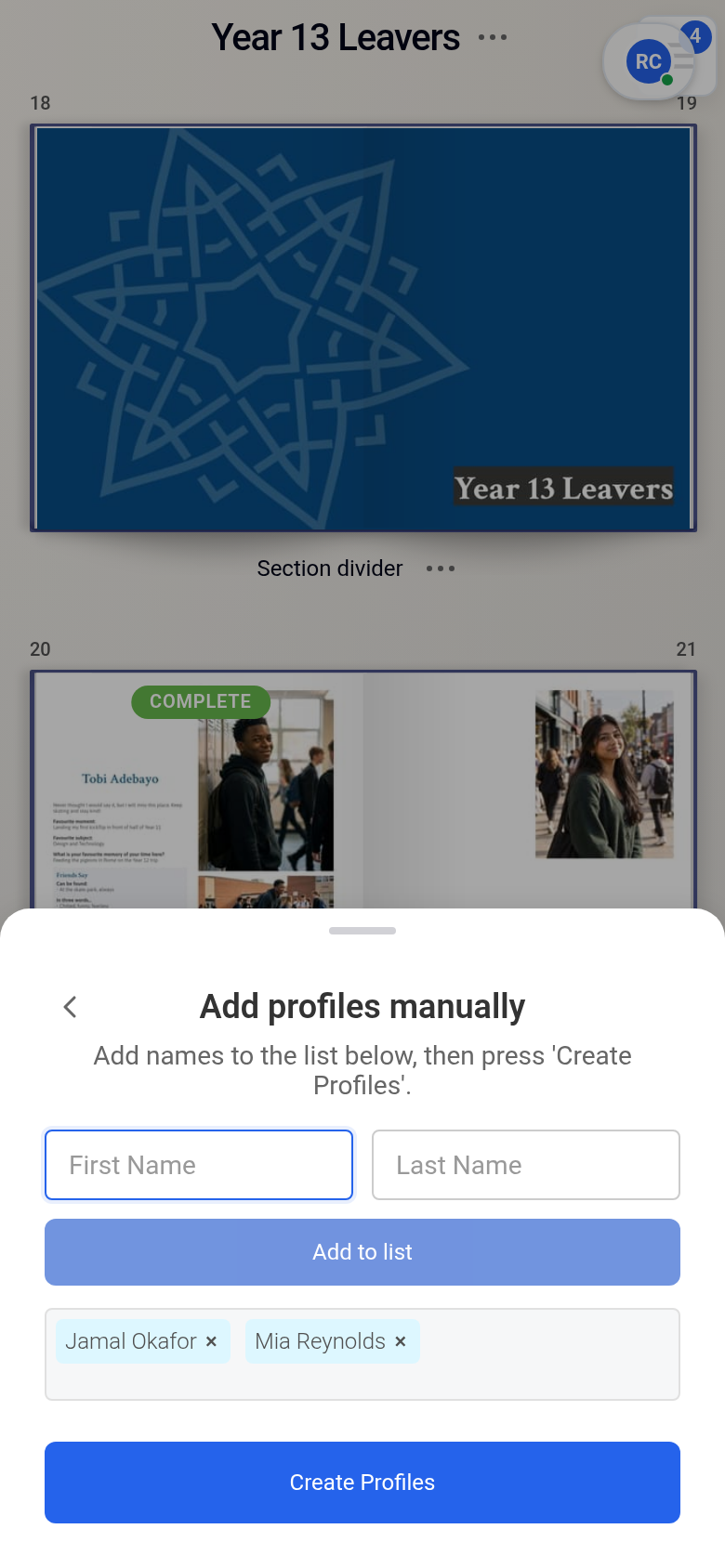
- For manual profiles, type a First Name and Last Name and click Add to list. Repeat for everyone.
- Click Create Profiles.
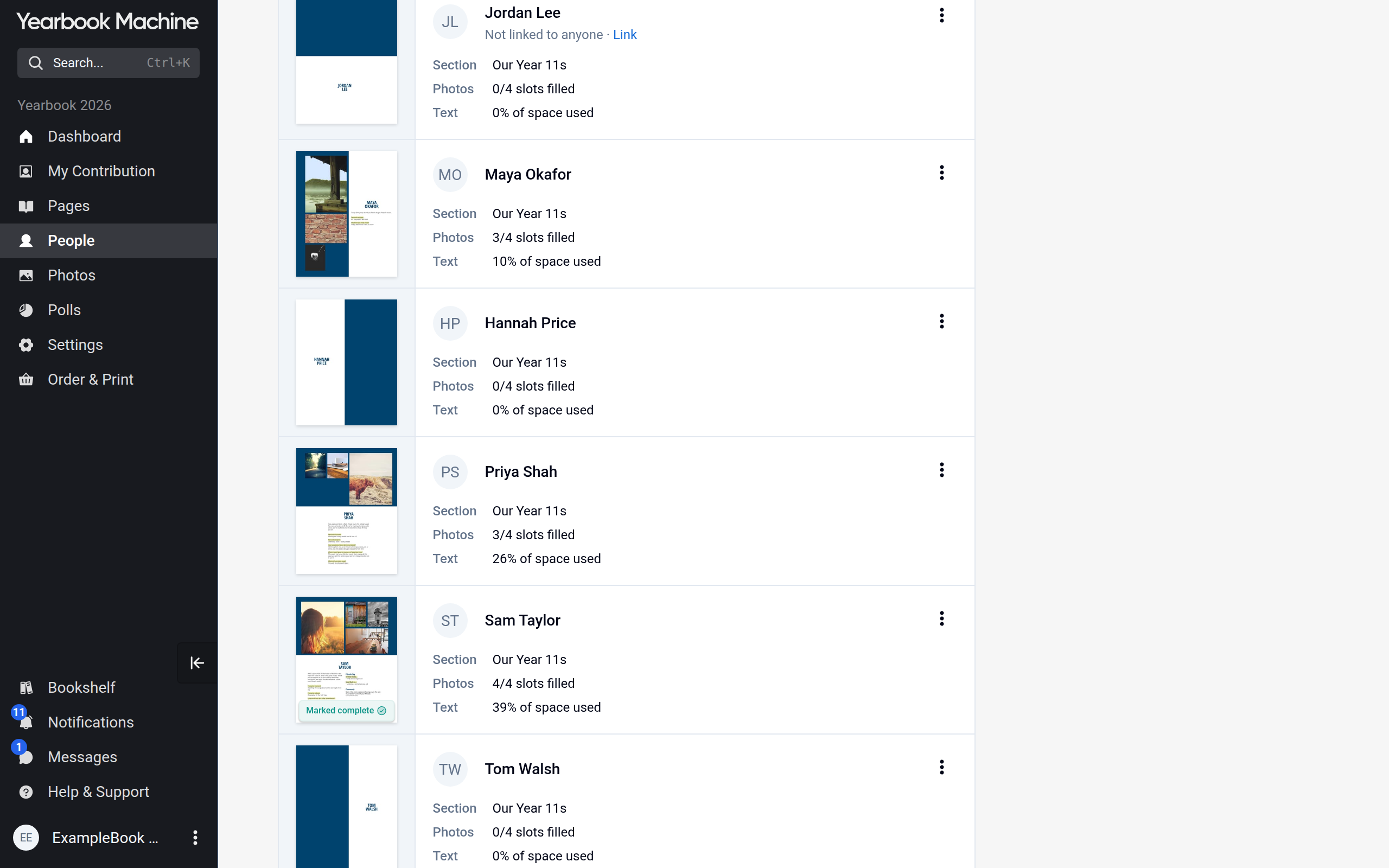
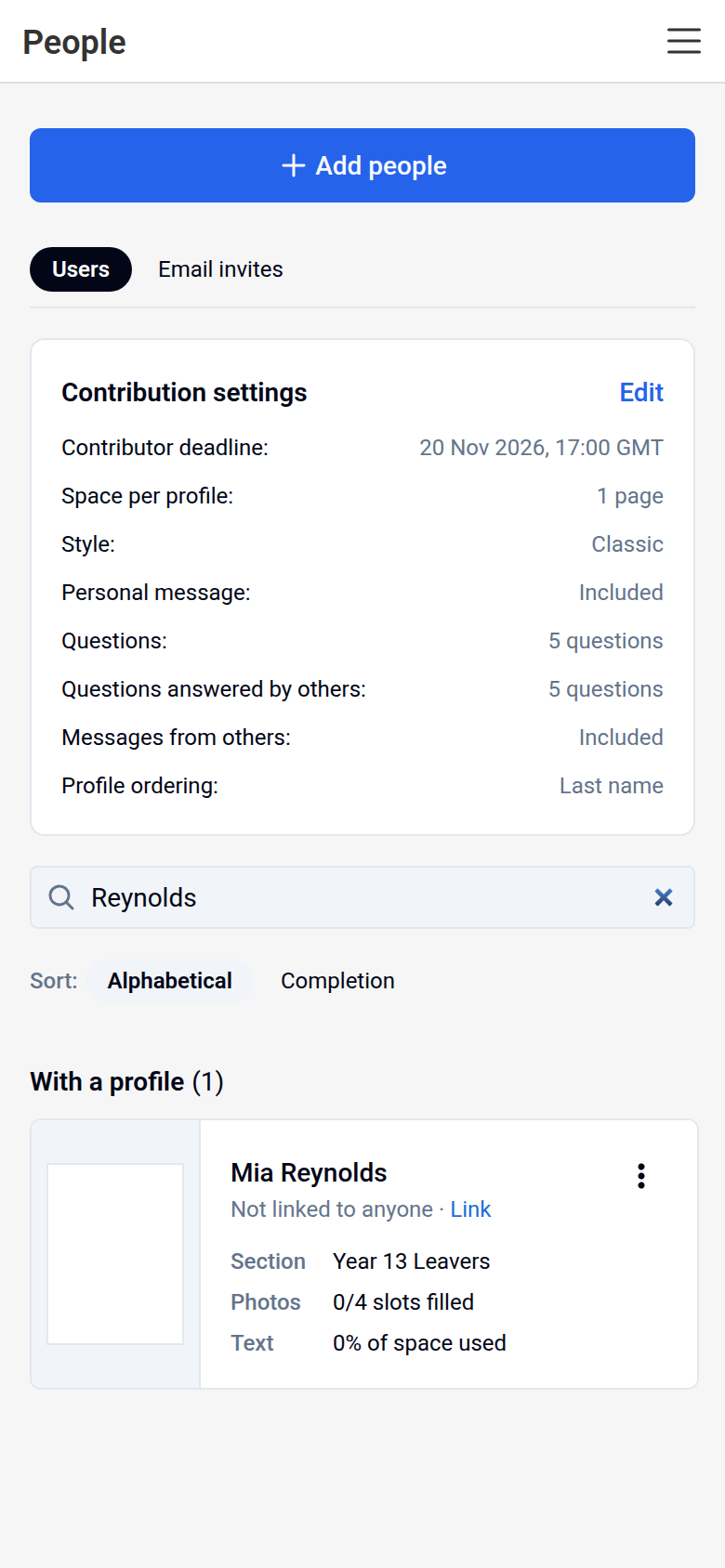
Open each new profile to fill it in. On the People page it shows Not linked to anyone. If the person later wants to take it over, click Link (or choose Invite someone to take over from the profile's three-dot menu), enter their Email address and click Invite.
The name on a profile
The name on a profile page doesn't have to match the account holder's name, for example when a parent fills in their child's page. To change it, click the page's name on the Pages screen, or choose Rename page from its three-dot menu; on a profile page this sets the first and last name shown on the page.
Sharing a profile with more than one person (editors)
An editor can let more than one person edit a profile page, for example two parents sharing their child's page.
- On the People page, open the three-dot menu on the card of the person whose page it is and choose Edit page permissions.
- Under Add another Editor to profile, choose the member and click Add.
They can then edit that one page as if it were their own. See Page permissions for more.
Moving a profile to another section (editors)
Before you move a profile, check what happens to its answers. An answer moves with the profile when the new section asks the same question, worded the same way. An answer to a question the new section does not ask is kept, but it is not shown there. You are not warned about this when you move the profile, and there is no list of hidden answers: to see them again, move the profile back to its original section.
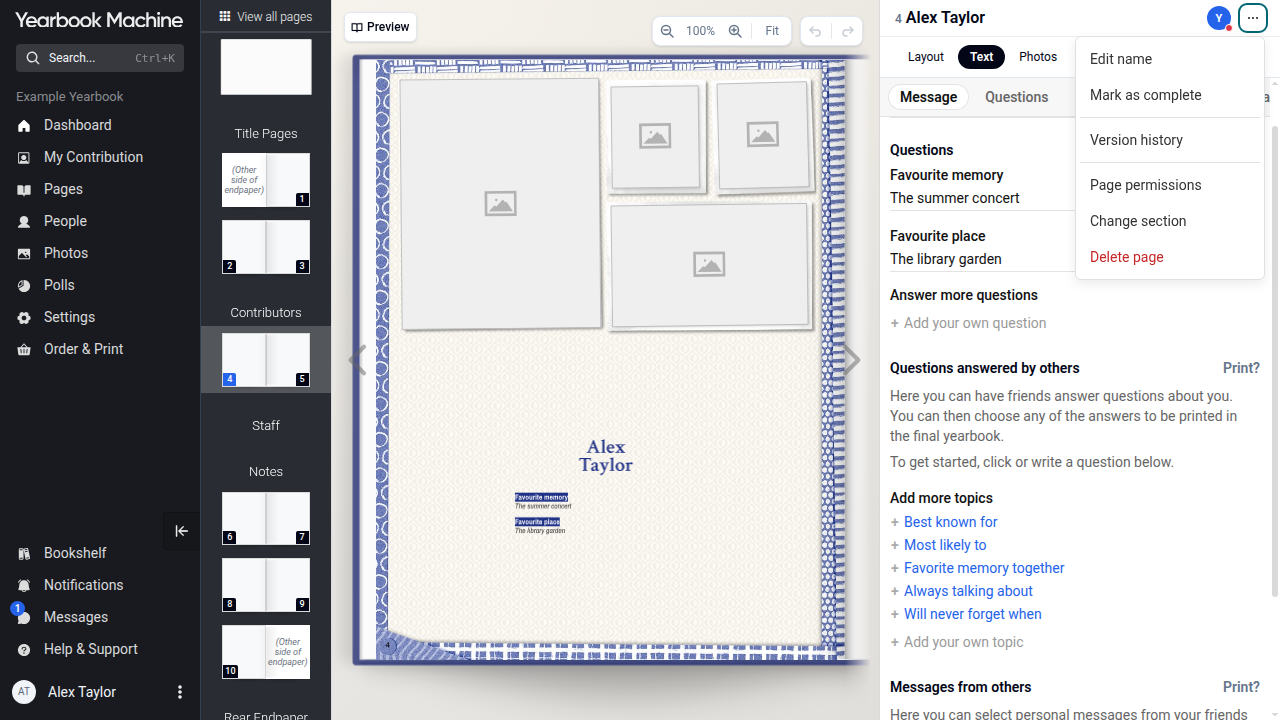
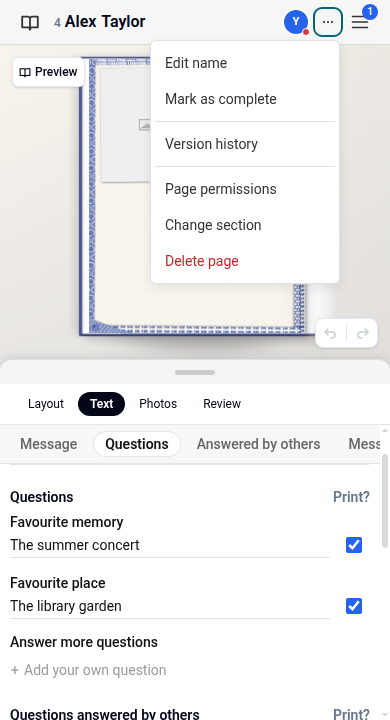
- Open the person's profile page, click the three-dot menu beside their name at the top right and choose Change section.
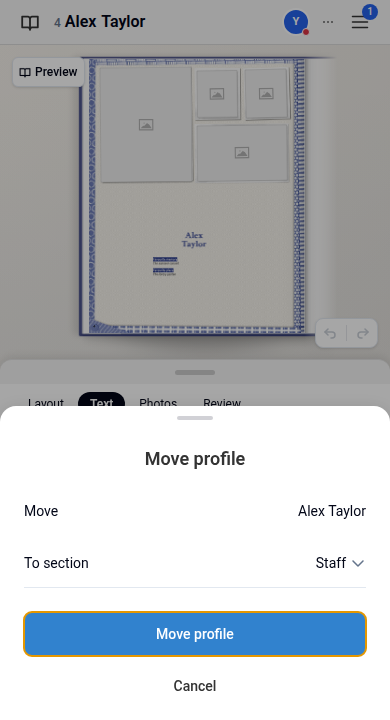
- In the Move profile window, choose the new section under To section and click Move profile. Cancel leaves the profile where it is.
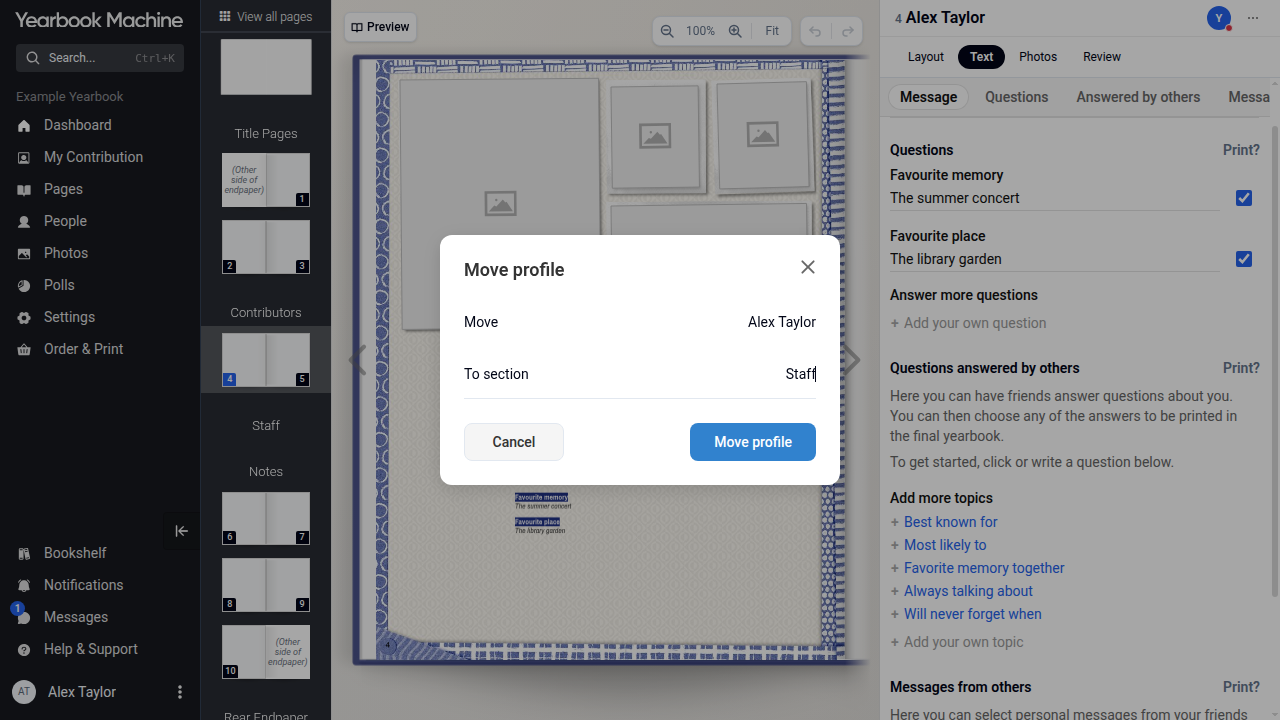
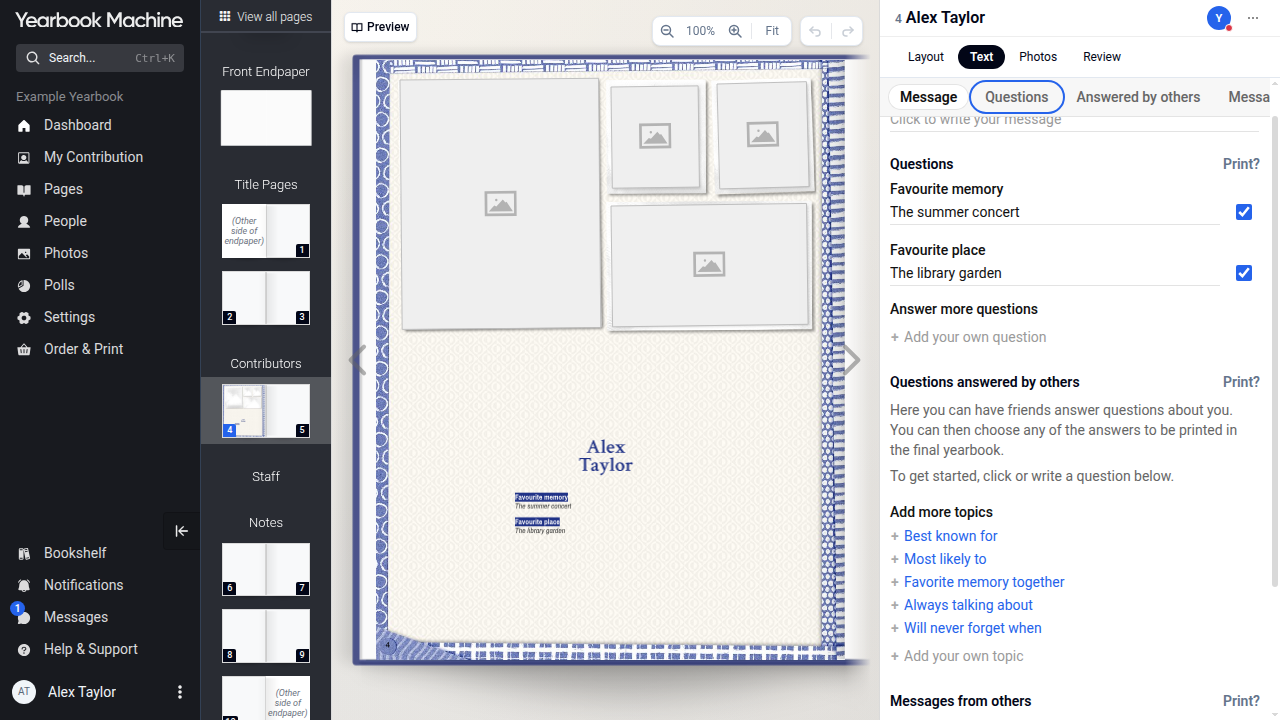
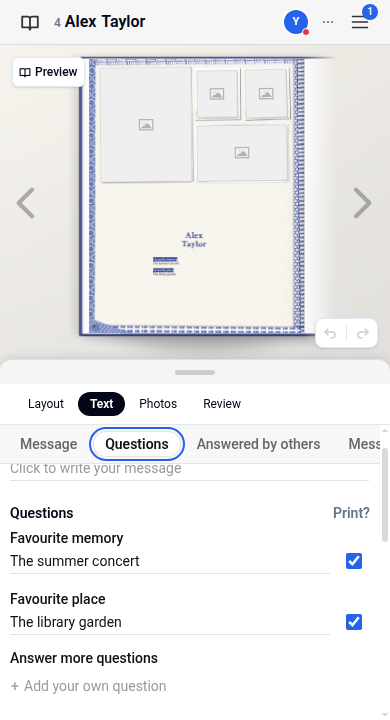
- To check the answers, click Text, then Questions. Answers to questions the new section also asks are still there. The new section's other questions are under Answer more questions.
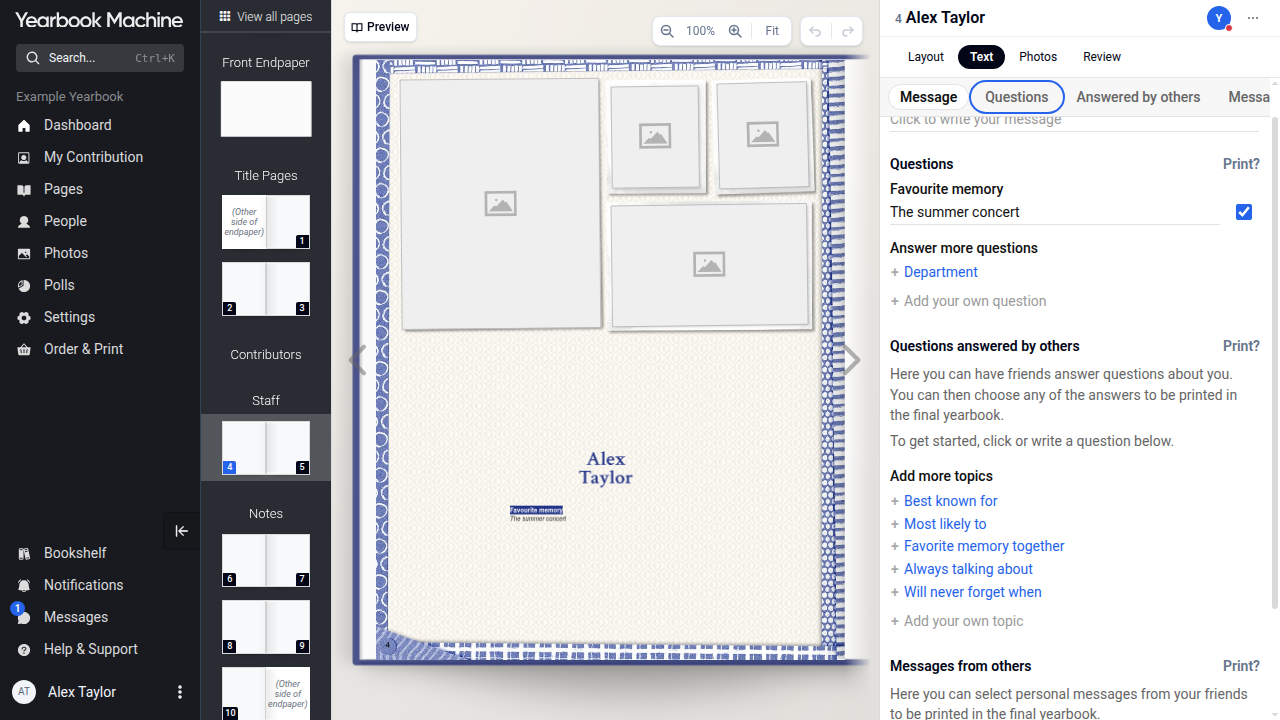
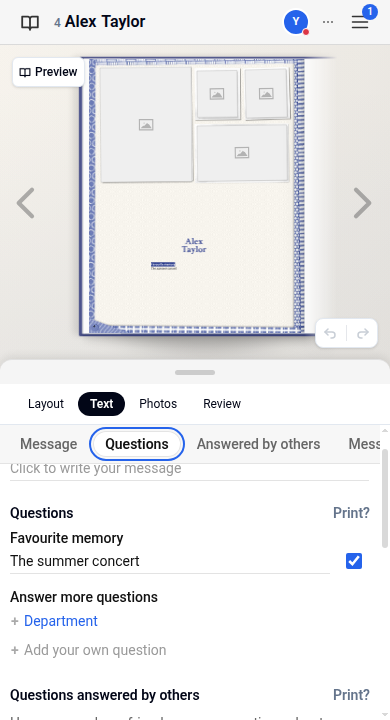
To get hidden answers back, choose Change section again, pick the profile's original section and click Move profile. Its saved answers show again under Text > Questions.
To choose a section for people before they join, see Inviting people to your yearbook.
Hiding someone's profile (editors)
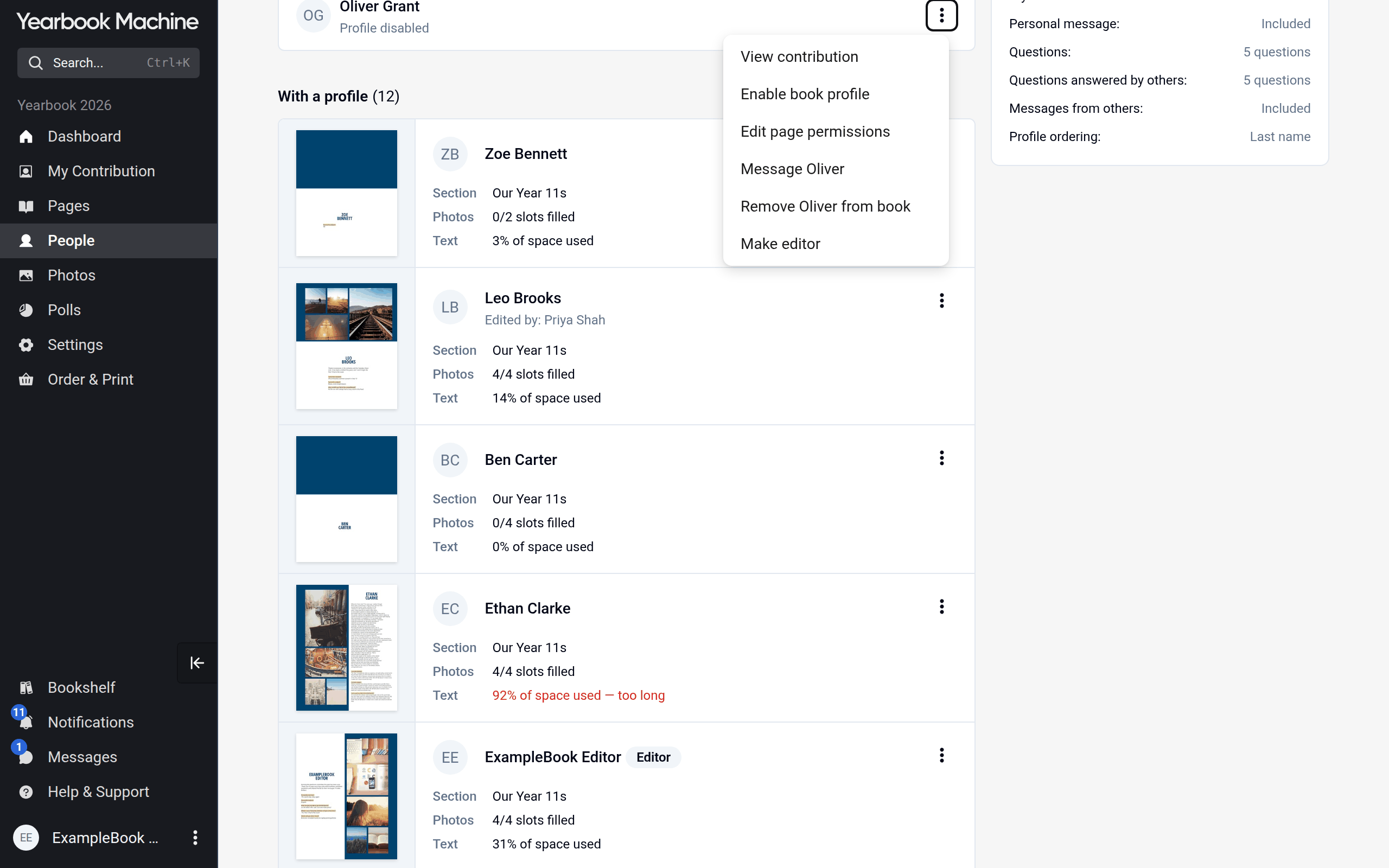
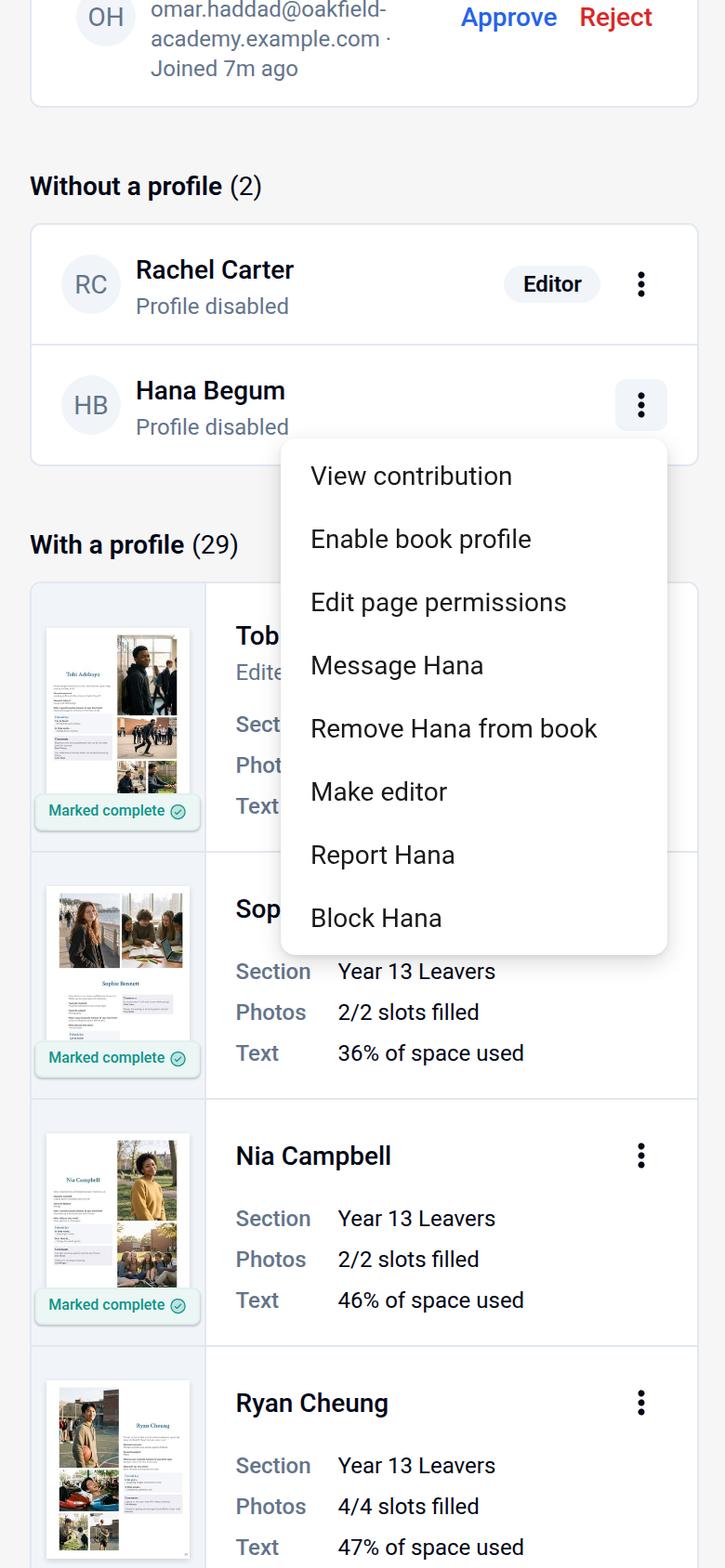
Disabling a profile takes the person's page out of the book but keeps them, and their content, in case you change your mind. They can still upload photos, leave messages on other people's pages and vote in polls.
- Click People in the main menu.
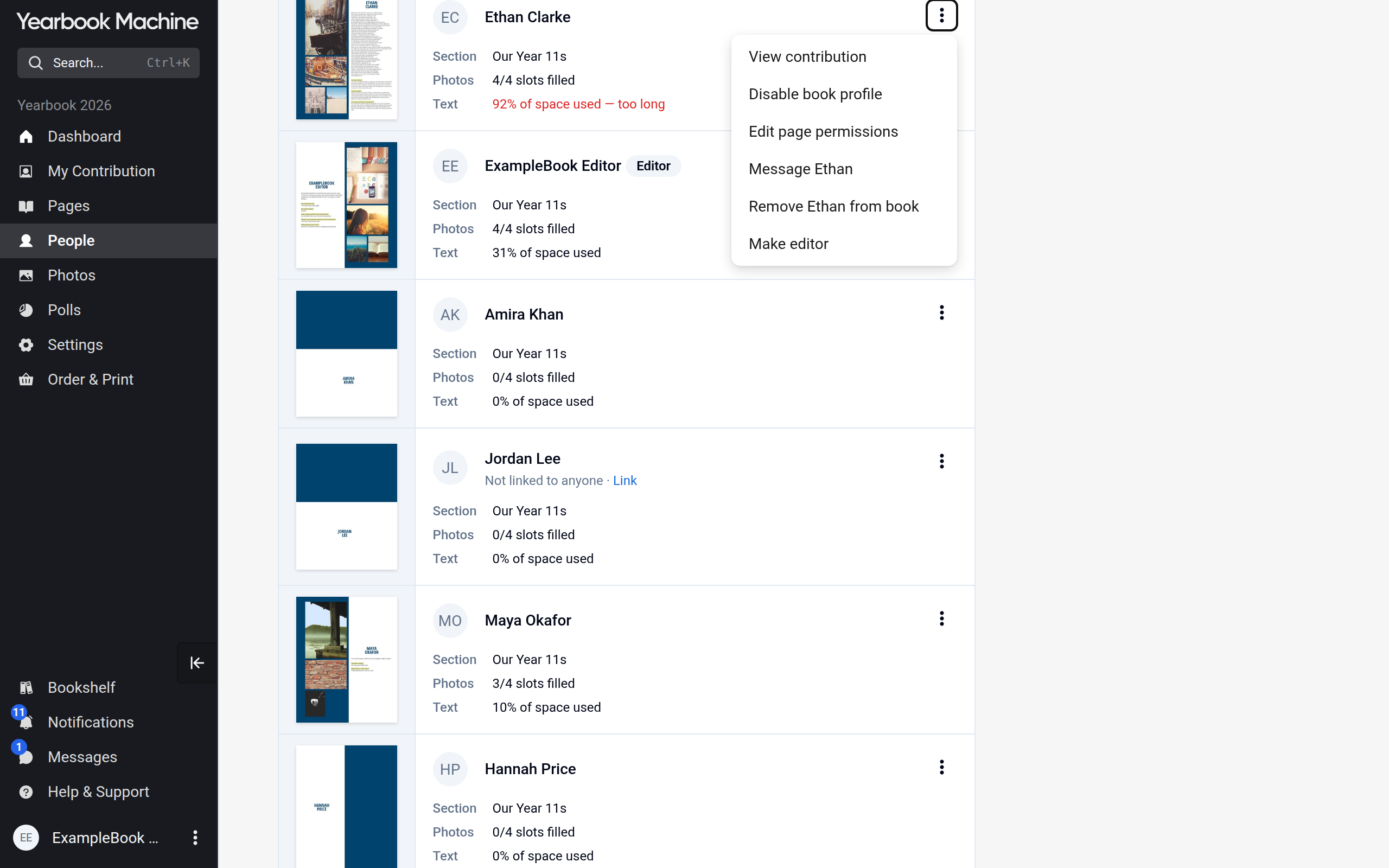
- Open the three-dot menu on the person's card and choose Disable book profile.
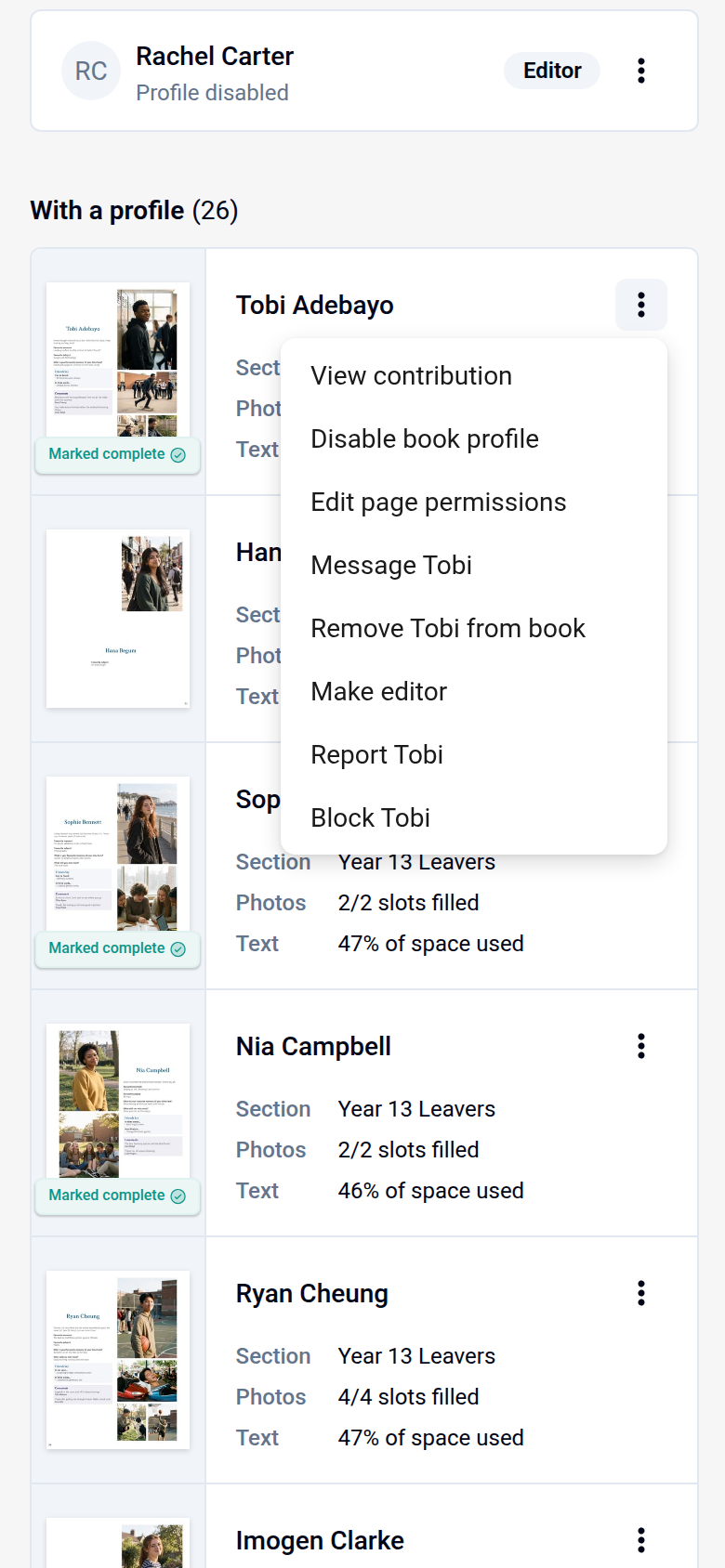
They move to the Without a profile list, marked Profile disabled. To bring the page back, open their three-dot menu there and choose Enable book profile.
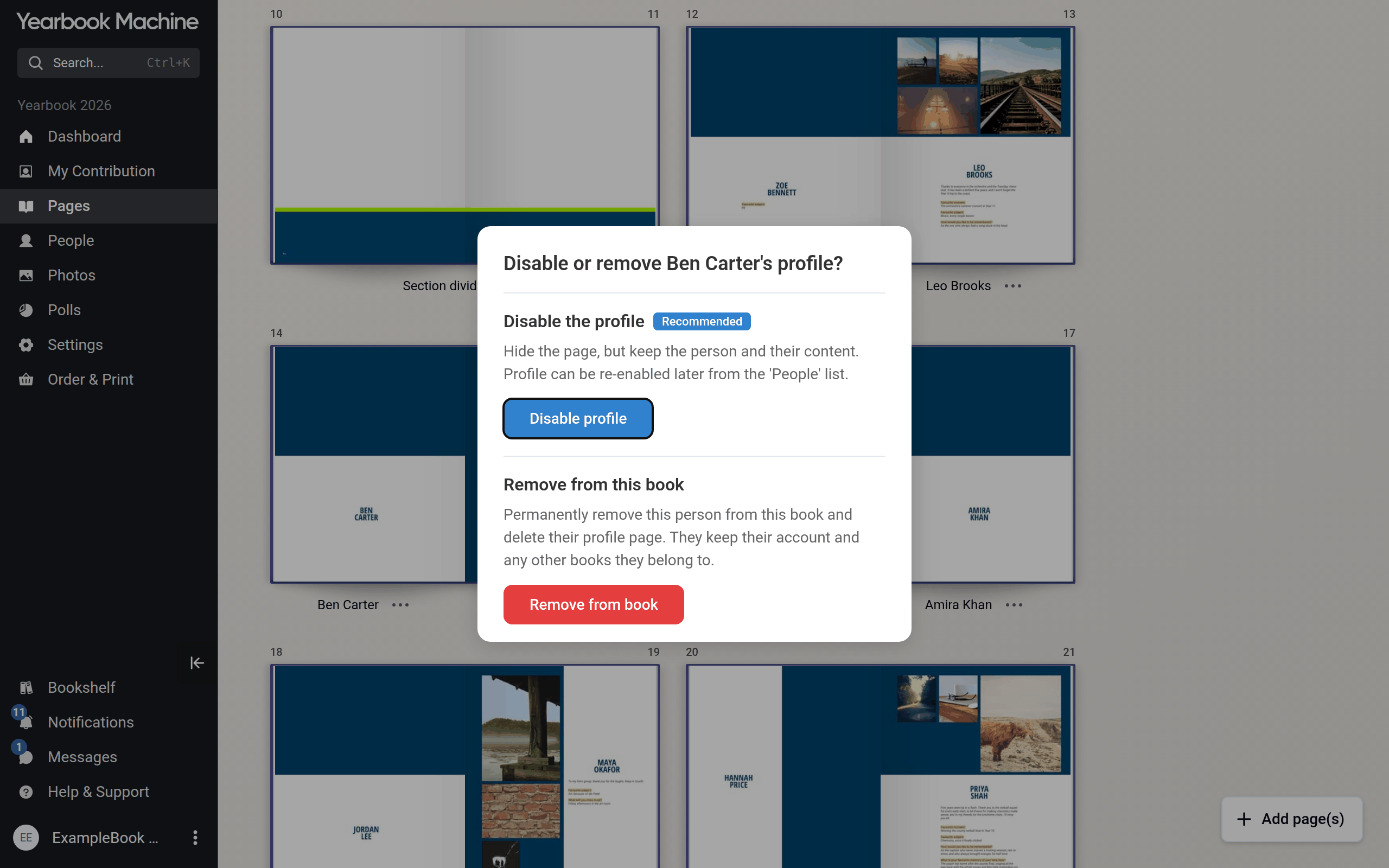
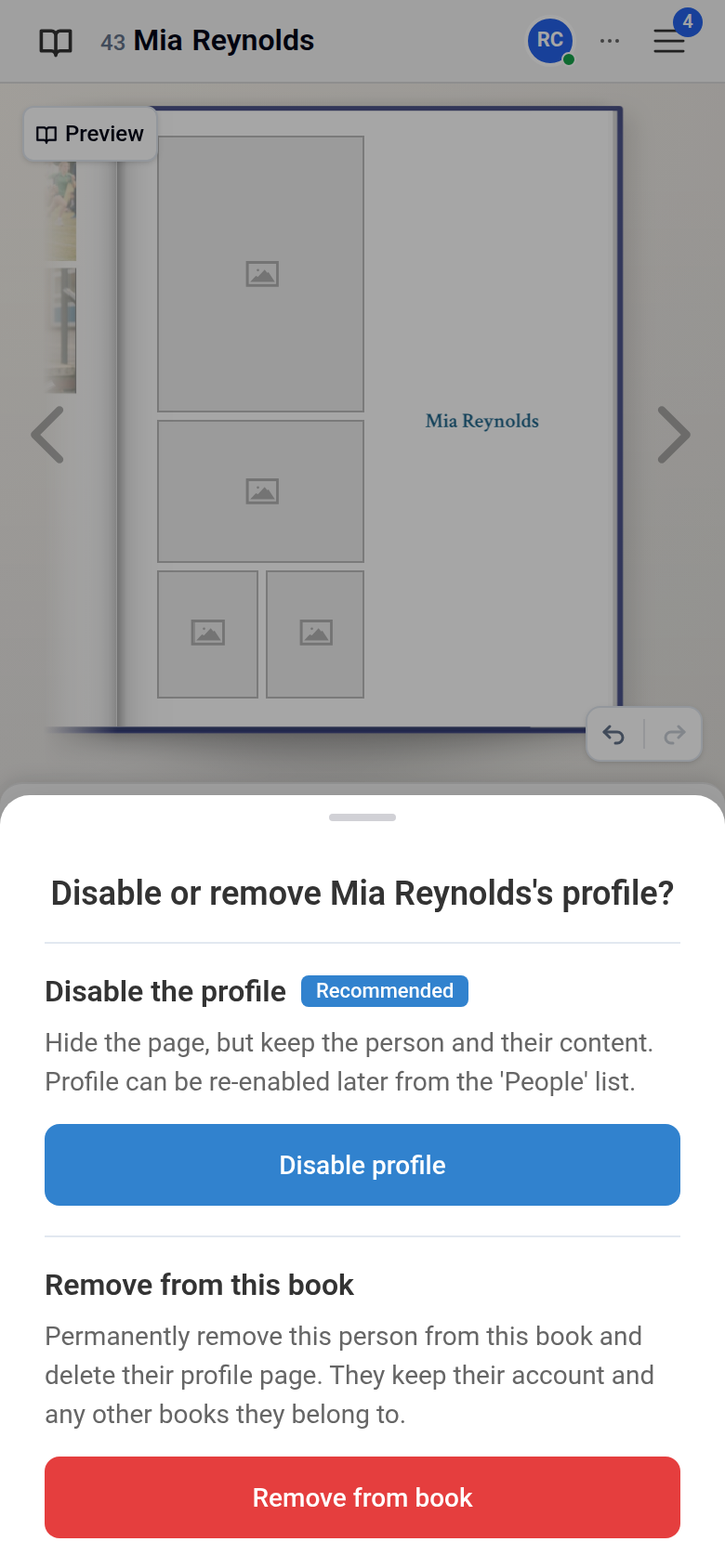
If you choose Delete page on a profile page, you are offered Disable profile, marked Recommended, before removal.
Hiding your own profile
- Click My Contribution in the main menu, then click Settings at the top right.
- Under Profile, choose Disabled and click Save.
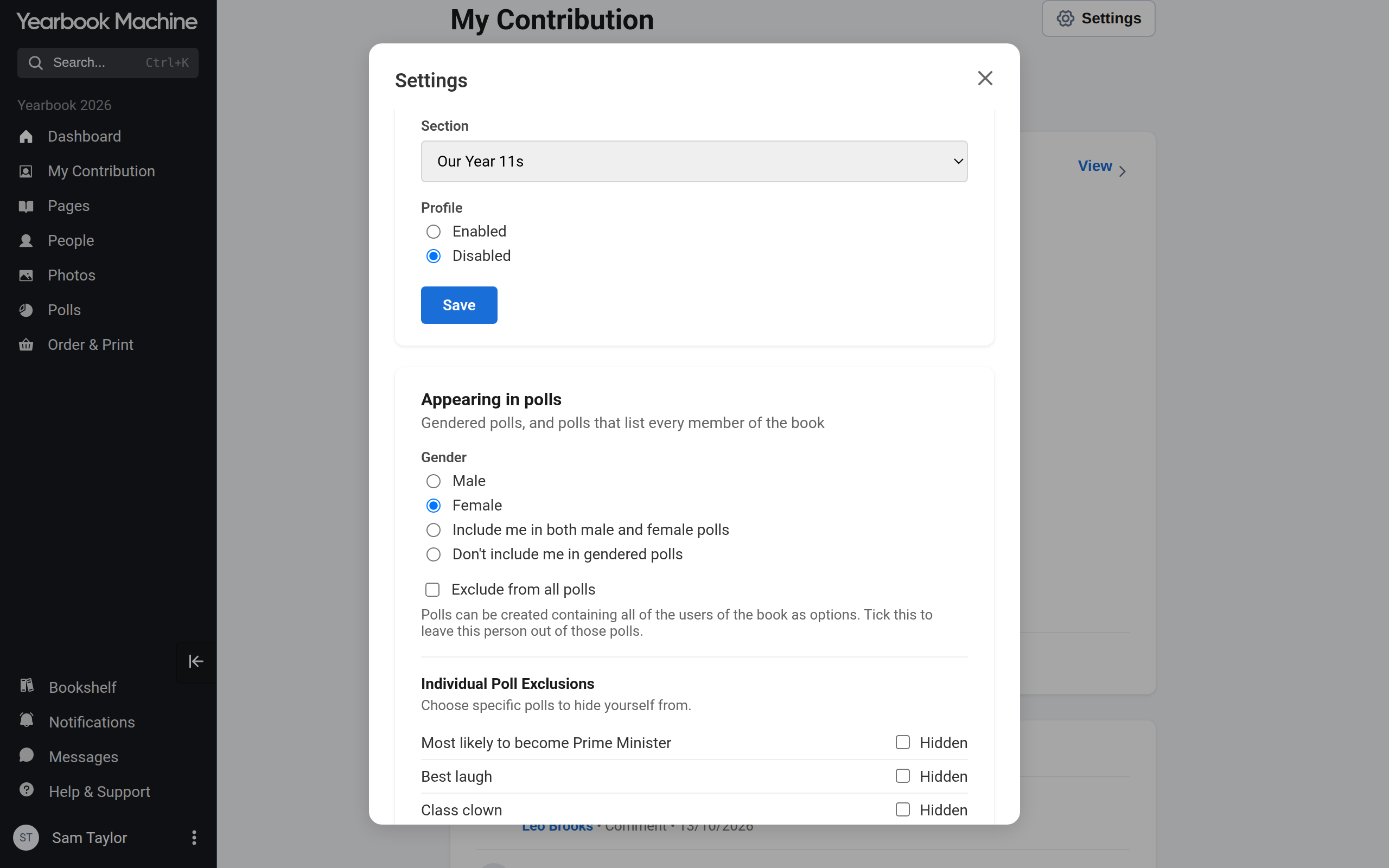
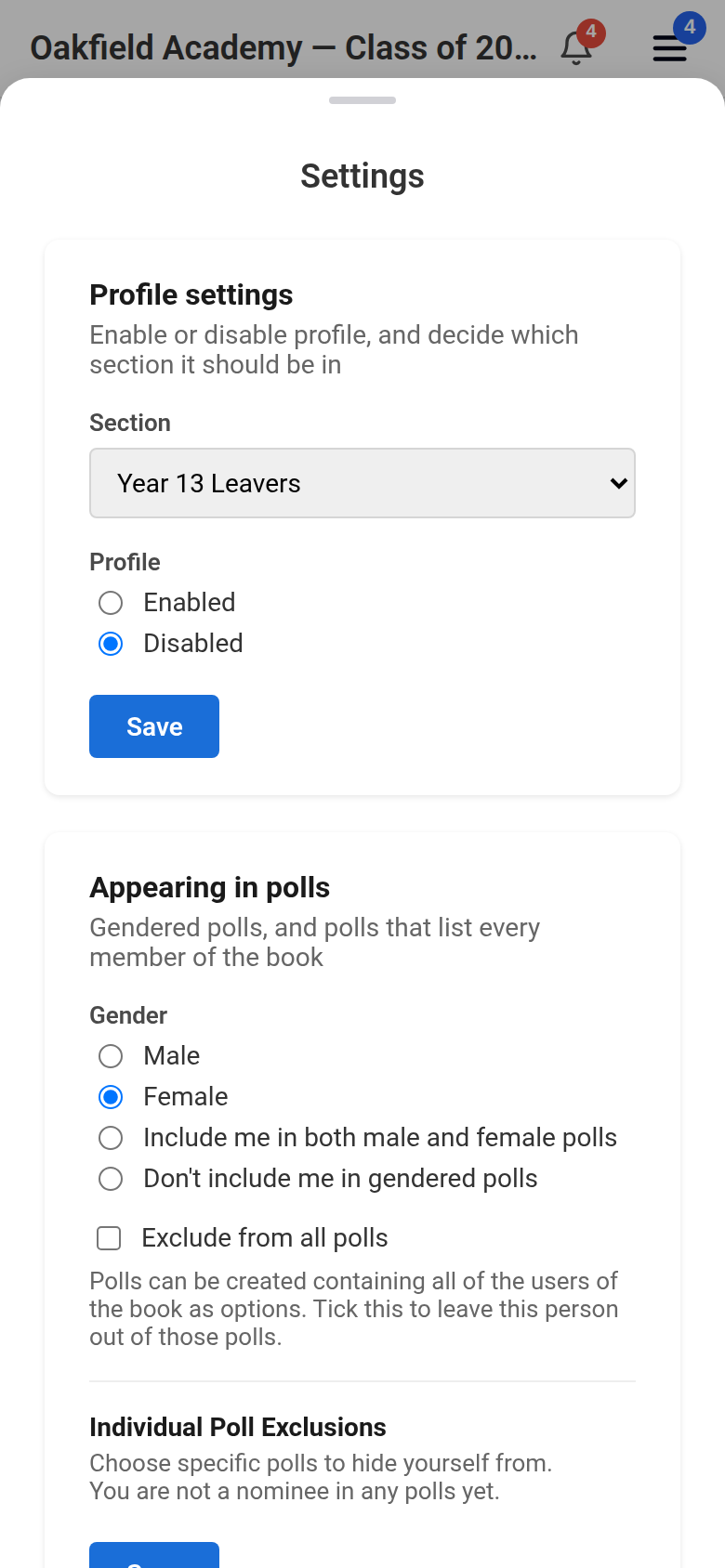
To get your page back, choose Enabled again and click Save, or click Add my profile page on My Contribution.
Removing someone from the book (editors)
Removing someone deletes their profile page permanently. They keep their account and any other books they belong to.
- On the People page, open the three-dot menu on the person's card and choose the remove option, which shows their first name, for example Remove Sam from book.
- The dialog that opens lists what is Always removed, and, if they have a page, what is Always deleted with their page. Below that, the box Delete everything they added is ticked, and the dialog lists what Will be deleted.
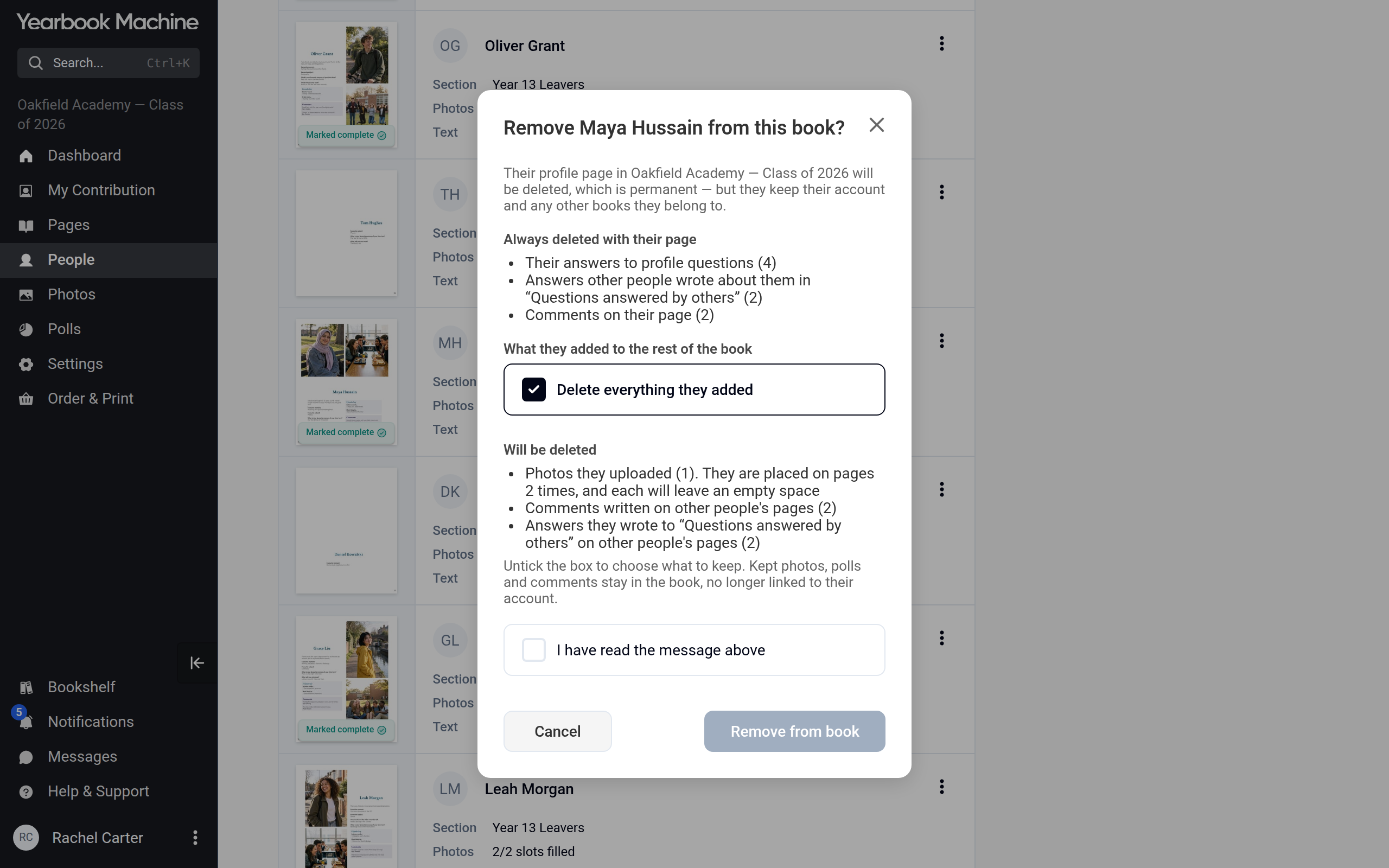
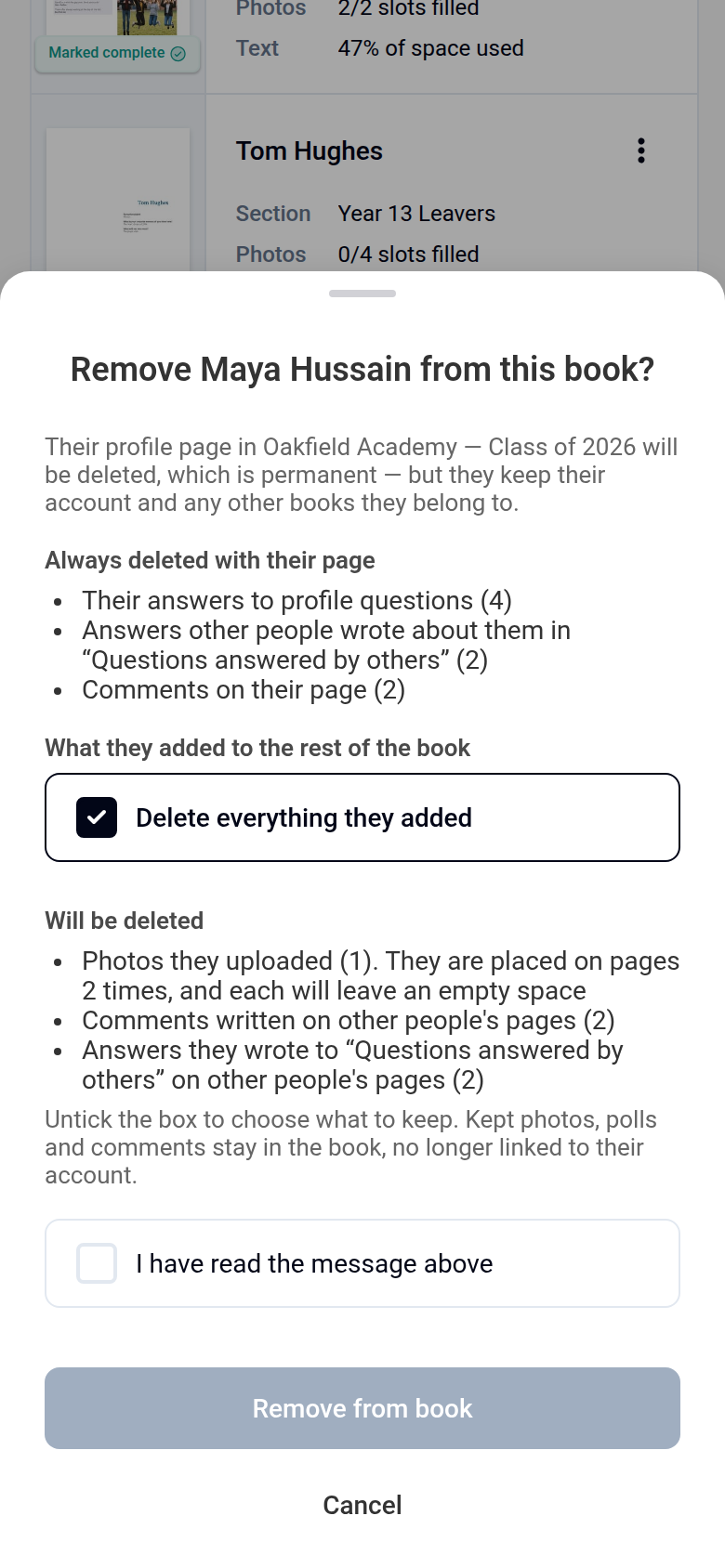
To keep some of what they added, untick the box. For their photos, polls, comments and "friends say" answers, you can then choose whether each is kept in the book or deleted. Deleted photos and polls leave gaps on pages where they were placed.
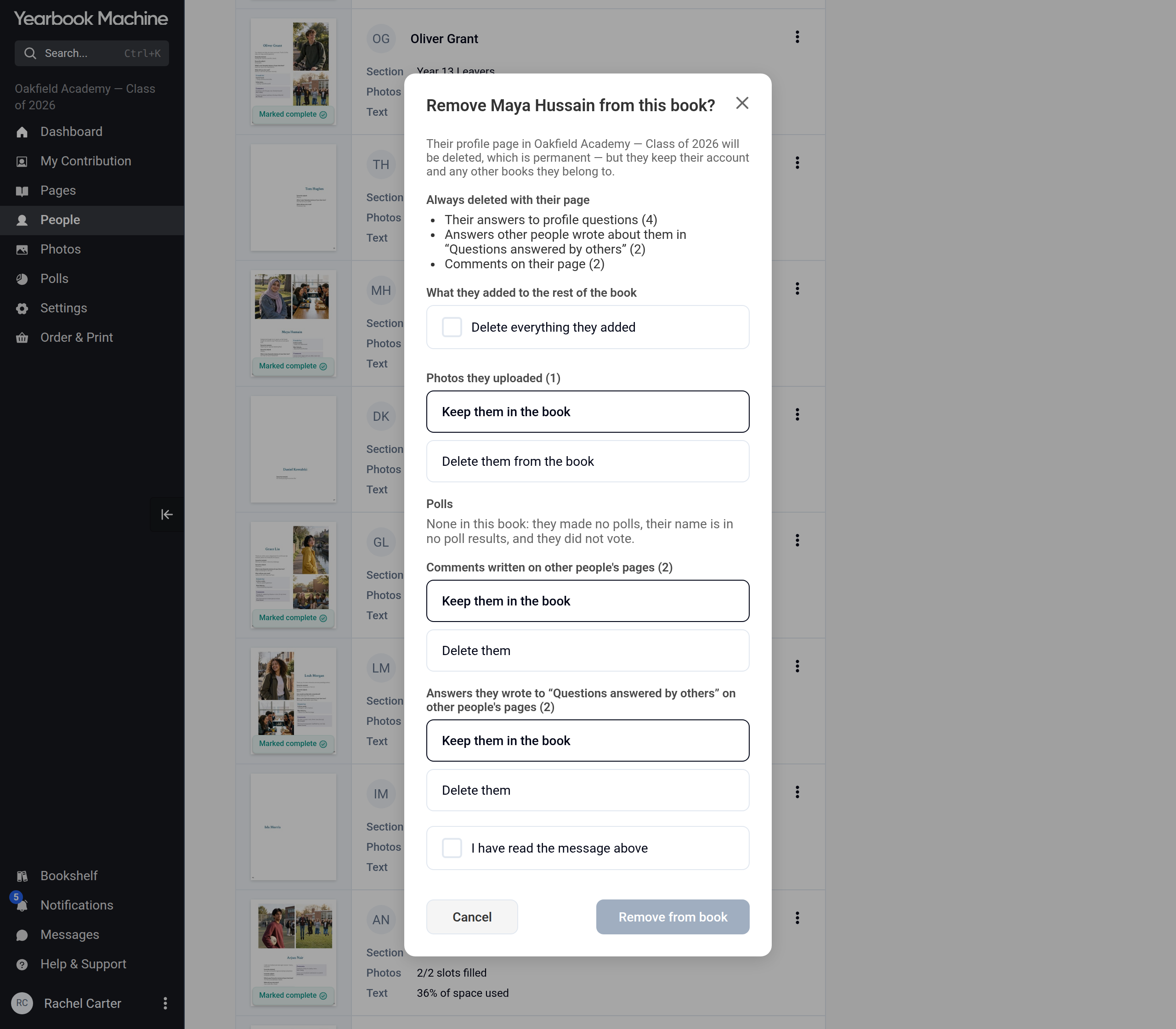
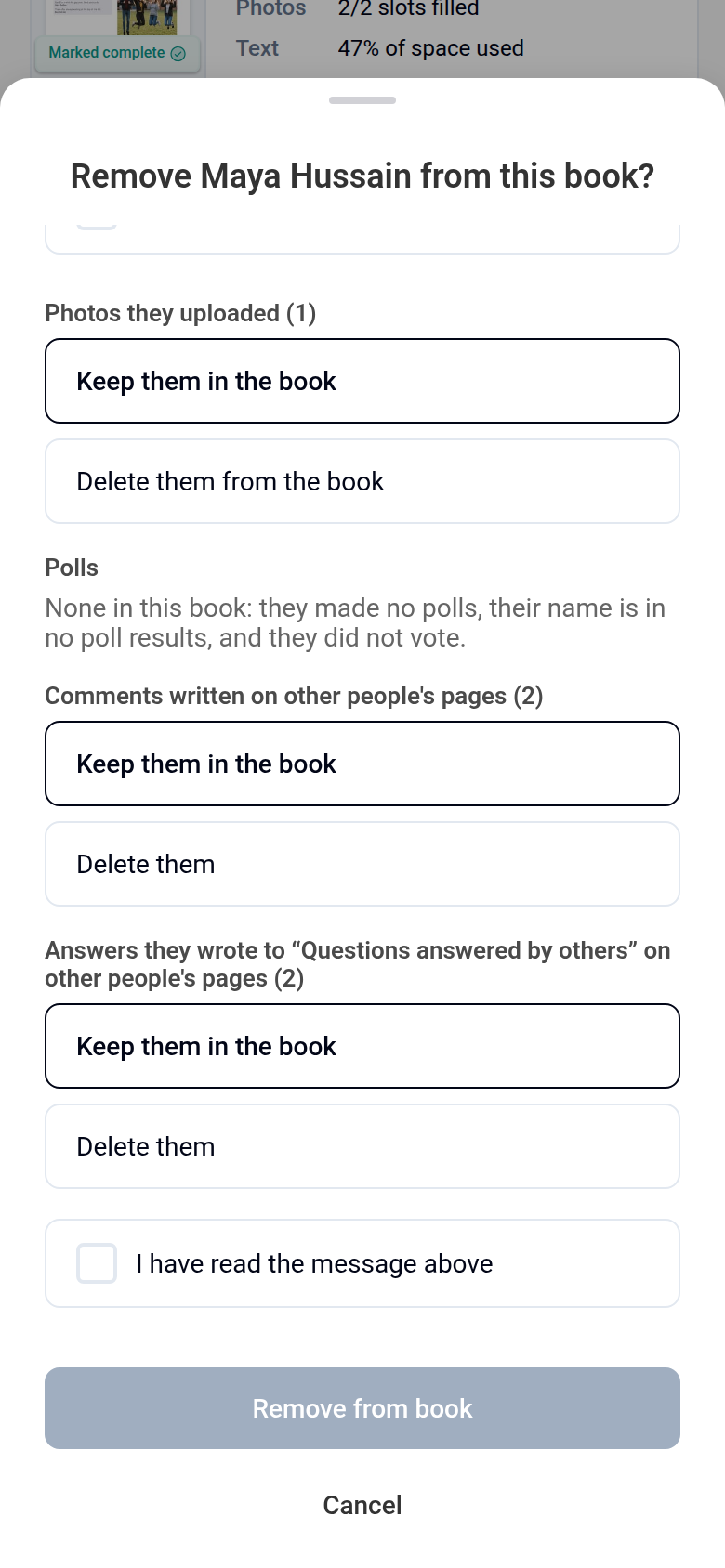
- Tick I have read the message above and click Remove from book.
Finding someone's profile
There are two ways:
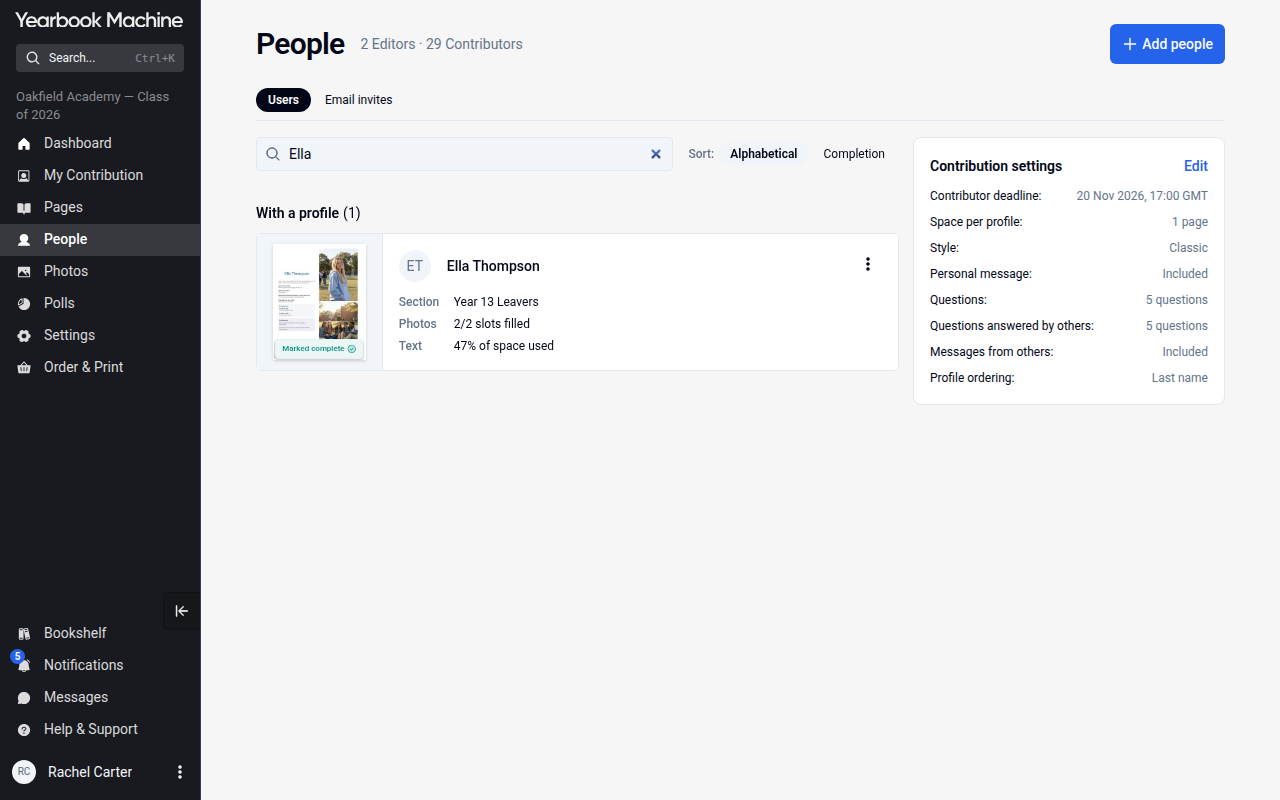
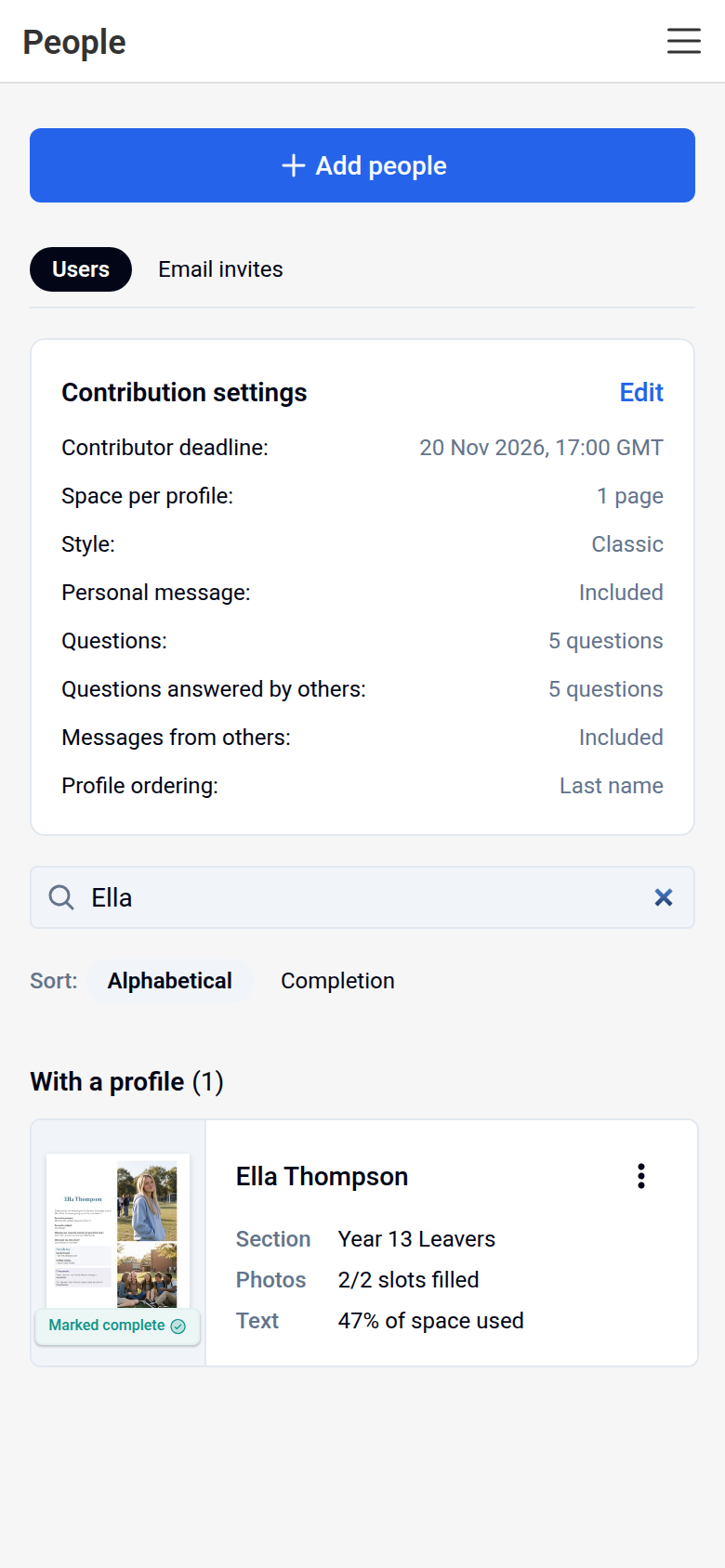
- On the People page: click People in the main menu and type their name in the page's Search box. Use Alphabetical or Completion beside it to change the order. Click their name or page image to open their profile.
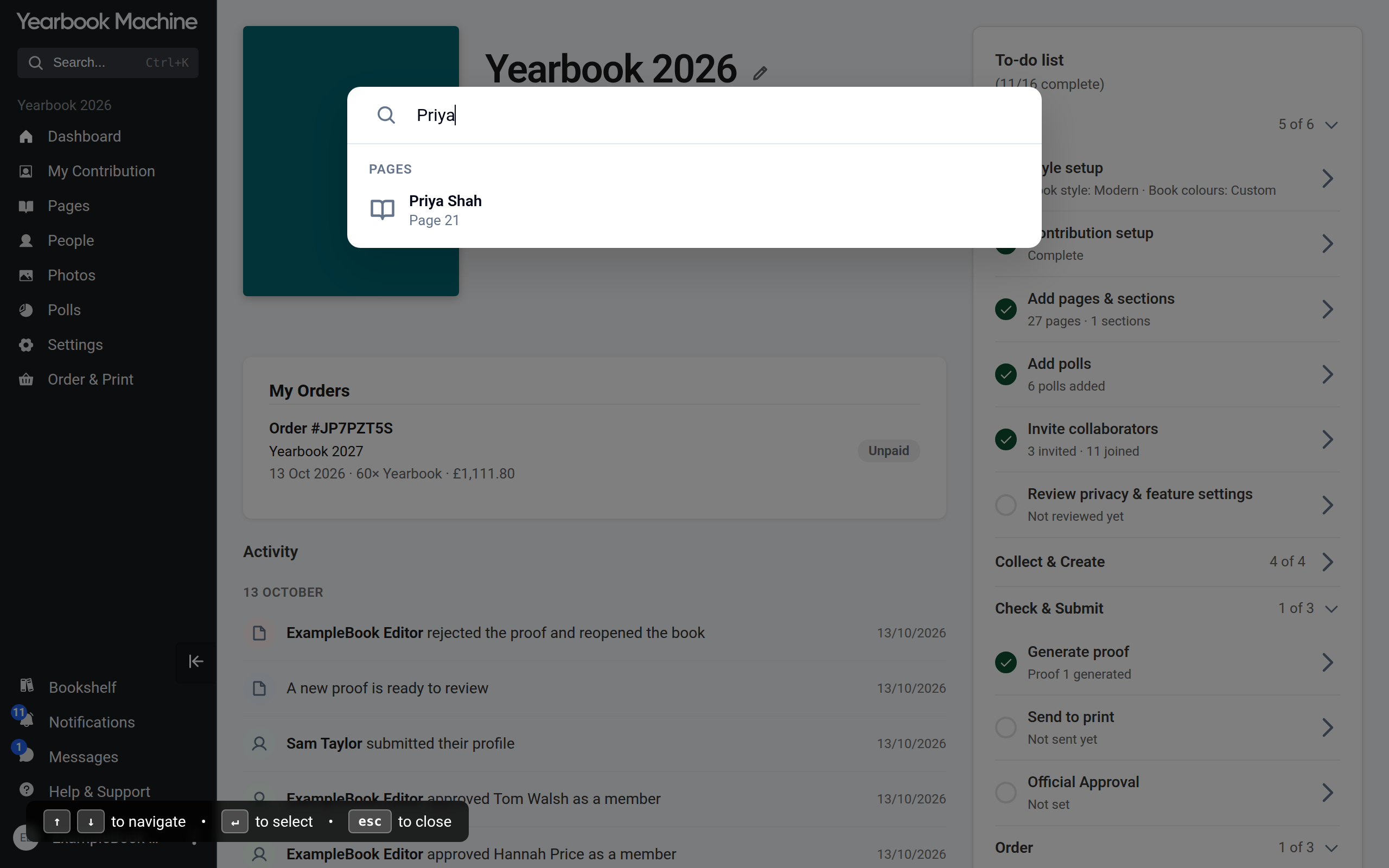
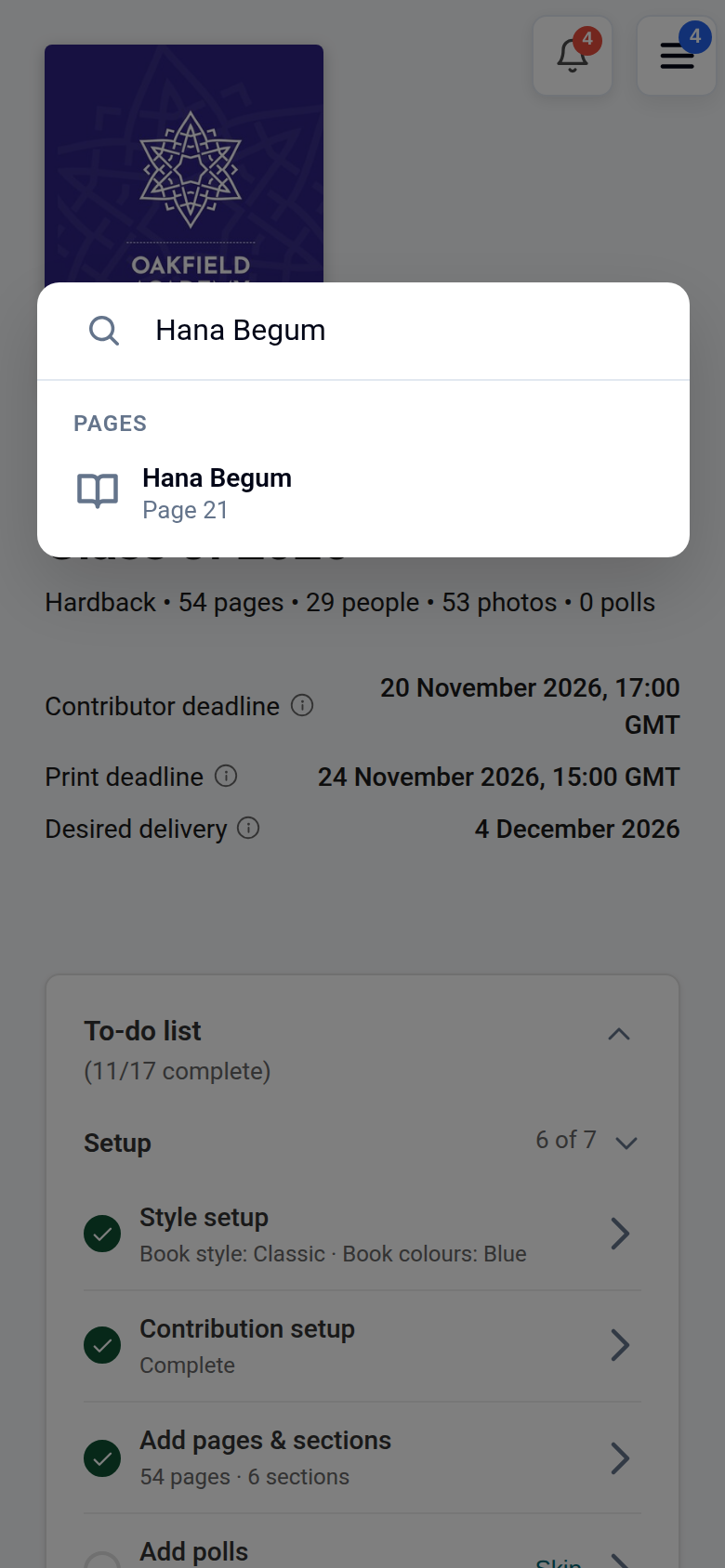
- From anywhere in the book: click Search... in the main menu (or press Ctrl+K, or ⌘K on a Mac), type their name and choose their page under Pages.
Common questions
Someone has joined but I can't find their profile.
Check Awaiting approval at the top of the People page; they may need approving. If they are under Without a profile, their profile has been disabled.
Some answers disappeared after I moved a profile.
The new section doesn't ask those questions, so their answers are hidden there, not deleted. Move the profile back to its original section to see them again.
Will removing someone delete the photos they uploaded?
Only if you leave the delete-everything box ticked, or choose to delete them when you remove the person.
Can contributors remove people or hide their profiles?
No. Contributors can see the People page, but only editors have the three-dot menu on each card. Contributors can only hide their own profile.
Can a person take over a profile an editor created?
Yes. Invite them to take it over from the People page, as described above. Once they accept, it becomes their own profile.
Was this article helpful?
Sorry, that didn't send. Please try again in a little while.
Thanks. That helps us improve this article.
Any other questions?
Email support@yearbook.com and we'll help you out.