
Comments from friends
Contributors can write on each other's profiles in two ways: answering questions about a friend, and leaving them a message. This article covers writing them, choosing which are printed, and how editors control them. Everyone in the book can write on other profiles when these sections are turned on; the profile's owner and the editors choose what is printed.
Writing on a friend's profile
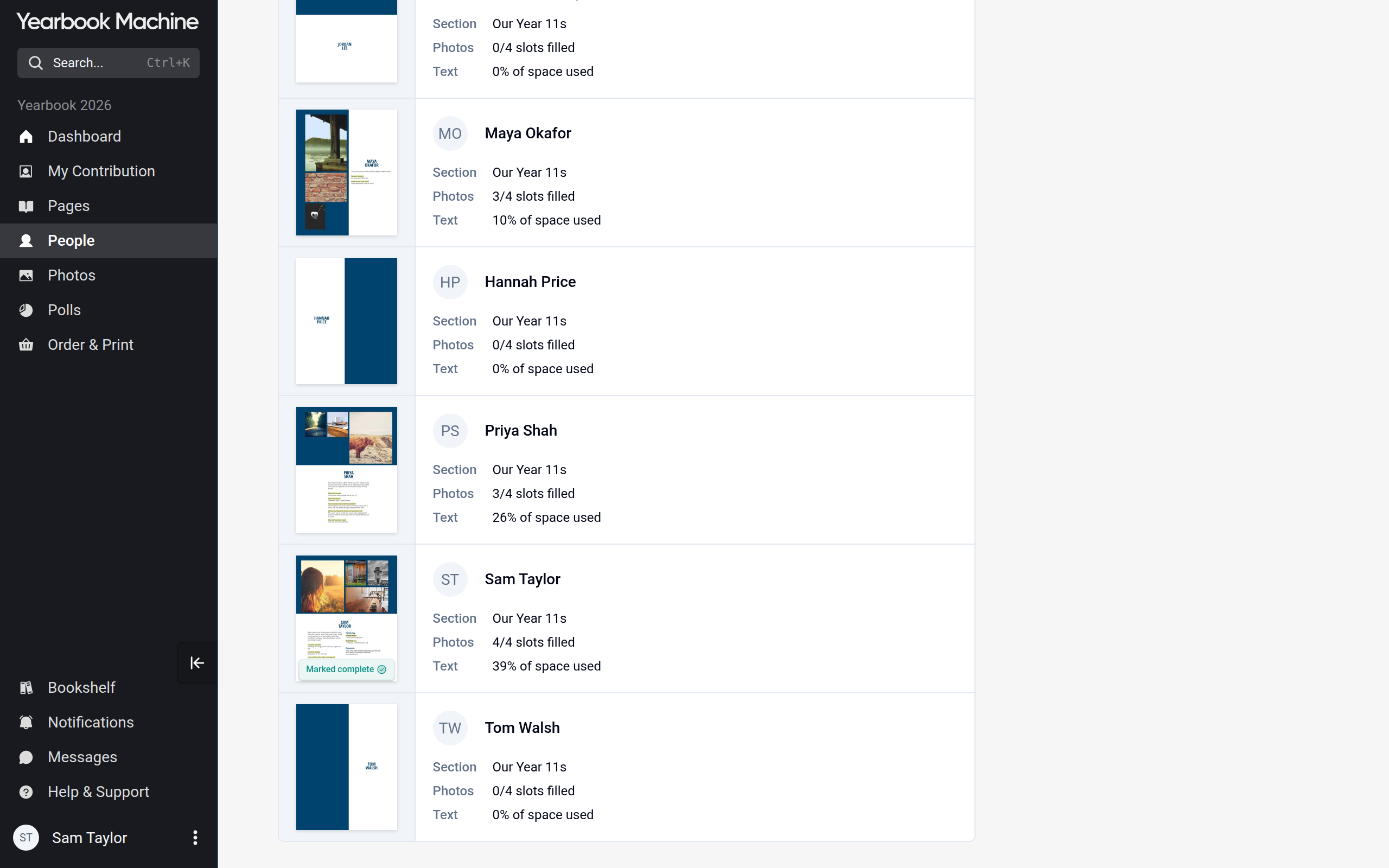
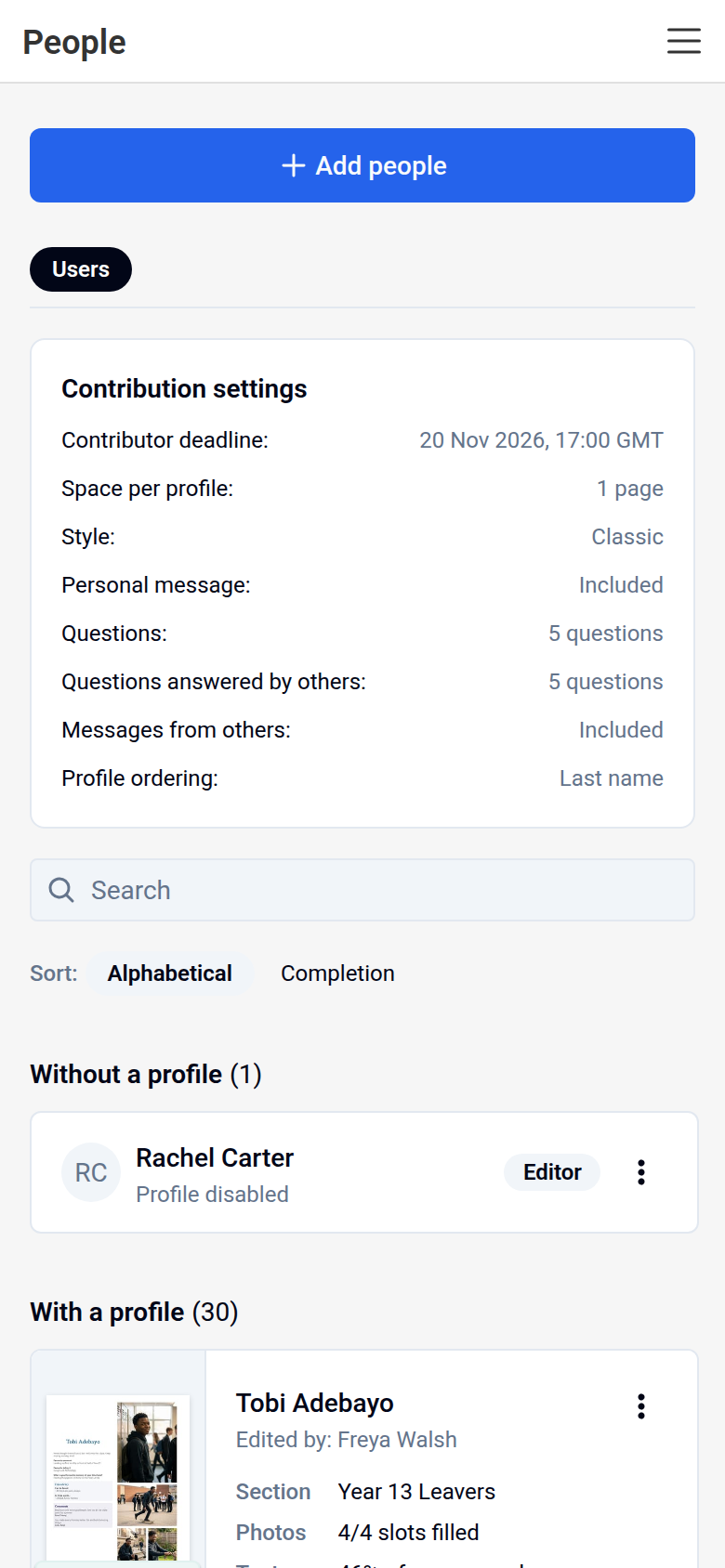
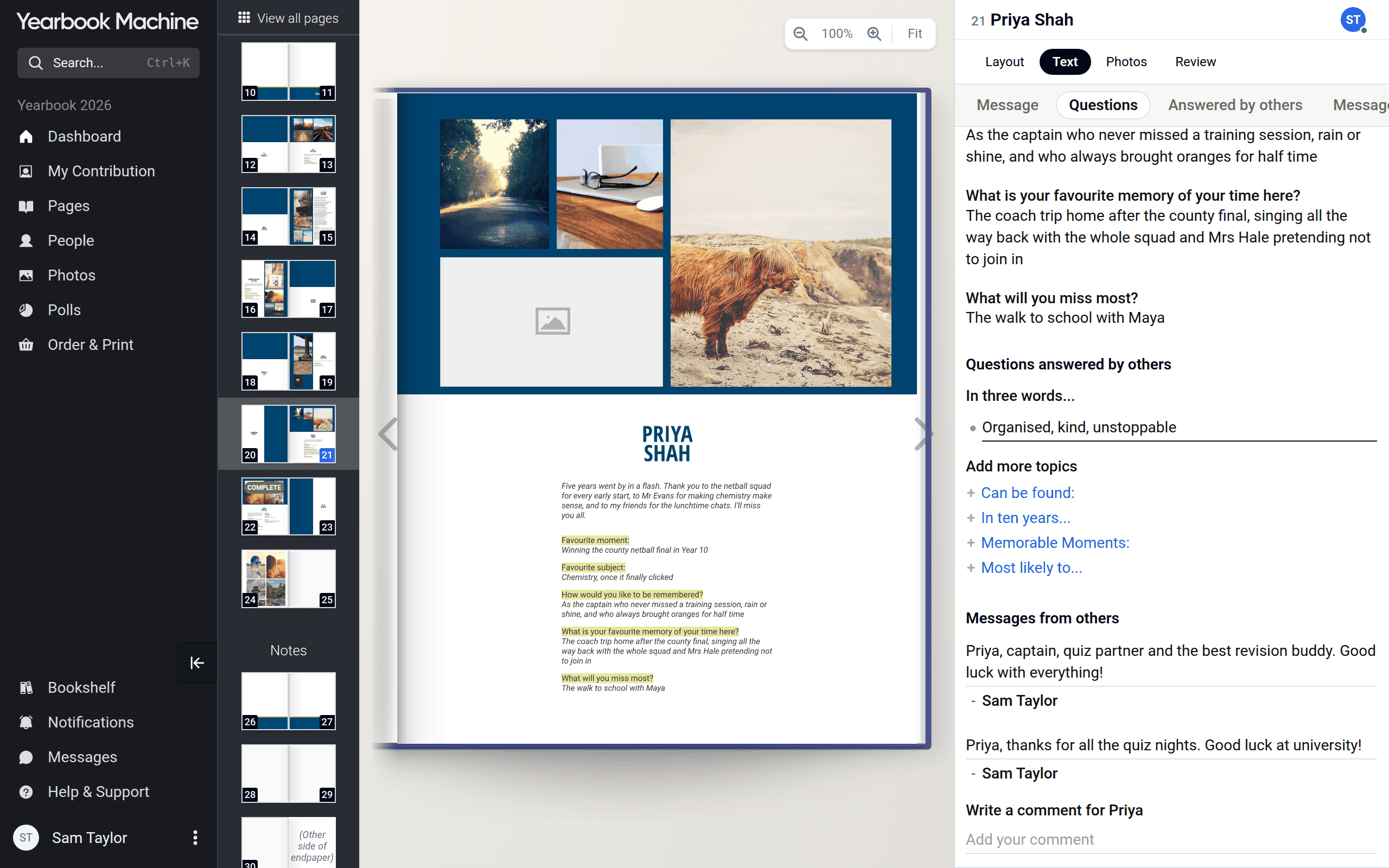
- Click People in the main menu and click your friend's name. Their profile opens in the page editor, the screen for working on a single page.
- Open the Text tab.
- To leave a message, go to Messages from others. Under Write a comment for your friend's name, click the Add your comment box, type your message and click away from the box to save it.
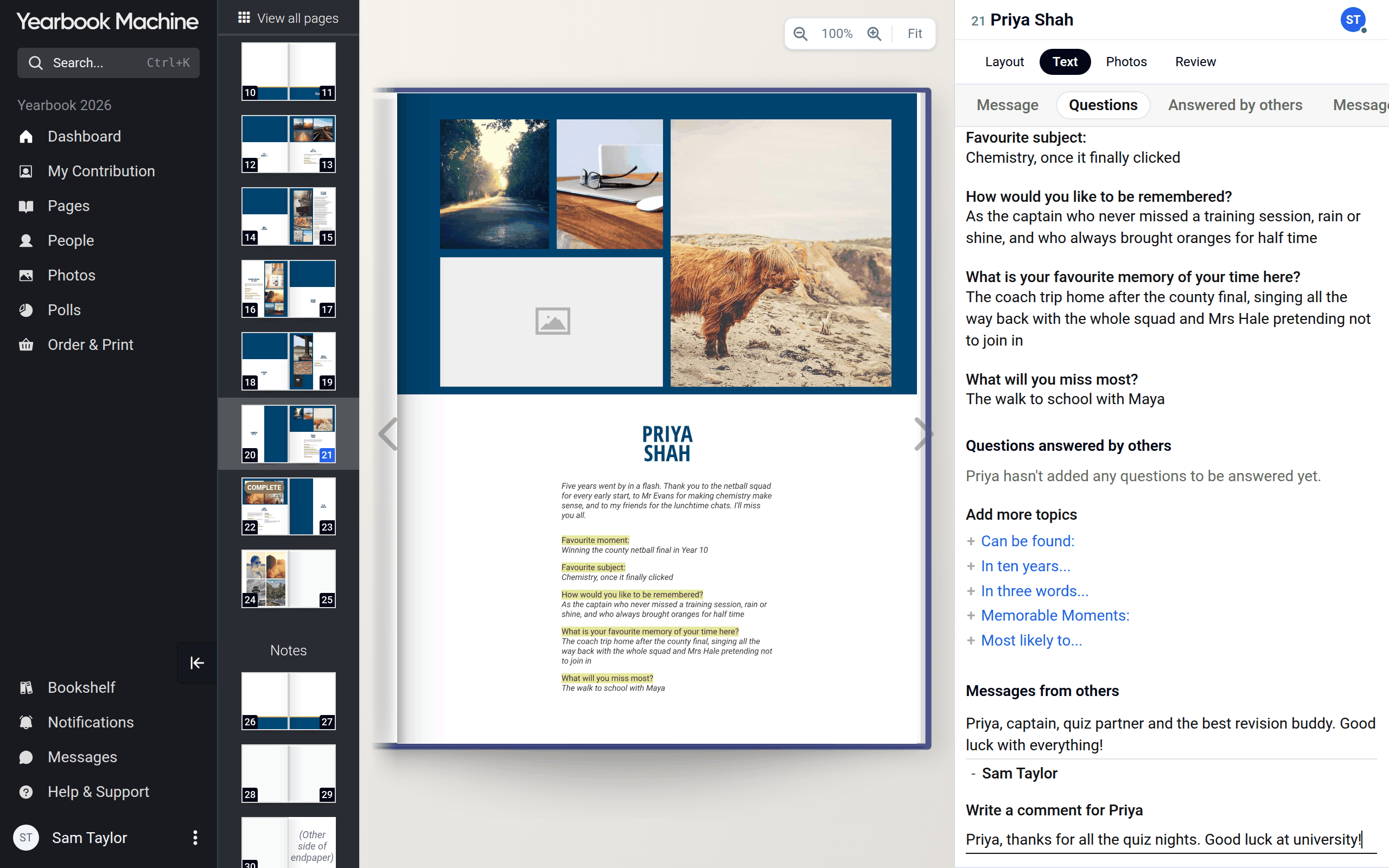
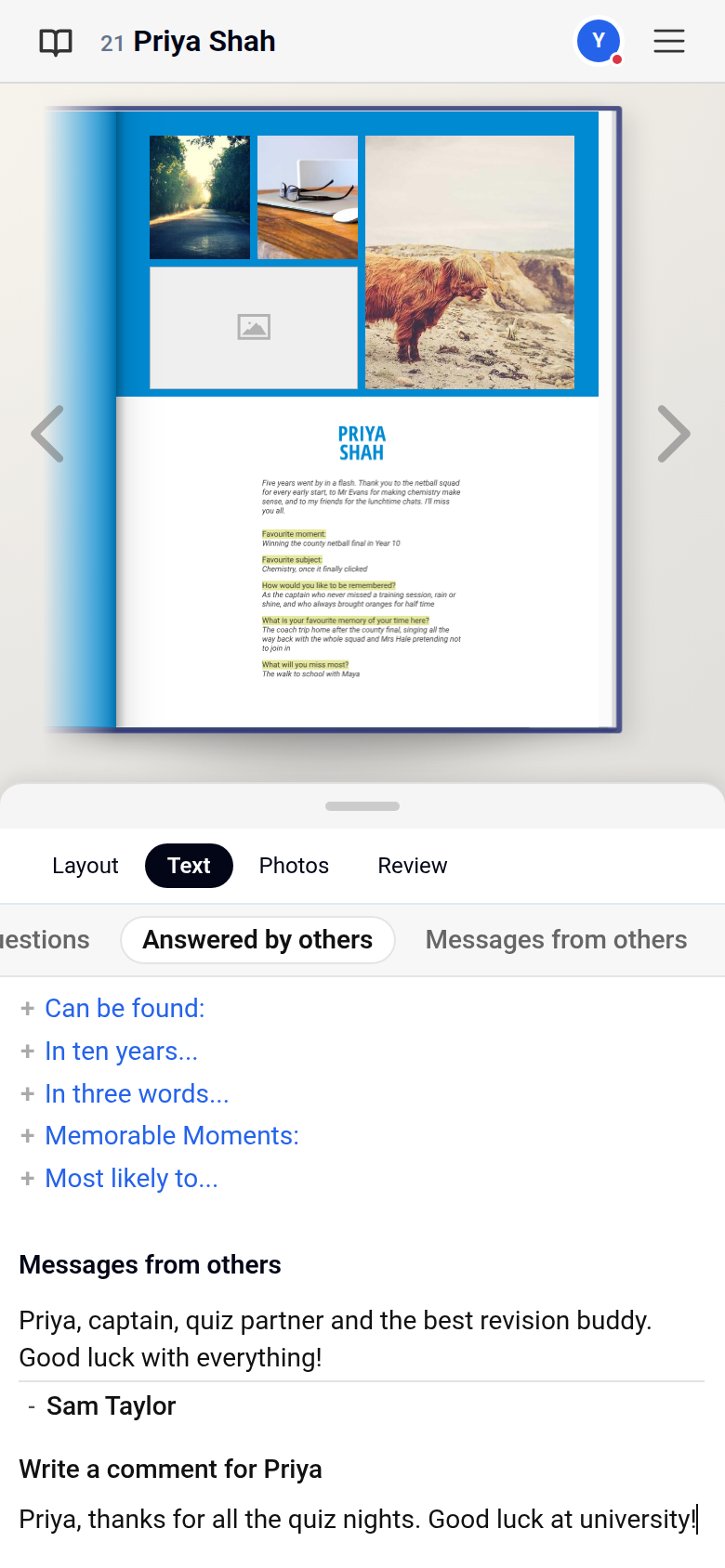
- To answer a question about your friend, go to Questions answered by others. Under a question, click the box that says Click to add a new response (on a phone, Tap to add a new response), type your answer and click away to save it. You can also add a question from Add more topics.
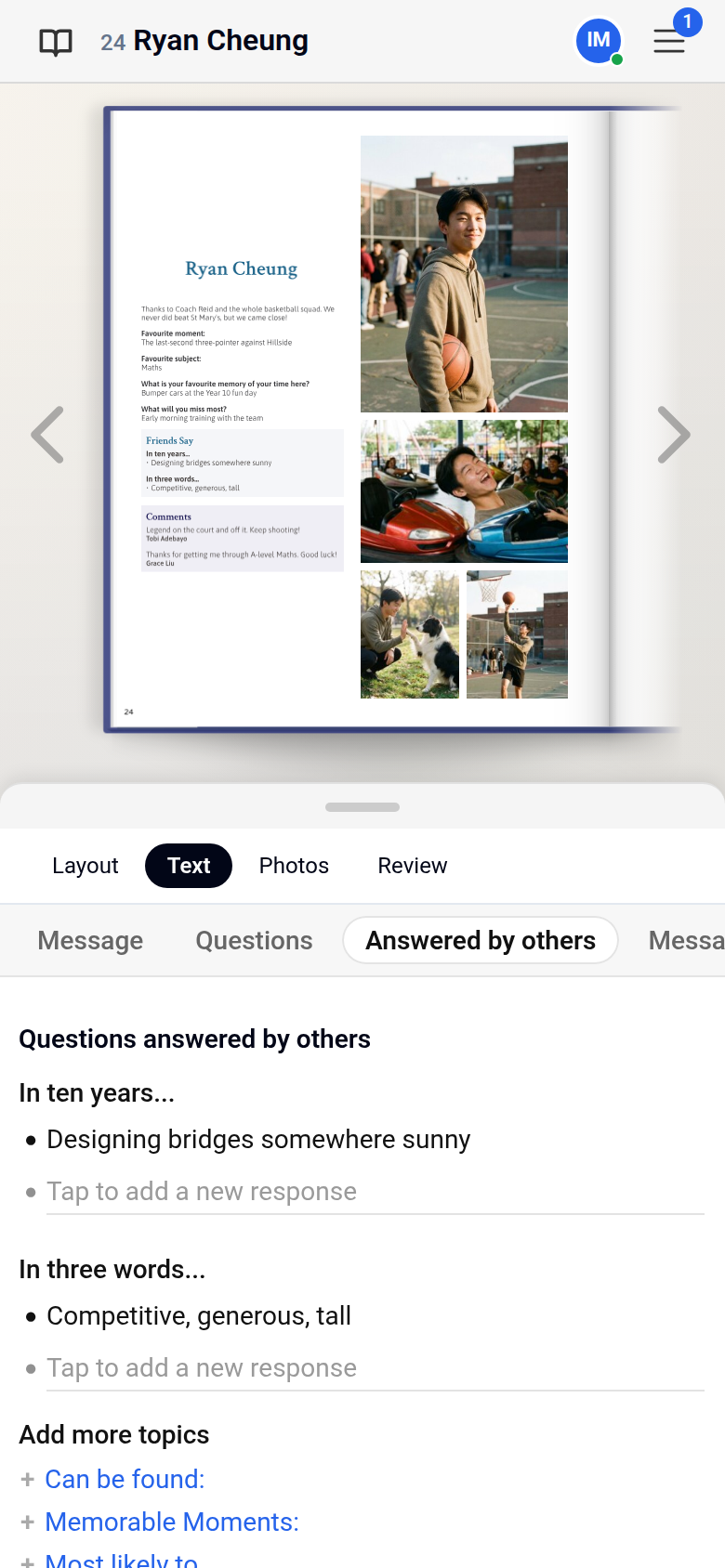
To change your message or answer, click it and edit it; to delete it, clear the text and click away. Once the owner marks their profile as complete, you can no longer add or change anything on it.
Choosing which comments are printed
Messages and answers from friends are only printed once the profile's owner or an editor ticks them.
- Open your profile from My Contribution in the main menu and go to the Text tab.
- Tick Print? beside each message or answer you want in the book. Leave the rest unticked.
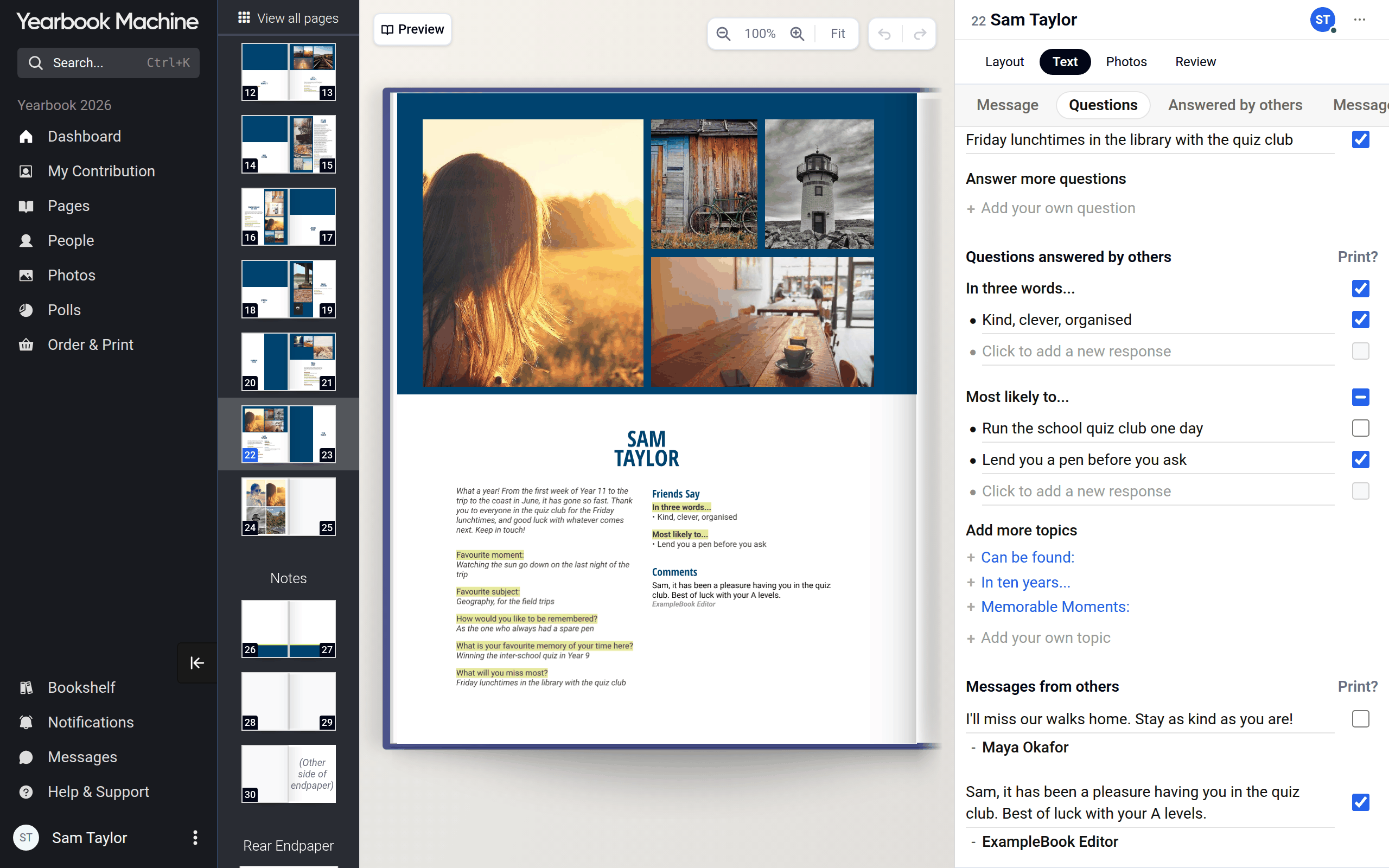
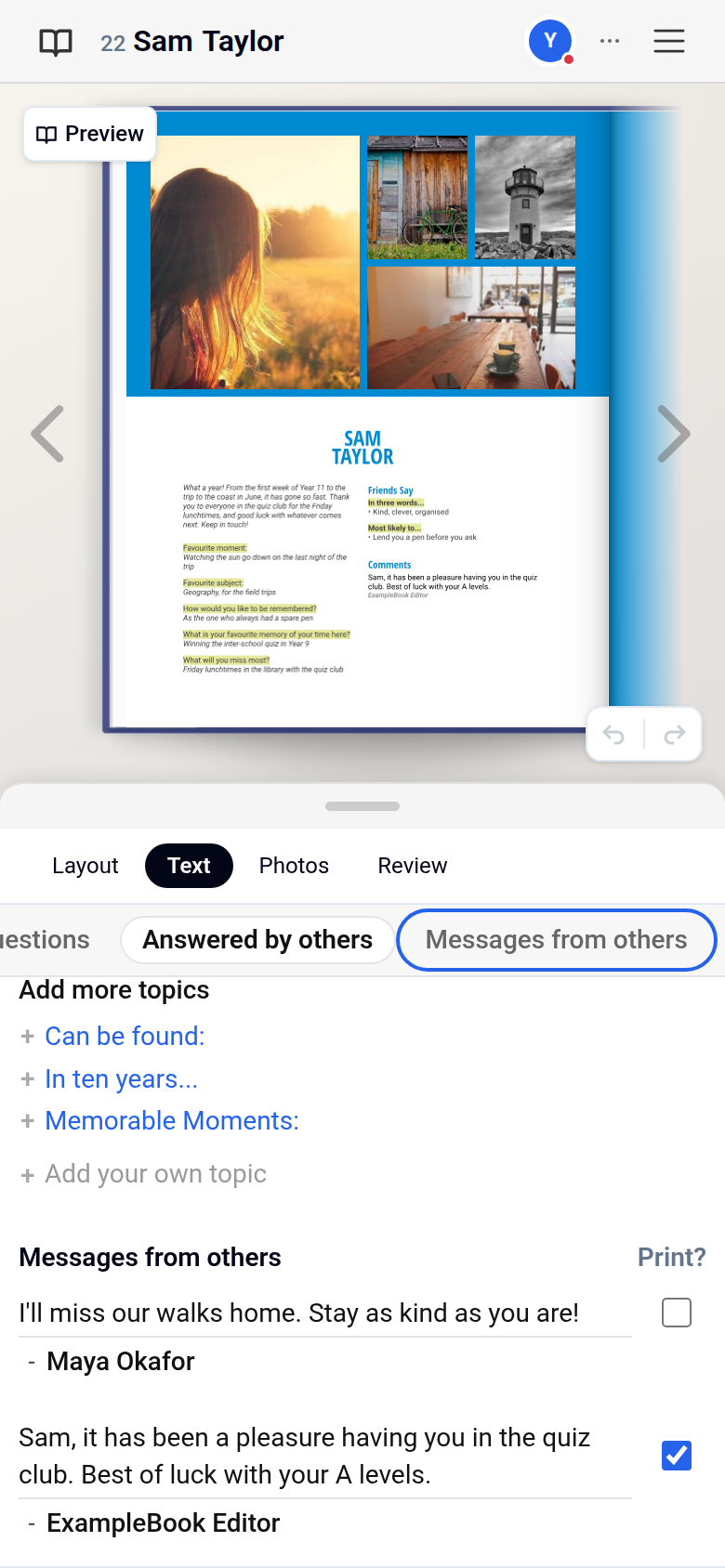
Messages from others are printed with the writer's name after them. Answers to questions are printed without the writer's name.
Turning the sections on and off (editors)
- Click Settings in the main menu and open the Contributions tab.
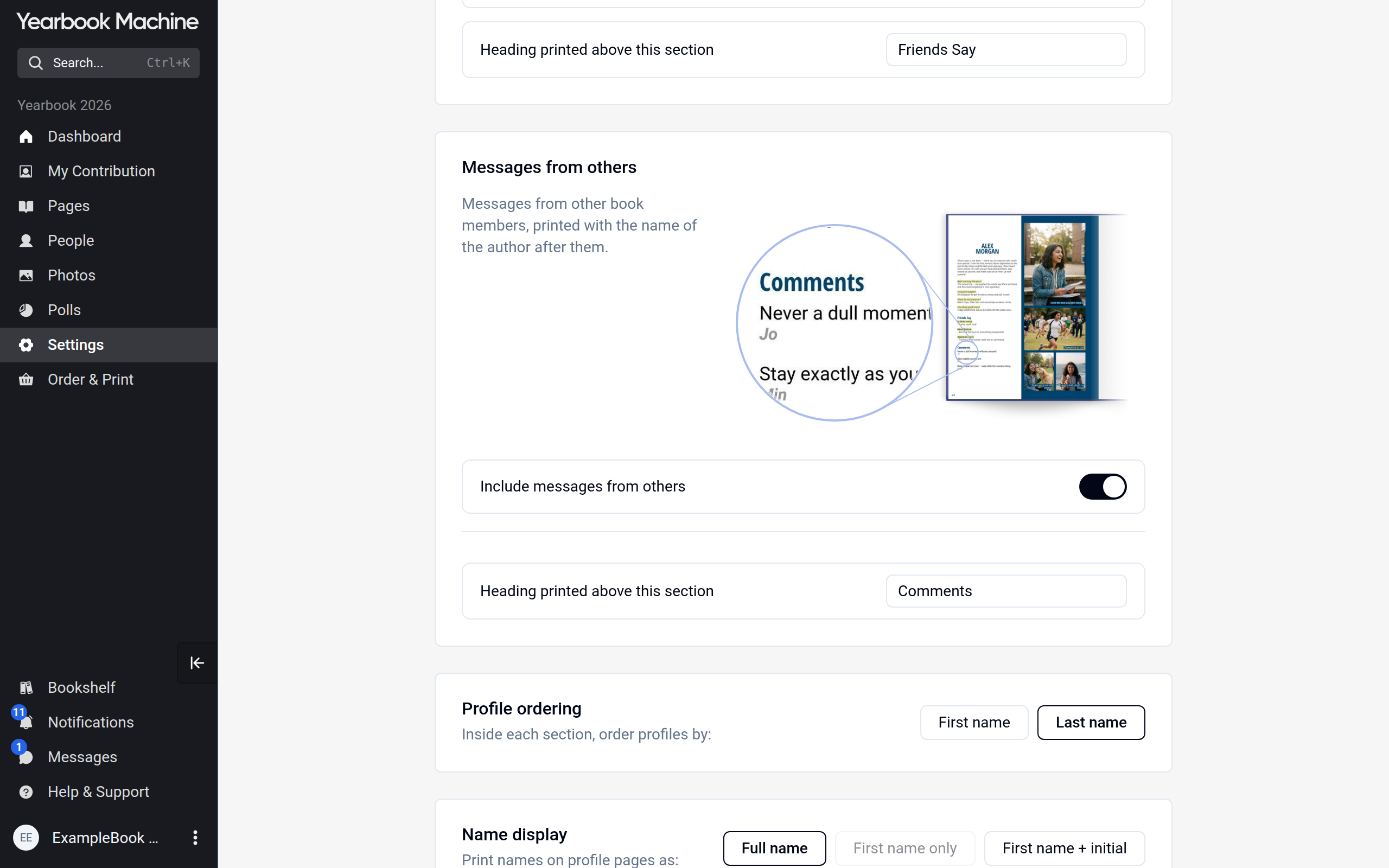
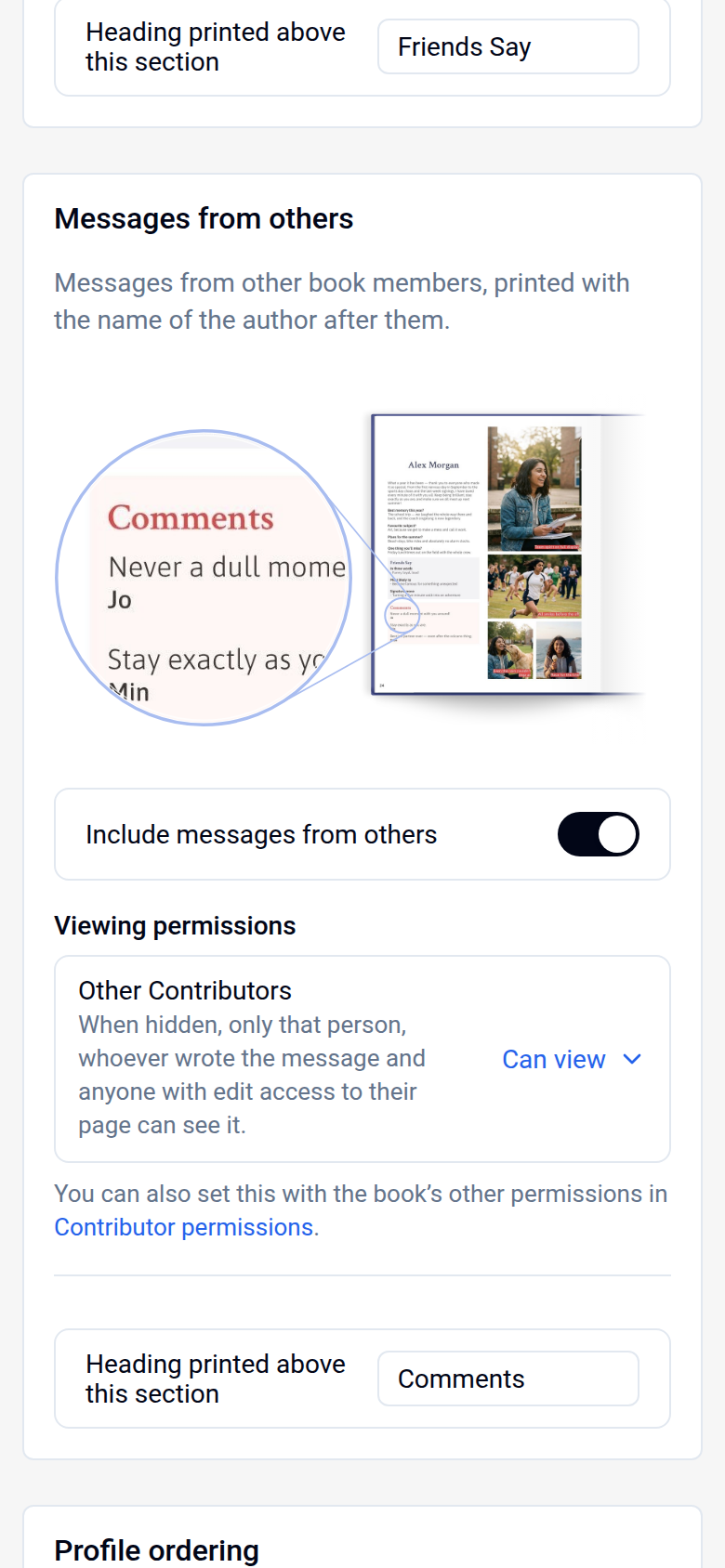
- Under Messages from others, use Include messages from others to turn messages on or off.
- Under Questions answered by others, use Include questions answered by others. Here you also choose the questions offered.
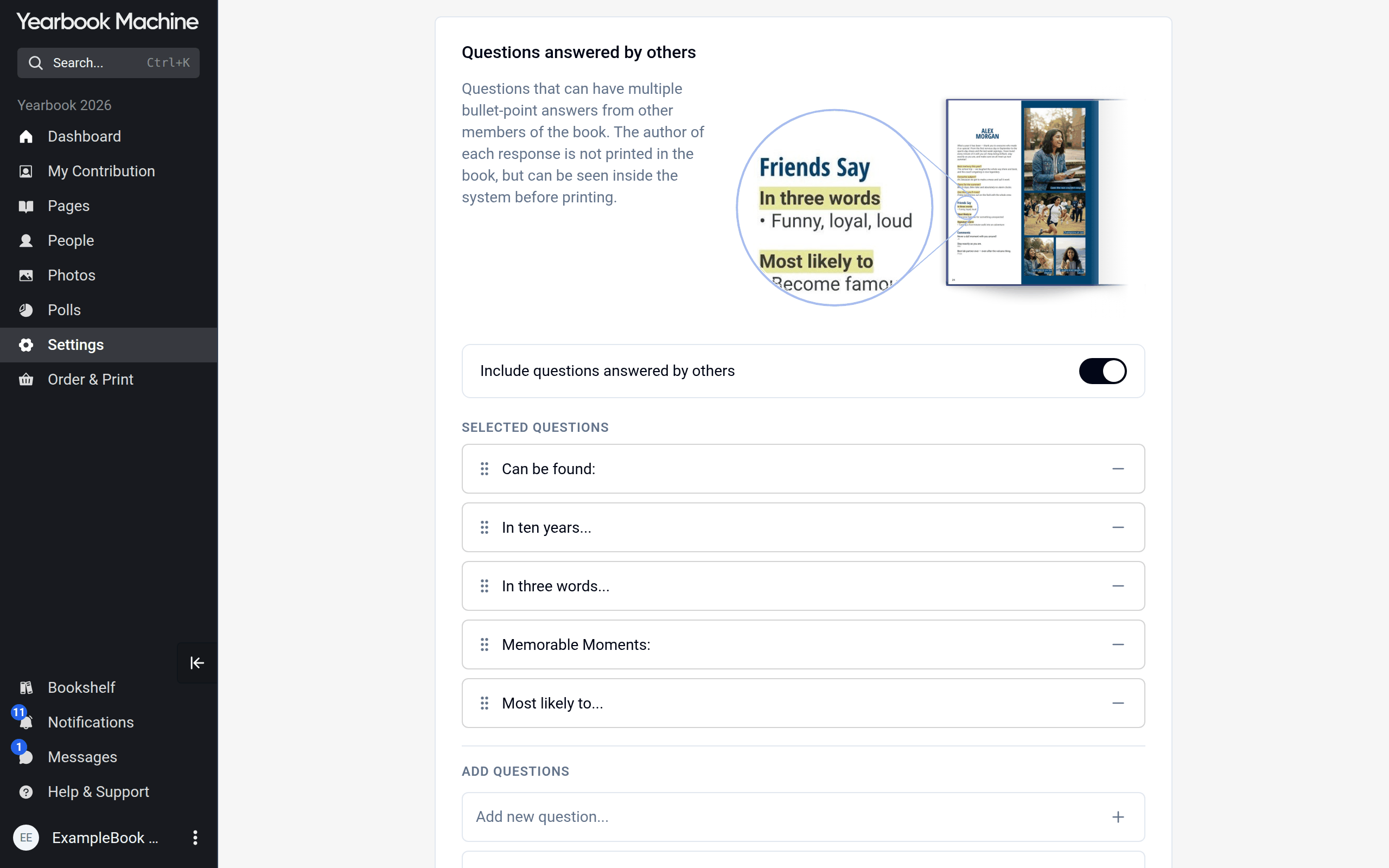
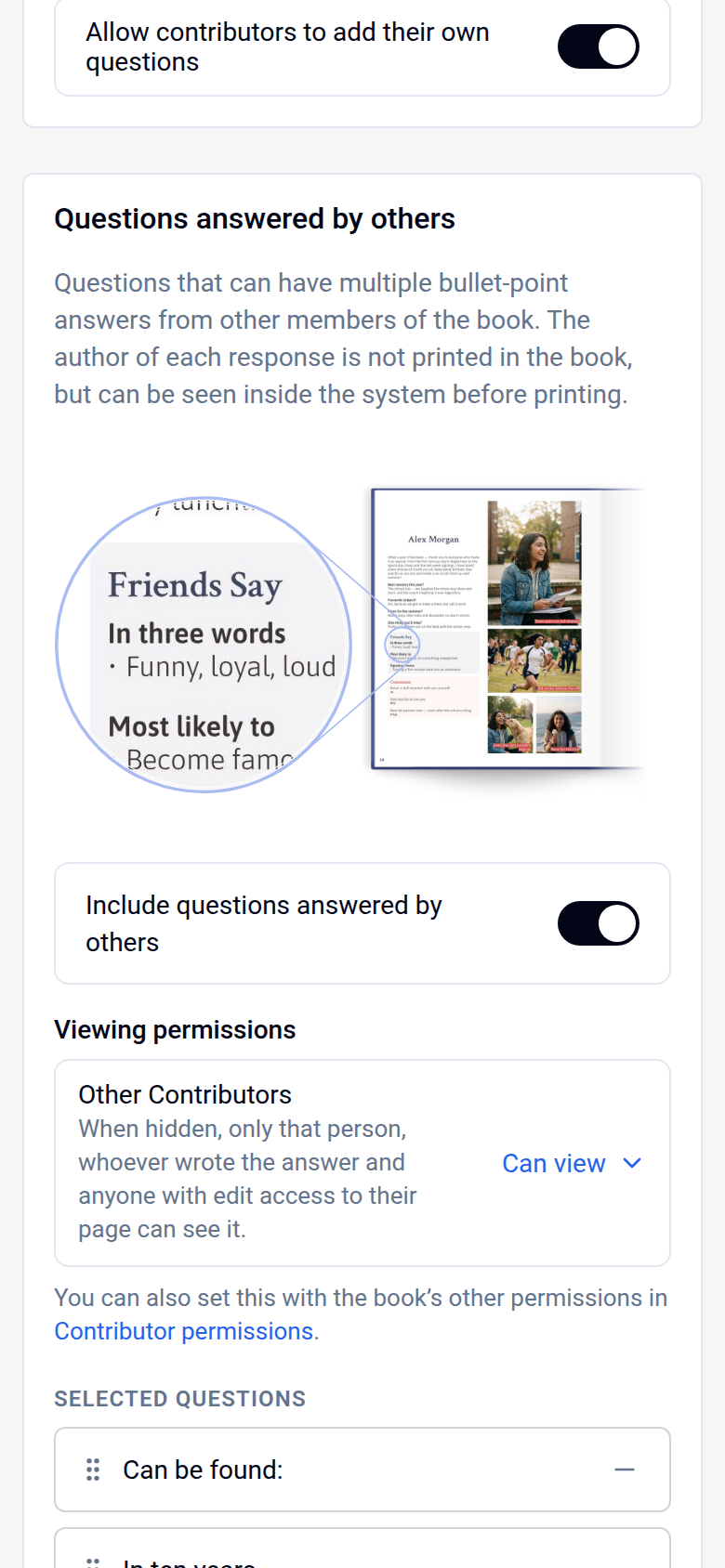
- On most books you can also change the Heading printed above this section.
- Click Save.
Choosing who can read them (editors)
In Settings › Contributor permissions, under Profile permissions, set Messages from others and Questions answered by others to Can view (everyone in the book can read them) or Hidden (only the profile's owner, the writer and anyone who can edit that page can read them).
Common questions
Can editors remove an unkind comment?
Yes. Editors can change or delete any message or answer on any profile at any time: clear the text and click away. The owner can also delete messages on their own profile until it is marked as complete.
Can I see who wrote a message?
Yes. Each message in Messages from others shows the writer's name under it. Editors can change the name that is printed by clicking it.
Will I be told when someone writes on my profile?
No. Check your profile from time to time for new messages.
Why can't I see my friend's page?
If your editors have set Pages, or any part of Profile permissions, to Hidden in Settings › Contributor permissions, you see What’s on this page is hidden by the book’s privacy settings. in place of other people's pages. You can still write on the profile in the Text tab.
Can we turn off chat?
Yes. In Settings > System Features, under Chat, editors can turn off The 'Everyone' group chat or Private messages (contributors can always message with Editors).
How do I change the picture beside my name?
Click your name at the bottom of the main menu and choose My Account. In Personal Information, choose a new picture under Avatar. It is not printed in the book.
Was this article helpful?
Sorry, that didn't send. Please try again in a little while.
Thanks. That helps us improve this article.
Any other questions?
Email support@yearbook.com and we'll help you out.