
Photo resolution and print quality
A photo that looks sharp on screen can still print blurred if it has too few pixels for the space it fills. This article explains how print quality is measured, where to check it and how to fix a low-resolution photo. It applies to anyone who can edit a page.
What DPI means
Print quality is measured in DPI (dots per inch): how many of the photo's pixels are spread across each inch of the printed page. The same photo has a higher DPI in a small frame than in a large one, and zooming in to crop it lowers the DPI, because fewer pixels cover the same space.
We recommend at least 200 DPI for sharp printing. As a guide, a photo printed 10 cm wide needs about 800 pixels across, and one filling the full width of the page needs about 1,600.
Checking a photo on a page
- Click Pages in the main menu to open the Pages screen, then click a page to open it in the page editor, the screen for working on a single page.
- Click the photo you want to check.
What you see depends on the page's Layout mode, shown under Page setup in the Layout tab: Auto keeps the design fixed; Manual lets you move, resize, add and remove things freely.
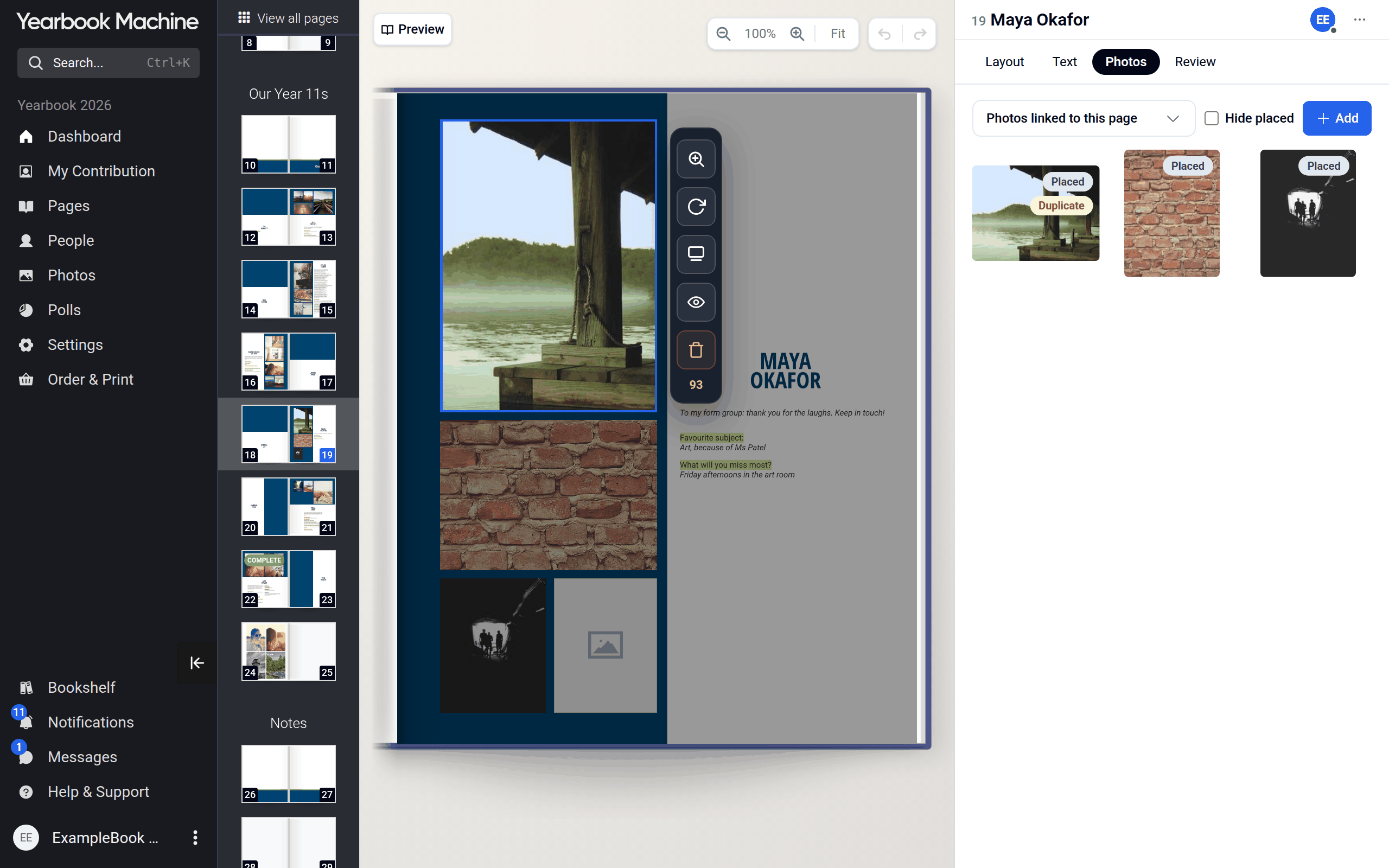
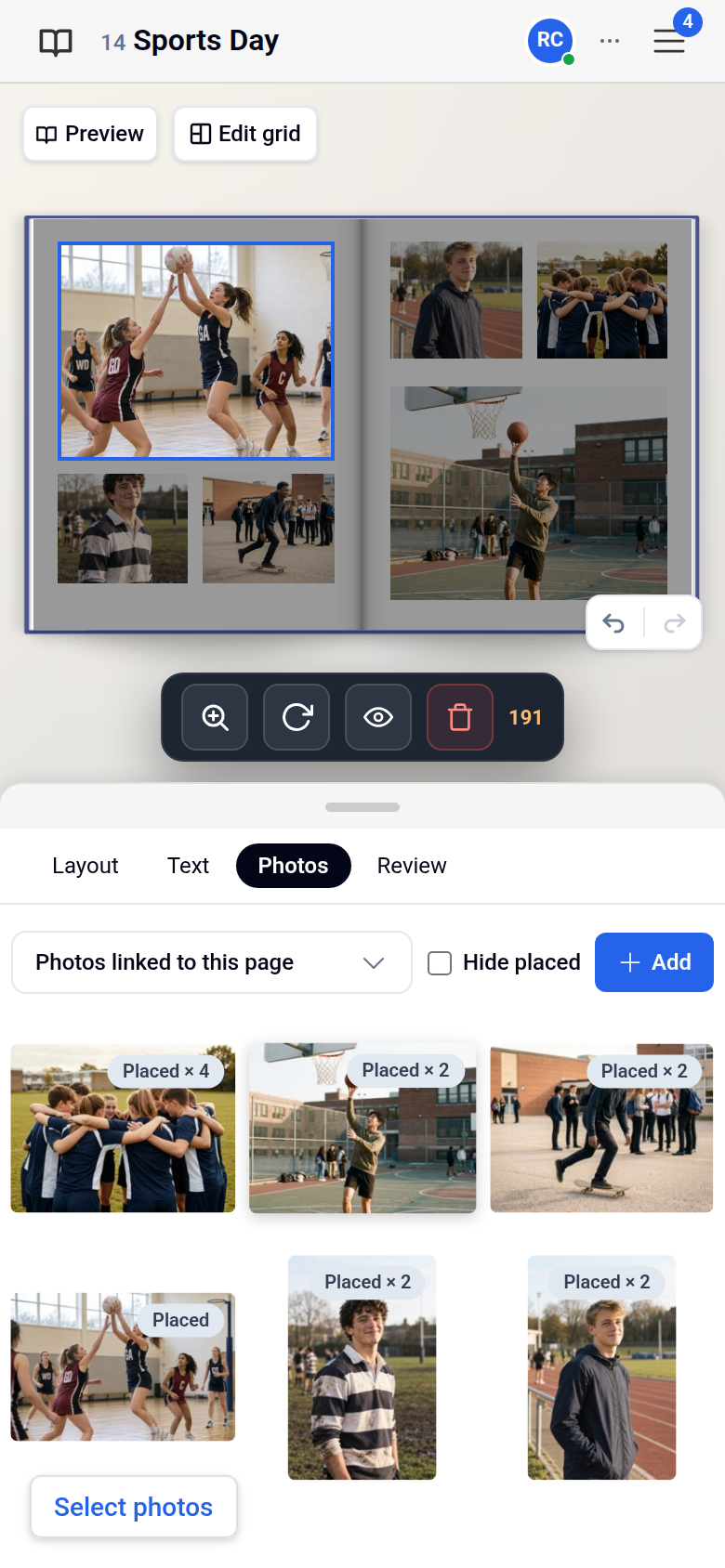
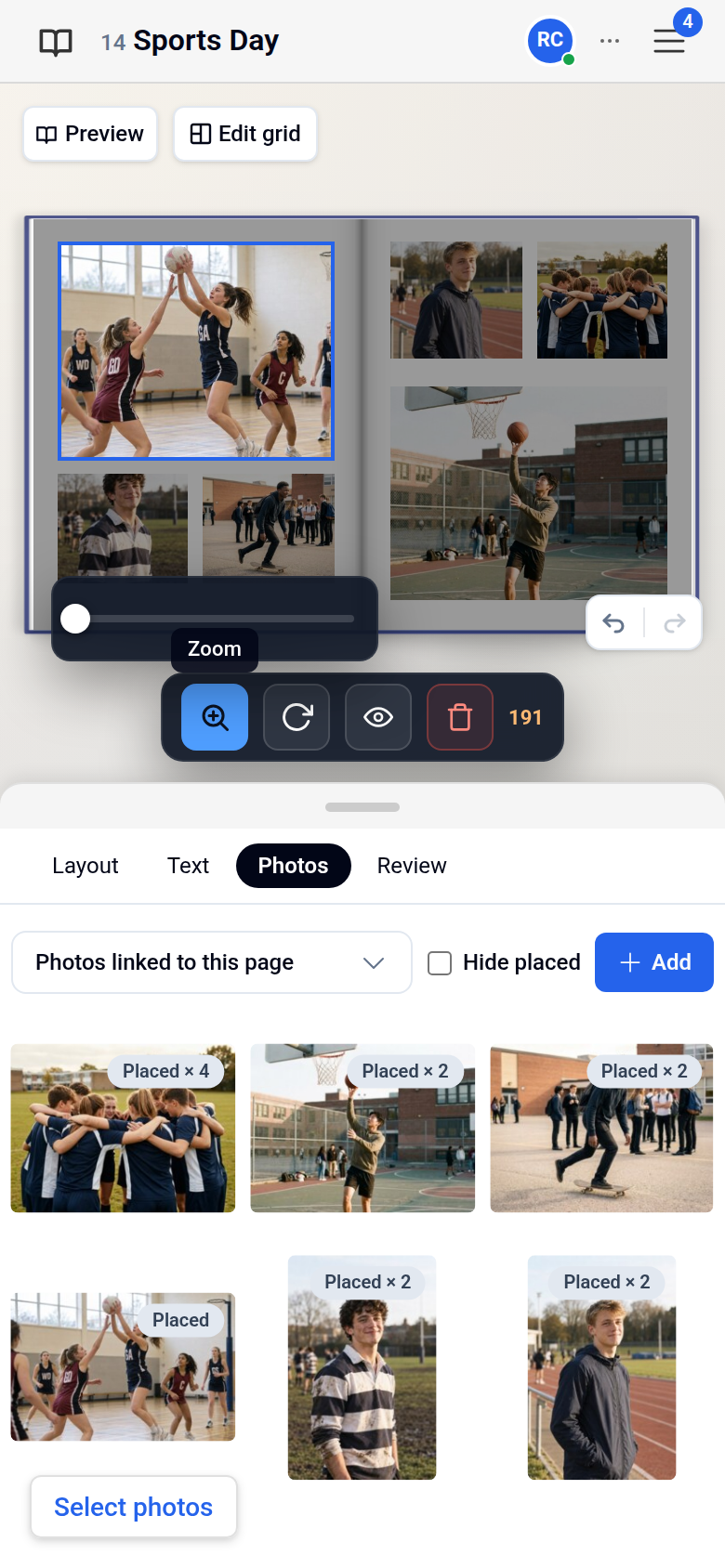
- Auto pages: a strip of controls appears, ending in a number (on a phone, the strip sits under the page). That number is the photo's DPI at its current size and zoom, coloured from green (sharp) to red (poor). The ratings are Good for print (200 DPI or more), Low quality (100 to 199) and Very low quality (below 100). On a computer, hover over the number to see the rating.
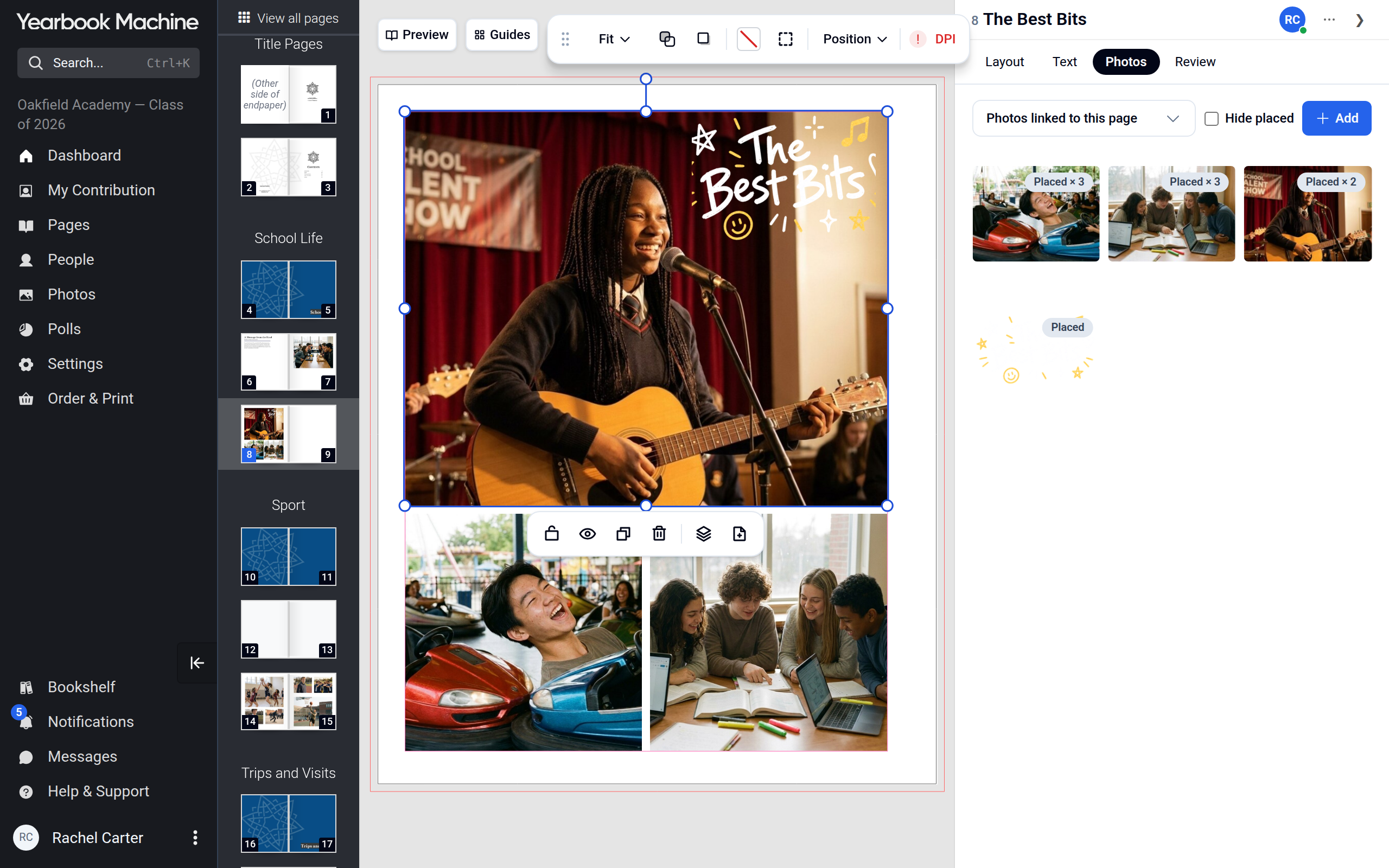
- Manual pages: the photo toolbar shows DPI with a tick when the photo is 200 DPI or more, or a warning sign when it isn't. Hover over it for the exact figure and the rating, Low quality or Very low quality.
The Review tab lists every photo on the page below 200 DPI as Low quality image, or as Very low quality image below 100 DPI.
Improving a low-resolution photo
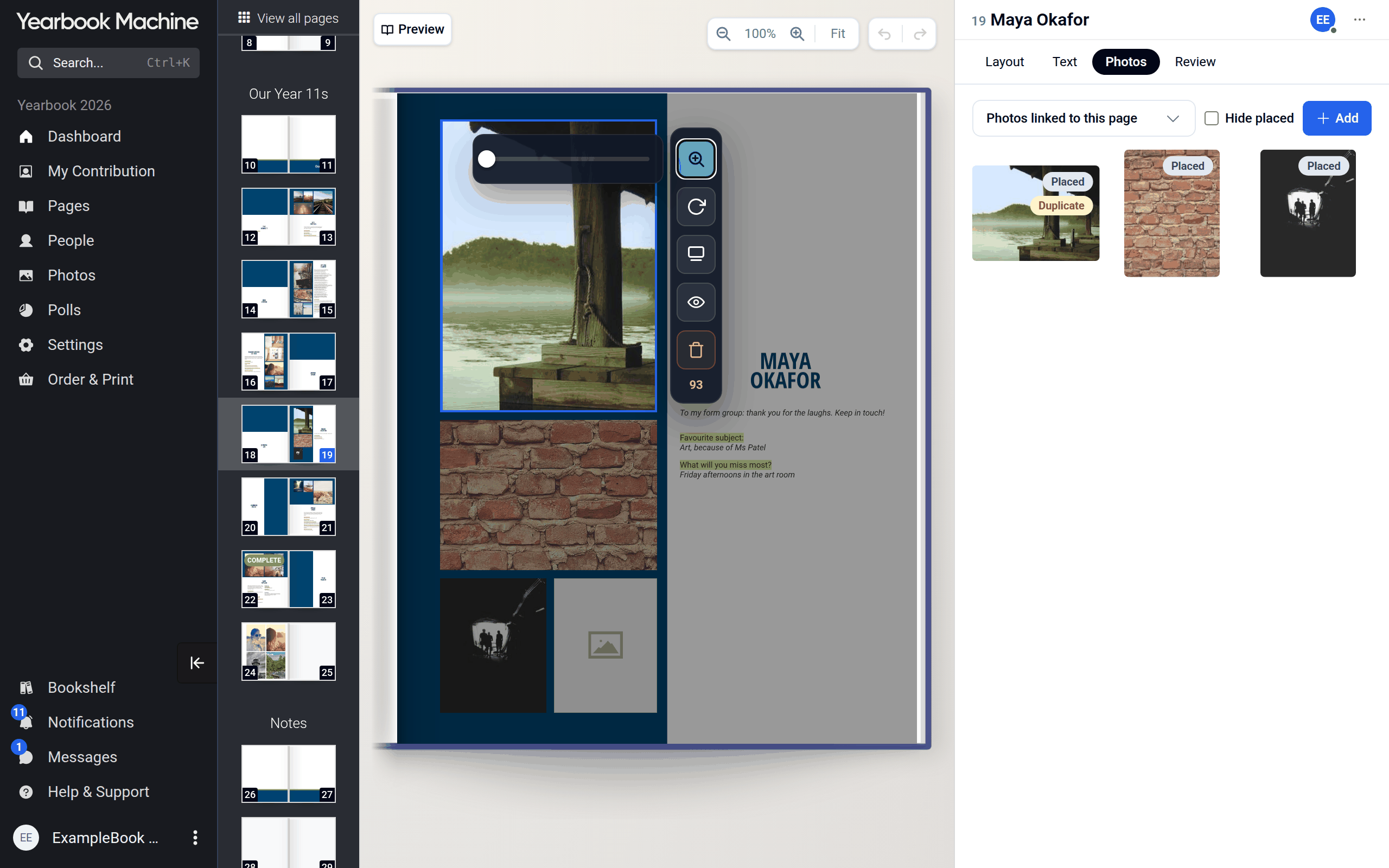
- Zoom out. On an Auto page, click the magnifier (Zoom) at the start of the strip and use the slider to zoom out, so more of the photo shows. On a Manual page, double-click the photo and scale it down inside its frame.
- Make the space smaller. On a Manual page, drag the frame's corner to shrink it. On an Auto page, move the photo to a smaller frame or pick a design with smaller frames in the Layout tab.
- Use the original file. Photos sent through messaging apps, saved from social media or screenshotted are usually much smaller than the original. Ask whoever took the photo for the original and upload that.
- Replace it. Drag a better photo from the Photos tab onto the frame.
Checking a photo's size before you use it
- Click Photos in the main menu and open a photo.
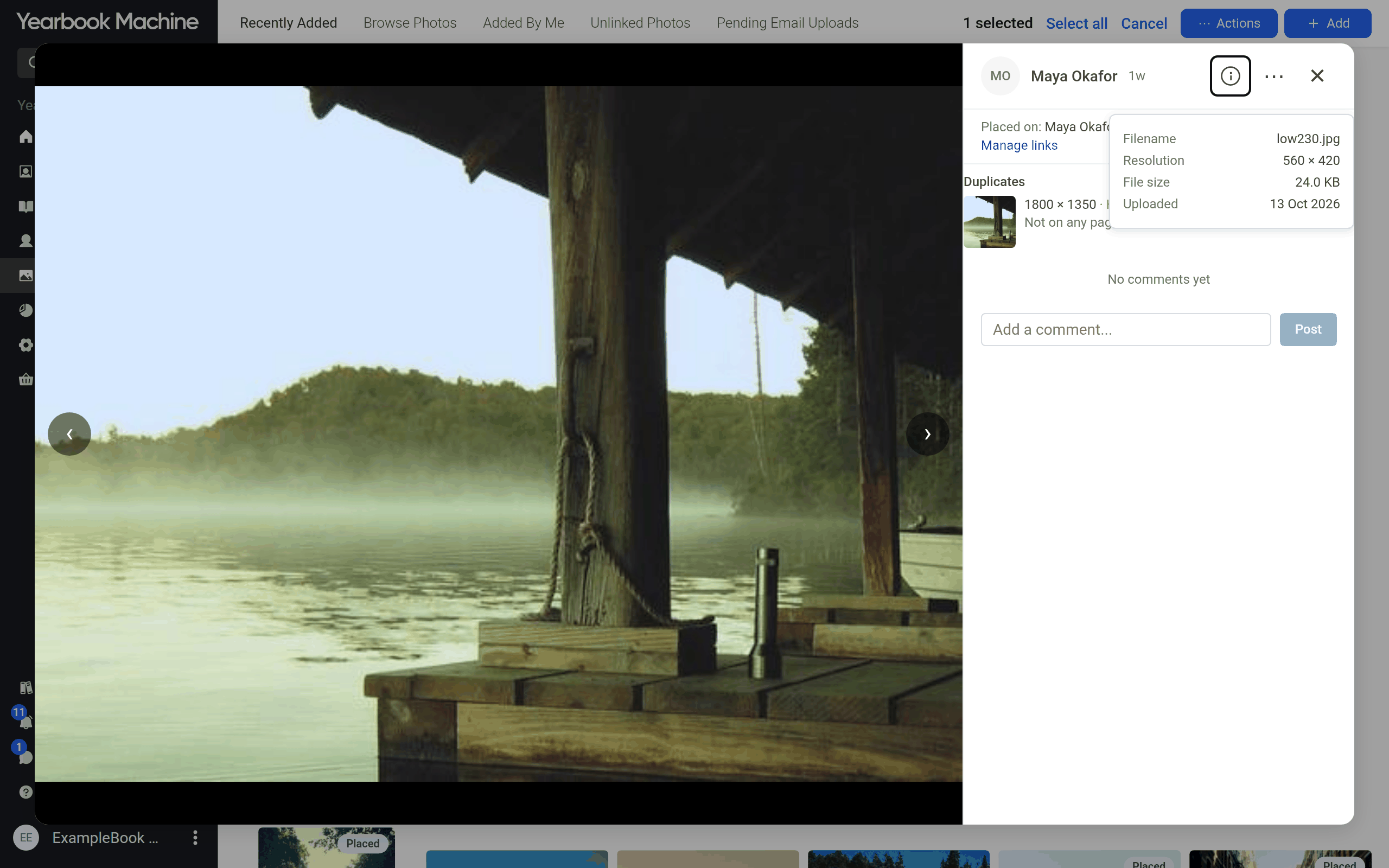
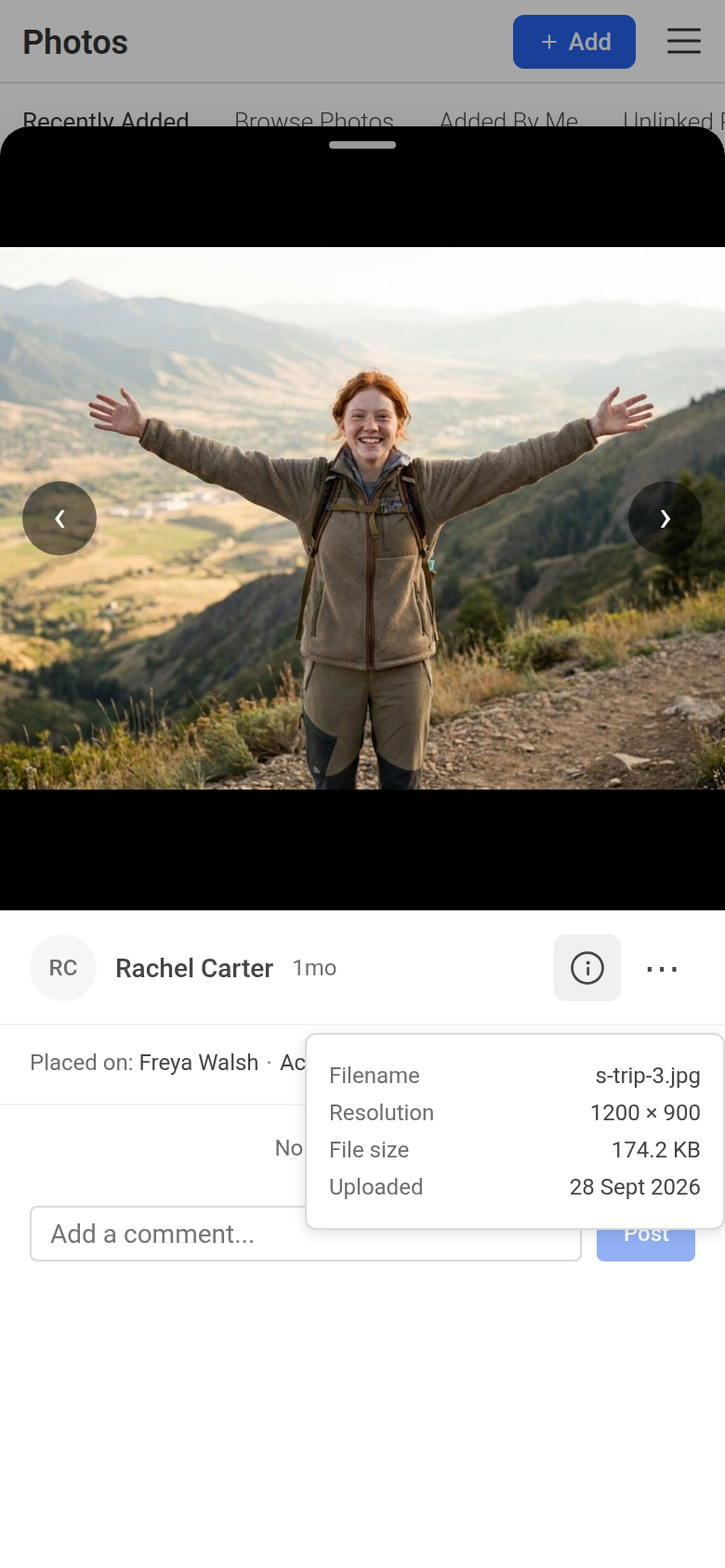
- Click the info icon (ⓘ) at the top of the panel, beside the uploader's name. Resolution shows the photo's width and height in pixels.
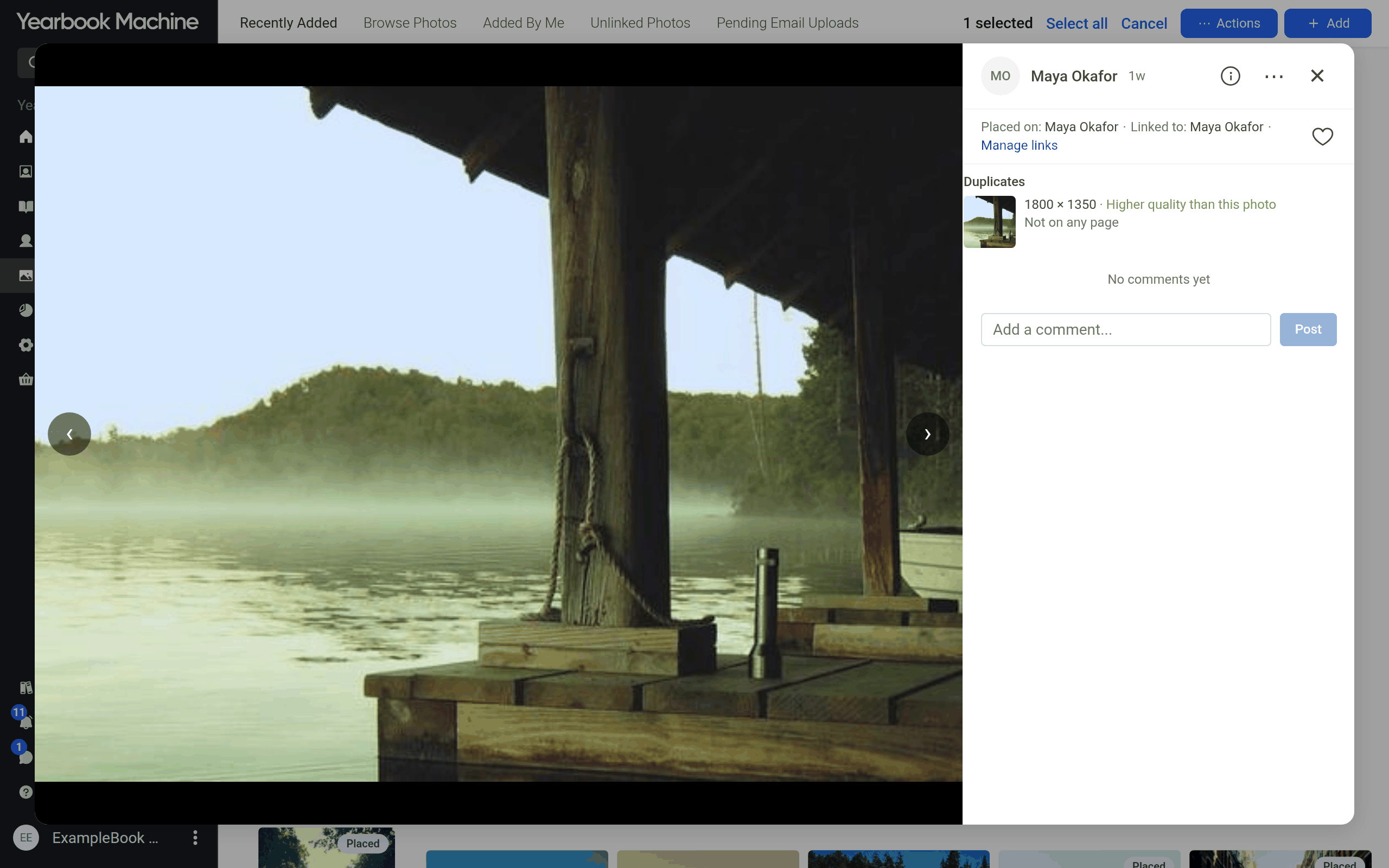
If the library holds near-identical copies of a photo, a Duplicates section lists them and marks any that is Higher quality than this photo. Use that one instead.
Uploading a File page
Images uploaded to a File page are checked against the page size. A file far too small is refused with This file is too low quality to be printed, and a borderline one shows This image may look blurry when printed at this size. PDFs are not checked, so check the images inside them yourself.
Common questions
Why does my photo look fine on screen but show a low DPI?
Screens use far fewer pixels per inch than print, so a small photo can look sharp on screen and still print blurred. Trust the DPI figure.
Will a low-resolution photo stop my book being printed?
No. The DPI reading is a warning only and doesn't stop you marking a page as complete or generating a proof, so check your photos before you approve your proof.
What if this is the only copy of the photo?
Put it in a smaller frame, where it will look sharper. A photo too small for a full page can still look good in a smaller frame on a montage.
Was this article helpful?
Sorry, that didn't send. Please try again in a little while.
Thanks. That helps us improve this article.
Any other questions?
Email support@yearbook.com and we'll help you out.