
Managing school and teacher approval
If your yearbook includes your school's name or logo, we need official approval from a member of school staff before it can go to print. This page explains when you need approval, who can give it and how to change your approver.
When is official approval needed?
You'll need official approval if your yearbook shows the name or logo of a high school or sixth form. This could be on the cover or on the inside pages.
If your book doesn't mention the school by name or show its logo, you don't need official approval.
Prefer to skip approval? Remove the school name and logo from your cover and pages, then choose the second declaration on the Official Approval tab. Your book can then go ahead without a teacher's approval, once our team has checked your declaration.
Selling copies through a storefront? Approval must be in place before your books can go into production. Closing your storefront doesn't replace this step, so it's best to sort out approval early.
Who can approve your yearbook?
Approval must come from a teacher or member of staff who is authorised to approve content for your school. Some schools need a specific person to sign off, such as the headteacher. If yours does, enter that person's details.
Students who appear in the yearbook can't approve it on the school's behalf. This applies even if they're the ones creating it.
Giving us your approver's details
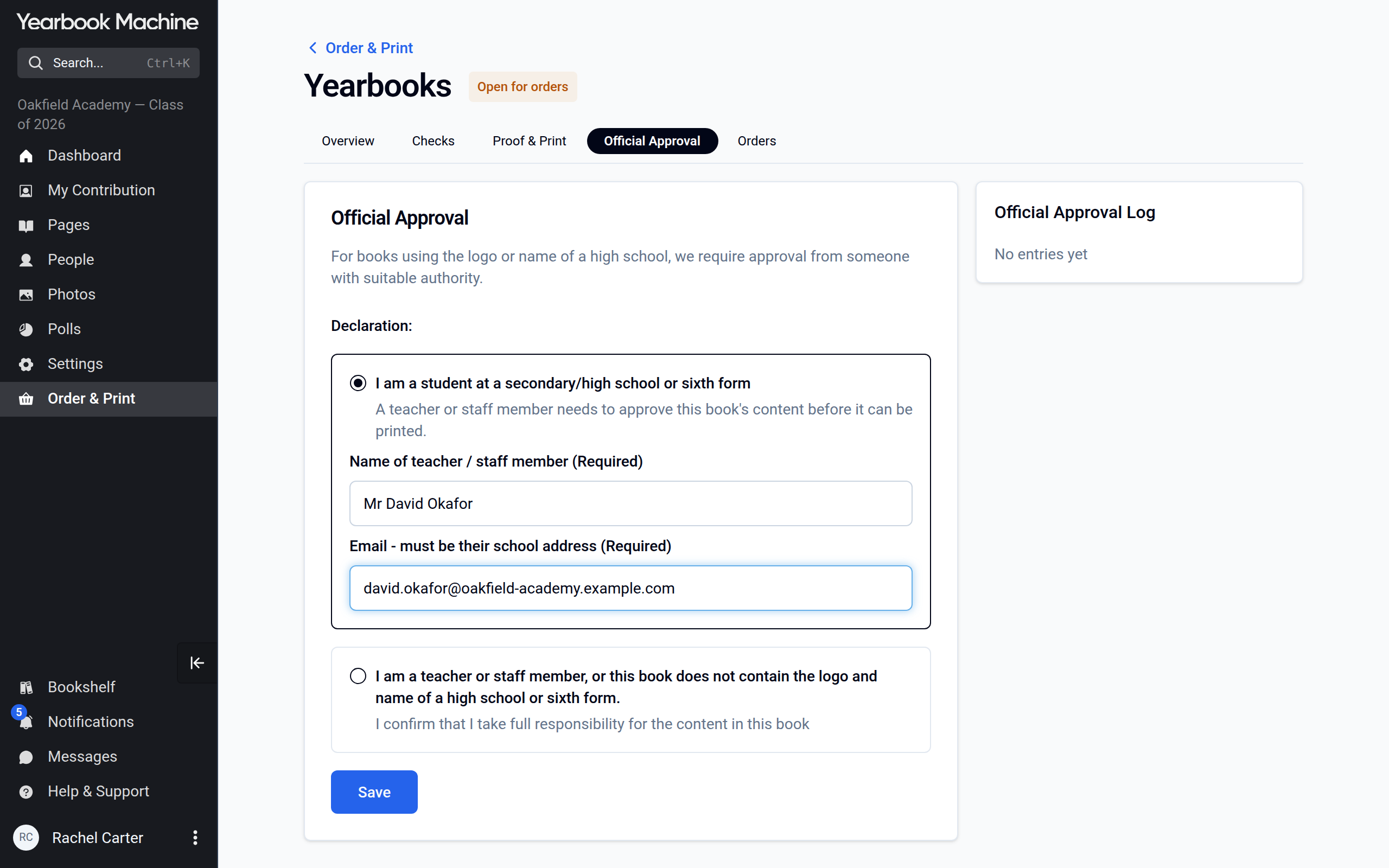
- Go to Order & Print, select Yearbooks and open the Official Approval tab.
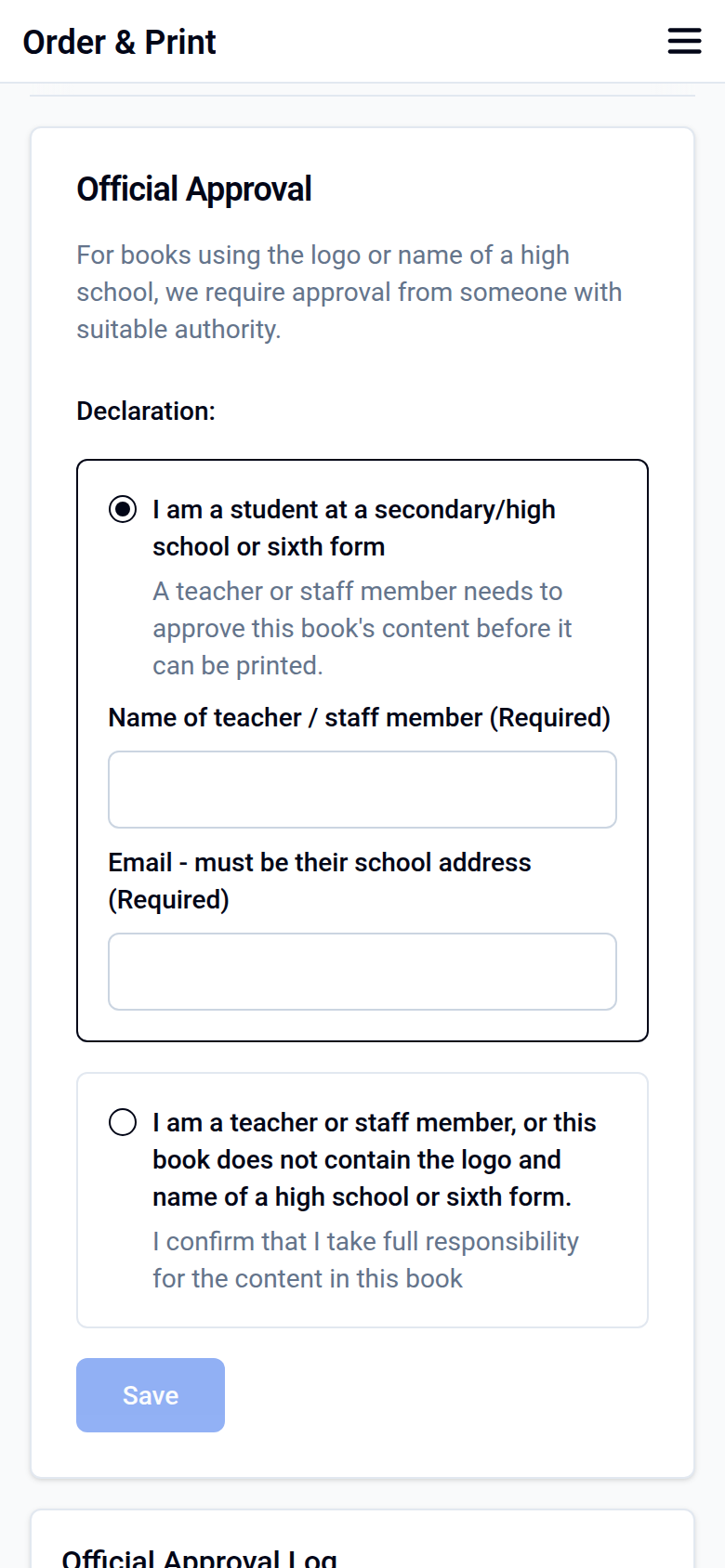
- Choose your declaration. If you are a student, choose I am a student at a secondary/high school or sixth form and enter the Name of teacher / staff member and their school email address. If you are a teacher or staff member yourself, or the book does not show a high school's or sixth form's name or logo, choose the second declaration.
- Click Save.
When a proof is generated, we email your approver to ask for their approval. Your yearbook can go into production once your approver has signed off and everything else is ready.
Tip for school holidays: Teachers may not check their school email during the holidays, so approval can take longer. If your deadline is close to a holiday, check that your approver will be available. You can also email us the name and school email address of a second member of staff who can step in.
Changing your approver
Open the same Official Approval tab, click Edit, enter the new teacher's name and school email address, and click Save. If the tab says the approval was set by our team, contact us instead.
Is my yearbook ready to print?
If you're not sure whether your book can go to print yet, just ask us. We'll check that approval has come from the right person and that everything else is complete. Then we'll tell you when your yearbook will go into production.
Making changes after a proof
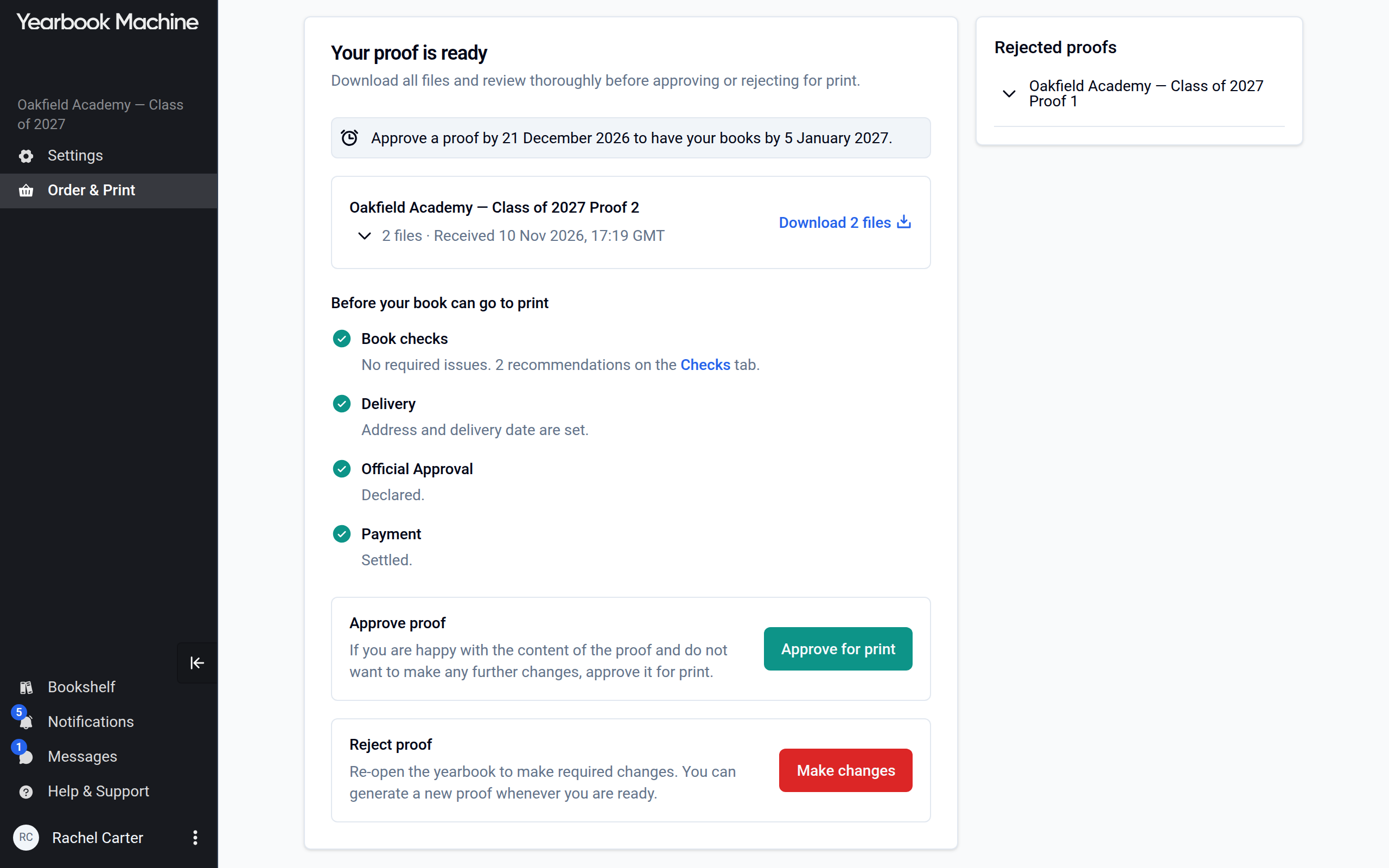
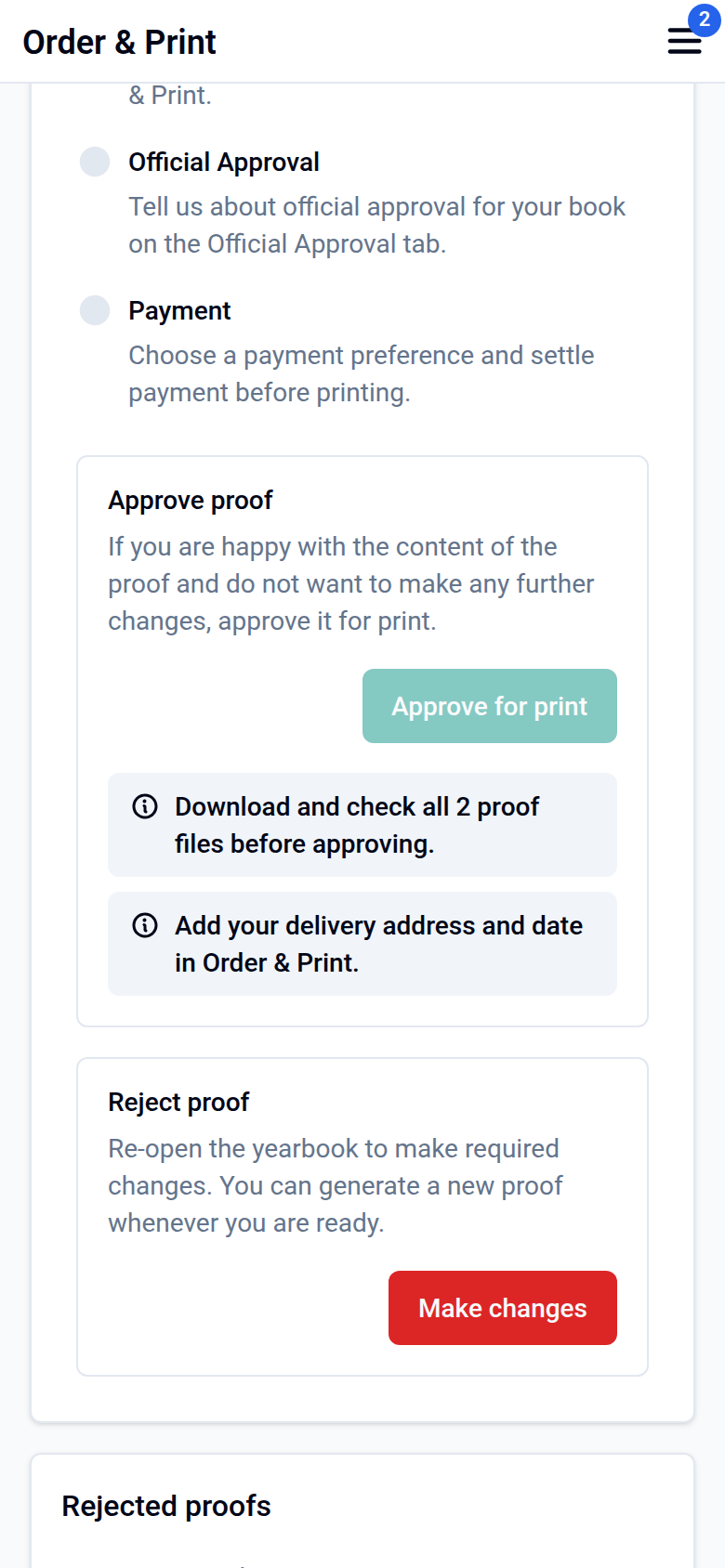
If your approver asks for changes, or you need to update content (for example, for safeguarding reasons), go to Order & Print > Yearbooks > Proof & Print, click Make changes and confirm. Edit your book, then click Generate proof to create a new proof for approval.
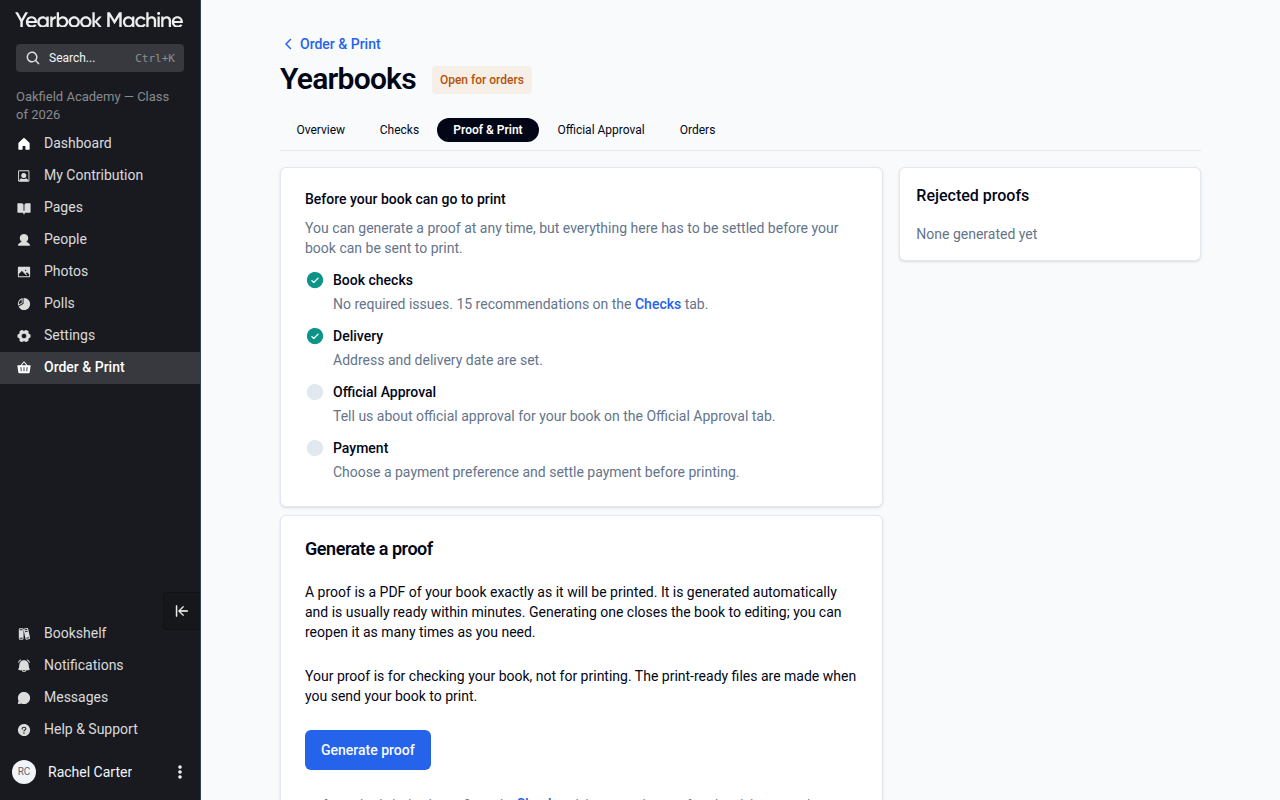
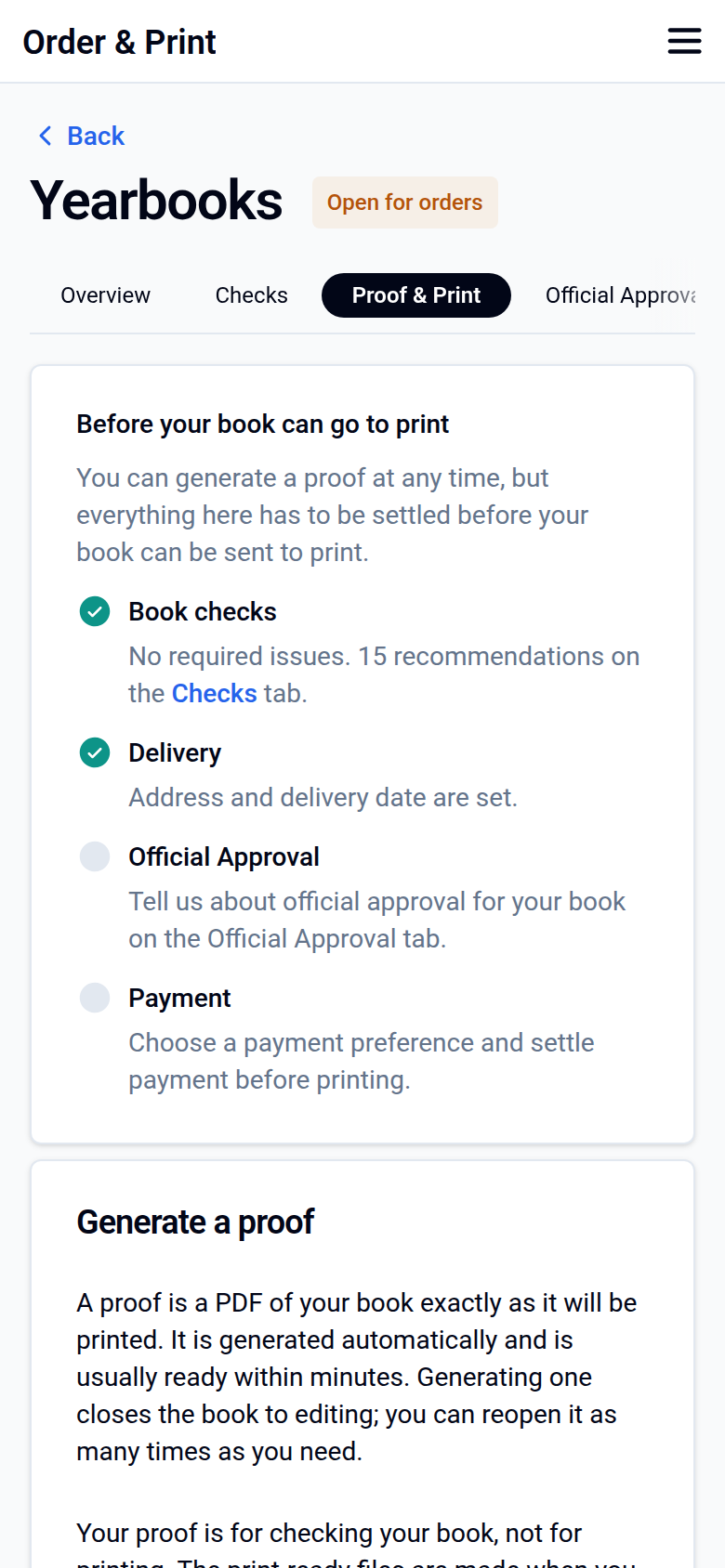
Can't see your updated proof?
Your edits only appear in a proof once you generate a new one. If your proof still shows the old version, generate a new proof, or get in touch and we'll help.
Was this article helpful?
Sorry, that didn't send. Please try again in a little while.
Thanks. That helps us improve this article.
Any other questions?
Email support@yearbook.com and we'll help you out.