
Paying for your yearbooks
This article explains the ways you can pay for your yearbooks, when payment is due and where to find the payment details. Only editors can set up ordering and payment, and everything happens in Order & Print in the main menu. Your books cannot go to print until payment has been settled.
The three ways to order and pay
- Single order: one order for everyone, delivered to one address and paid for in one payment, by card or bank transfer.
- Storefront, each person pays: an online shop for your book, where each person orders their own copy and pays by card when they order.
- Storefront, paid by your school: people order their copies on the storefront without paying, and your school pays for them all in one payment. The setup uses your group's own word here, such as school or club.
Set up ordering and payment
You choose in the Ordering setup, the steps where you confirm your order.
- Click Order & Print, then click Yearbooks on the Products tab. If ordering is not set up yet, click Complete ordering setup.
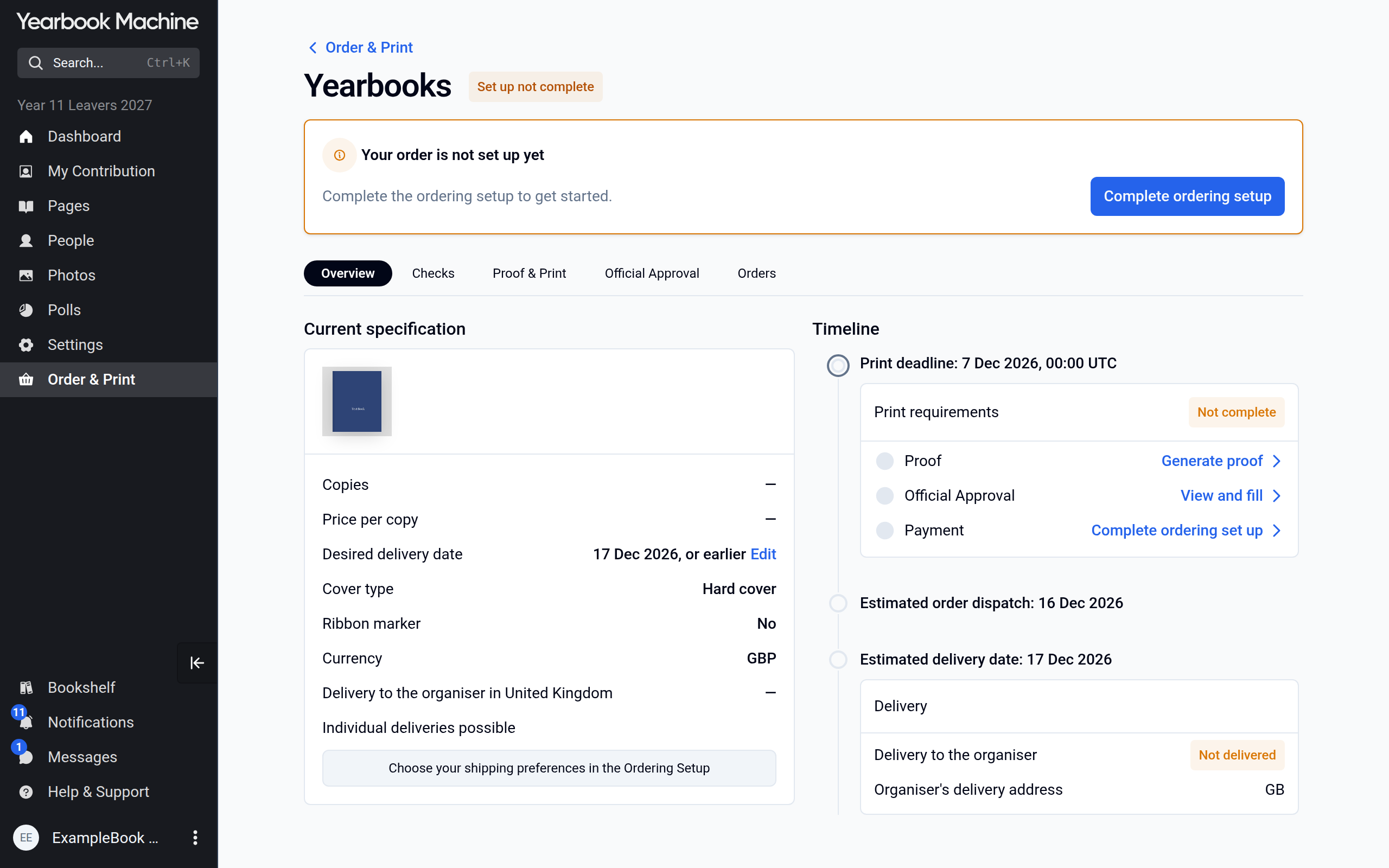
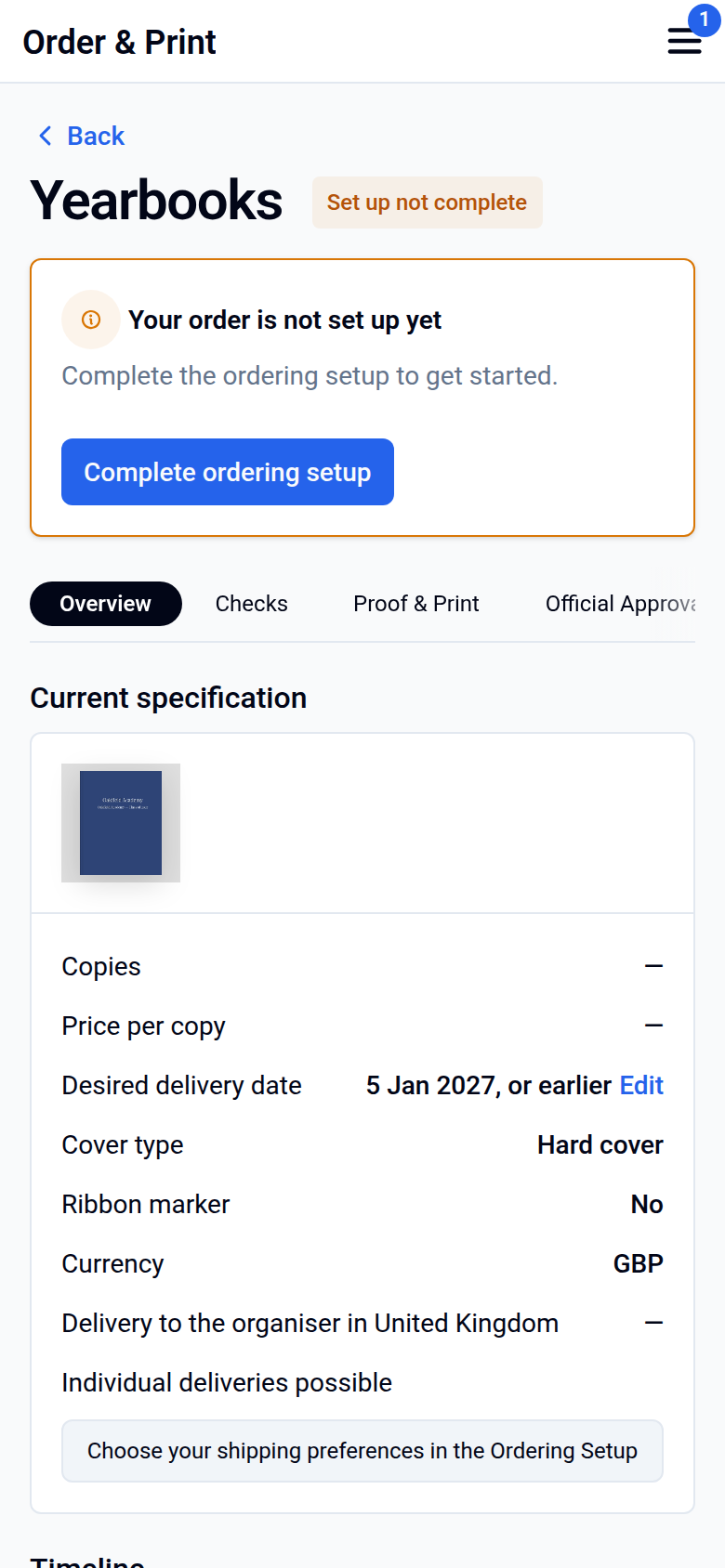
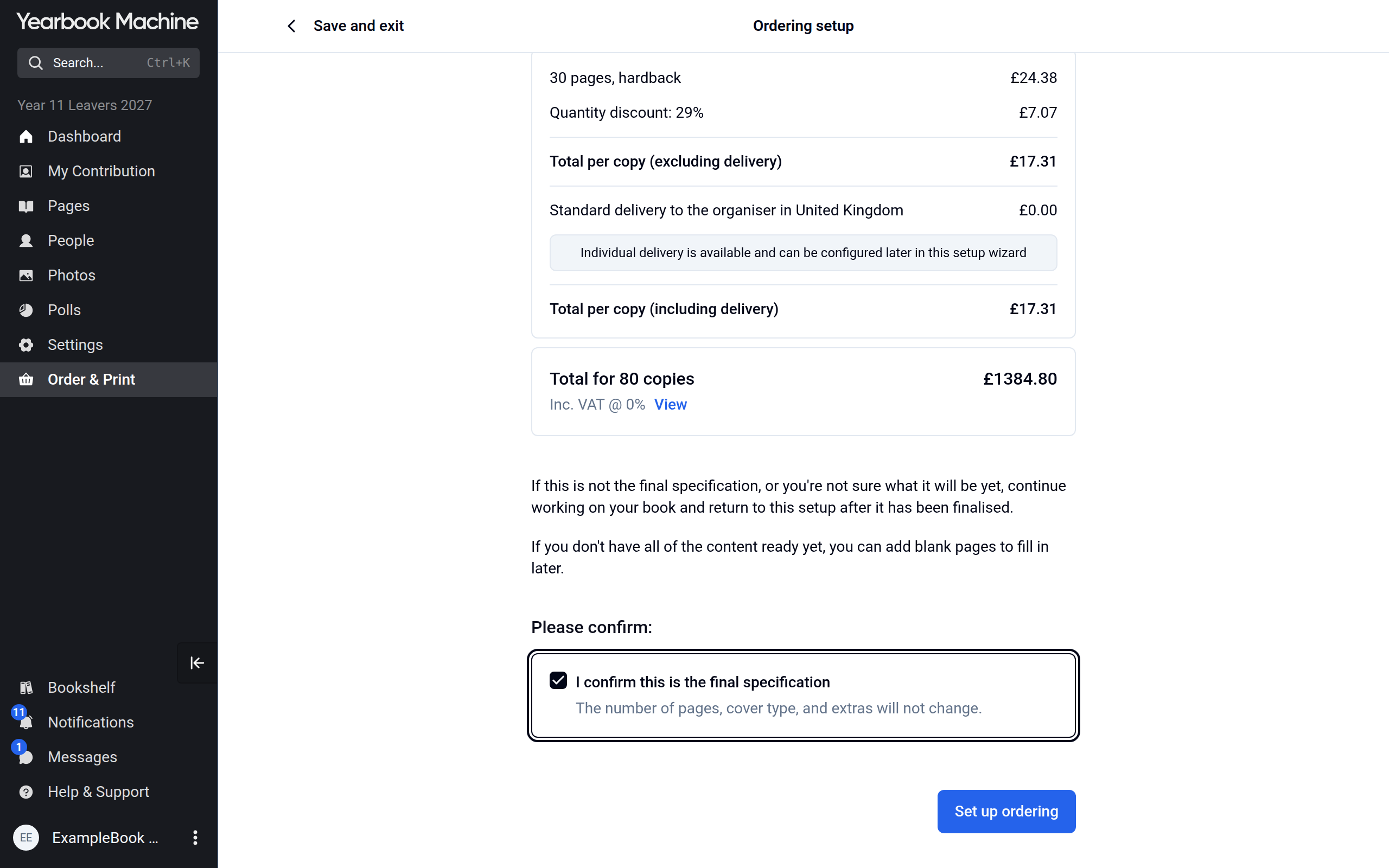
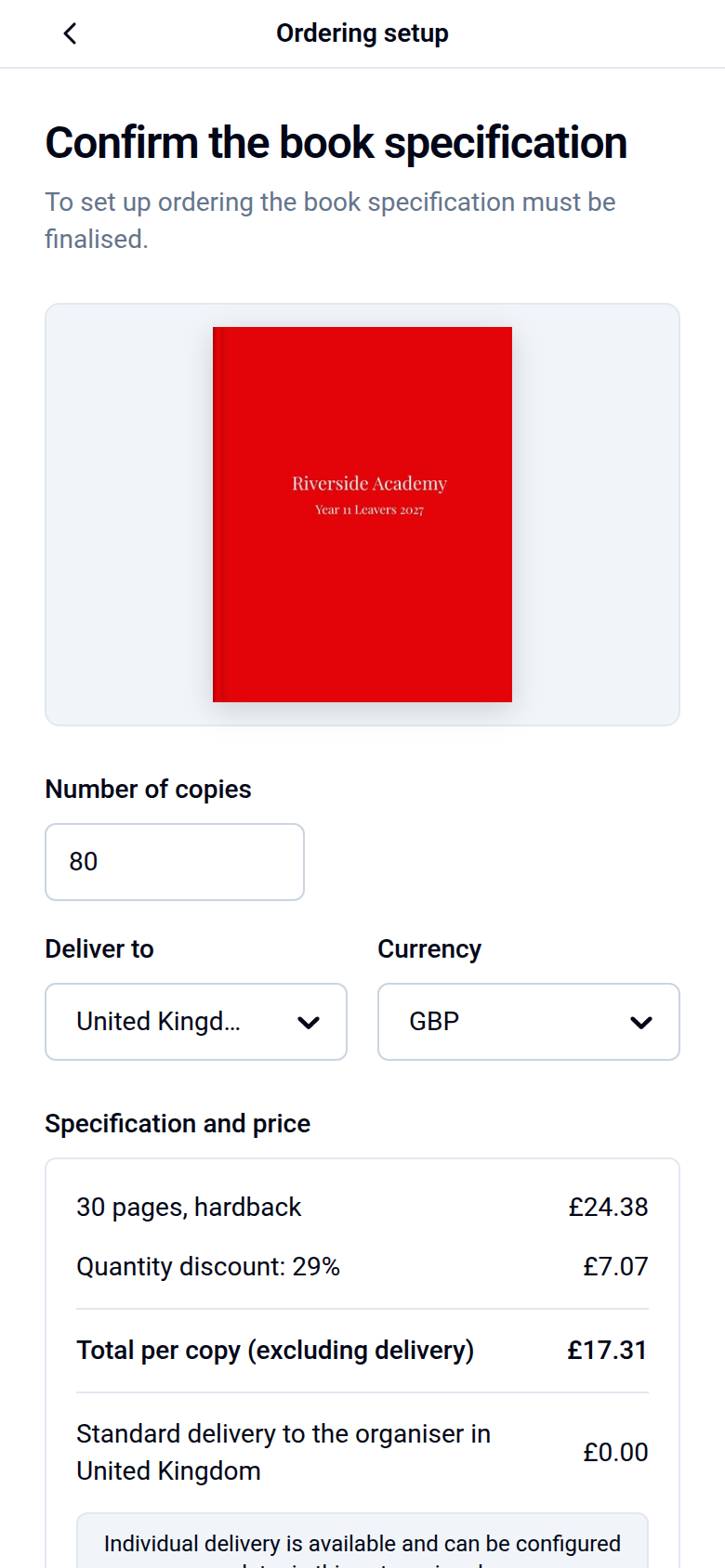
- Check the book specification and number of copies, tick I confirm this is the final specification and click Set up ordering.
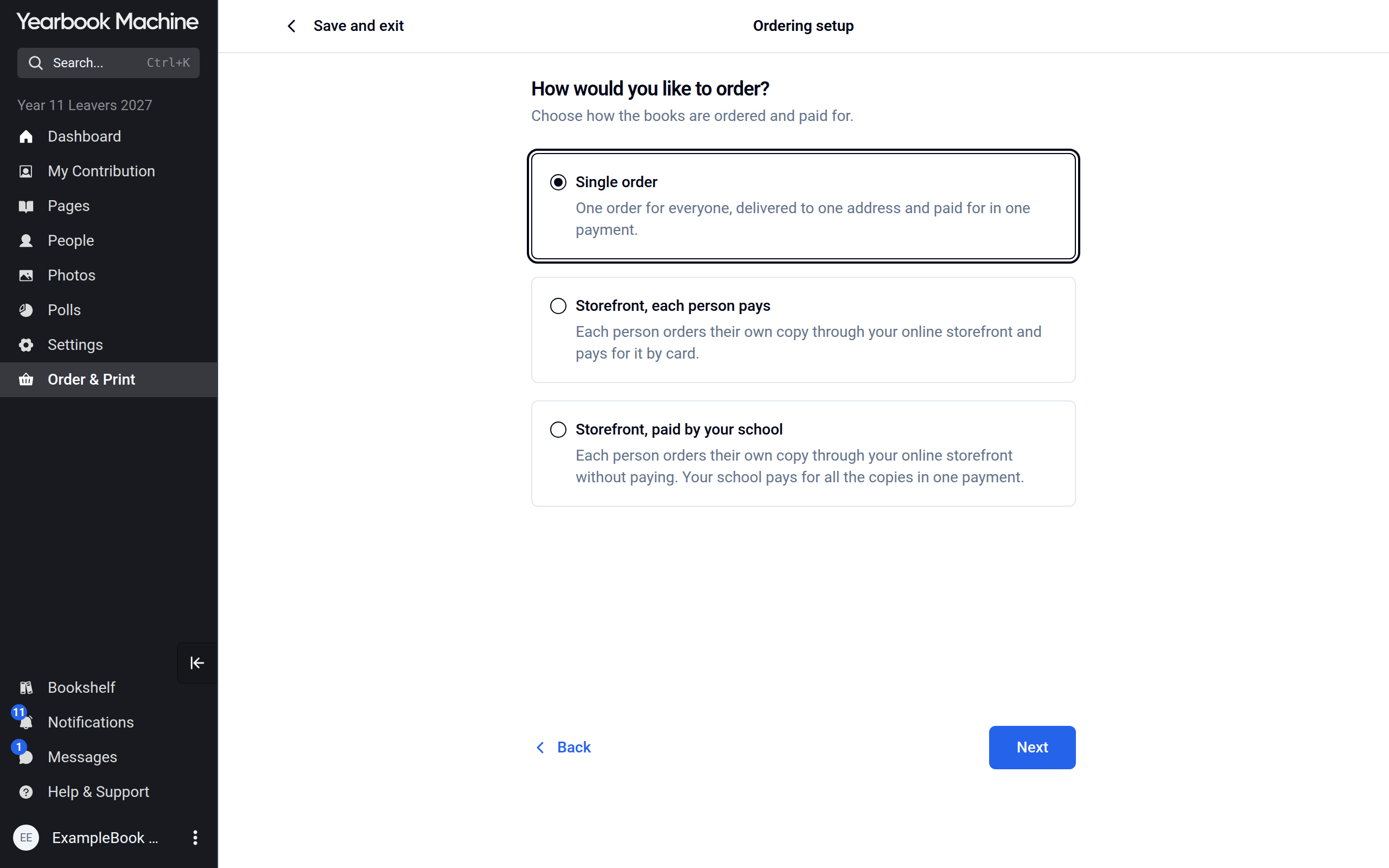
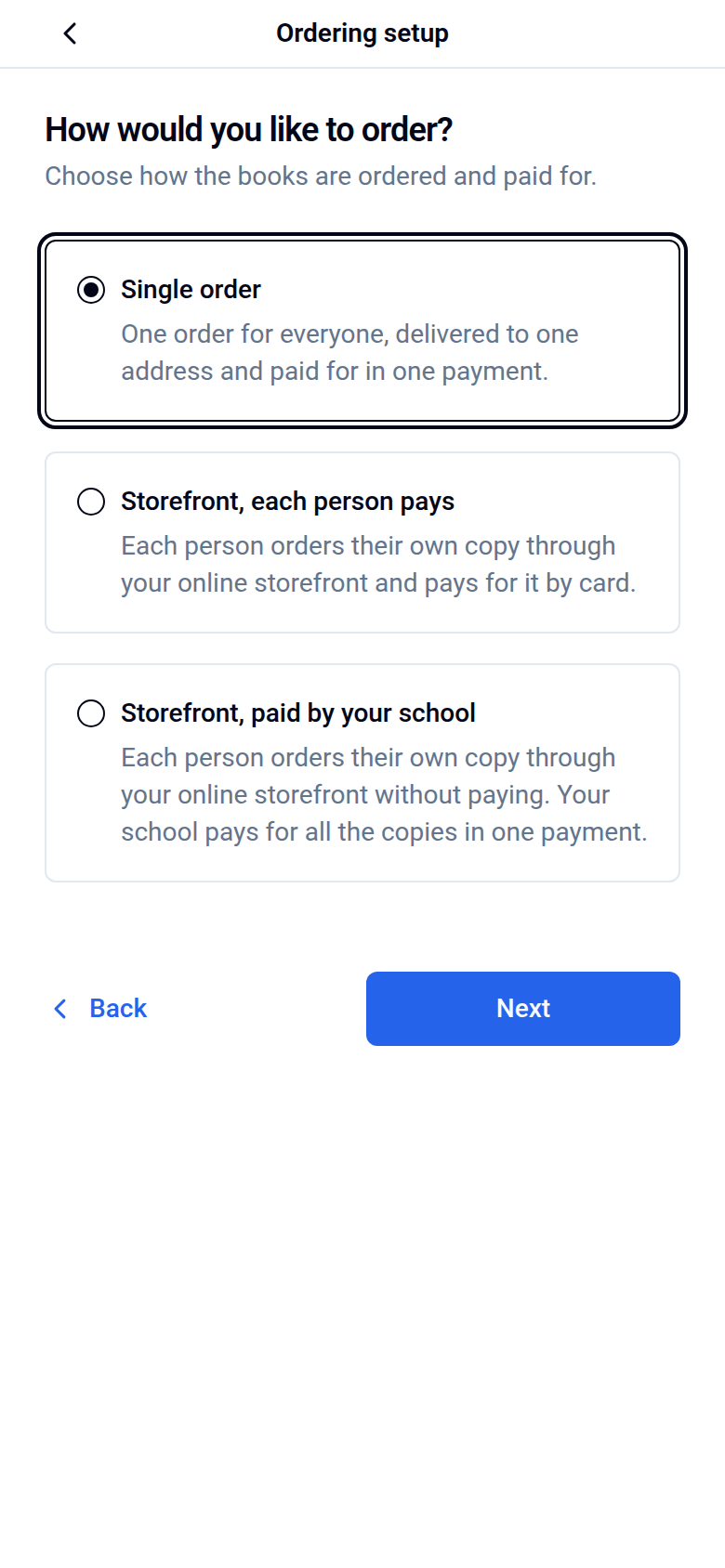
- Under How would you like to order?, choose Single order, Storefront, each person pays or Storefront, paid by your school, then click Next.
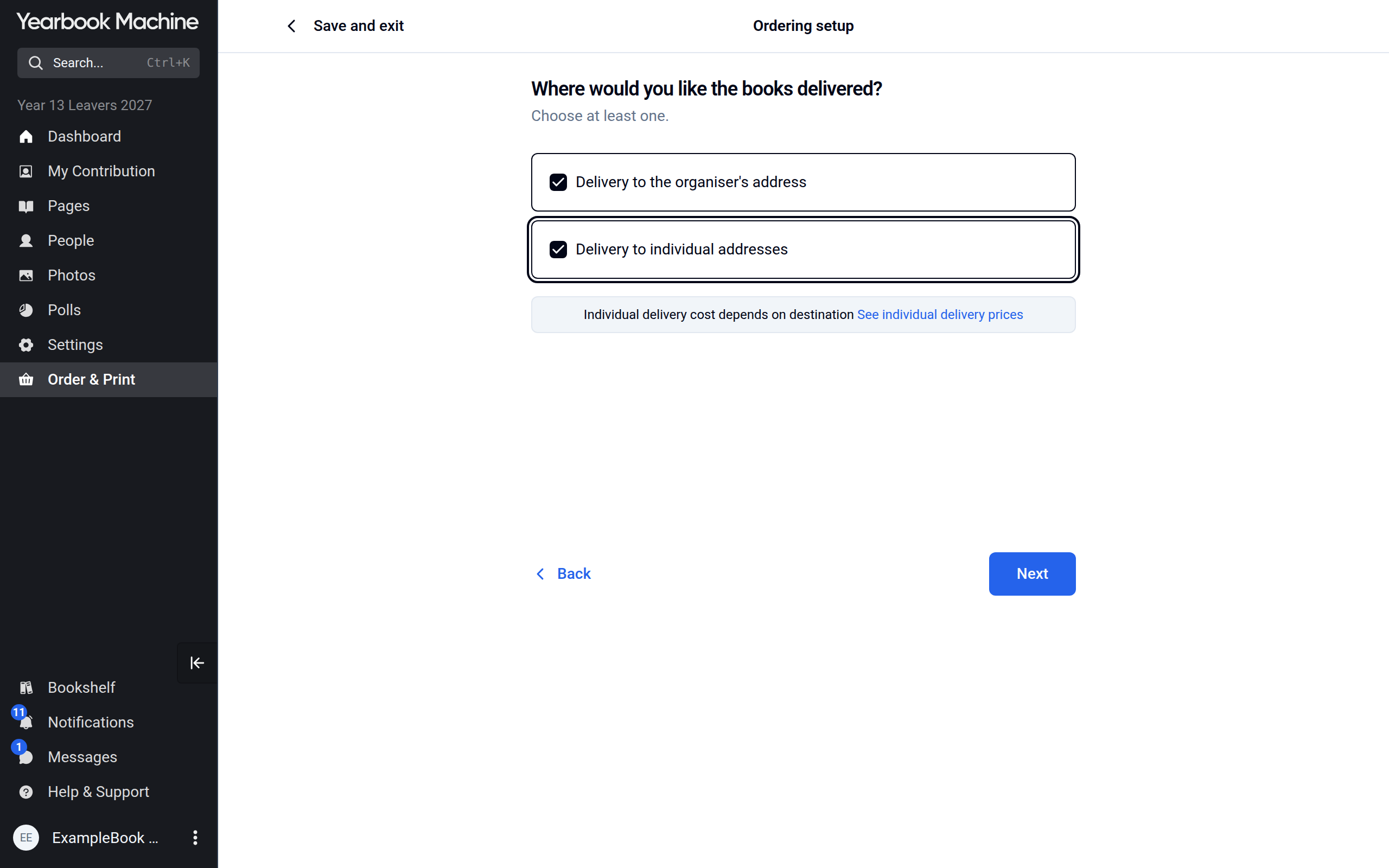
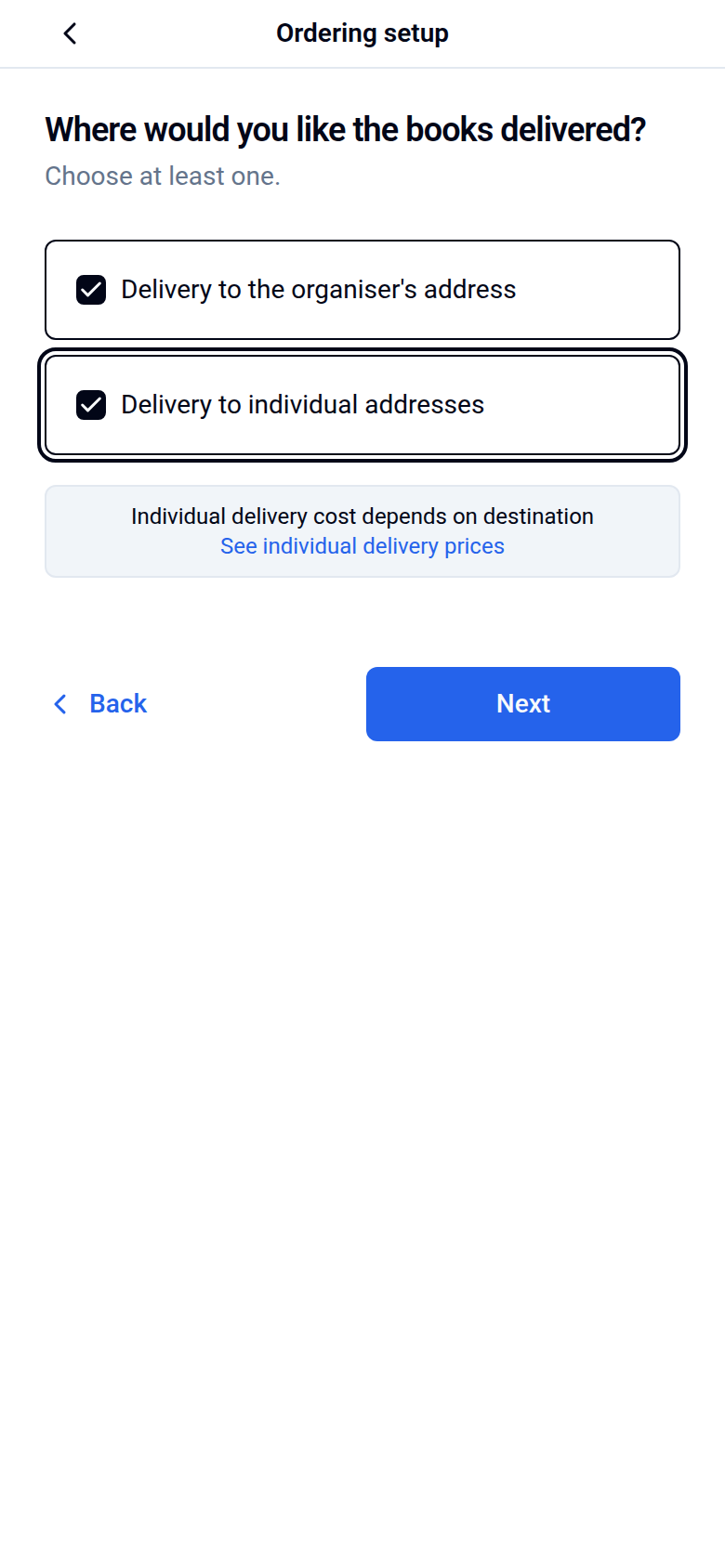
- For a storefront, choose Where would you like the books delivered?: Delivery to the organiser's address, Delivery to individual addresses, or both. Click See individual delivery prices to check what buyers pay for delivery to their home. A single order skips this step and goes to the organiser's address.
-
The next steps depend on what you chose:
- Single order: the organiser's delivery address, the shipping service, the delivery date, Payment email preferences, then the Order summary.
- Storefront, each person pays: Minimum order size, where you enter the number of copies you commit to and tick This is the minimum order size. Then the delivery address and shipping service if books go to the organiser, your dates including the Storefront order deadline, Payment email preferences and the Order summary.
- Storefront, paid by your school: the same, but the size step is Estimated order size: the number of copies you expect, with nothing to tick. Your school is billed for the copies actually ordered.
- A single order of just a few copies has a shorter path: after the book specification come the delivery address, the shipping service and the Order summary.
For more on each step, see Storefronts: letting parents and students buy copies and Delivery: how long it takes and where we deliver.
-
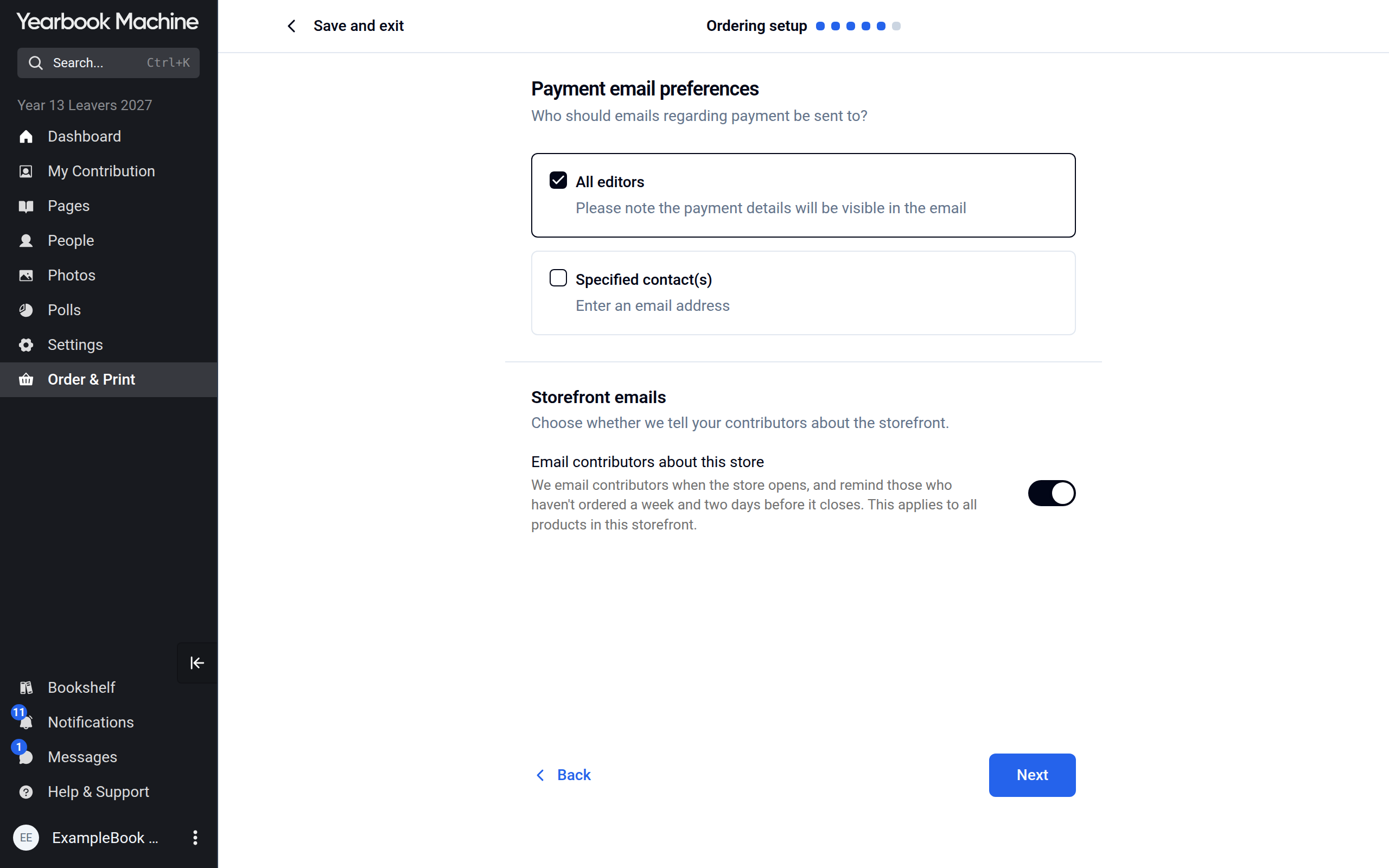
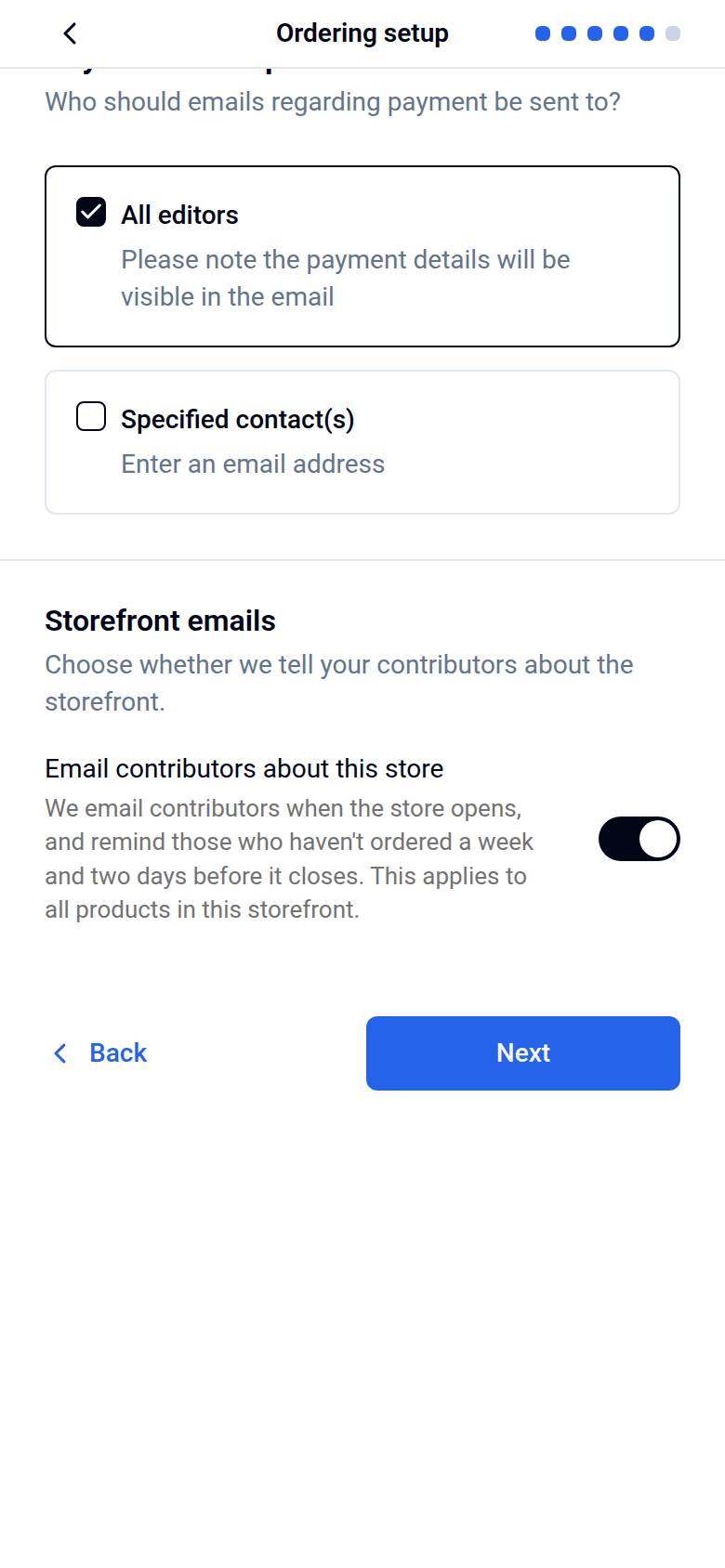
On Payment email preferences, choose who receives payment emails. All editors sends them to every editor of the book. Specified contact(s) sends them to up to three addresses you enter, for example your finance office. You can choose both. For a storefront, the same step has Email contributors about this store: leave it on and we email contributors when the store opens, and remind those who haven't ordered a week and two days before it closes.
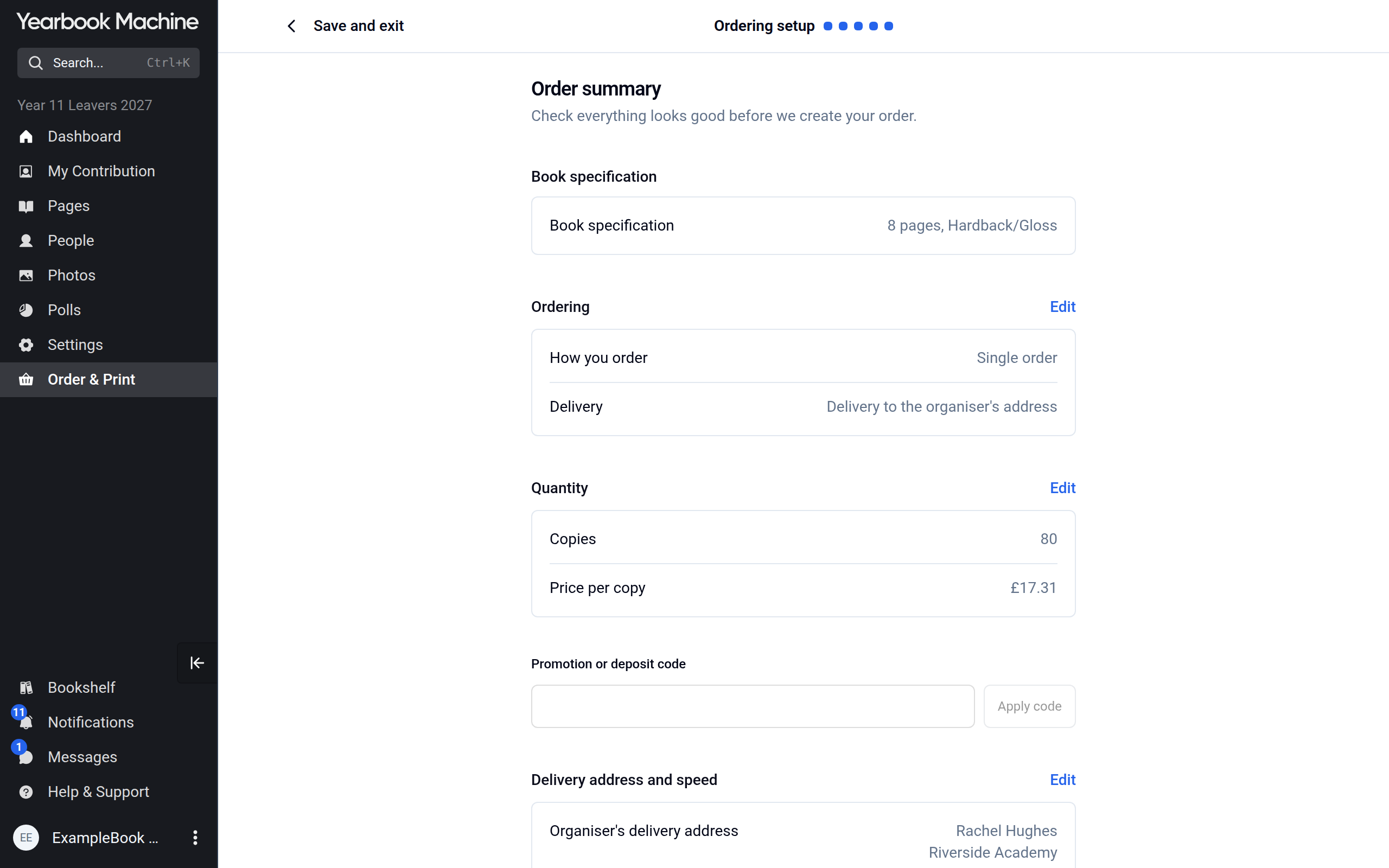
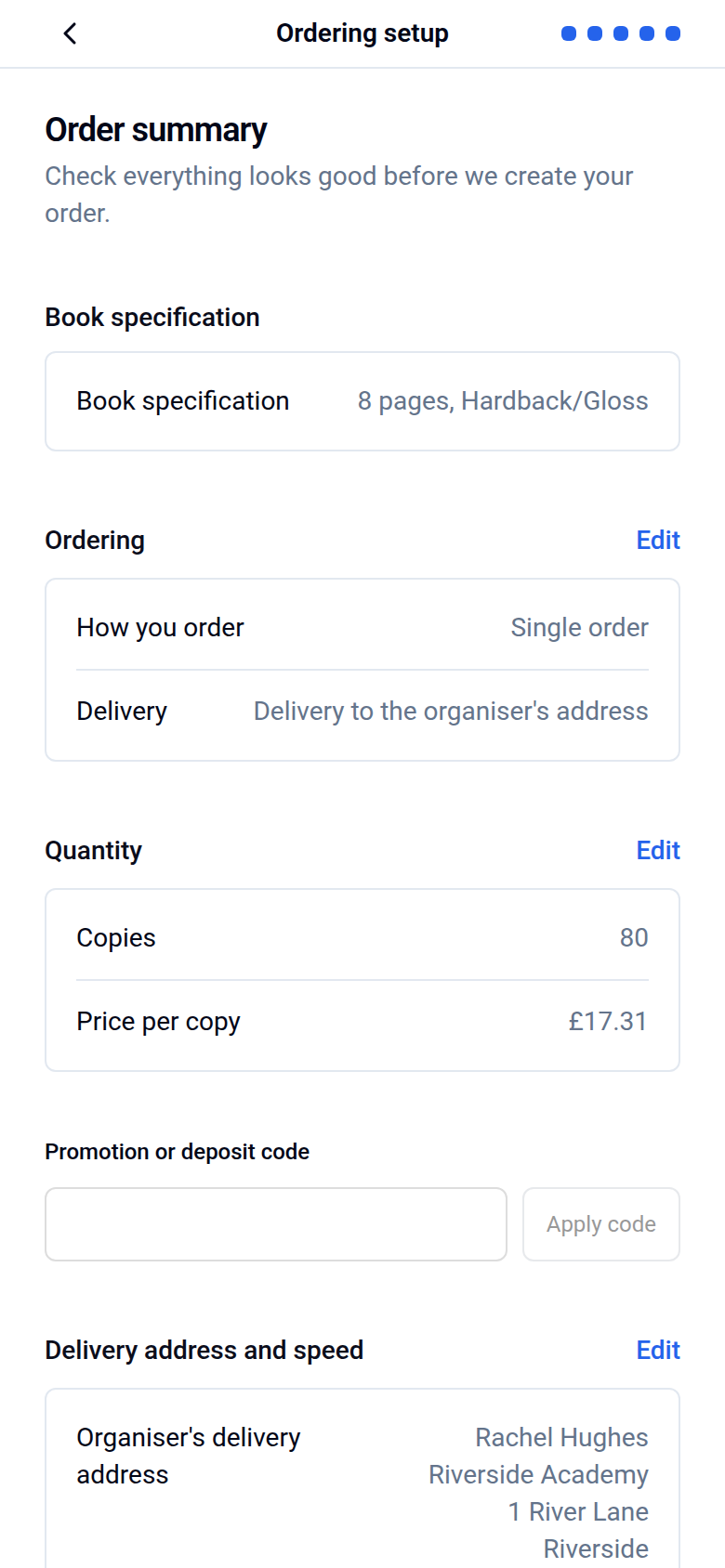
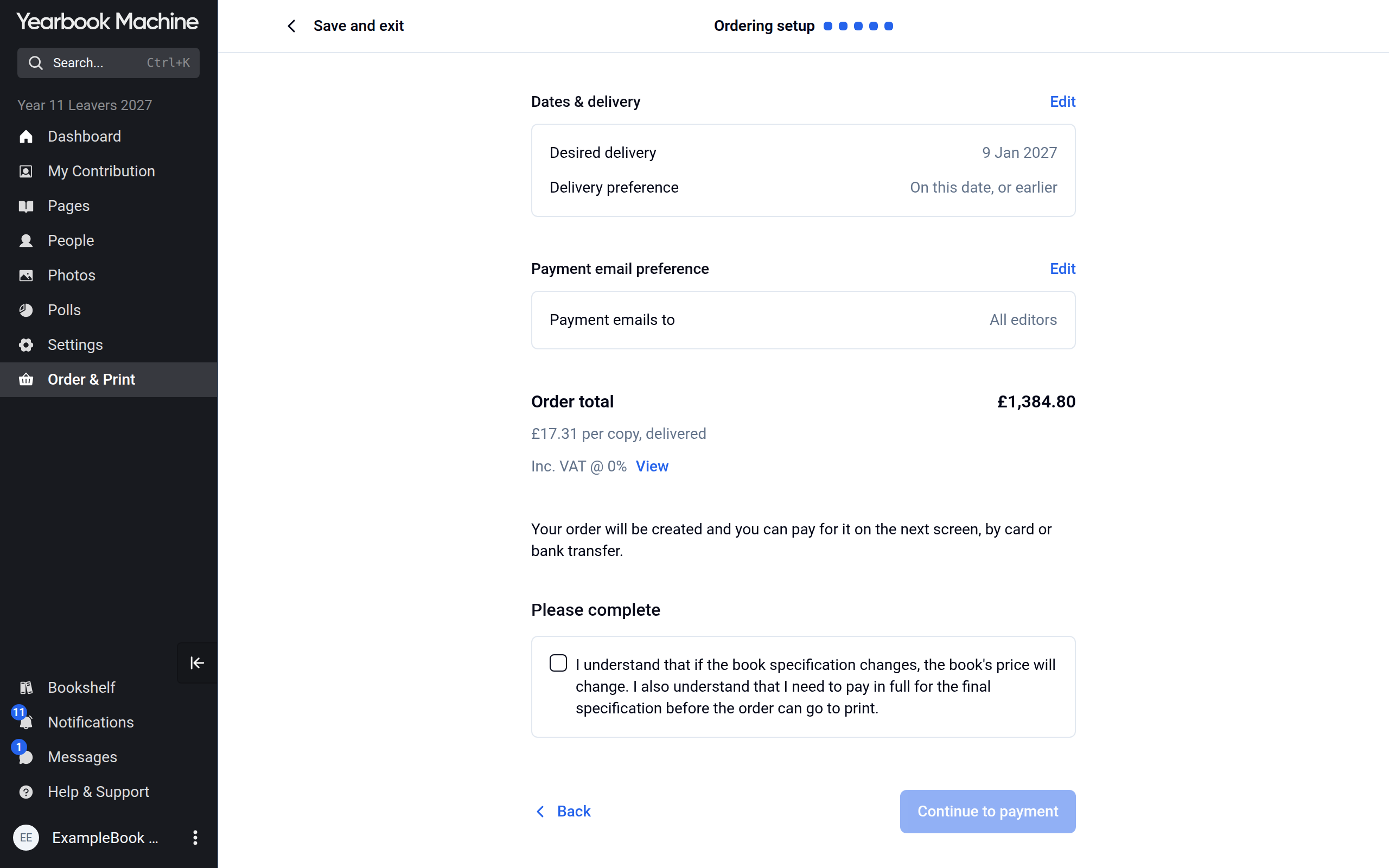
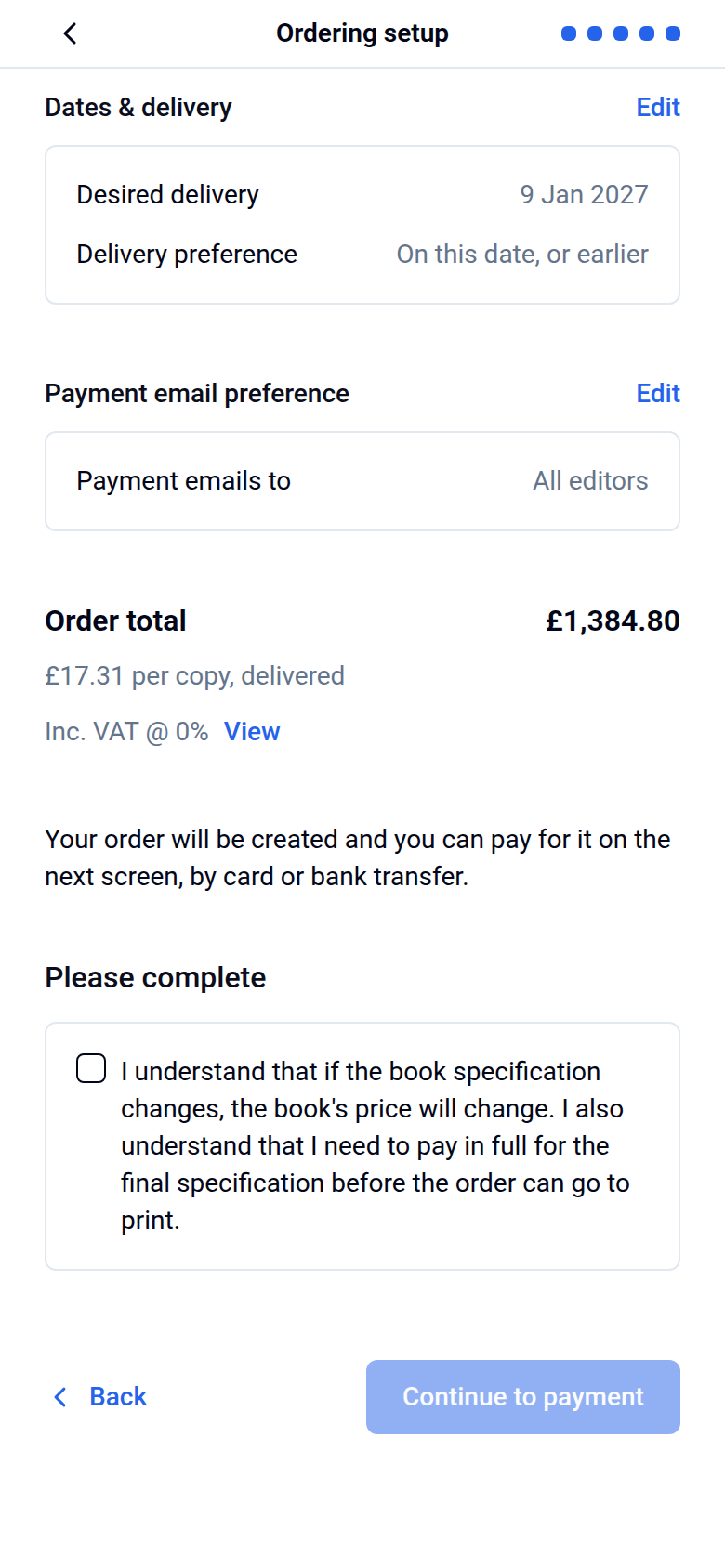
- On the Order summary, check each card. The Ordering card shows How you order. Every card except the book specification has Edit to go back and change it. Enter a Promotion or deposit code if you have one and click Apply code. Then check the Order total, tick the confirmation and click Continue to payment for a single order, or Create storefront for a storefront.
Pay for a single order
When you create a single order, we email a payment link to the people you chose for payment emails.
- Open the email and click View Order. You can also open the order from Order & Print: on the Overview tab, under Print requirements, click View Order next to Payment.
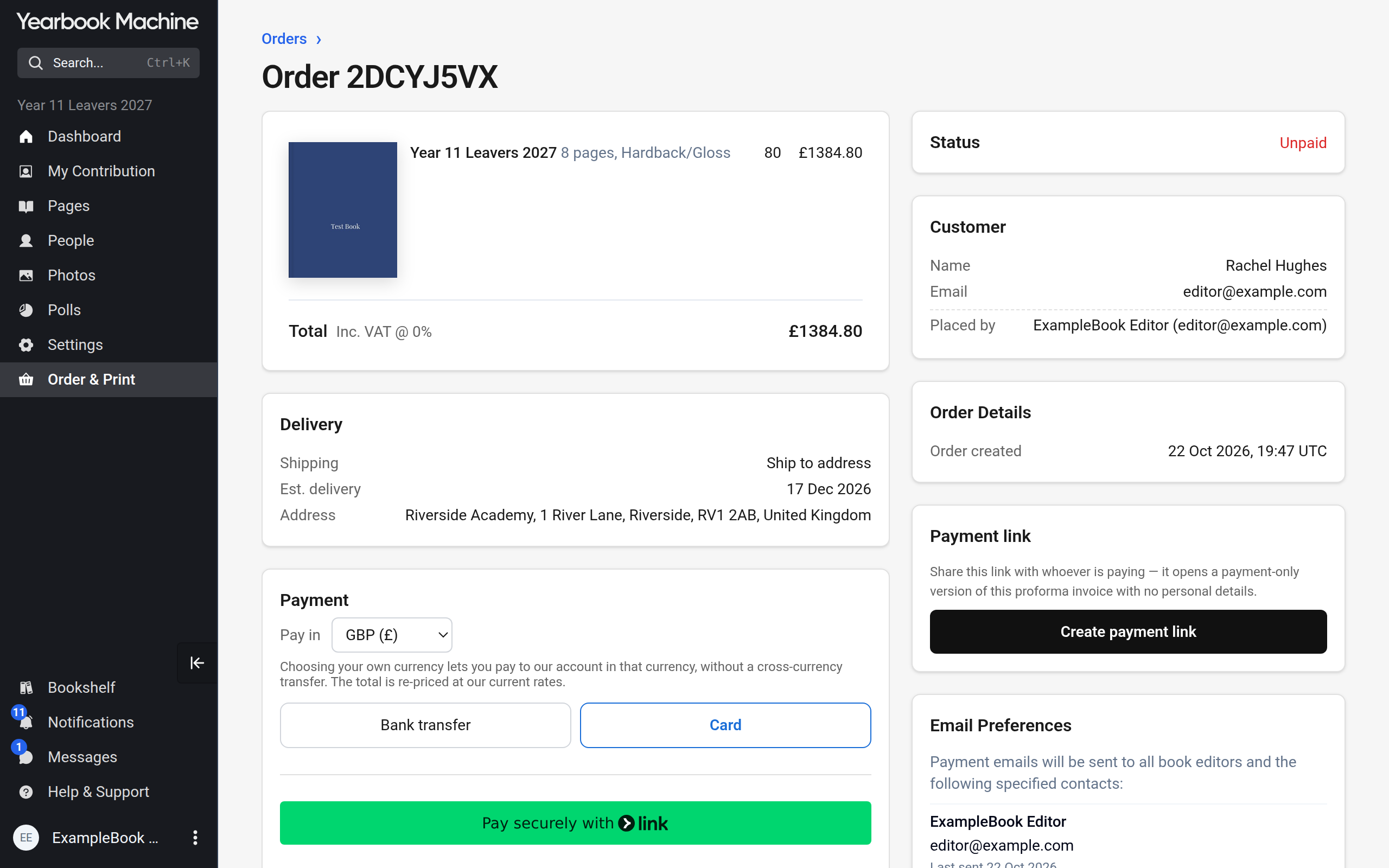
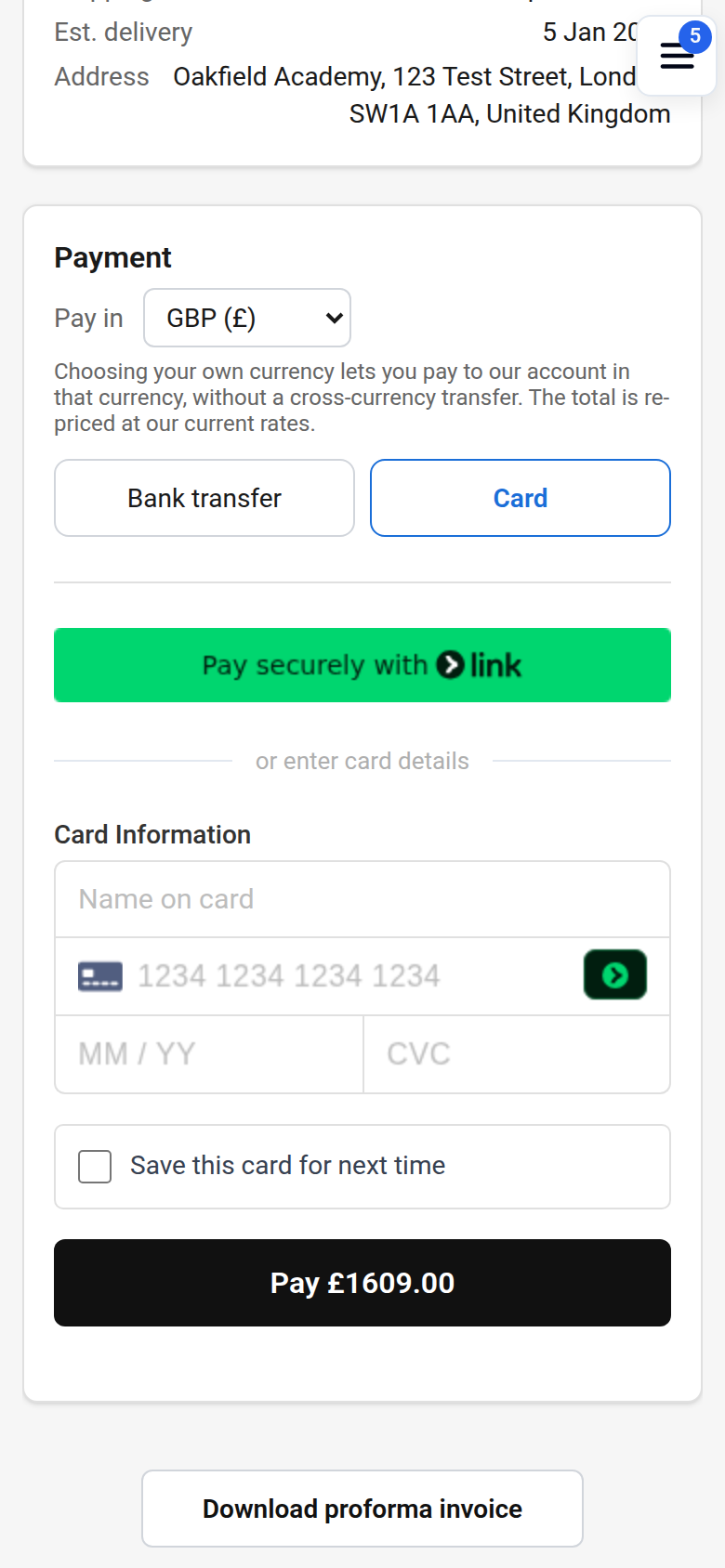
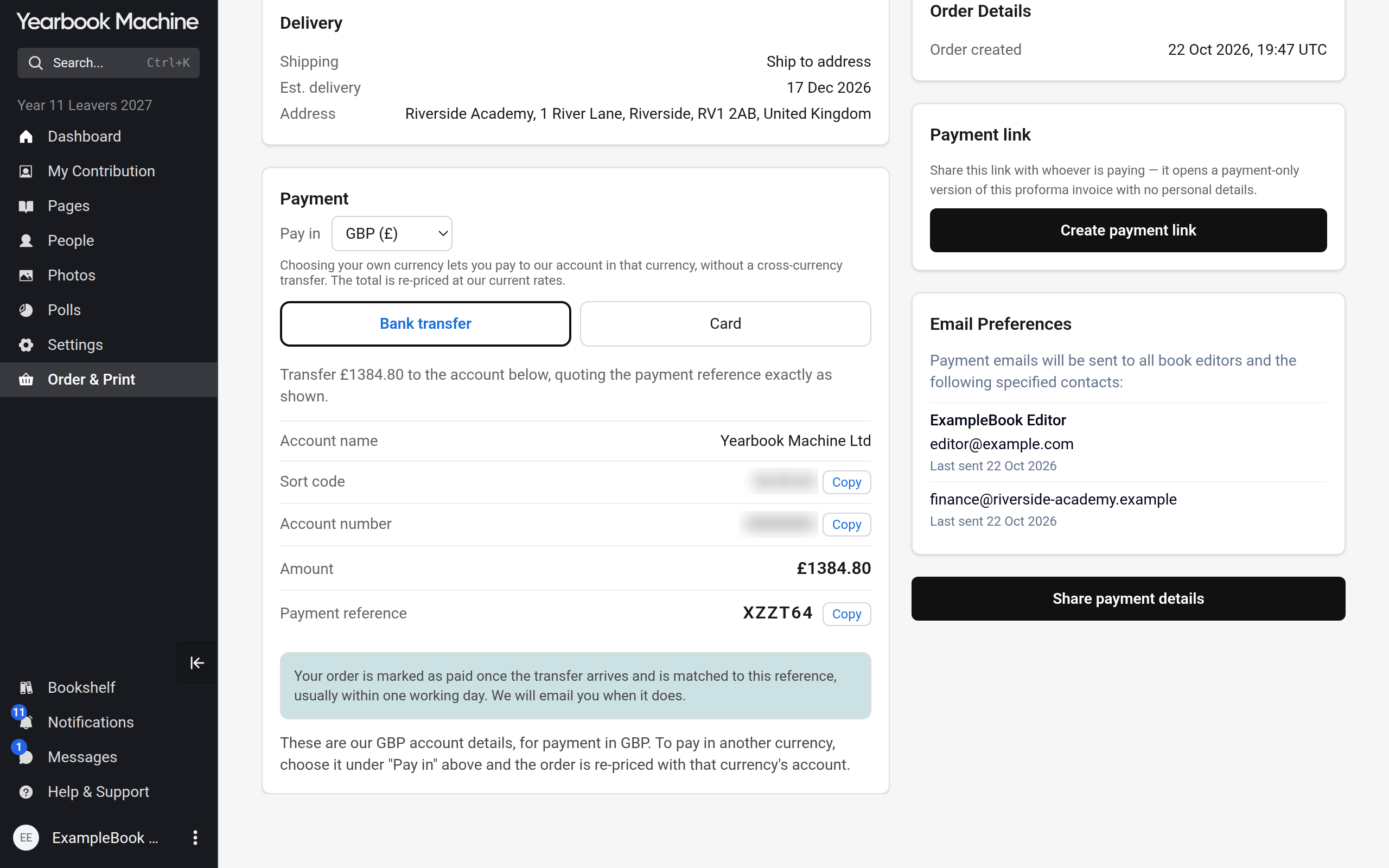
- Choose how to pay. With Bank transfer, you pay the amount shown from your bank and quote the payment reference on the page. With Card, you enter your card details and pay straight away.
Paying through a storefront
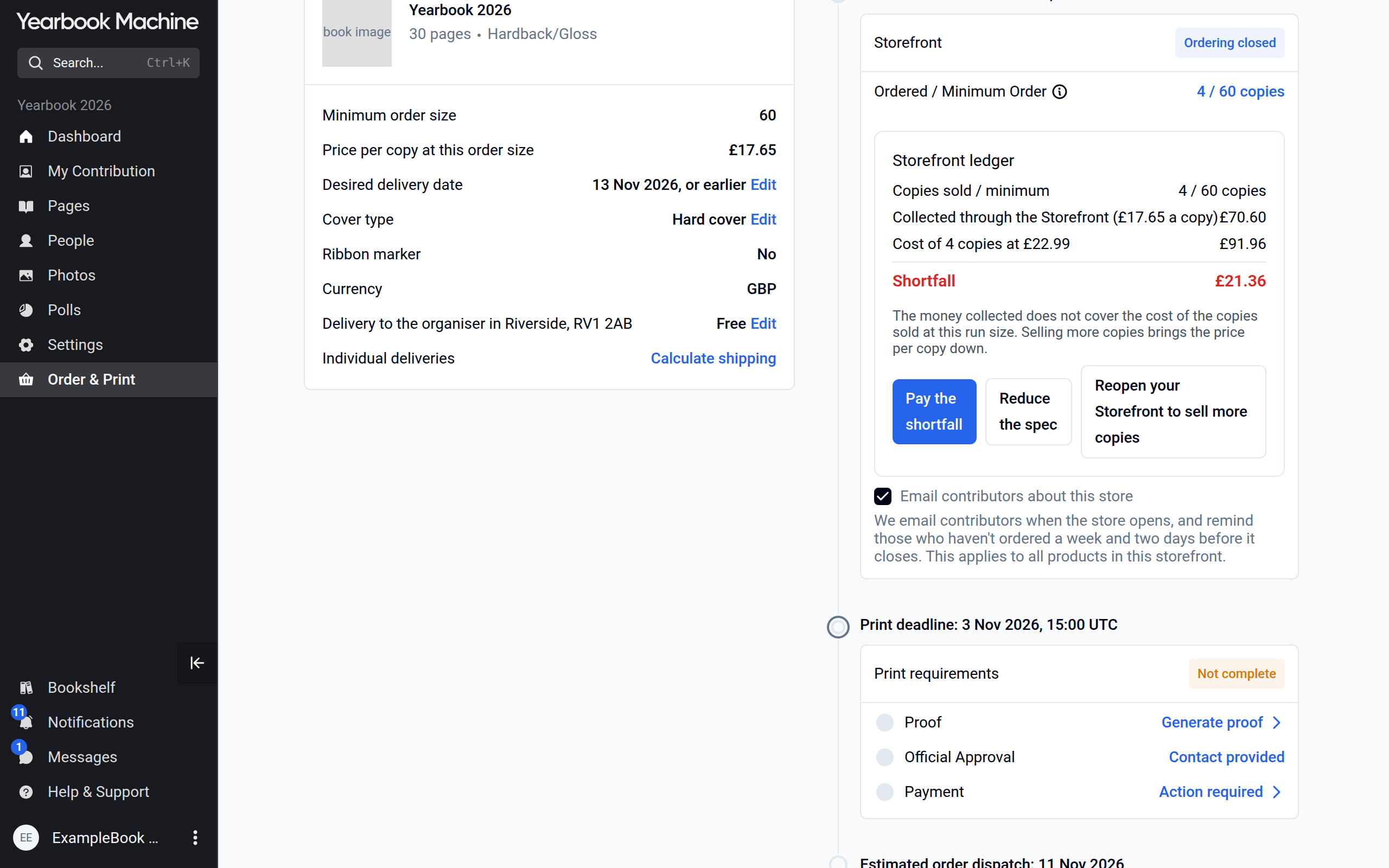
If each person pays for their own copy, they pay by card when they order, and there is no single payment for you to make. The price per copy is based on your minimum order size: the number of copies you commit to selling.
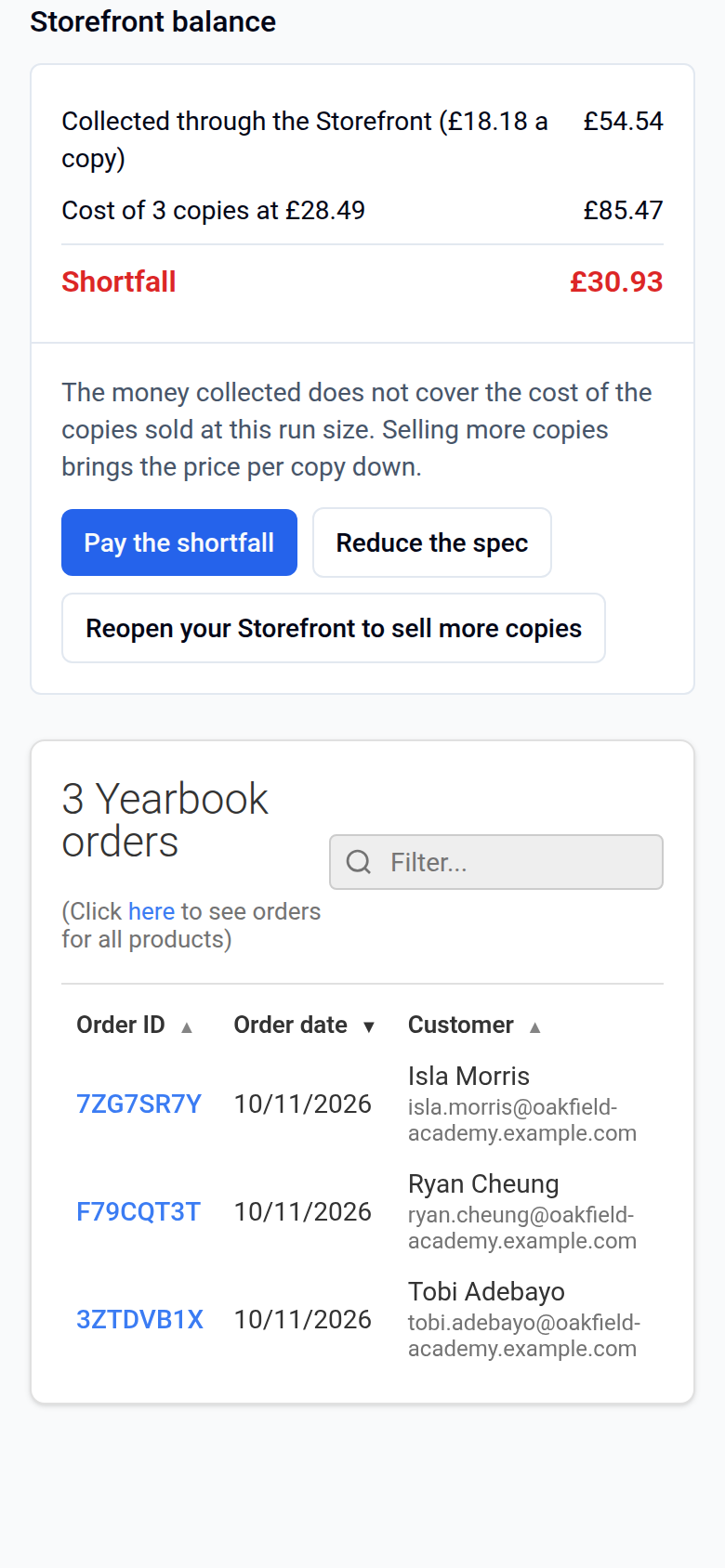
If fewer copies than your minimum are ordered by the time ordering closes, the difference in cost (the shortfall) must be paid before the books go to print. The Storefront balance card on the Orders tab then offers three ways to settle it:
- Pay the shortfall: we send a bill for the shortfall to the person or organisation you name.
- Reduce the spec: choose a cheaper specification, such as a softer cover or fewer pages, to reduce or clear the shortfall.
- Reopen your Storefront to sell more copies: take more orders to reach your minimum.
If more copies are ordered than your minimum, the price per copy falls and there is money left over (the surplus). You choose how it is settled: Refund every buyer their share returns part of each buyer's payment to them, and Transfer it to a bank account pays it into the bank account whose details you enter.
If your school pays for everyone's copies, people place their orders on the storefront without paying, and the price shown to them is an estimate. When ordering closes, click Issue school bill on the Orders tab, and we email a link to the payment page to the address you give.
Common questions
When do we have to pay?
Before your print deadline, the last date by which your book must be approved for print and paid for to meet your delivery date. It is shown in the Ordering setup and on Order & Print.
Why might the price change after we have ordered?
The price depends on the book specification and the number of copies. If either changes, the price changes too.
Can we pay in instalments?
A single order is paid in one payment. If you want each person to pay for their own copy, use a storefront.
Can we pay with a purchase order?
We accept purchase orders from UK-registered educational institutions. Contact us before your print deadline to arrange it.
Who receives the payment emails?
The people you chose on Payment email preferences. All editors receive them unless you chose Specified contact(s) only.
Was this article helpful?
Sorry, that didn't send. Please try again in a little while.
Thanks. That helps us improve this article.
Any other questions?
Email support@yearbook.com and we'll help you out.