
Editors, contributors and what each can do
Everyone in a yearbook is either an editor or a contributor. This article explains what each role can do, how to make someone an editor, and how to share the work without giving everyone full control. Only editors can change people's roles.
What each role can do
- Editors have full edit access to all of the pages and settings of your book. They can add and arrange pages, invite and approve people, change settings, and prepare the book for printing. A book can have as many editors as you need.
- The main editor is one of the editors, usually the person who created the book. They have the same rights as other editors, and in addition only the main editor can delete the book. The role can be handed to another editor (see Handing over the main editor role below), but it can't simply be removed.
- Contributors can create a profile page, view other profiles, upload photos, view photos uploaded by others and vote in polls. If you allow it in Settings > Contributions, they can also suggest answers on other people's pages. In Settings > Contributor permissions, editors decide what contributors can see and do: whether they can see what is on other people's pages, each part of other people's profiles, poll results and photos uploaded by other contributors, and whether they can send invitations (see Page permissions). Contributors cannot add, move or delete pages, or change the book's settings or design. After the contributor deadline (the date by which contributors must finish, shown as Contributor deadline under Add people > Invite Contributors once it is set), contributors can no longer make changes; editors still can.
Making someone an editor
The person must already have joined the book and been approved.
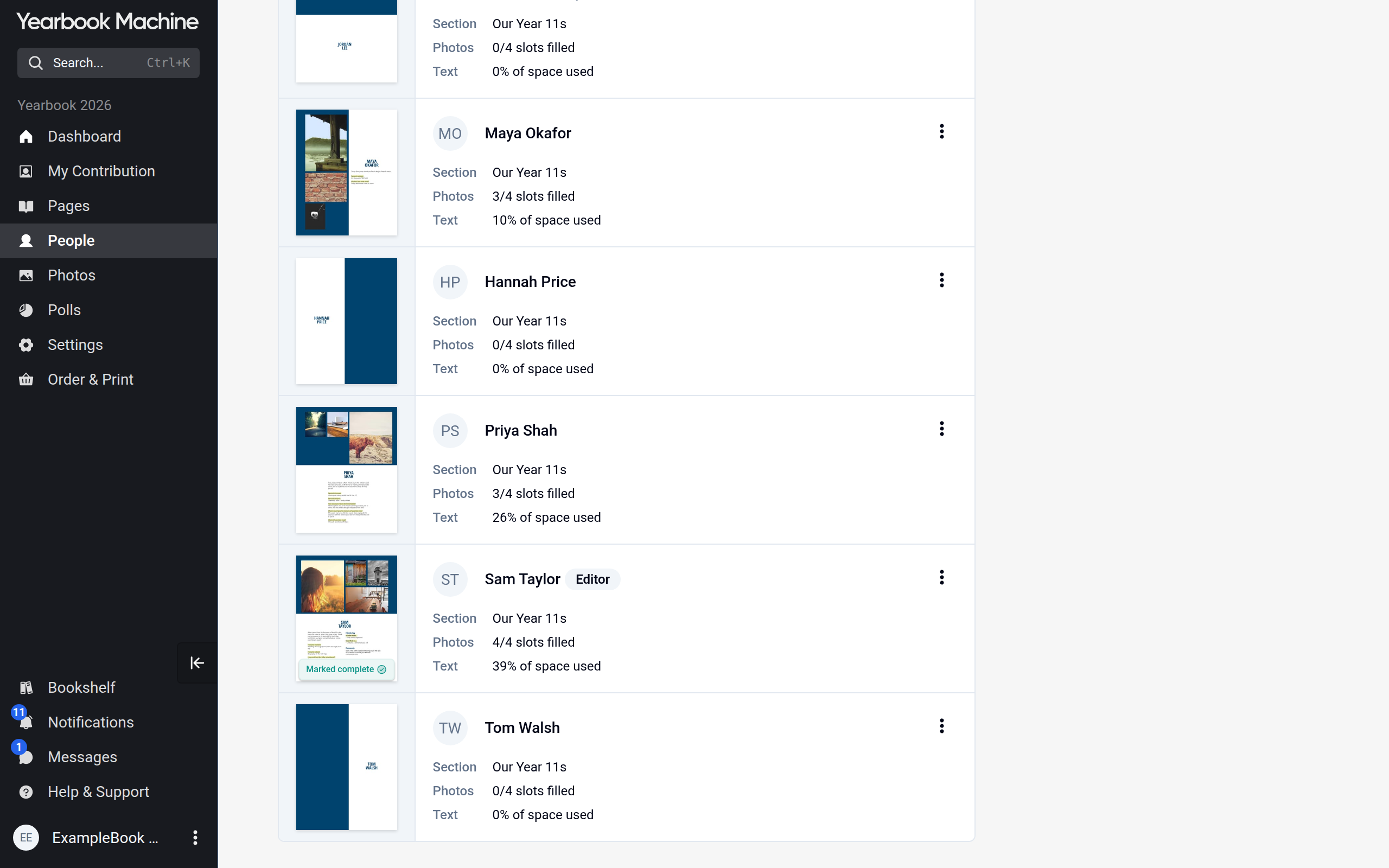
- Click People in the main menu.
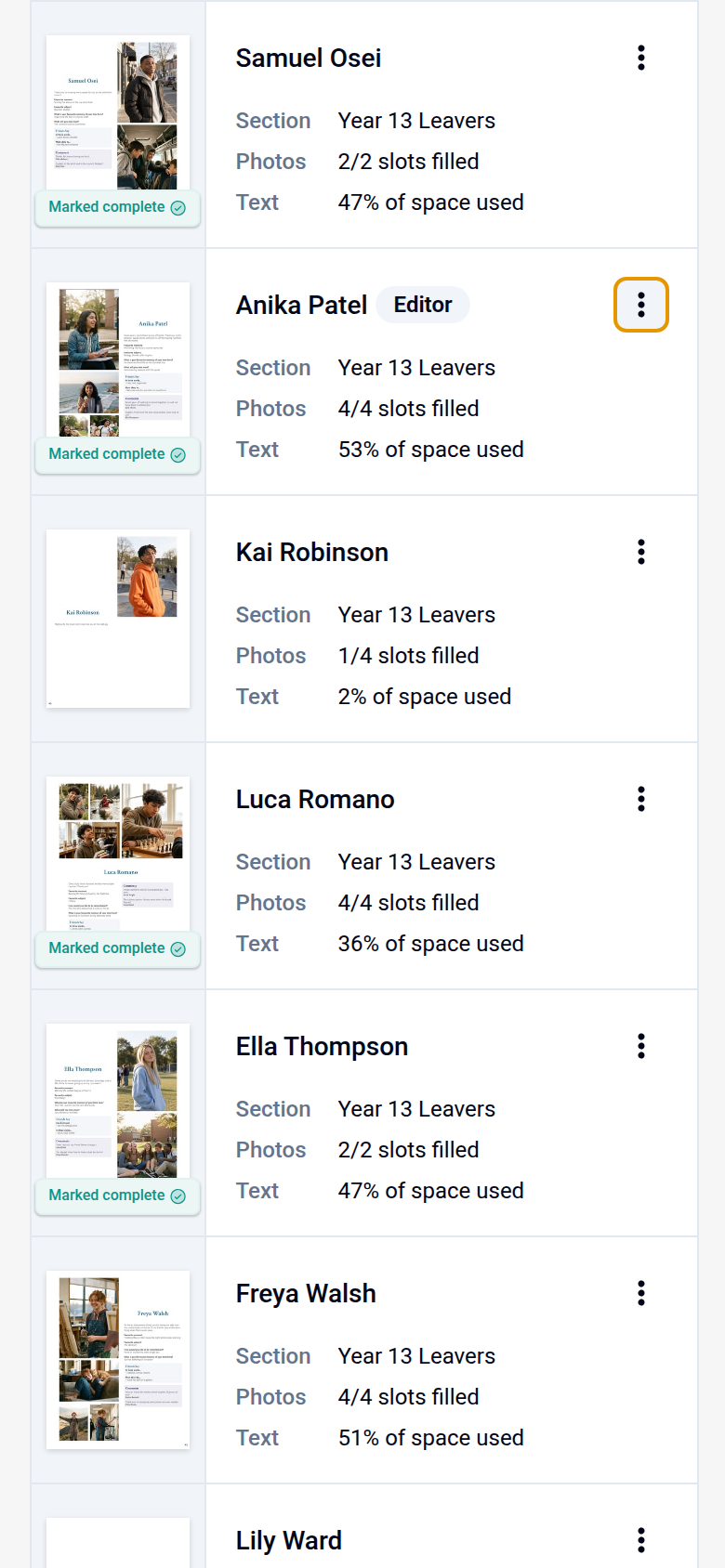
- Find the person and open the actions menu (the three dots) on their row.
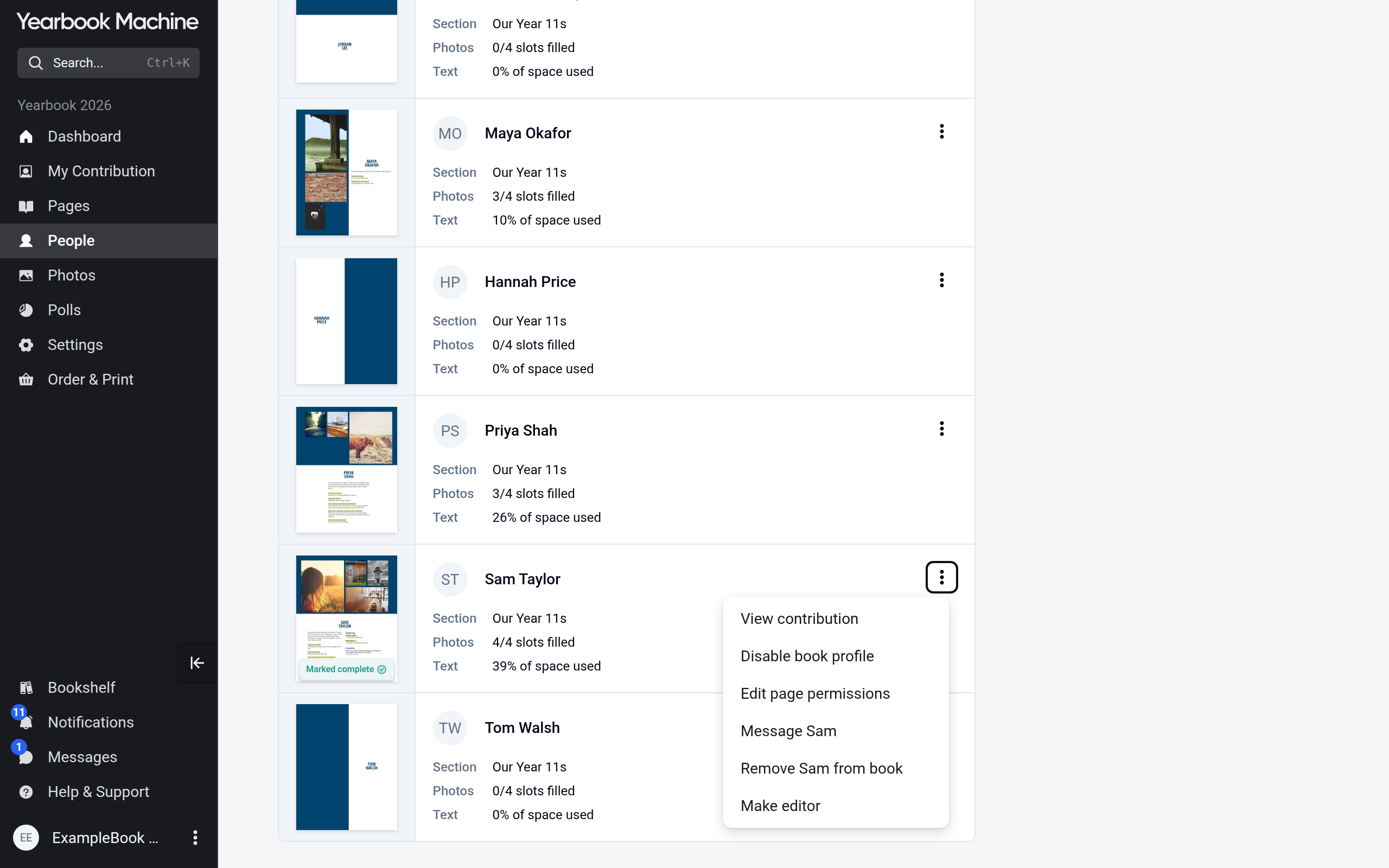
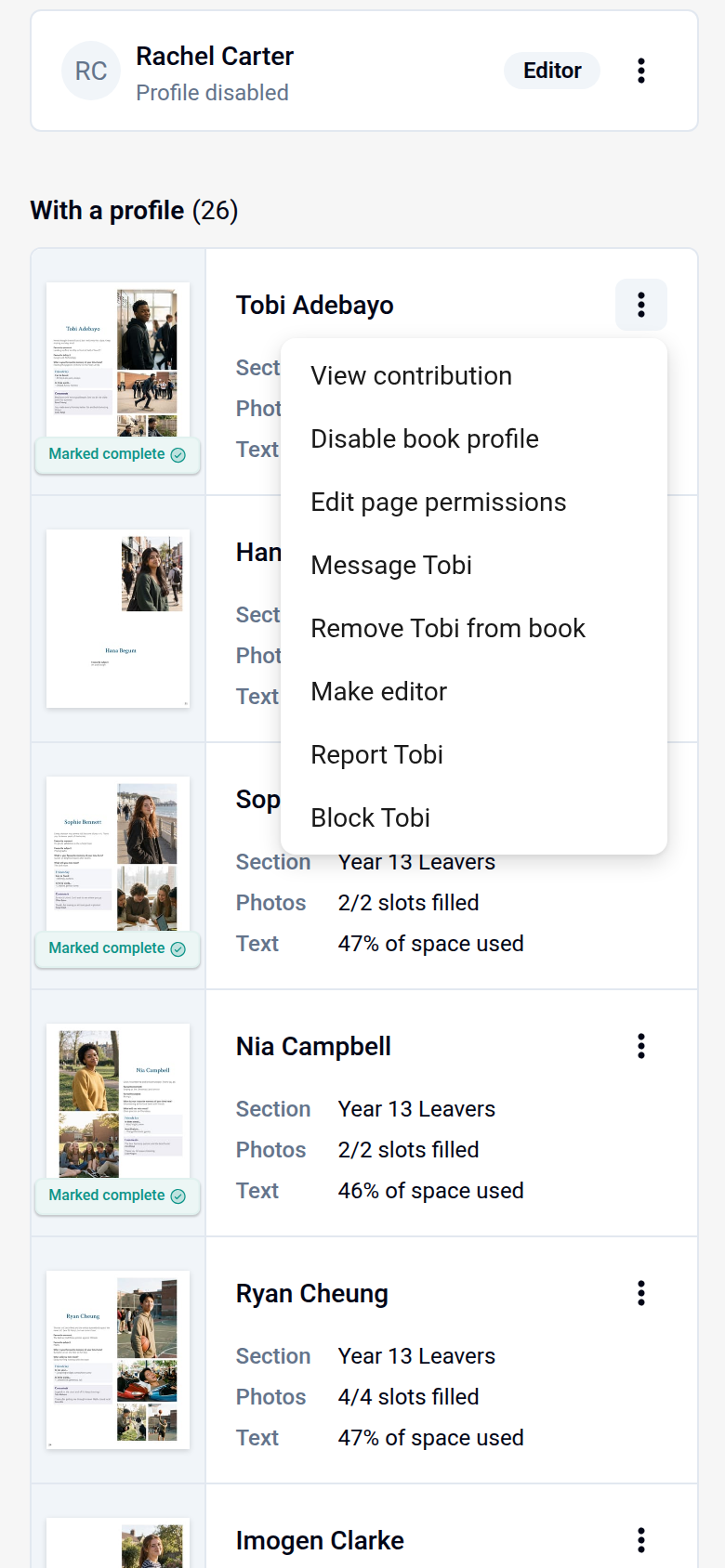
- Click Make editor.
- Check the message and click Make editor to confirm.
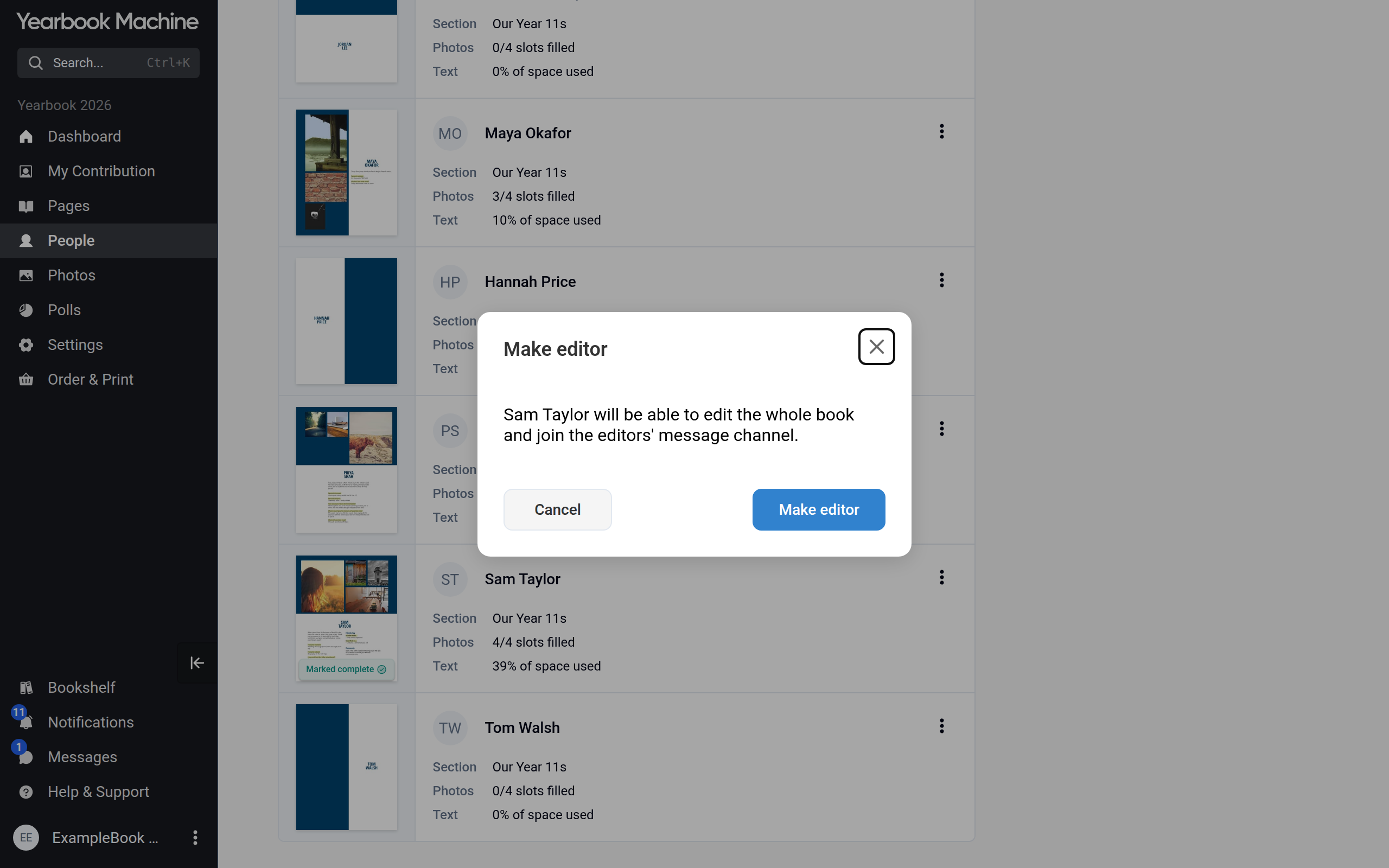
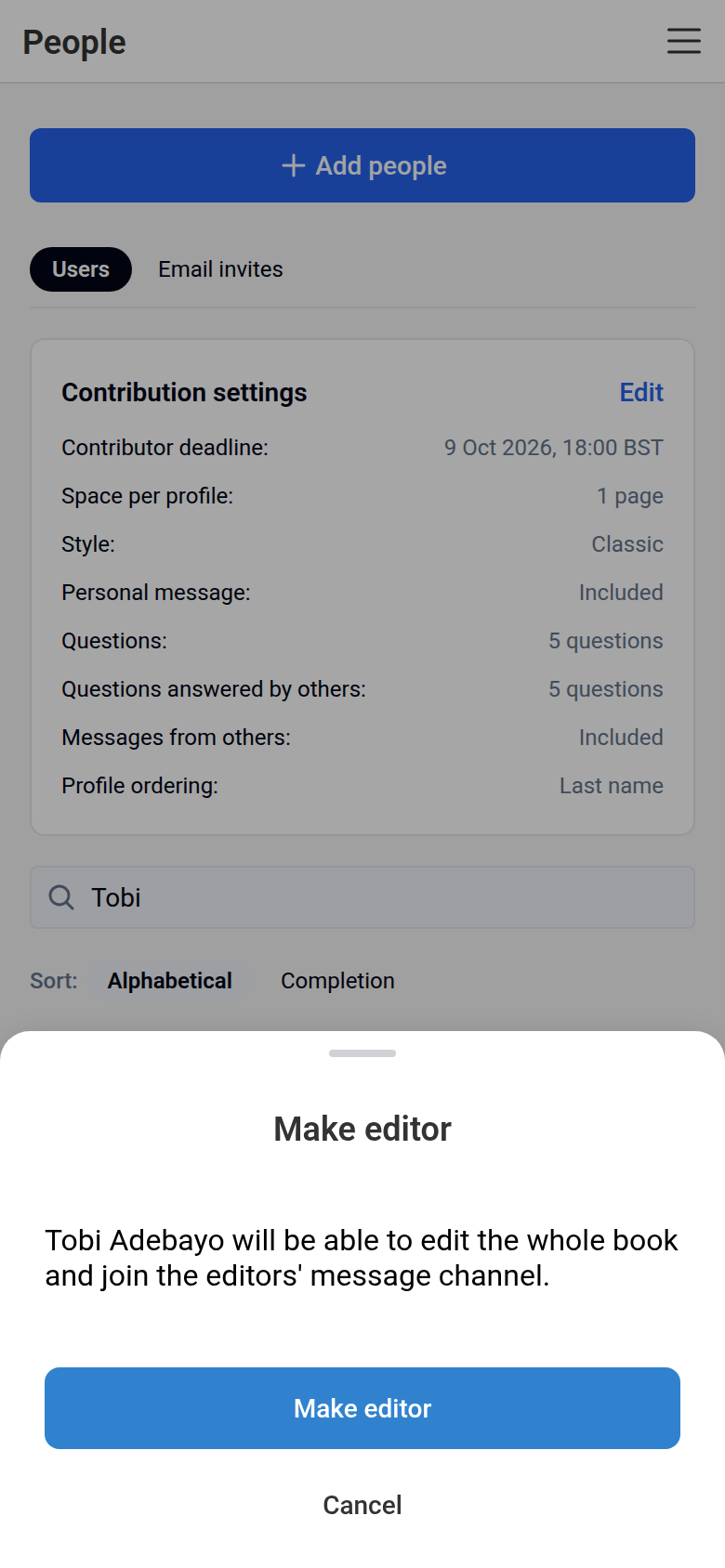
They can now edit every page and setting in the book, and they join the editors' message channel.
To bring in a new editor who has not joined yet, click Add people, choose Invite Editors and send them an invitation. Choose Invite Contributors instead for someone who should only fill in their own page.
Removing editor access
- On the People page, open the actions menu on the editor's row.
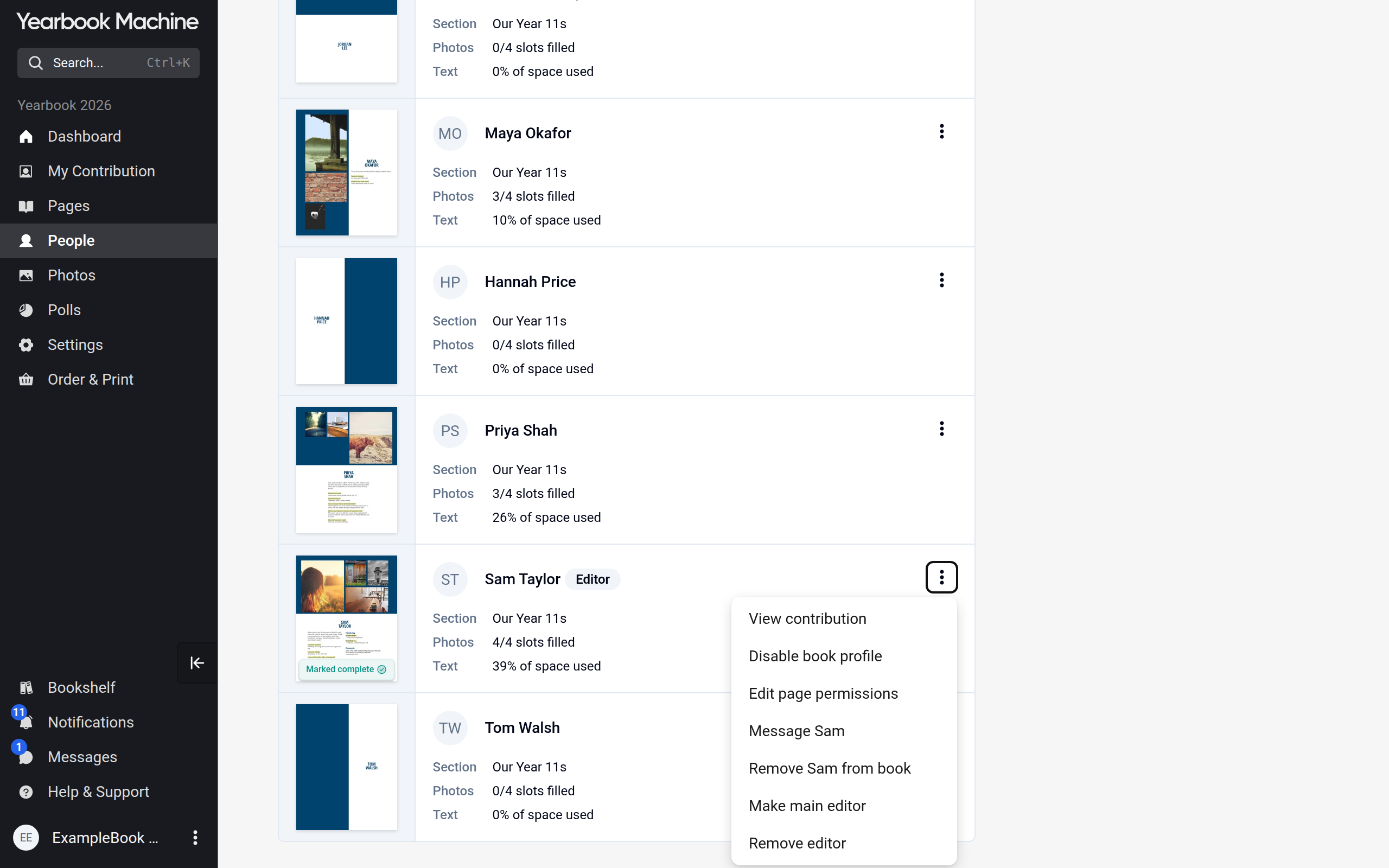
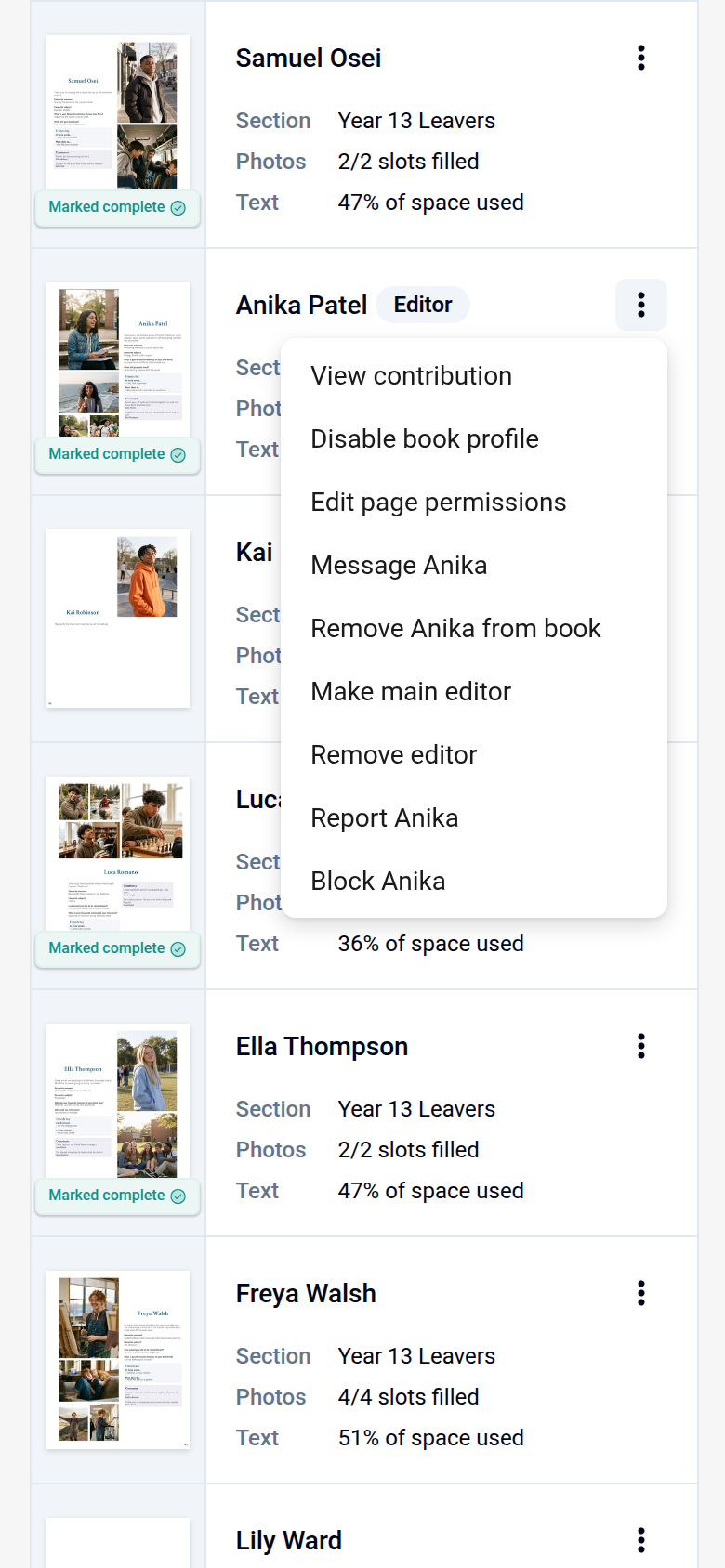
- Click Remove editor, then Remove editor again to confirm.
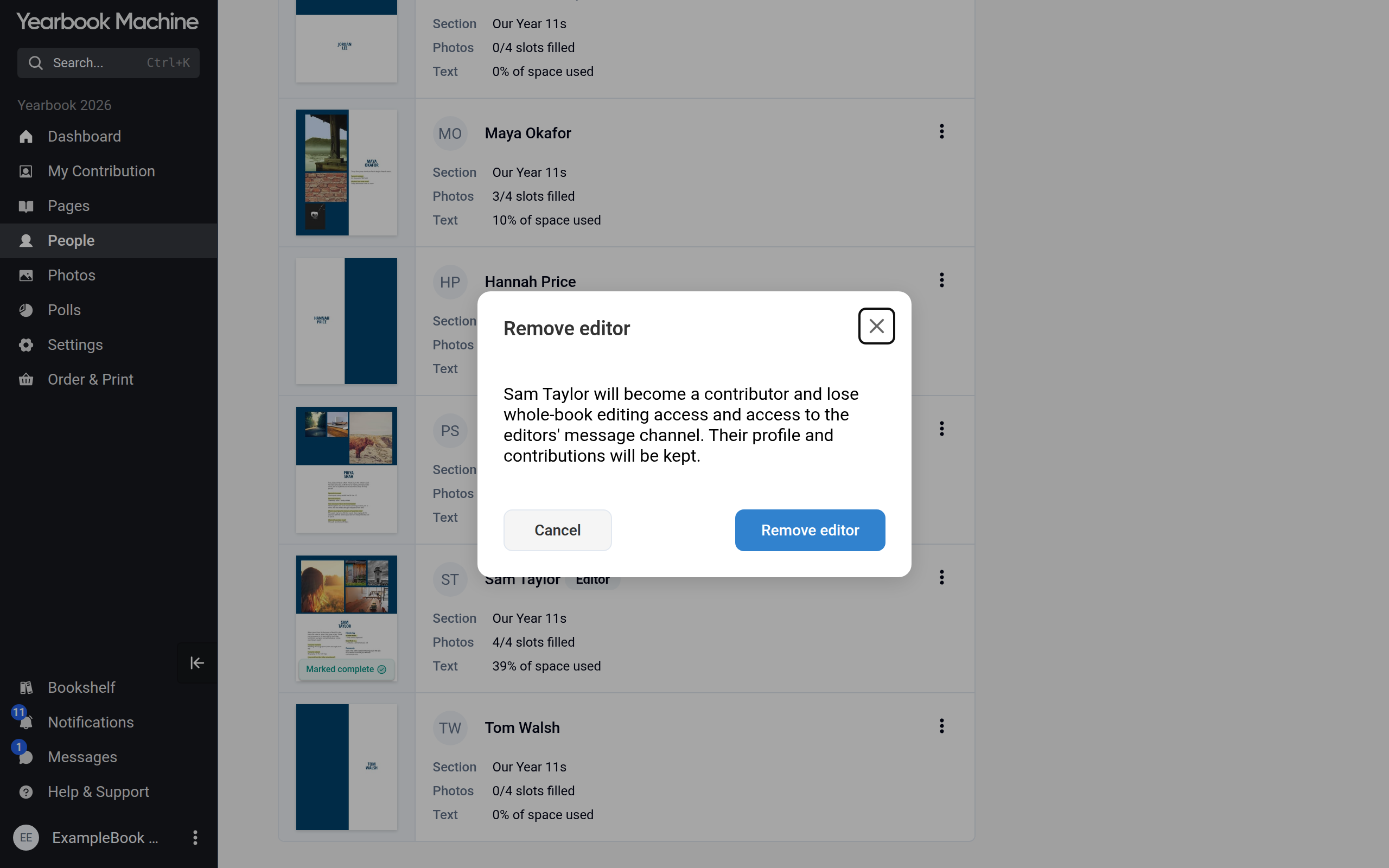
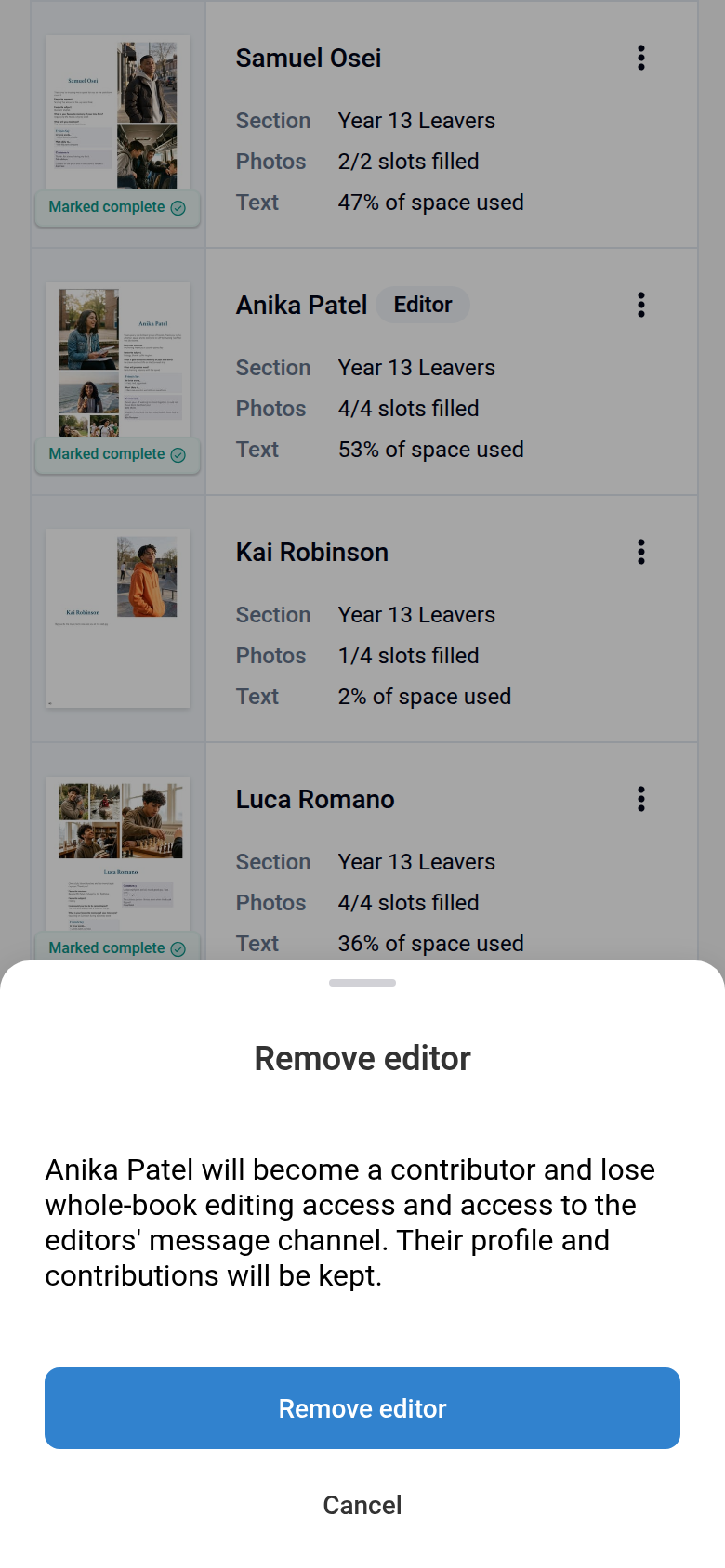
They become a contributor. Their profile and contributions are kept.
Handing over the main editor role
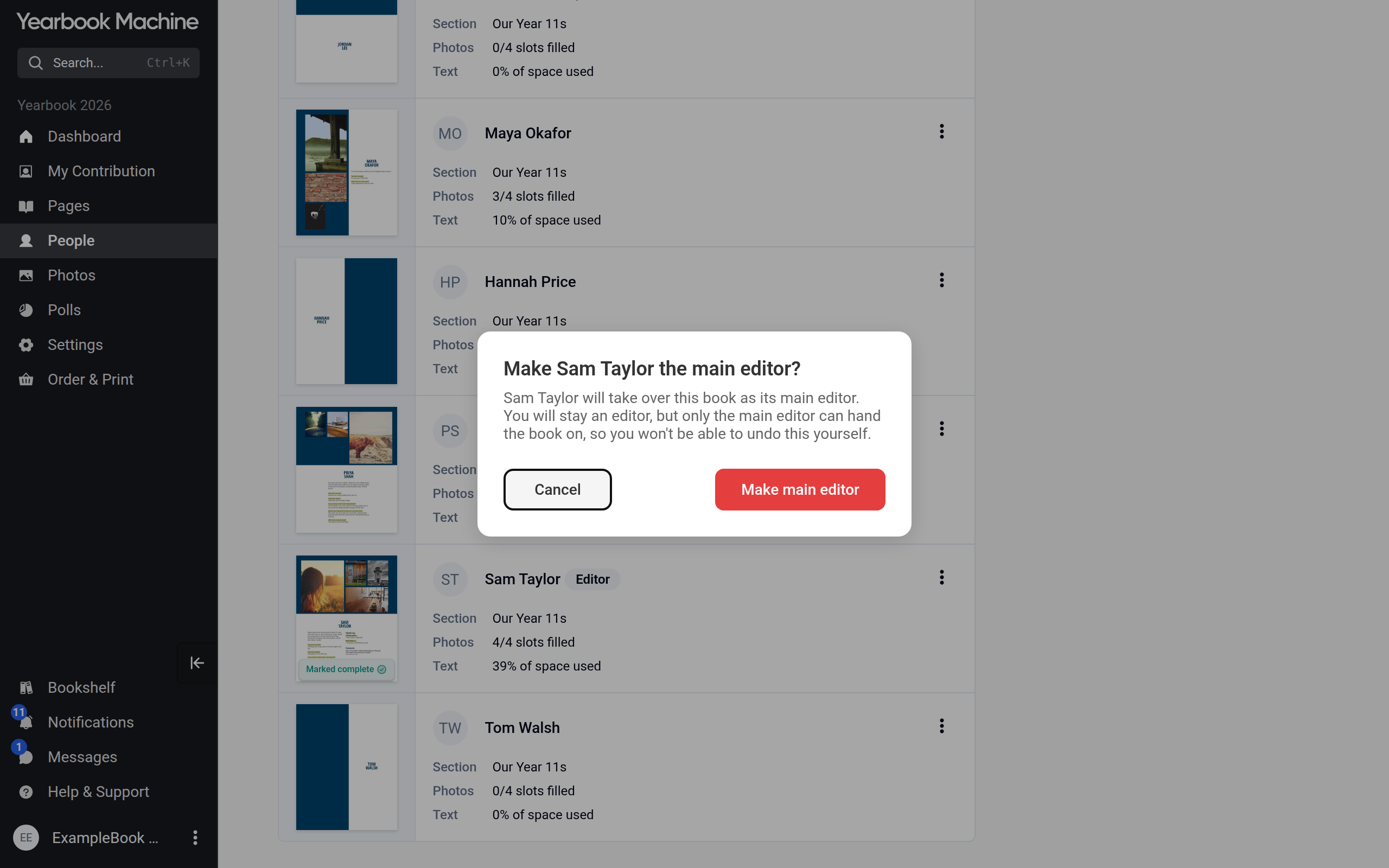
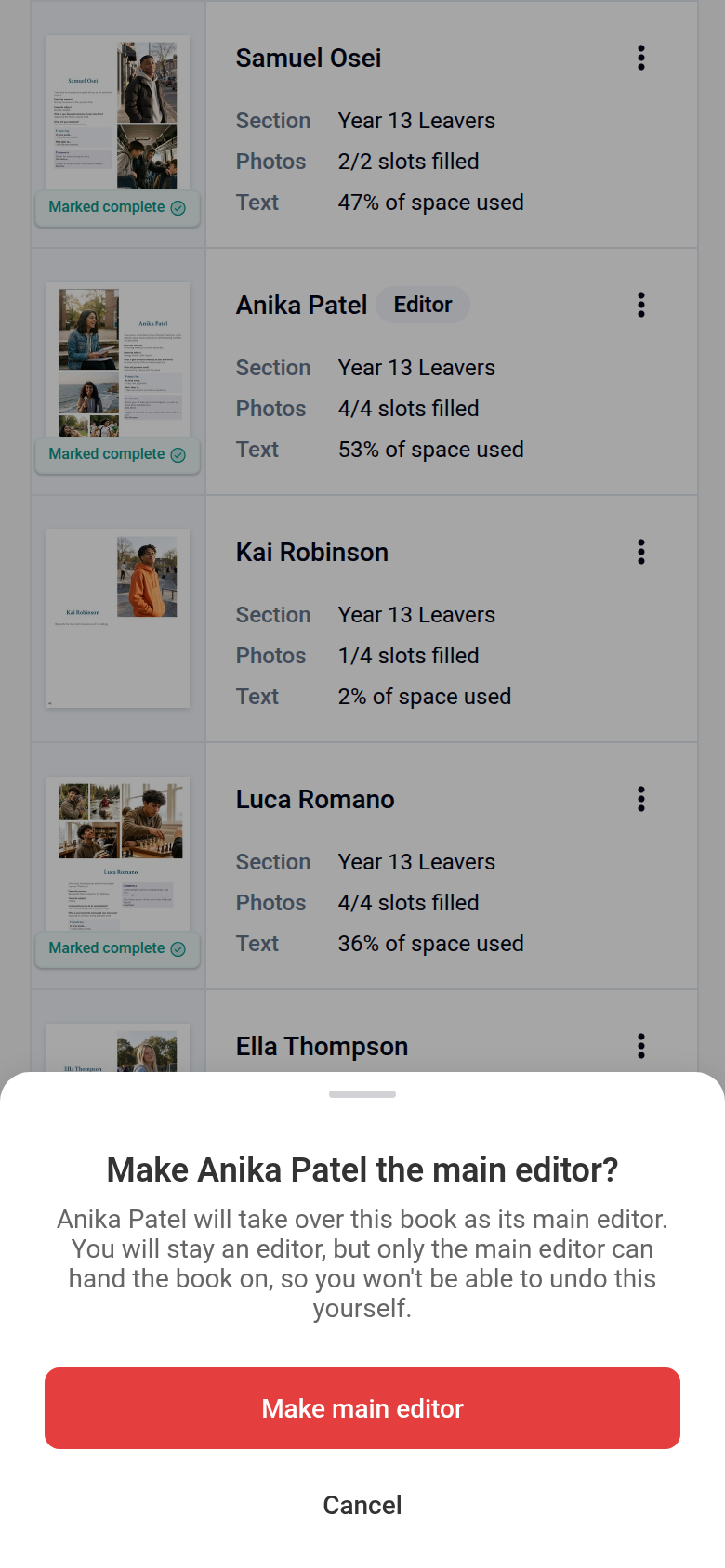
If you are the main editor and someone else is taking over the book, make sure they are an editor first. Then, on the People page, open the actions menu on their row and click Make main editor.
Letting someone help with one person's page
You can let a member edit another person's profile page (the page about that person, built from their answers and photos), for example a parent helping a young child, without making them an editor.
- On the People page, open the actions menu on the row of the person whose page it is.
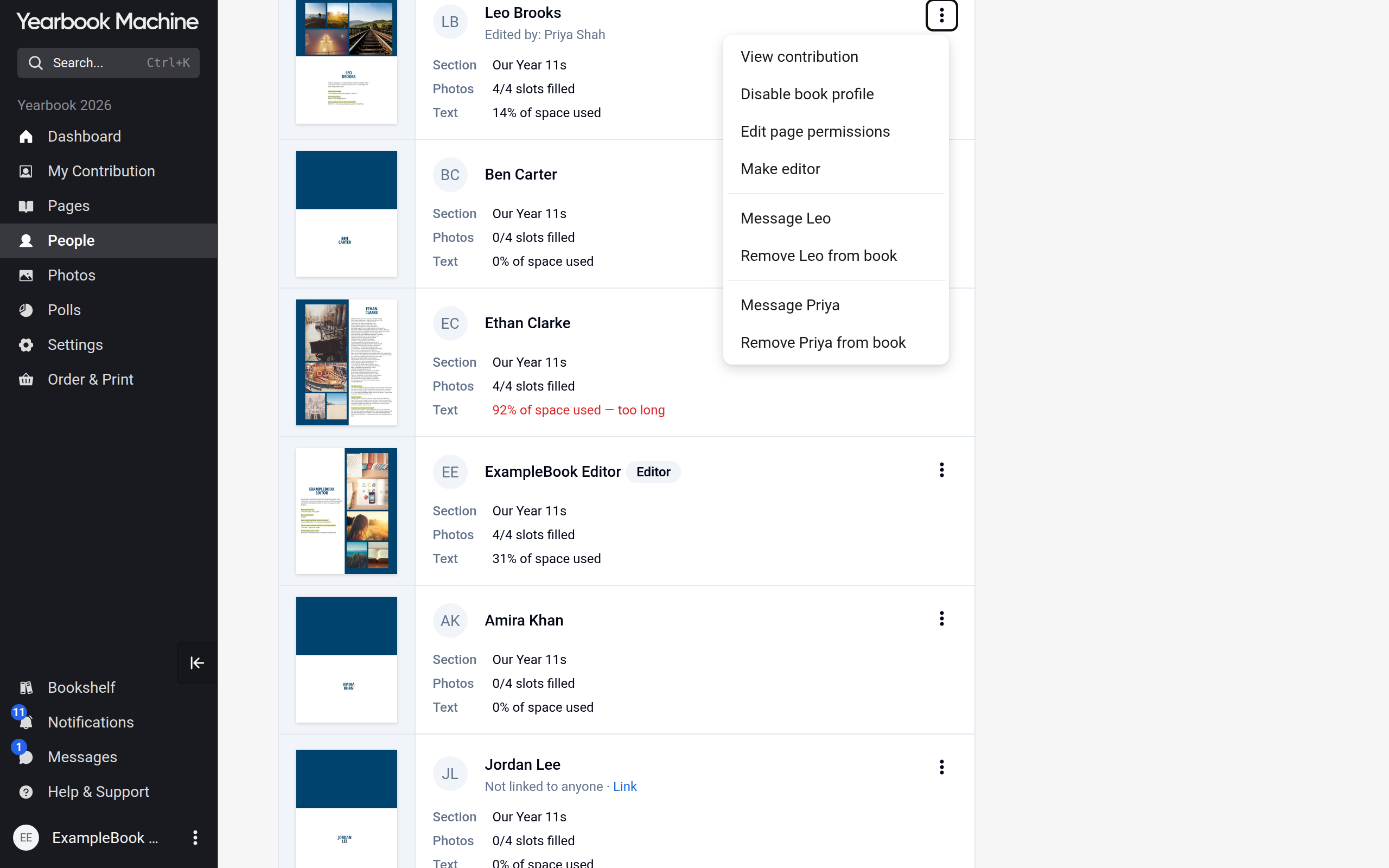
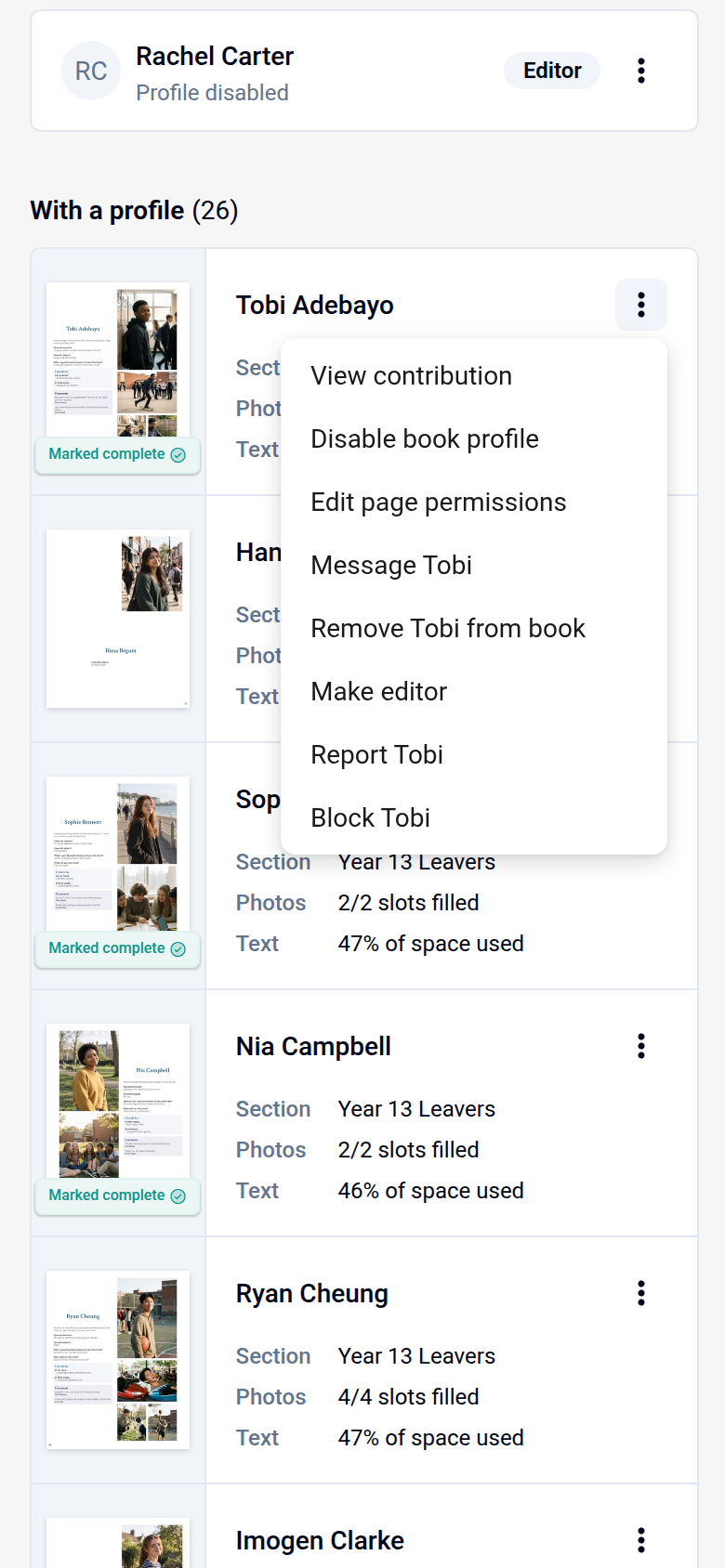
- Click Edit page permissions.
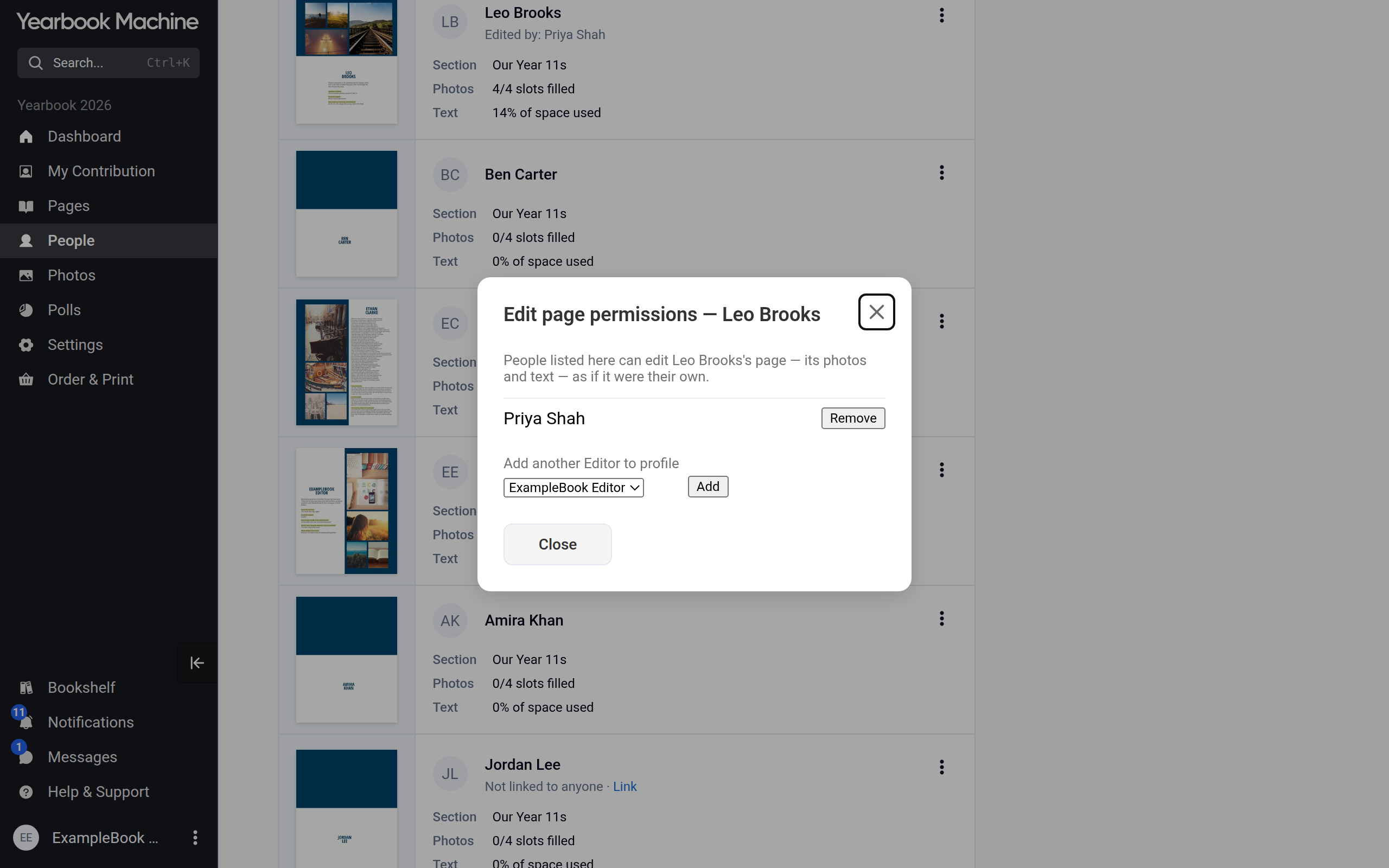
- Under Add another Editor to profile, choose the member and click Add.
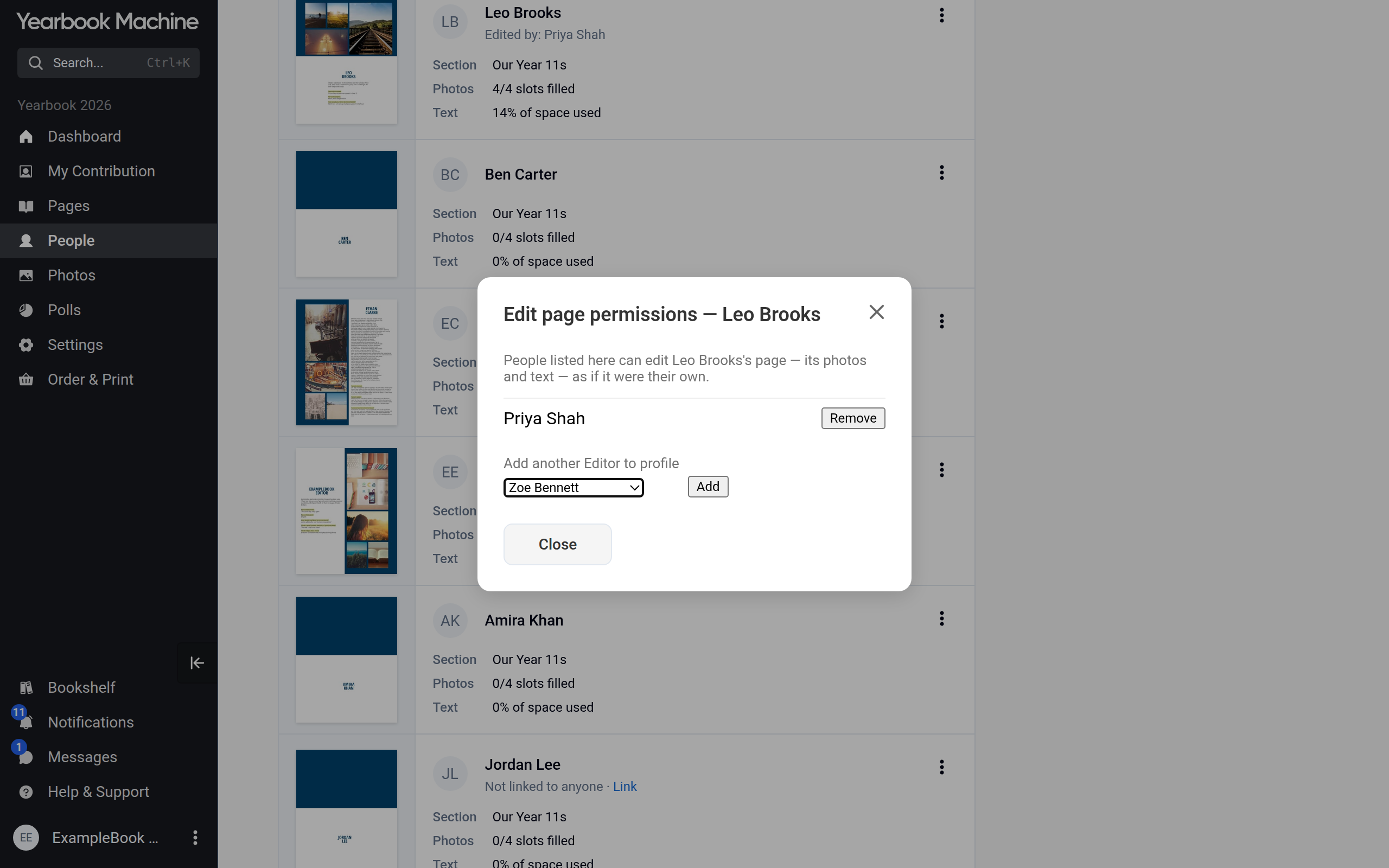
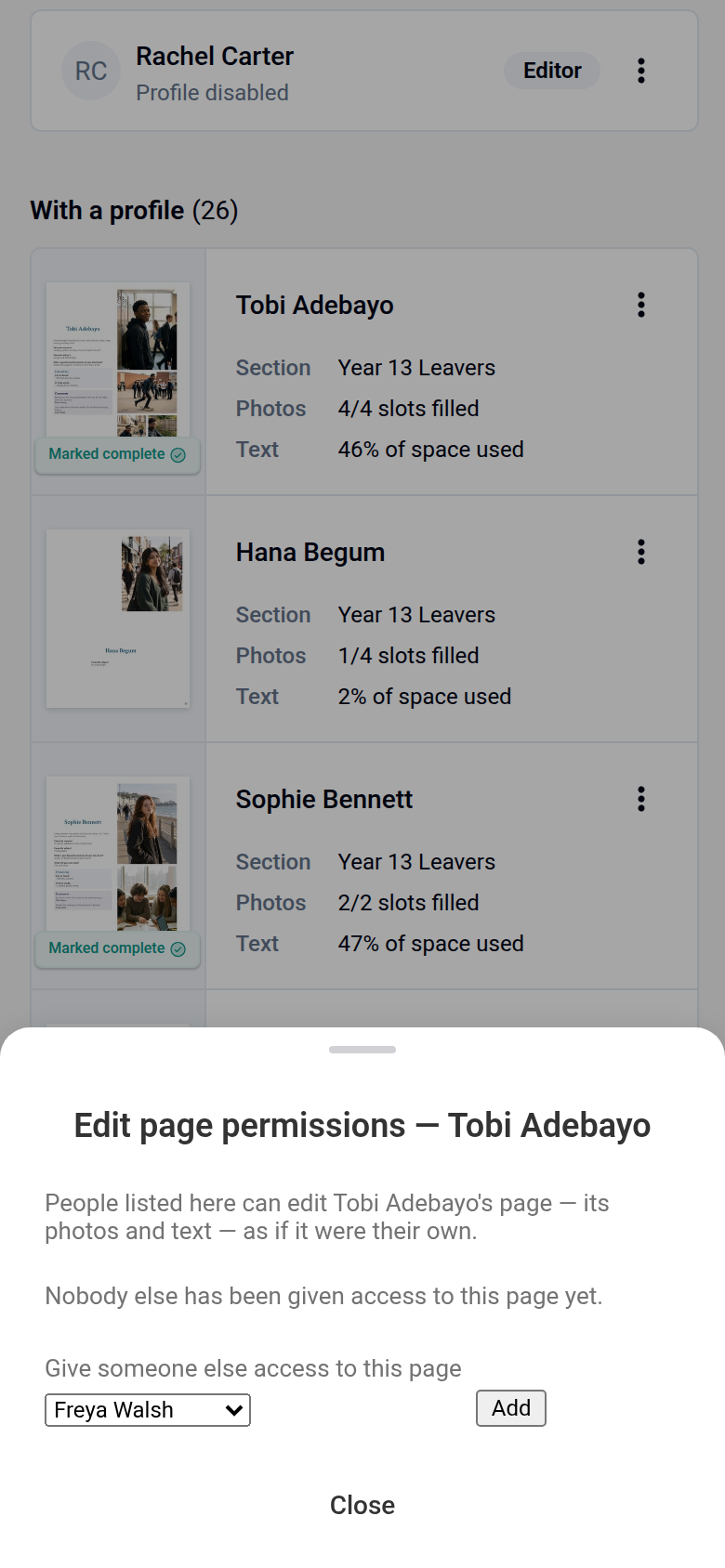
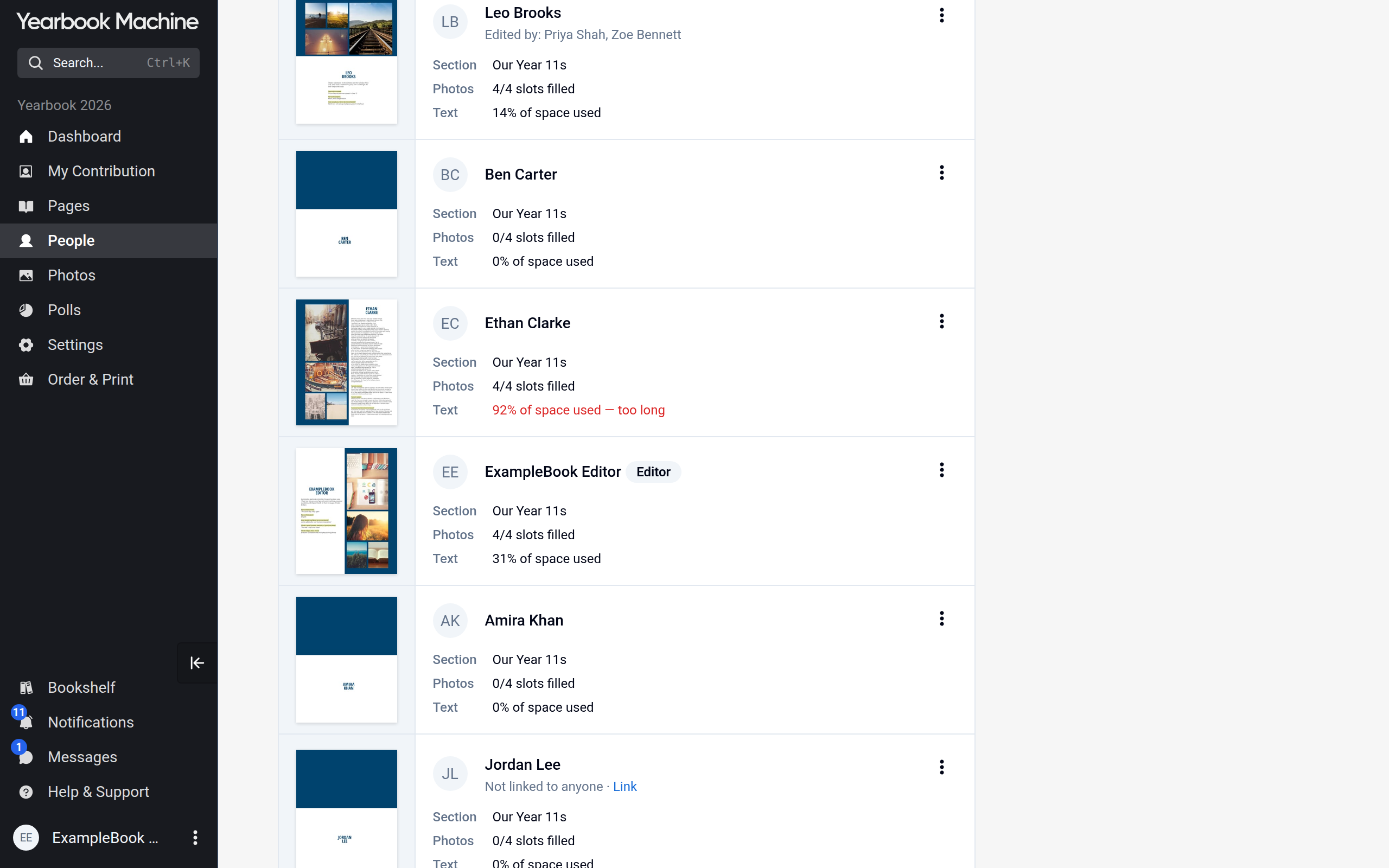
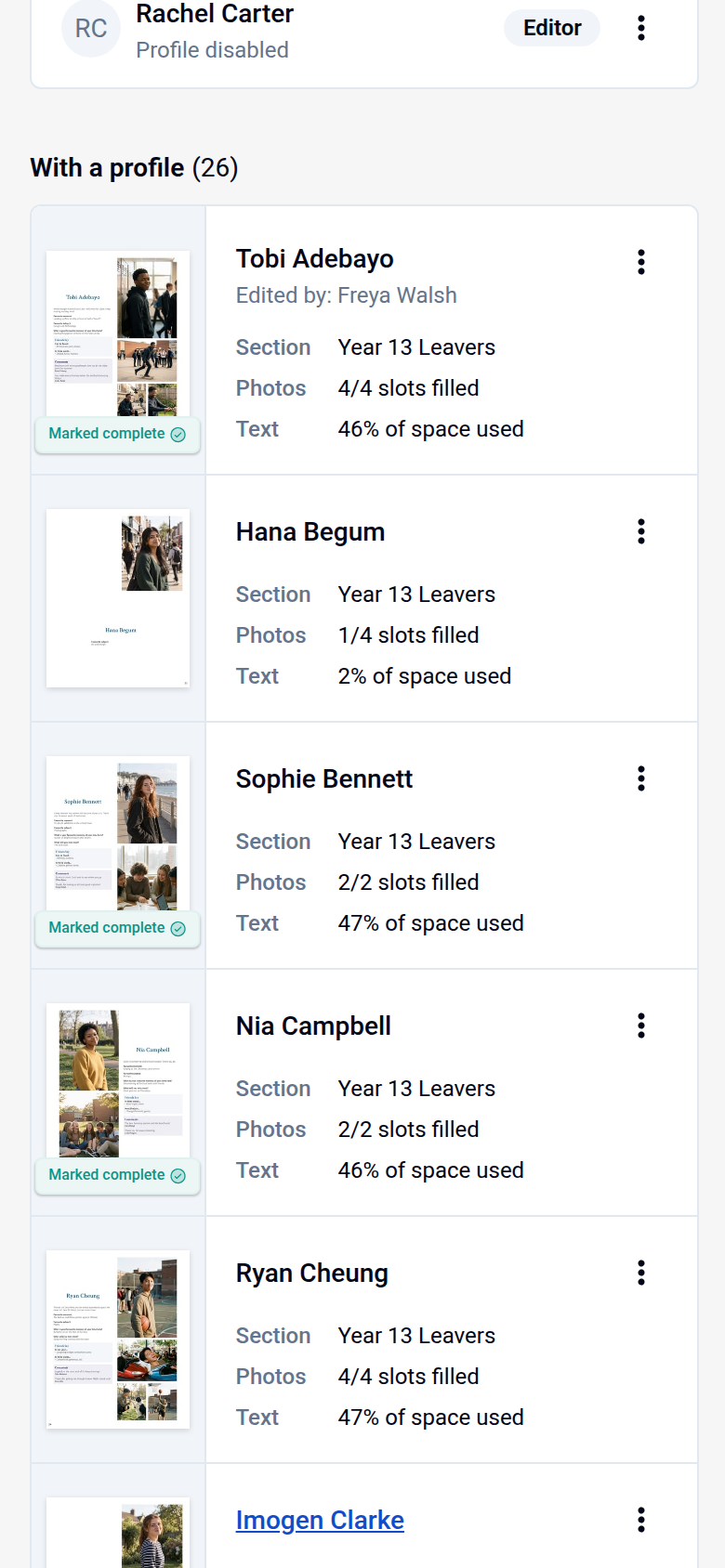
They can now edit that page's photos and text as if it were their own. The row shows Edited by: with their name. This does not make them an editor of the book: they can edit that one page only. To take the access away, open Edit page permissions again and click Remove.
Common questions
Why can't I make this person an editor?
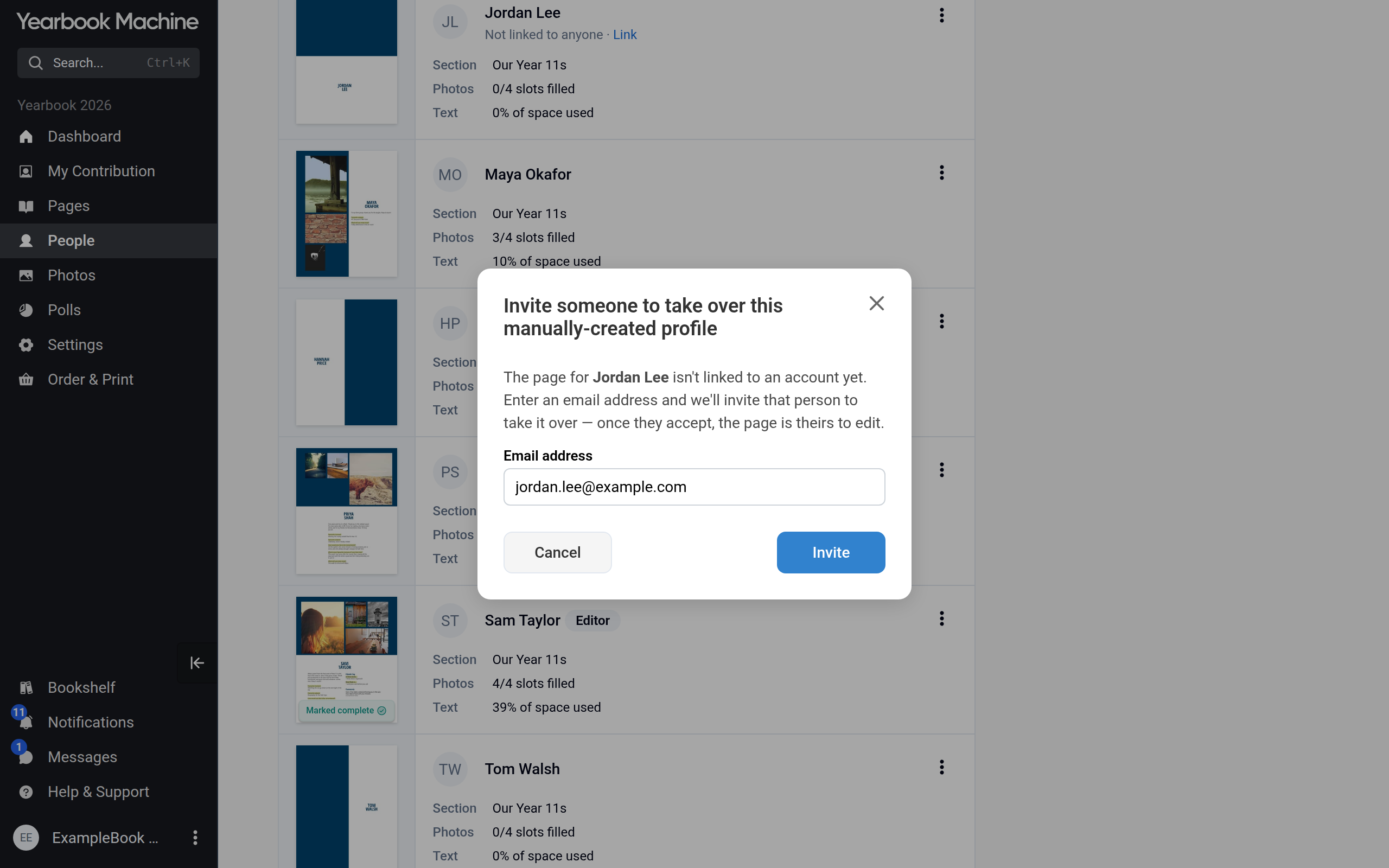
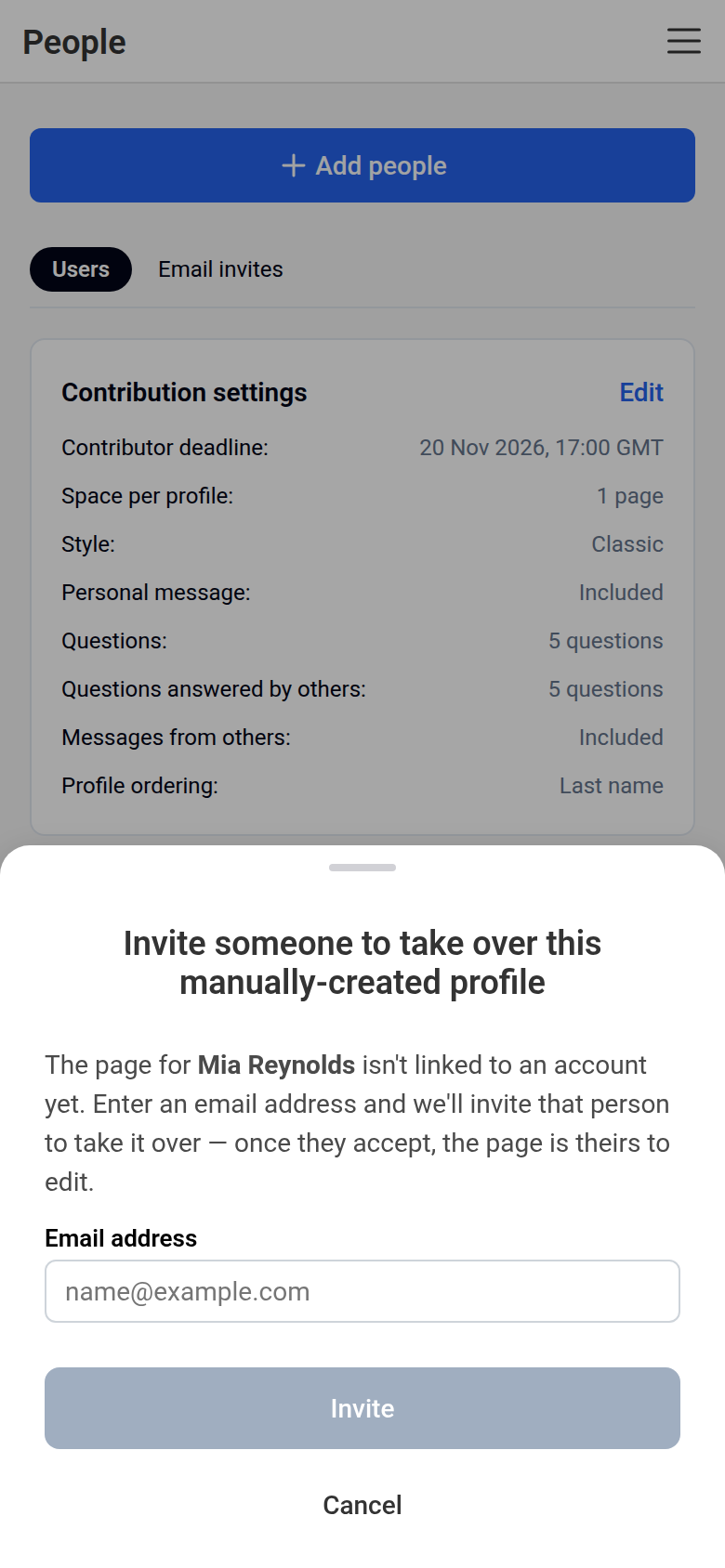
Make editor only appears for people who have joined the book with their own account. It is not offered for a profile page an editor created by hand, that is, a page made for someone who has not joined with their own account. For a hand-made page, open the actions menu on its row, click Invite someone to take over, and enter the person's email address. Once they have claimed the page, you can make them an editor.
Someone has joined but I cannot find them.
They may be waiting for approval. Look under Awaiting approval at the top of the People page and click Approve.
How many editors should we have?
As many as you need. Sharing the work across a small team of editors, each with a clear area such as polls, photos or a section of the book, makes it easier to finish on time.
Can contributors see the book's settings?
No. Settings is for editors only.
Was this article helpful?
Sorry, that didn't send. Please try again in a little while.
Thanks. That helps us improve this article.
Any other questions?
Email support@yearbook.com and we'll help you out.