
Designing your cover
Your cover is the first thing everyone sees. In the cover designer you pick a style, choose your colours and logo, and type the words for the front and the spine. Only the book's editors can change the cover.
Choosing a style
Click Pages in the main menu, then click the front cover at the top of the Pages screen. The cover designer opens on the Design tab, where the Style section shows every style you can use. There are a dozen ready-made styles. A leatherette cover offers only the styles that can be foil-stamped.
Choosing colours
Under Colours, pick a Cover colour and a Text colour. For a leatherette cover you pick a Leatherette colour and a Foil colour instead.
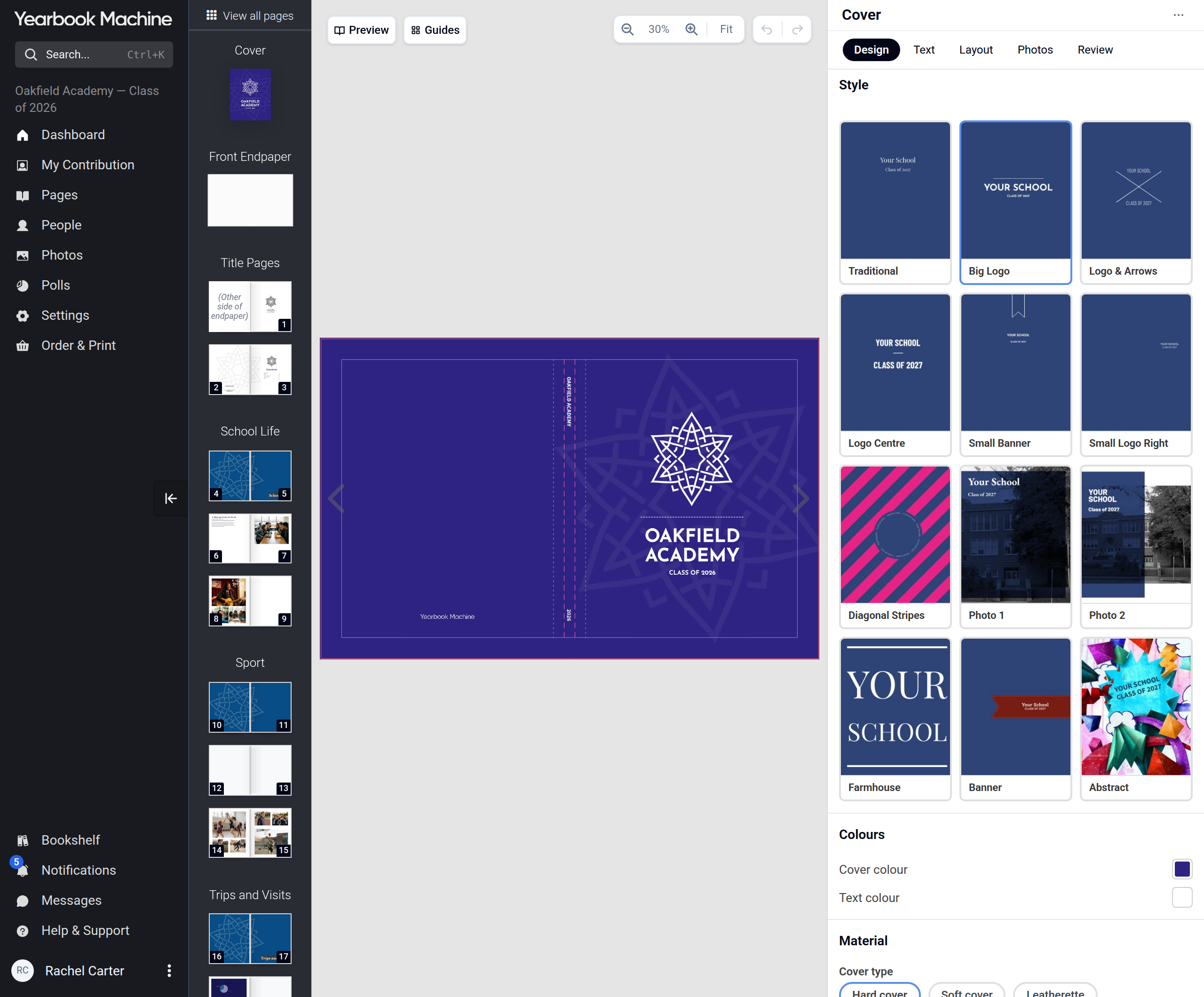
Pick your logo in the Logo section of the Design tab. See Adding your school logo.
Changing the cover type under Material can change your book's price and delivery date. If your book has a fixed specification, contact us to change the cover type.
Adding your words
Open the Text tab. Type your title in Text 1 and Text 2 under Front text, and the words for the spine in Top and Bottom under Spine text.
Previewing your cover
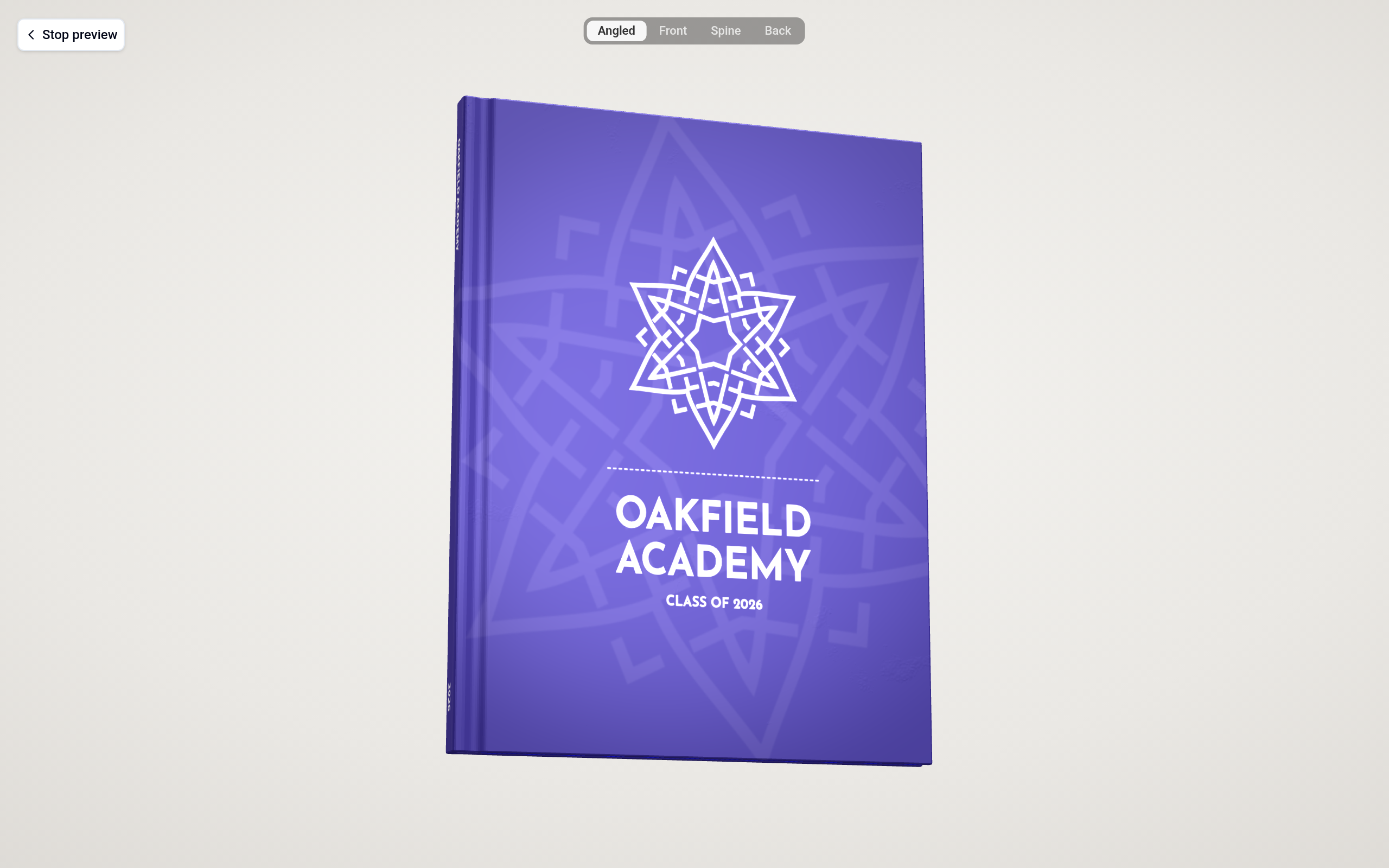
Click Preview at the top left of the cover to see it as a 3D book. Click Stop preview to go back to editing.
Once you're happy, the cover preview updates everywhere your yearbook is shown, including the storefront.
Common questions
Can I use my own photo on the cover?
Yes. Choose the Photo 1 or Photo 2 style on the Design tab, then open the Photos tab and drag a photo from your library onto the photo frame on the cover.
What if I want a fully custom cover?
Open the Layout tab and switch Layout mode to Manual. You can then move and resize every part of the design, and add your own text, photos, stickers and shapes.
Where do I add our school logo?
In the Logo section of the Design tab. See Adding your school logo for uploading a new one.
Was this article helpful?
Sorry, that didn't send. Please try again in a little while.
Thanks. That helps us improve this article.
Any other questions?
Email support@yearbook.com and we'll help you out.