
Getting official (staff) approval
If your book uses the name or logo of a secondary school, a teacher or staff member at that school has to approve it before we can print it. We call this official approval. This article explains which books need it, how editors tell us who will approve the book, and what the approver (the teacher or staff member who gives approval) does.
Only books set up as secondary school books go through official approval. If your book does not, you will not see an Official Approval tab in Order & Print and you can skip this article.
Make your official approval declaration
Your declaration tells us either who will approve the book or why approval is not needed. Any editor can make it, at any time before the book goes to print.
- Click Order & Print in the main menu, then click Yearbooks on the Products tab.
- Select the Official Approval tab.
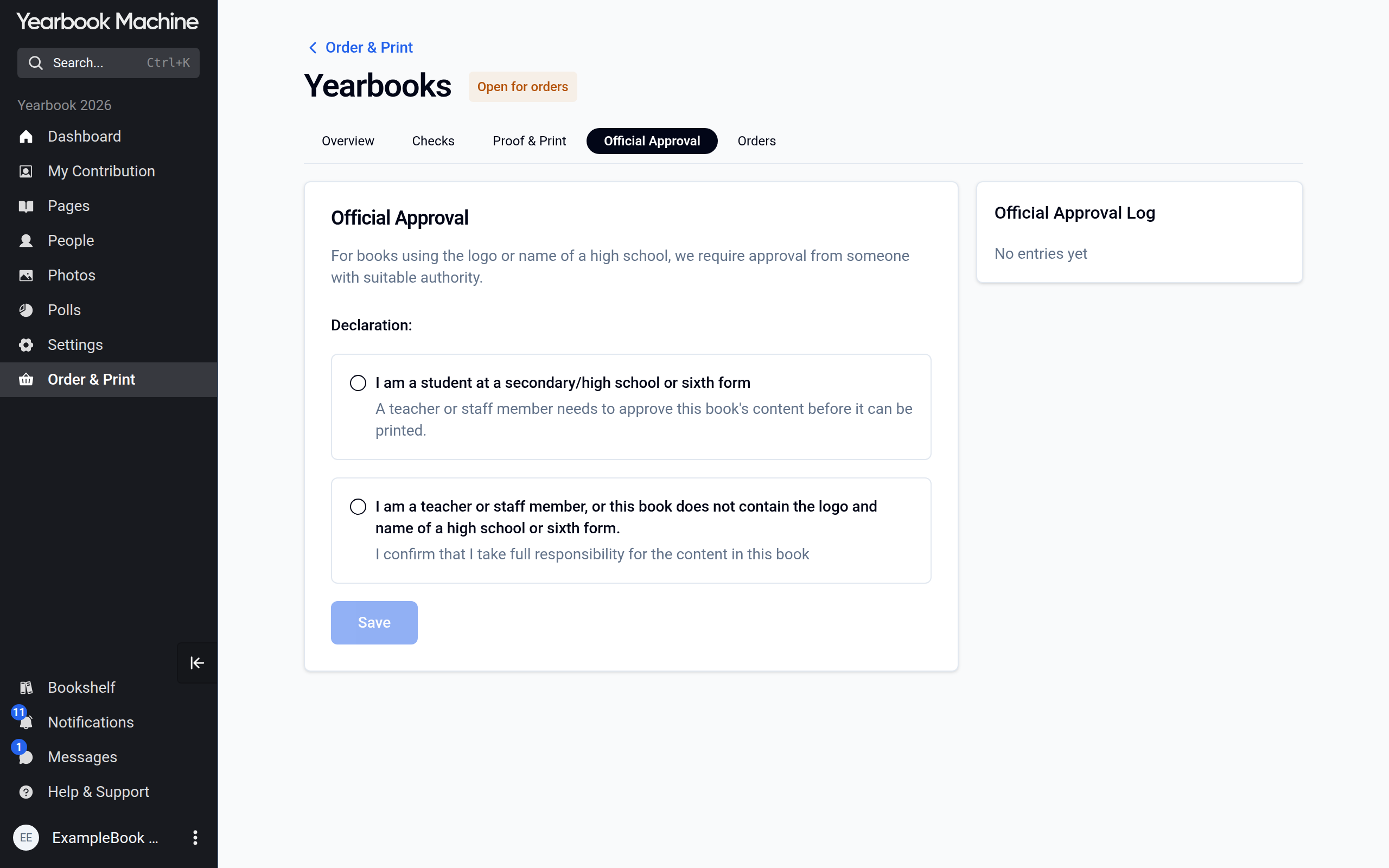
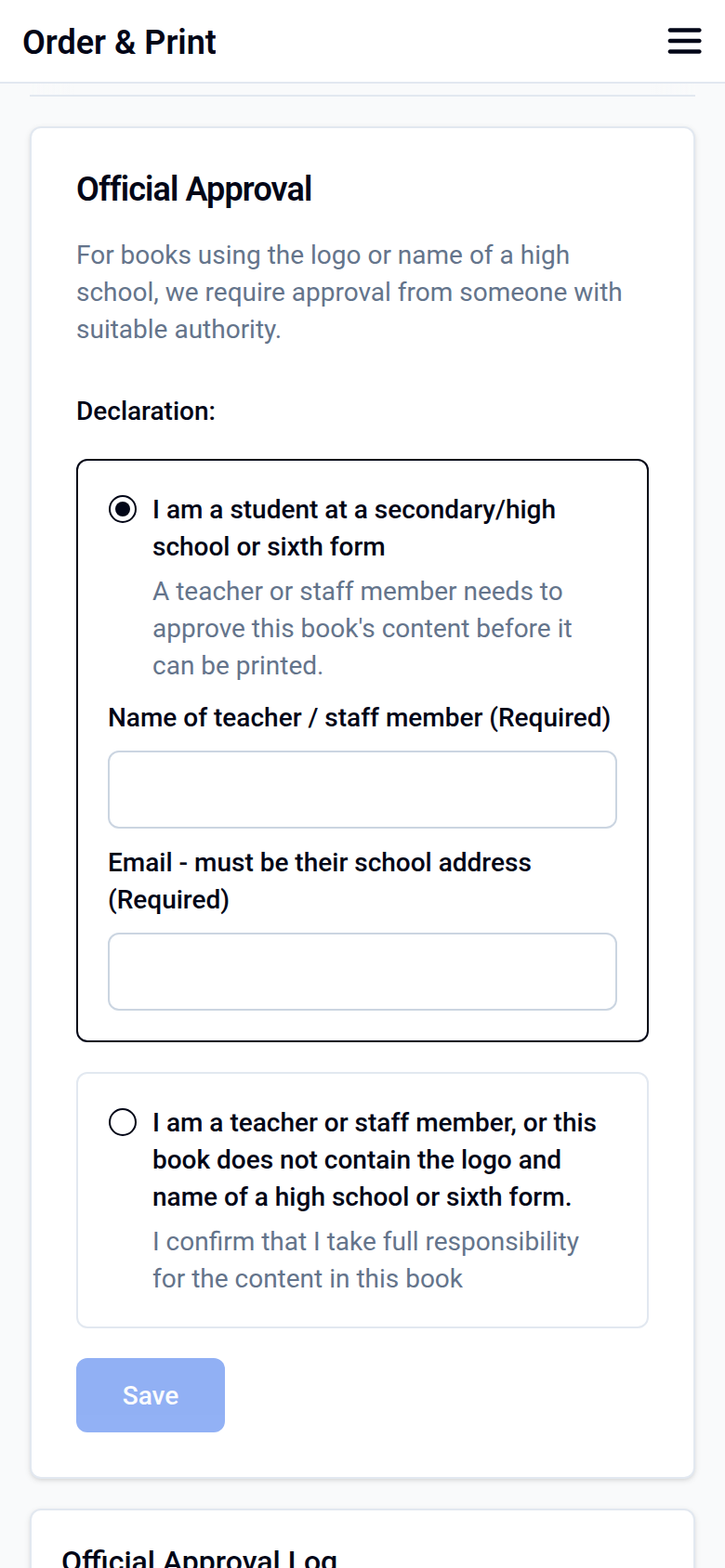
- Under Declaration:, choose the option that fits you:
- I am a student at a secondary/high school or sixth form: a teacher or staff member must approve the book. Enter their name under Name of teacher / staff member (Required) and their school email address under Email - must be their school address (Required).
- I am a teacher or staff member, or this book does not contain the logo and name of a high school or sixth form.: no separate approver is needed, and by choosing this you take full responsibility for the book's content.
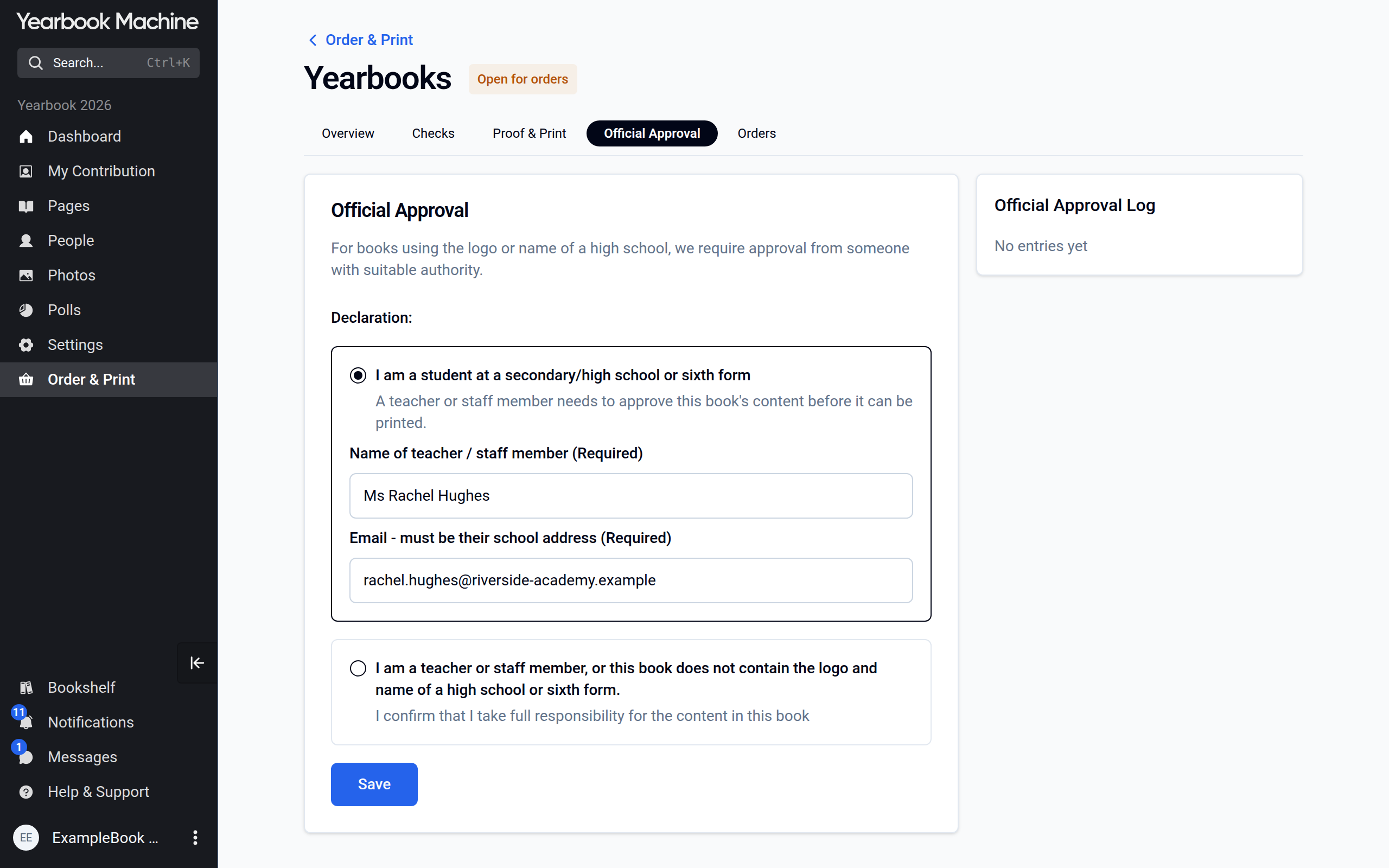
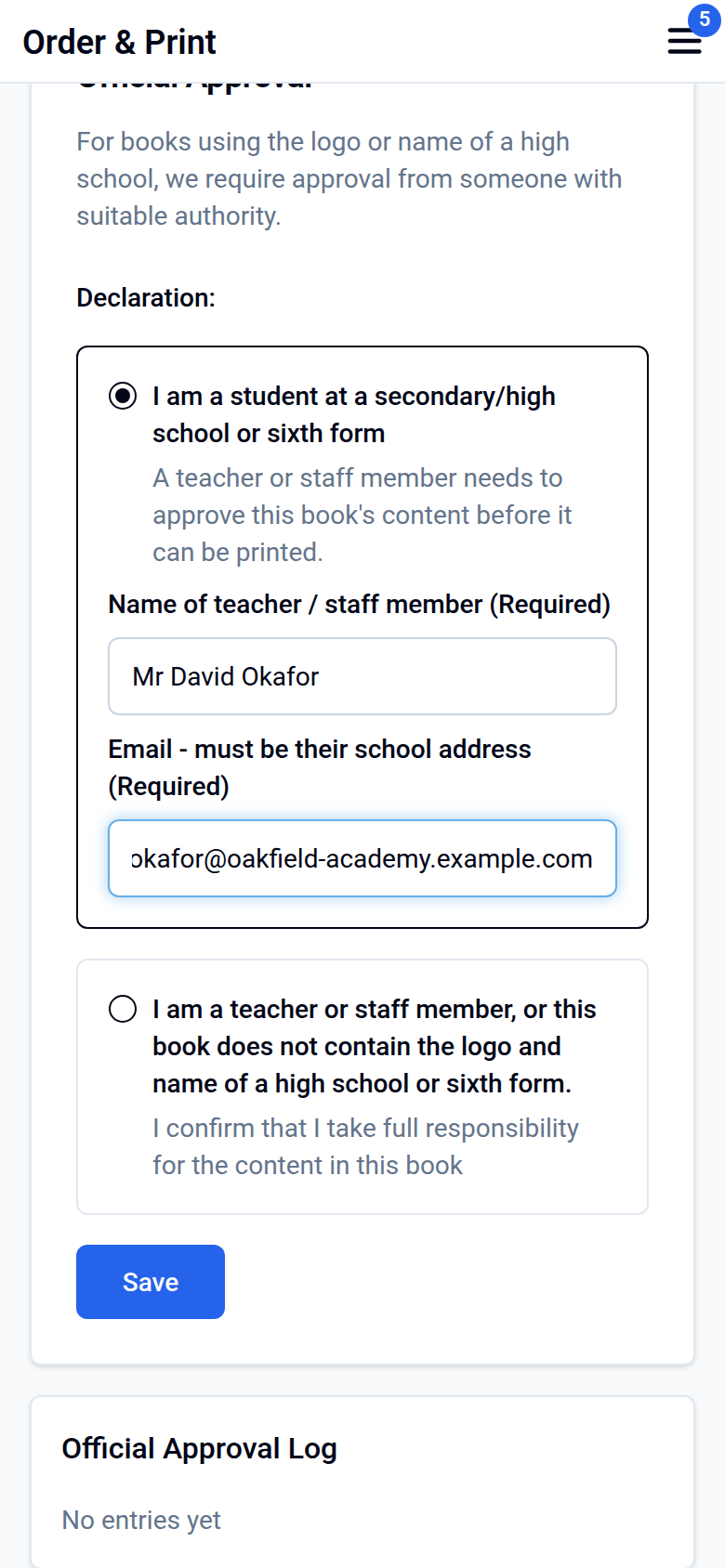
- Click Save.
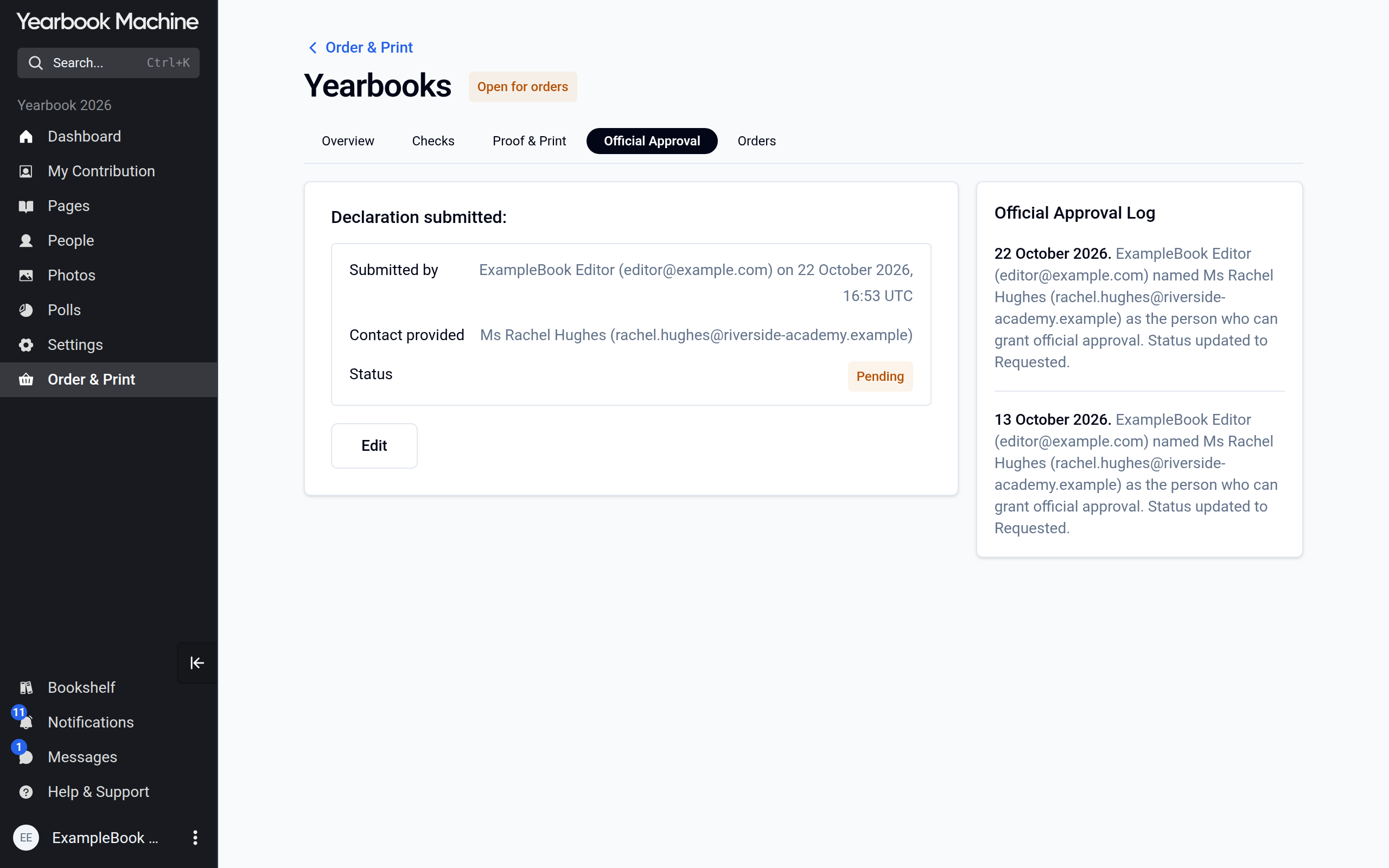
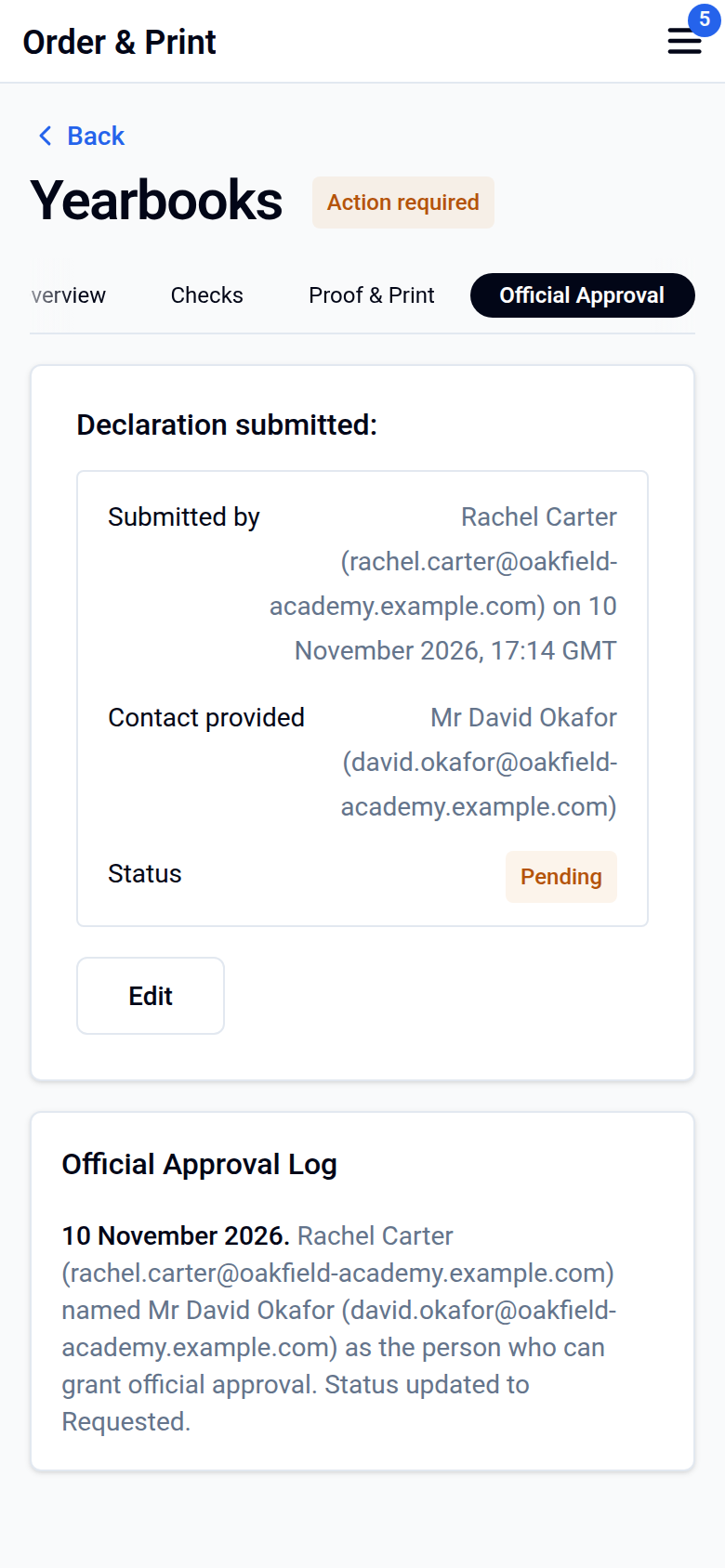
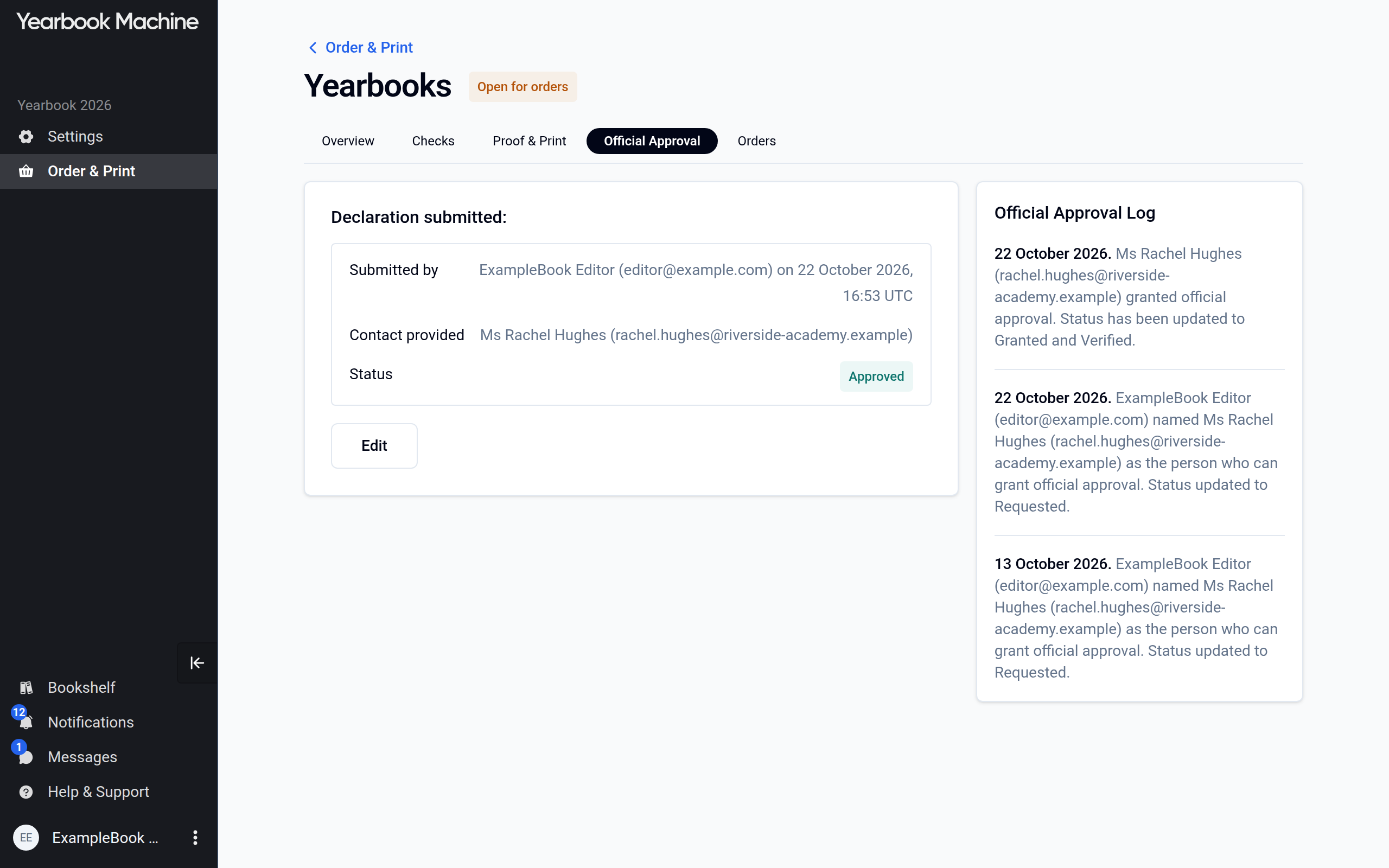
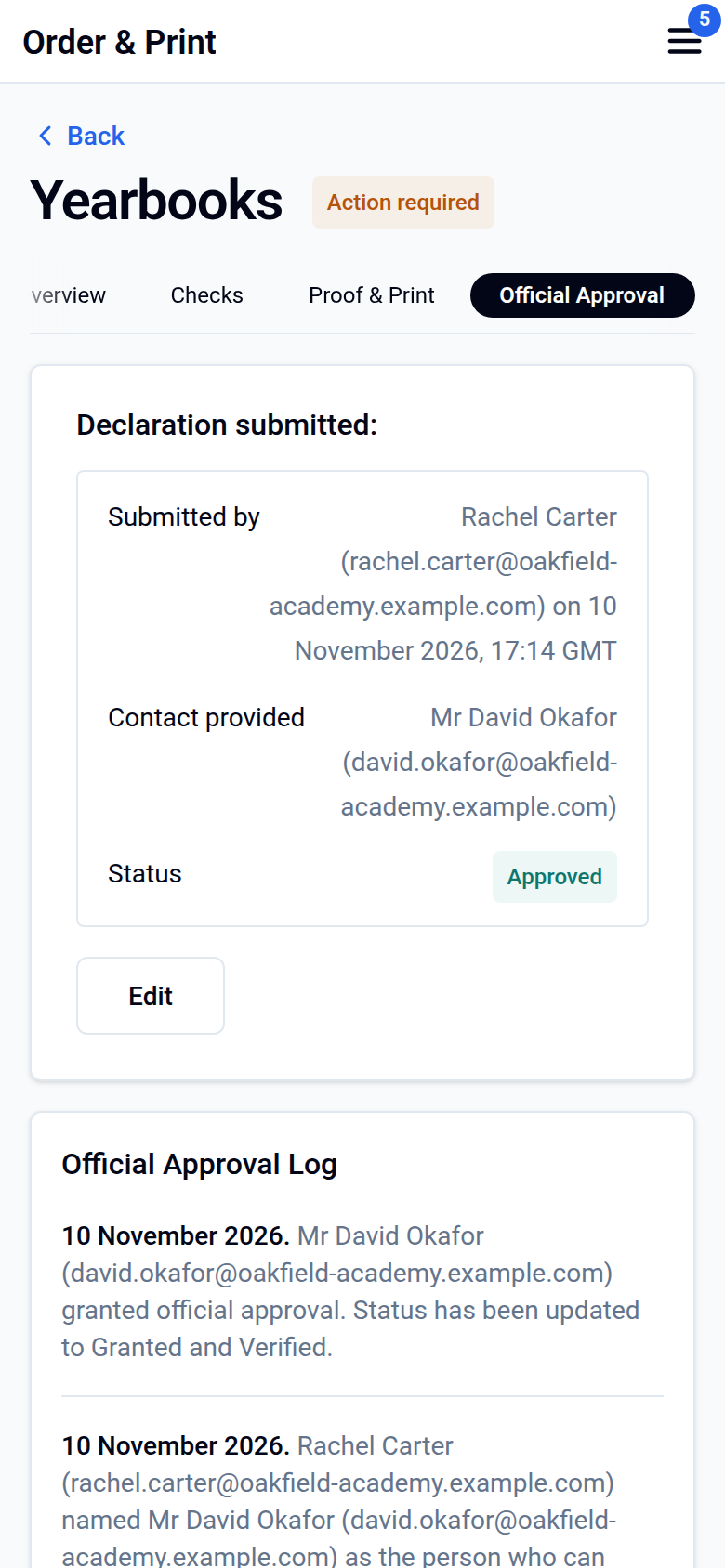
Your declaration and its status then appear on the tab, and the Official Approval Log on the right records each change. To change your declaration, click Edit.
What the approver does
When a proof of your book is ready, we email the approver a link. A proof is the PDF showing exactly how your book will be printed. If you name the approver after the proof is made, the email goes straight away.
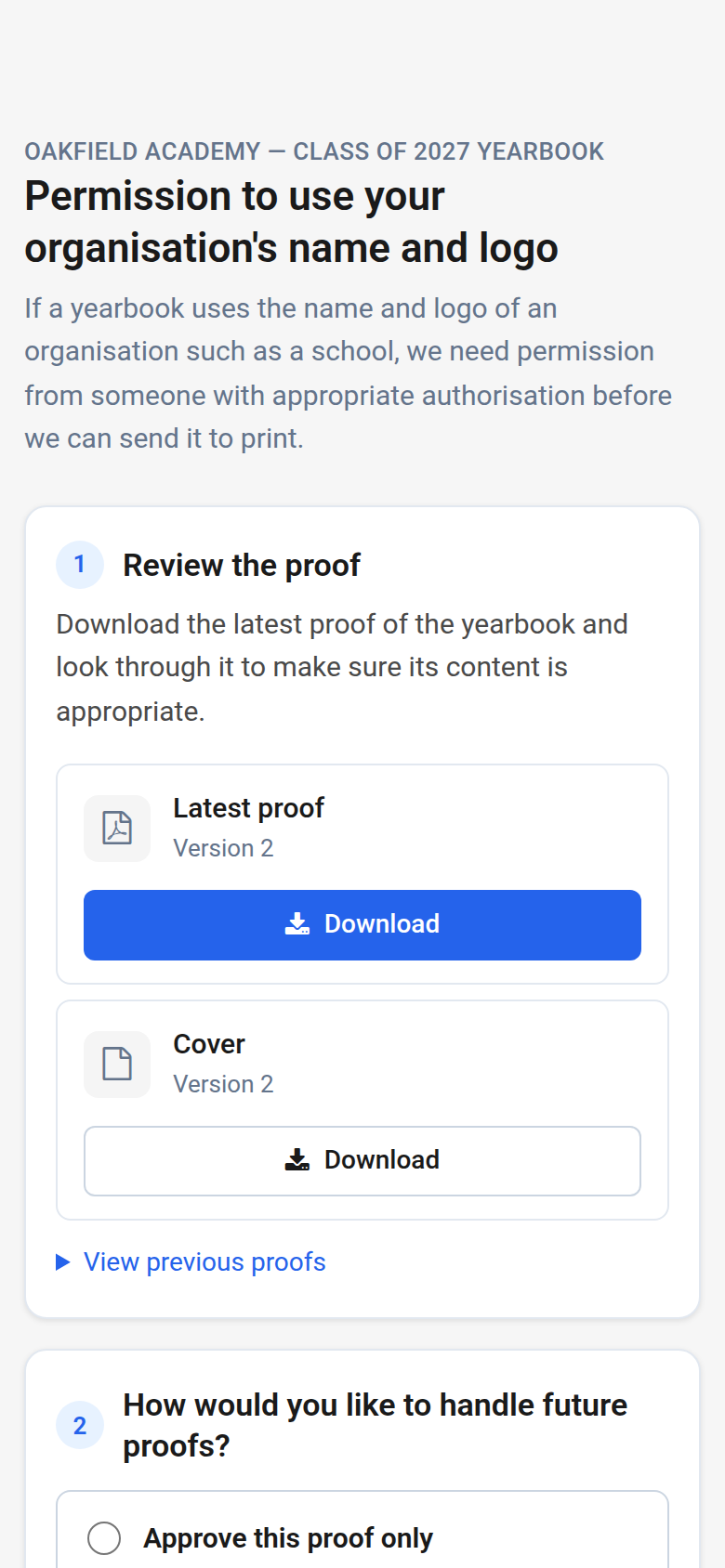
The link opens a page headed Permission to use your organisation's name and logo, with the book's name above it. The approver works through three steps:
- Review the proof. The Latest proof row shows its version number, with Download. Any other files, such as the cover, have a row of their own, each with Download. If there were earlier proofs, they are listed under View previous proofs.
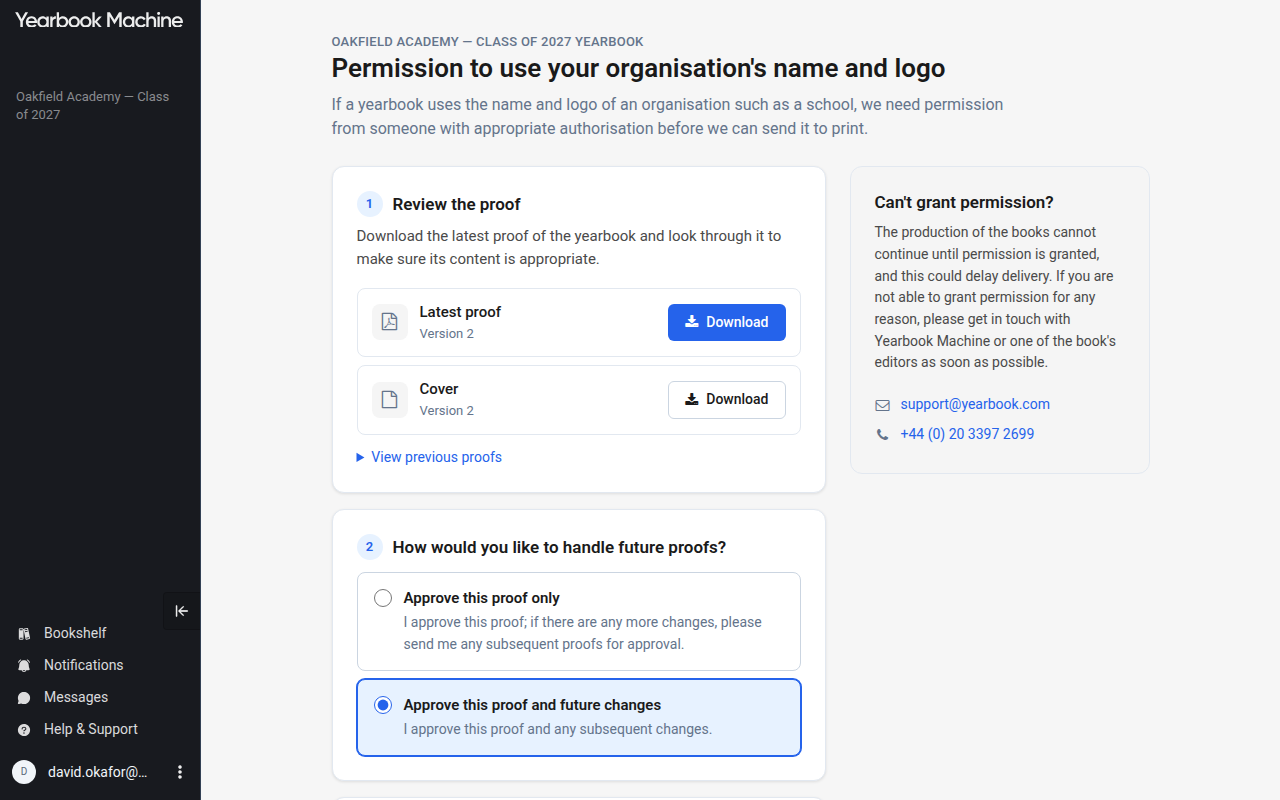
- How would you like to handle future proofs? They choose one of two options:
- Approve this proof only: they approve this proof, and we send them each later proof to approve too.
- Approve this proof and future changes: their approval also covers any later changes, so they are not asked again.
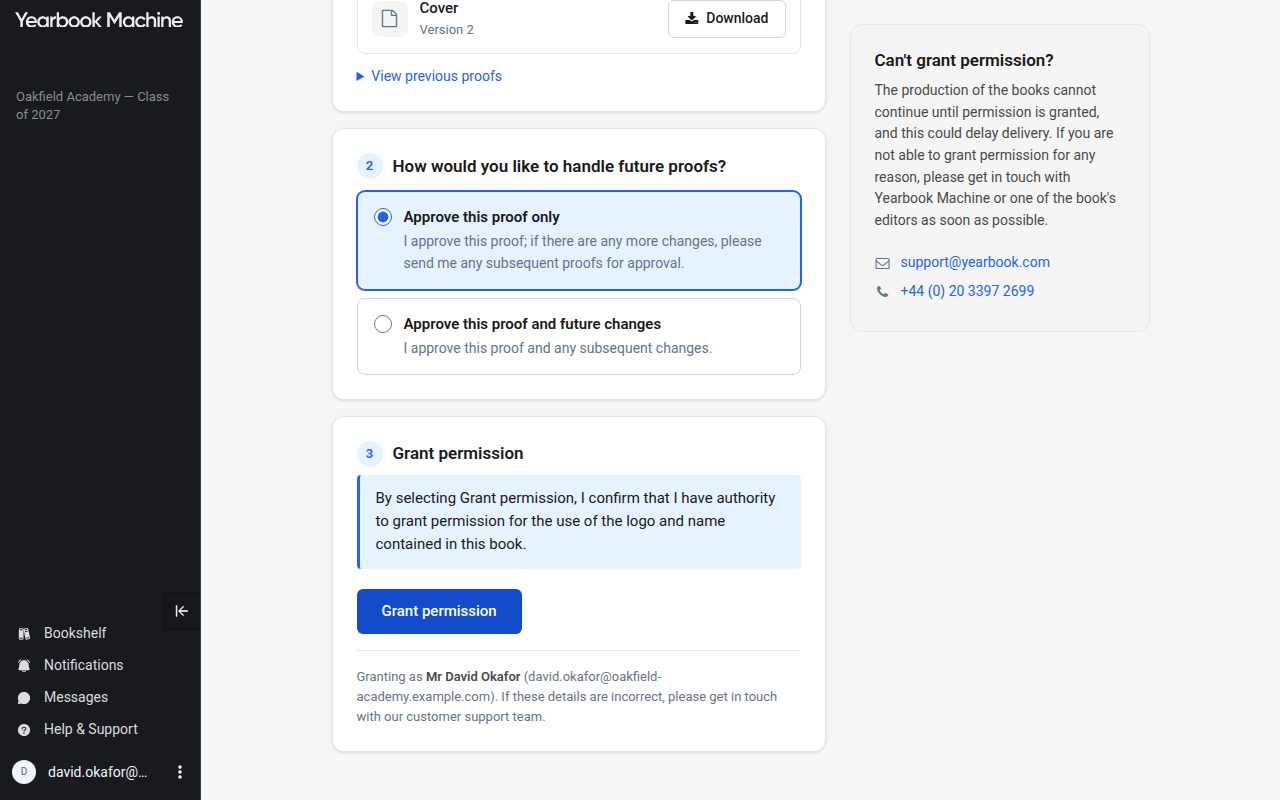
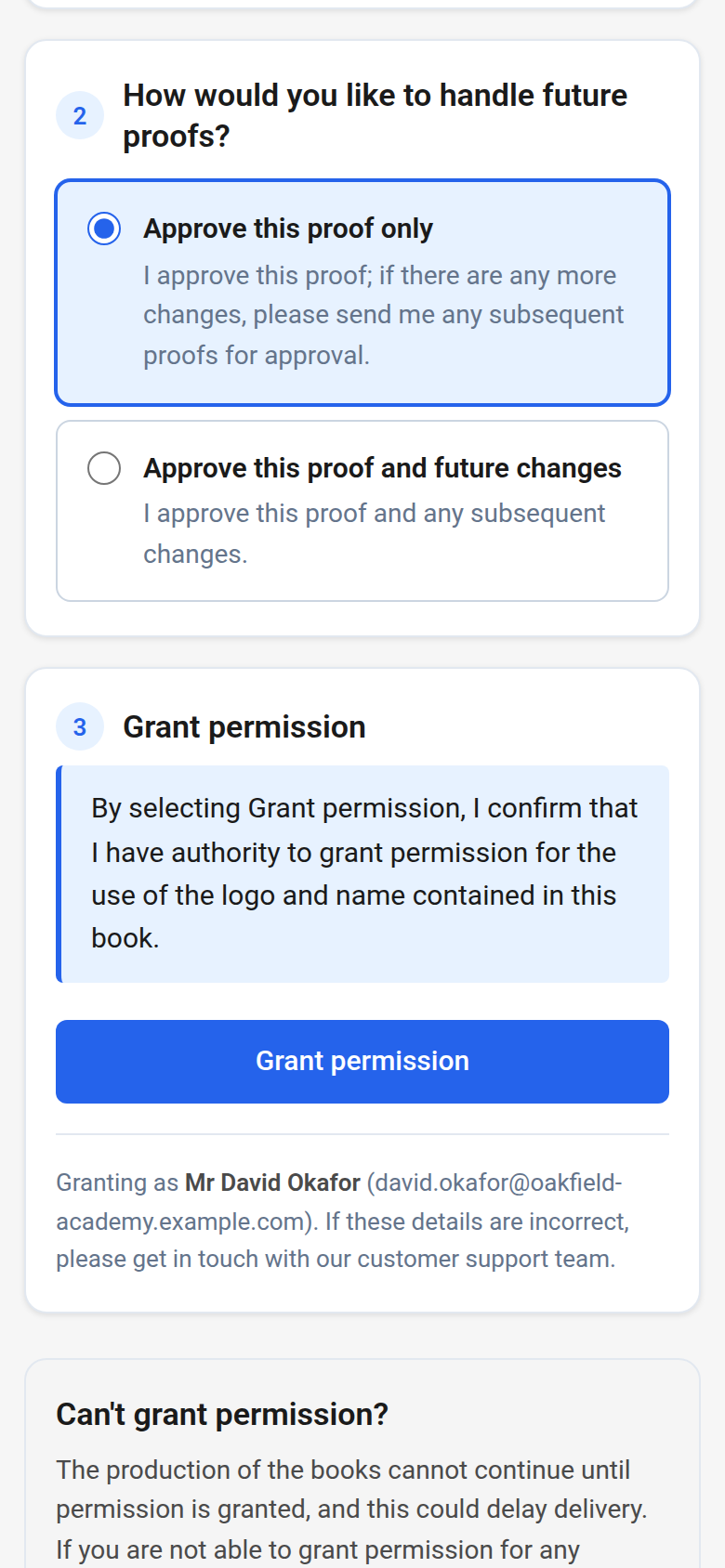
- Grant permission. The page states that by granting permission they confirm they have authority to grant permission for the use of the organisation's name and logo in the book. They click Grant permission. The page shows who they are granting as, with their name and email address.
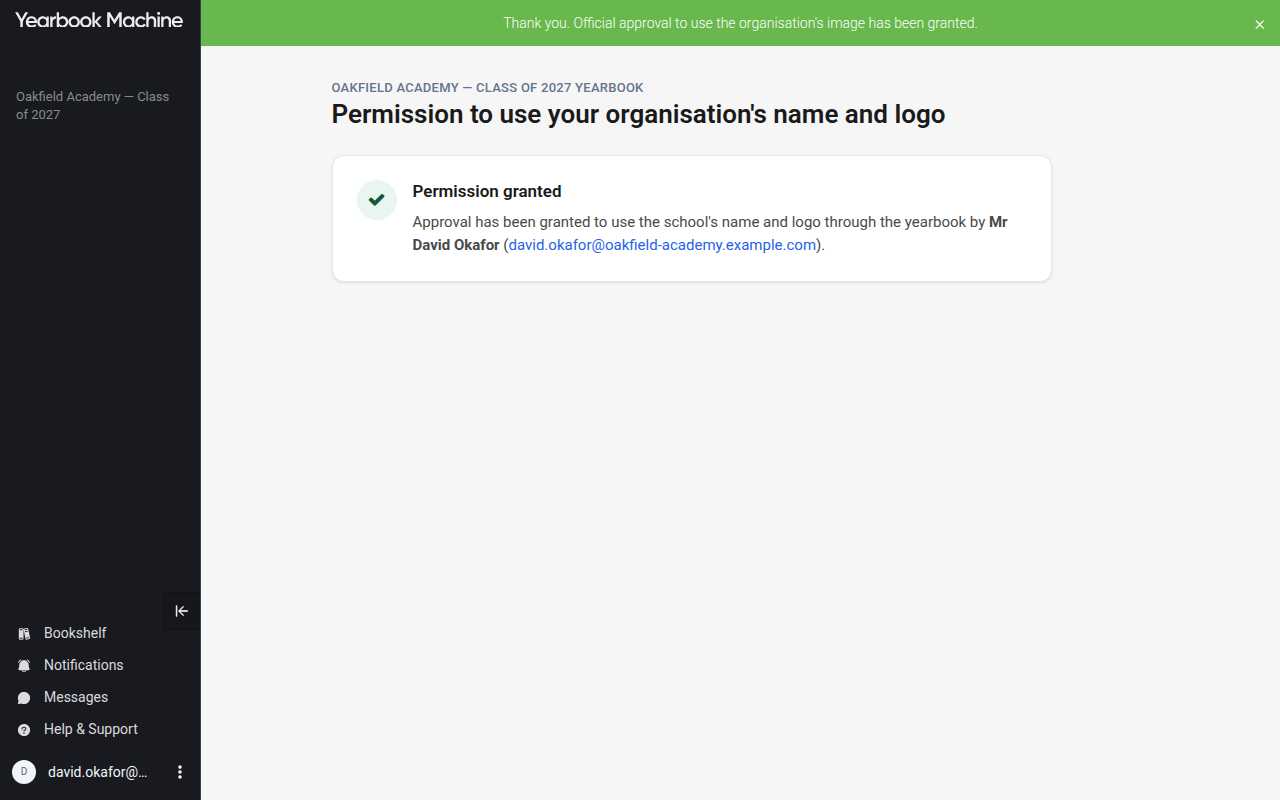
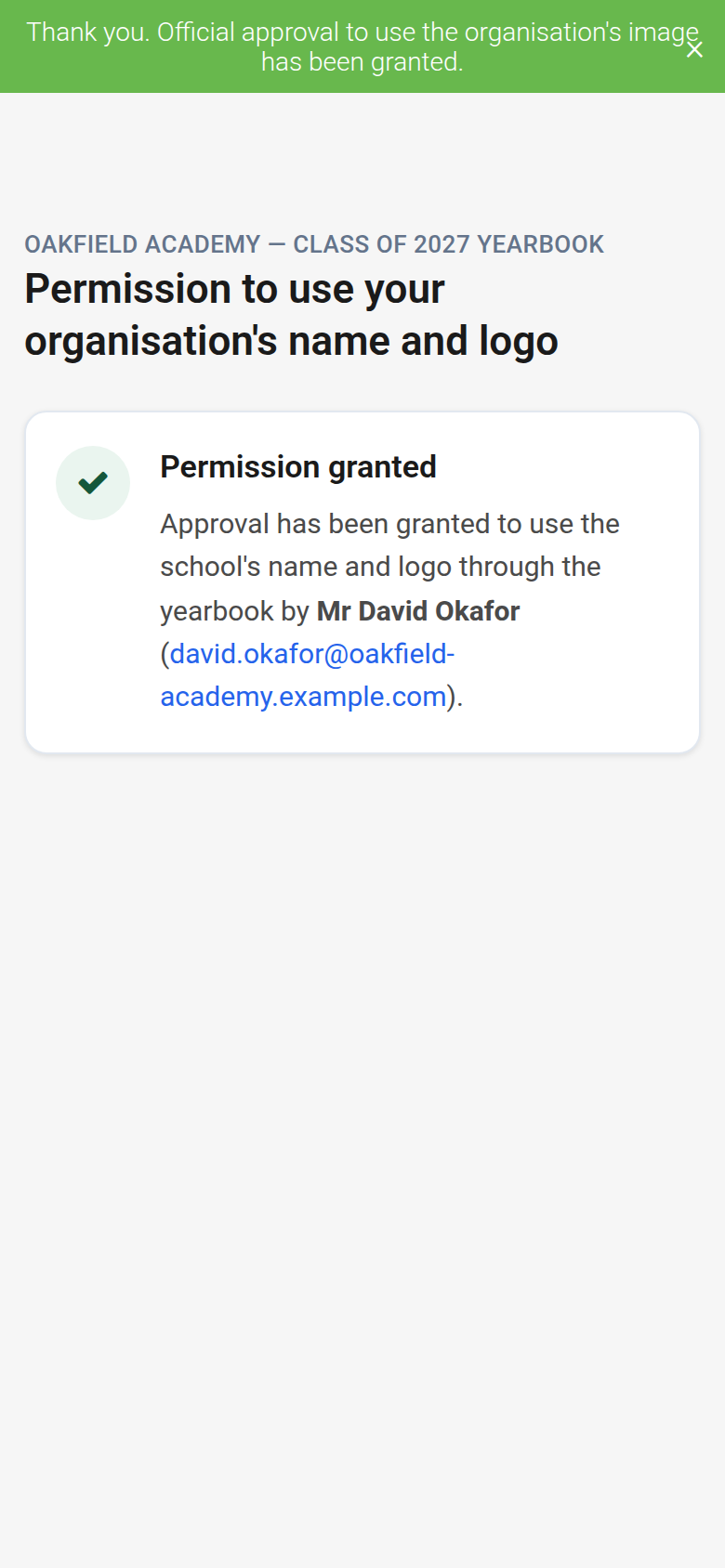
The page then says Permission granted, naming who granted it.
The approver cannot request changes on that page. If they can't grant permission, or want something changed, the Can't grant permission? box on the page gives our support email address and phone number. They can also contact one of the editors.
Check the status
The Official Approval tab shows one of these statuses:
- Pending: we are waiting for the approver.
- Verifying: you declared that approval is not needed, and our team is checking that declaration.
- Approved: approval is in place.
- Rejected: our team could not accept the contact or declaration you gave. We email the editors, and you make a new declaration from the same tab.
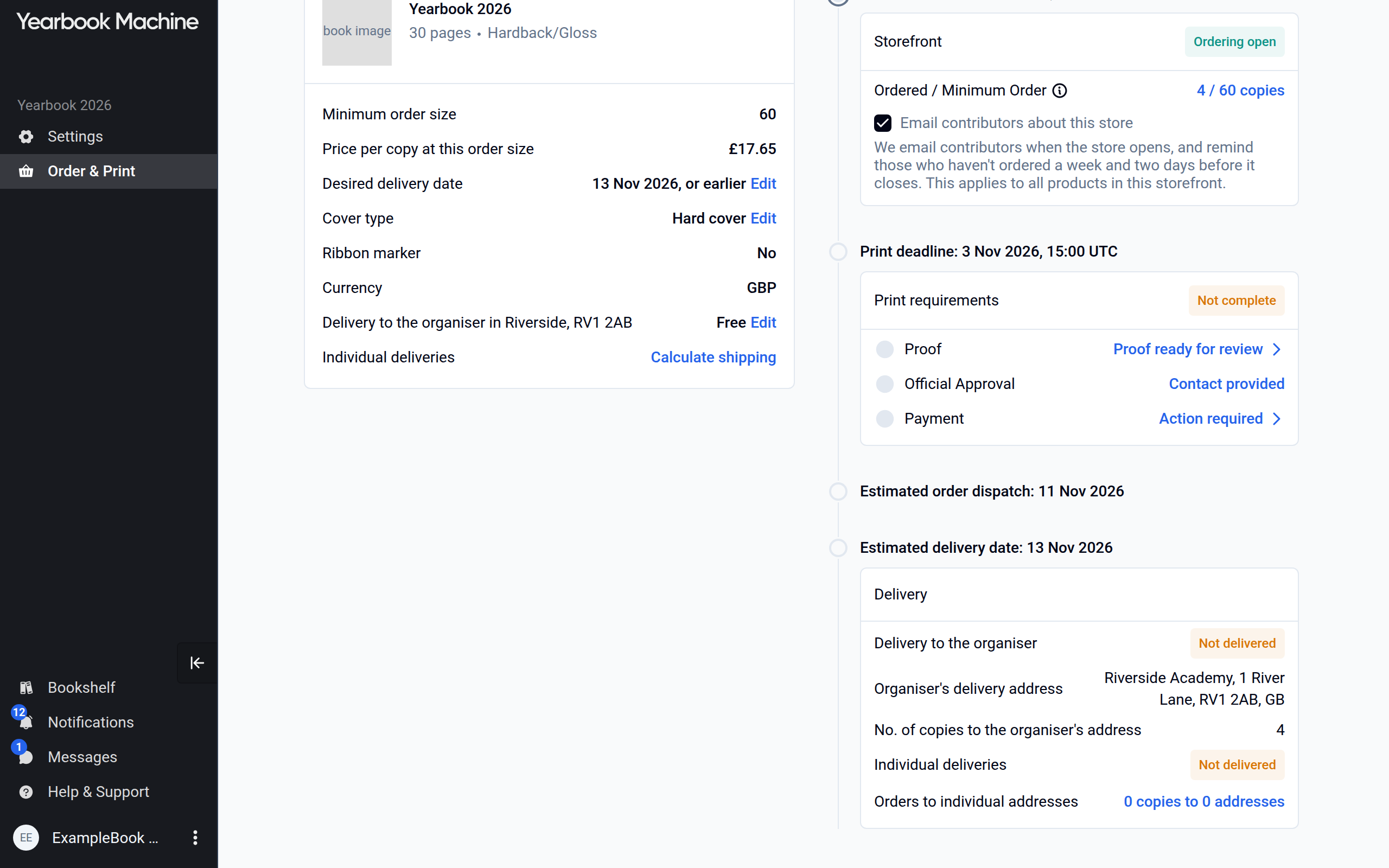
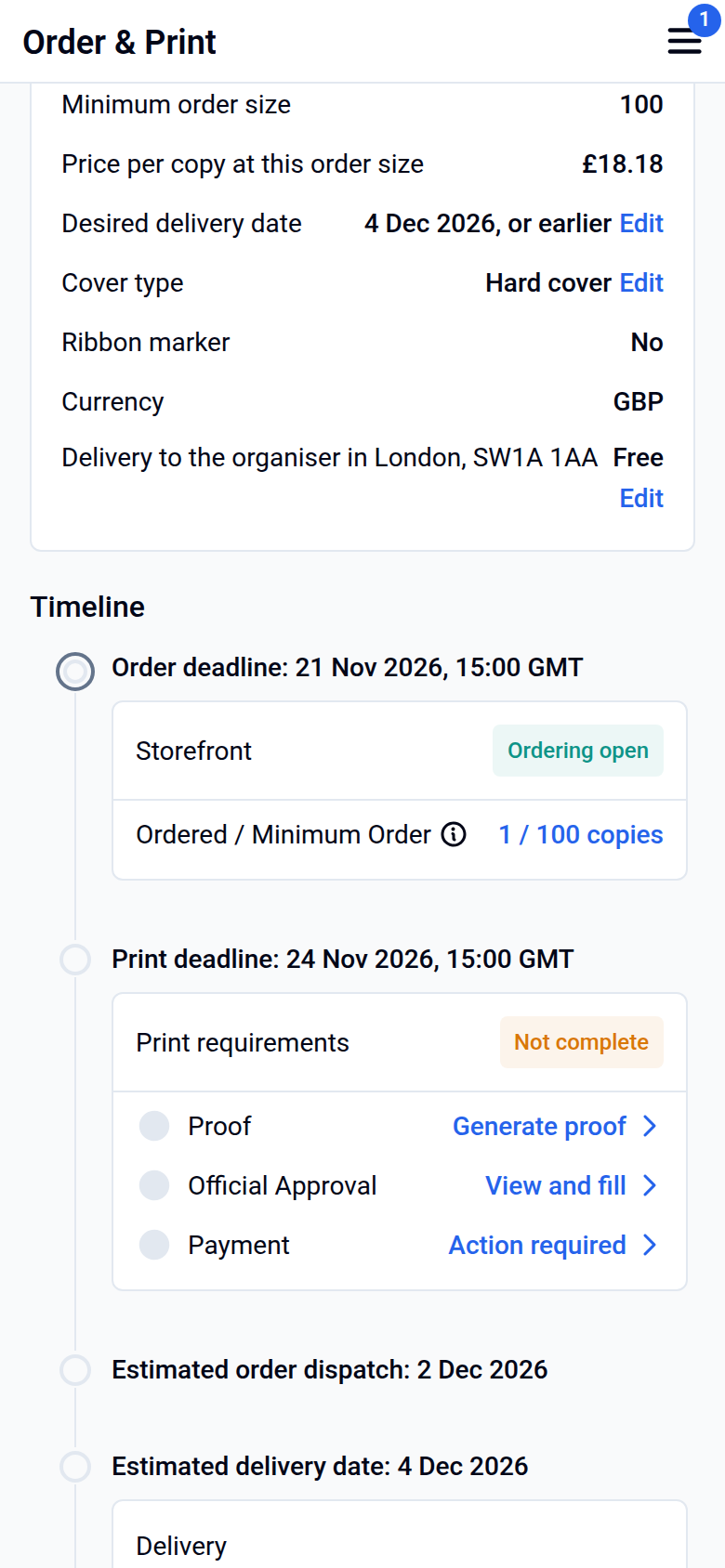
The Print requirements panel on the Overview tab shows the same requirement alongside your proof and payment.
Common questions
Does official approval hold up printing?
Yes. A book that needs it cannot go to print until approval is granted, so name your approver early and let them know to expect our email.
Who should the approver be?
A teacher or member of staff with authority to approve the use of the school's name and logo. Use their school email address.
The approver has not received the email. What can I do?
They are emailed when a proof is ready, so check that a proof exists on the Proof & Print tab. Ask them to check their junk folder, and check the email address on the Official Approval tab. Contact us if it still has not arrived.
The school does not want to be linked to the book. What are the options?
We can make it a non-school book by removing the school's name and logo. Official approval is then no longer needed. Contact us to arrange this.
Does the approver need to approve every new proof?
Only if they asked to. When they approve, they choose whether to be sent later proofs or to approve any later changes too.
Was this article helpful?
Sorry, that didn't send. Please try again in a little while.
Thanks. That helps us improve this article.
Any other questions?
Email support@yearbook.com and we'll help you out.