
Polls: setting up, voting and results
Polls let your group vote on awards, such as who is most likely to become Prime Minister, and the winners can be printed on polls pages in your yearbook. A nominee is a person who can be voted for in a poll. Editors set up and manage polls. Everyone in the book can vote, and contributors can suggest polls for the editors to add.
Turning polls on and choosing who sees results (editors)
- Click Settings in the main menu and open the Polls tab. You can also reach it from Poll settings on the Polls page.
- Use Enable polls to turn polls on or off. Polls and votes are kept if you turn them off.
- Under Viewing permissions, set Contributors to Can view to let contributors see the results, or Hidden so only editors see them. The same setting is the Poll results row in Settings > Contributor permissions.
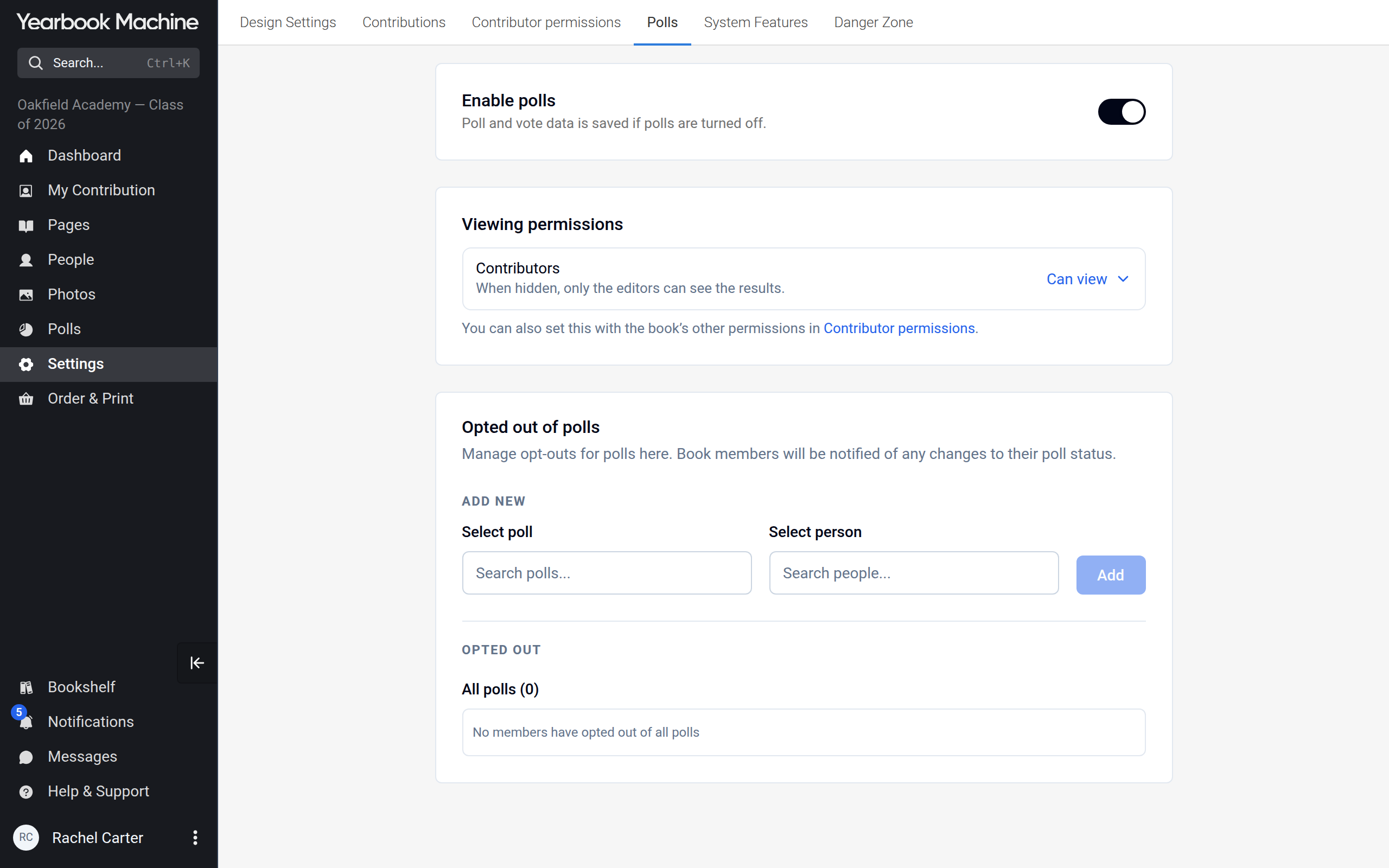
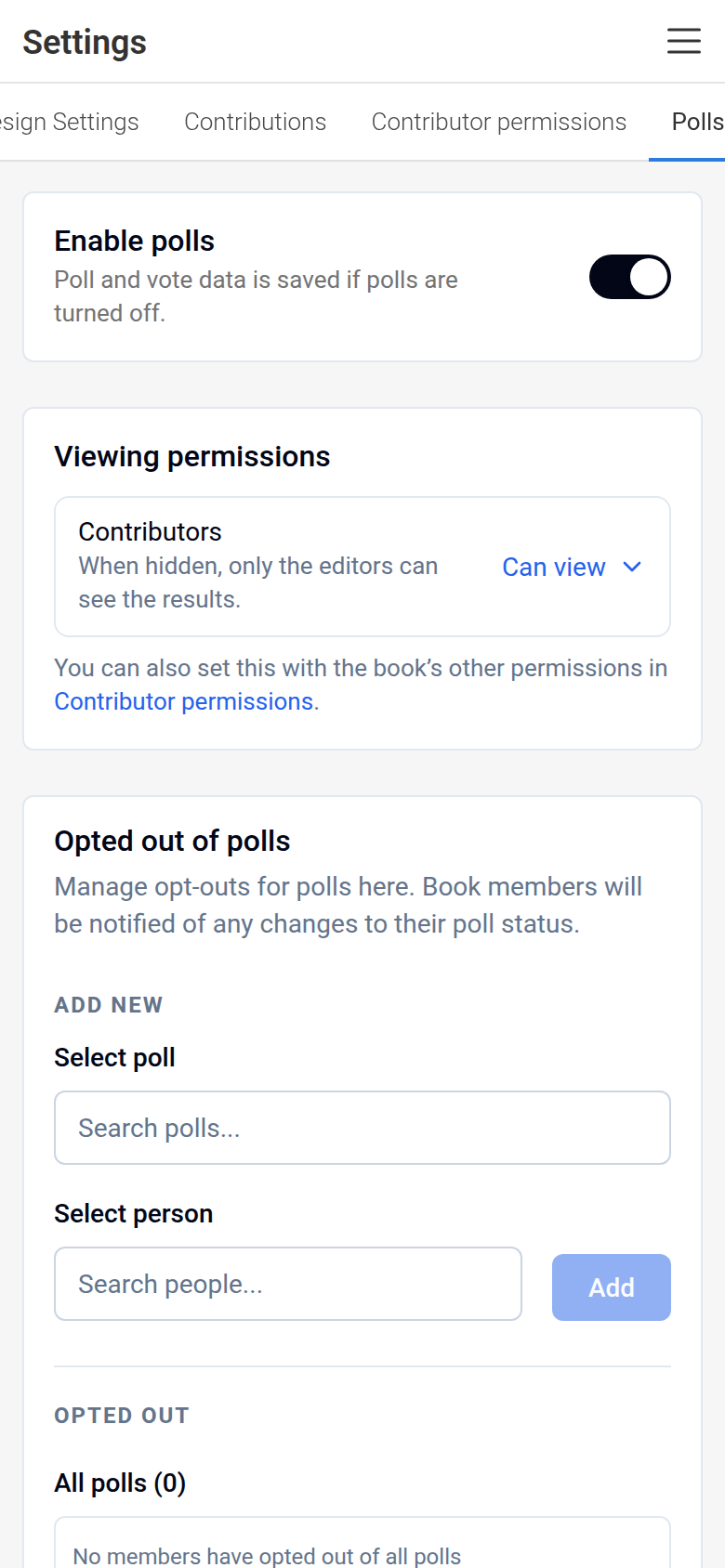
- Click Save in the bar at the bottom of the screen to keep a change to Enable polls. The Viewing permissions setting saves as soon as you change it, and only shows while polls are turned on.
Being included as a nominee
Nobody appears as a nominee in a poll drawn from the book's members until they opt in (agree to be included).
- Click Polls in the main menu.
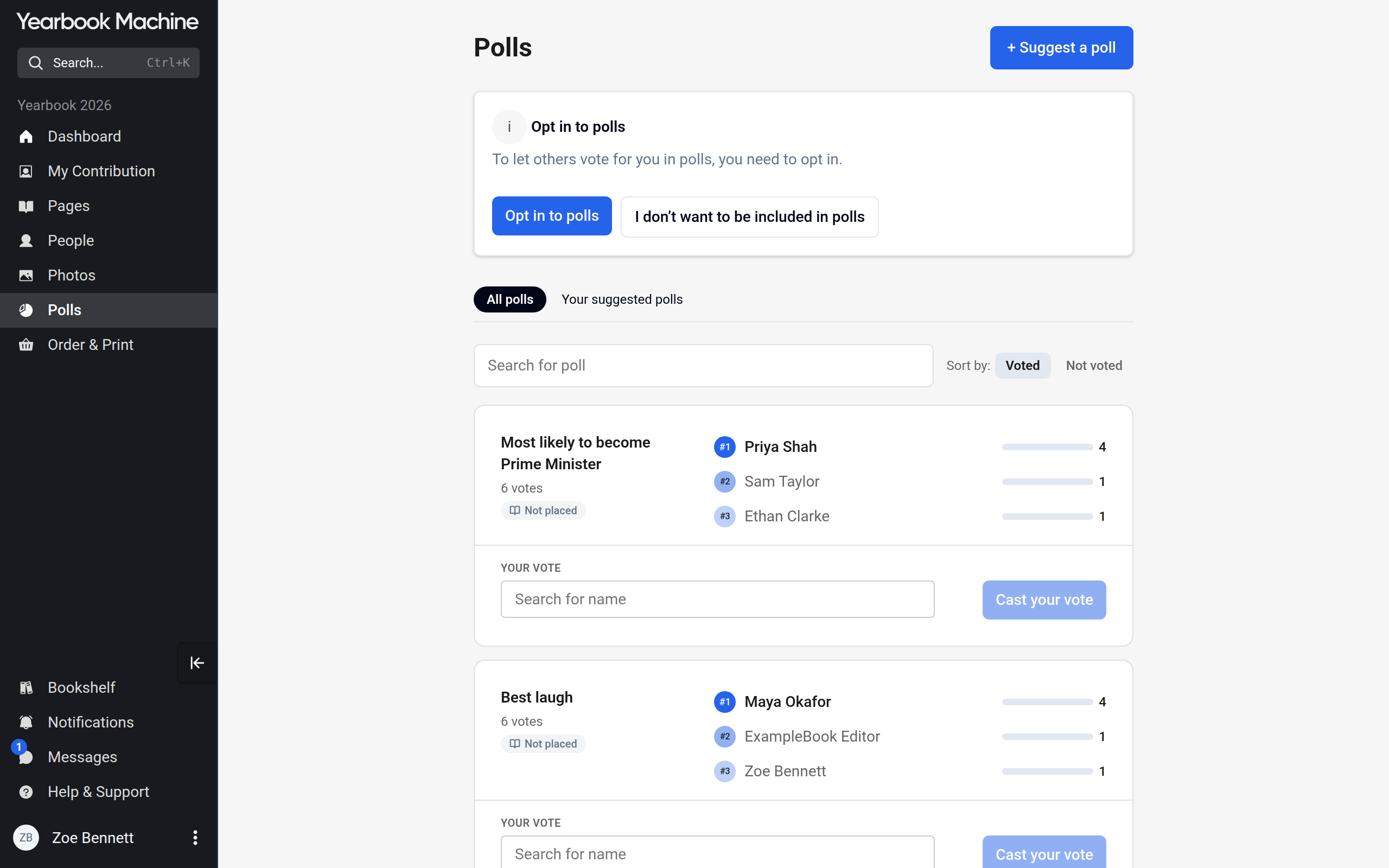
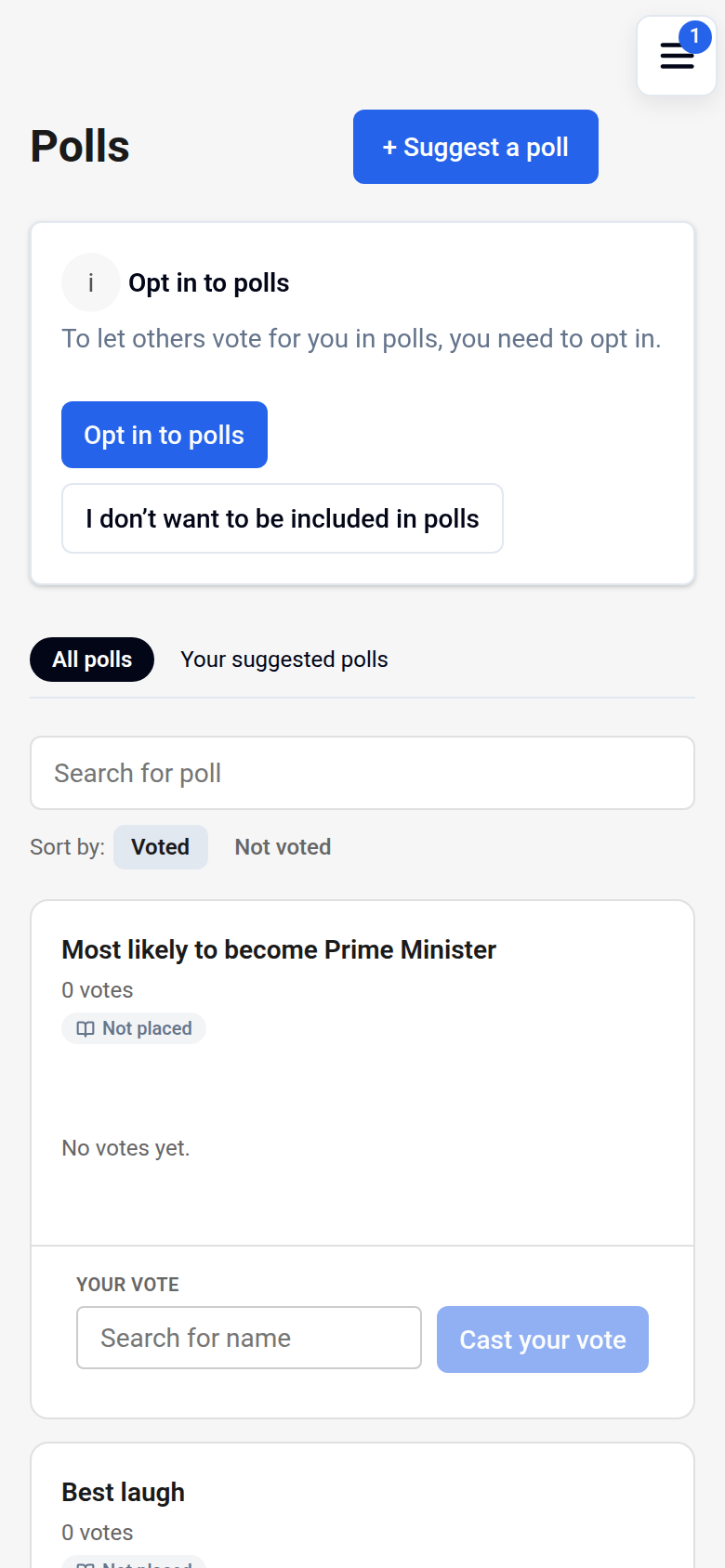
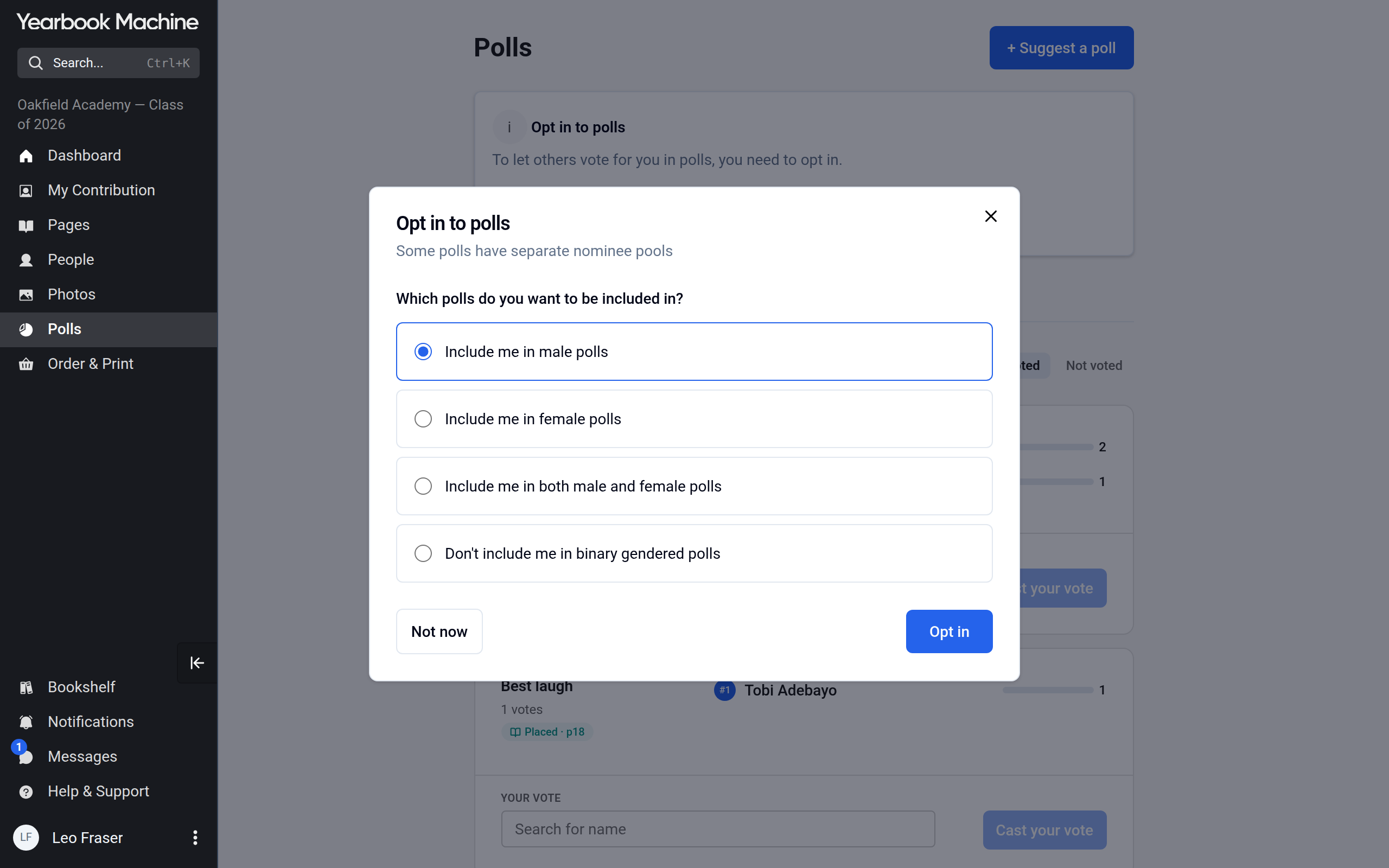
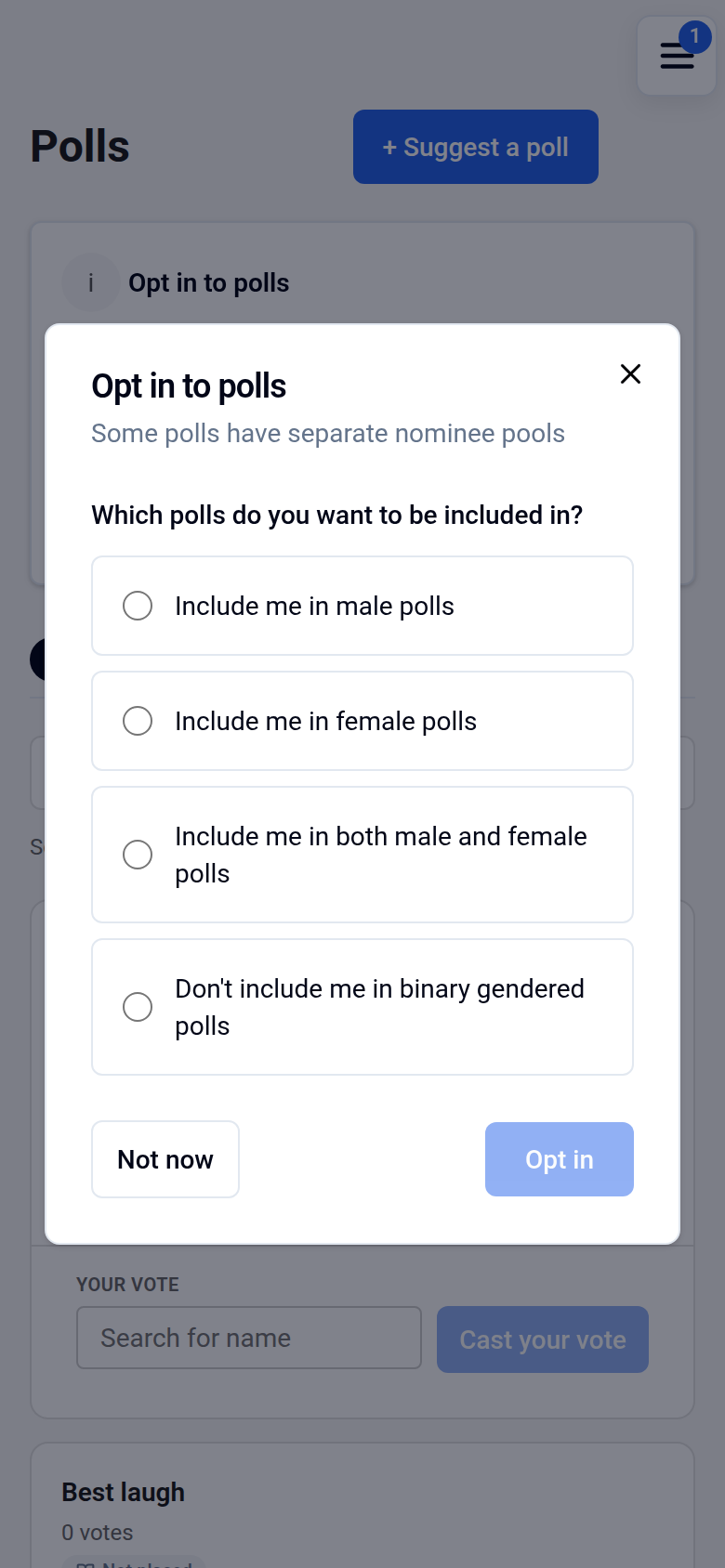
- In the banner, click Opt in to polls. If you don't want to be a nominee at all, click I don't want to be included in polls instead.
- Choose which polls should include you. With Include me in male polls or Include me in female polls you appear in polls for that group only. With Include me in both male and female polls you appear in both. With Don't include me in binary gendered polls you appear only in polls open to everyone. Then click Opt in.
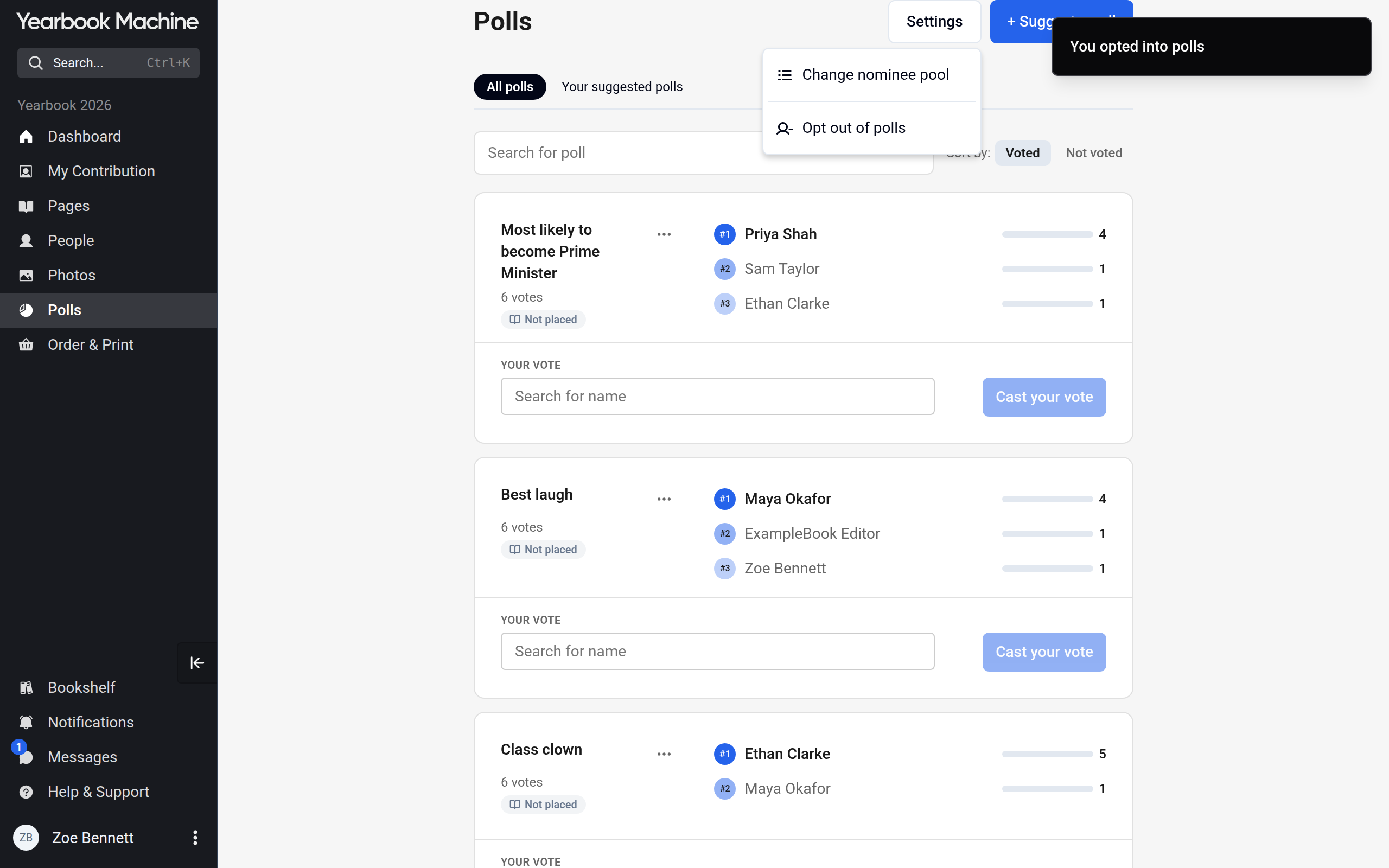
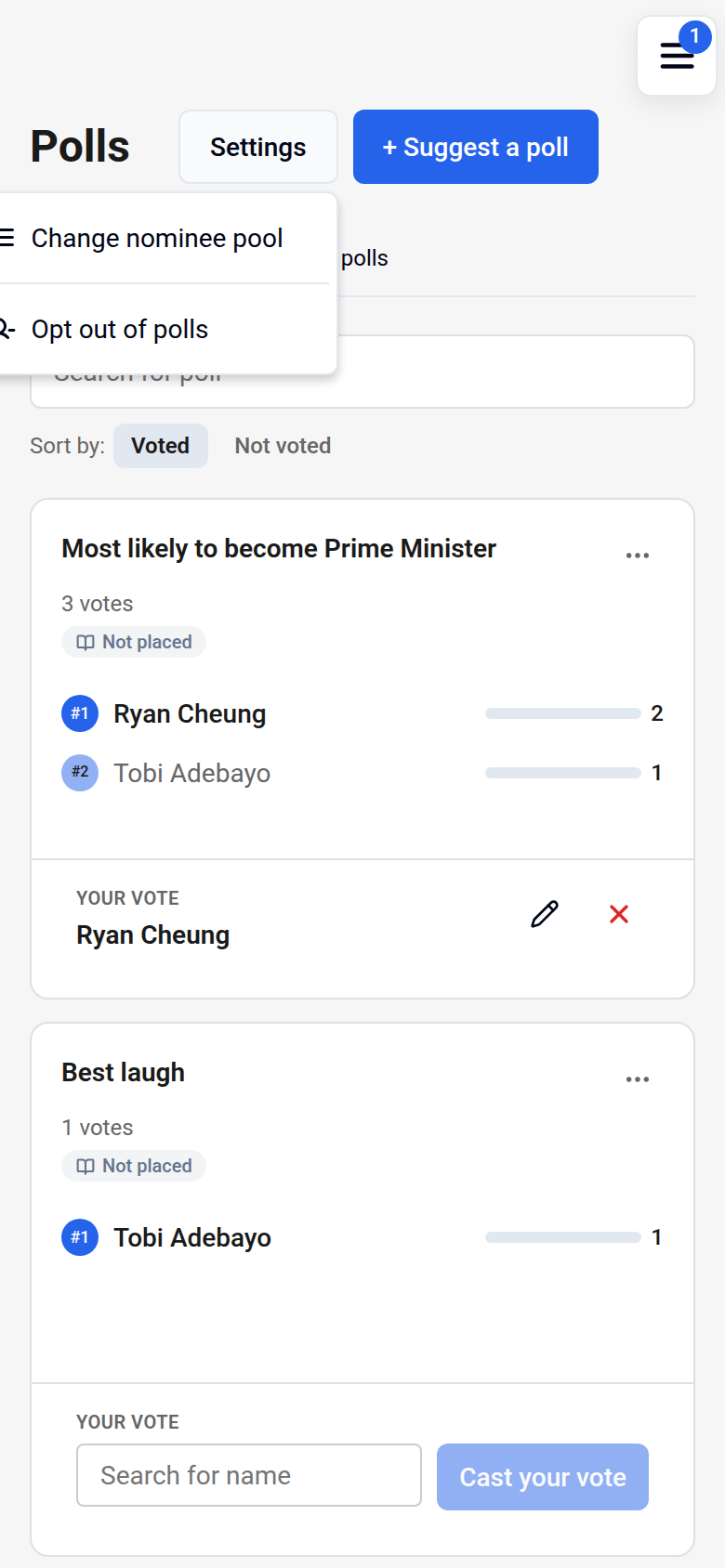
Contributors can change this later from the Settings menu on the Polls page: Change nominee pool lets you choose again, and Opt out of polls removes you from every poll. To leave just one poll, open the poll's three-dot menu and choose Opt out of this poll.
Adding a poll (editors)
- On the Polls page, click + Add poll.
- Type the Poll question.
- Under Nominee pool, choose who can be voted for:
- Everyone: every member of the book who has opted in to polls.
- All males: members who opted in to male polls.
- All females: members who opted in to female polls.
- Custom selection: only the nominees you type in. Type each one under Add a nominee and click Add.
- Turn on Pick 2 people if voters should choose two nominees together. Turn on Enter results manually if you want to type the results in yourself rather than have members vote in the book.
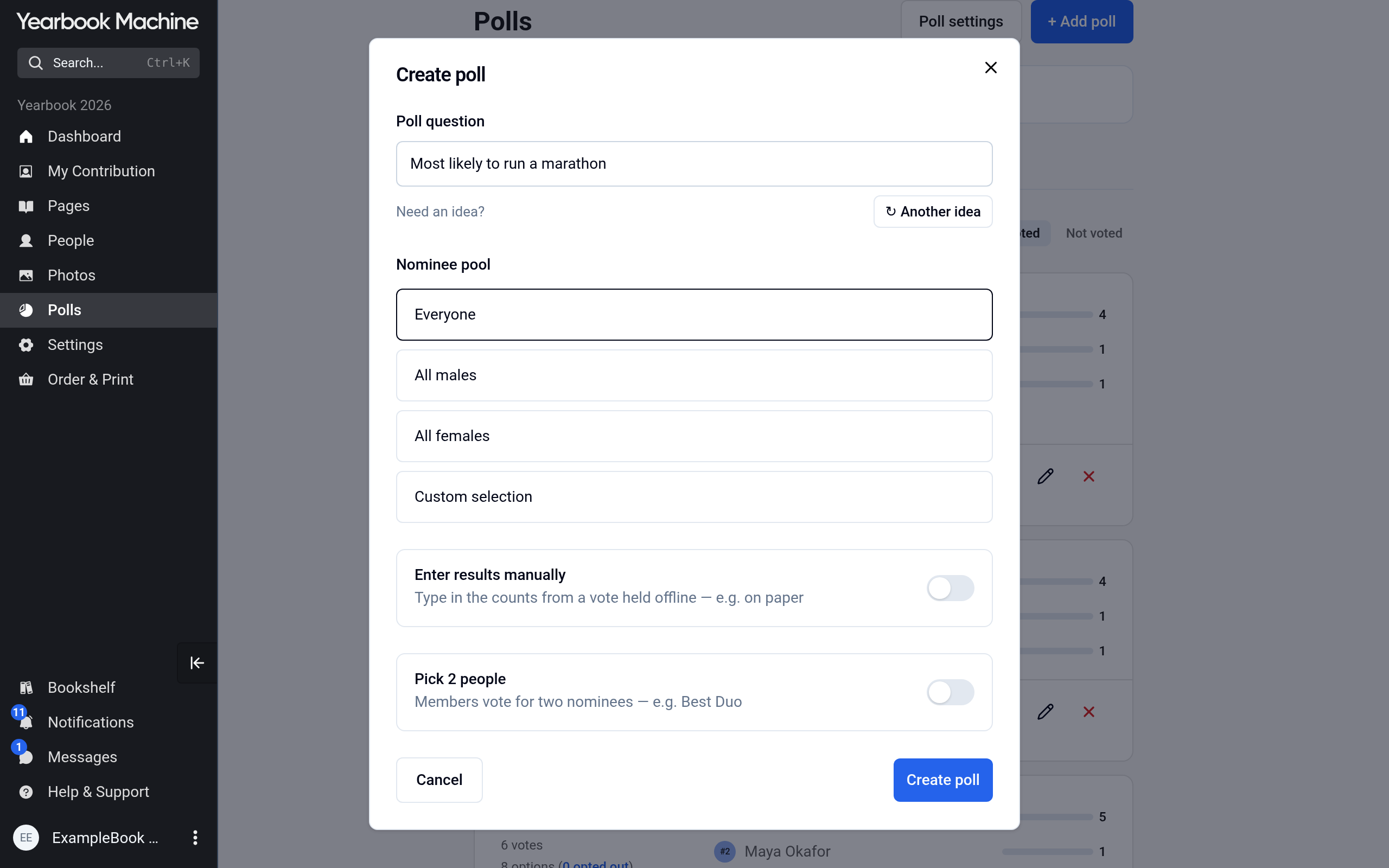
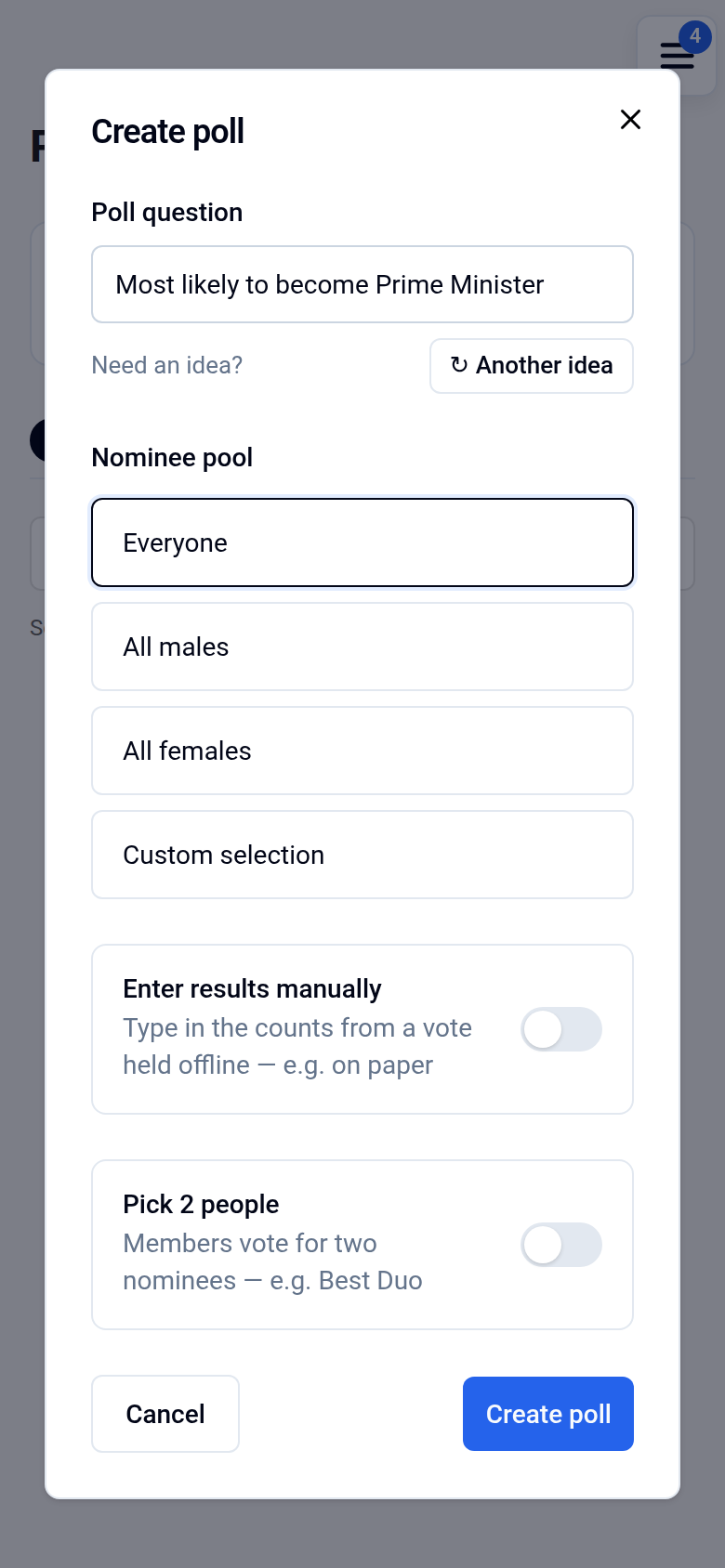
- Click Create poll.
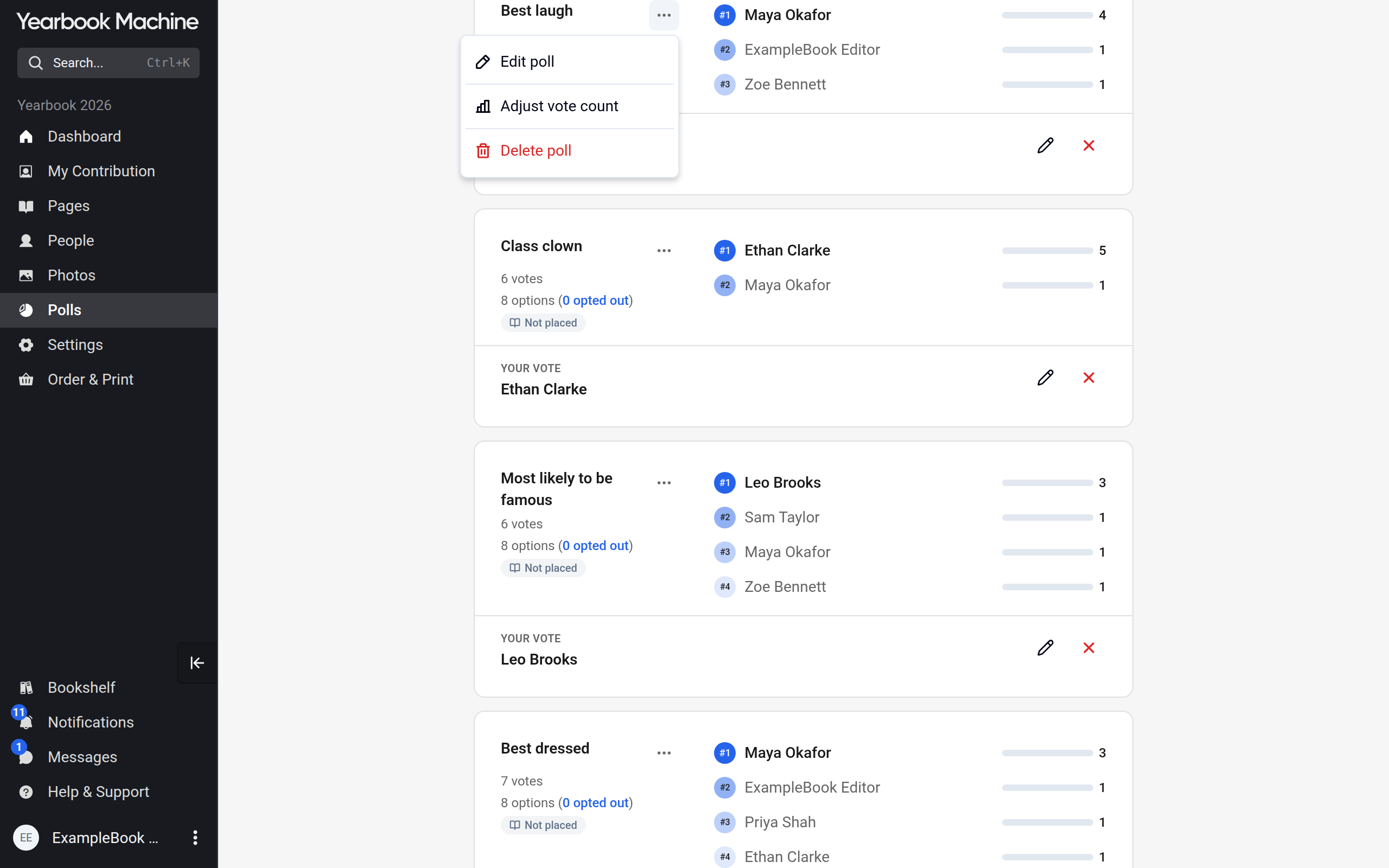
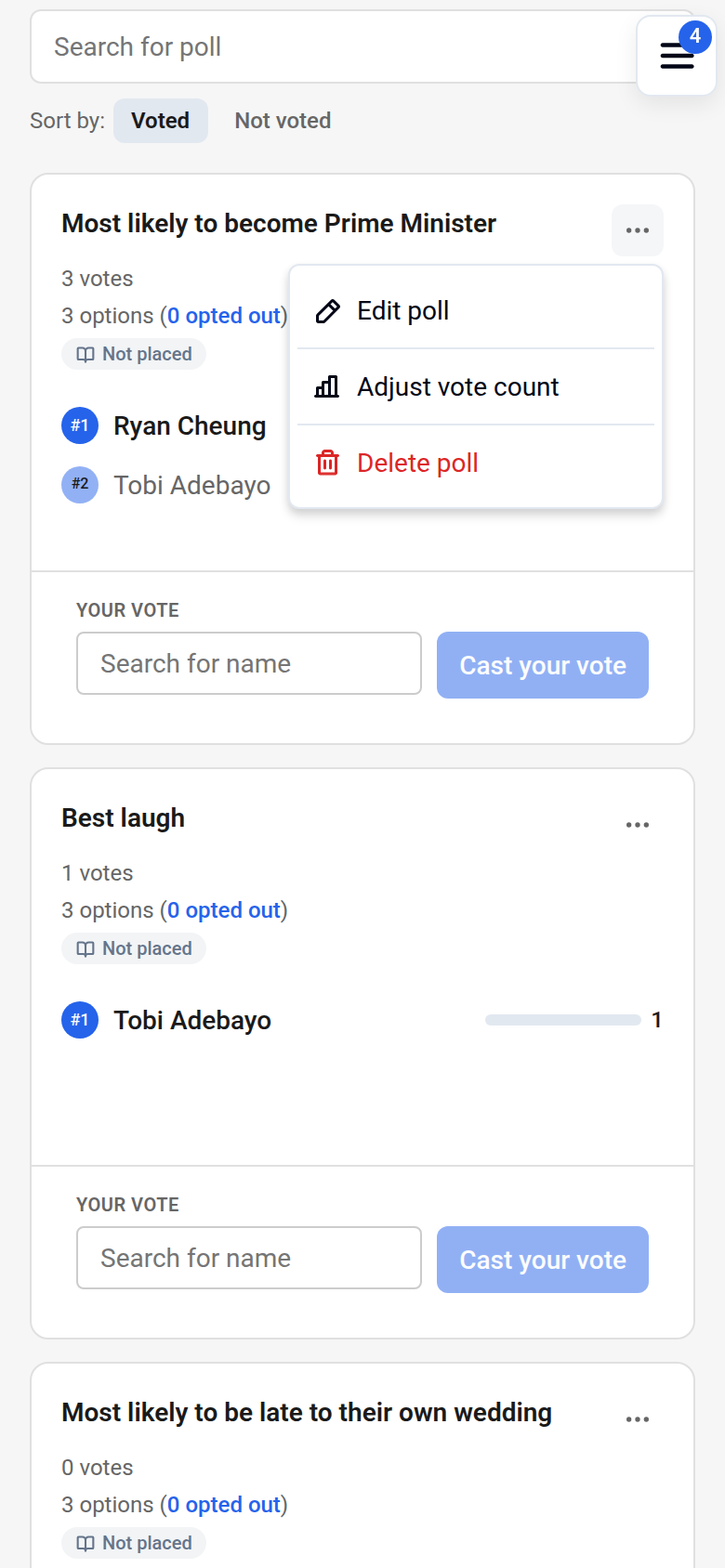
To change or remove a poll, open its three-dot menu and choose Edit poll or Delete poll. Adjust vote count, in the same menu, lets you correct a poll's vote counts by hand. On a poll whose results you enter yourself, the menu shows Edit vote counts instead. Deleting a poll also deletes its votes and can't be undone.
Suggesting a poll
Contributors can suggest a poll for the editors to add. Editors see + Add poll instead and add polls directly.
- On the Polls page, click + Suggest a poll.
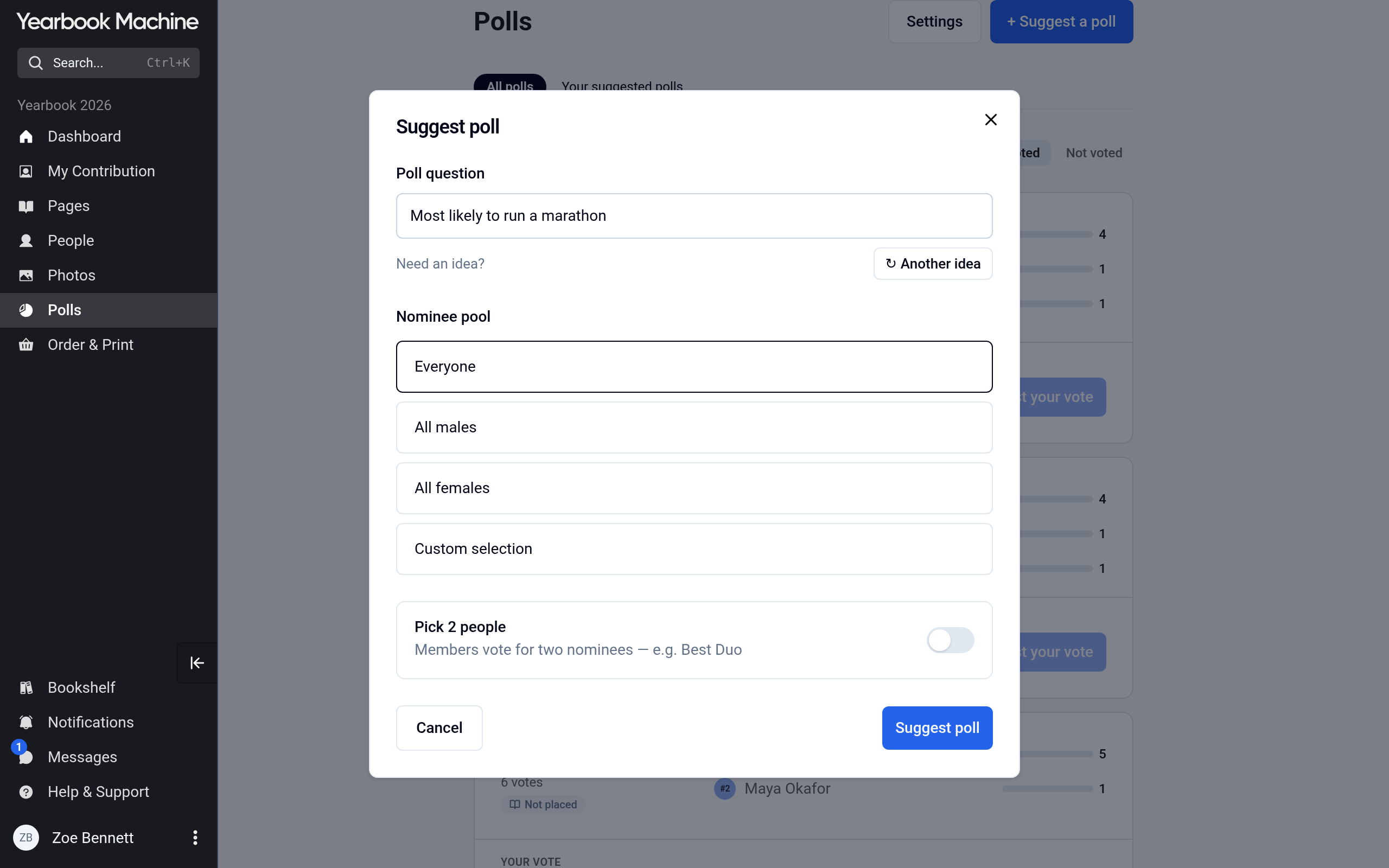
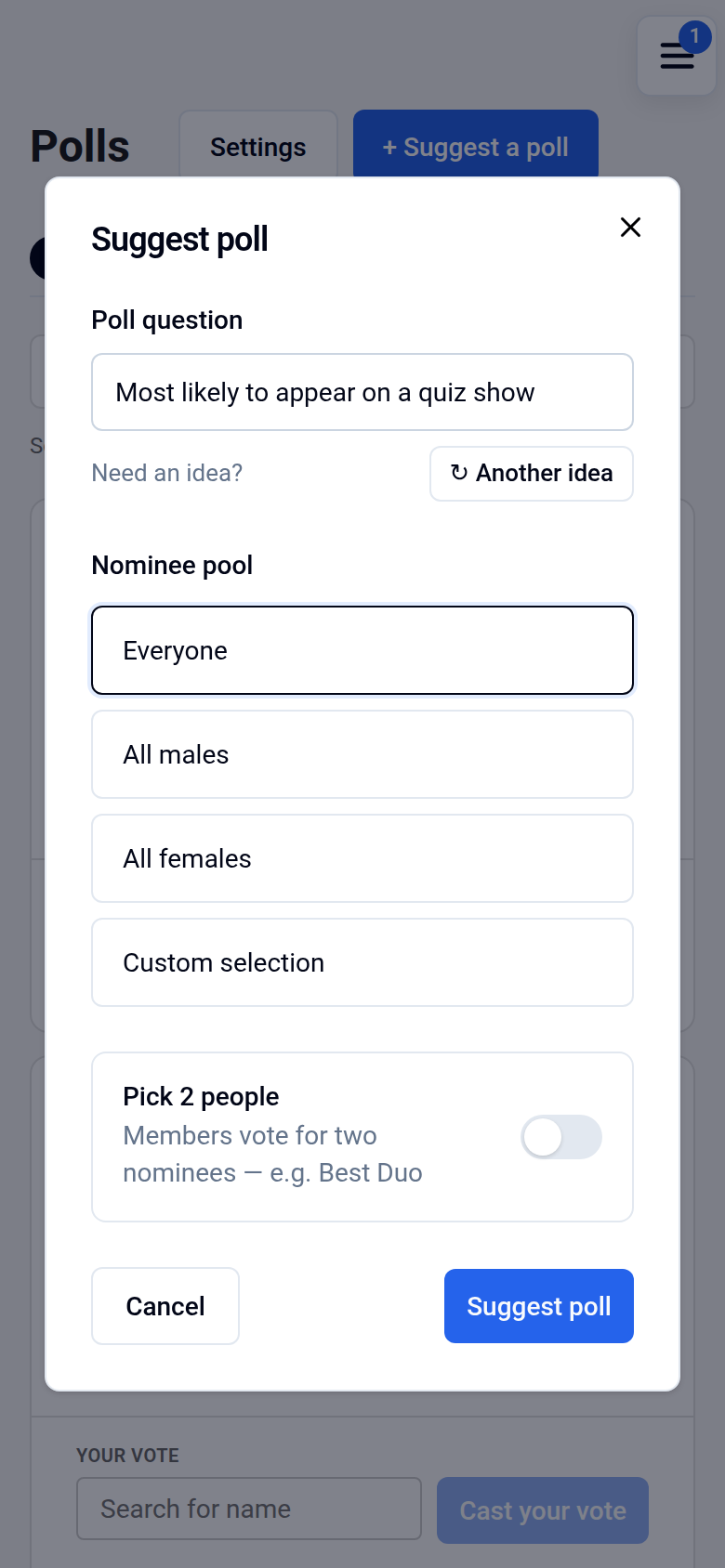
- Fill in the form as above and click Suggest poll. Your suggestion appears under Your suggested polls, which shows whether it was added or rejected.
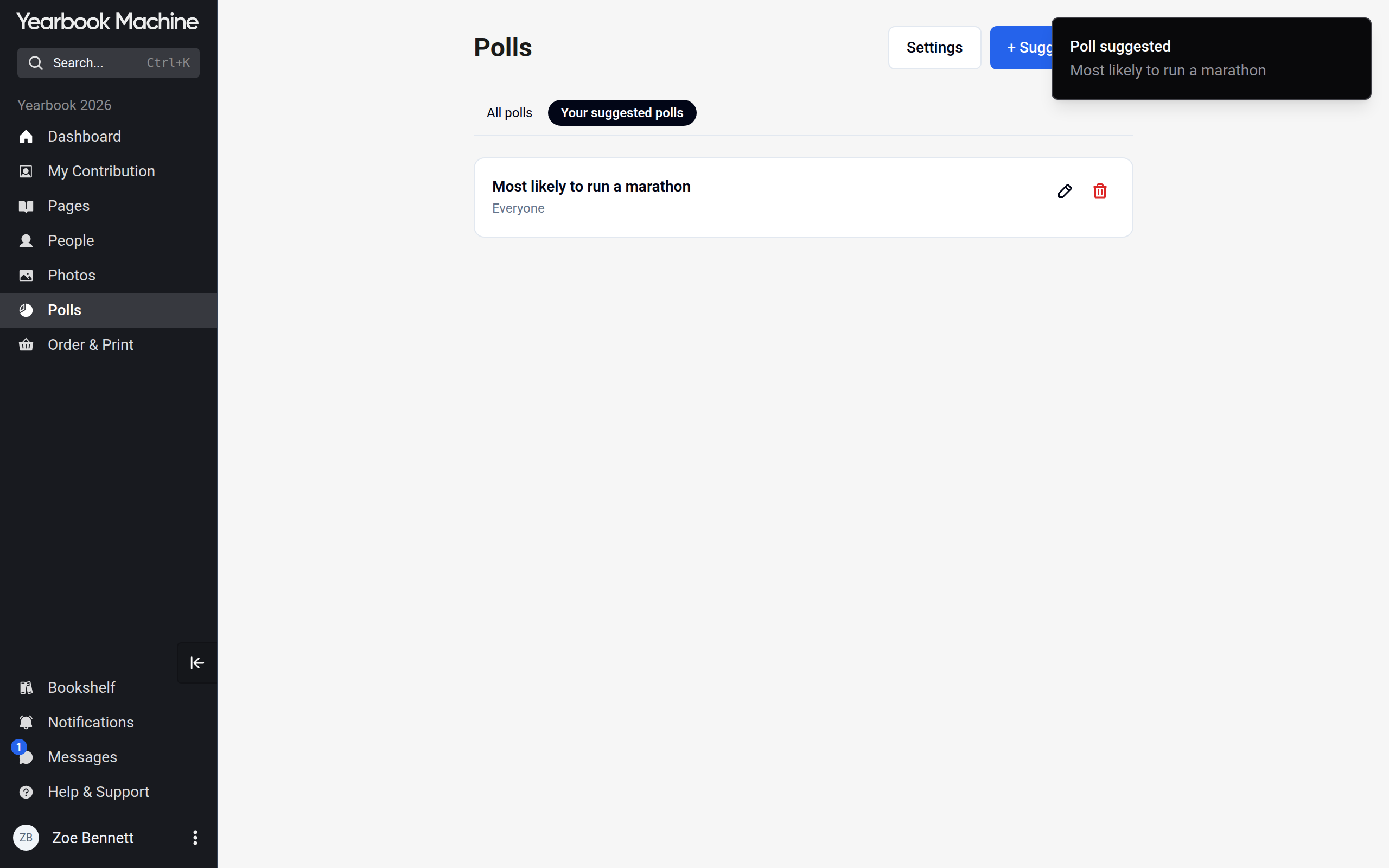
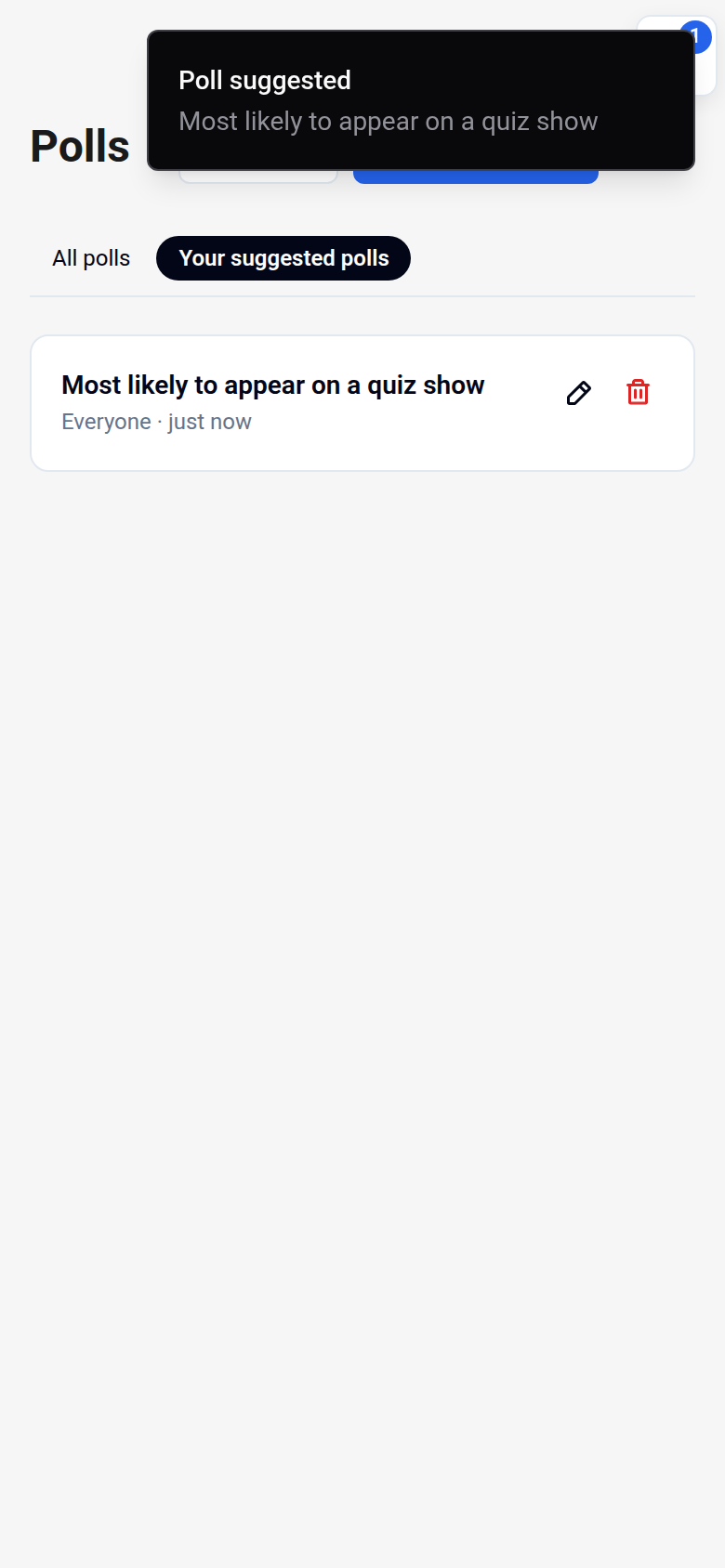
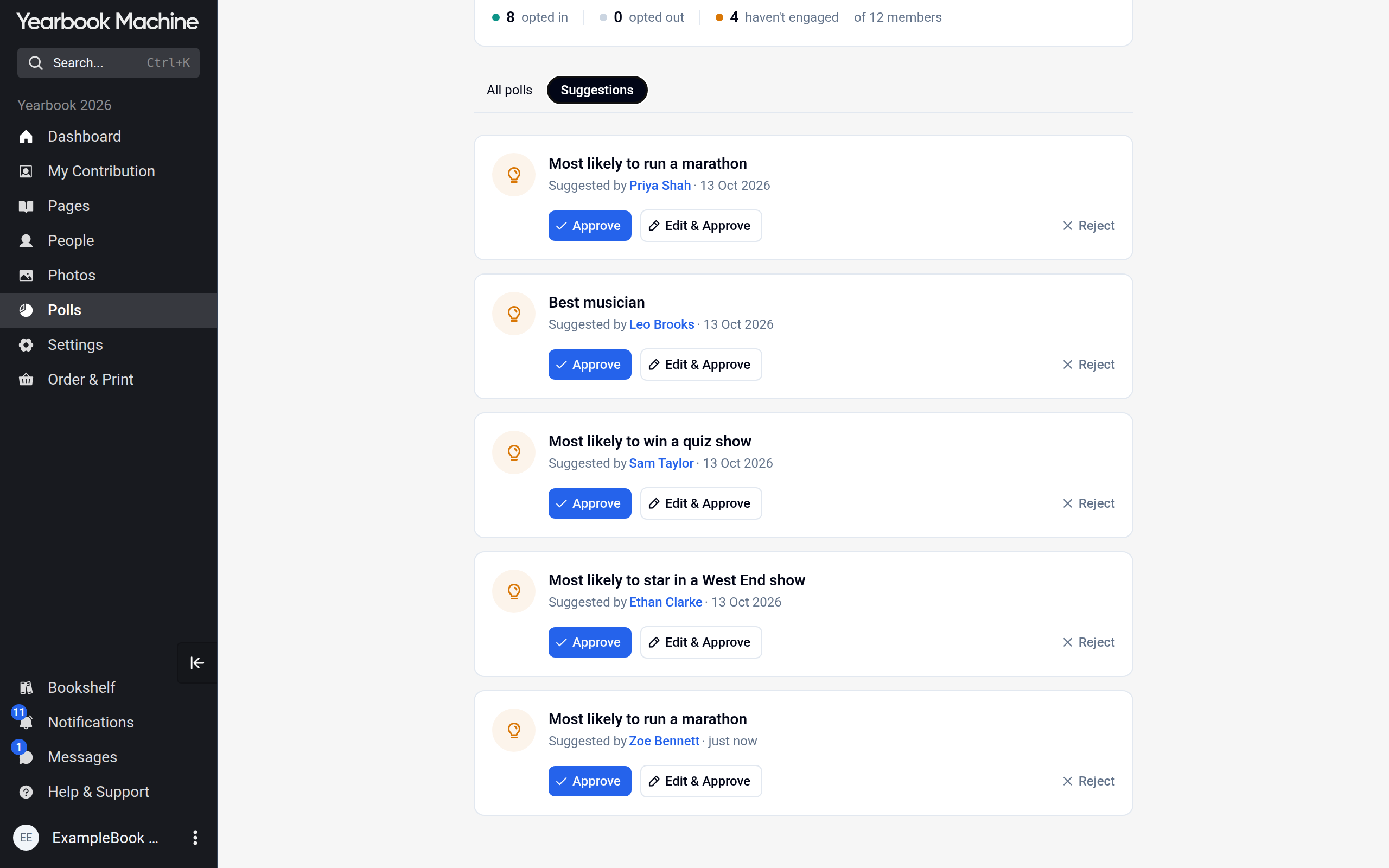
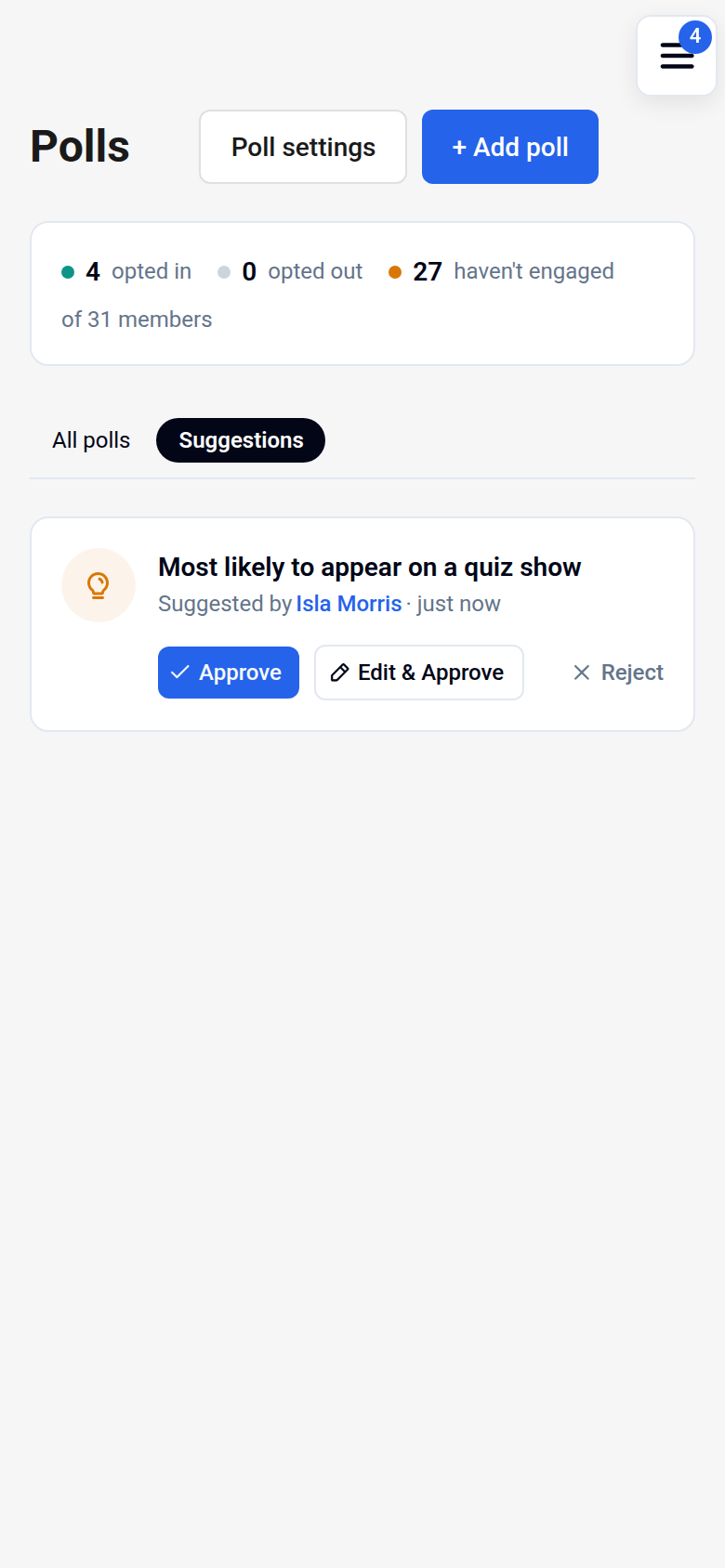
Editors review suggestions on the Suggestions tab. Approve adds the poll as it is, Edit & Approve lets the editor change it before adding it, and Reject turns it down.
Voting
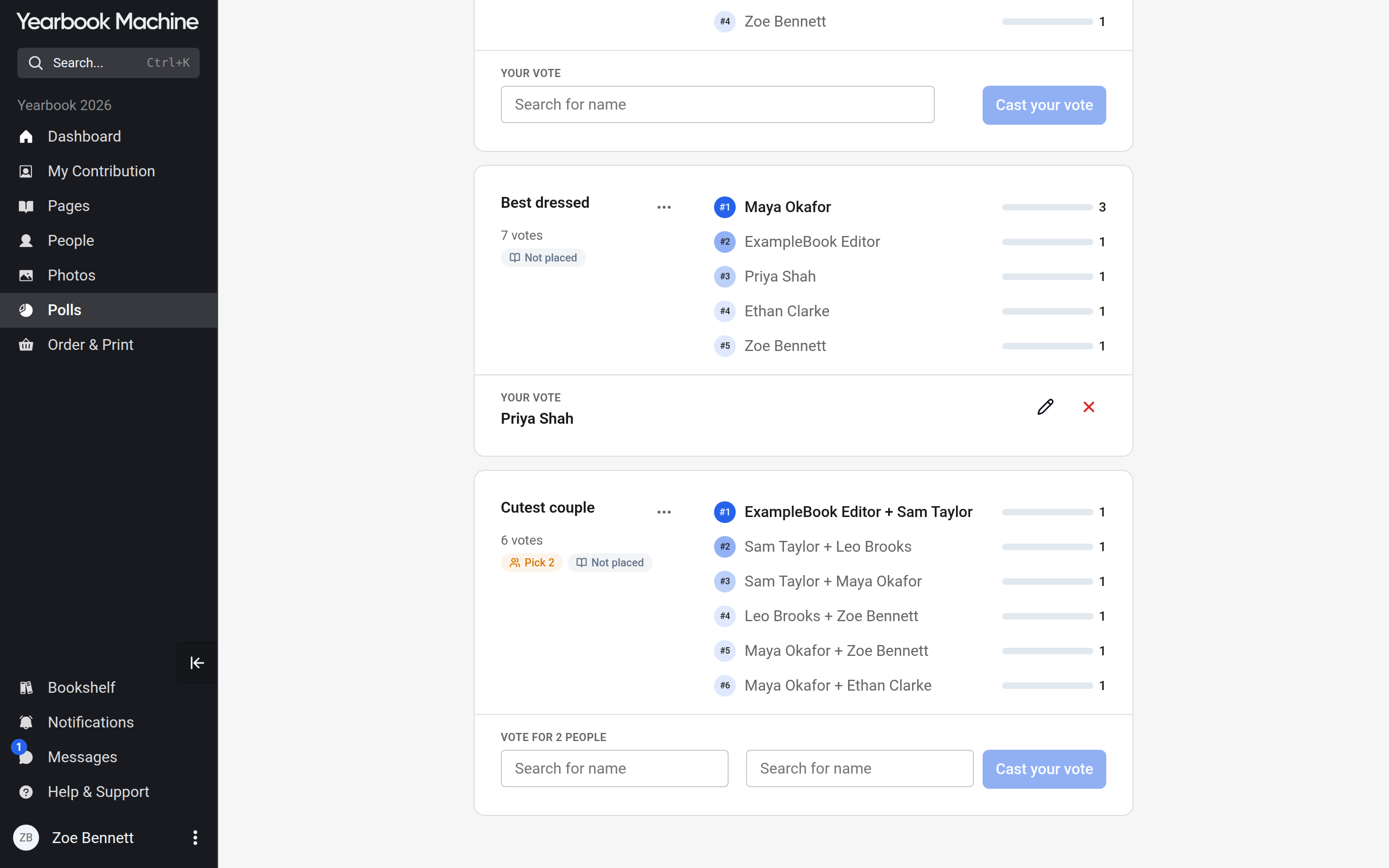
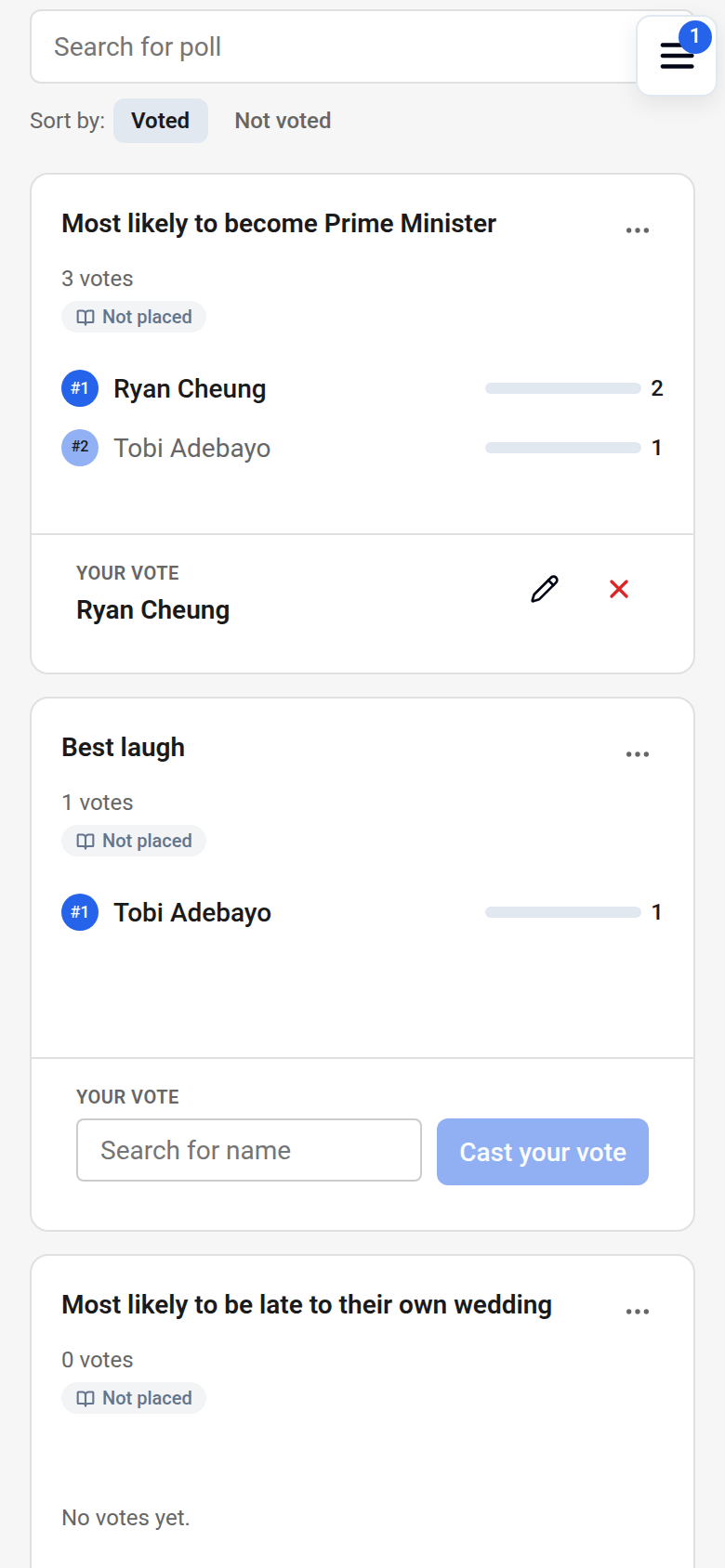
- On the Polls page, find the poll, using Search for poll if needed.
- In Search for name, start typing and choose a nominee. For a Pick 2 poll, choose two different people.
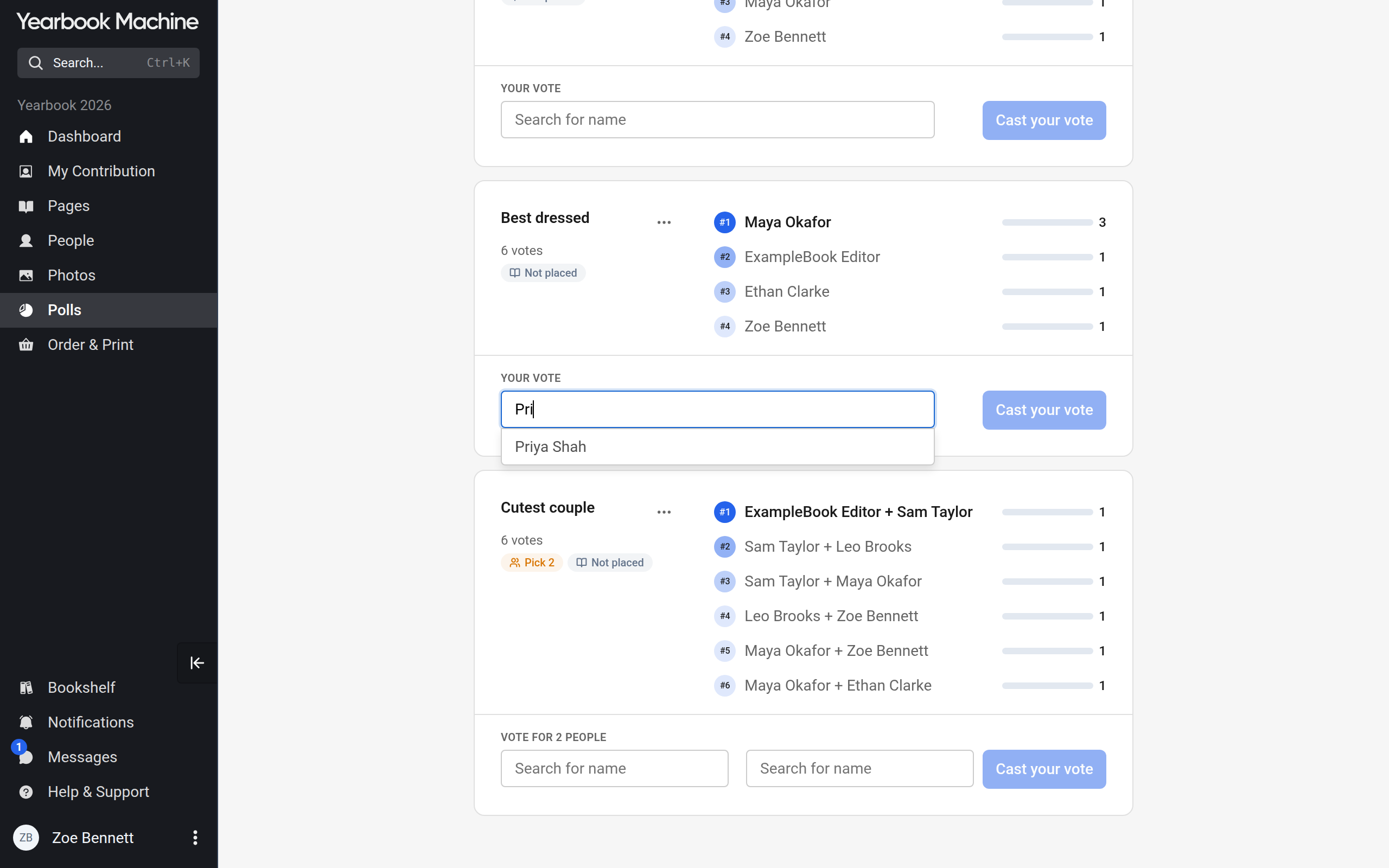
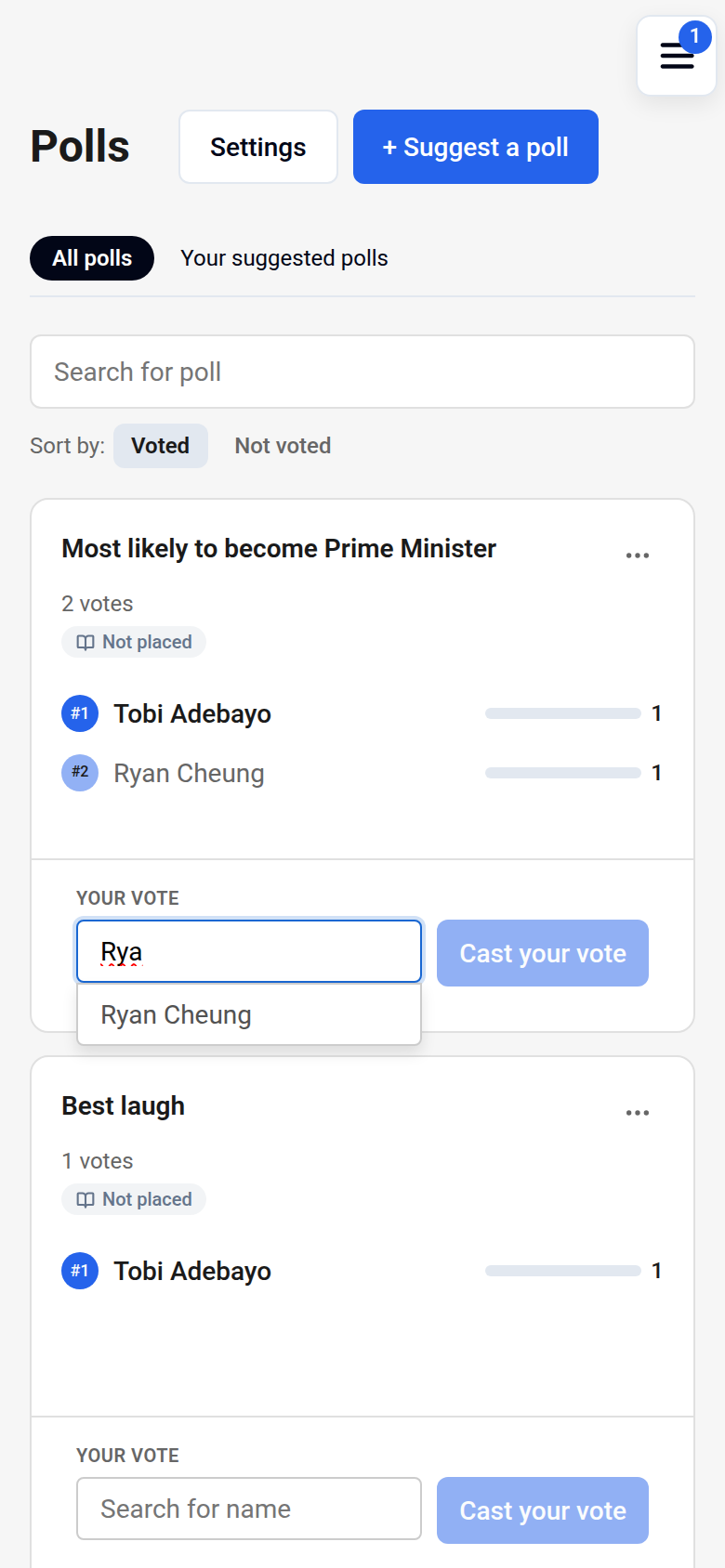
- Click Cast your vote.
Your choice then shows under Your vote. Click the pencil icon to change it or the cross to remove it.
Placing polls on a page (editors)
- Click Pages in the main menu to open the Pages screen, then click Add page(s).
- Drag a design from the Polls section into your book. On a phone, press and hold the design in the tray at the bottom, then drag it up into the book.
- Open the page and go to the Polls tab. A new polls page fills its three slots, Poll 1, Poll 2 and Poll 3, with your book's oldest polls that are not yet on a page.
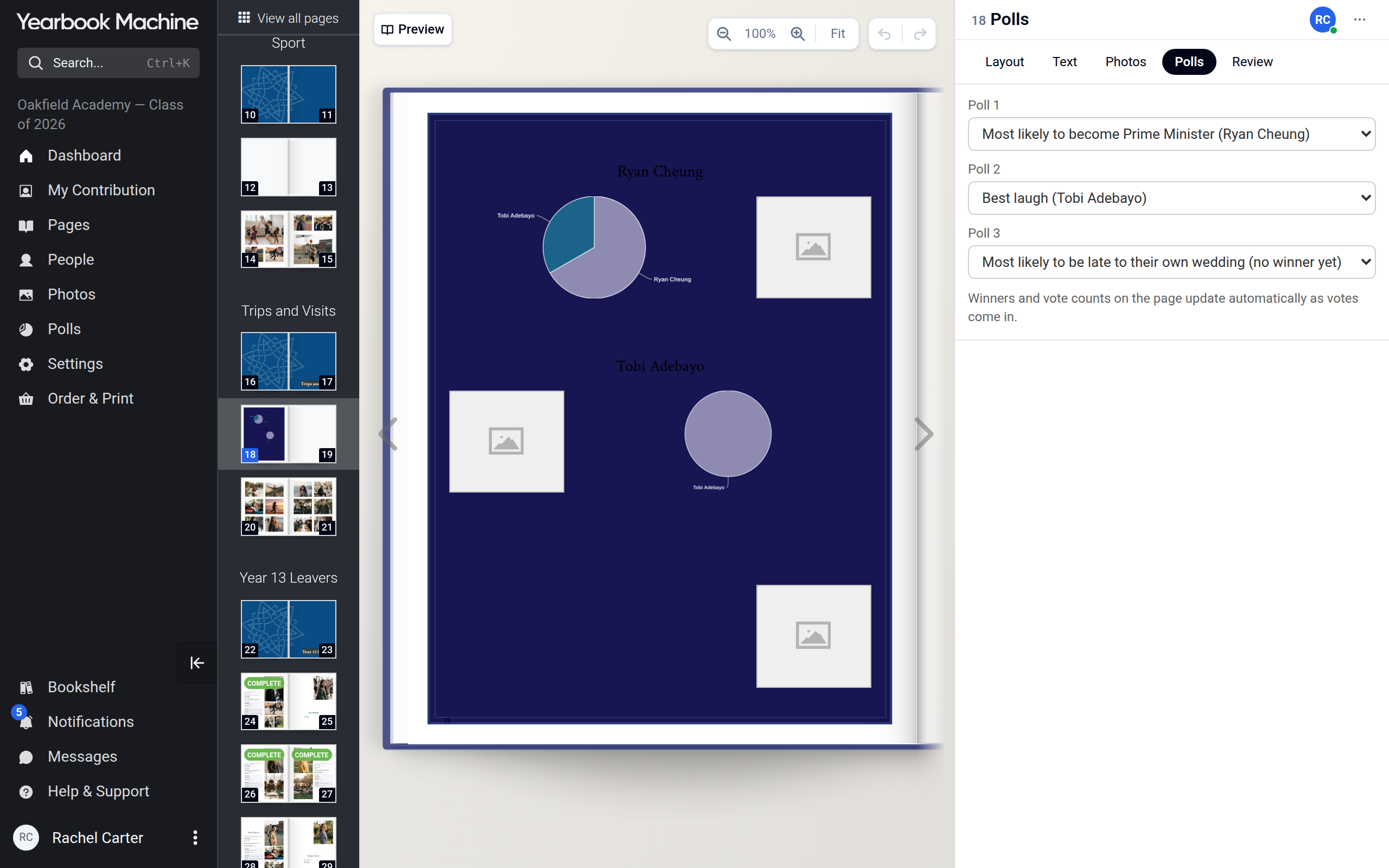
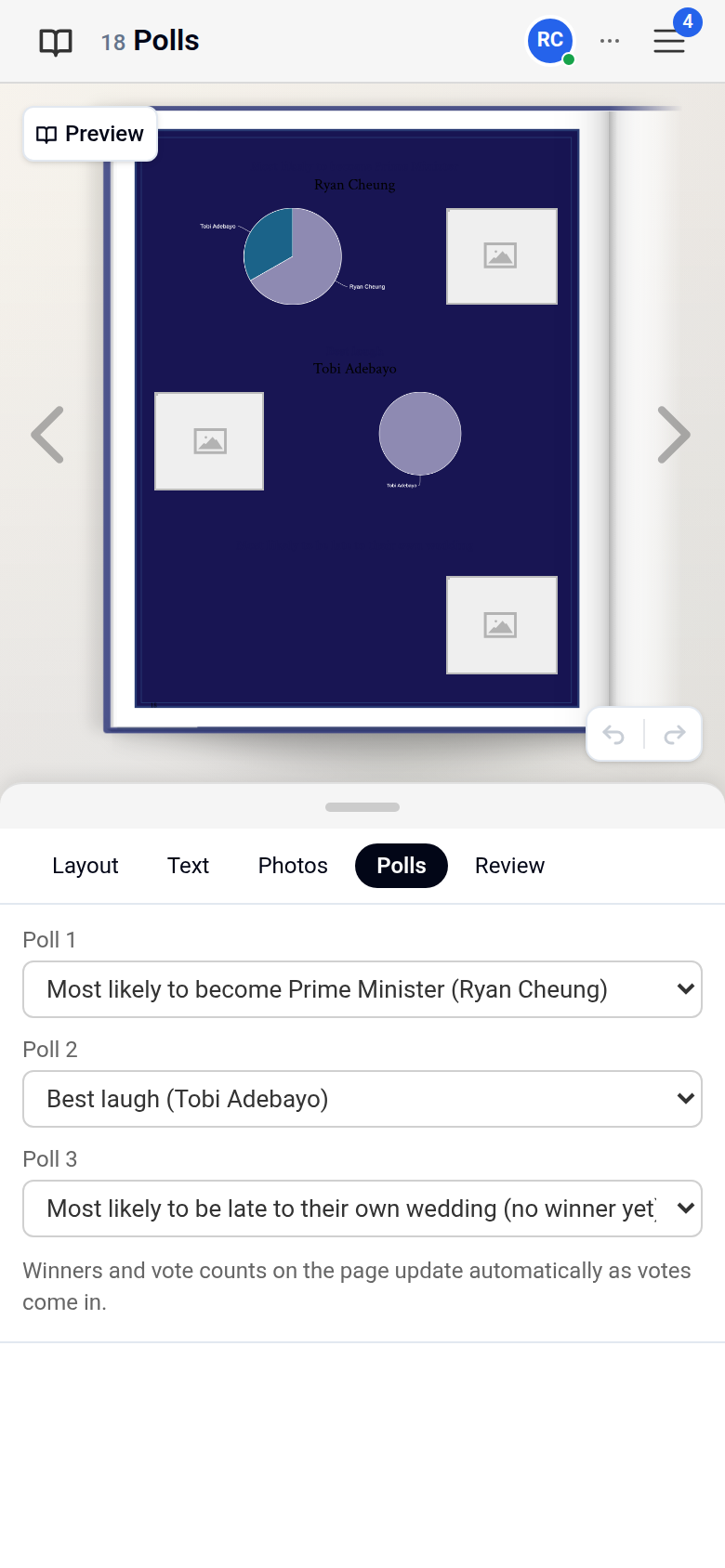
- To show a different poll, choose it under Poll 1, Poll 2 or Poll 3.
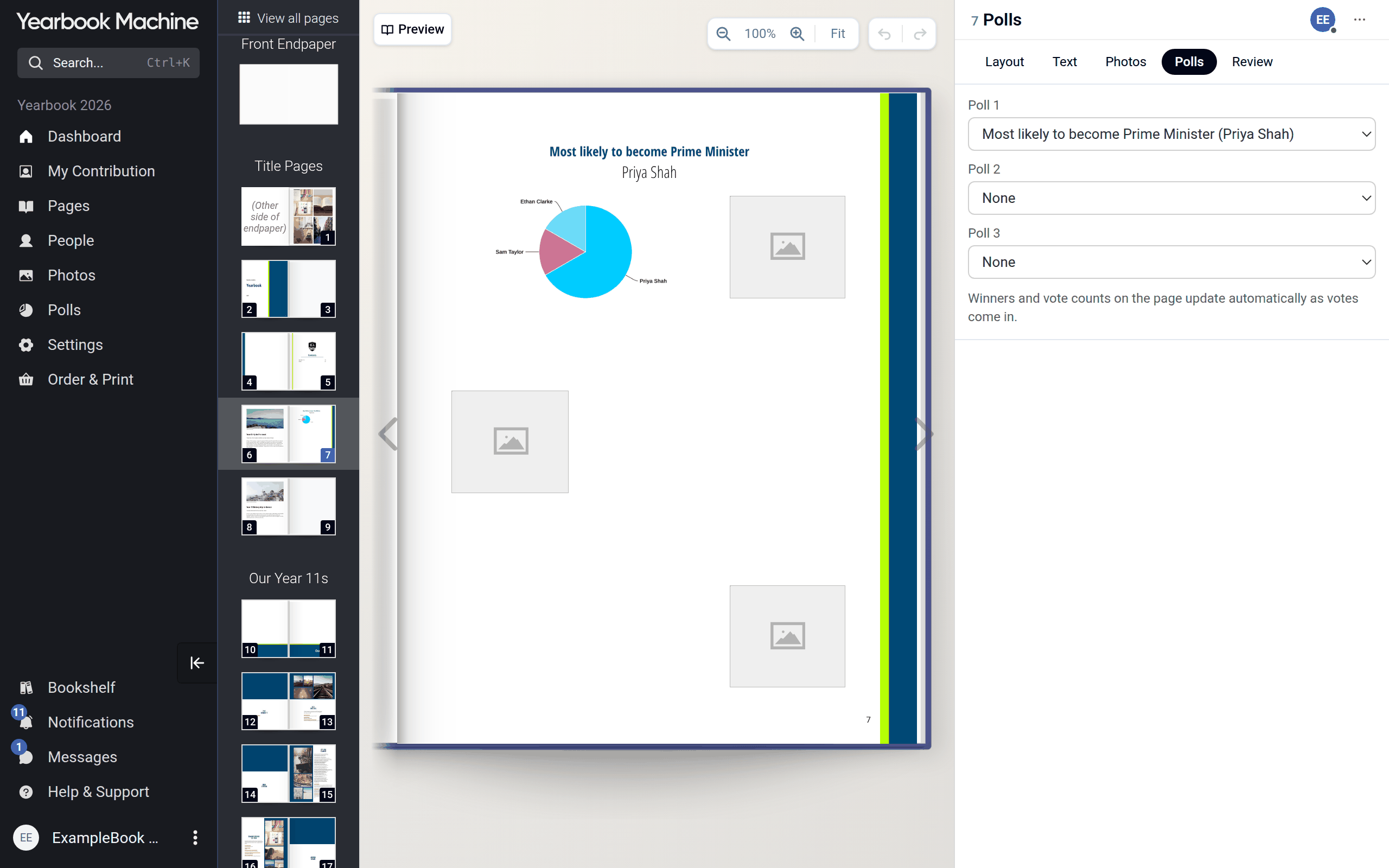
Winners and vote counts on the page update as votes come in.
Common questions
Can people see who I've voted for?
Other contributors can't see who you voted for. Your book's editors see the vote counts in the book, and they can ask us for a list of who voted for whom.
Who can see poll results?
Editors always can. Other members can only if Poll results is set to Can view (in Settings > Polls under Viewing permissions, or in Settings > Contributor permissions); otherwise they see a notice that results are hidden until the printed book.
How can we vote for a couple with one vote?
Turn on Pick 2 people when you add the poll. Each voter then chooses two people, and the pair counts as one vote. You can also use Custom selection and add each couple as one nominee.
Can I have more than three polls on a page?
A new polls page comes with three poll slots. For more polls, add another polls page.
Why isn't someone listed as a nominee?
They have not opted in to polls, have opted out, or have been opted out of that poll. Editors can see and change who is opted out by clicking the opted out count on each poll.
Was this article helpful?
Sorry, that didn't send. Please try again in a little while.
Thanks. That helps us improve this article.
Any other questions?
Email support@yearbook.com and we'll help you out.