
Previewing your book and checking proofs
This article explains how to read through your book in Preview mode while you work, and how to get, review and approve a proof when you are ready to print. Preview is for checking your book at any time. A proof is a PDF showing exactly how your book will be printed, cover included, and it must be approved before your book can be printed. Proofs are handled on the Order & Print page in the main menu, where only the book's editors can see them.
Read through your book in Preview mode
You don't need a proof to read your book through. While you are working on it:
- Open any page in the page editor, the screen for working on a single page.
- Click Preview at the top left, above the page. It shows each spread as it will look in the book.
- Page through the whole book from there. If a page has just changed, you may see Updating preview… for a moment while it catches up.
- Click Stop preview to go back to editing.
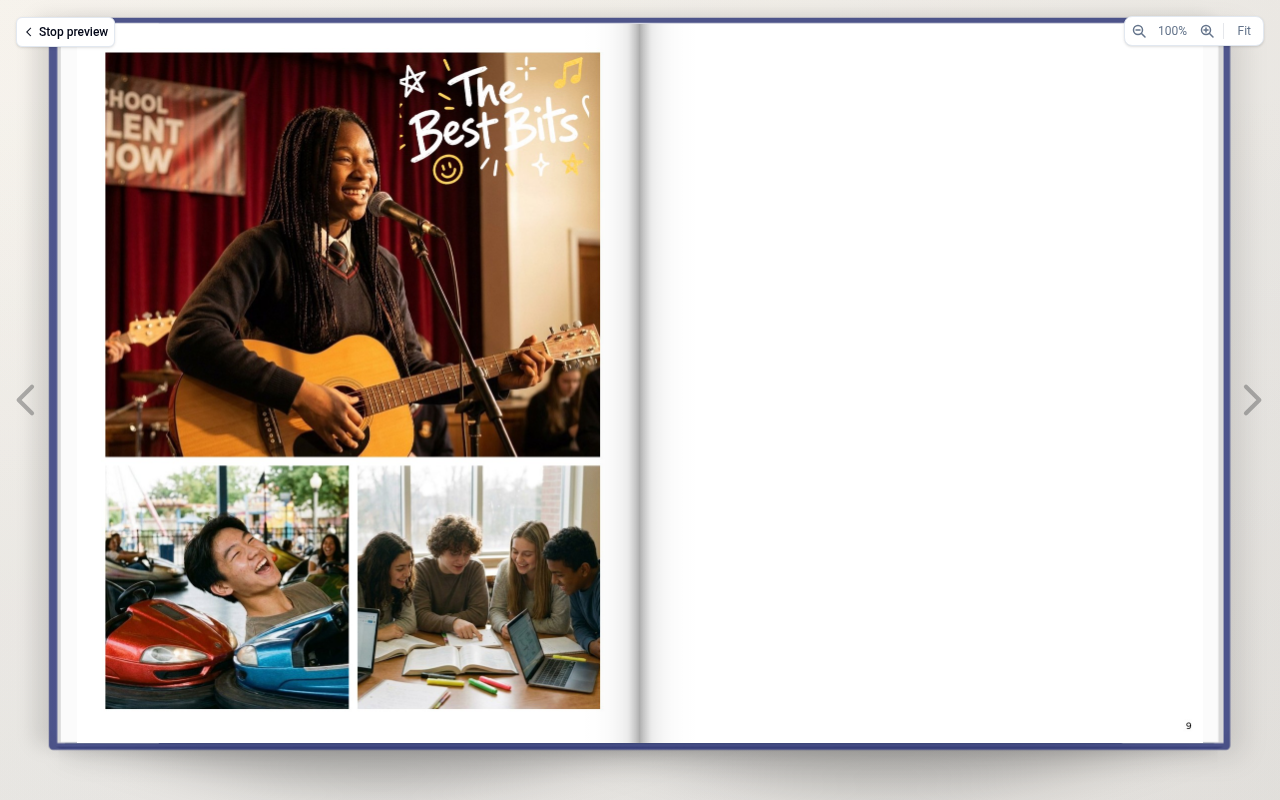
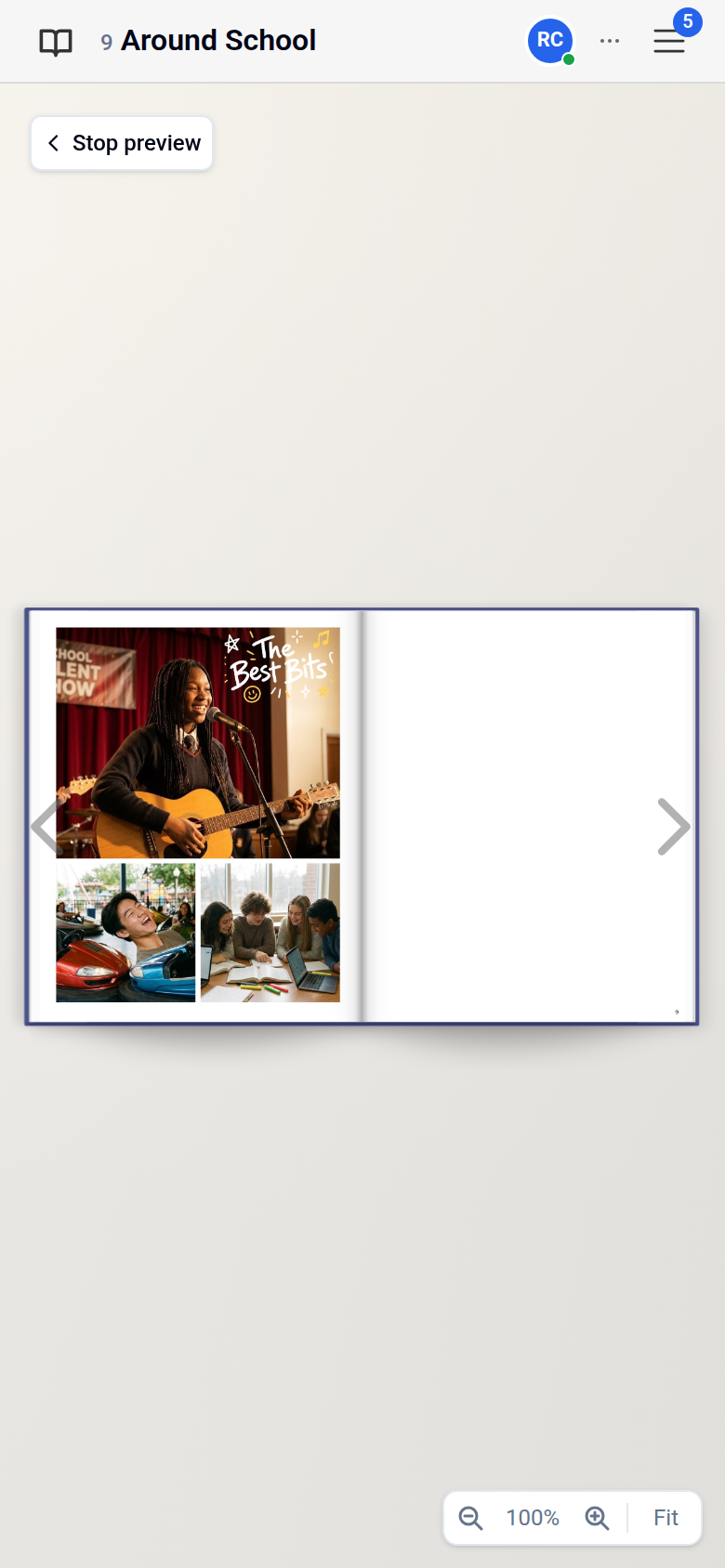
Use Preview as often as you like. Generate a proof when you are ready to print.
Find your proof
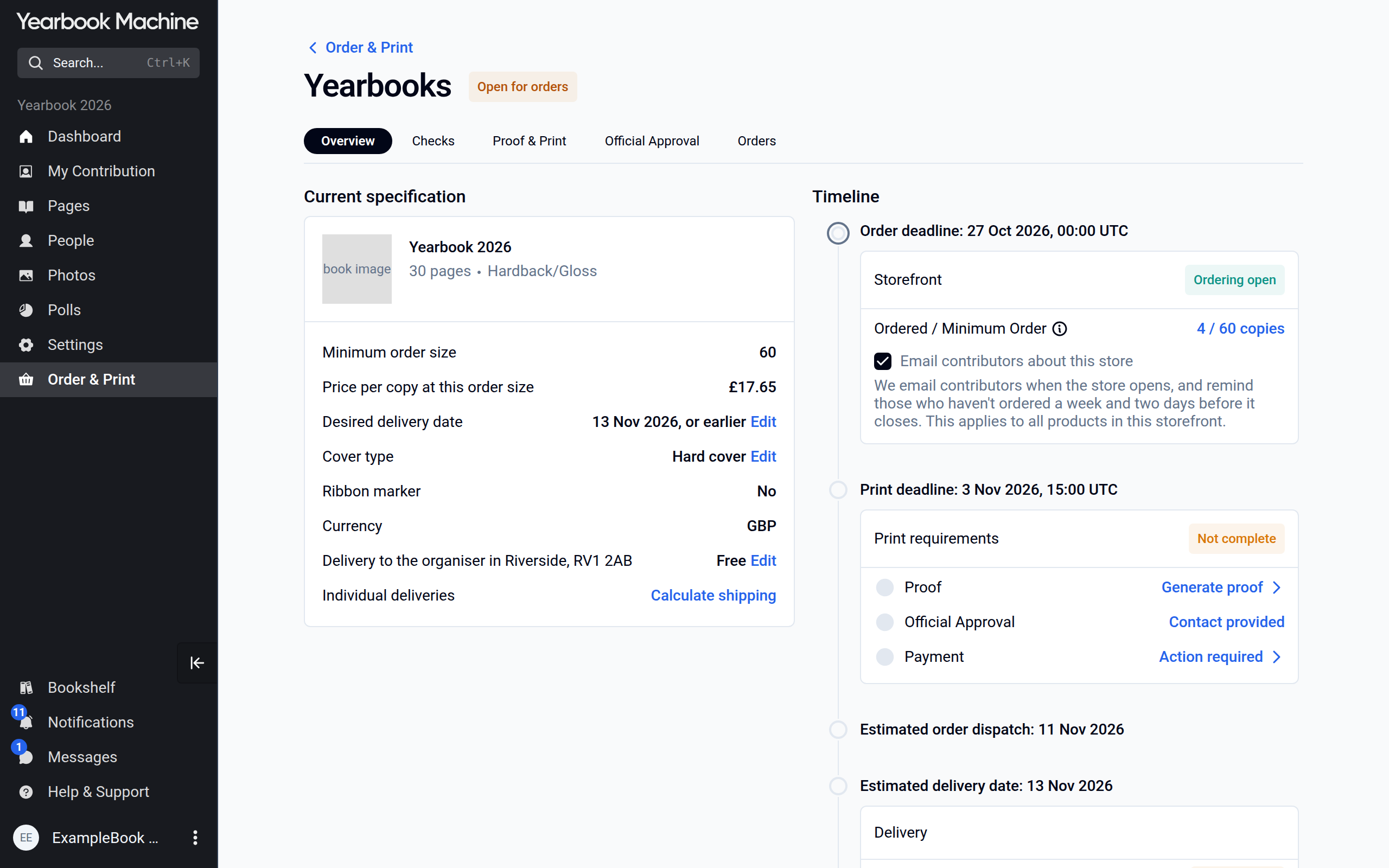
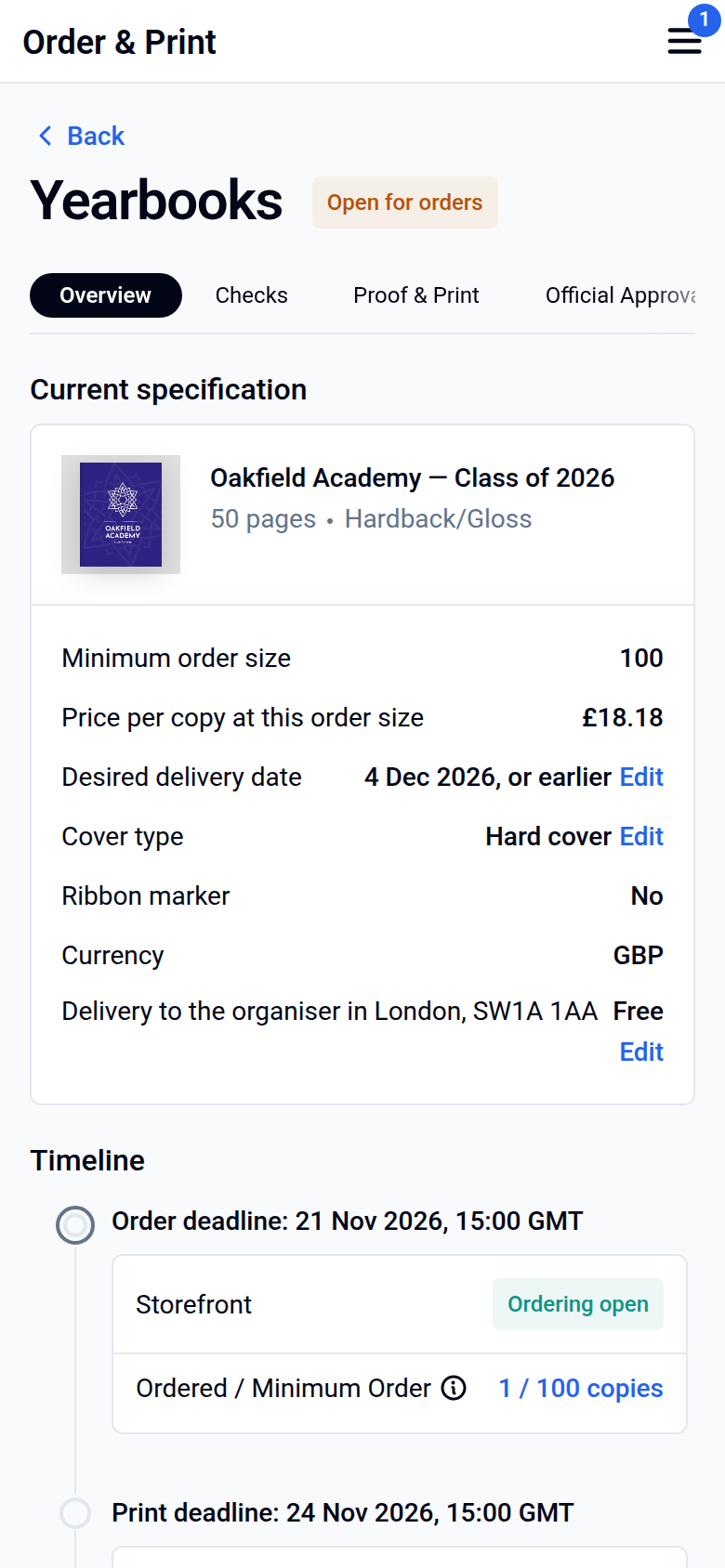
To find your proof, click Order & Print, then click Yearbooks on the Products tab.
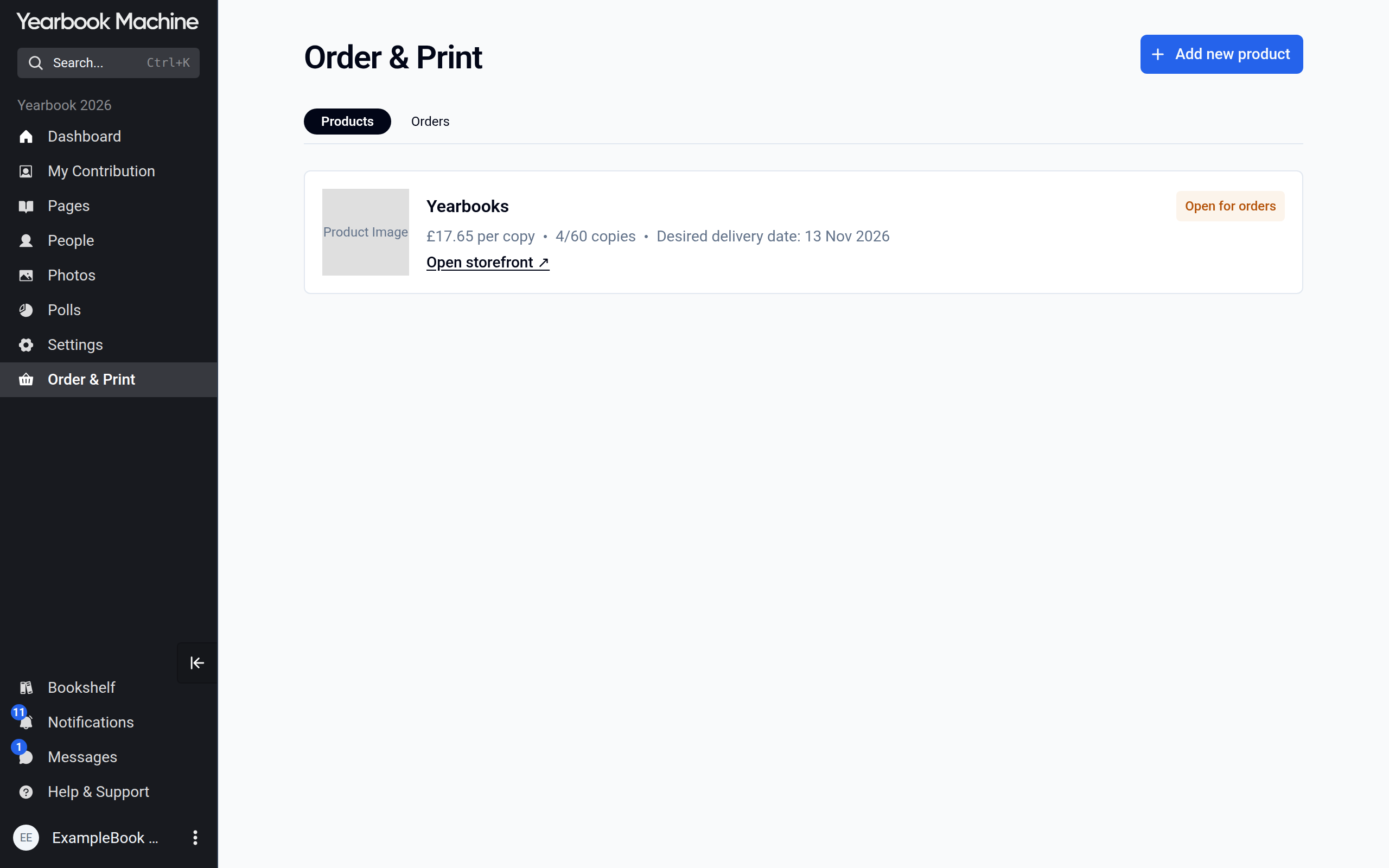
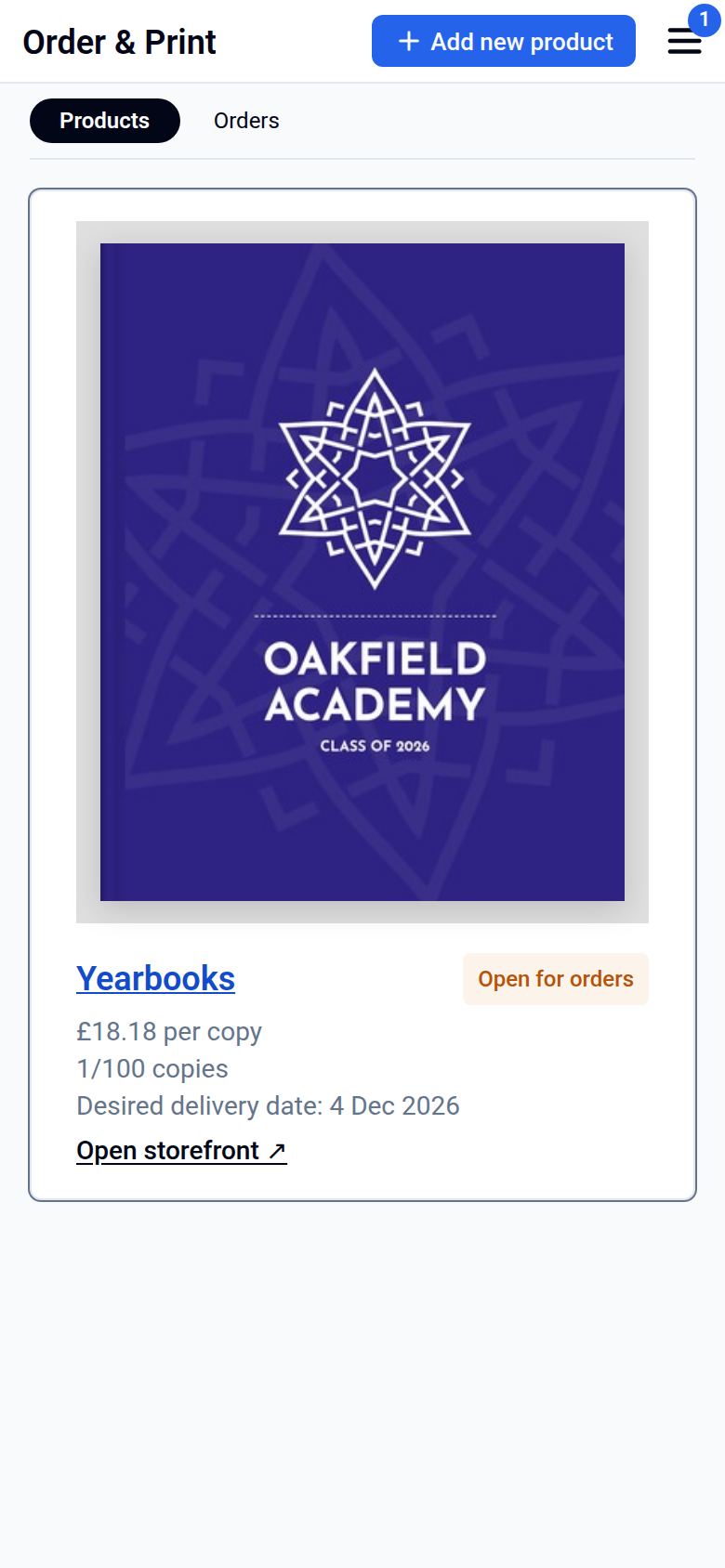
Get a proof
A proof is for checking only, not for printing.
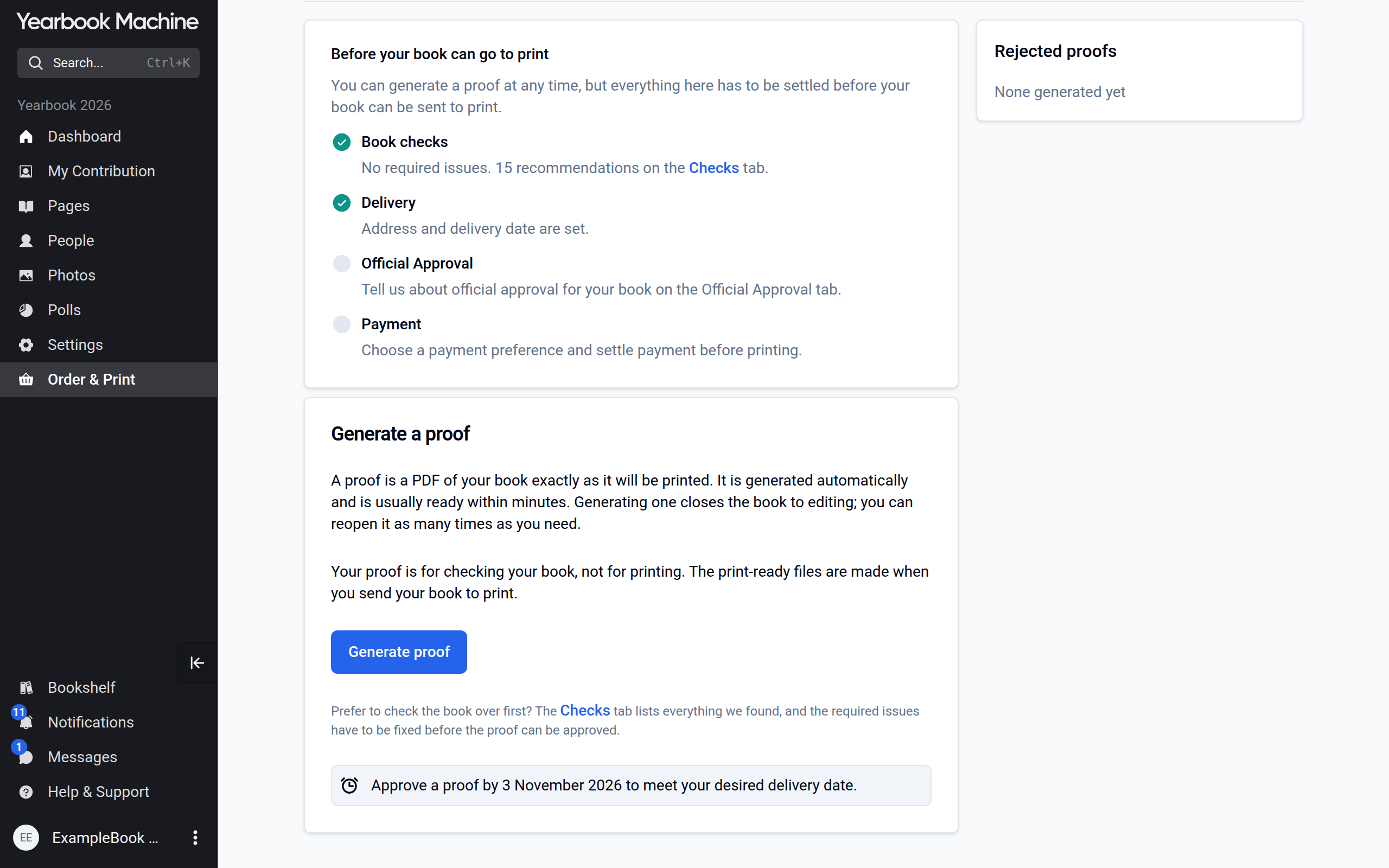
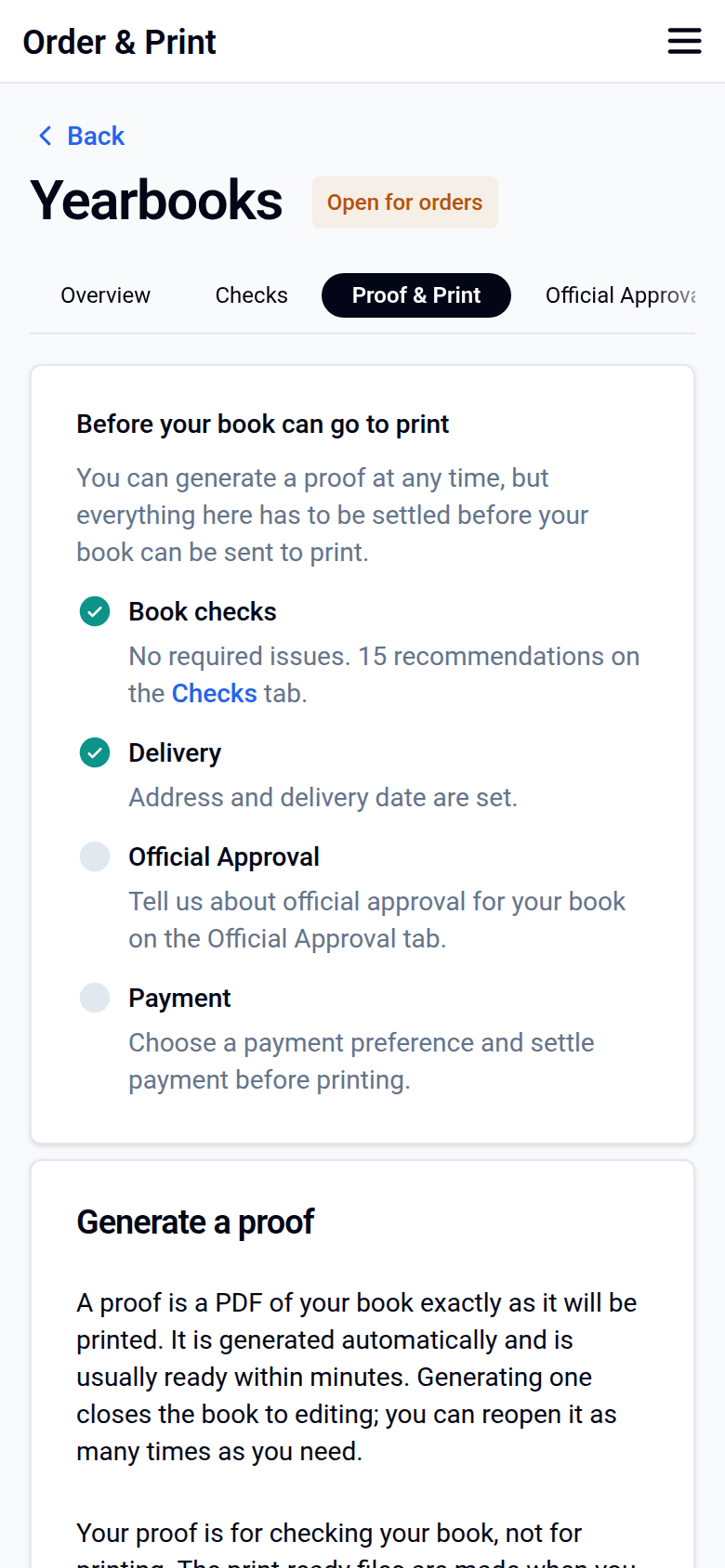
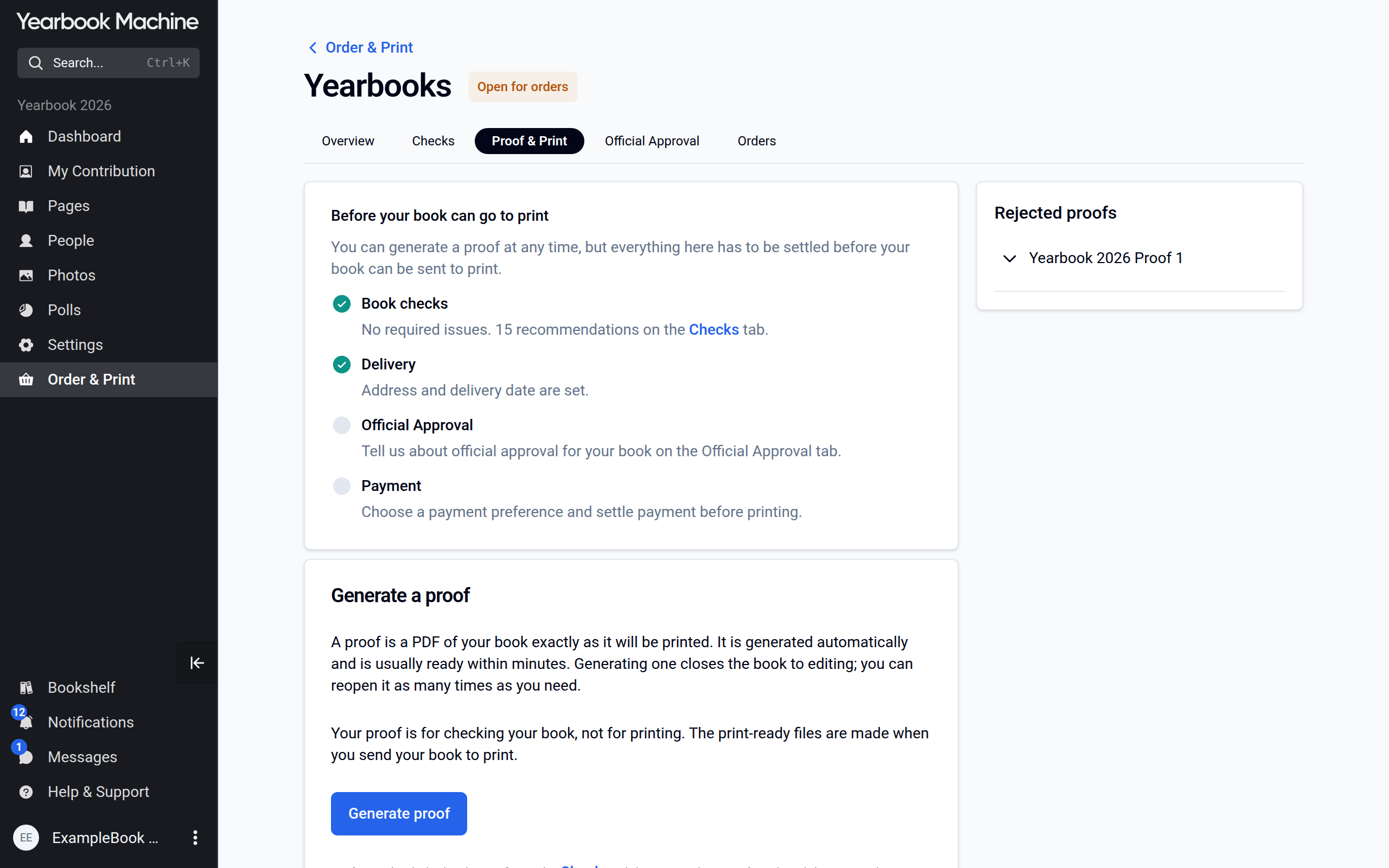
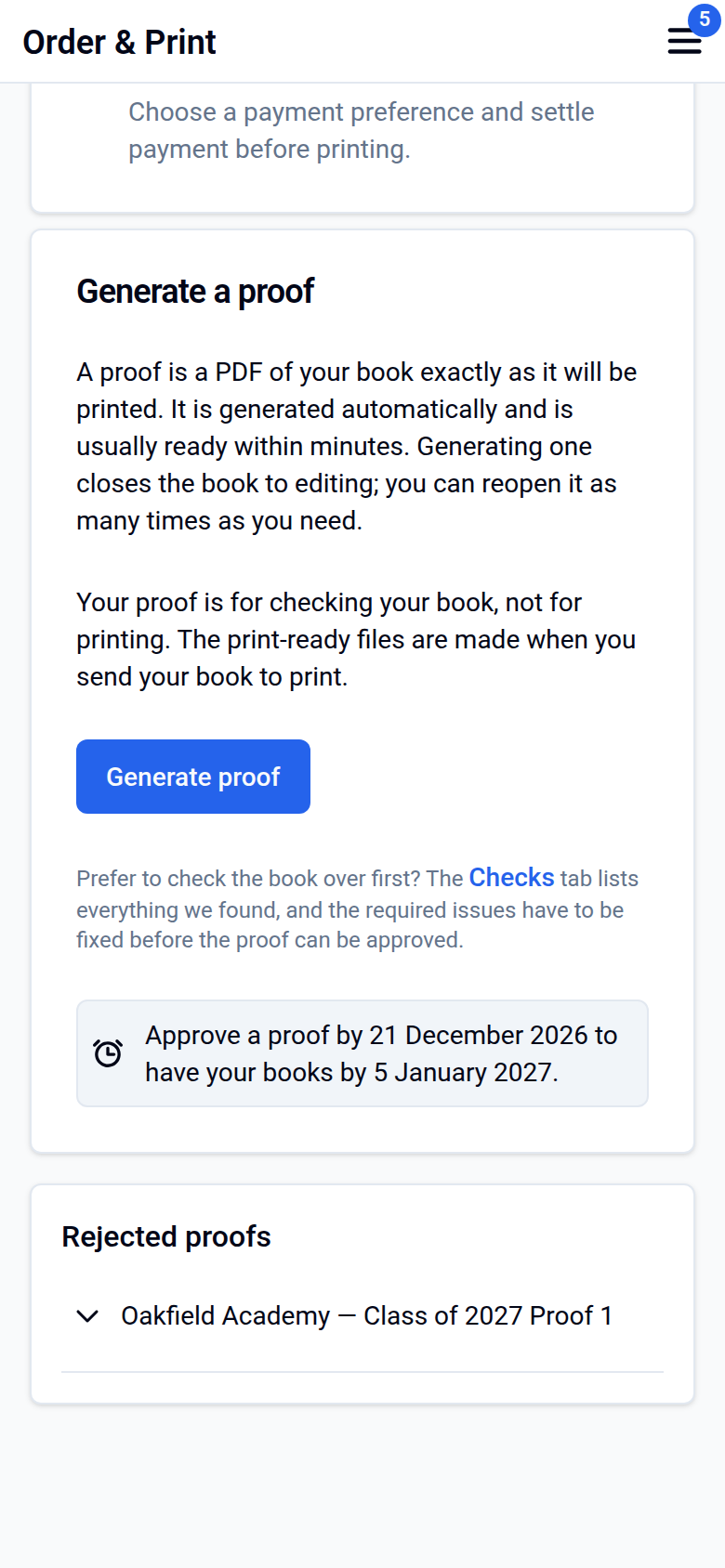
- Go to Order & Print, click Yearbooks and select the Proof & Print tab.
- Click Generate proof. This closes the book to editing and usually takes a few minutes. We email every editor when it is ready.
Review and approve your proof
- Go to Order & Print, click Yearbooks and select the Proof & Print tab.
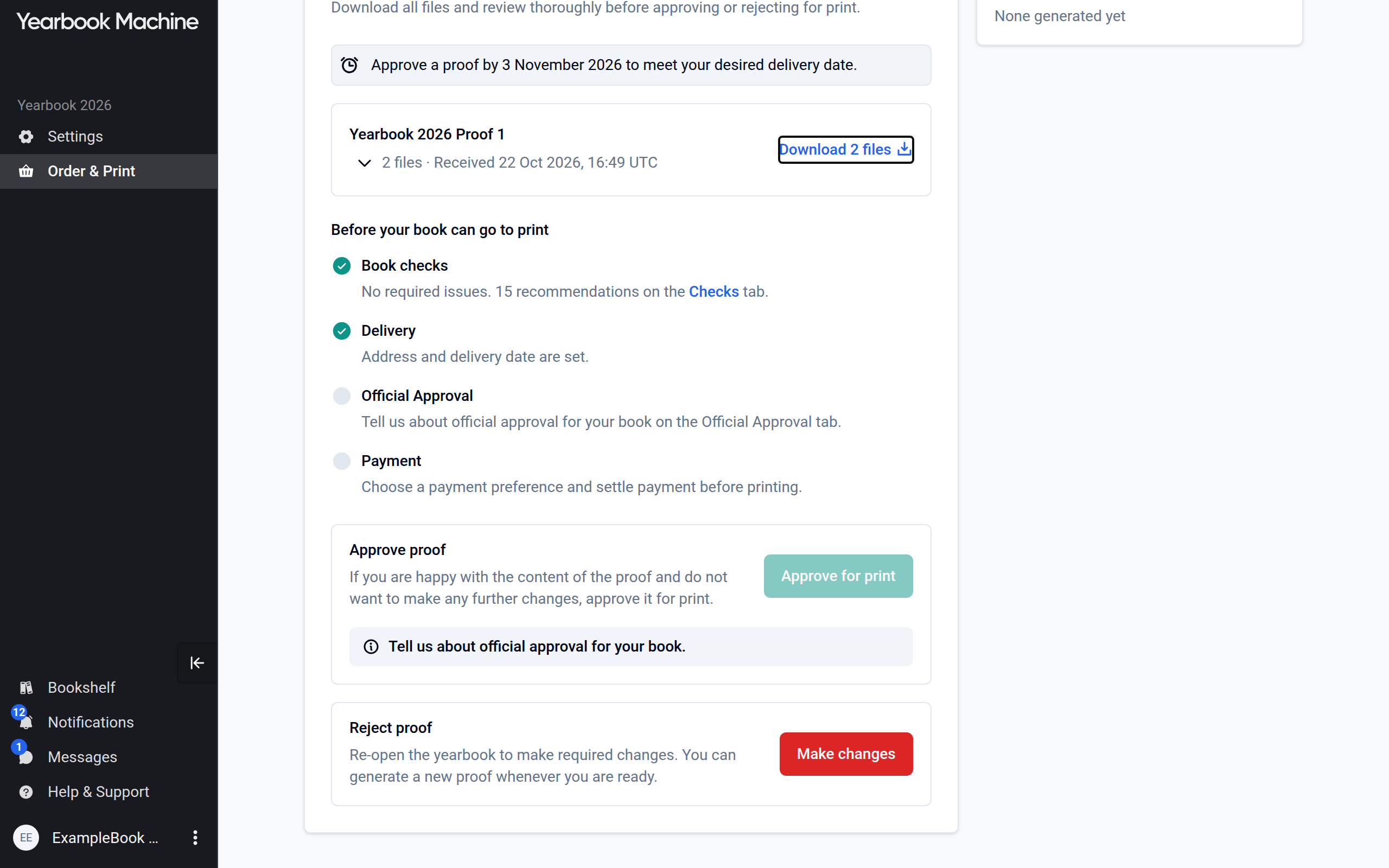
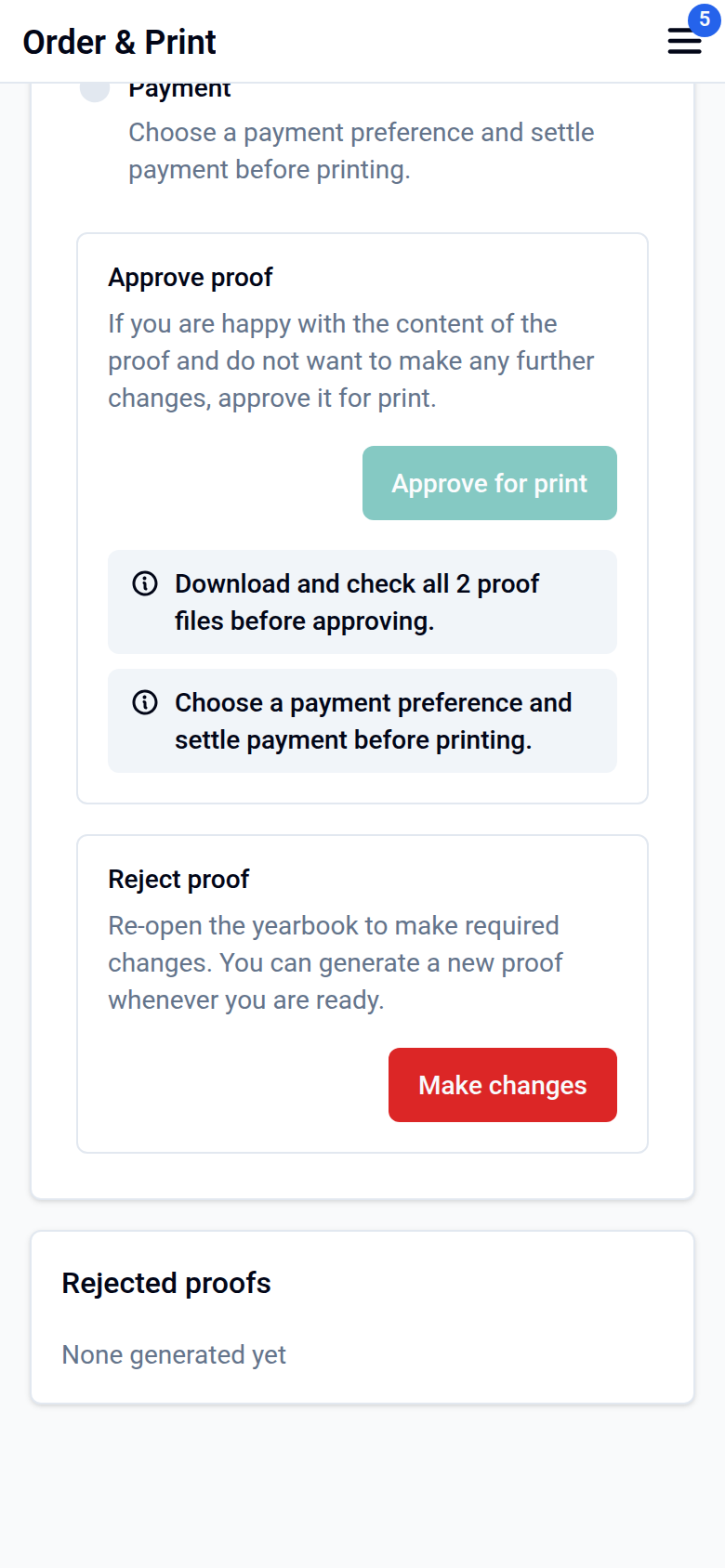
- Download every file in the proof. The cover, the inside pages and any endpapers (the pages just inside the front and back covers of a hardback book) can be separate files. You must download all of them before you can approve or reject the proof.
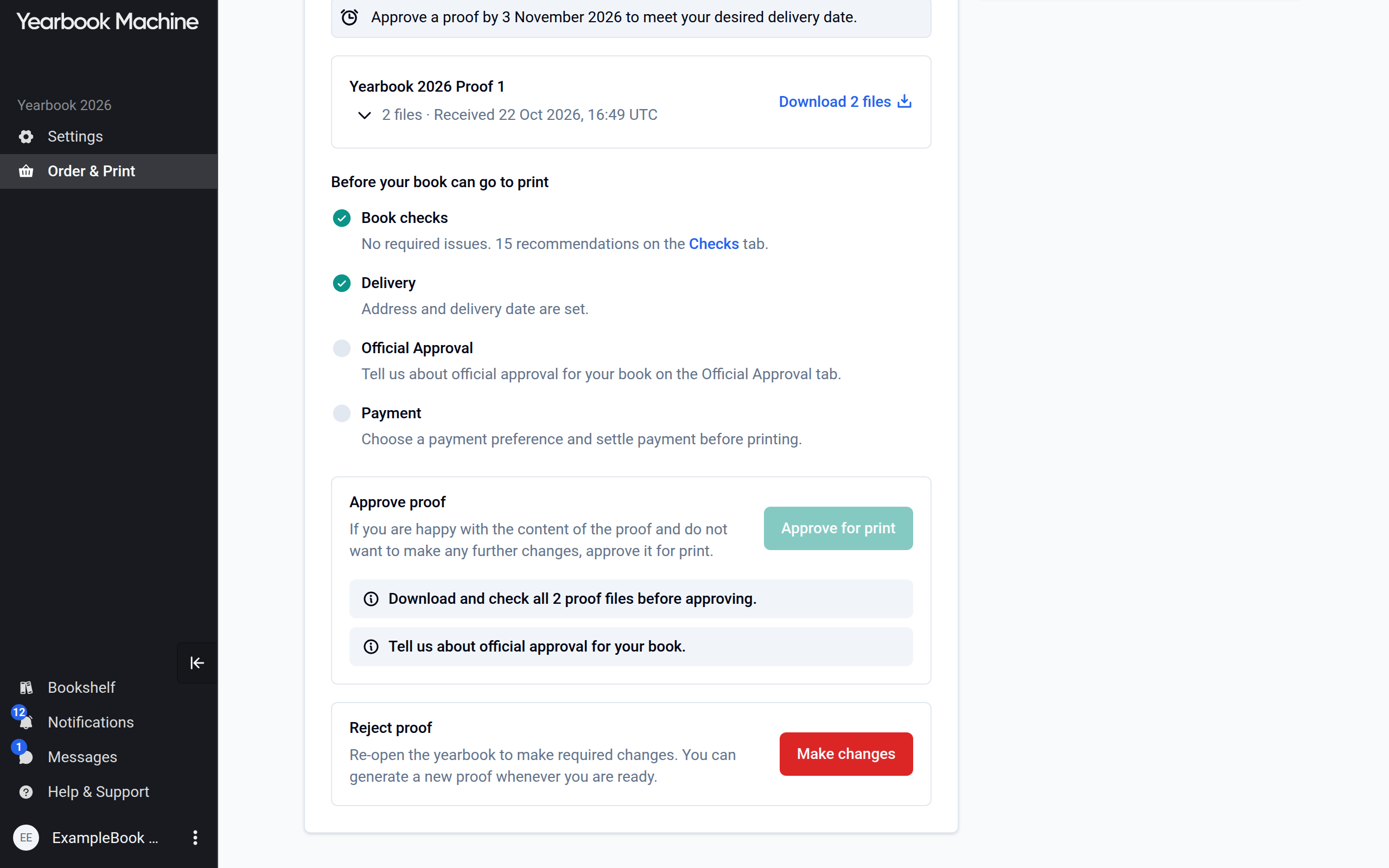
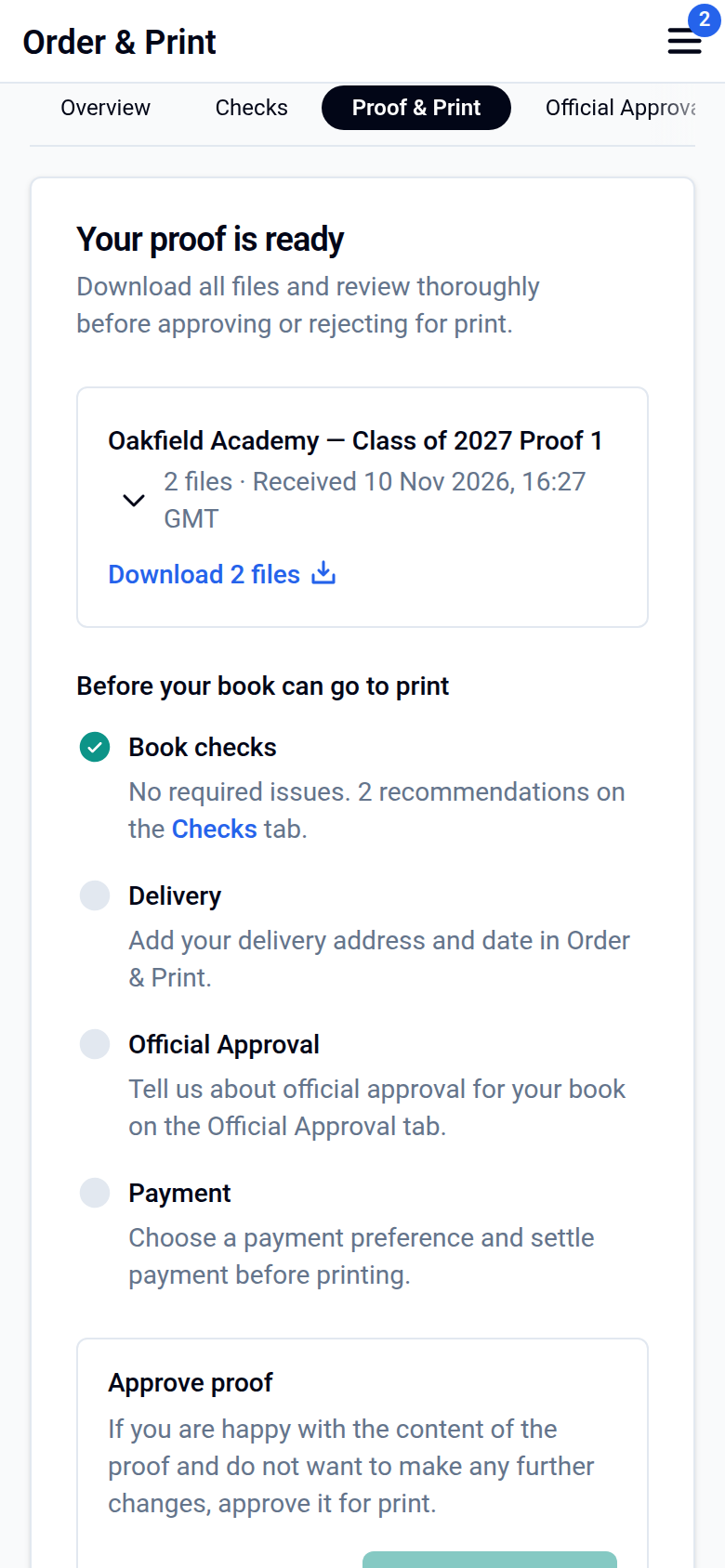
- Check every page carefully: spelling, names, photos and page order.
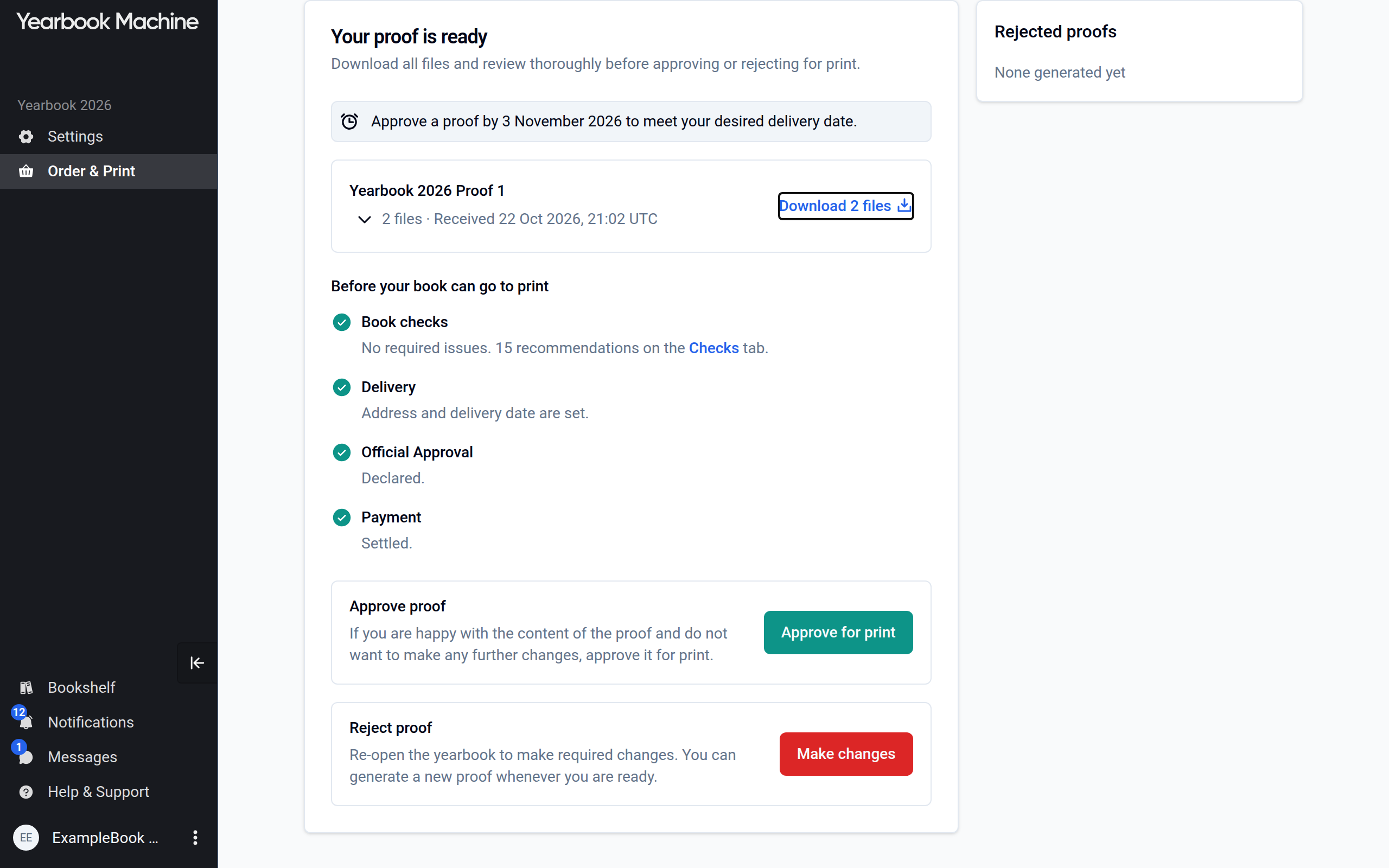
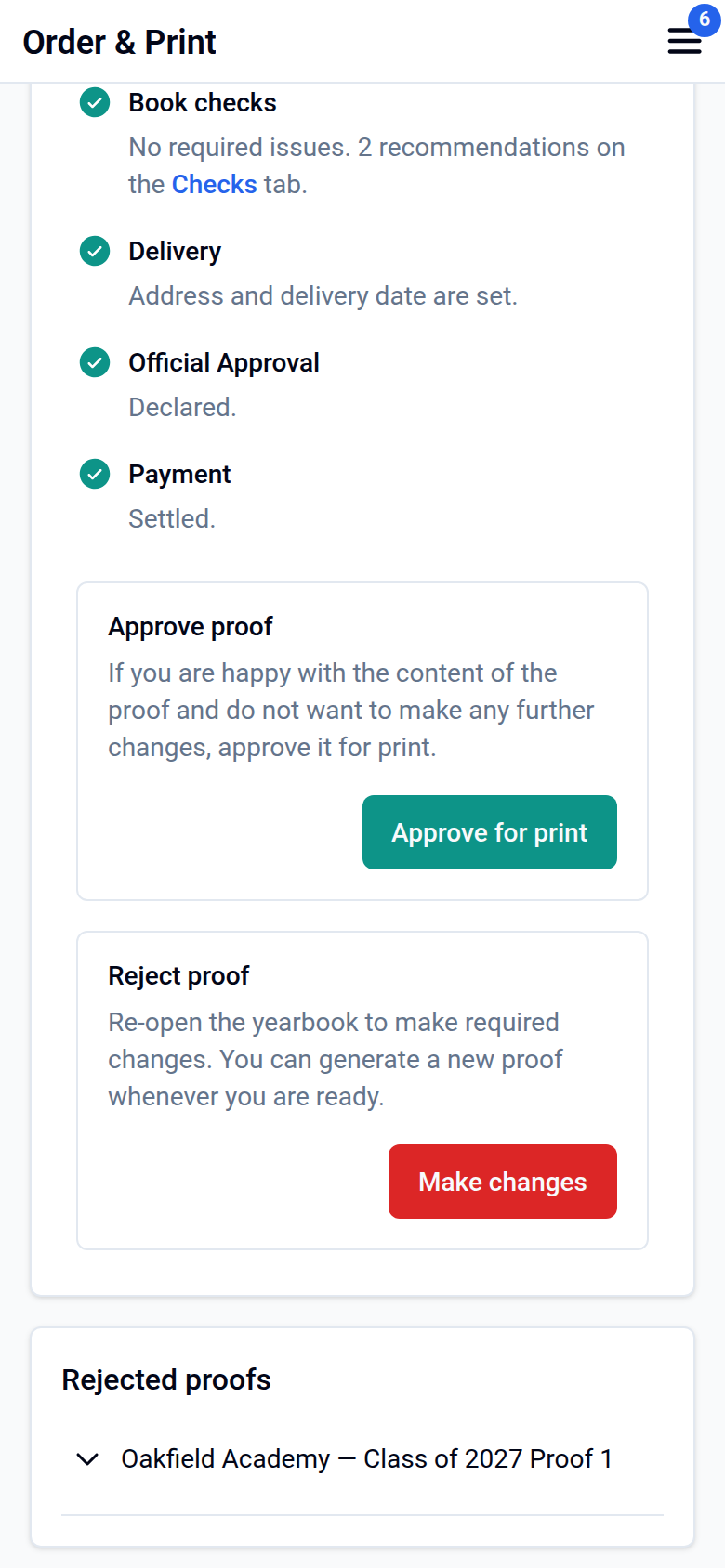
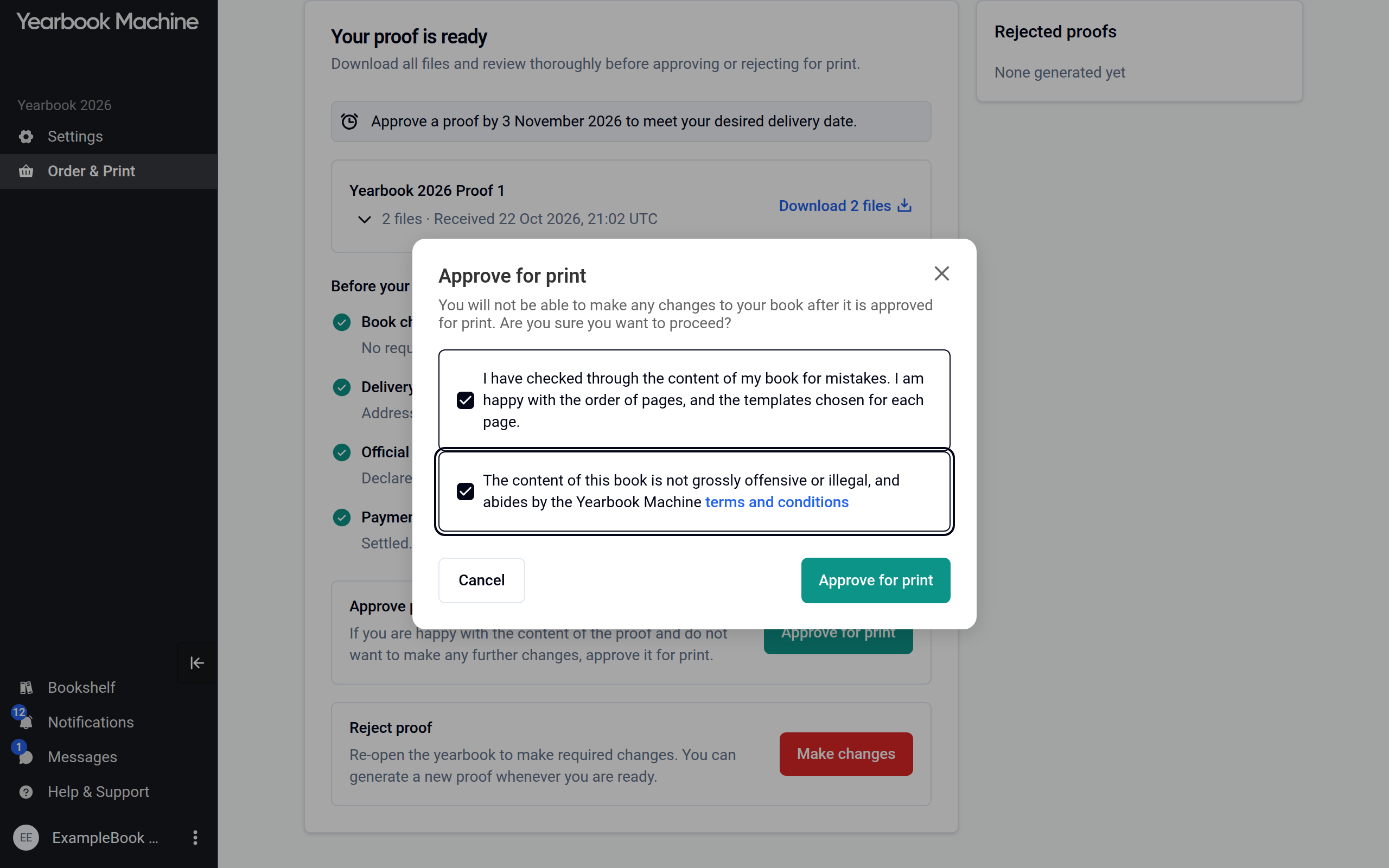
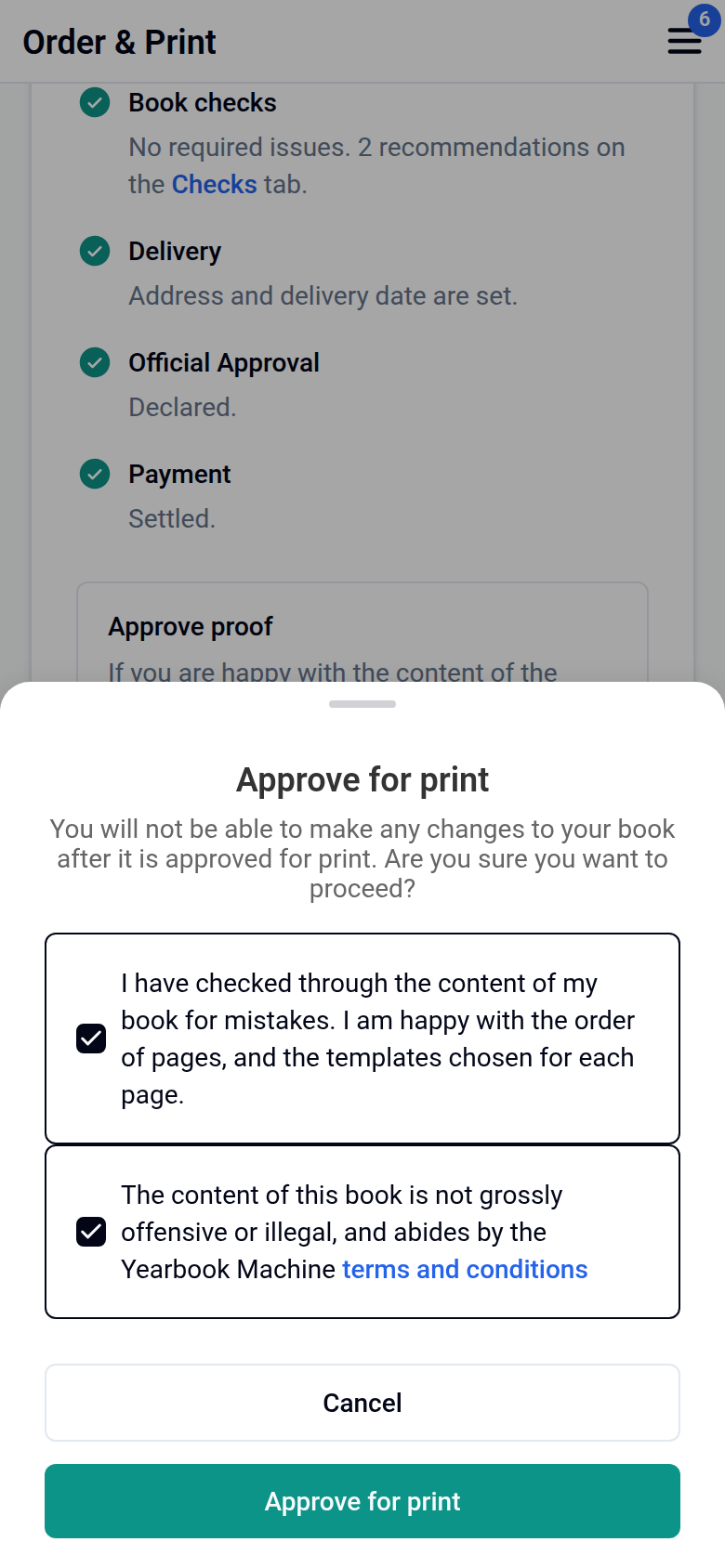
- If you are happy, click Approve for print, tick the two declarations about your book's content and confirm. Approving tells us the book is ready to print as it stands: after this, no further changes can be made.
Make changes after seeing a proof
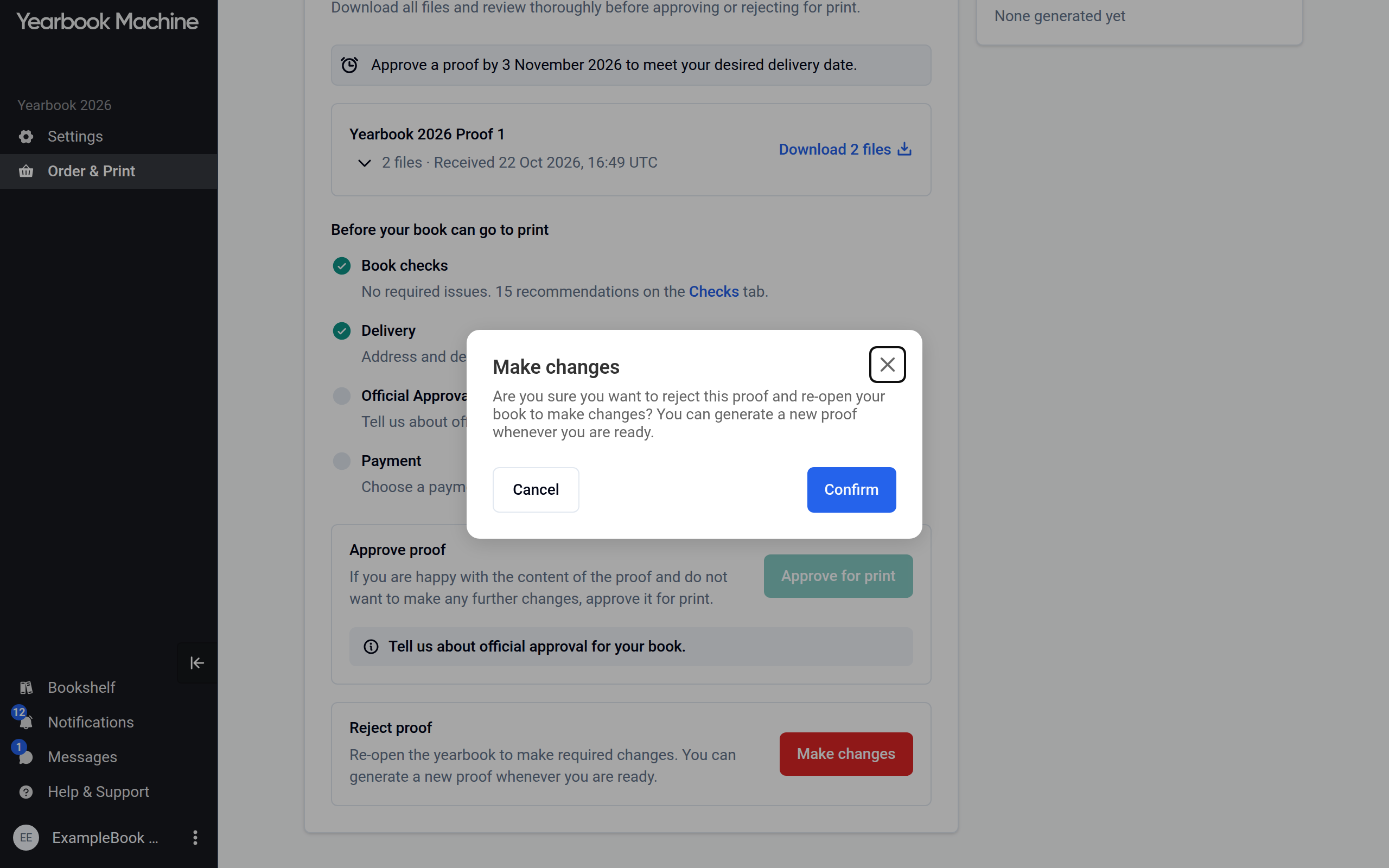
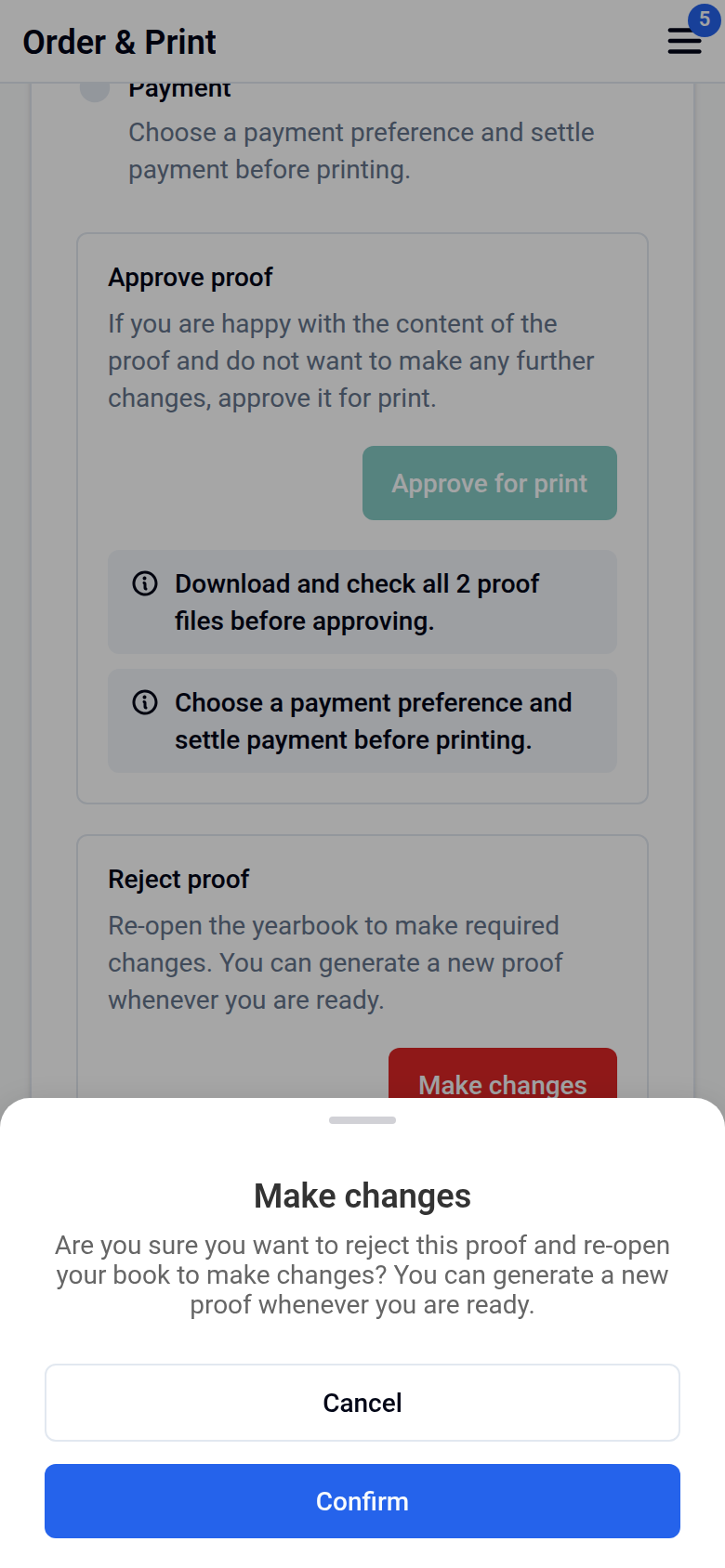
- On the Proof & Print tab, click Make changes, then Confirm. This marks the proof as rejected and reopens your book for editing.
- When you have finished, generate a new proof.
Earlier proofs are listed under Rejected proofs.
Common questions
Can I see the whole book before I approve it?
Yes. Use Preview in the page editor to read through the whole book at any time, then generate a proof when you are ready to print.
Why can't I approve my proof yet?
You need to download every file in the proof first. Any outstanding print requirement, such as a required issue on the Checks tab or missing payment, is also shown under the button.
Can I print from the proof PDF?
No. The proof is for checking your book. The print-ready files are made when your book is sent to print.
Was this article helpful?
Sorry, that didn't send. Please try again in a little while.
Thanks. That helps us improve this article.
Any other questions?
Email support@yearbook.com and we'll help you out.