
Page types: which to use for what
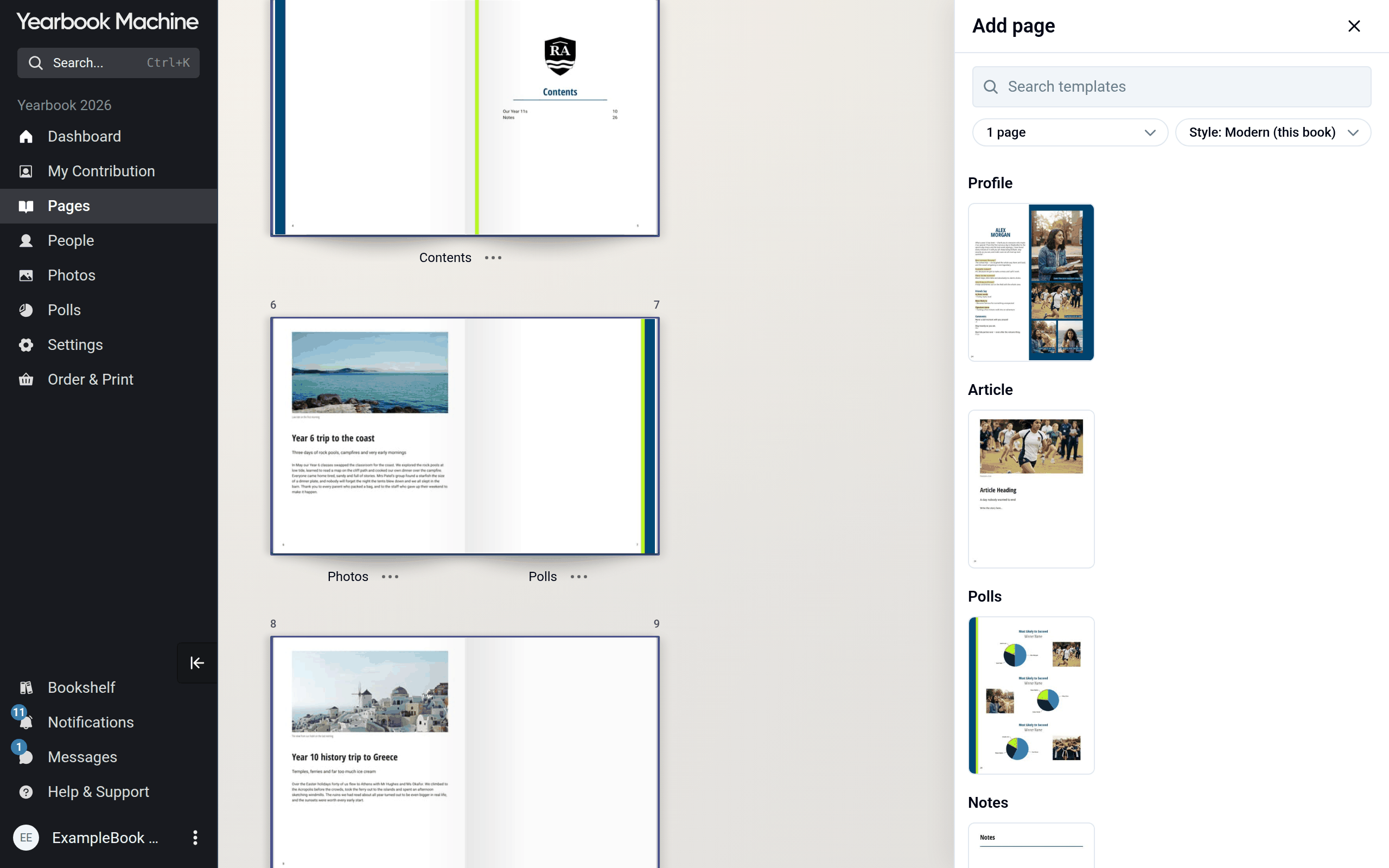
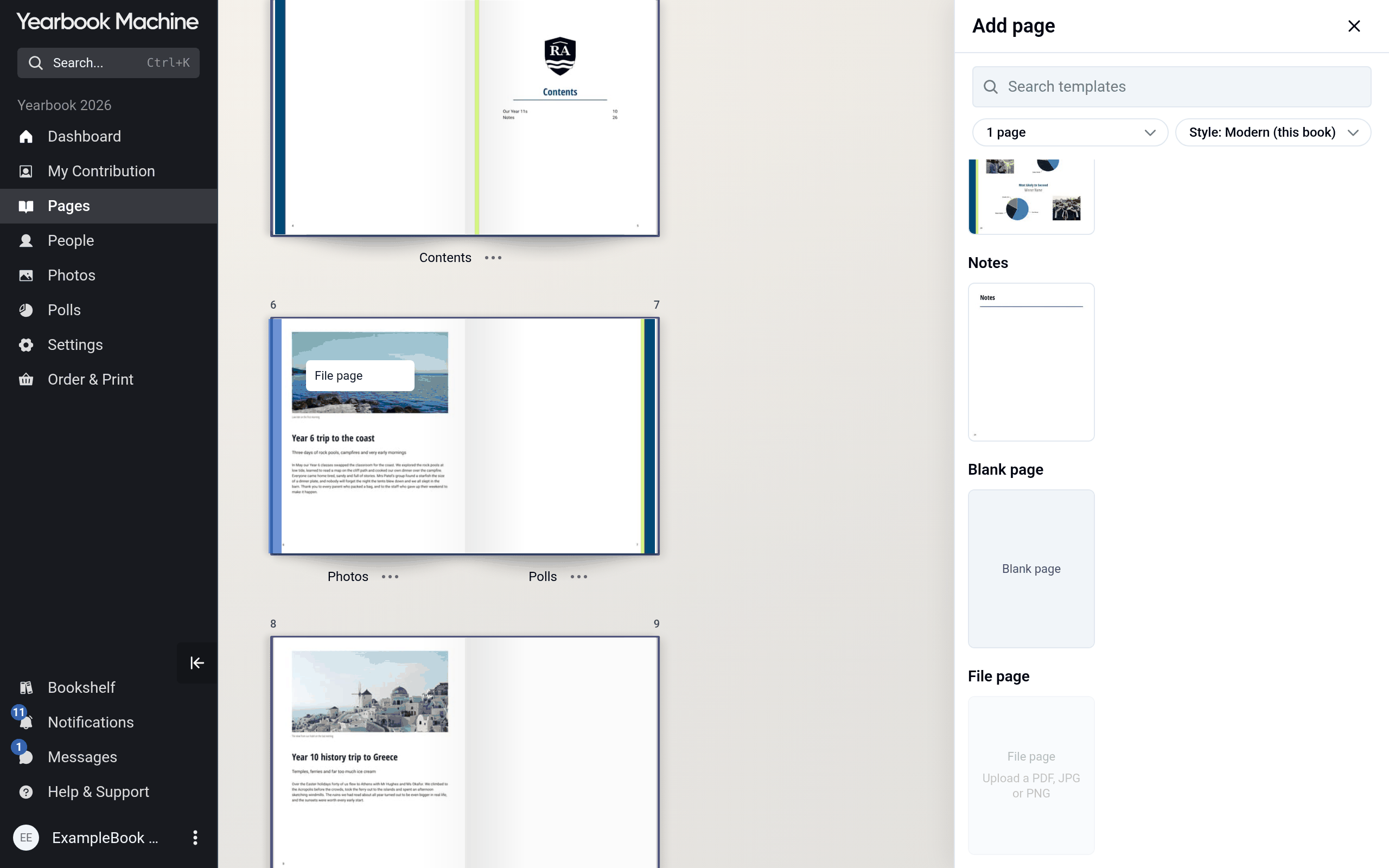
This article describes the kinds of page you can add to your yearbook and which to choose for common content. Editors add pages from the Add page panel on the Pages screen, which you open by clicking Pages in the main menu. Most pages start from a design, which you can change later in the page's Layout tab in the page editor, the screen for working on a single page.
The kinds of page
- Profile: a page about one contributor, built from their answers and photos. It uses your book's style (the design style your book uses) and profile size (how much space each profile takes, from a double-page spread down to a fraction of a page), and profiles are kept in alphabetical order within their section.
- Montage: photos, with optional captions.
- Article: a page with a heading, long-form text and, if you like, one or more photos. Use it to write about features such as trips, clubs or anything you like.
- Polls: displays the results of your book's polls.
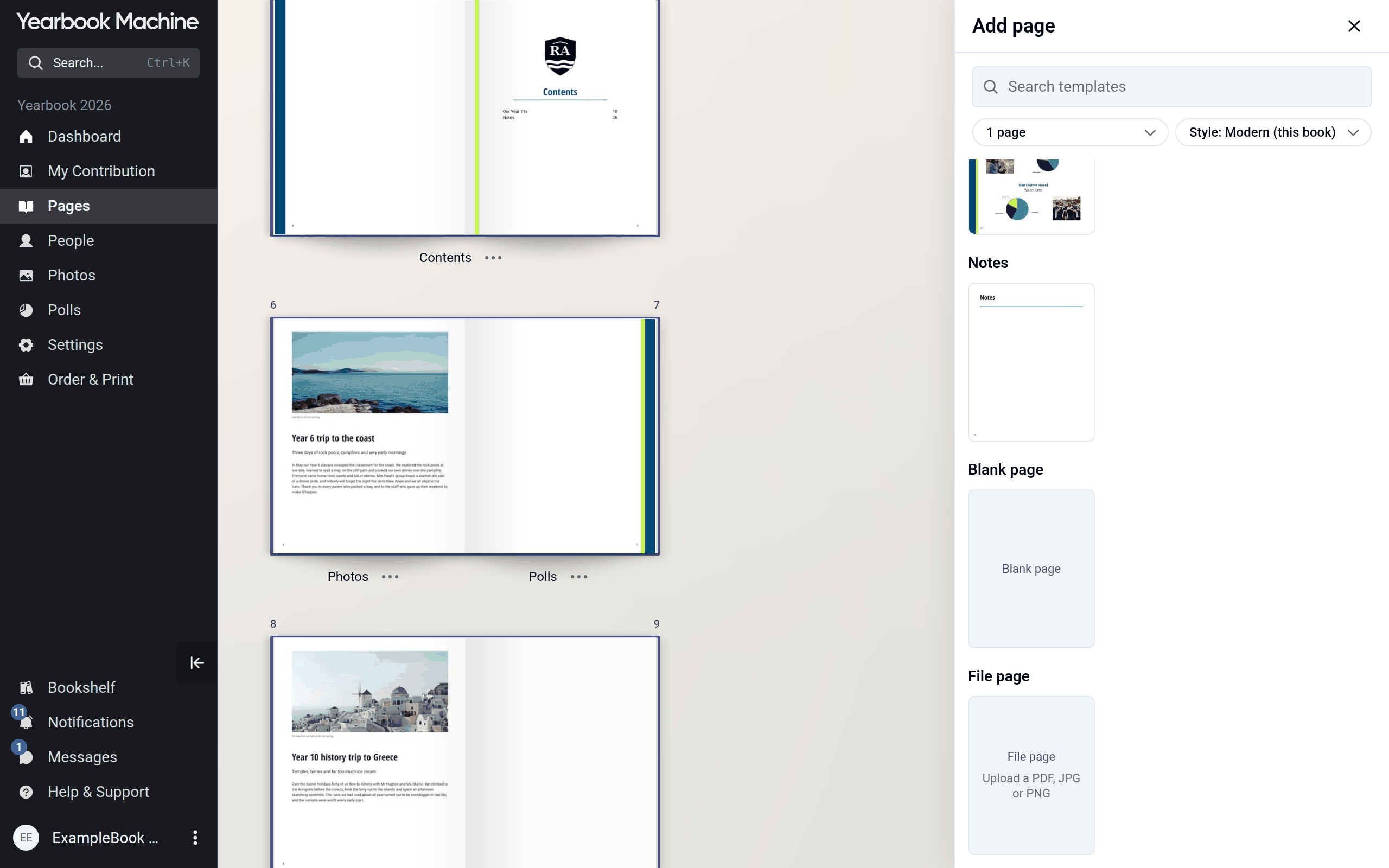
- Notes: a page for handwritten notes once the book is printed, with your logo as an optional watermark.
- Title page: your book's logo and title.
- Contents page: lists your book's sections. It fills itself in as you add sections.
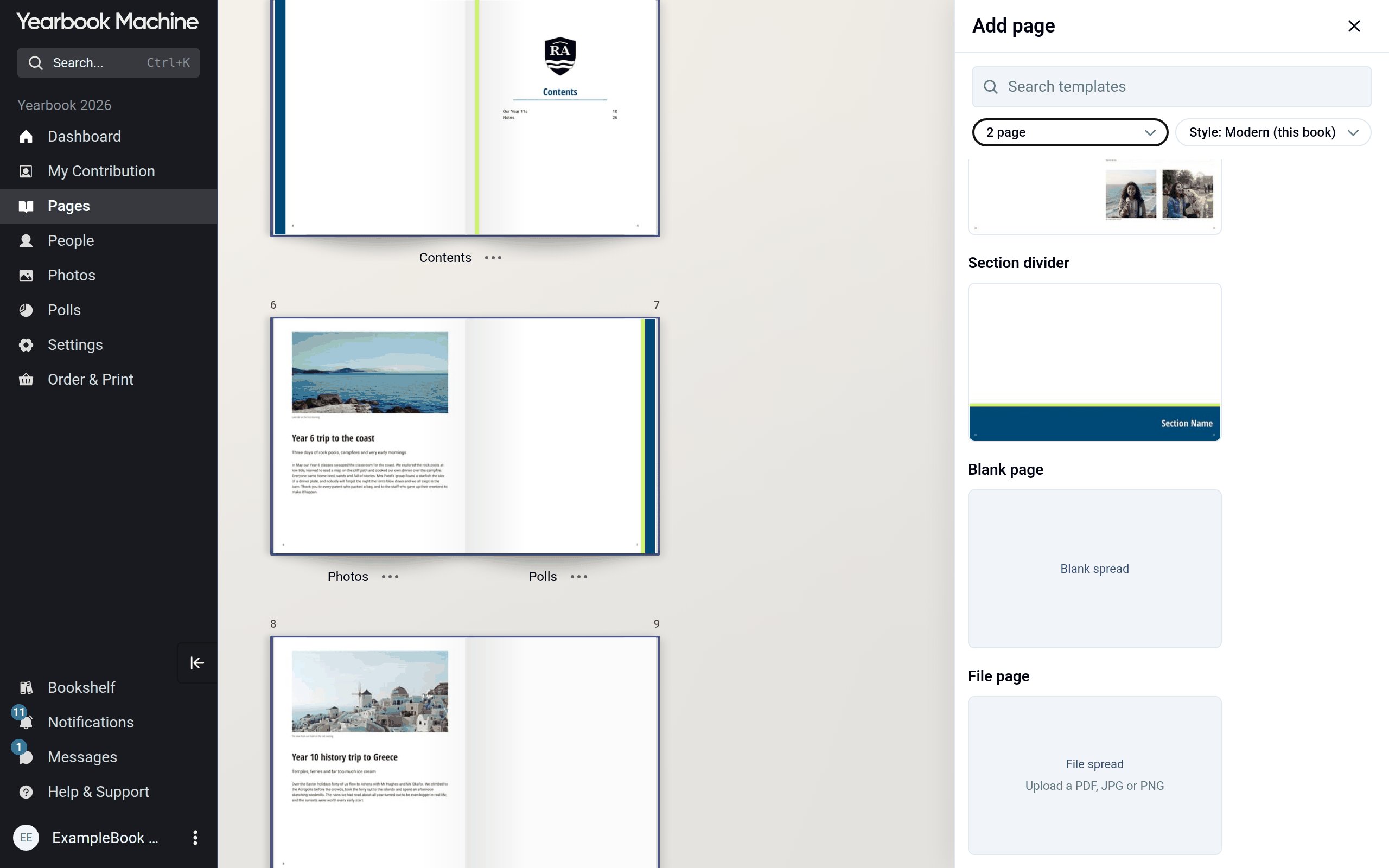
- Section divider: a double-page spread (two facing pages) at the start of a section, like a chapter heading. Sections are the chapters your book is divided into.
- Blank page: an empty page you design yourself in the page editor.
- File page: a page made from a file you upload, such as a PDF, JPG or PNG. If you upload a PDF with several pages, each one becomes a page of its own.
- Filler page: added automatically to fill out a section, for example so that a double-page spread starts on a left-hand page, and removed automatically when it's no longer needed. See Why has a page called "Filler page" appeared?.
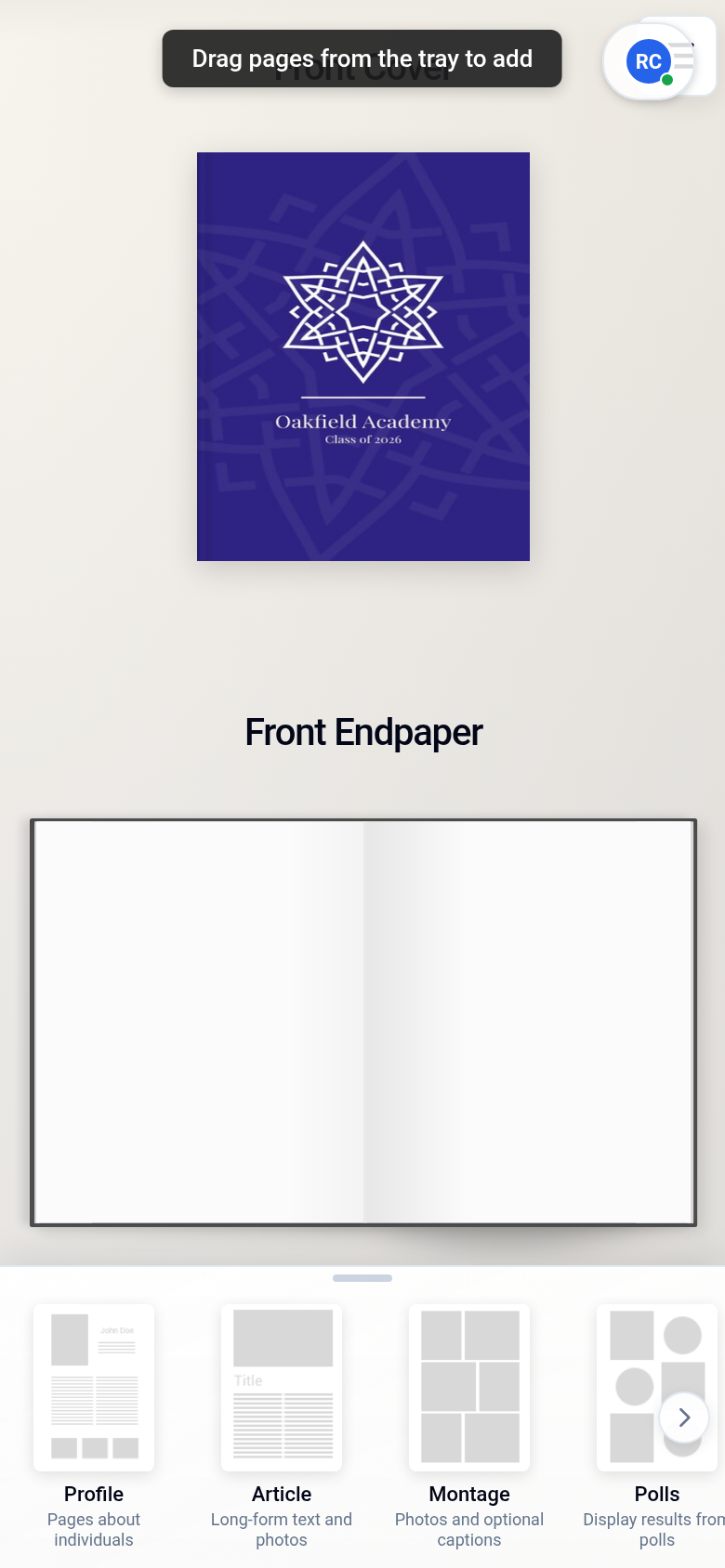
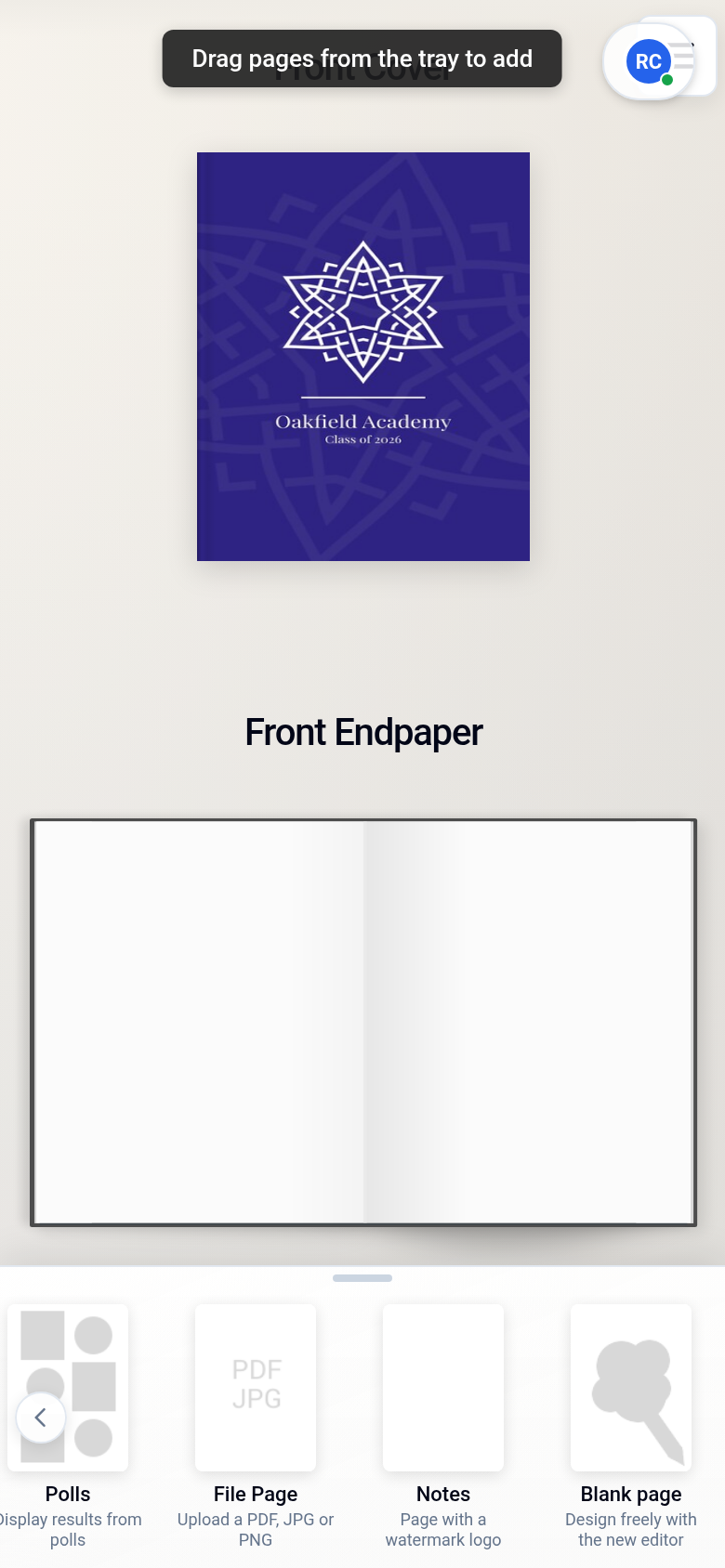
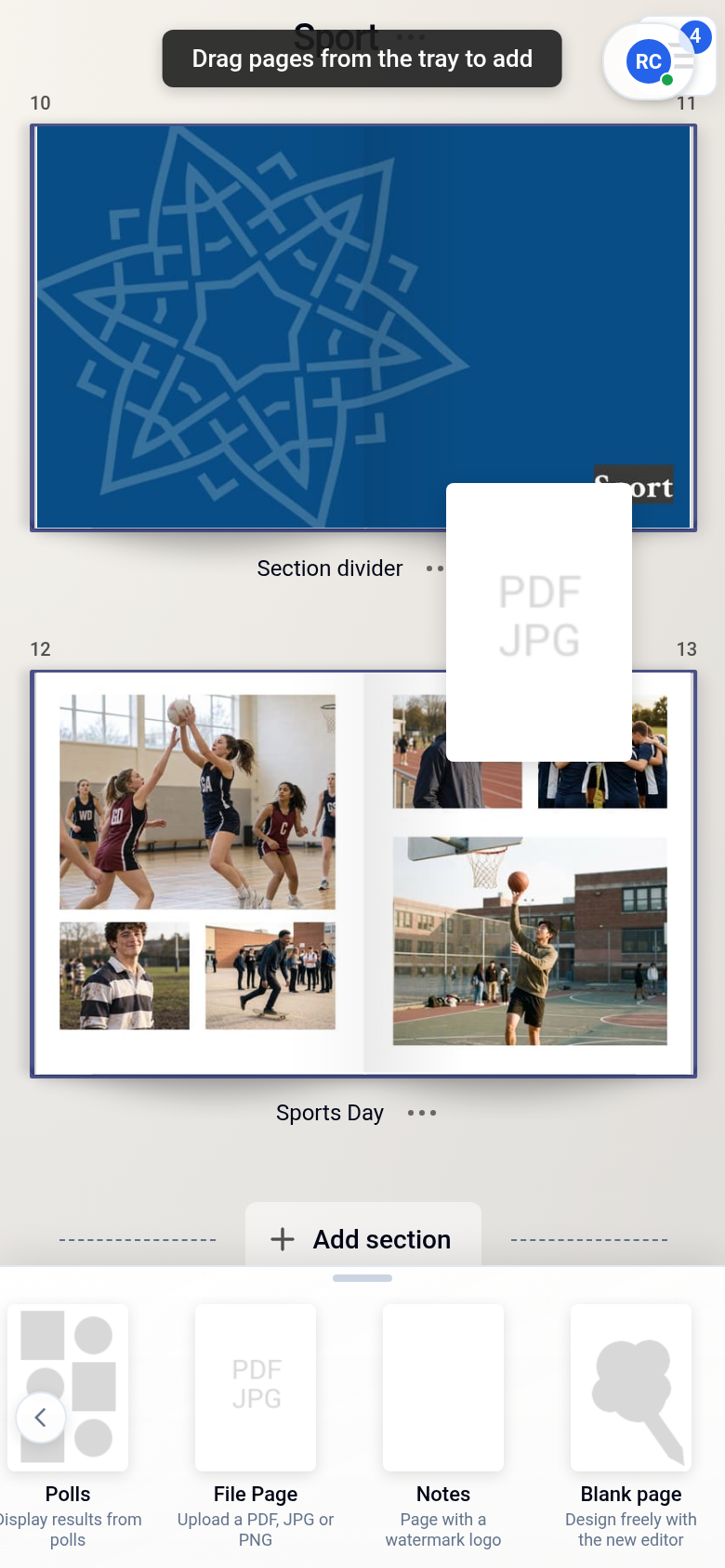
On a phone, the Add page panel is a tray along the bottom of the screen that you swipe sideways. Press and hold a tile, then drag it up into the book.
Montage and article pages only start from different designs, so an article that needs more photos can switch to a montage design in its Layout tab, and the other way round.
Using a file you have designed yourself
Use a File page when you already have the finished page, such as a sponsor's advert.
- In the Add page panel, drag File page into your book. For a design that fills two facing pages, choose 2 page first and drag File spread instead. The phone tray has no 2 page choice, so add a File spread on a computer.
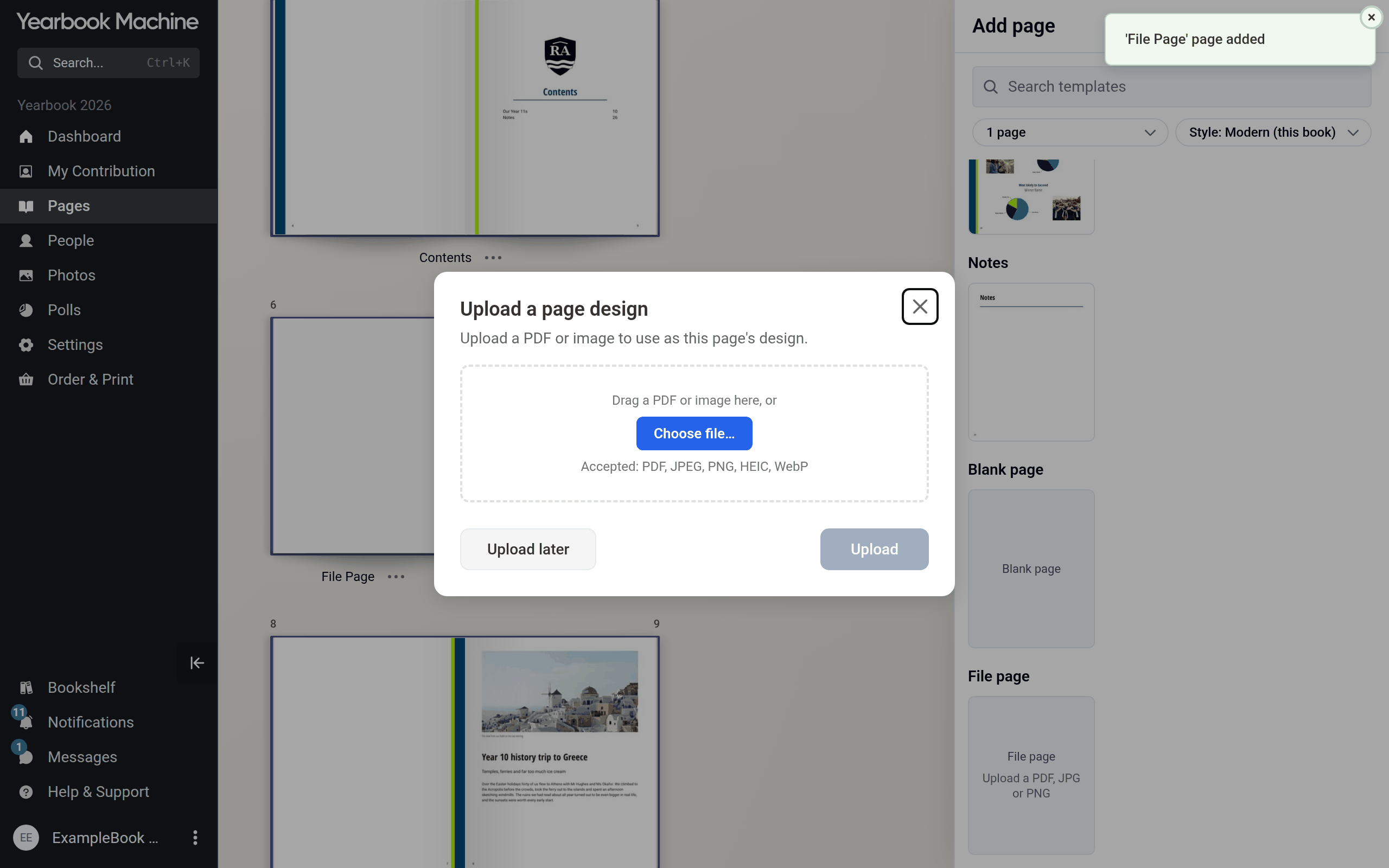
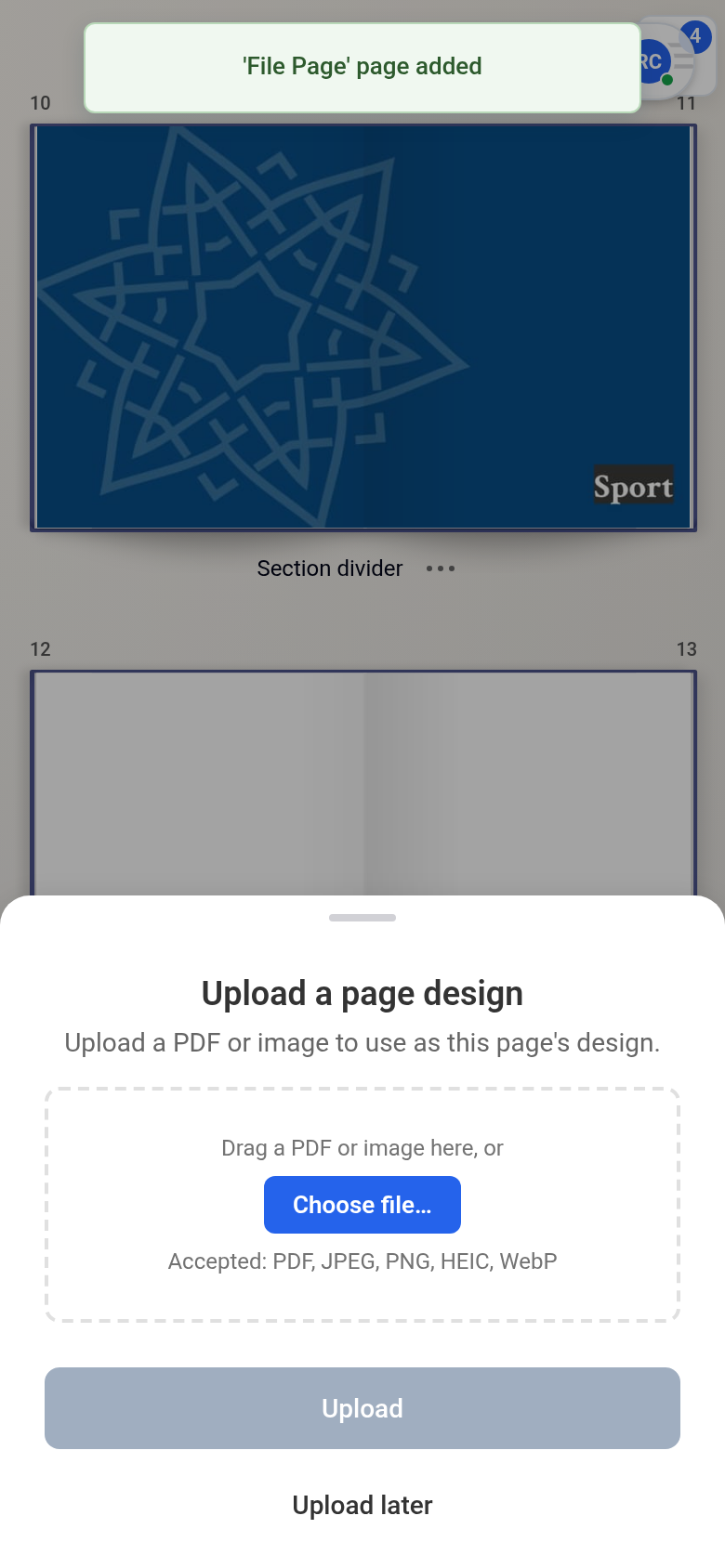
- In Upload a page design, drag your file in or click Choose file…. Accepted files are PDF, JPEG, PNG, HEIC and WebP.
- Click Upload.
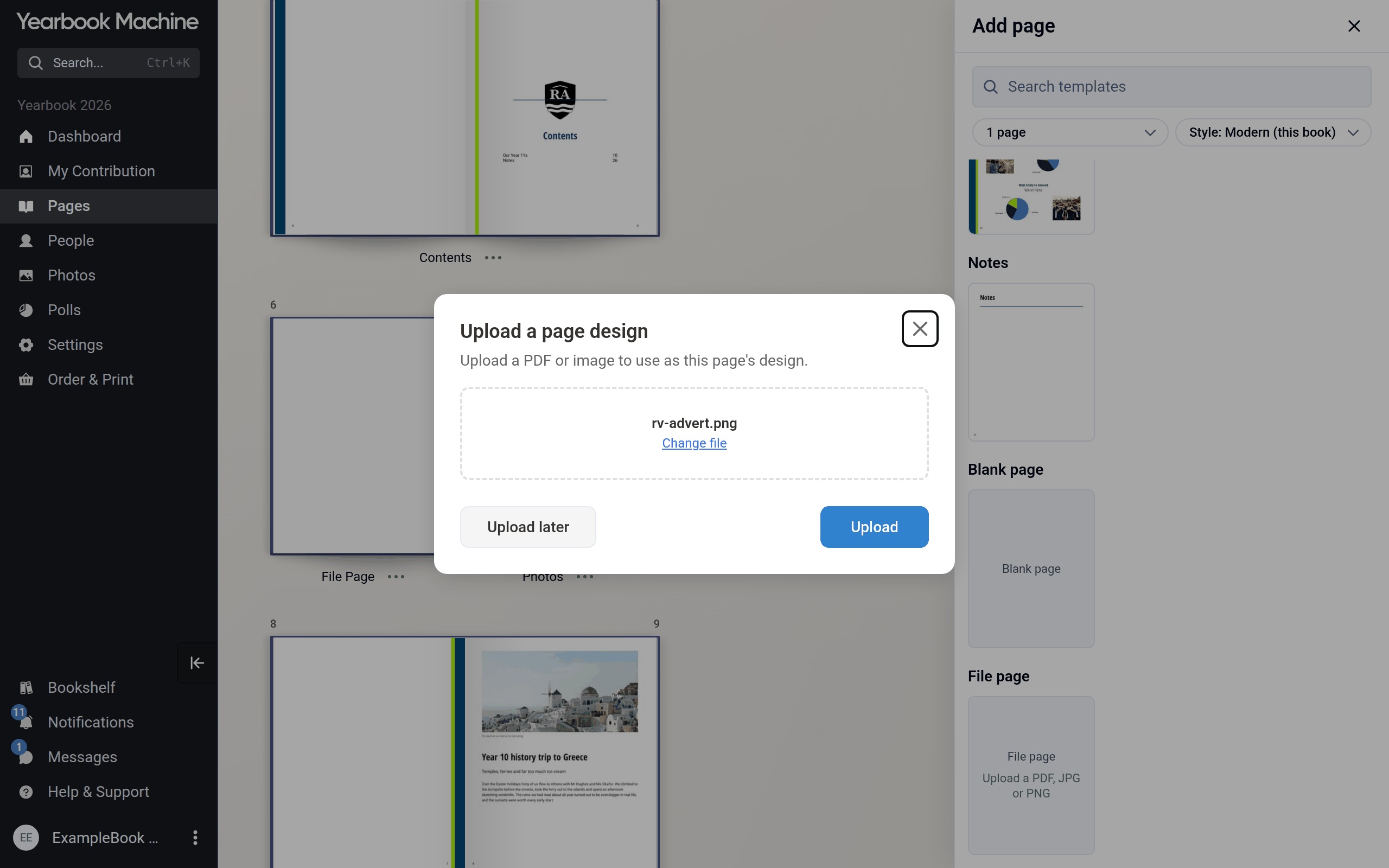
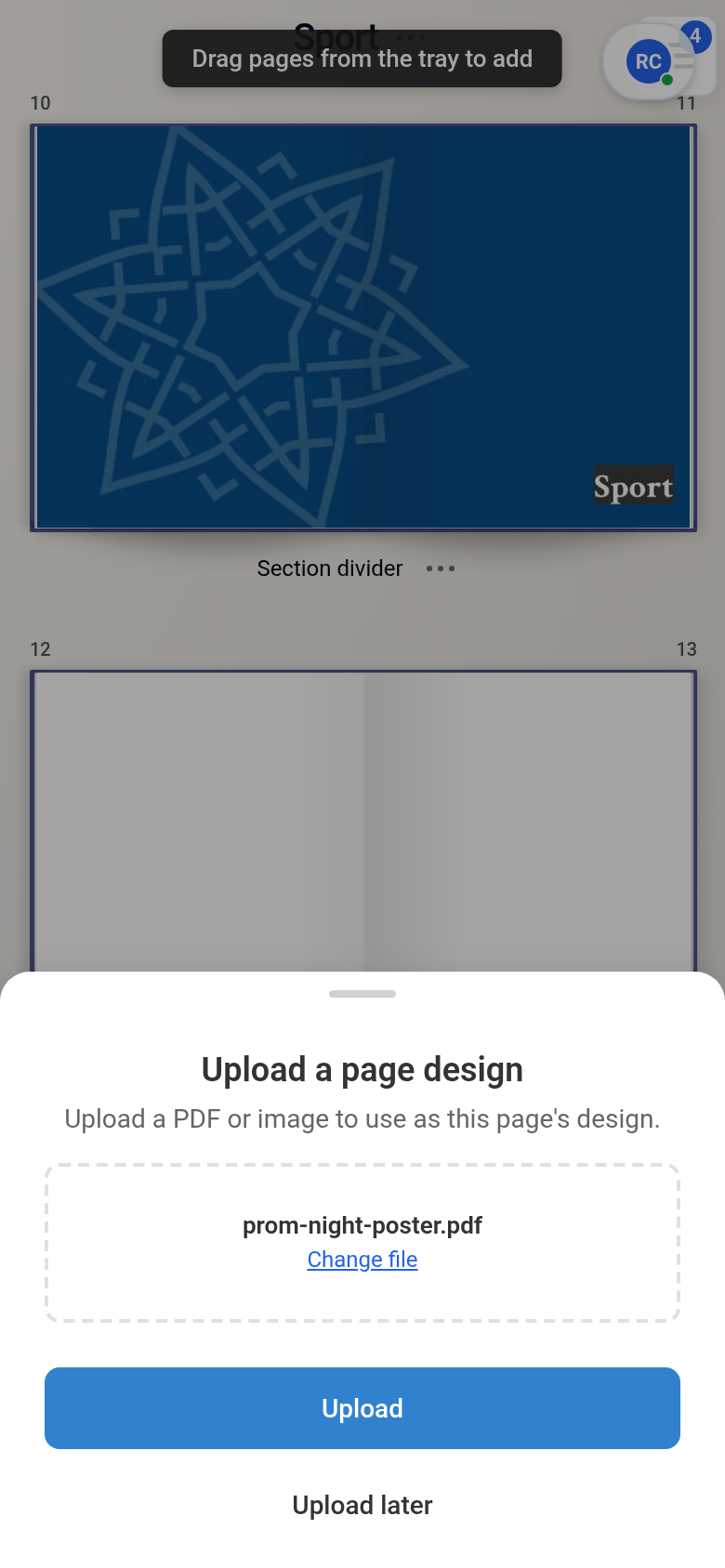
Make your design the same shape as a page in your book. Images are checked for print quality: a file that is too low in quality is refused with This file is too low quality to be printed, and a borderline one shows a warning. If you upload a PDF with several pages, click the import button once they are ready; the first goes on this page and the rest are added after it. To add the page now and upload the file later, click Upload later.
Section dividers
A section divider is added for you when you click Add section, and it takes the section's name. Each section can have only one, and the title section cannot have one. If you deleted a divider, drag Section divider from the Add page panel into the section to add it back. Change its look in its Layout tab.
Common questions
What should I use for a message from staff or a foreword?
An Article page. Pick a design with the amount of text and photos you need, then paste or type your text.
How do I add a Word document?
Copy the text into an Article page. If it is already laid out exactly as you want it printed, save it as a PDF and use a File page.
What is best for a sponsor's advert?
If the sponsor has given you a full-page file, use a File page. For several smaller adverts on one page, use a Montage and put each advert in its own photo frame.
How do I add a drawing or painting?
Scan it in and add it as a File page if it should fill a page or spread. To show several drawings together, use a Montage.
How do I add a photo across two pages?
Choose 2 page in the Add page panel and drag in a File spread, or a two-page Montage design.
Can I change a page into a different type?
Montage, article, blank and notes pages can take any of those designs from the Layout tab. Choosing a polls design turns the page into a polls page. Title, contents, section divider and profile pages always keep their type.
Was this article helpful?
Sorry, that didn't send. Please try again in a little while.
Thanks. That helps us improve this article.
Any other questions?
Email support@yearbook.com and we'll help you out.