
What can I see on other people's pages?
This article is for contributors. If you are an editor and want to change who can see what, see Page permissions.
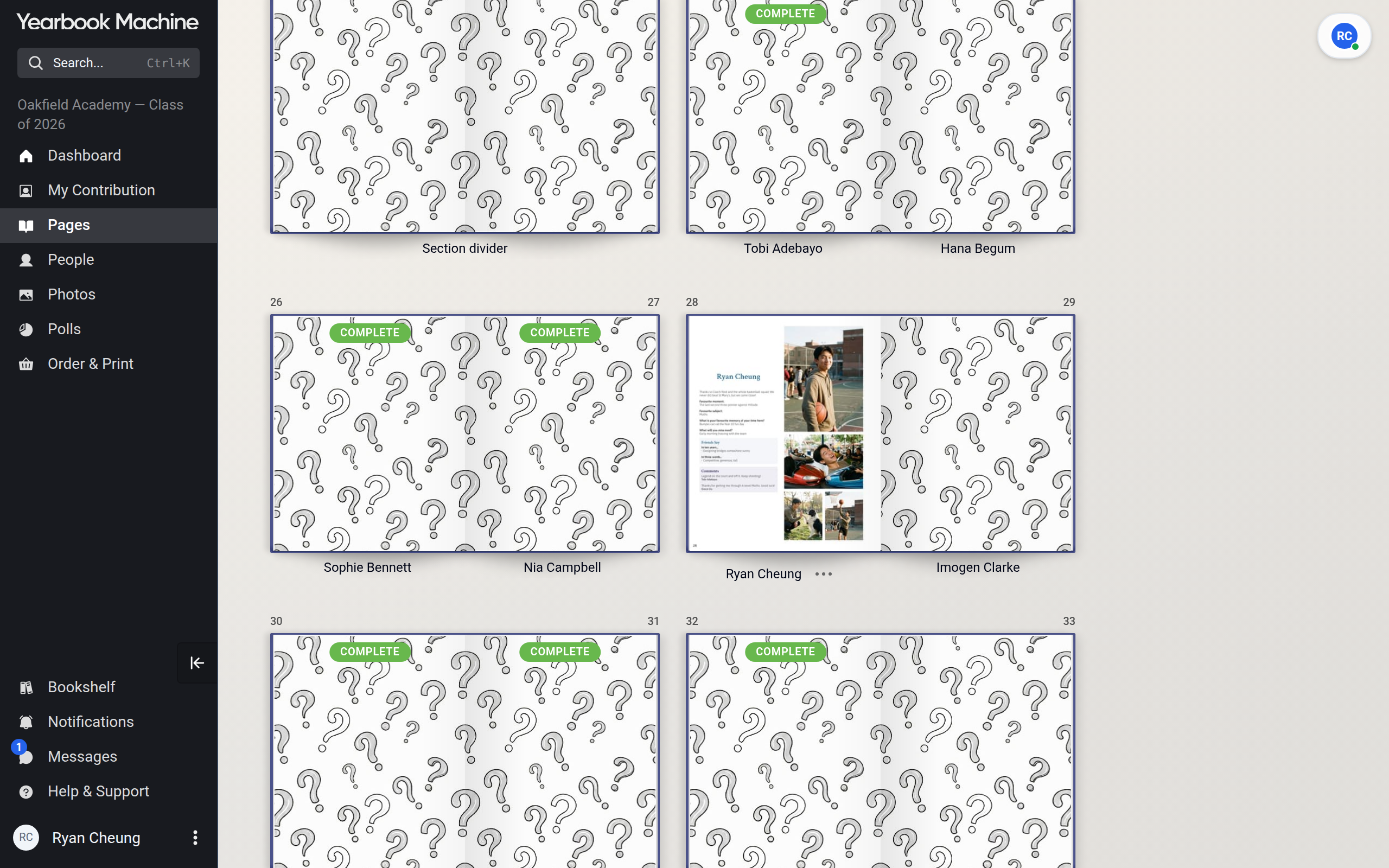
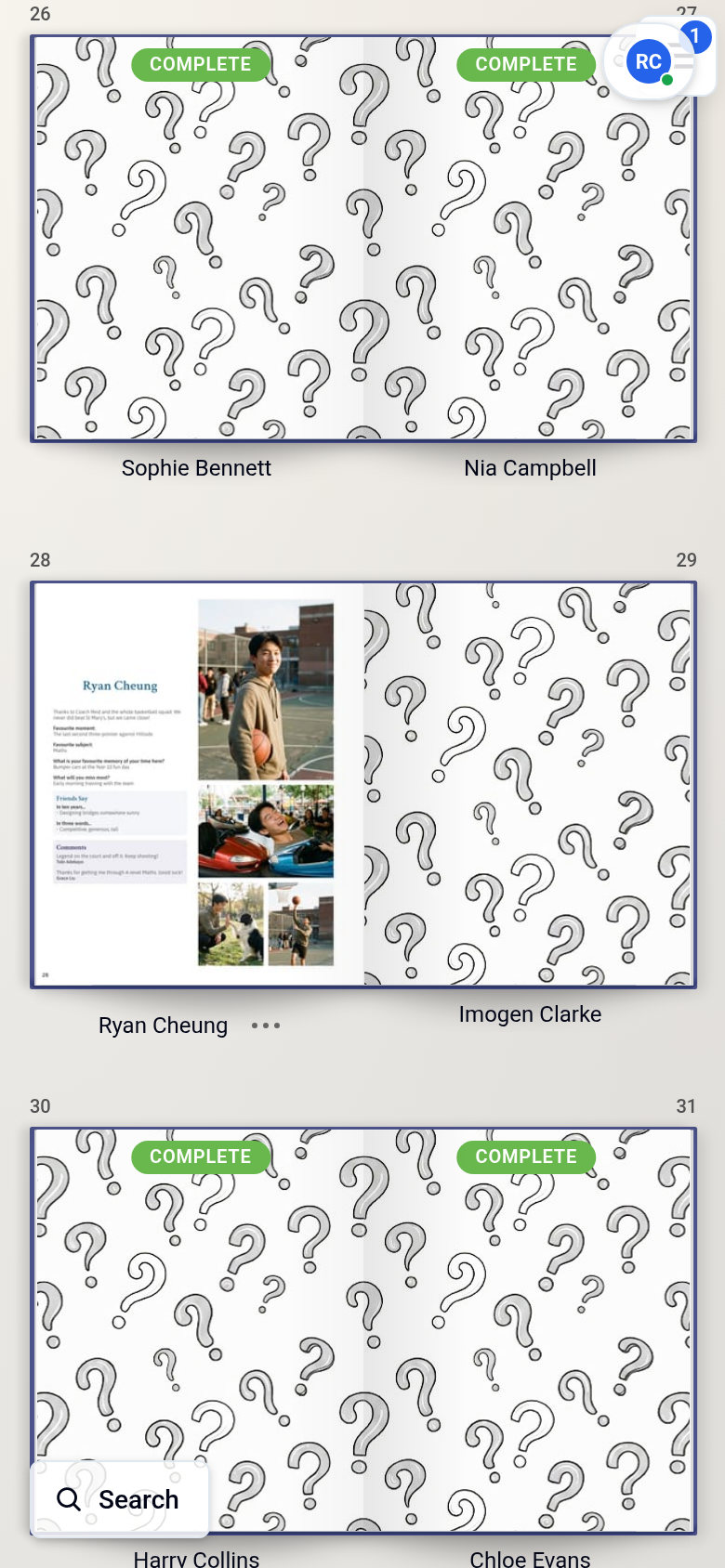
You can always see and fill in your own pages, including your own profile page. For everyone else's pages, the book's editors decide what you can see. You always see the name of every page. When you are not allowed to see what is on a page, a pattern of question marks shows in place of the page's content.
Where you see the pages
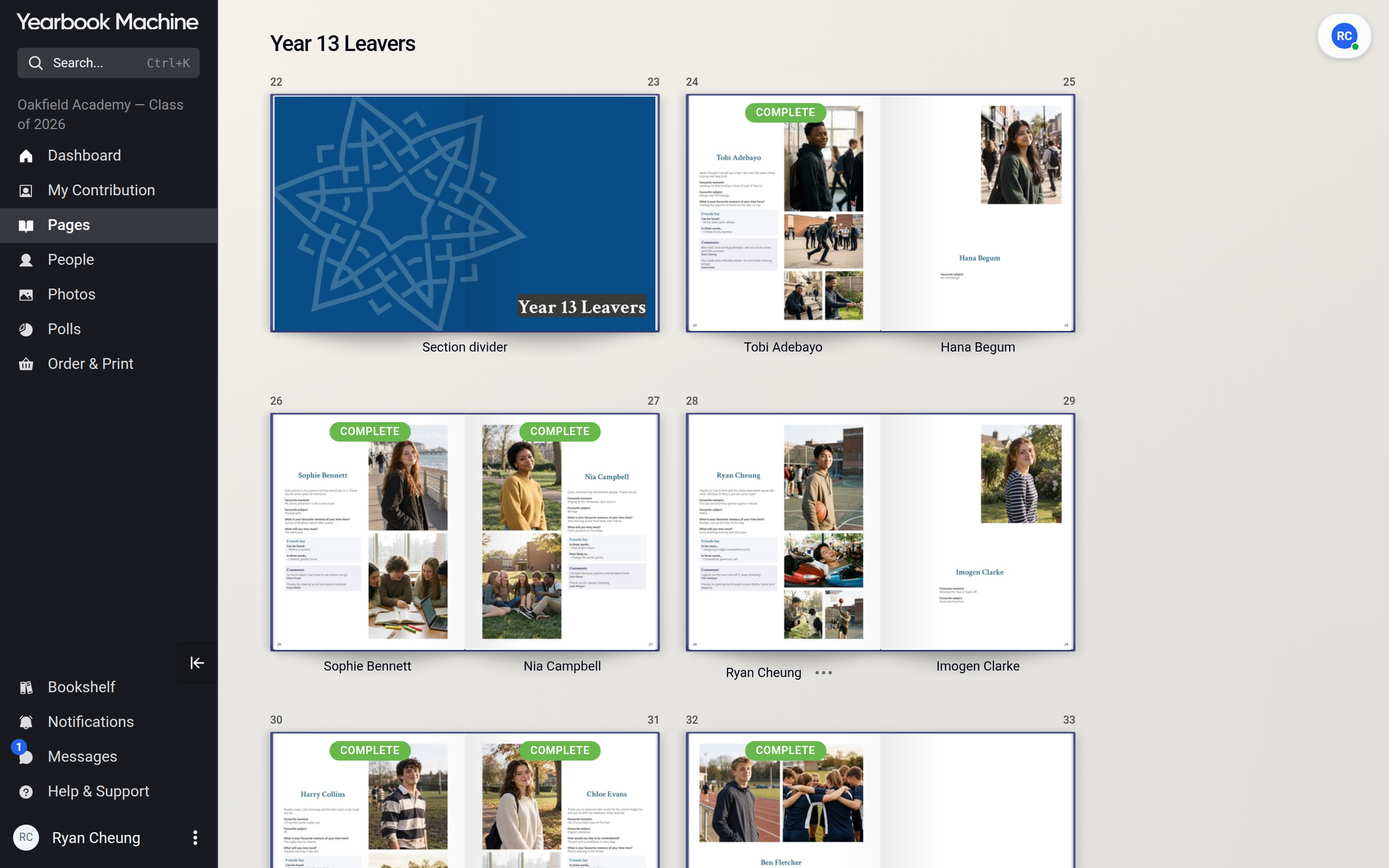
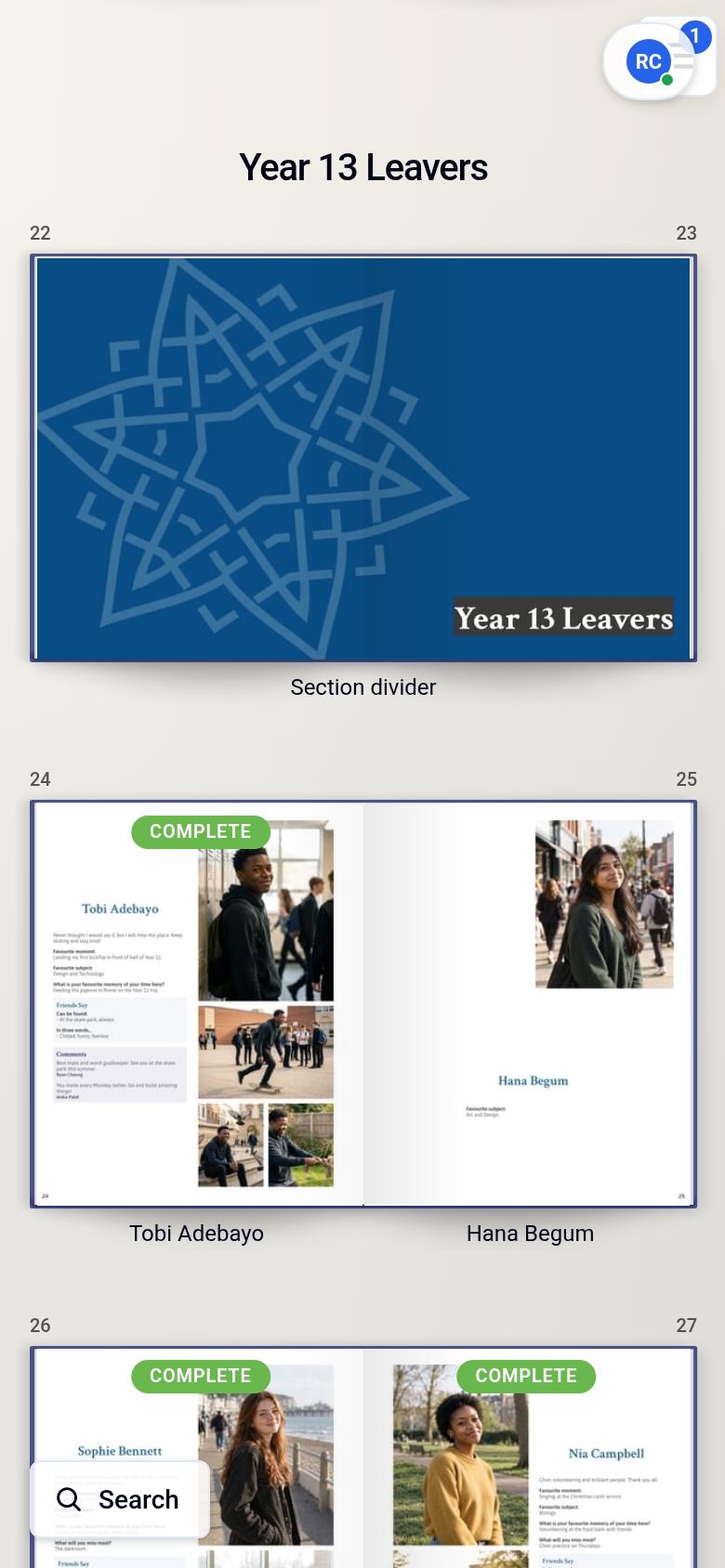
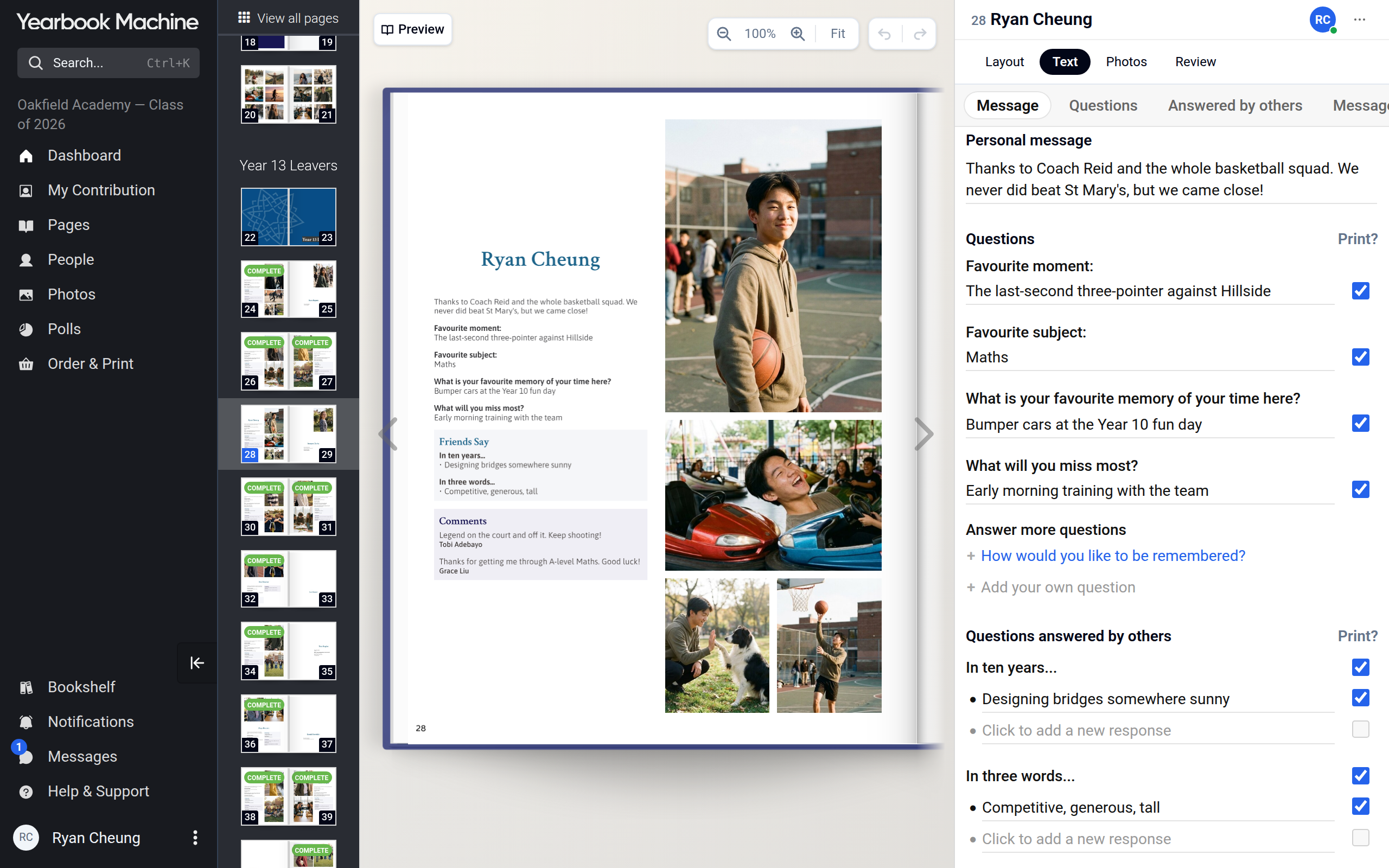
The Pages screen, which you open by clicking Pages in the main menu, shows each page of the yearbook as it will look in print. When you open a page in the page editor, the other pages of the book are shown beside it.
Why a friend's profile page shows question marks
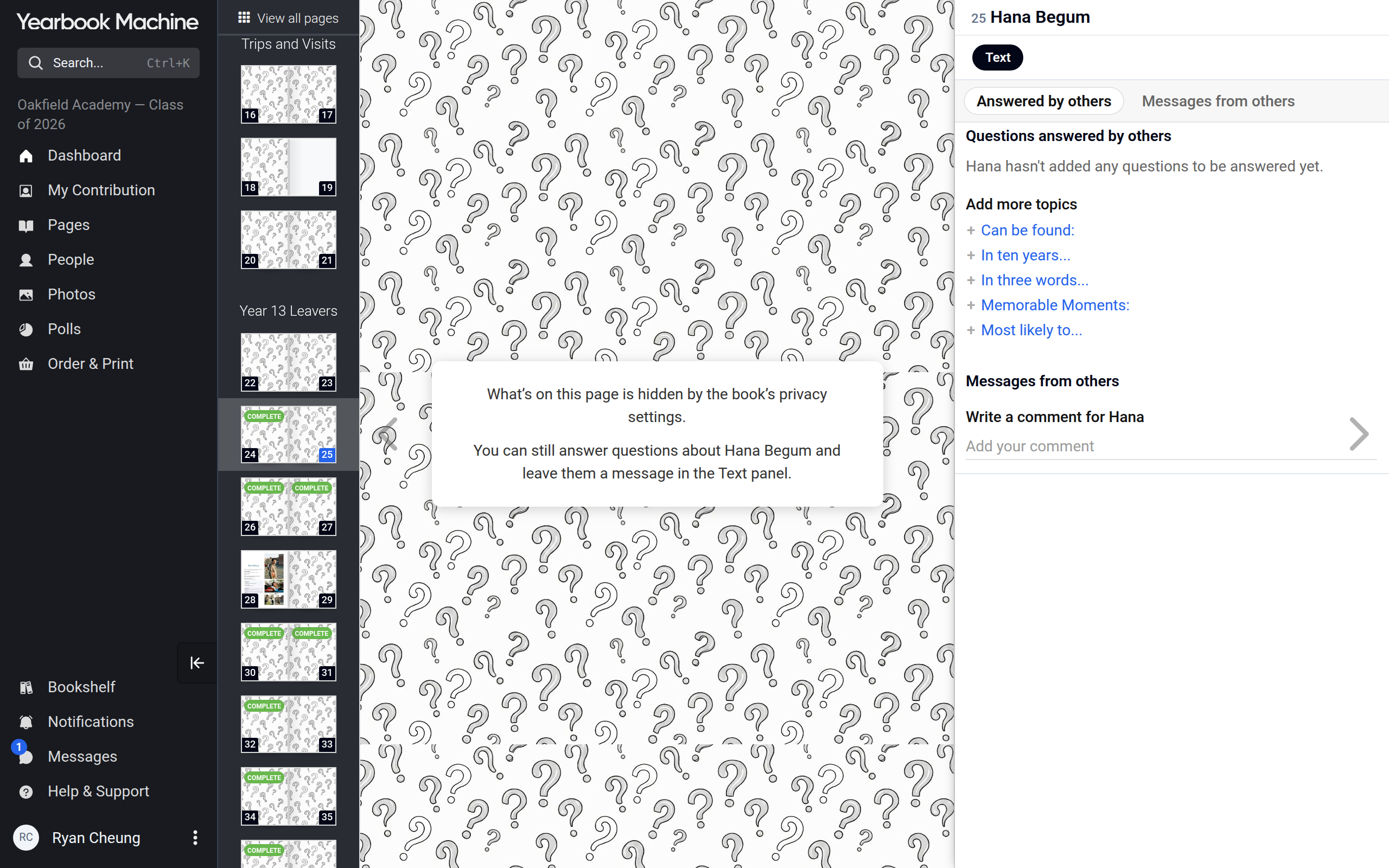
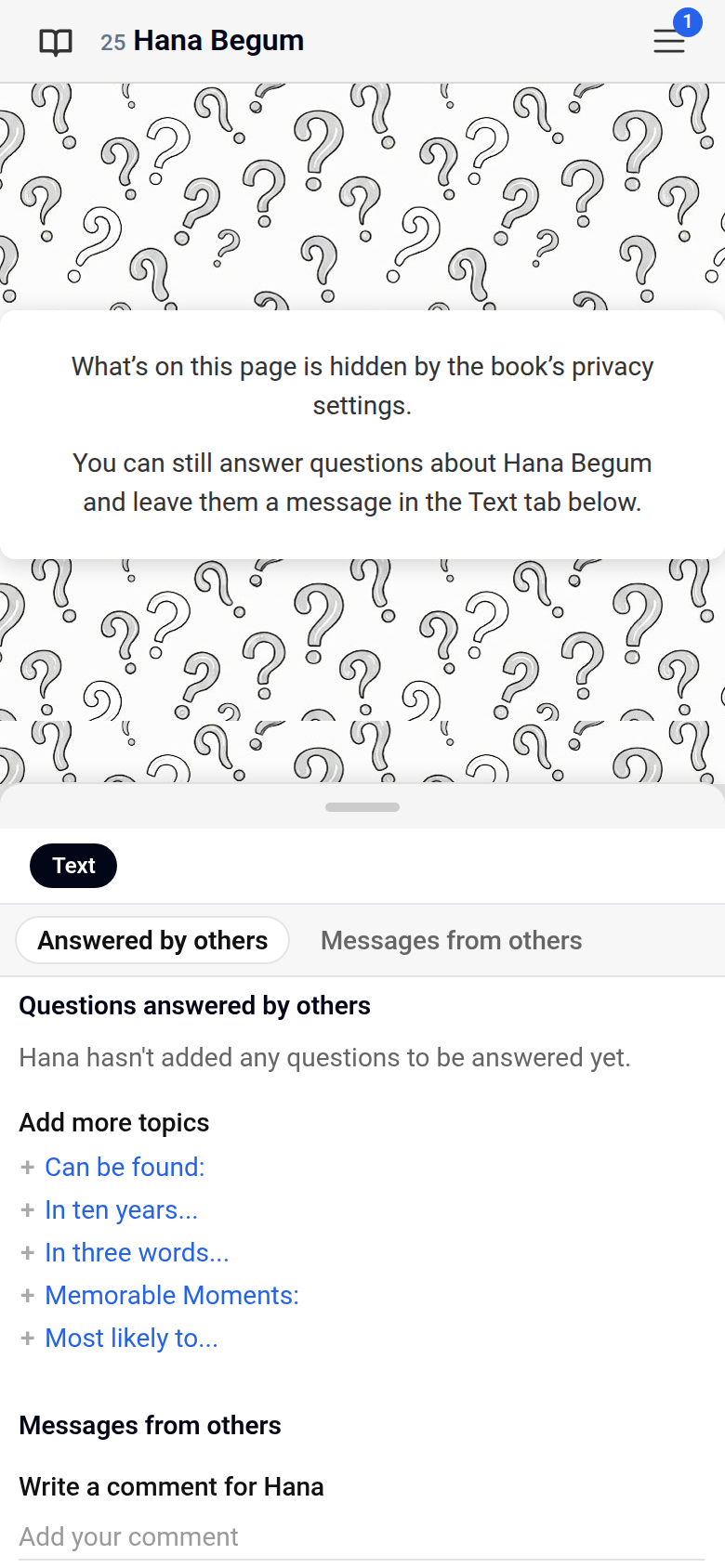
The book's editors can make parts of everyone's profile private, so that only that person and anyone who can edit their page see them: Personal message, Questions, Questions answered by others and Messages from others. A profile page includes all of those parts. So while any of them is private, you see your own profile page as normal, but other people's profile pages show a pattern of question marks in place of their content, with the note What's on this page is hidden by the book's privacy settings.
You can still open your friend's page in the page editor. Where the book allows it, you can answer questions about them and leave them a message there, even though you cannot see the page itself.
Other pages that show question marks
Editors can also hide what is on other pages, for the whole book or for one page at a time. Those pages show their name and the same pattern of question marks.
Checking what you can do on a page
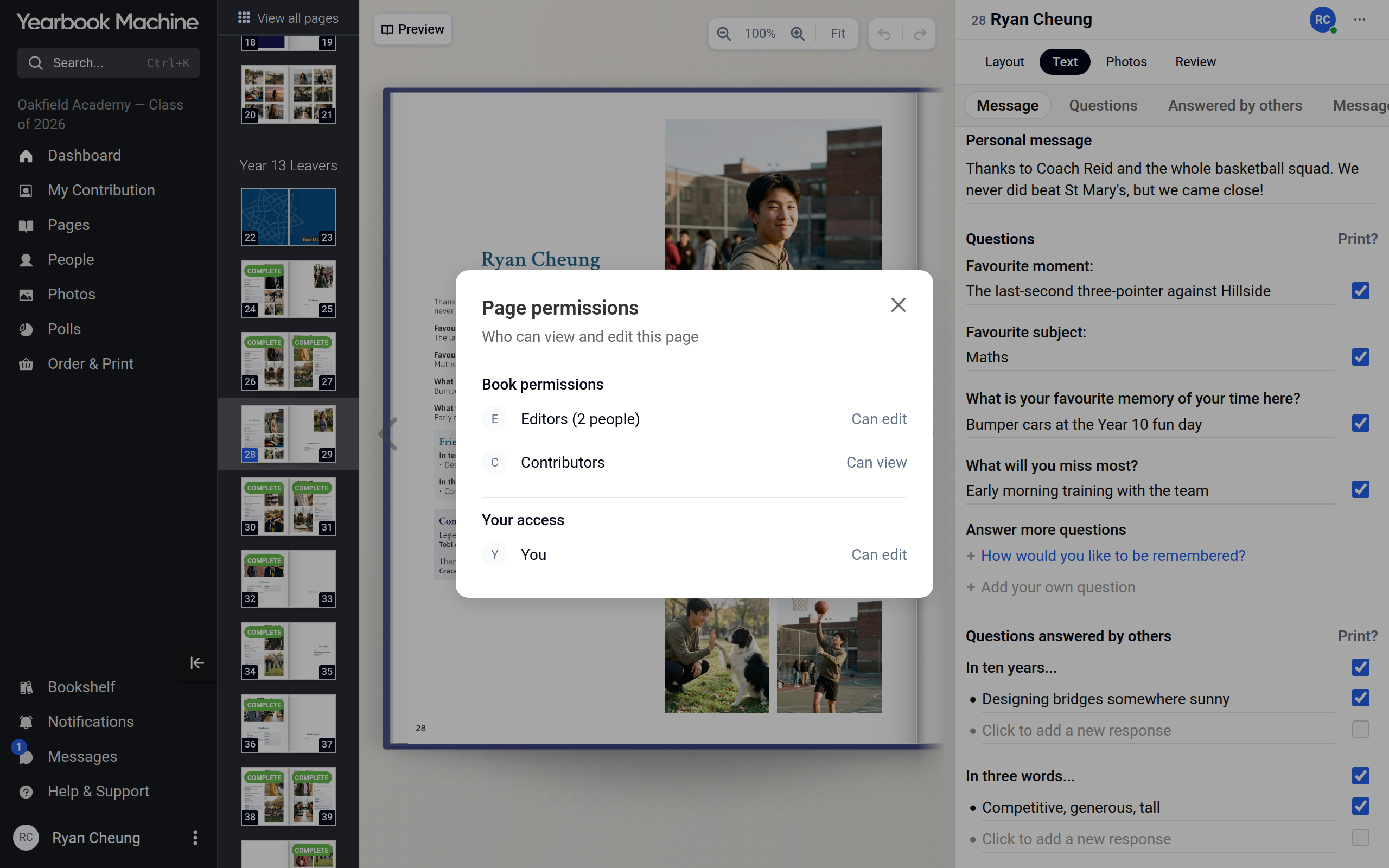
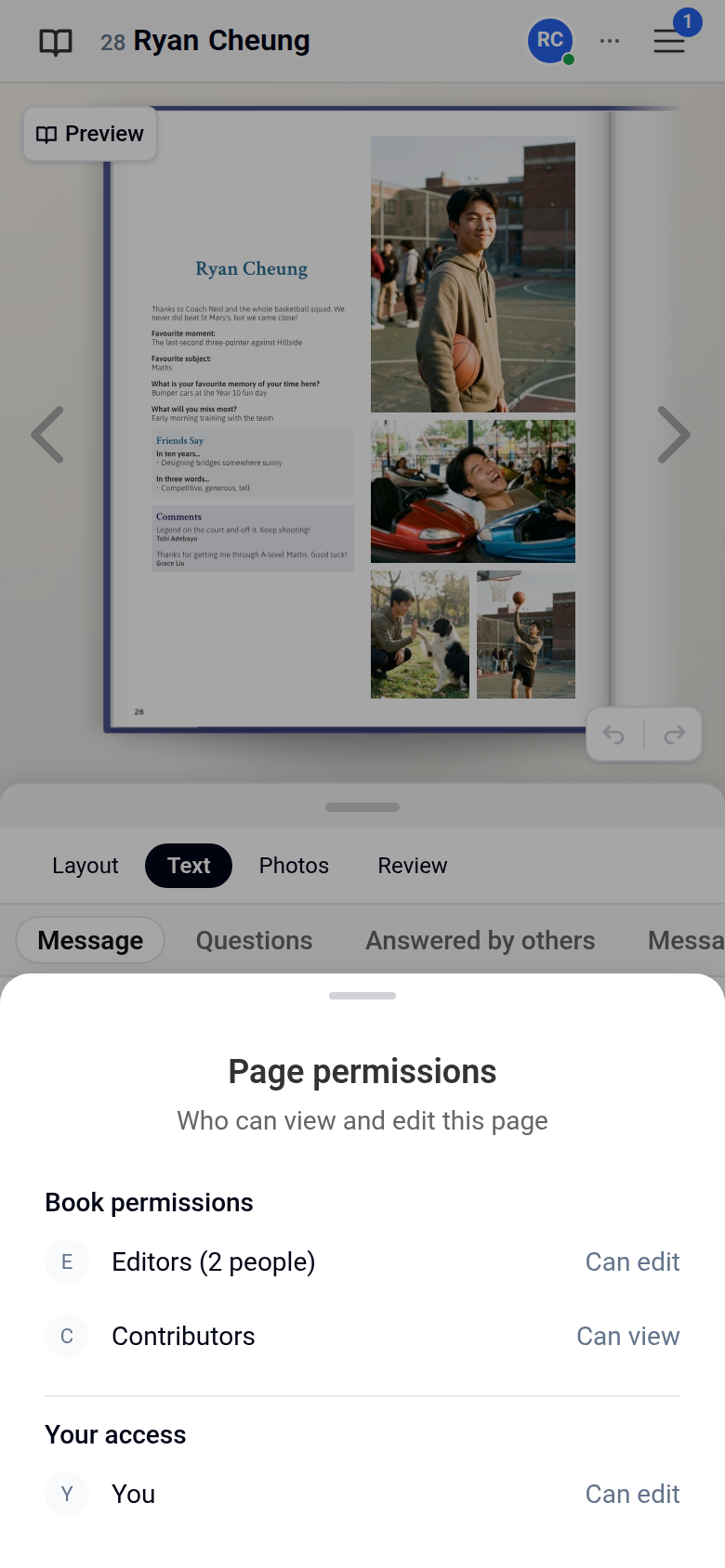
Open the page in the page editor, choose the ••• menu at the top of the page editor, then choose Page permissions.
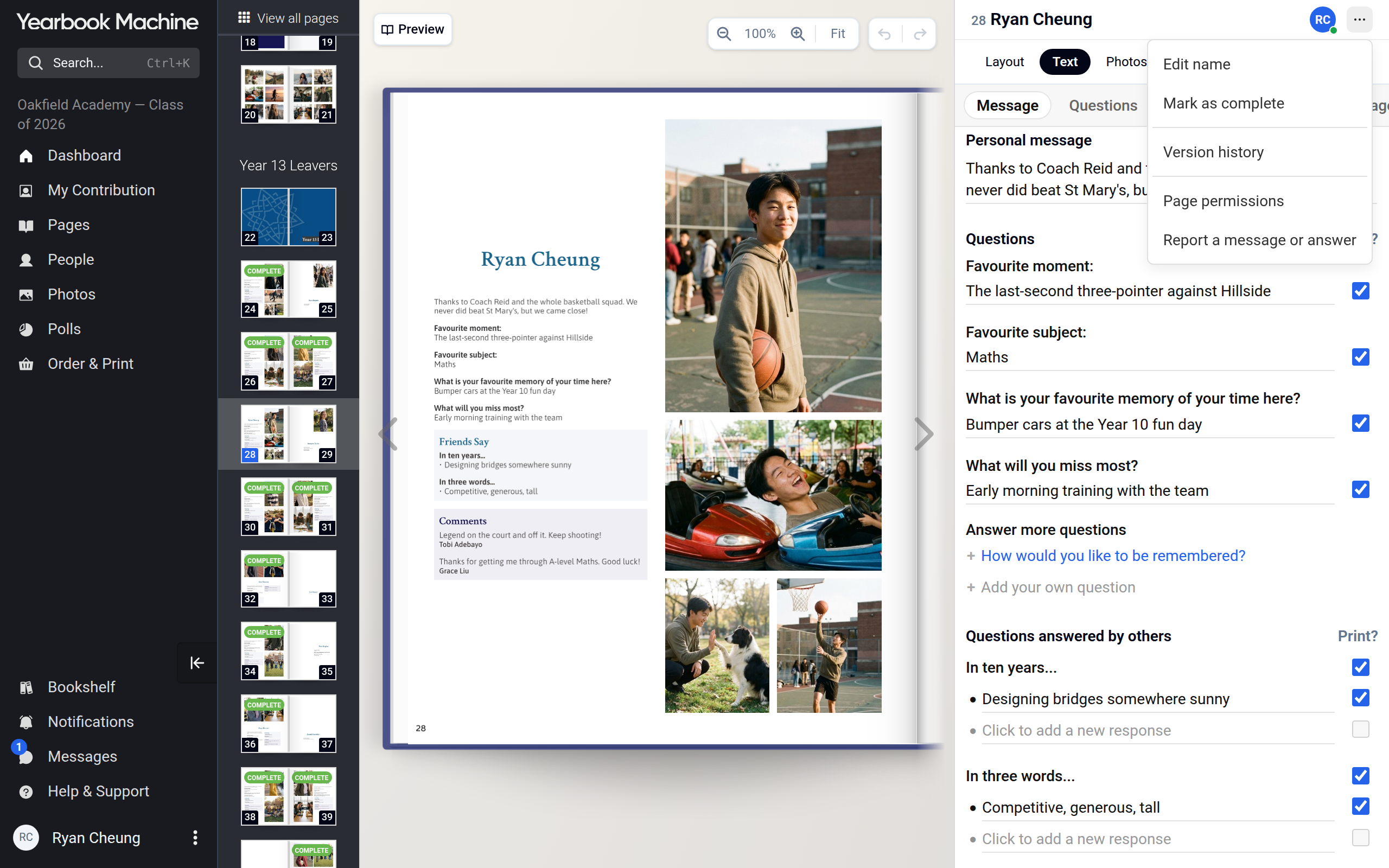
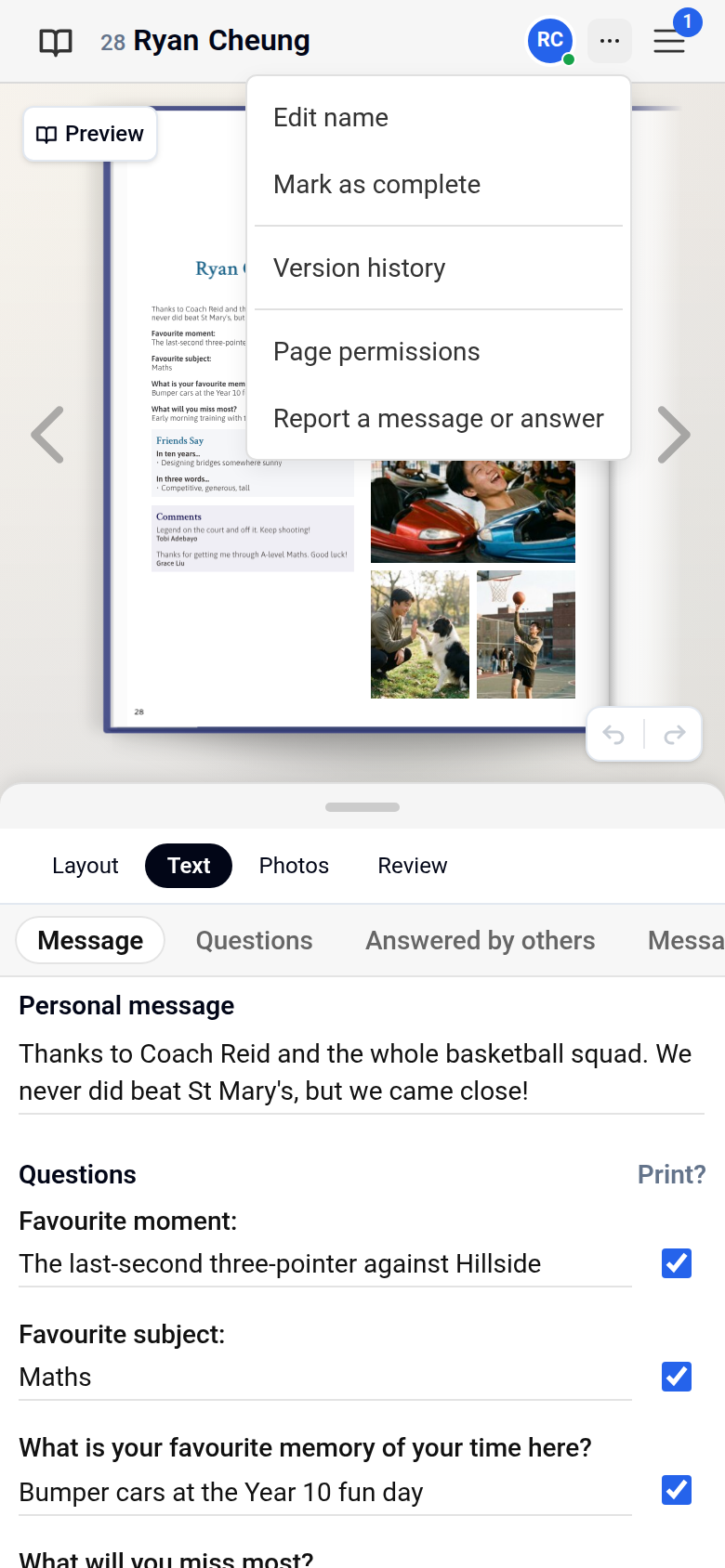
For contributors it is read-only: under Your access it shows whether you can edit the page, view it, or only see its name.
If you need to see or edit more
Ask one of the book's editors. They can change who sees what in Page permissions.
Was this article helpful?
Sorry, that didn't send. Please try again in a little while.
Thanks. That helps us improve this article.
Any other questions?
Email support@yearbook.com and we'll help you out.