
Tracking everyone's progress
Once your book is set up and people have joined, you will want to see how far each contributor has got with their profile. This article covers the People page, a contributor's contribution page and the Pages screen, and how to send a reminder. Anyone in the book can open the People page; the menus that let you view a contribution or send a message are for editors only.
Checking profiles on the People page
- Click People in the main menu.
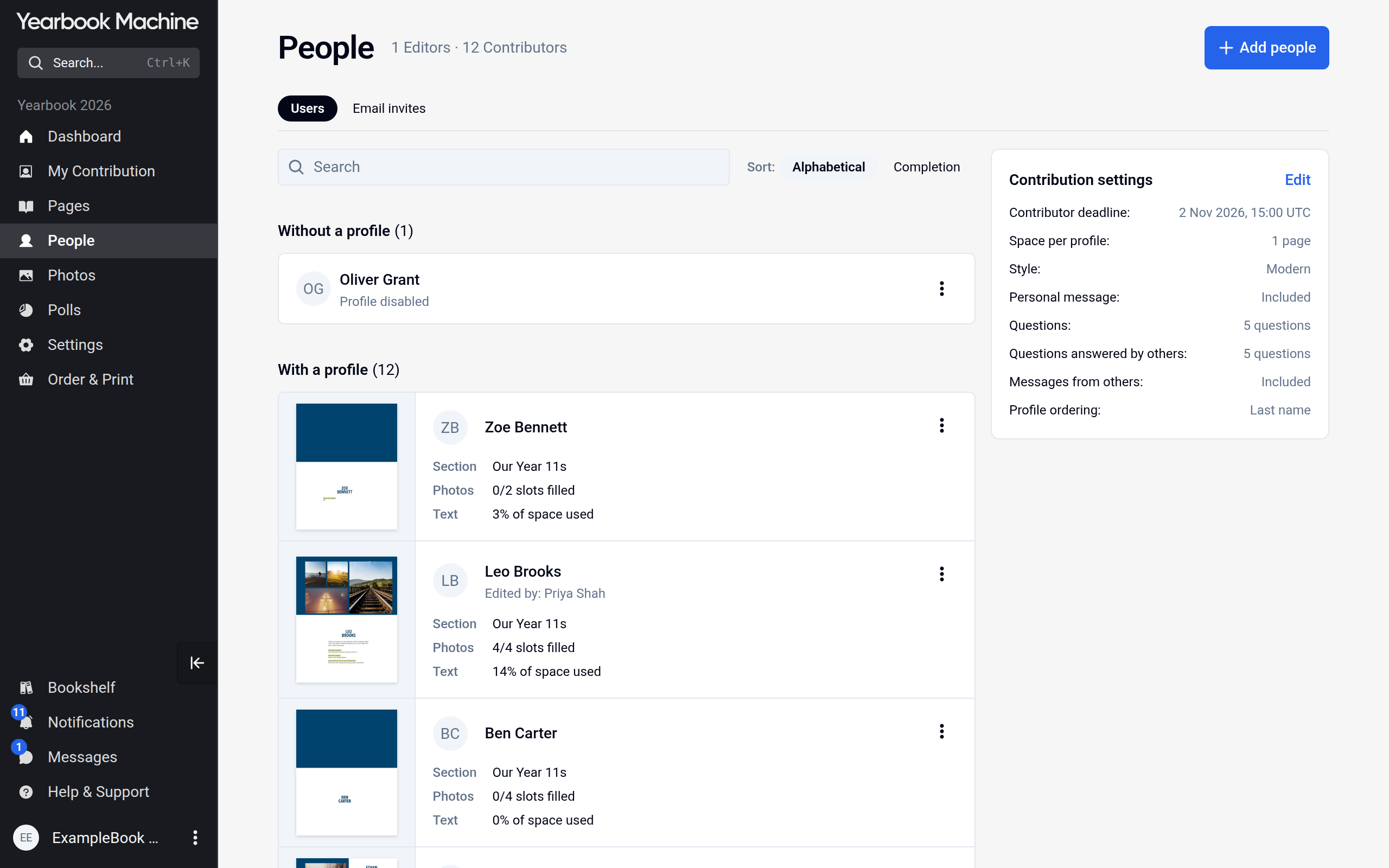
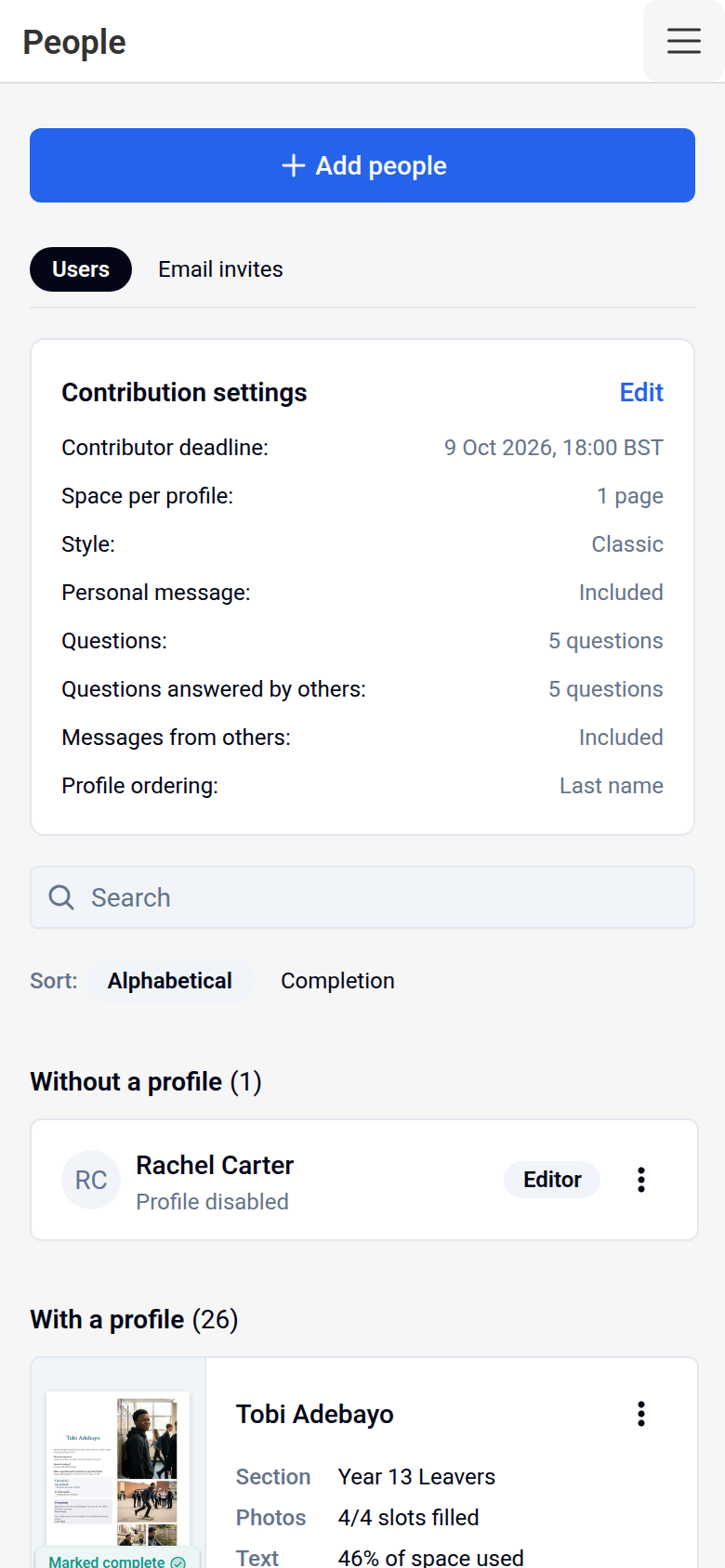
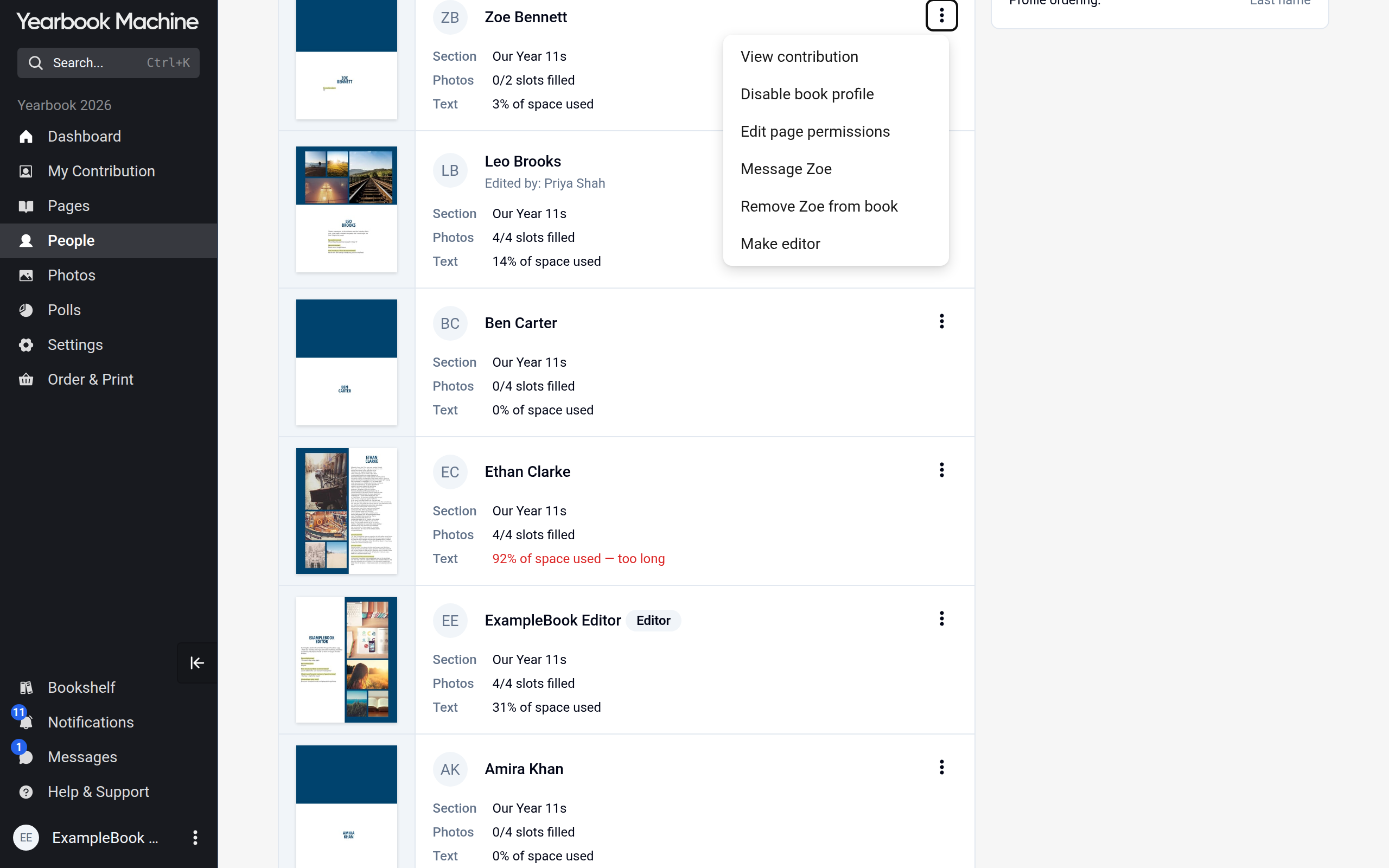
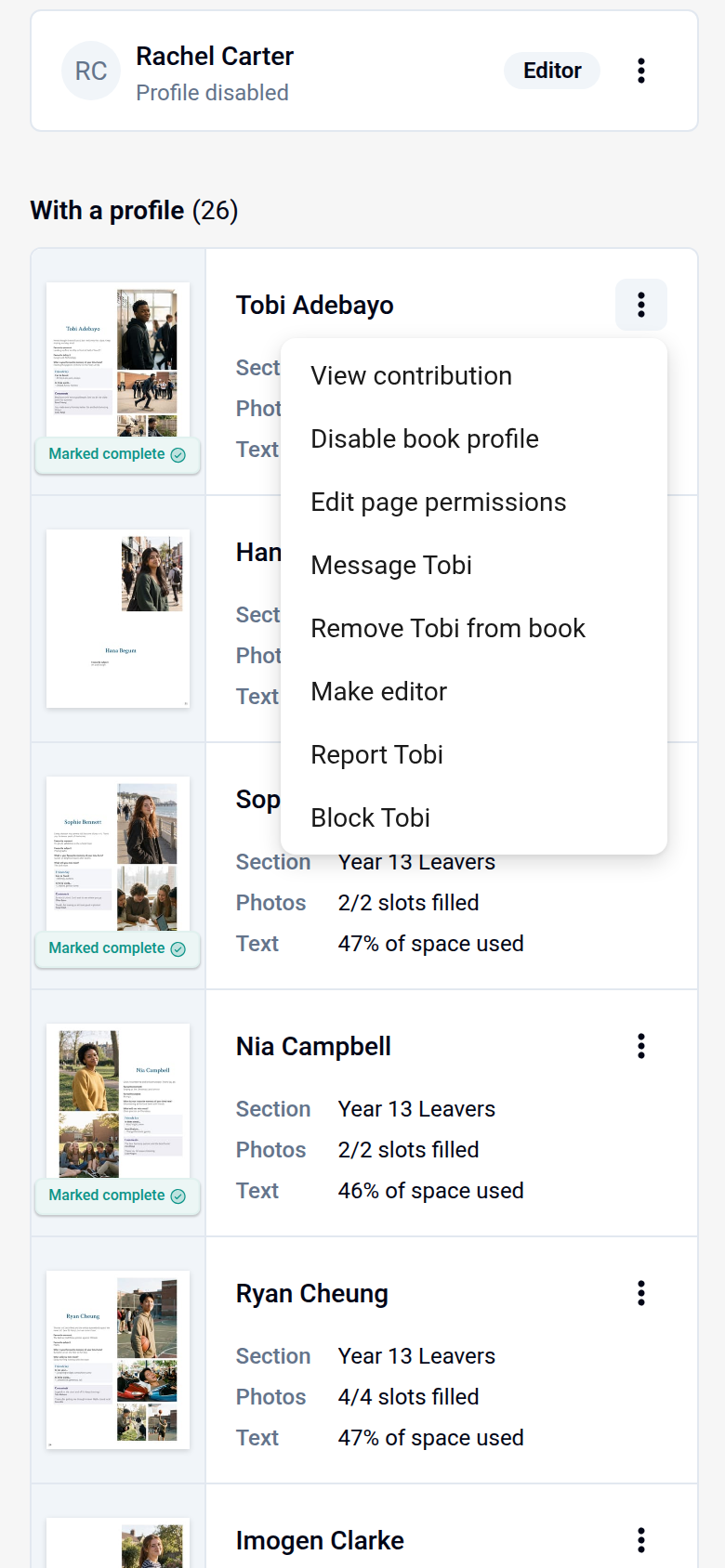
- Scroll to With a profile. Each person with a profile page has a card showing:
- Section: the section of the book their page is in, or No section.
- Photos: how many of the photo spaces on their page are filled, for example 3/4 slots filled.
- Text: how much of the text space on their page is used, as % of space used. If they have written more than fits, it says too long in red.
- Marked complete: a badge on the page thumbnail when the contributor has marked their profile as complete, meaning they have told the editors it is finished.
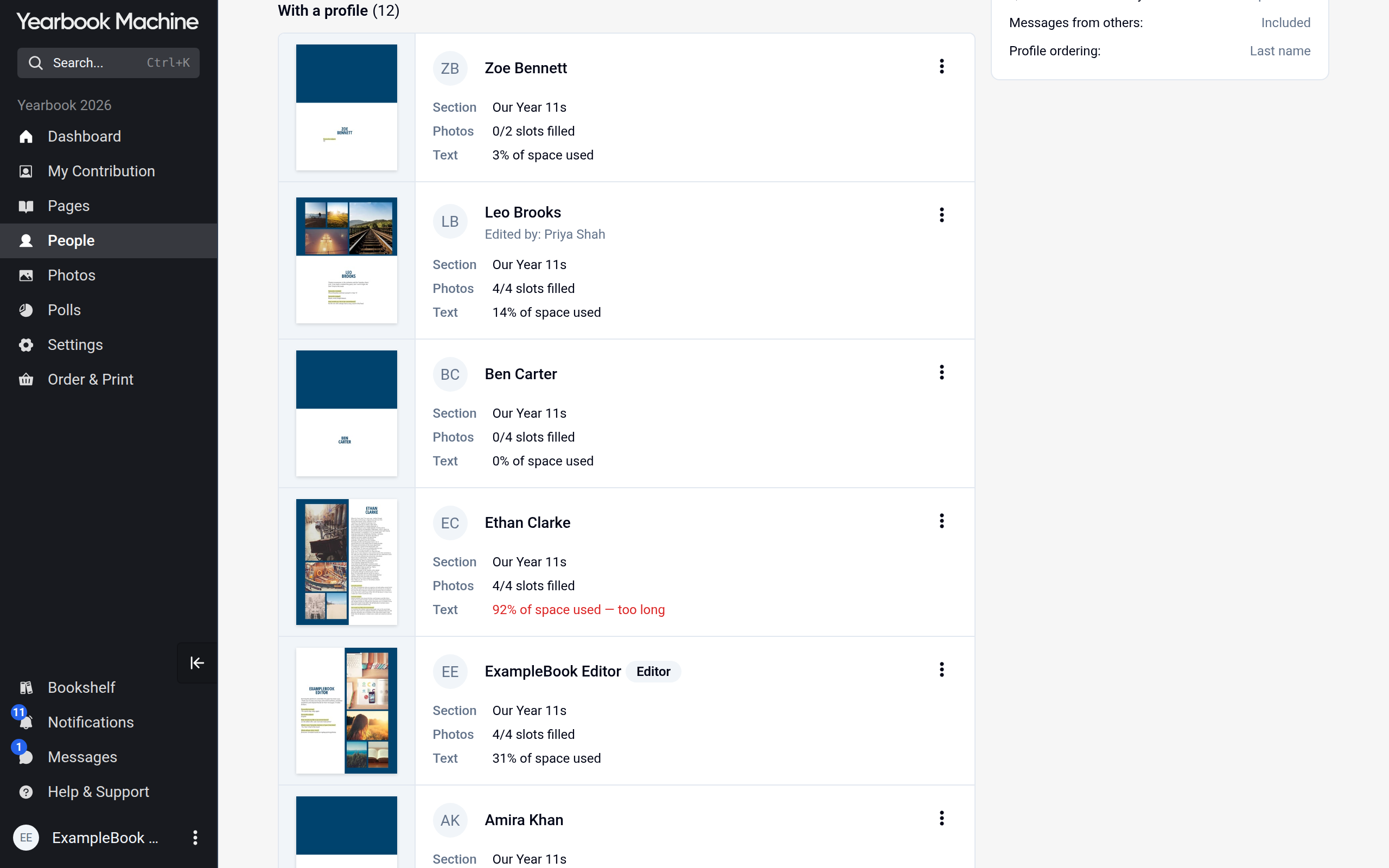
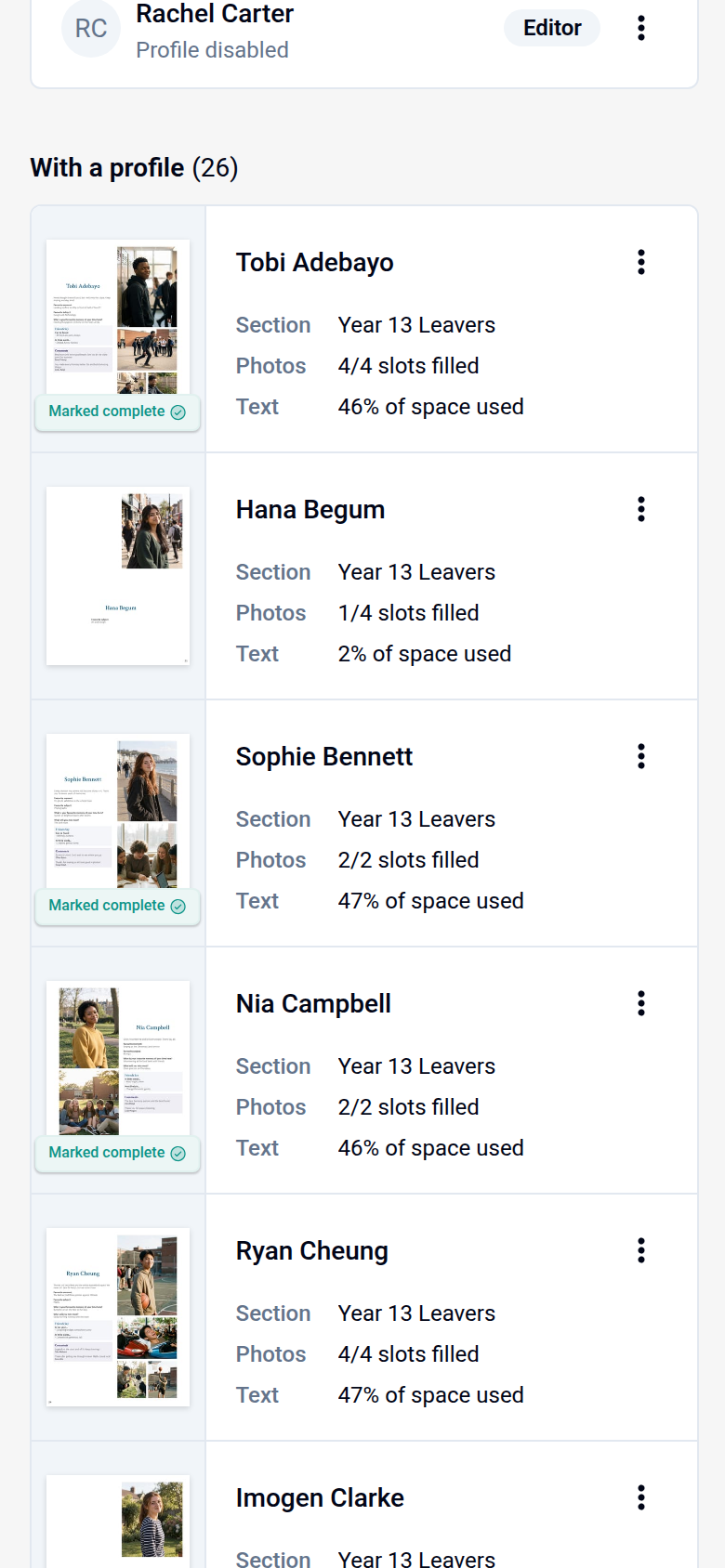
- Use Search to find someone by name.
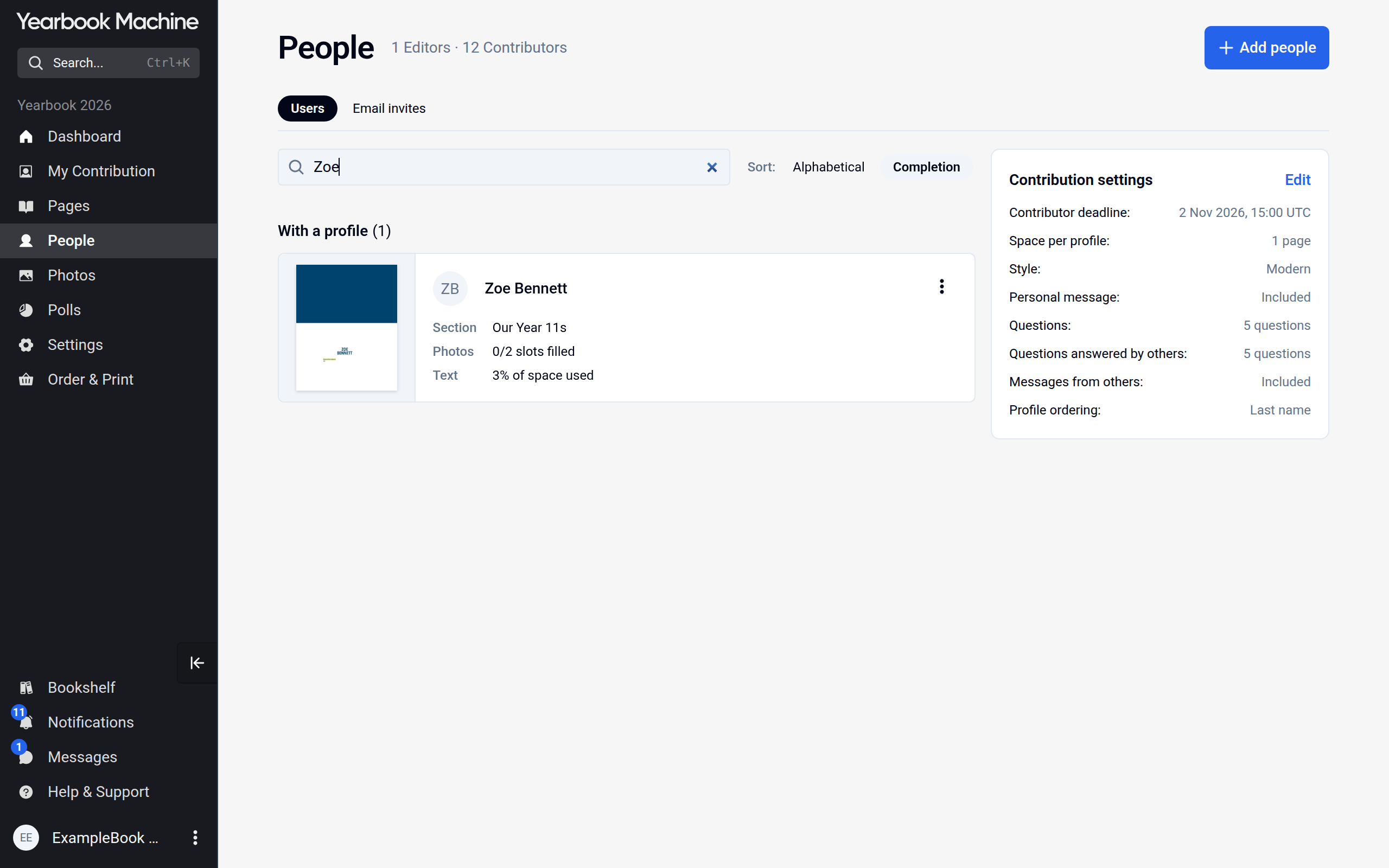
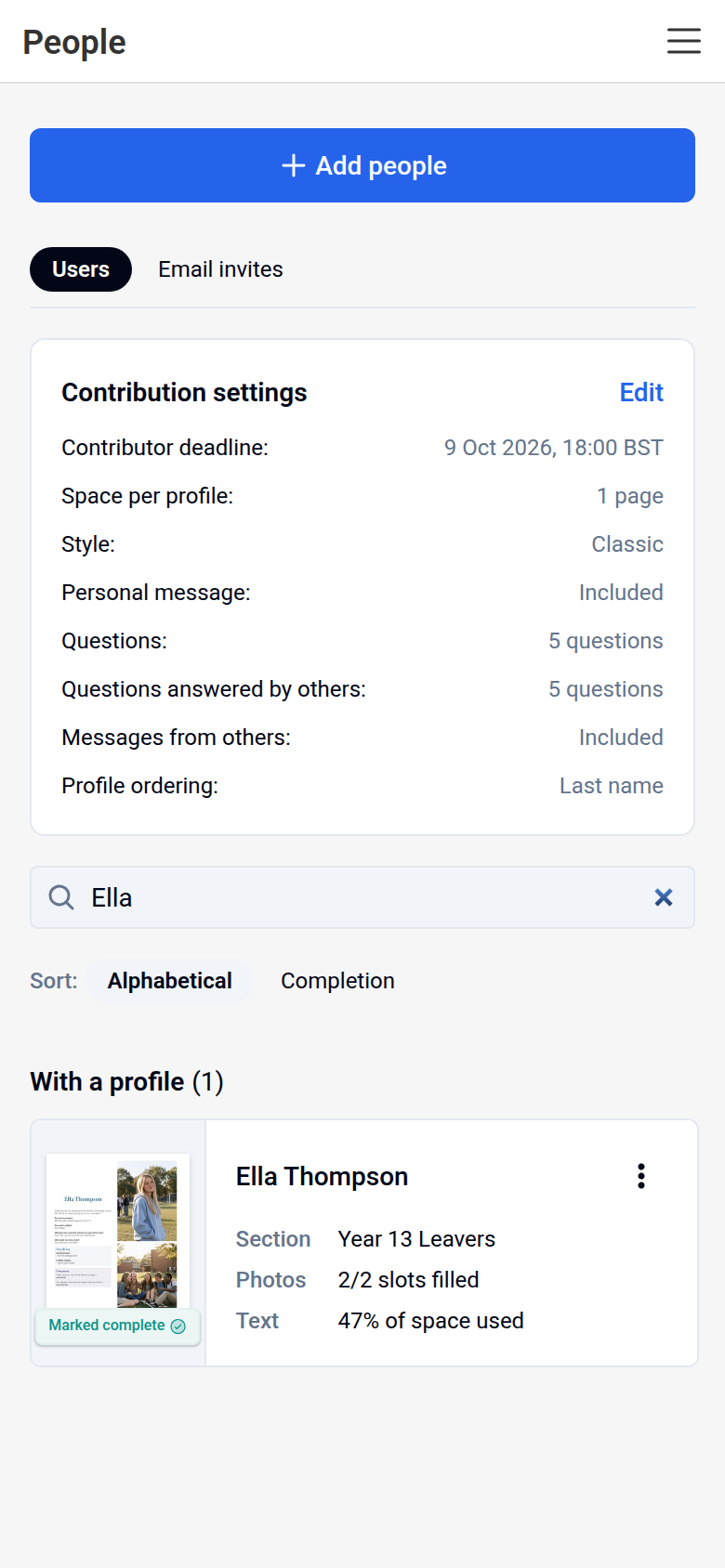
- Next to Sort:, choose Alphabetical to list people by name, or Completion to put the most complete profiles first and see quickly who has barely started.
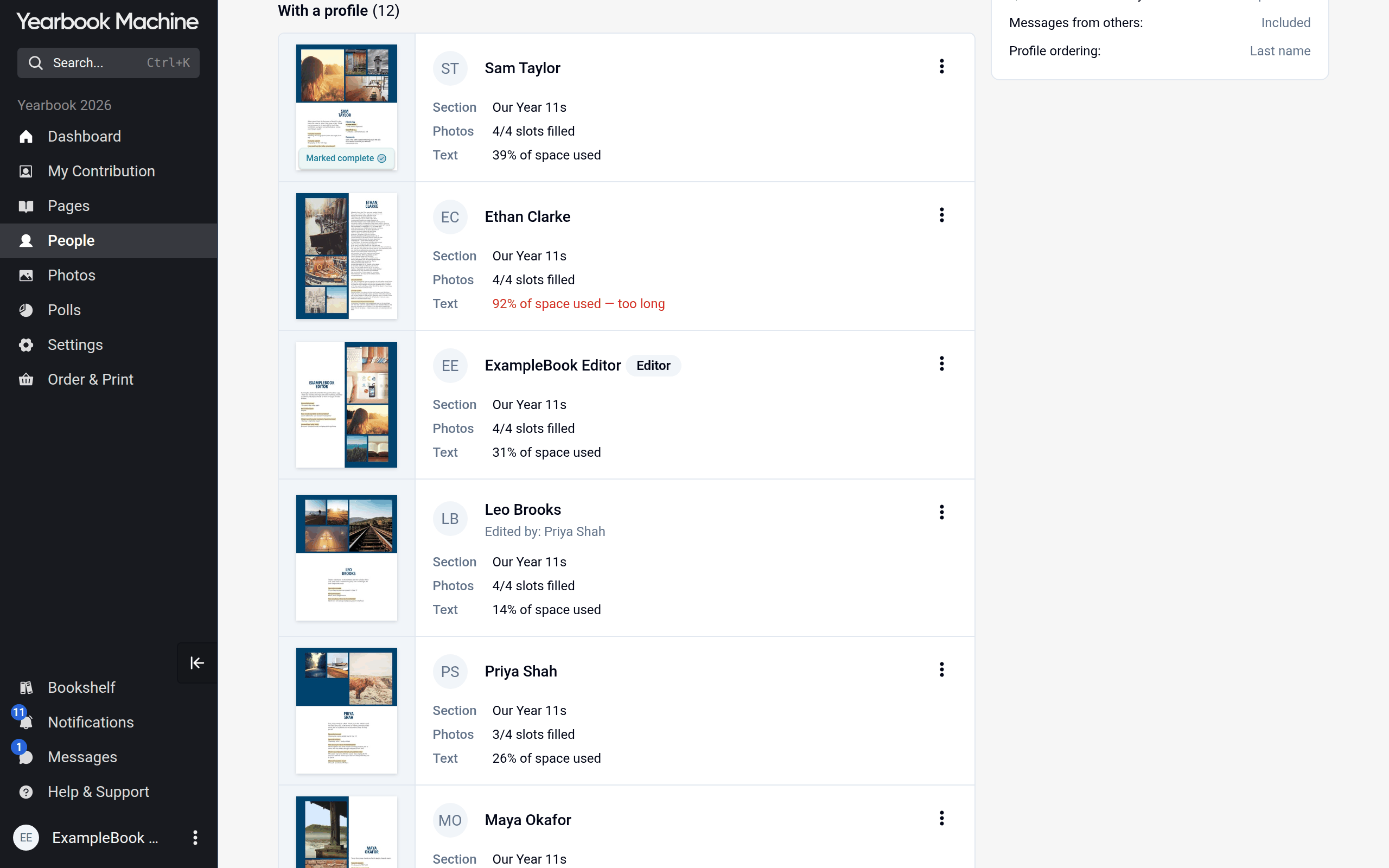
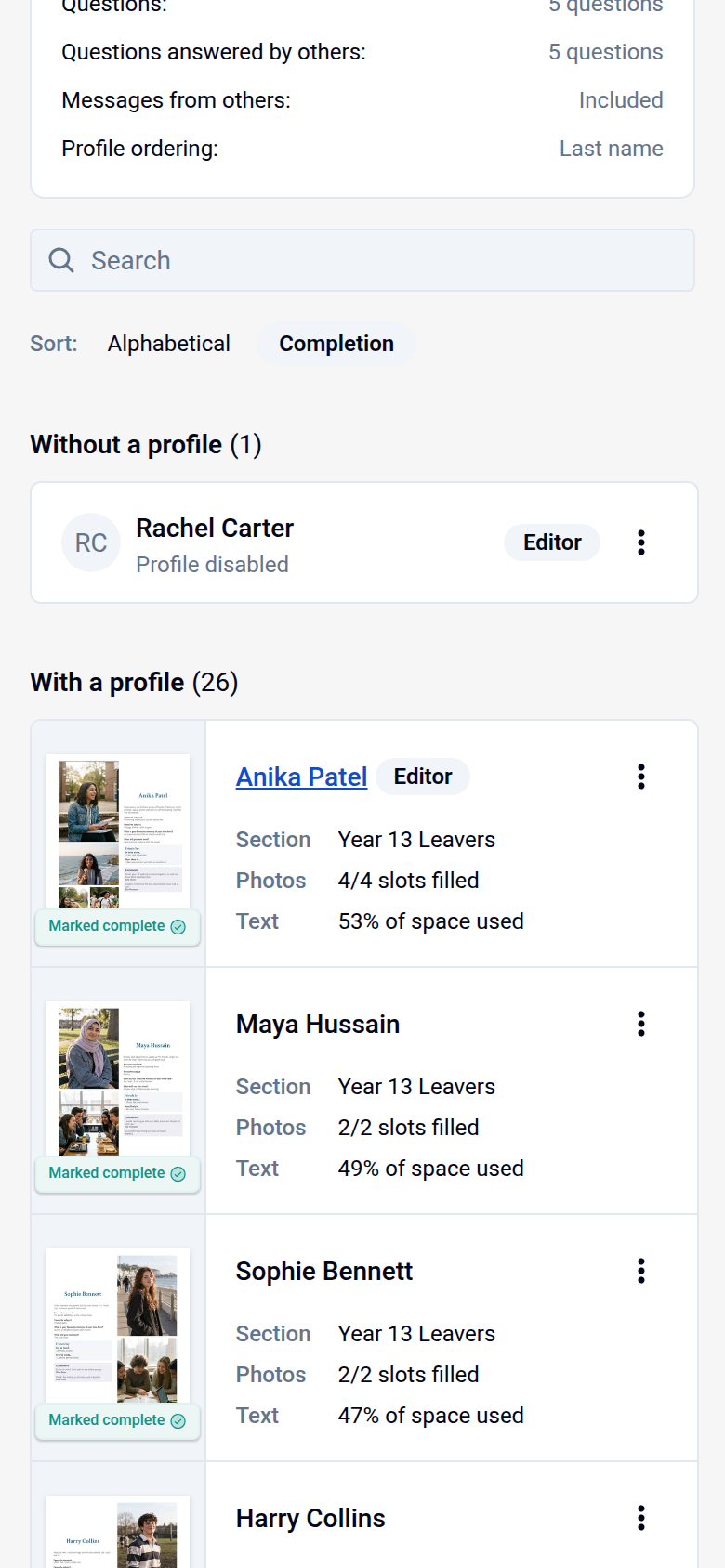
Click a person's name or page thumbnail to open their page in the page editor, the screen for working on a single page.
Further up the page, Awaiting approval lists people who have asked to join and are waiting for an editor, and Without a profile lists members who have no profile page. On the right, Contribution settings shows the Contributor deadline:, the date after which contributors can no longer change their profiles.
Seeing one person's whole contribution (editors)
- On the People page, open the three-dot menu on the person's card.
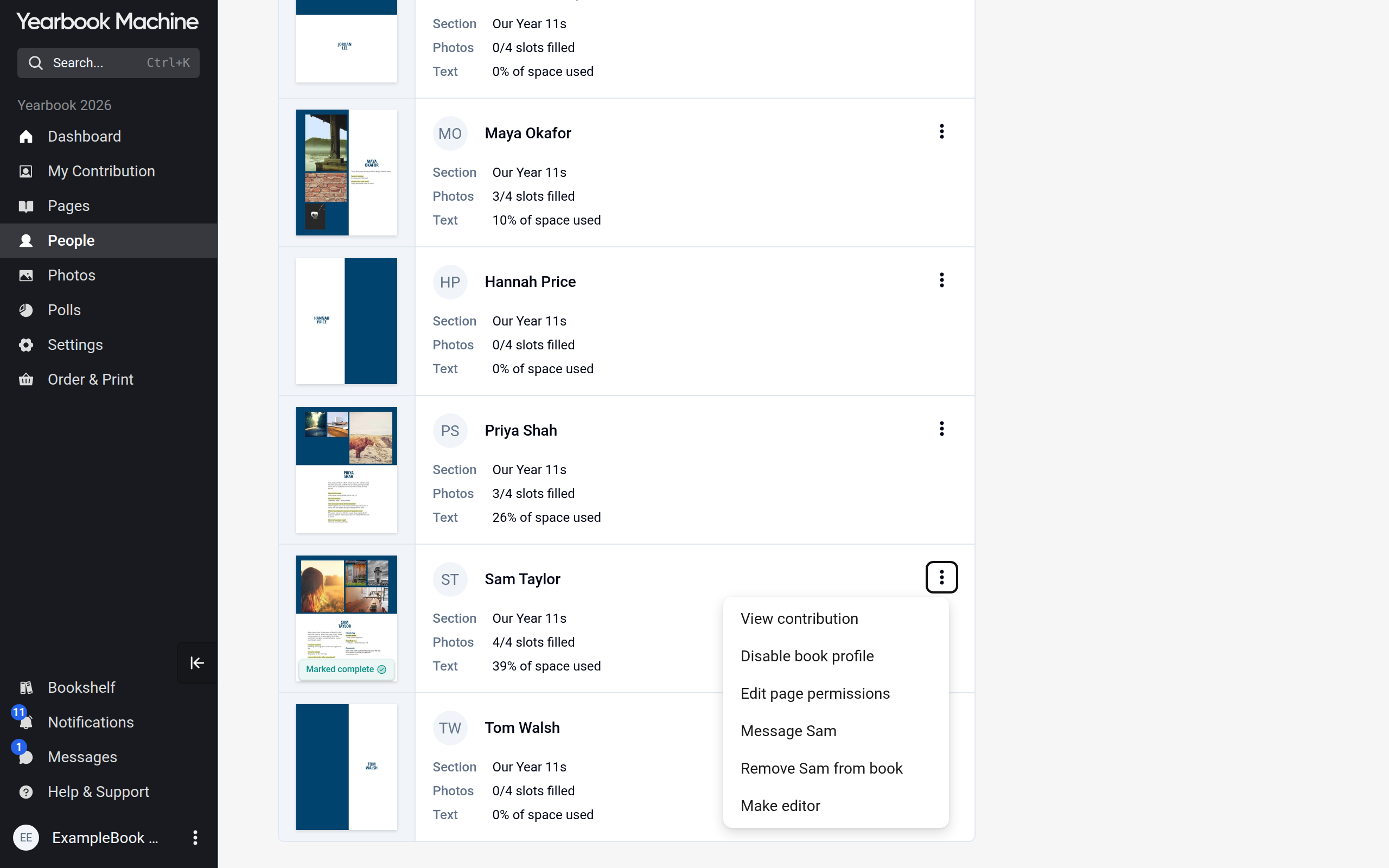
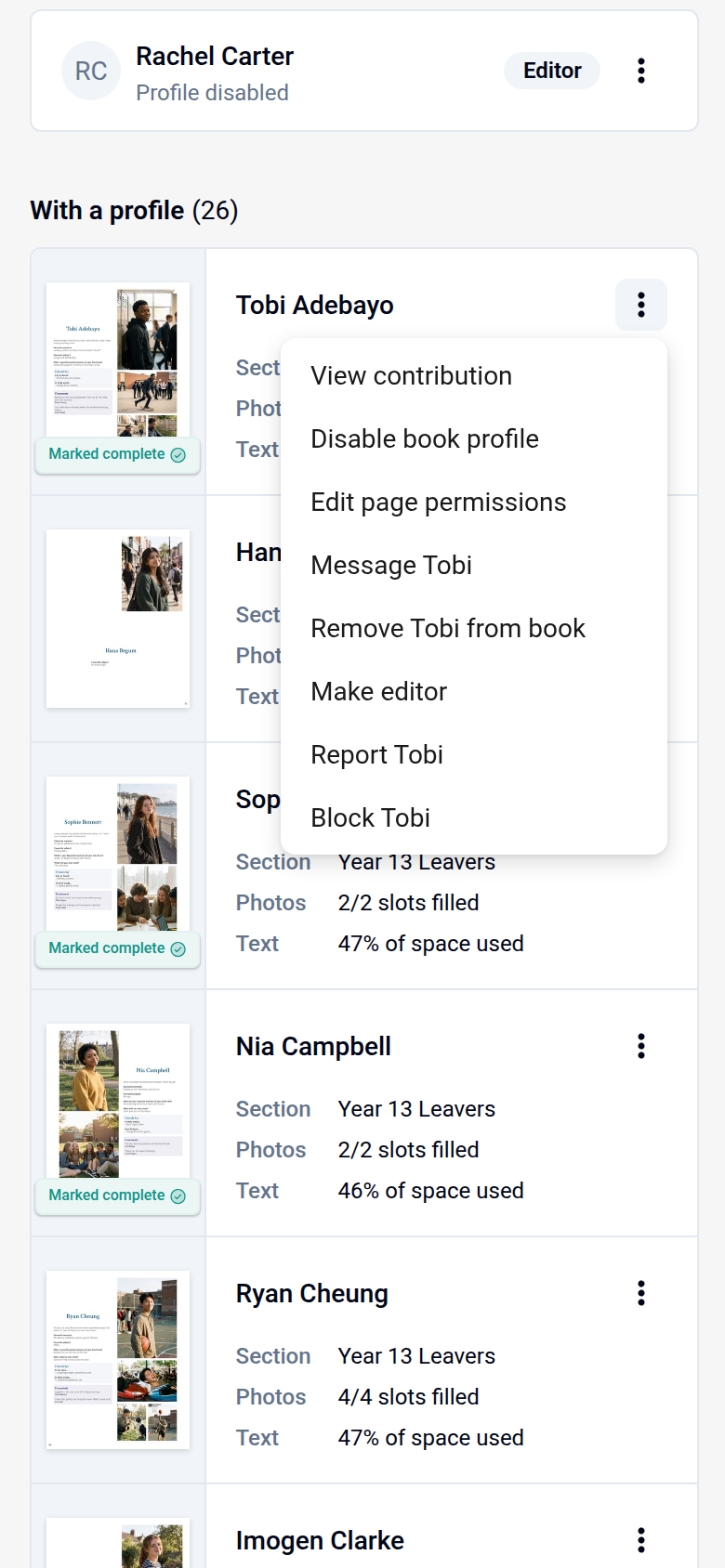
- Choose View contribution.
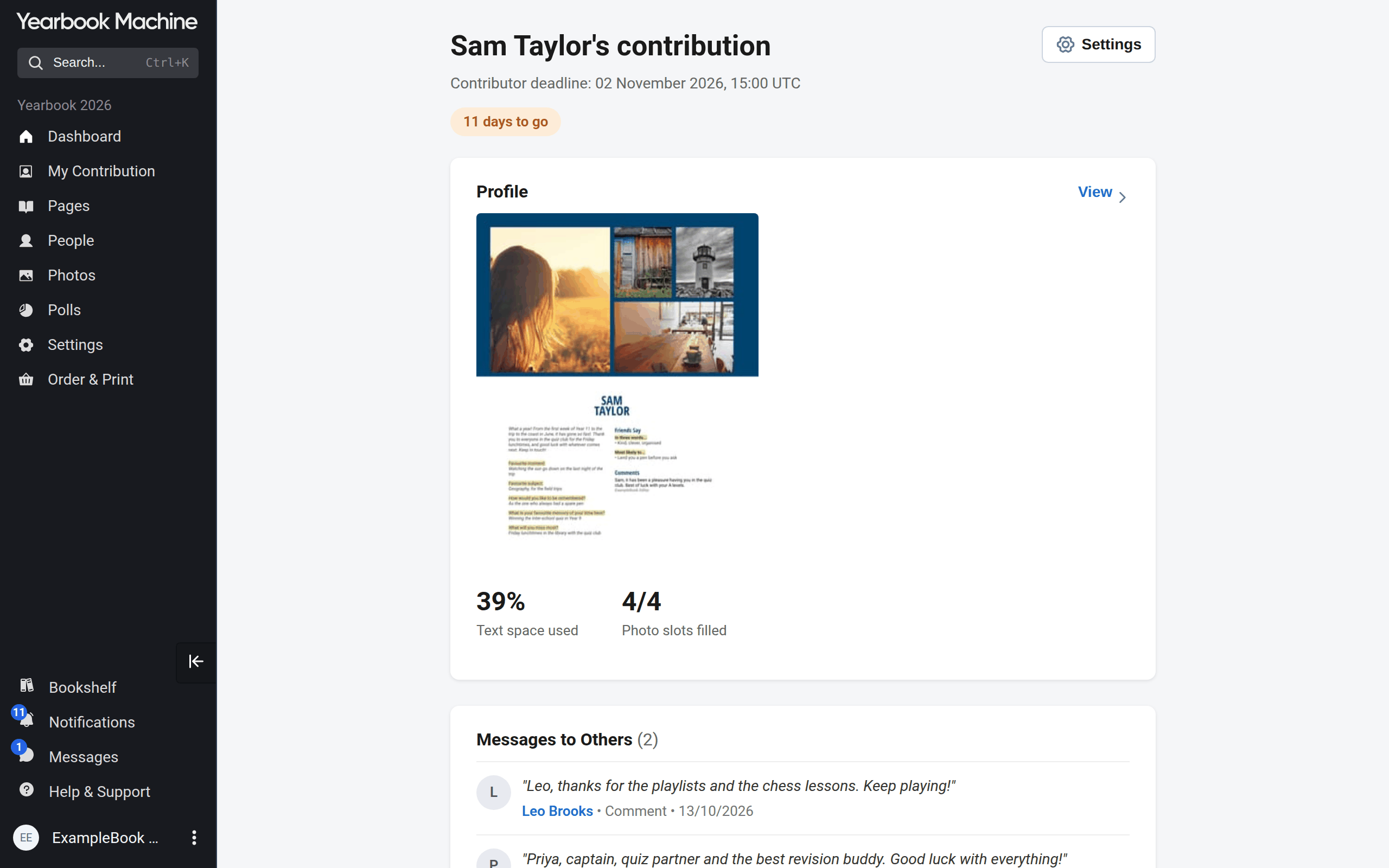
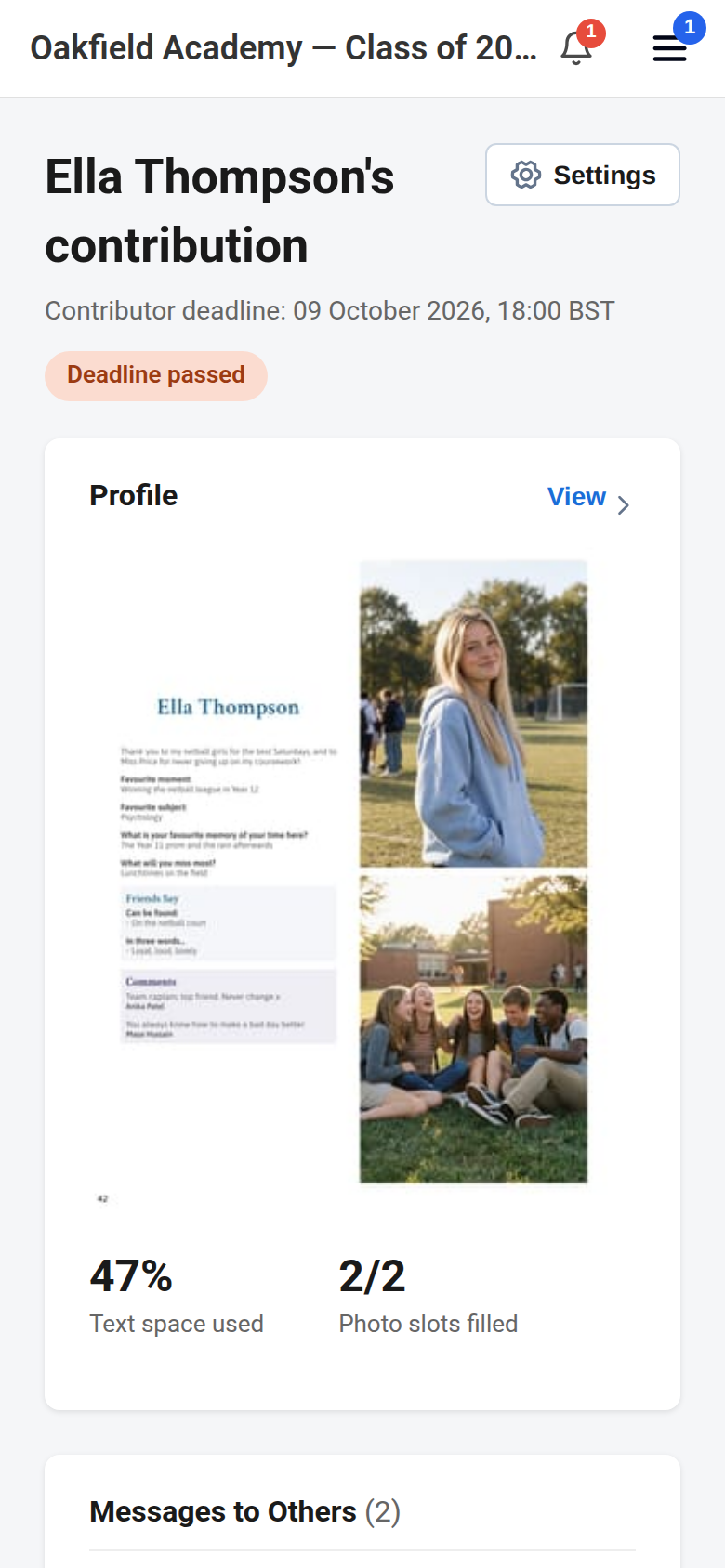
Their contribution page shows their Profile with the text space used and photo slots filled. Below it are the Messages to Others they have left on other people's profiles, the polls they have voted in under Polls, and the photos they have uploaded under Photos.
Sending someone a reminder (editors)
- On the People page, open the three-dot menu on the person's card.
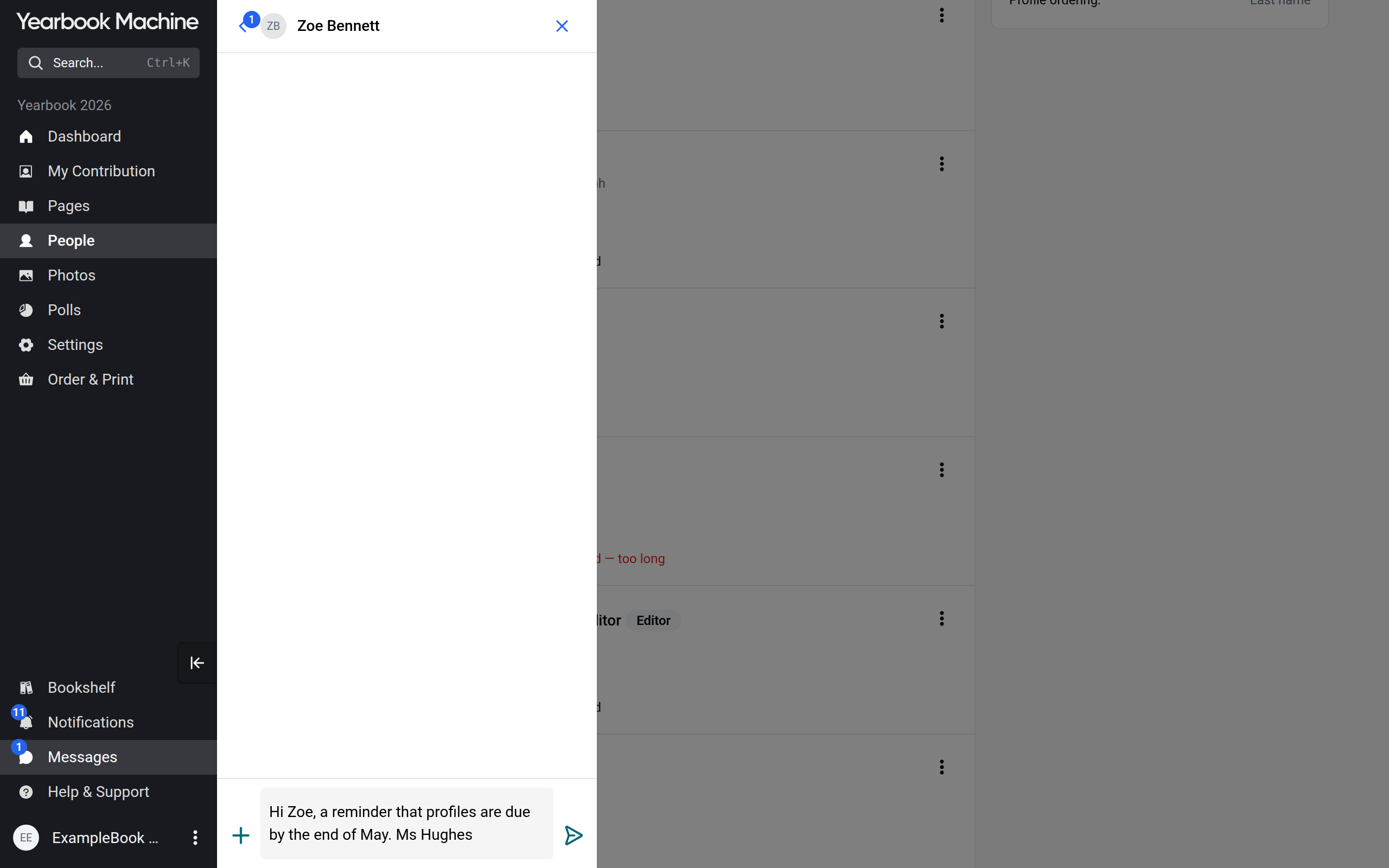
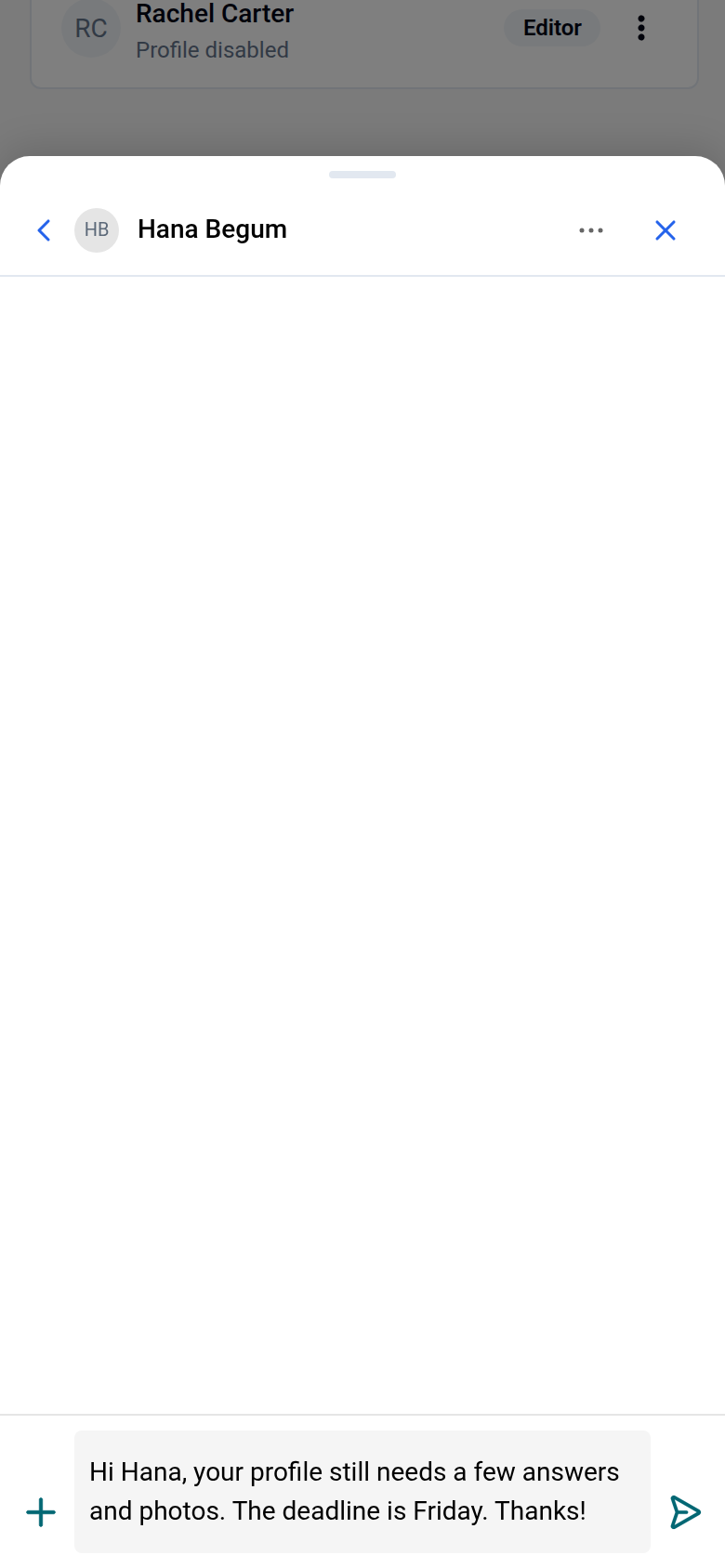
- Choose Message followed by their first name.
- A new private message to them opens. Write your reminder and send it.
Checking pages on the Pages screen
Click Pages in the main menu to open the Pages screen, which shows thumbnails of every page in the book. Any page that has been marked as complete carries a Complete badge, so you can see at a glance which profile pages are finished.
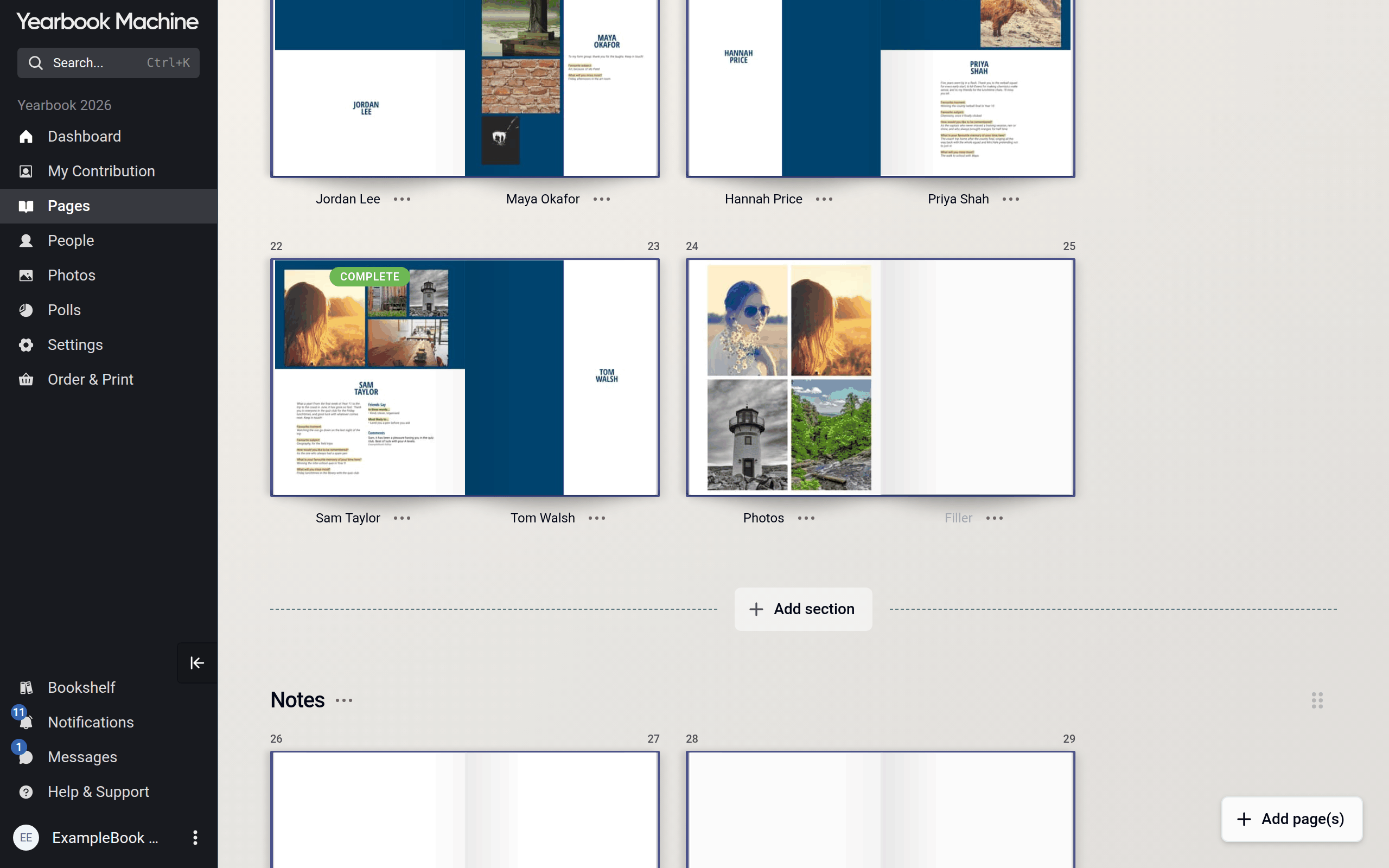
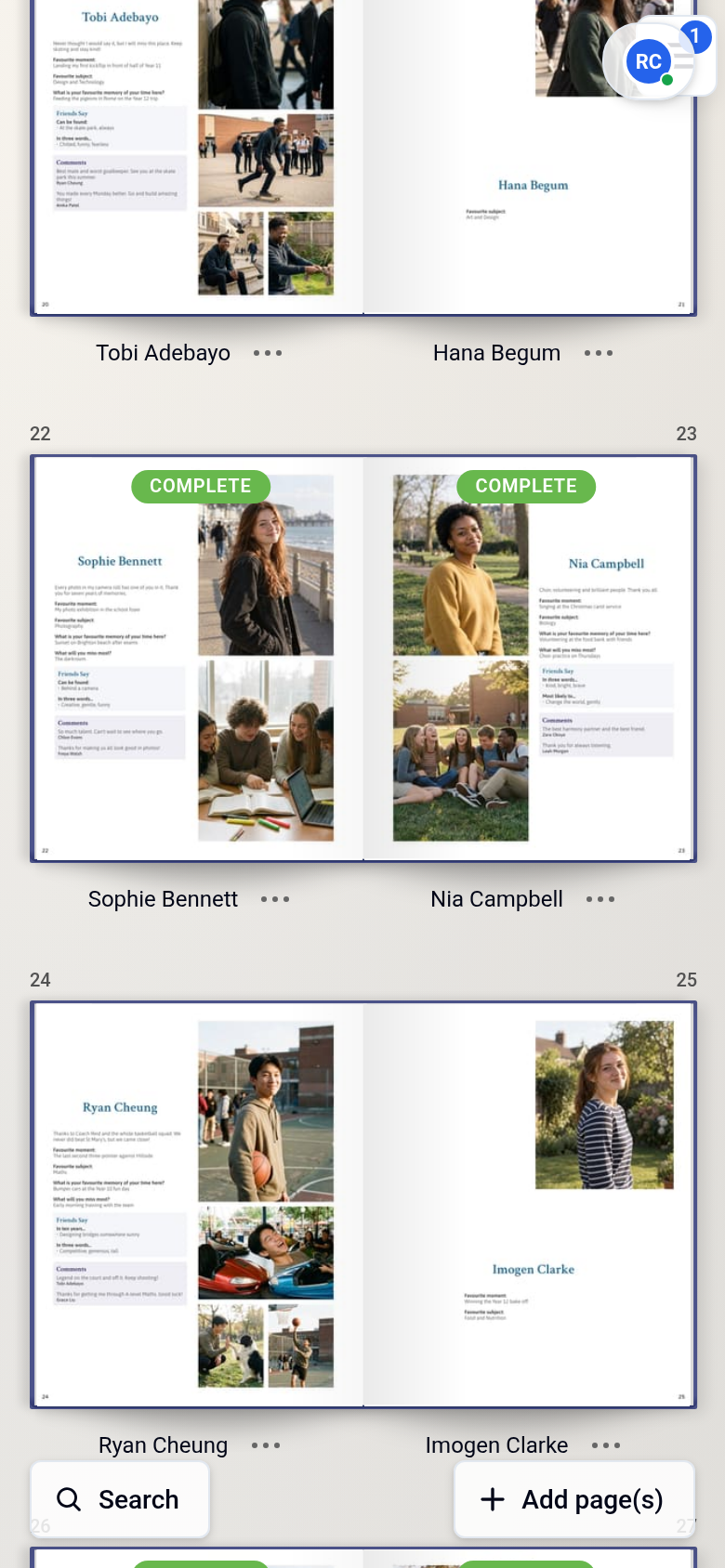
When a contributor marks their profile as complete, the book's editors also get a notification saying their profile page is ready for review.
Common questions
Someone's text says too long. What should they do?
Their text does not fit on the page. They can shorten their answers or untick Print? beside some items. See Completing your profile.
Why can't I see View contribution or Message on someone's card?
Only editors get these options. You also won't see them on your own card, and profiles added by an editor that aren't linked to anyone can't be messaged.
Does a profile have to be marked complete to be printed?
No. Marking a profile complete tells the editors it is finished. The page is printed with whatever the contributor has chosen to print.
Someone isn't listed under With a profile. Why?
They may not have a profile page in the book, their profile may be turned off, or they may still be awaiting approval. Look under Without a profile and Awaiting approval.
Was this article helpful?
Sorry, that didn't send. Please try again in a little while.
Thanks. That helps us improve this article.
Any other questions?
Email support@yearbook.com and we'll help you out.