
Joining a yearbook and signing up
This article is for anyone who has been invited to take part in a yearbook. It explains how to join from an email invitation, from an invitation link, or from a notification in your account, and what to do if something goes wrong. To join, you need an invitation from one of the book's editors.
Joining from an email invitation
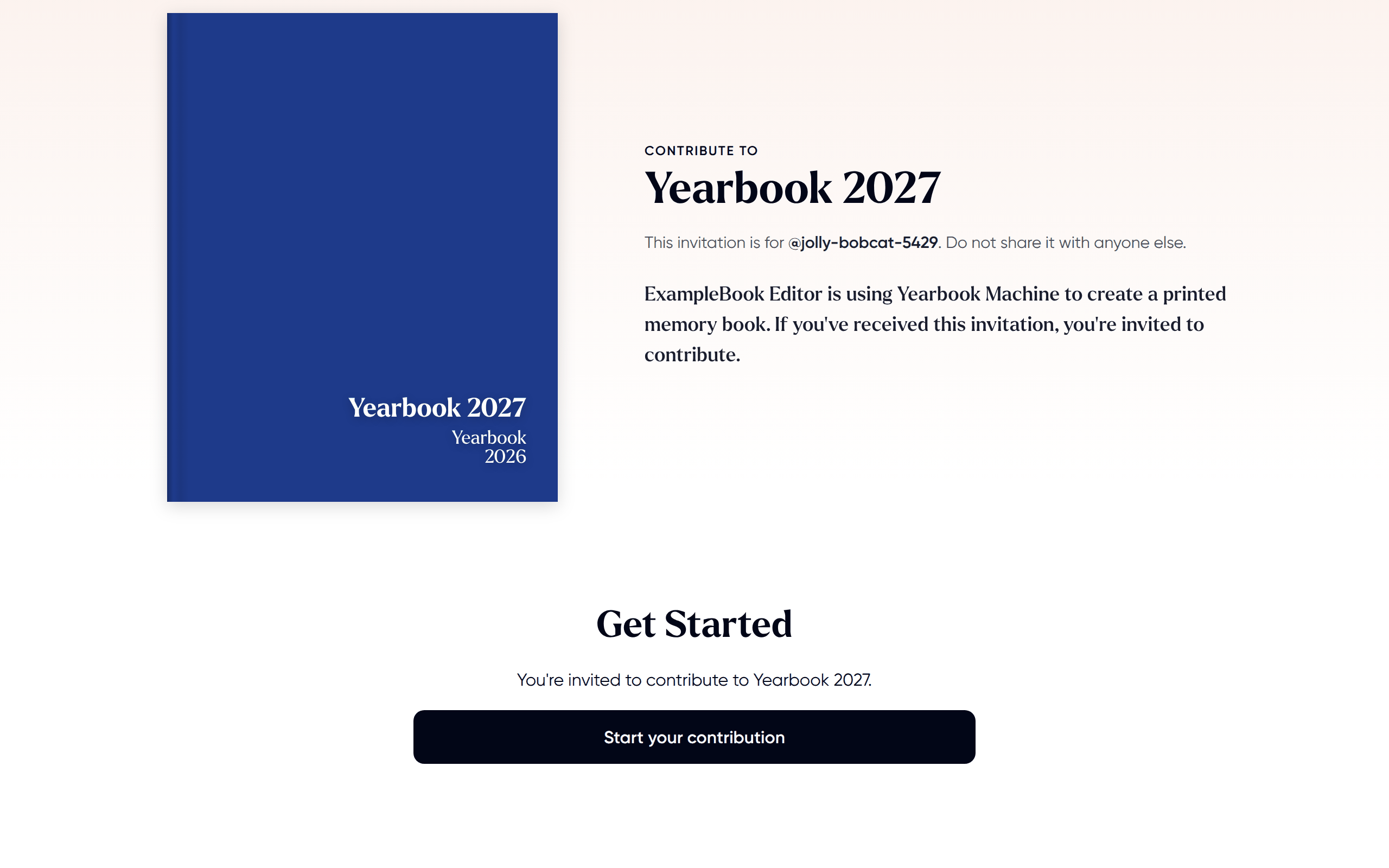
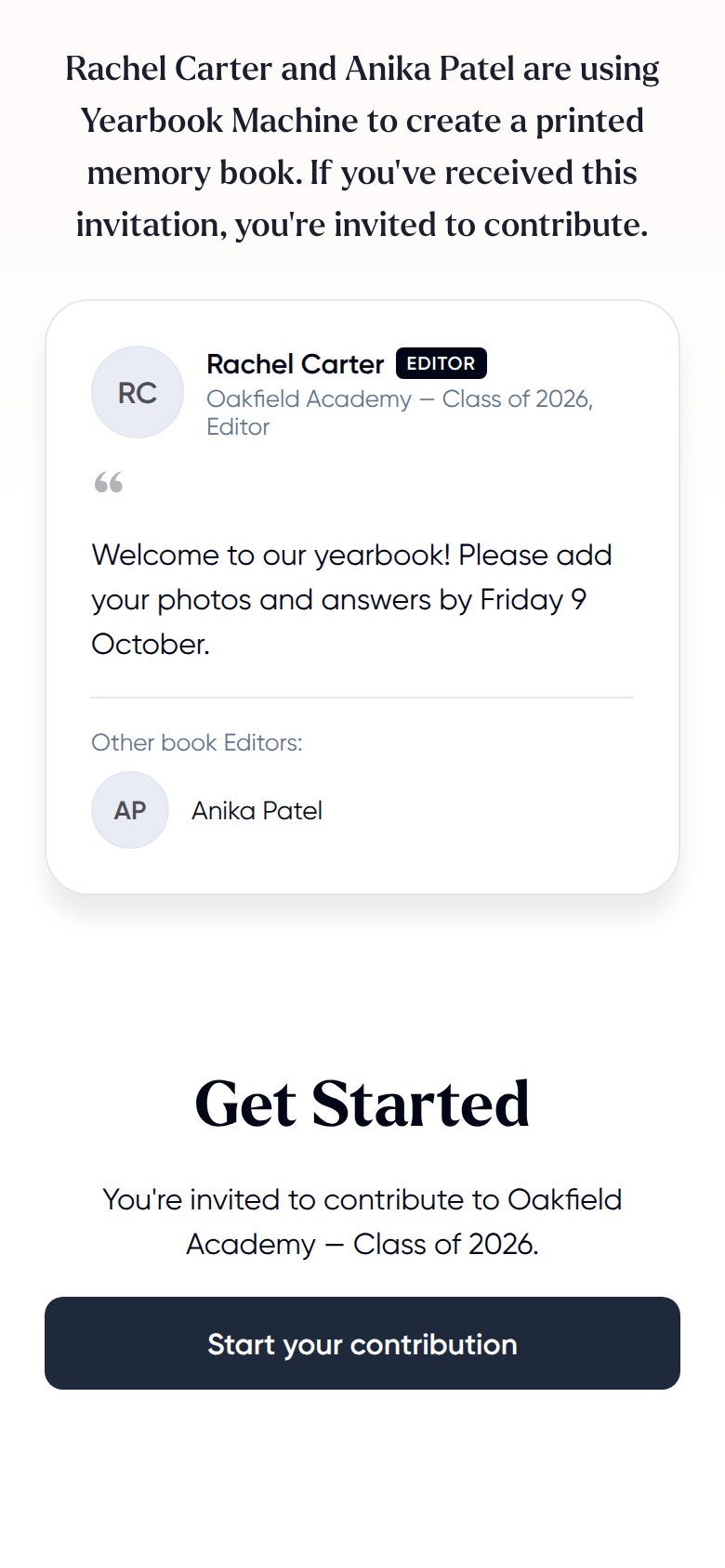
- Open the invitation email and click the link in it. The invitation page shows the book's cover and a message from the person who invited you.
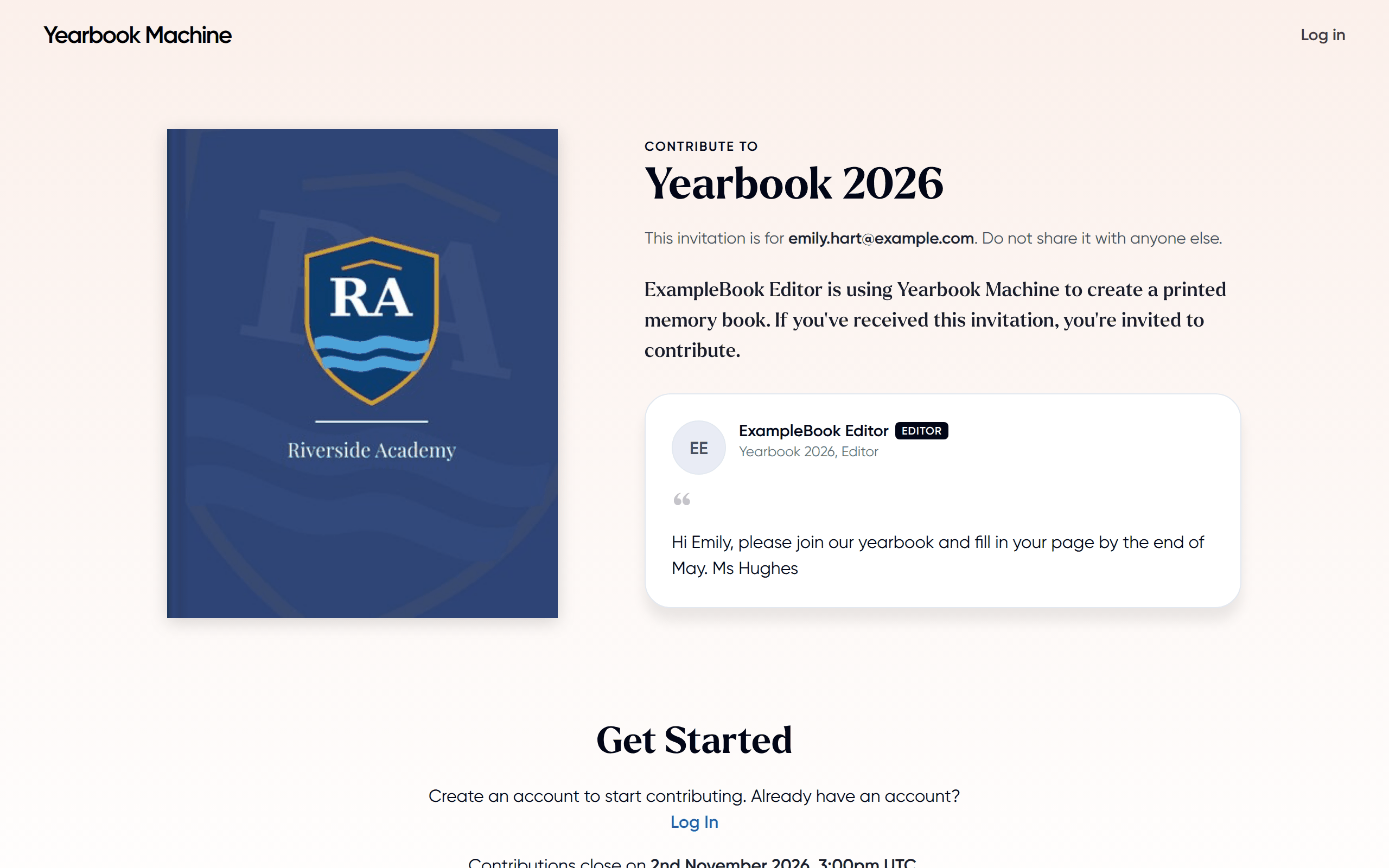
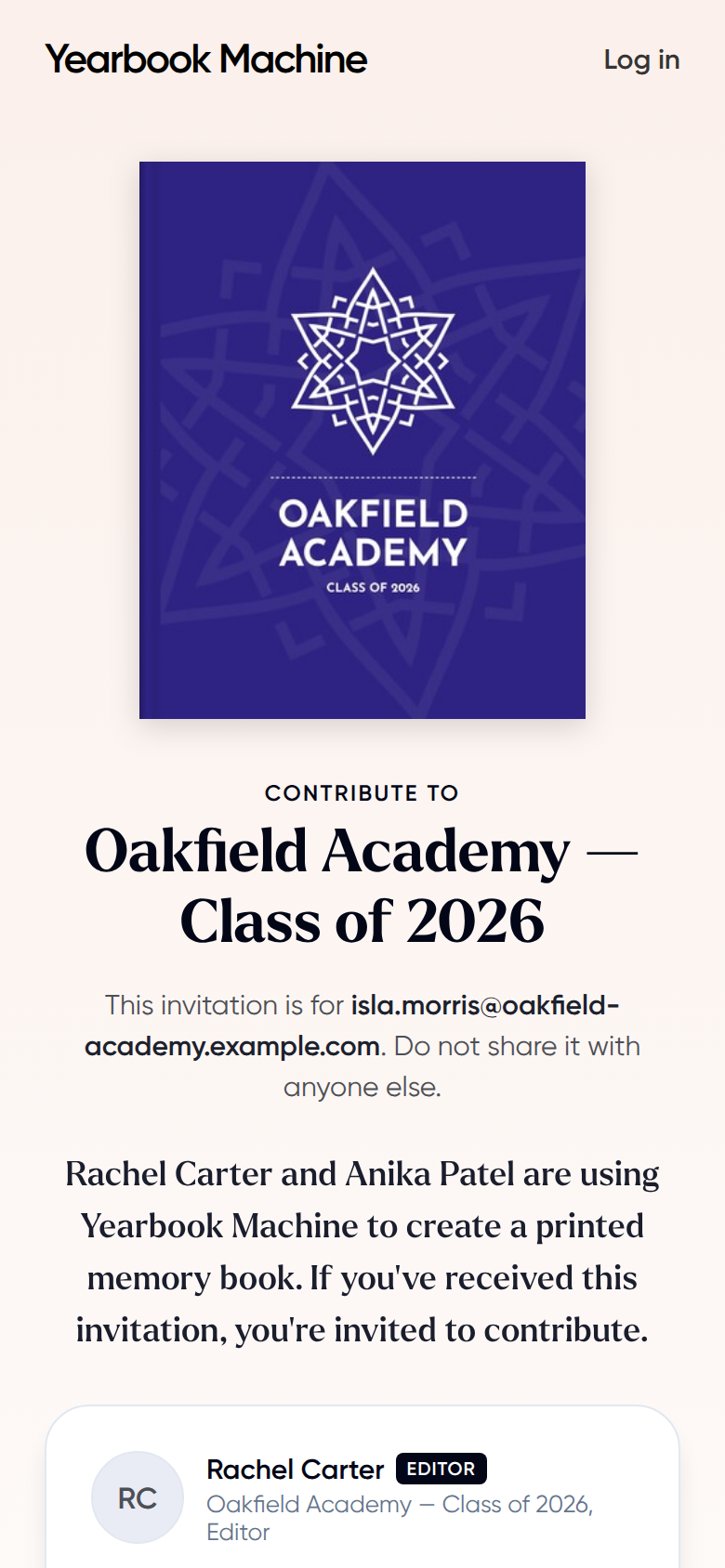
- Under Get Started, enter your First name, Last name and a Password of at least 8 characters. Your email address is already filled in, because the invitation is tied to it.
- Decide whether you want a profile page: your own page in the book, with text and photos of your choosing.
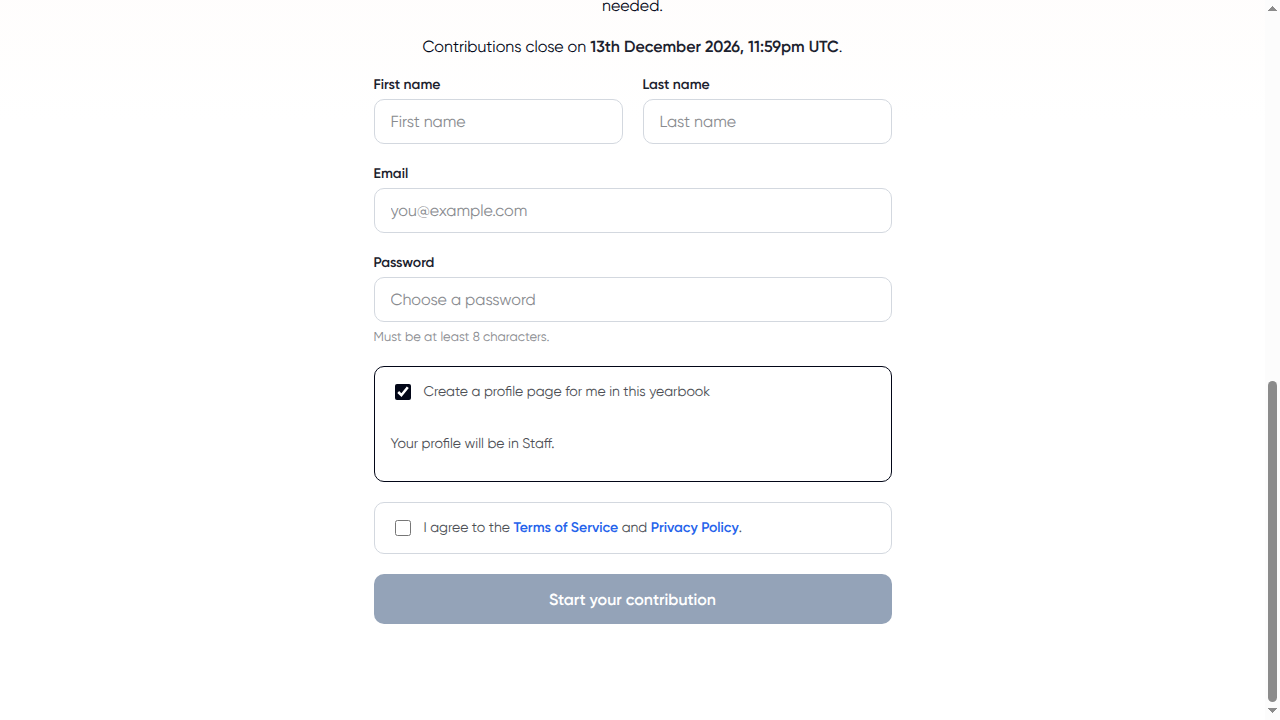
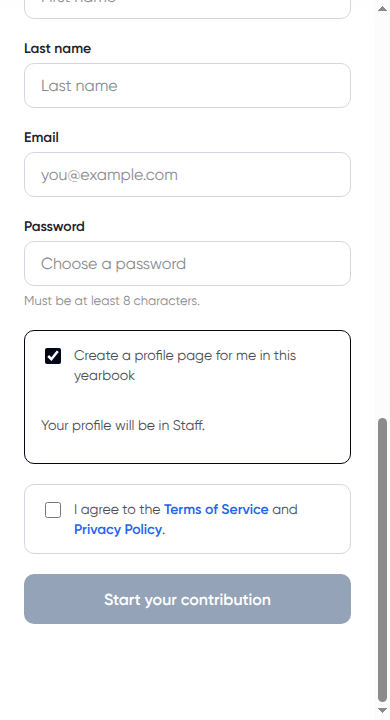
- Leave Create a profile page for me in this yearbook ticked if you will appear in the printed book. If the form asks, choose the section of the book it goes in under Section for your profile page.
- If the editors have already chosen your section, the form says Your profile will be in followed by the section's name instead, and there is nothing to choose.
- Untick it if you will not have a page of your own, for example if you are a member of staff helping to run the book.
- Tick the box to agree to the Terms of Service and Privacy Policy.
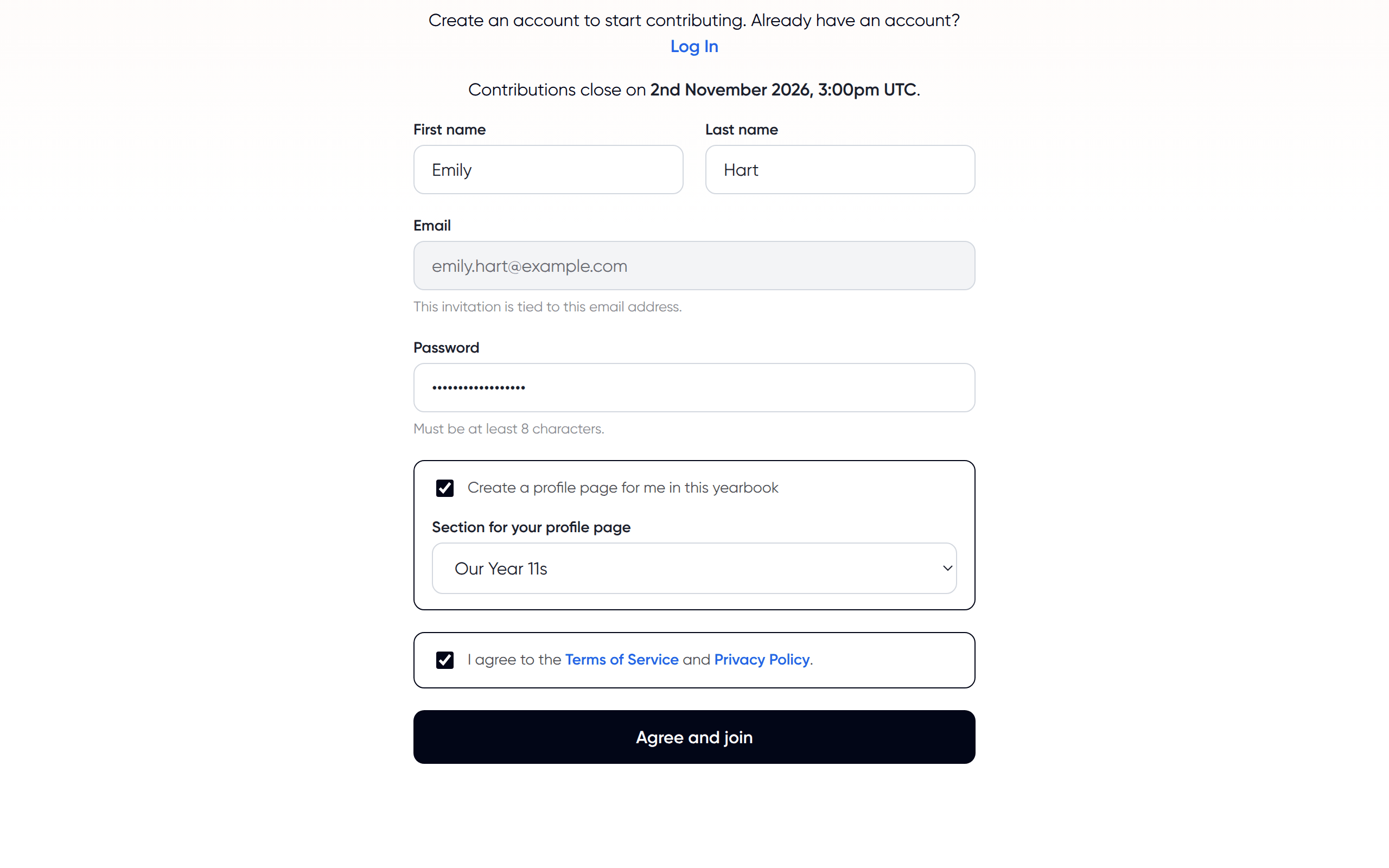
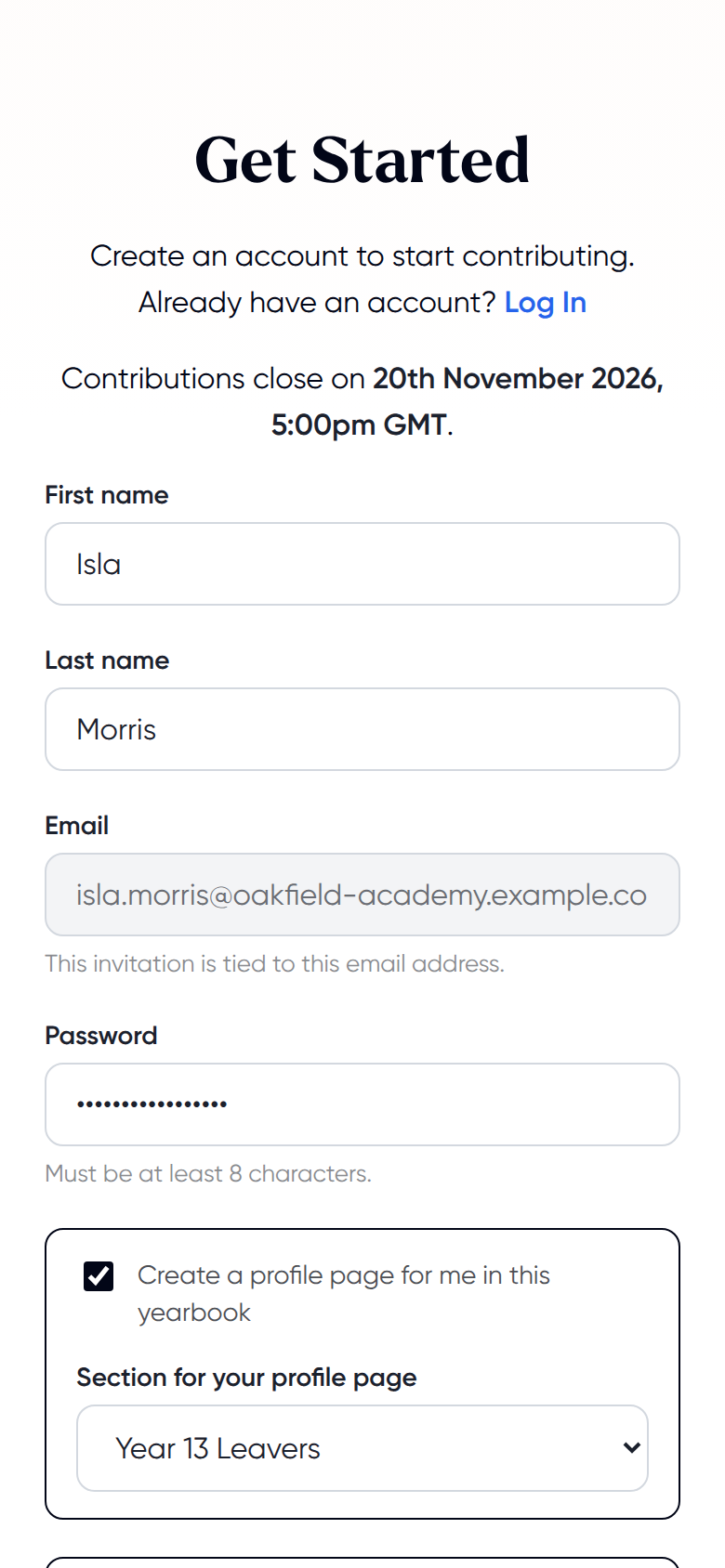
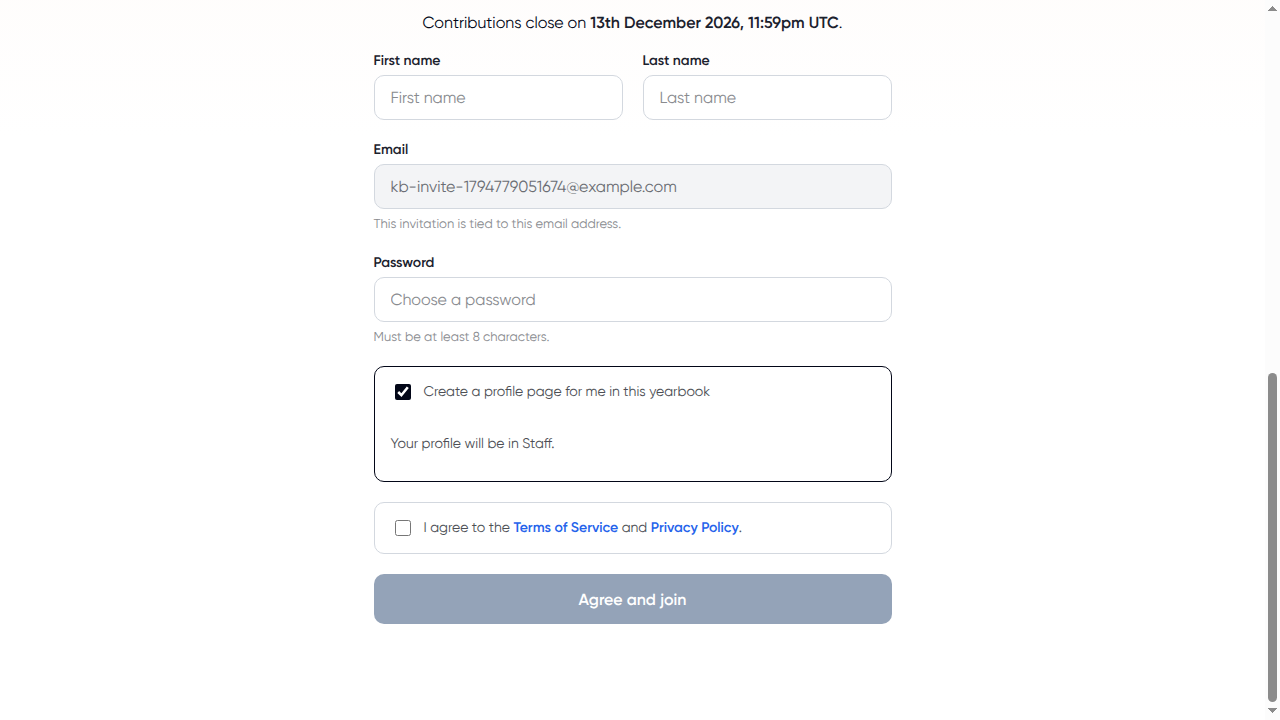
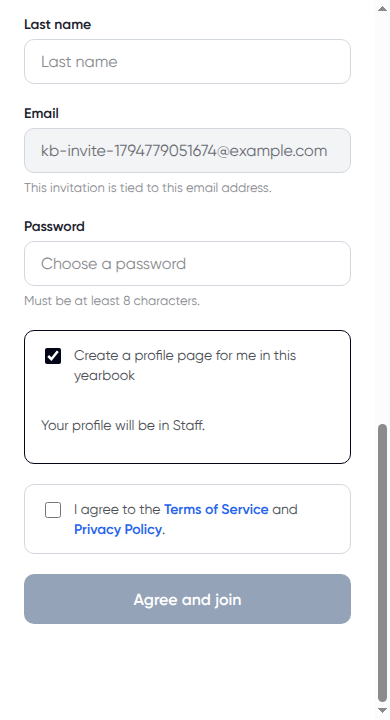
- Click Agree and join.
- You are shown the username we have given you. To keep it, click Keep @… and continue, with your username in place of the dots. To change it, type a new one and click Save and continue.
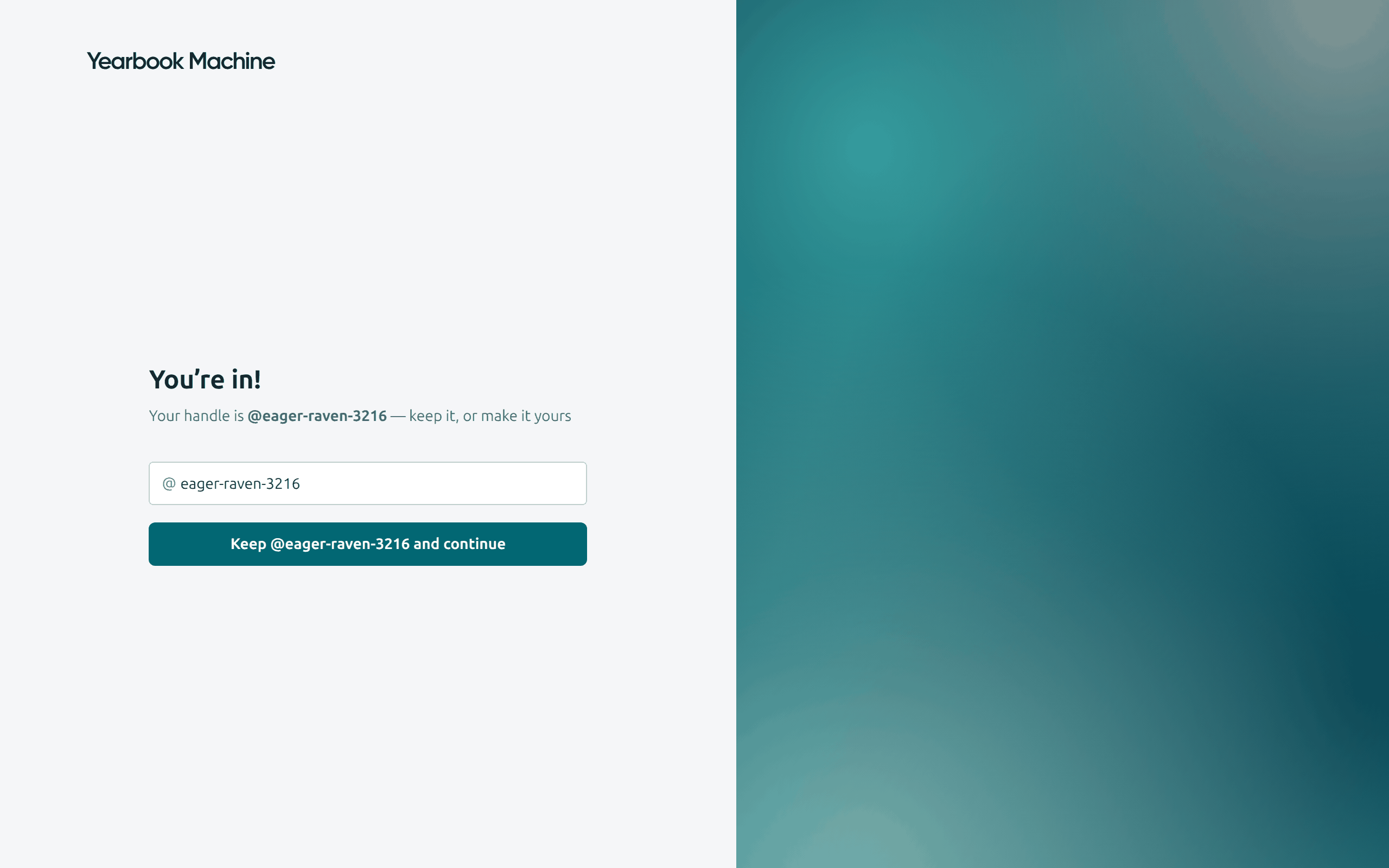
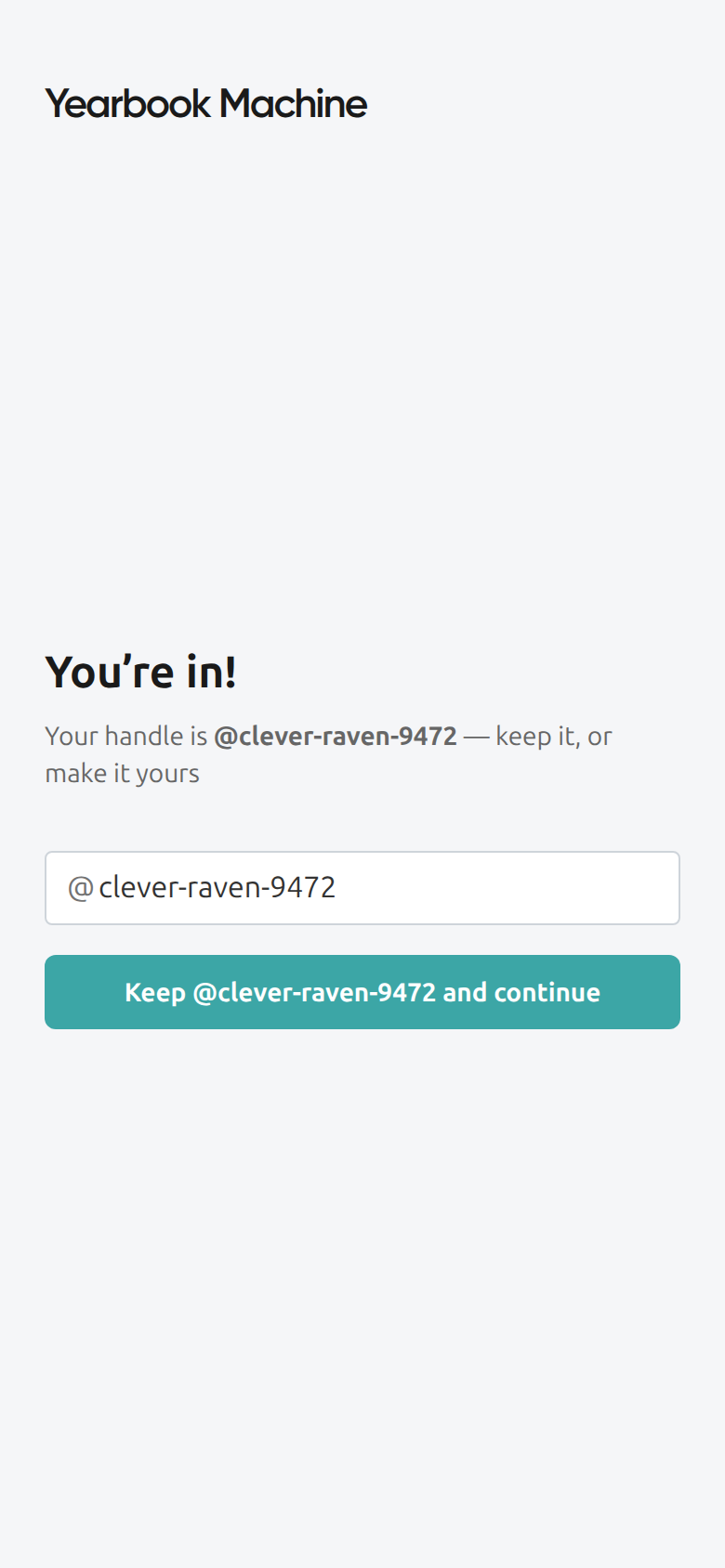
You go straight into the book. Email invitations do not need an editor's approval.
Joining with an invitation link
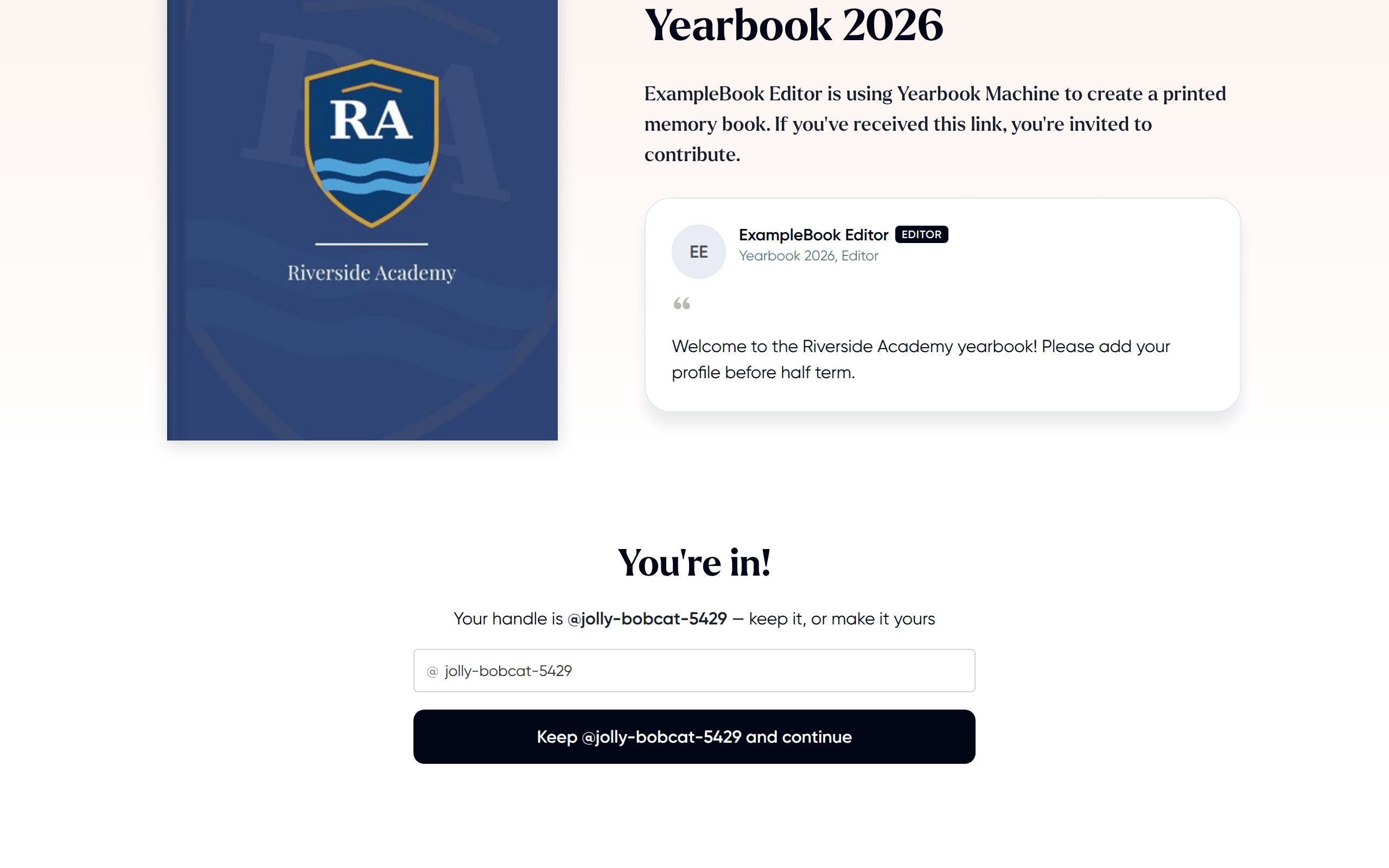
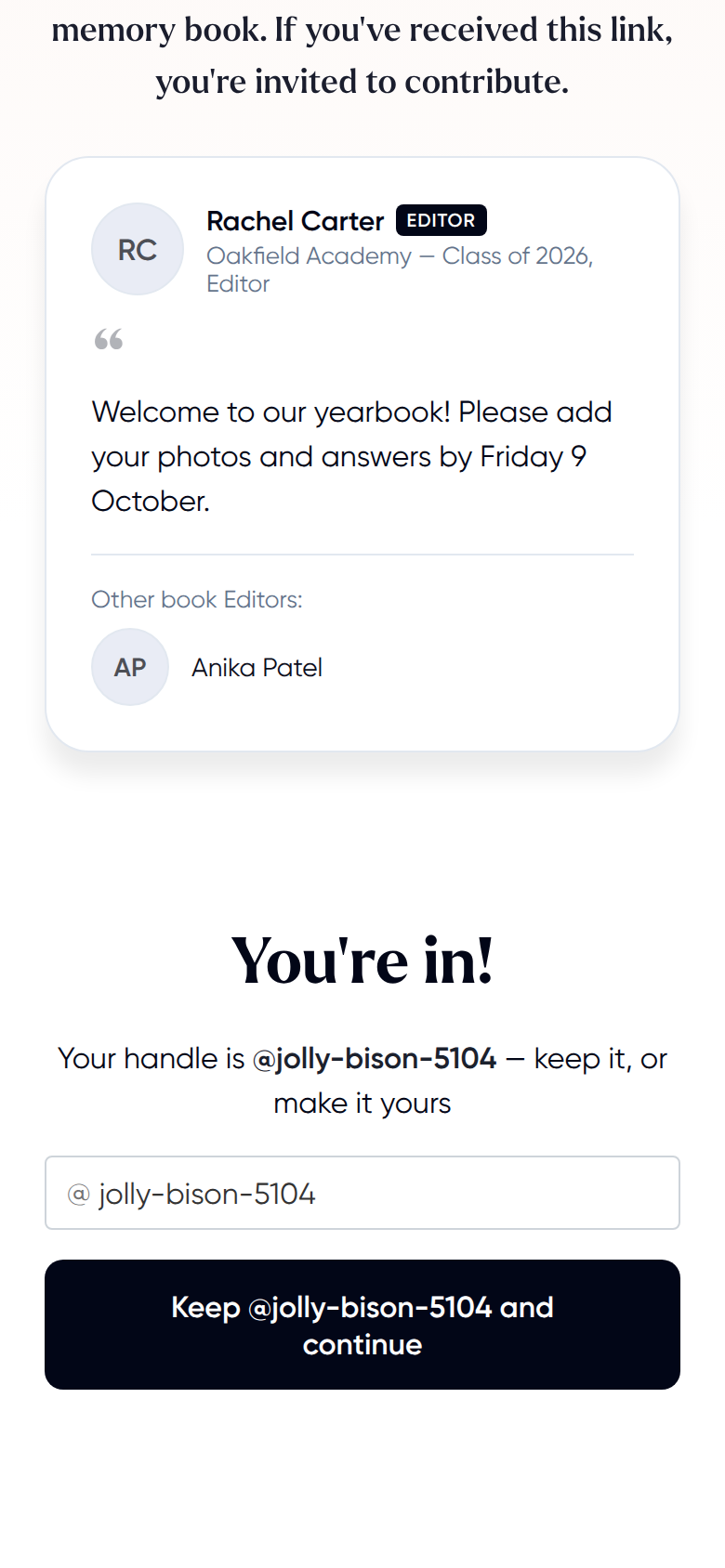
Editors can also share a single invitation link with the whole group, for example by message or on a noticeboard. Unlike an email invitation, the same link works for everyone.
- Open the link.
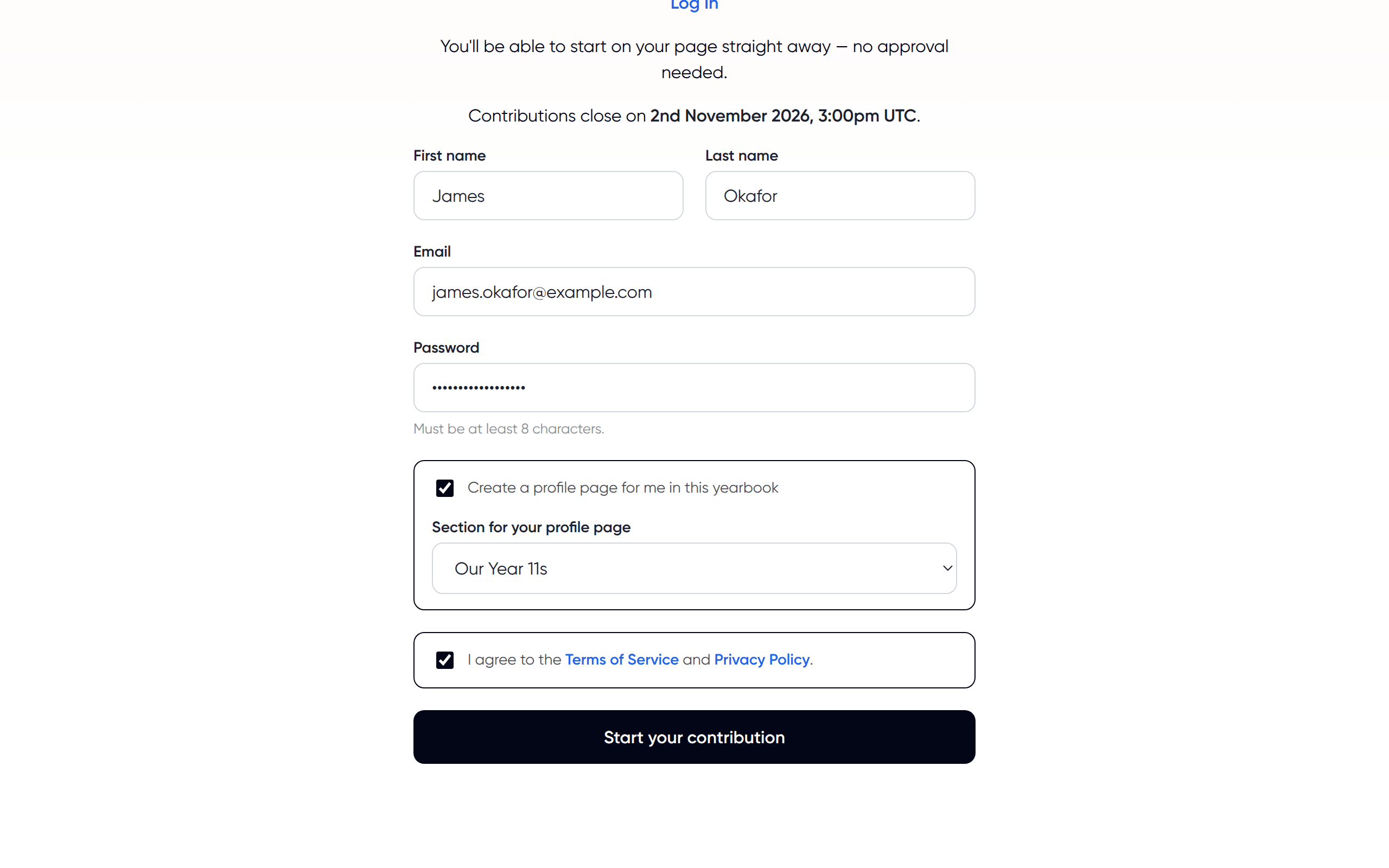
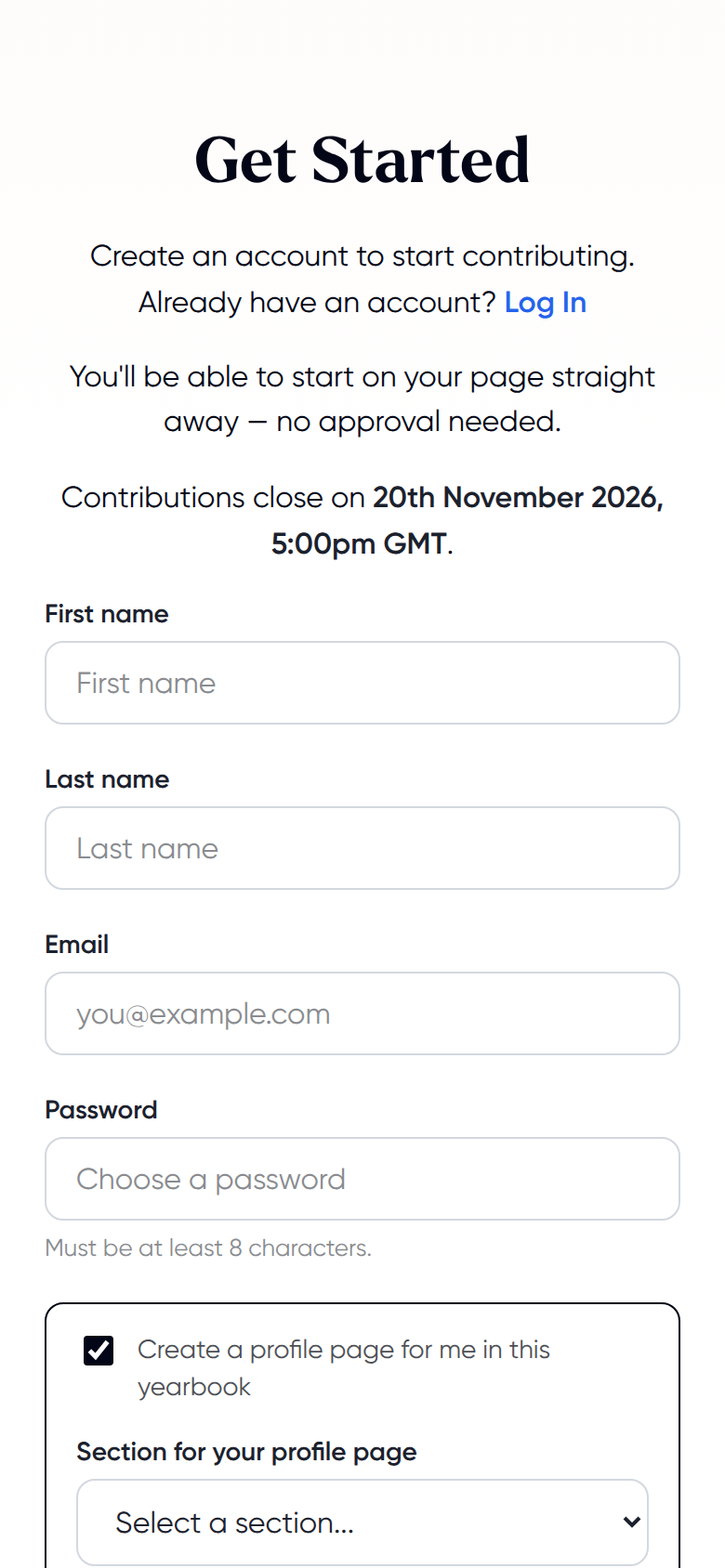
- Fill in your name, Email and Password, choose whether to have a profile page, tick the agreement box and click Start your contribution. As with an email invitation, you either choose your section or see Your profile will be in followed by the section the editors chose.
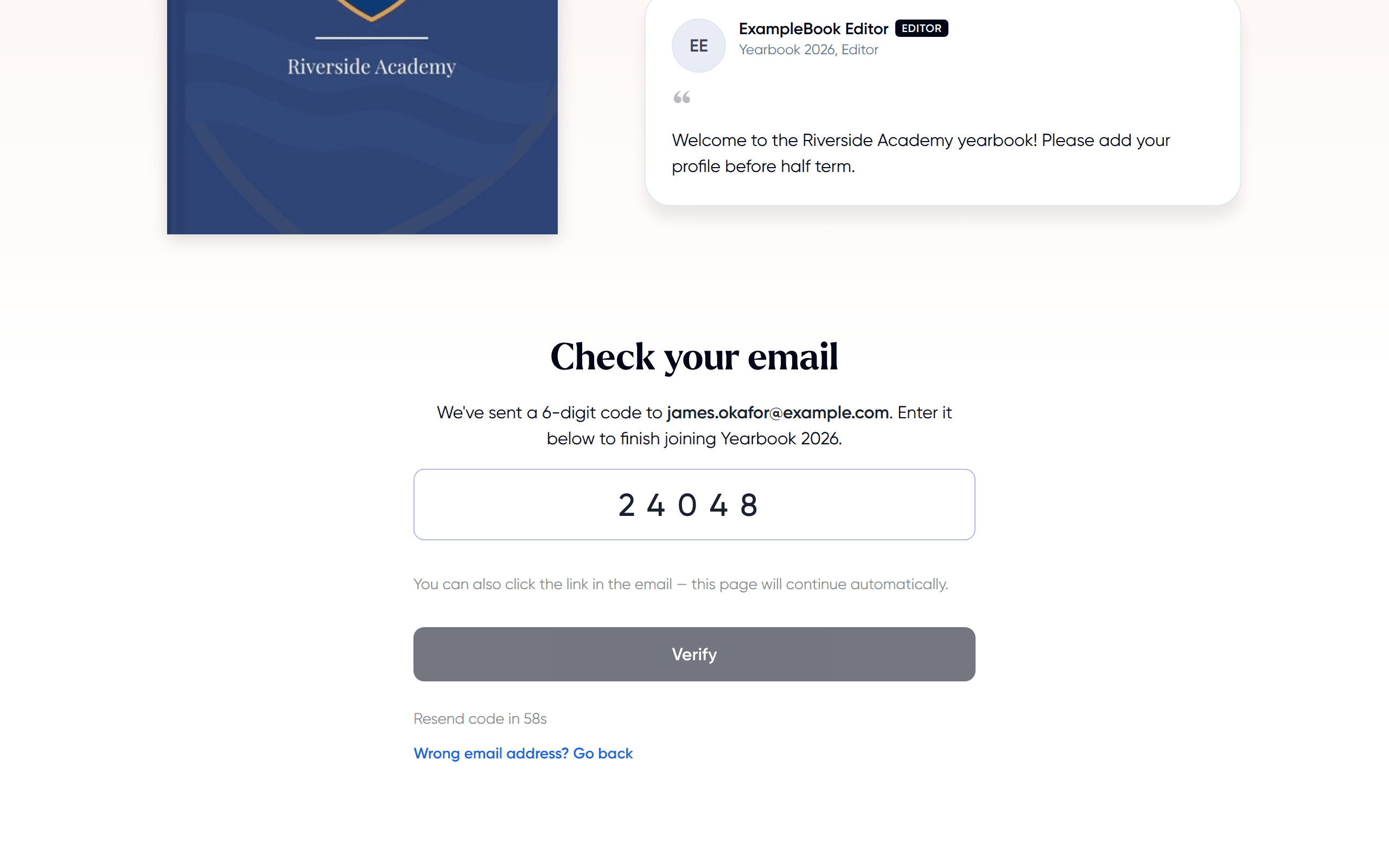
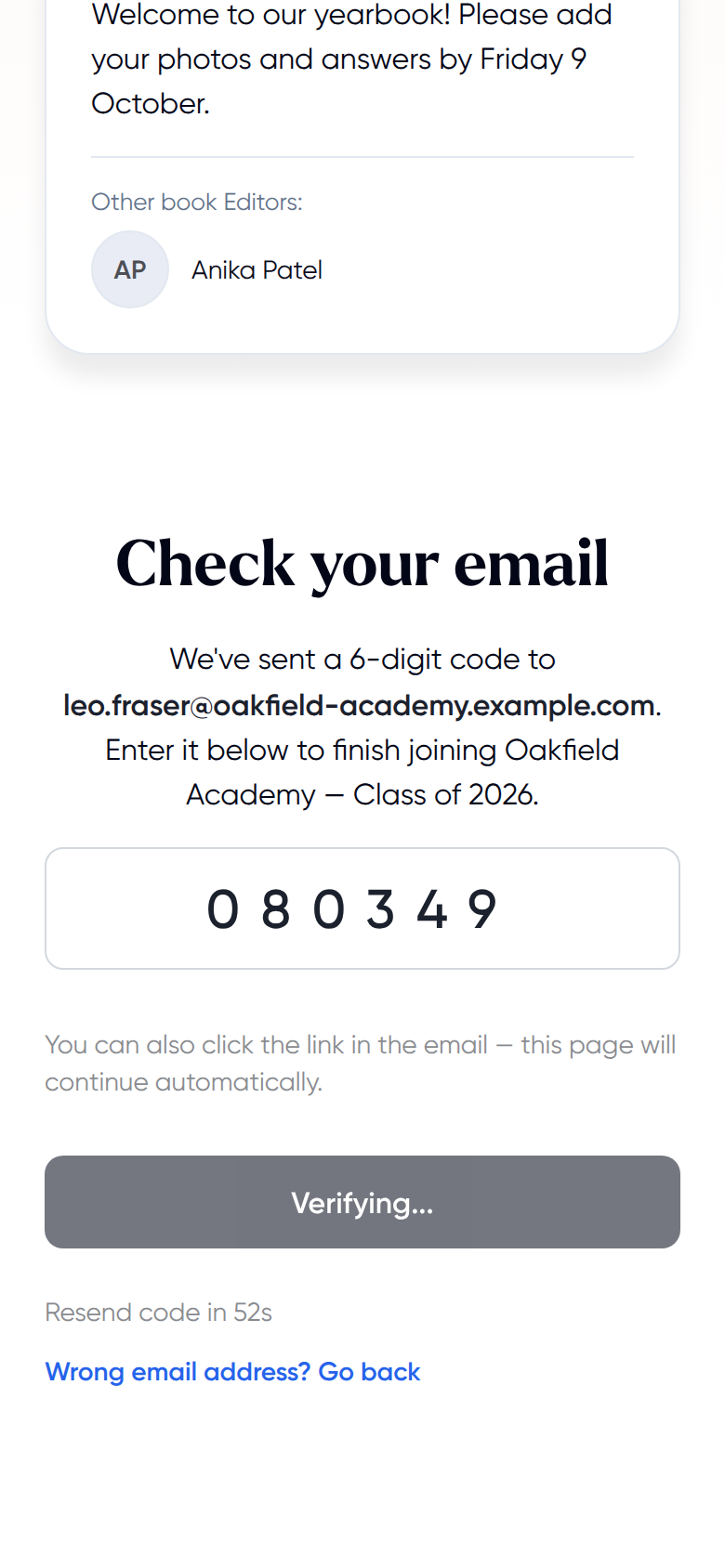
- Under Check your email, enter the 6-digit code we send you and click Verify. If the email has not arrived, check your spam folder or click Resend code.
- Keep your username with Keep @… and continue, or type a new one and click Save and continue.
If you already have an account, click Log In next to Already have an account?, then click Join the book.
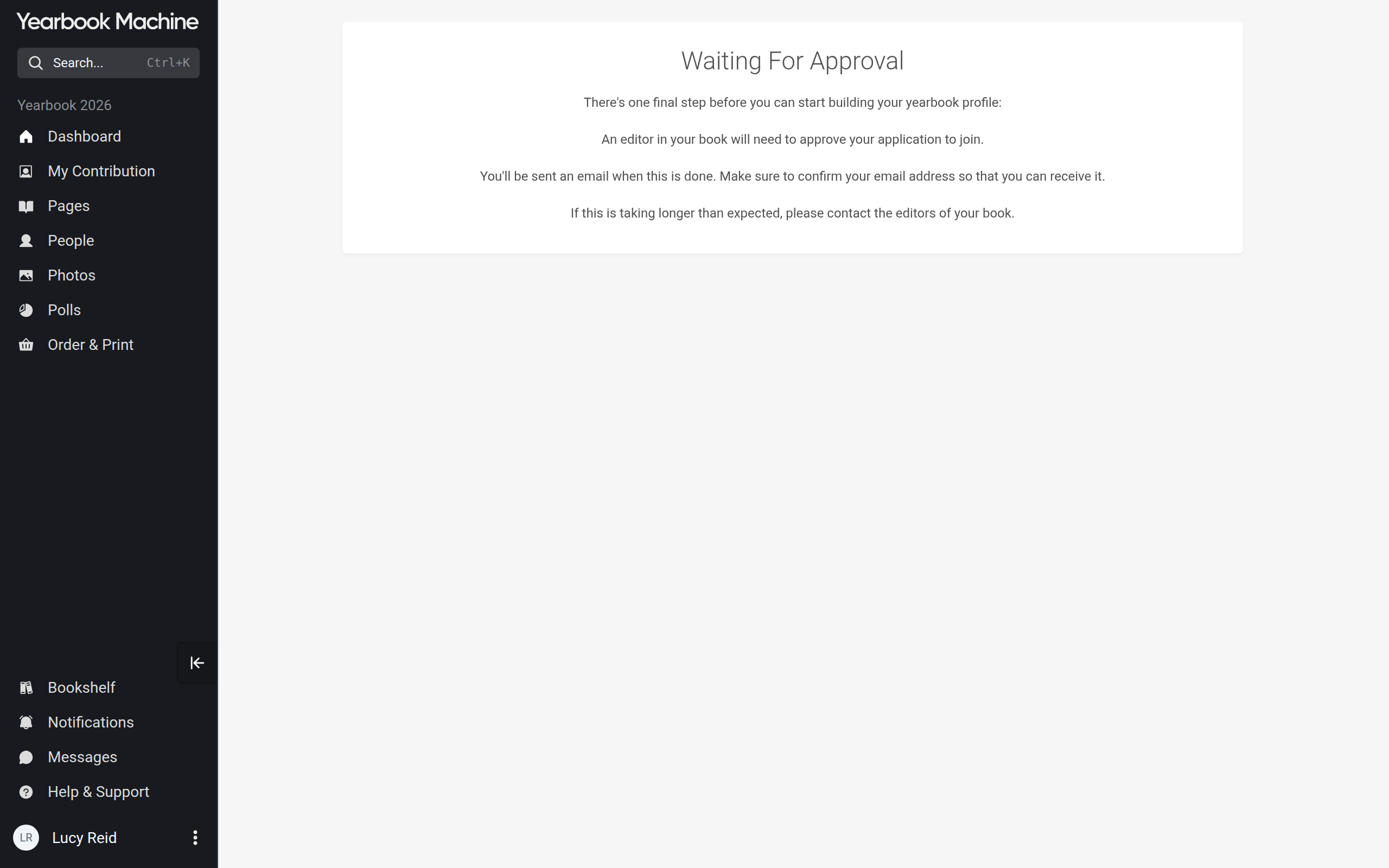
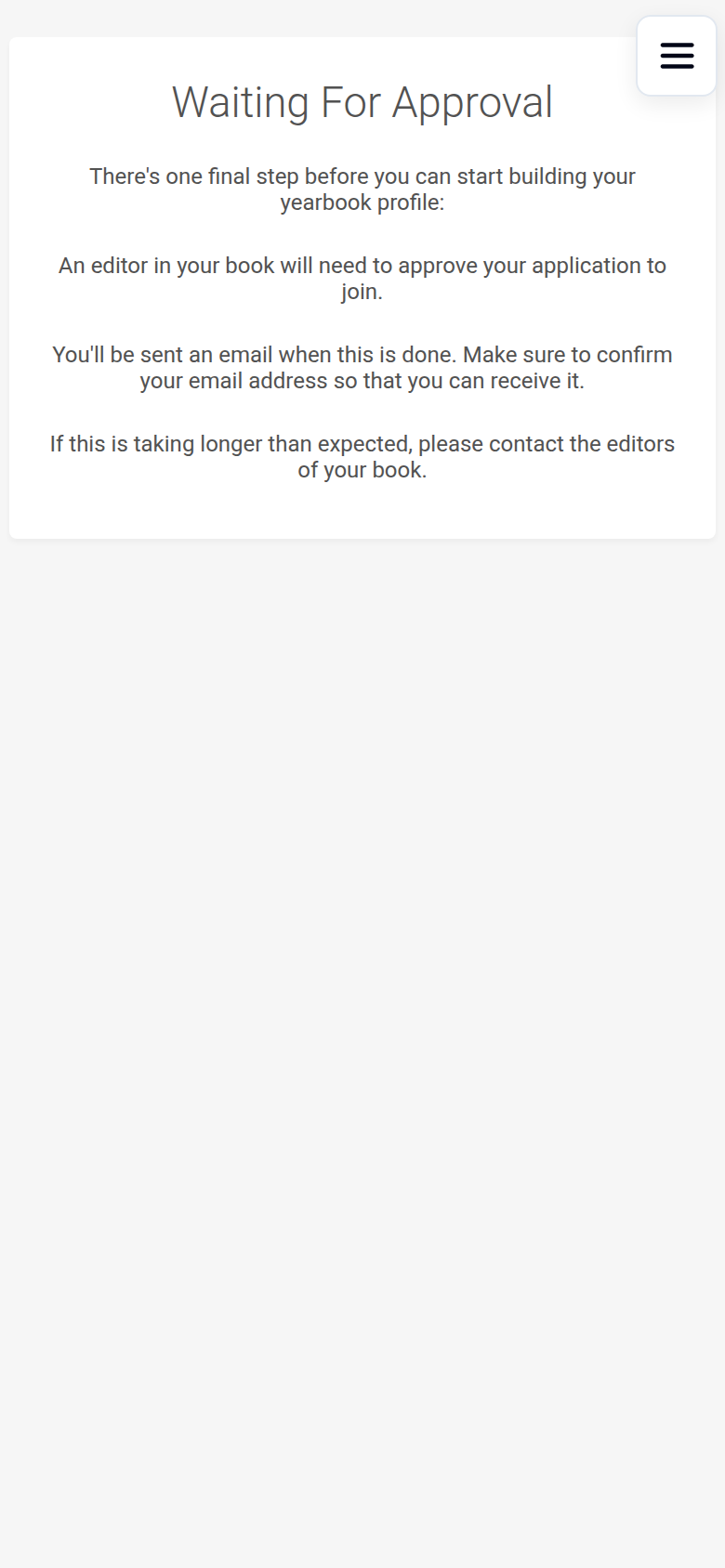
Some books ask an editor to approve each person who joins by link. On those books the button reads Request to join. After you sign up, you see a page headed Waiting For Approval until an editor approves you. You cannot open the book until then.
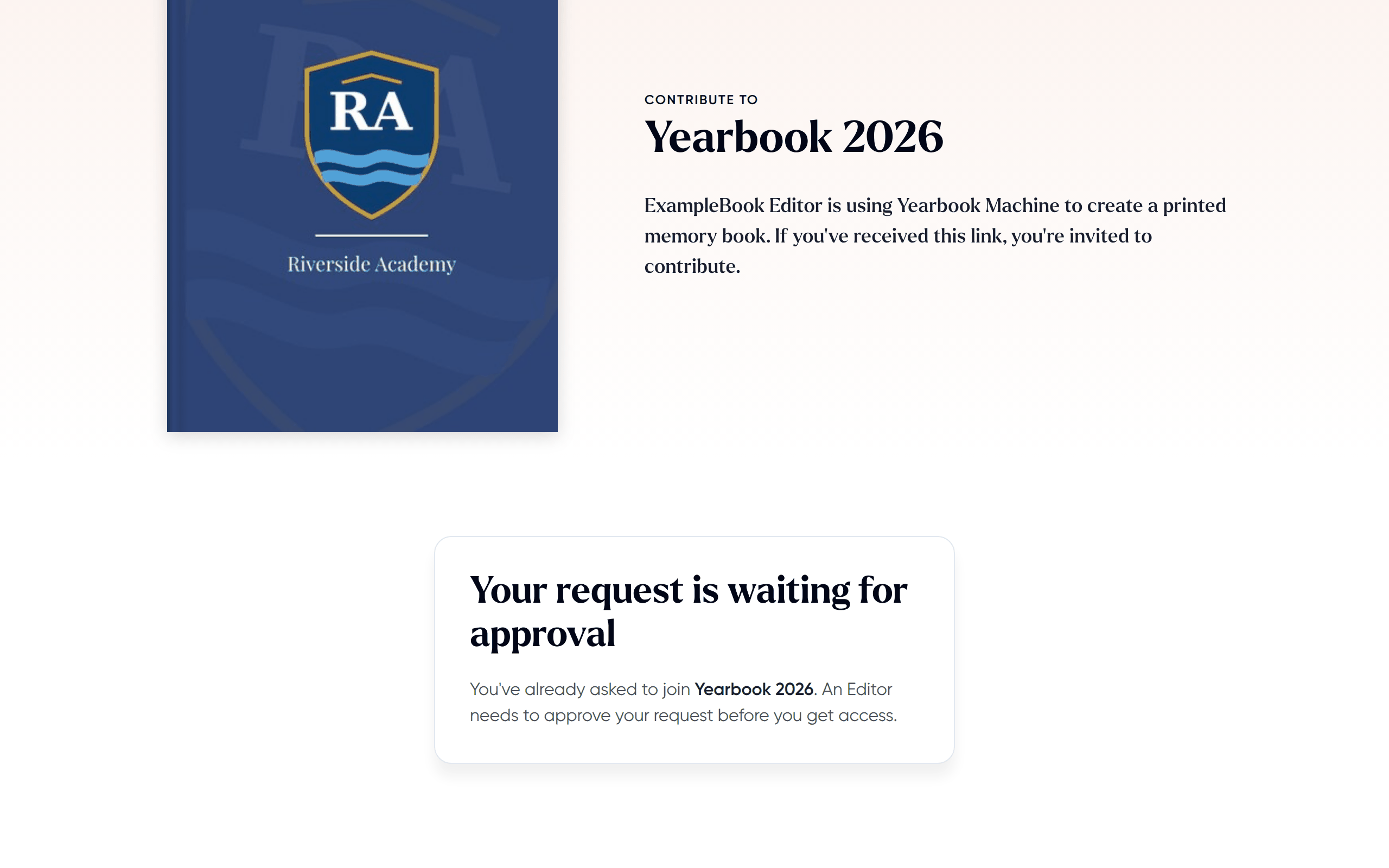
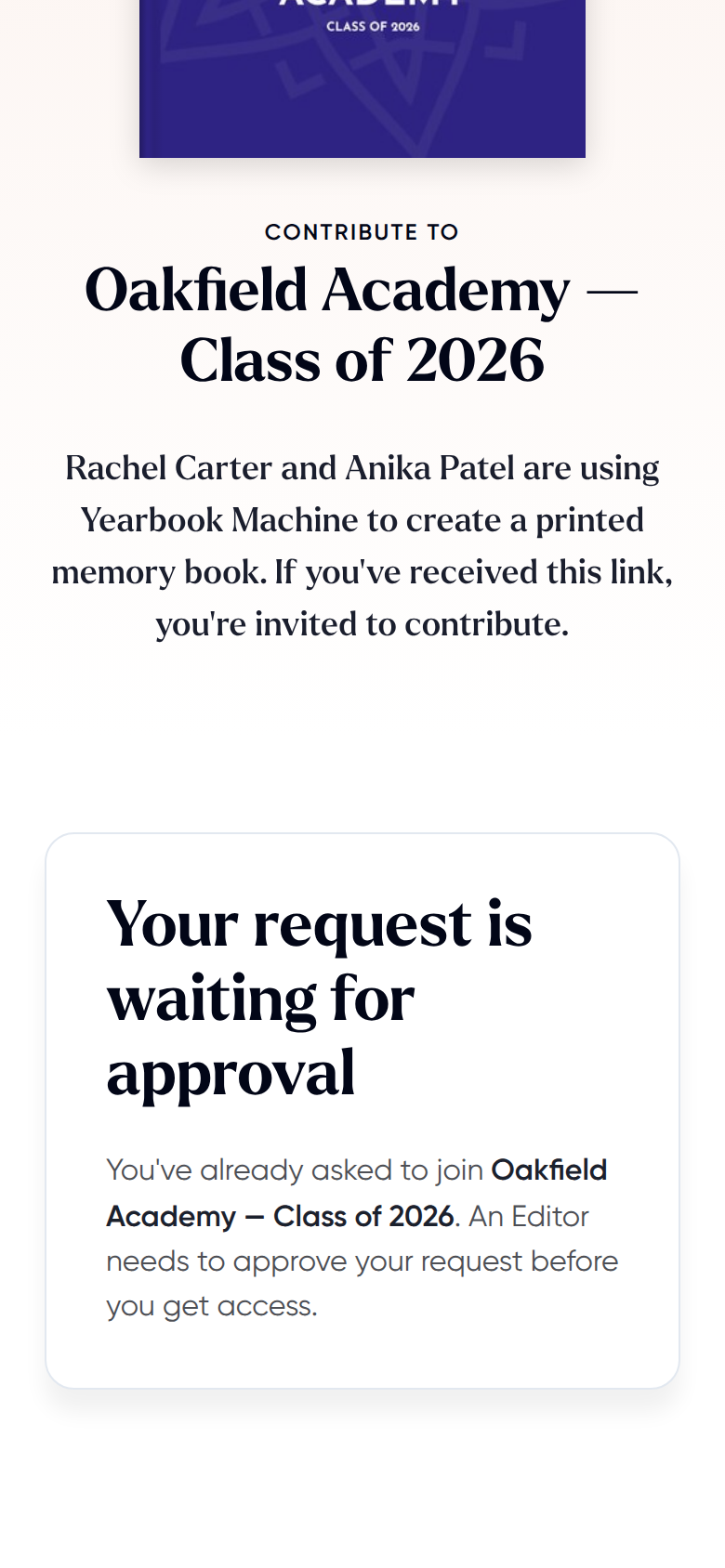
If you open the invitation link again before you are approved, the invitation page says Your request is waiting for approval.
Accepting an invitation in your account
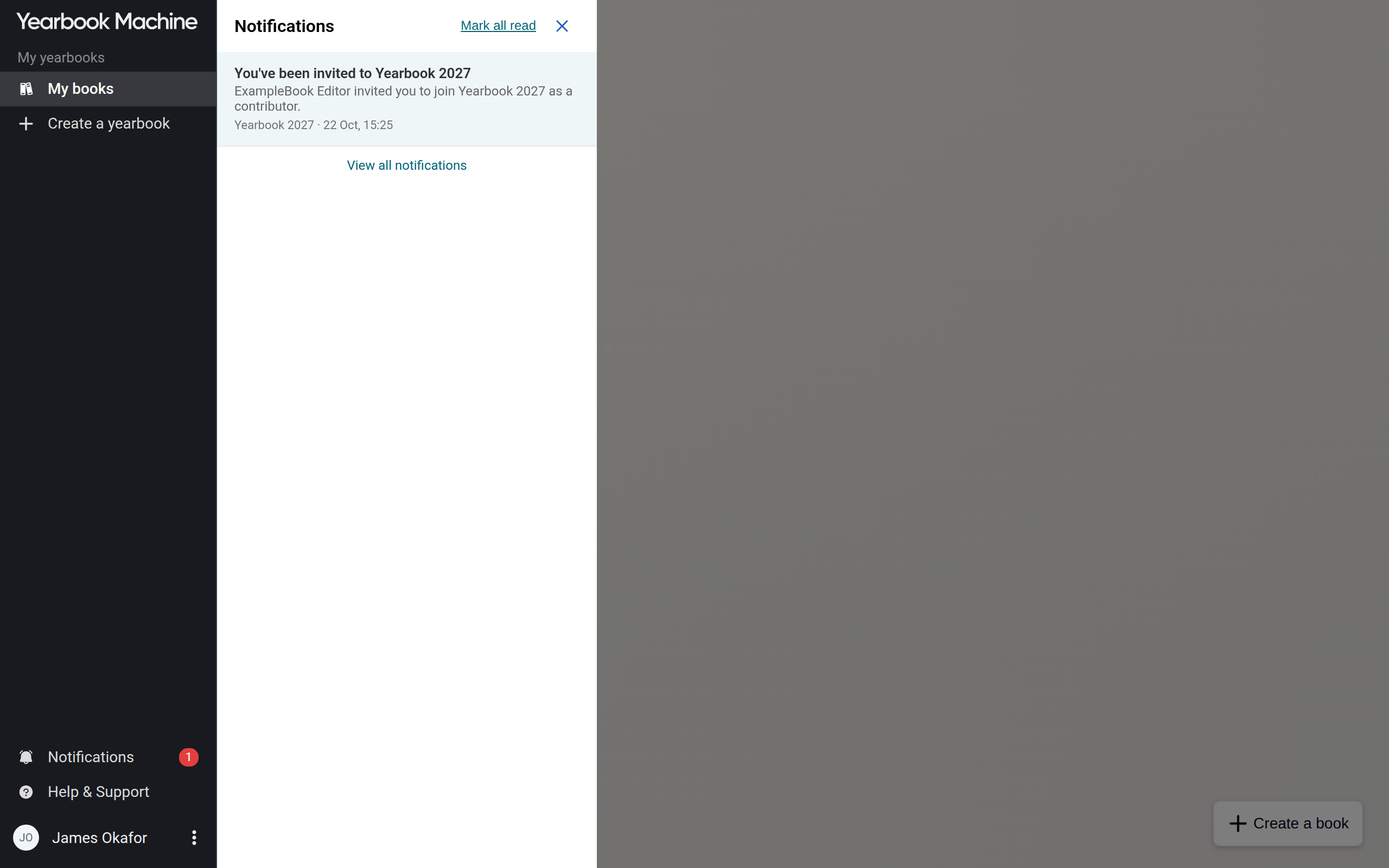
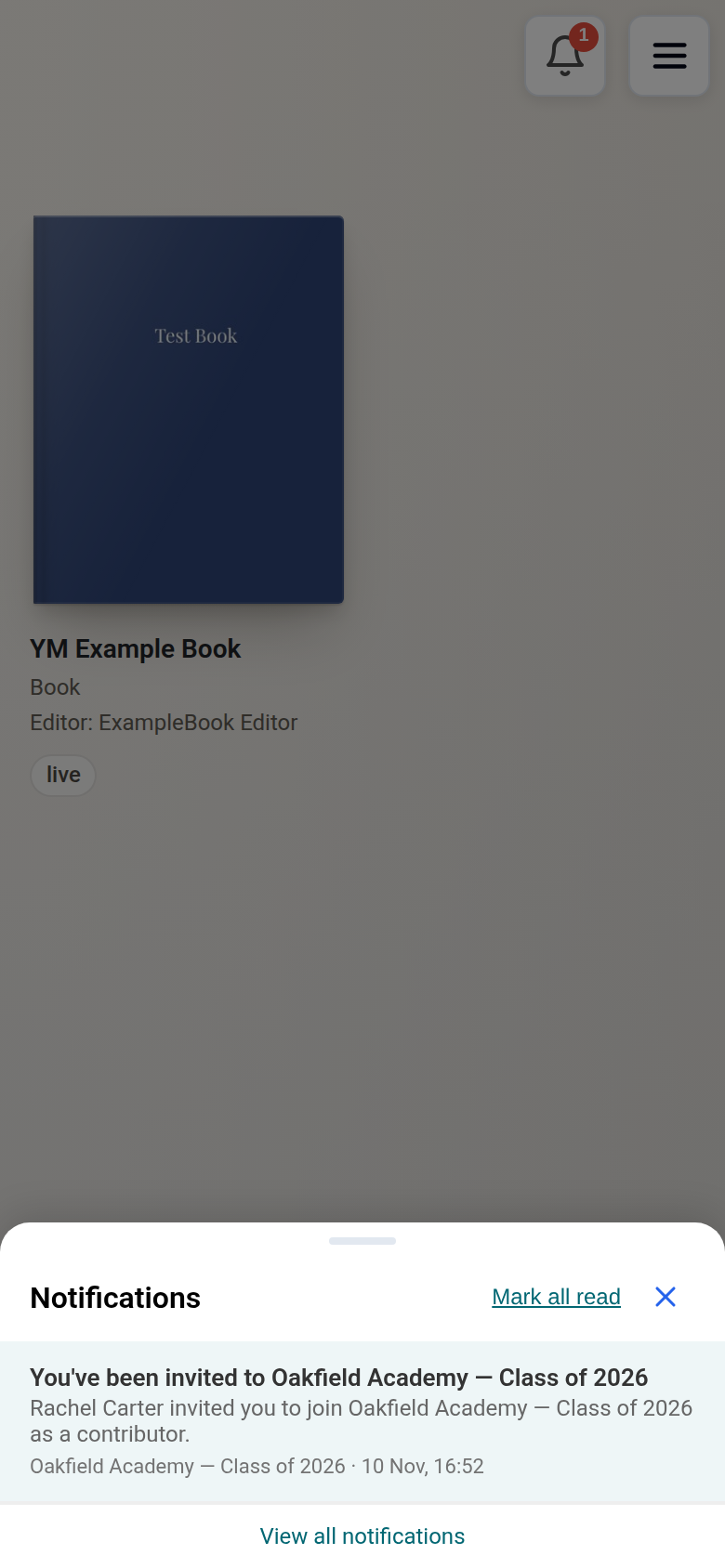
If you already have a Yearbook Machine account, an editor can invite you by your username or email address. You receive a notification saying who invited you and to which book.
- Click the notification.
- Click Start your contribution if you were invited as a contributor, or Start editing if you were invited as an editor. Contributors fill in their own page and take part in the book; editors run the book and can change every page and setting.
Claiming a page made for you
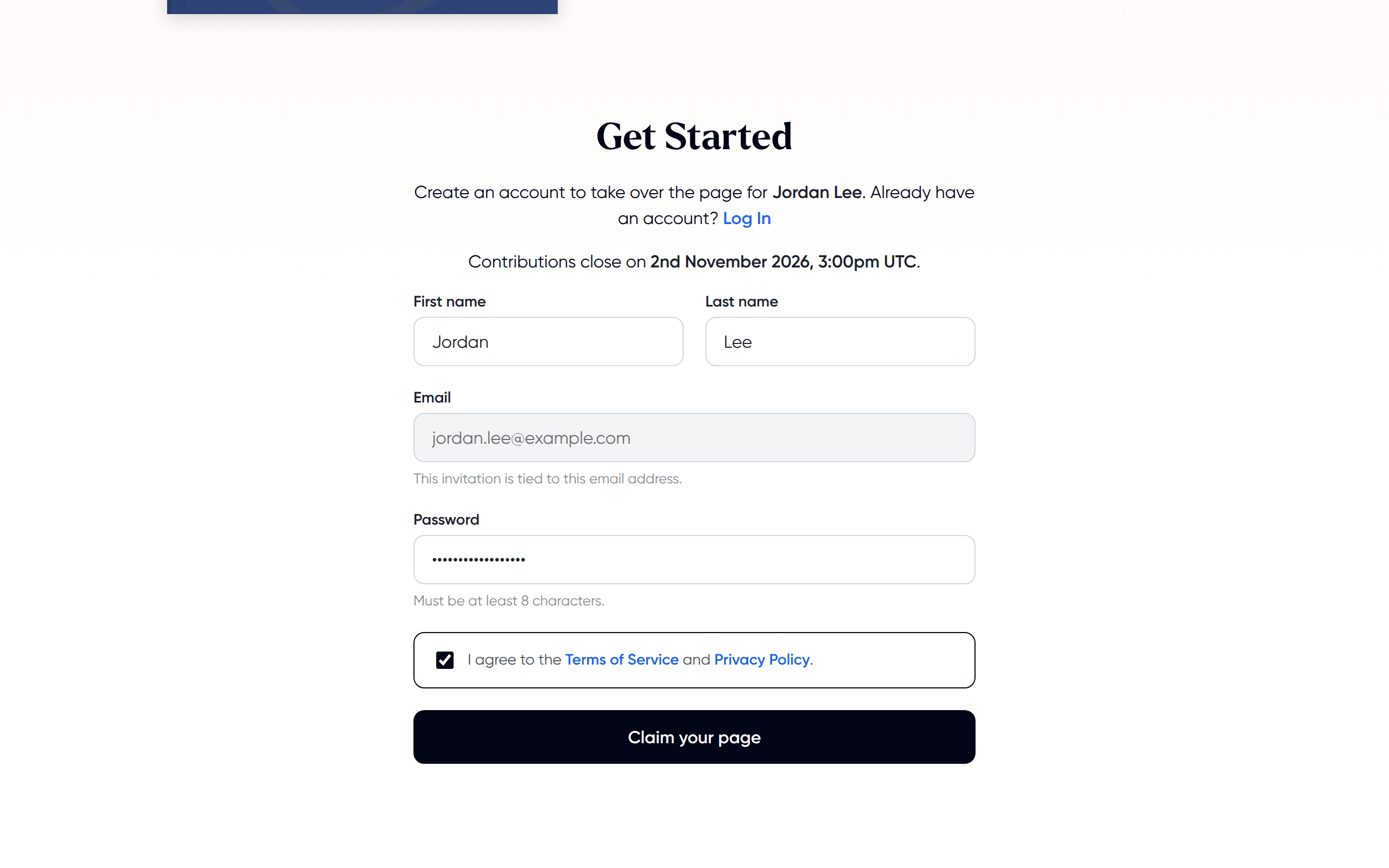
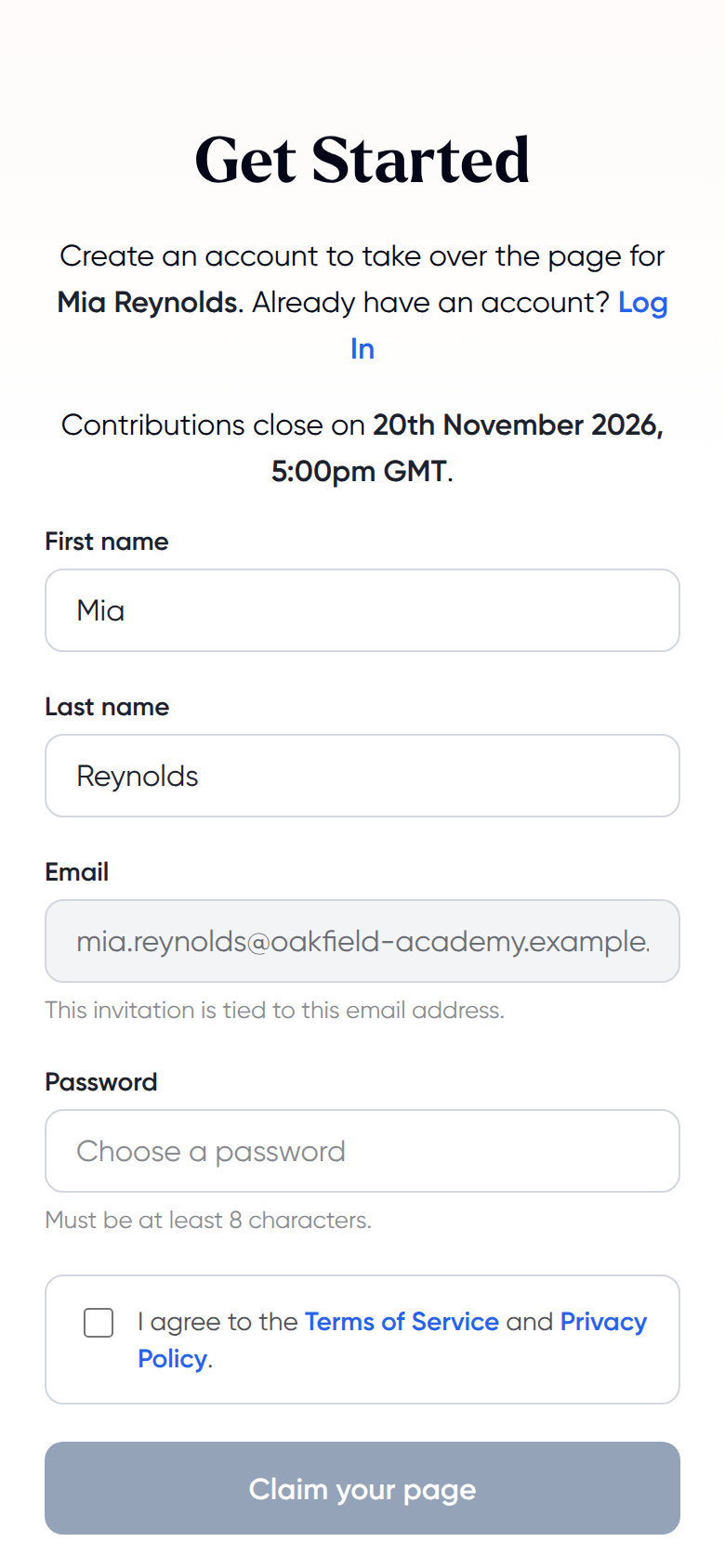
Sometimes an editor creates a profile page for you before you join, then invites you to take it over. Open the invitation, create your account (or log in), and click Claim your page. The page is then linked to your account and you can edit it yourself.
Common questions
The page says "This invite belongs to someone else". What do I do?
You are logged in with a different account from the one the invitation was sent to. Click Log out and open the link again.
The page says "This invite has been used".
Each email invitation can only be used once. If you did not use it, ask the person who invited you to send a new one.
The page says "The contribution deadline has passed".
The contribution deadline is the date the editors set for contributors to finish. After it, the book stops accepting new contributors. Ask the book's editors: they can move the deadline.
My profile is going into the wrong section.
The editors chose the section for your invitation. Ask them: they can move your profile page to the right section.
Can I be in more than one yearbook?
Yes. You use the same account for every book, and all your books appear on your Bookshelf, the screen that lists every book you belong to.
Was this article helpful?
Sorry, that didn't send. Please try again in a little while.
Thanks. That helps us improve this article.
Any other questions?
Email support@yearbook.com and we'll help you out.