
Completing your profile
Your profile is your page in the yearbook: answers to questions, a personal message, and what your friends say about you. This article covers filling it in, choosing what gets printed, and marking it as complete. Everyone with a profile page can do this for their own profile, and editors can do it for anyone's profile in the book.
Opening your profile
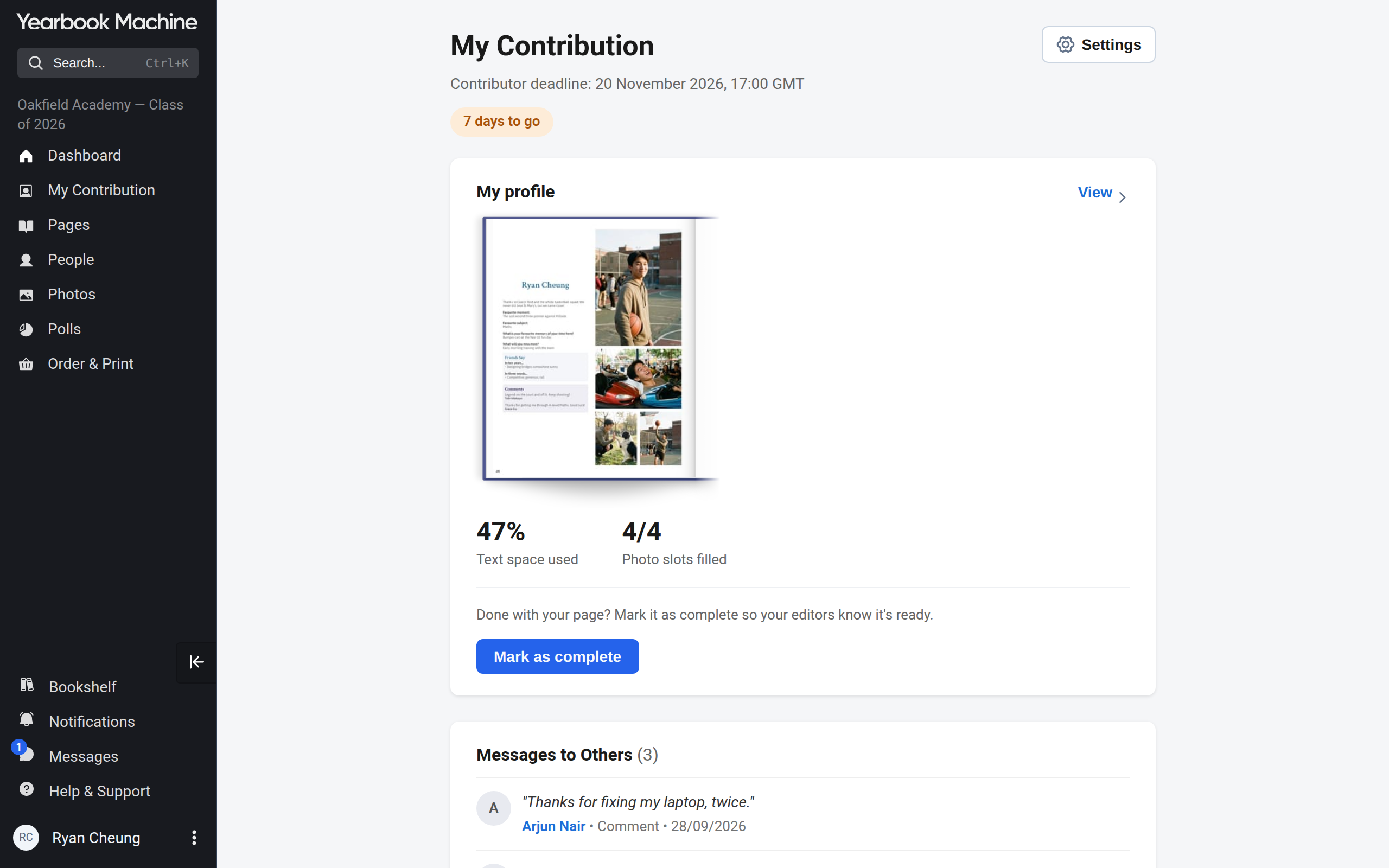
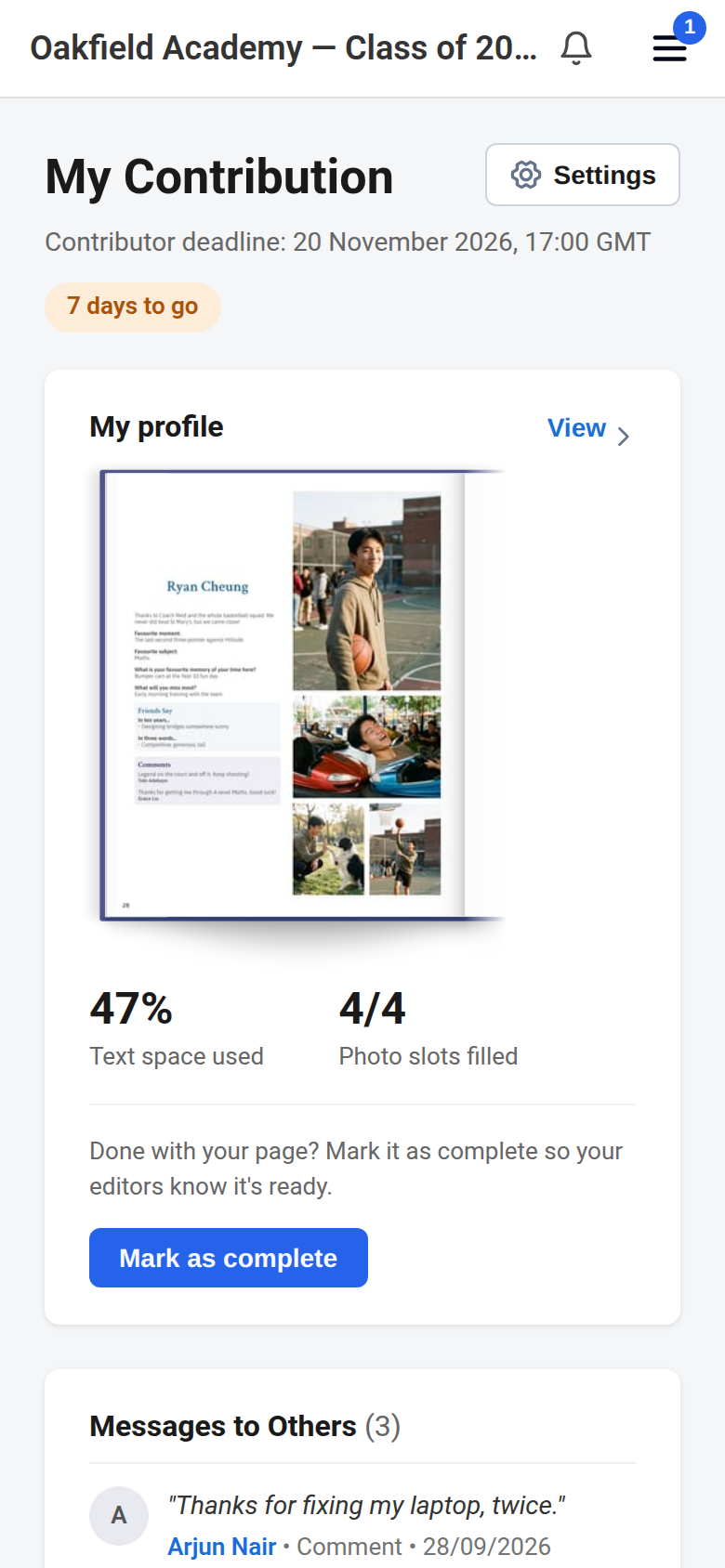
- Click My Contribution in the main menu.
- On the My profile card, click View.
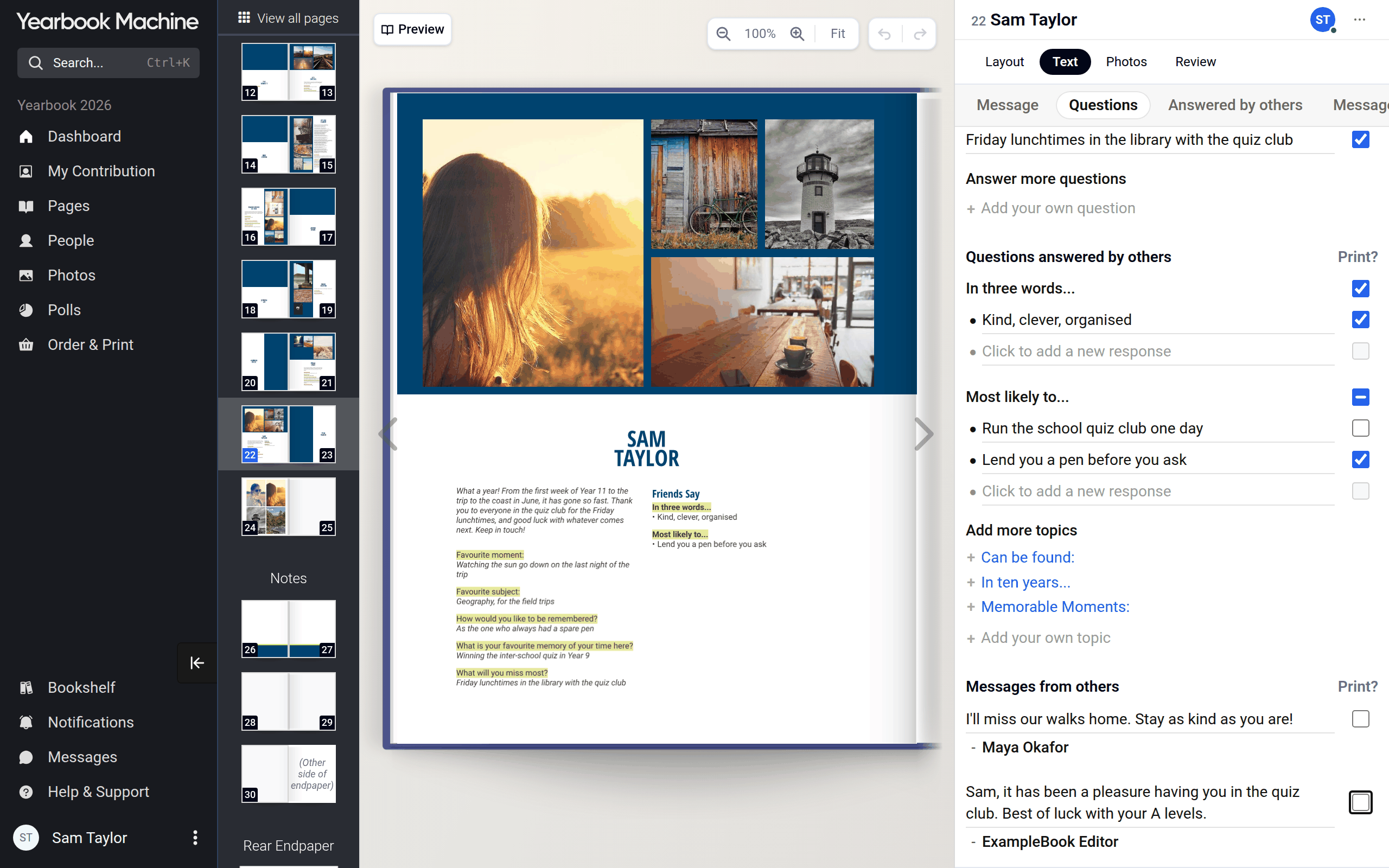
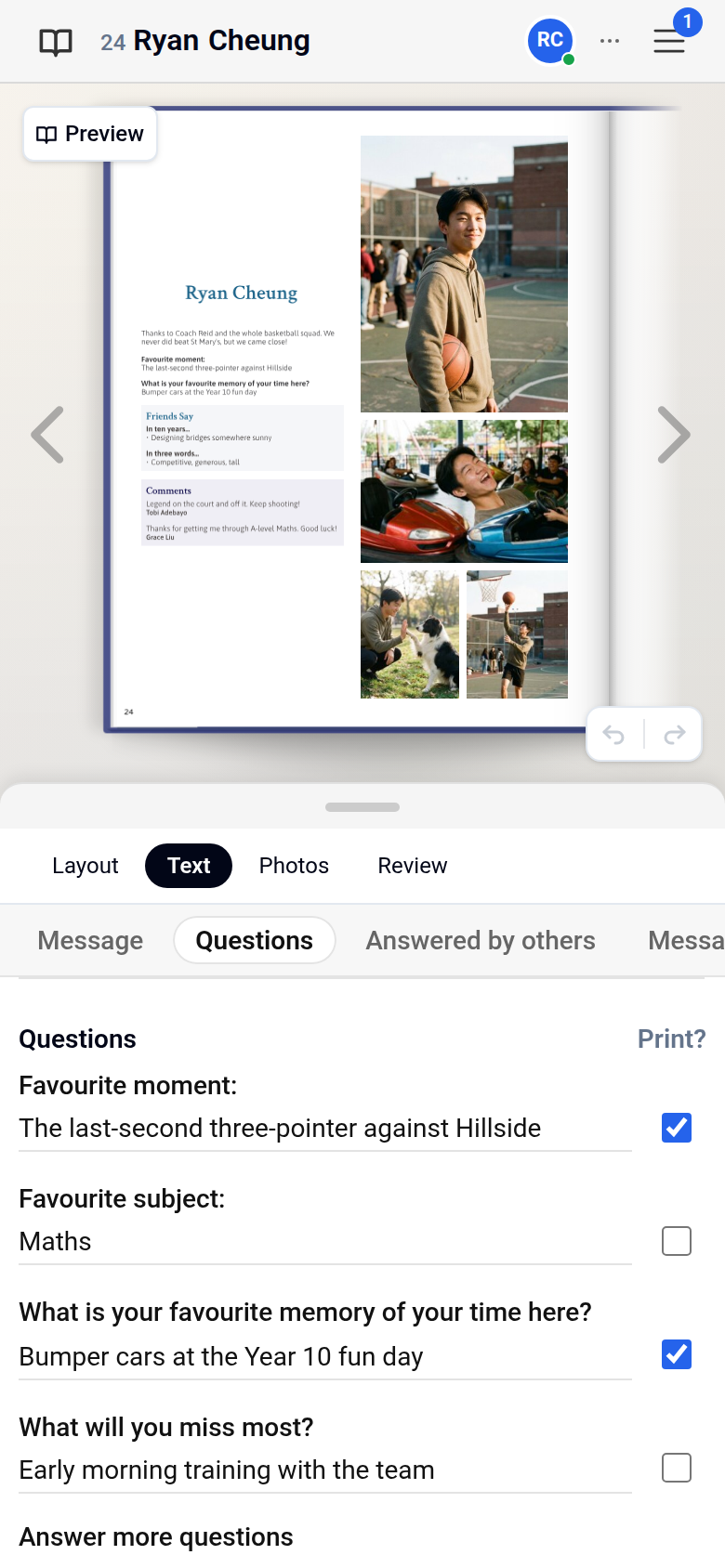
- Your page opens in the page editor, the screen for working on a single page, with a preview of the printed page beside a panel of tabs. The Text tab opens first and shows your sections.
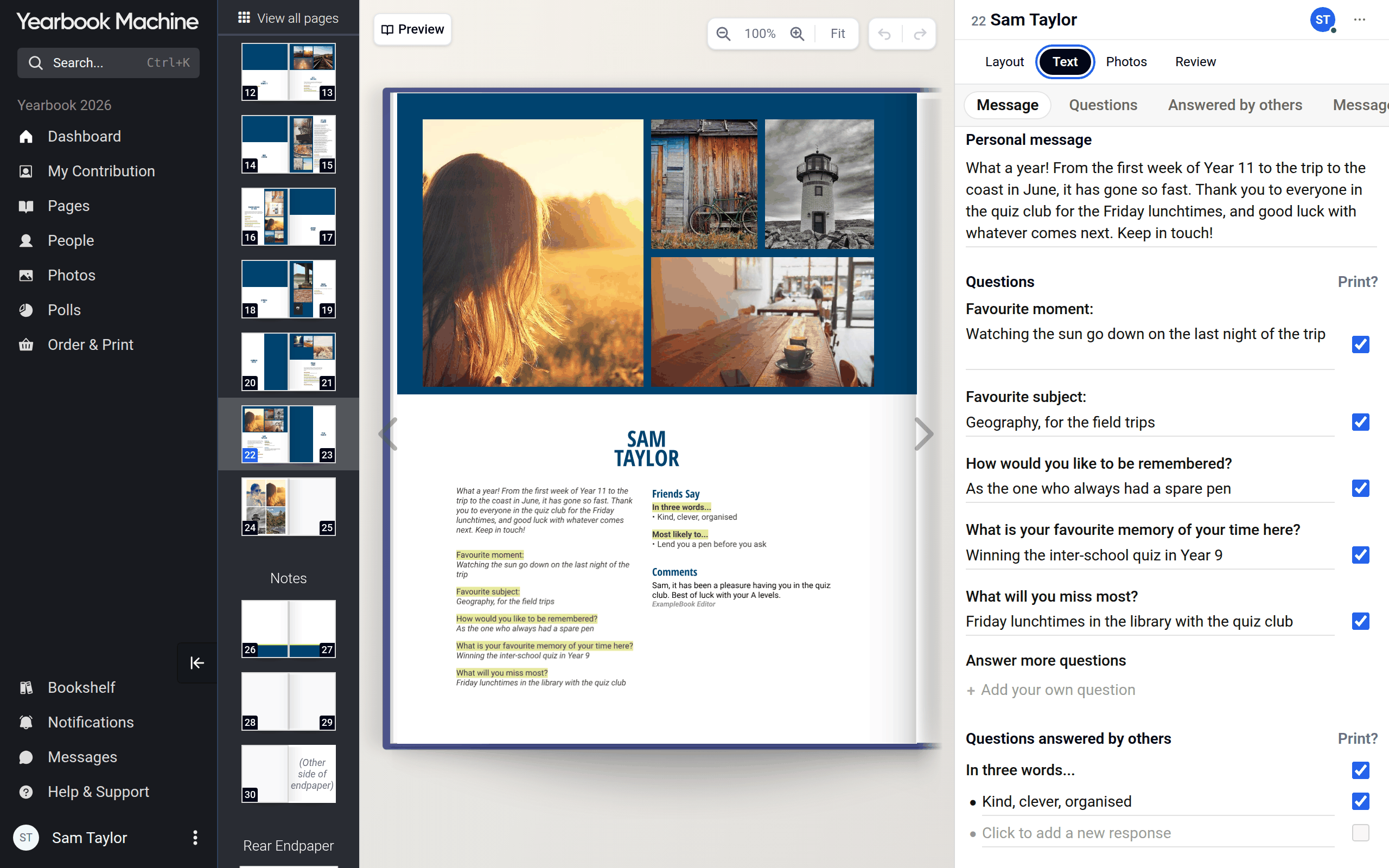
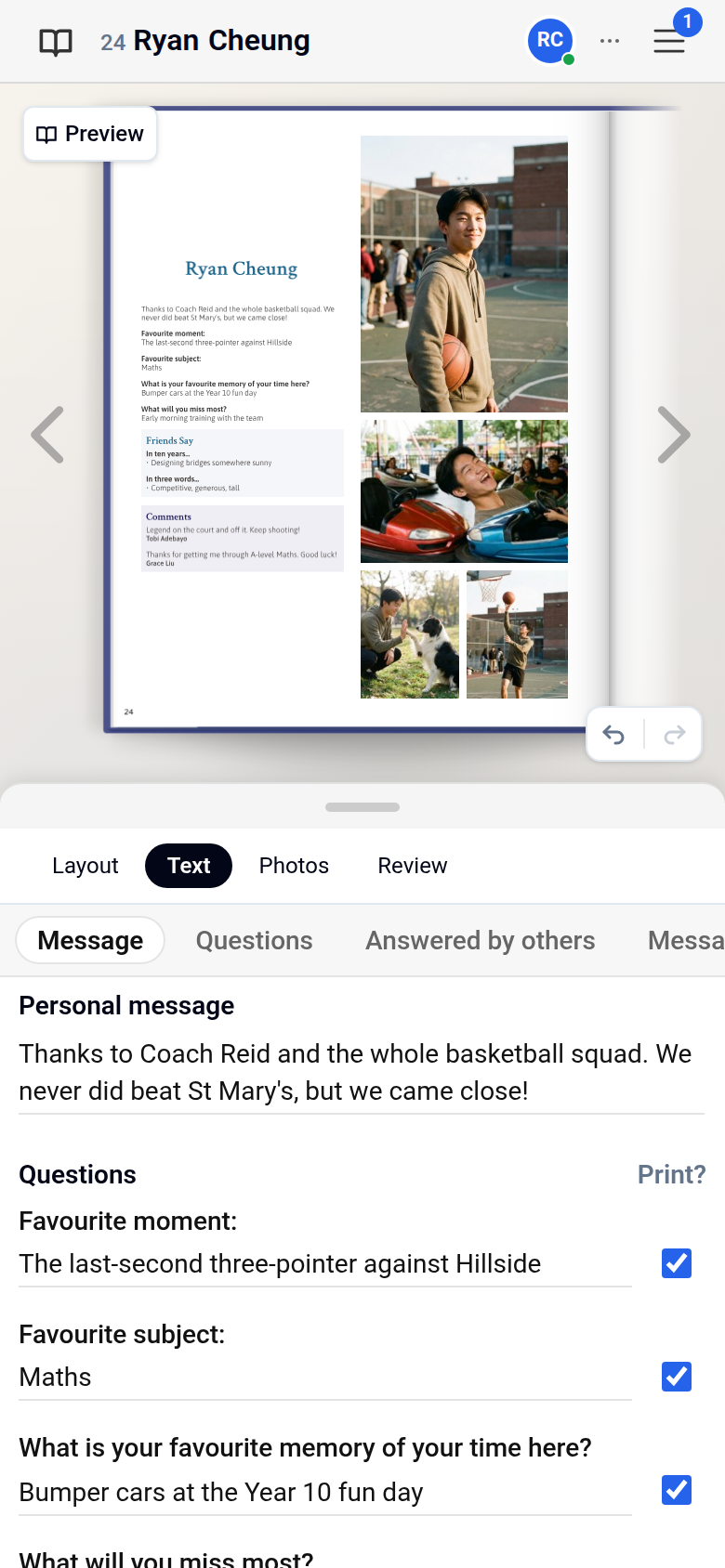
Which sections you see depends on how your editors have set up the book. There can be up to four:
- Personal message: a message from you, in your own words.
- Questions: questions you answer about yourself.
- Questions answered by others: topics your friends answer about you.
- Messages from others: messages other contributors leave on your page.
Filling in your sections
- In Personal message, click the box and write your message.
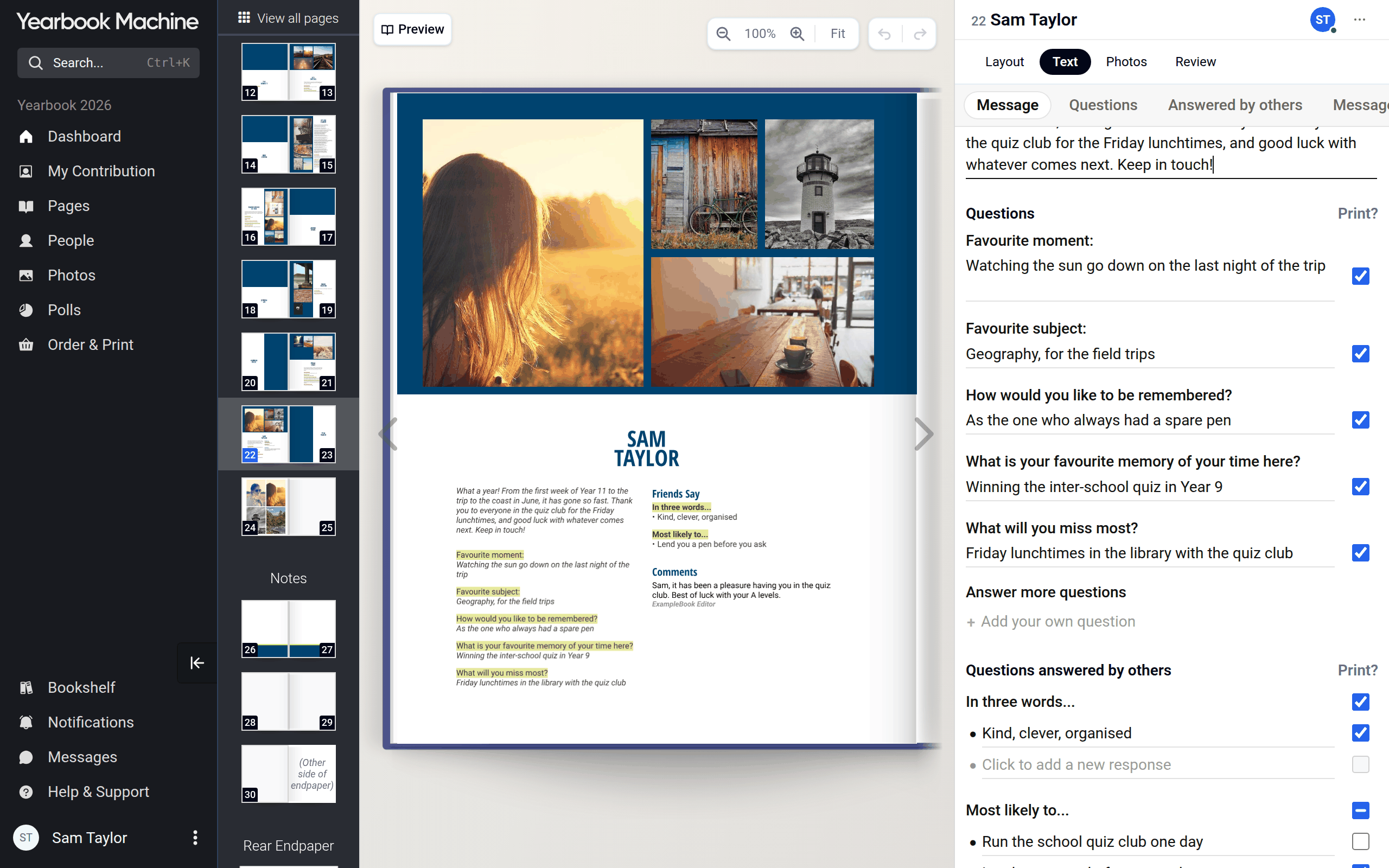
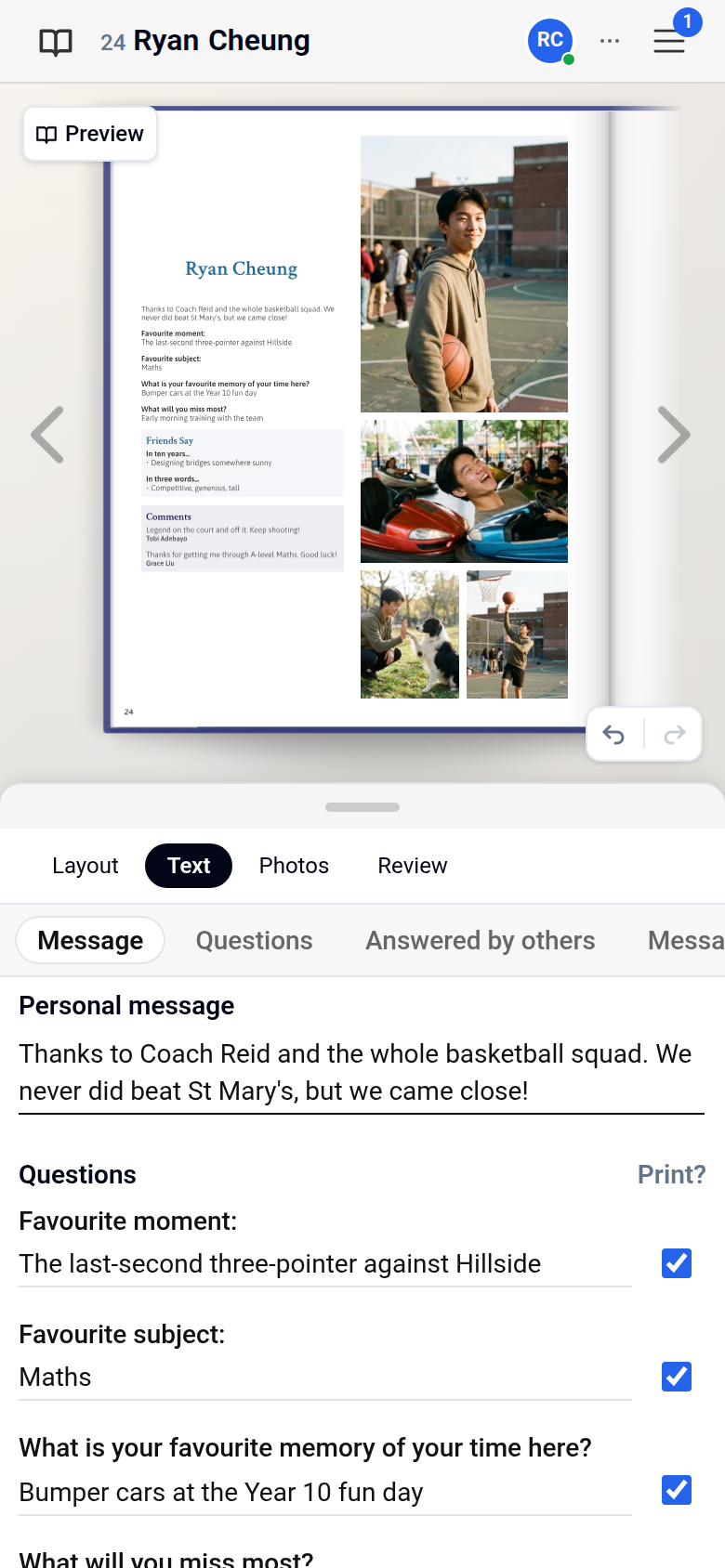
- In Questions, click a question under Answer more questions and type your answer. If your editors allow it, you can type your own question in the Add your own question box.
- In Questions answered by others, choose topics from Add more topics for your friends to answer about you, or add your own with Add your own topic if your editors allow it.
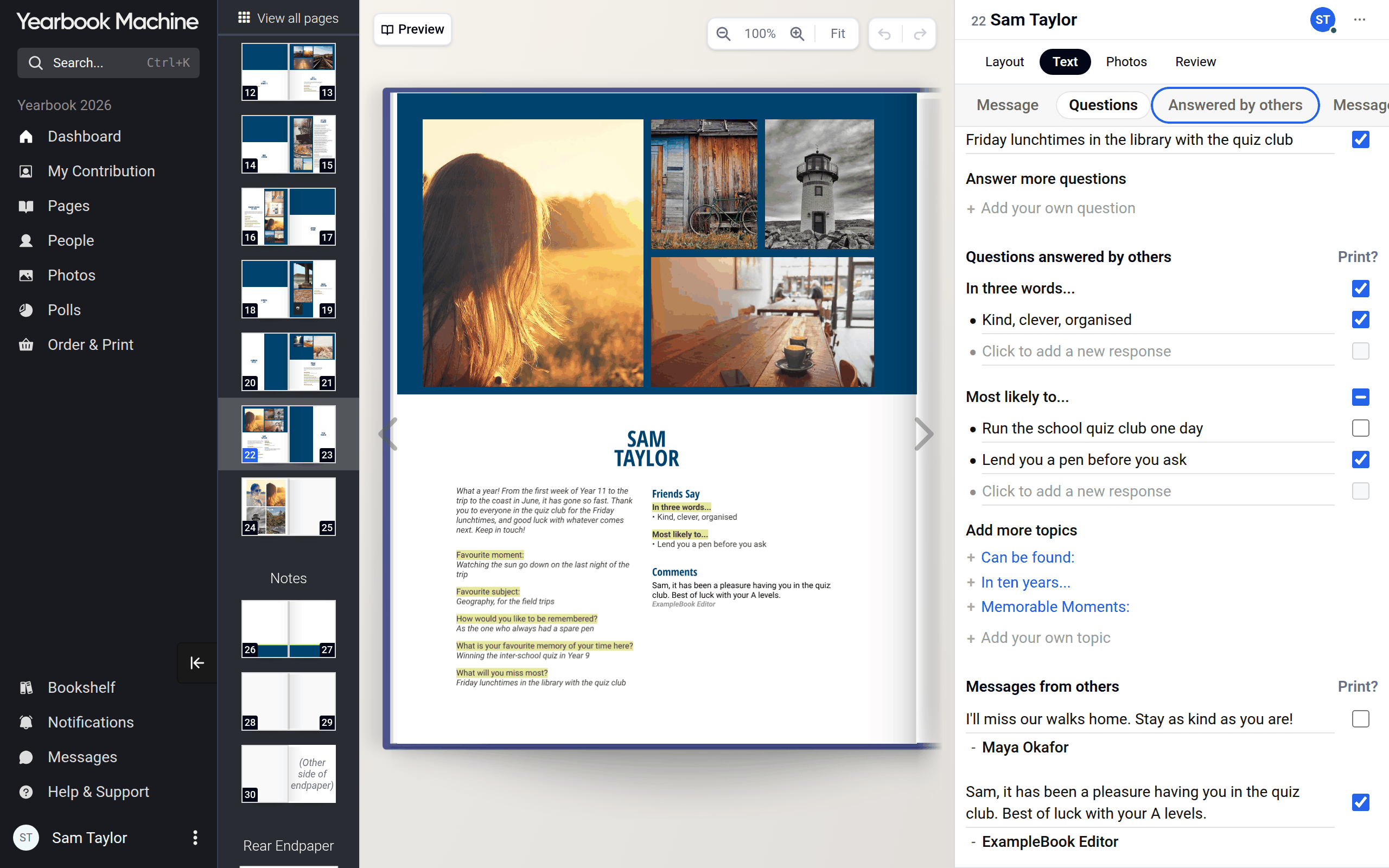
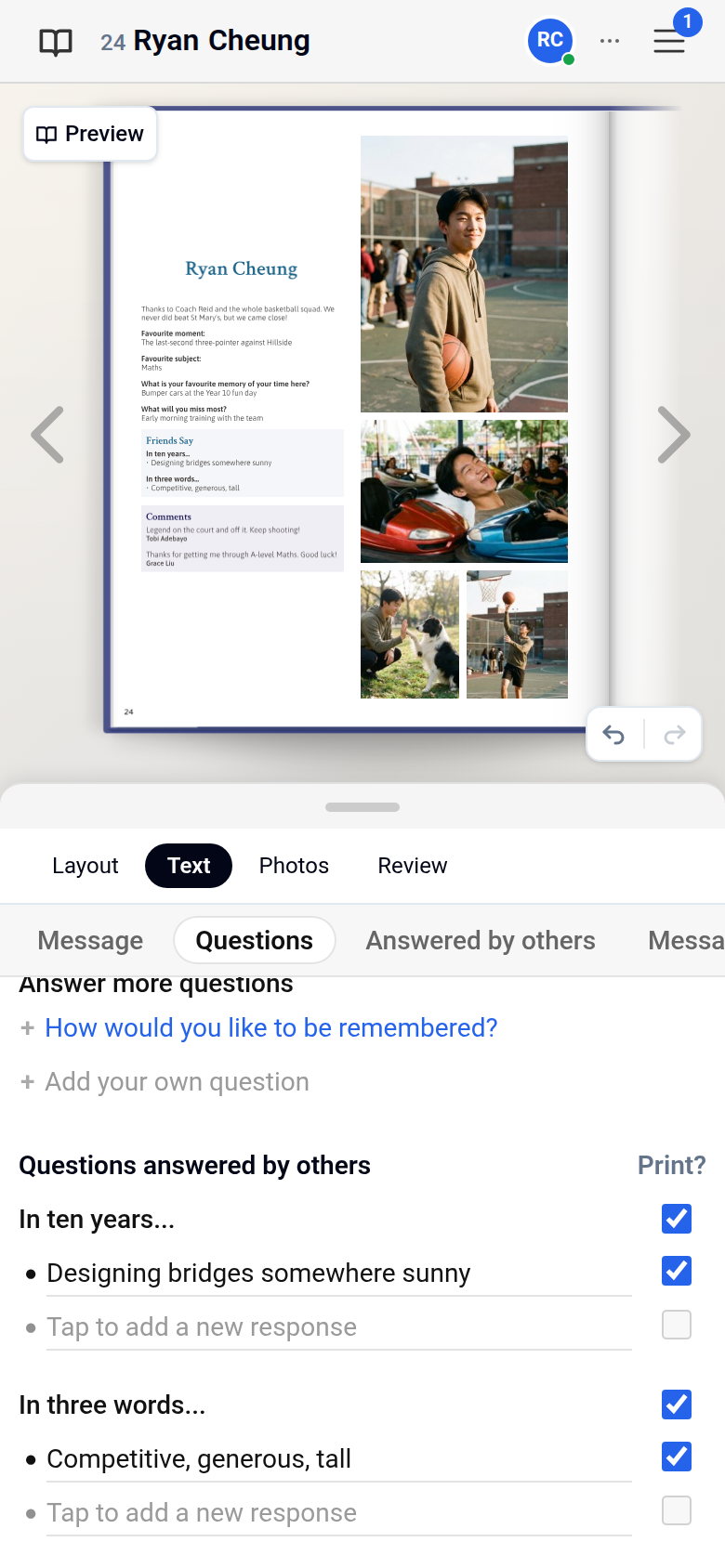
- Messages from others fills up as other contributors leave you messages.
Your answers save when you click away from the box, and the preview updates shortly afterwards.
Choosing what gets printed
Each answer in Questions, and each response and message from others, has a Print? checkbox beside it. Only ticked items appear on your printed page. Your personal message is always printed.
- Tick Print? beside each item you want in the book, and untick anything you want to leave out.
- When you answer one of your own questions, Print? is ticked for you. Responses and messages from friends are not printed until you tick them.
- Check the preview. It shows your page as it will be printed.
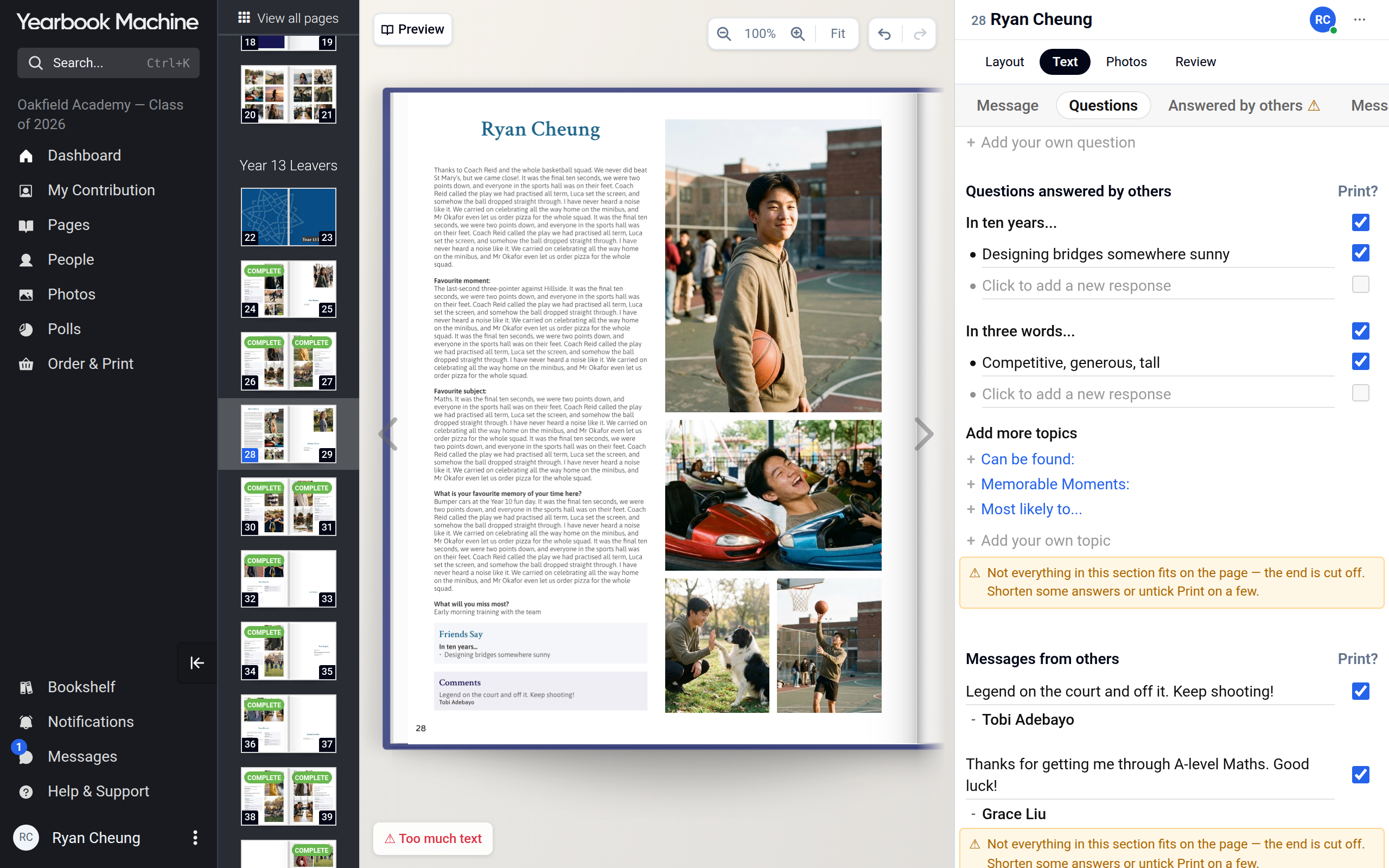
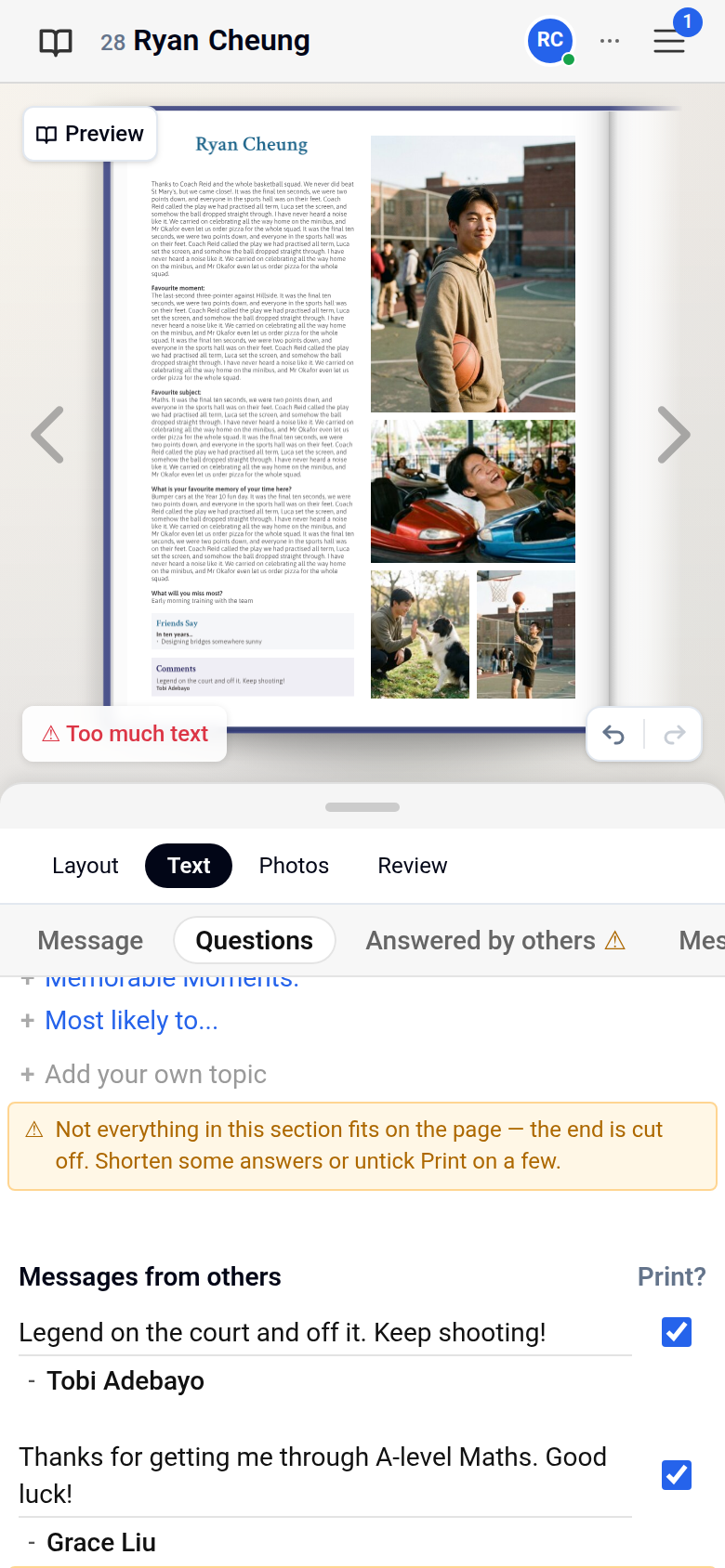
If you have chosen more text than fits, a warning appears in that section saying it doesn't fit or that the end is cut off. Shorten some answers or untick Print? on a few until the warning goes.
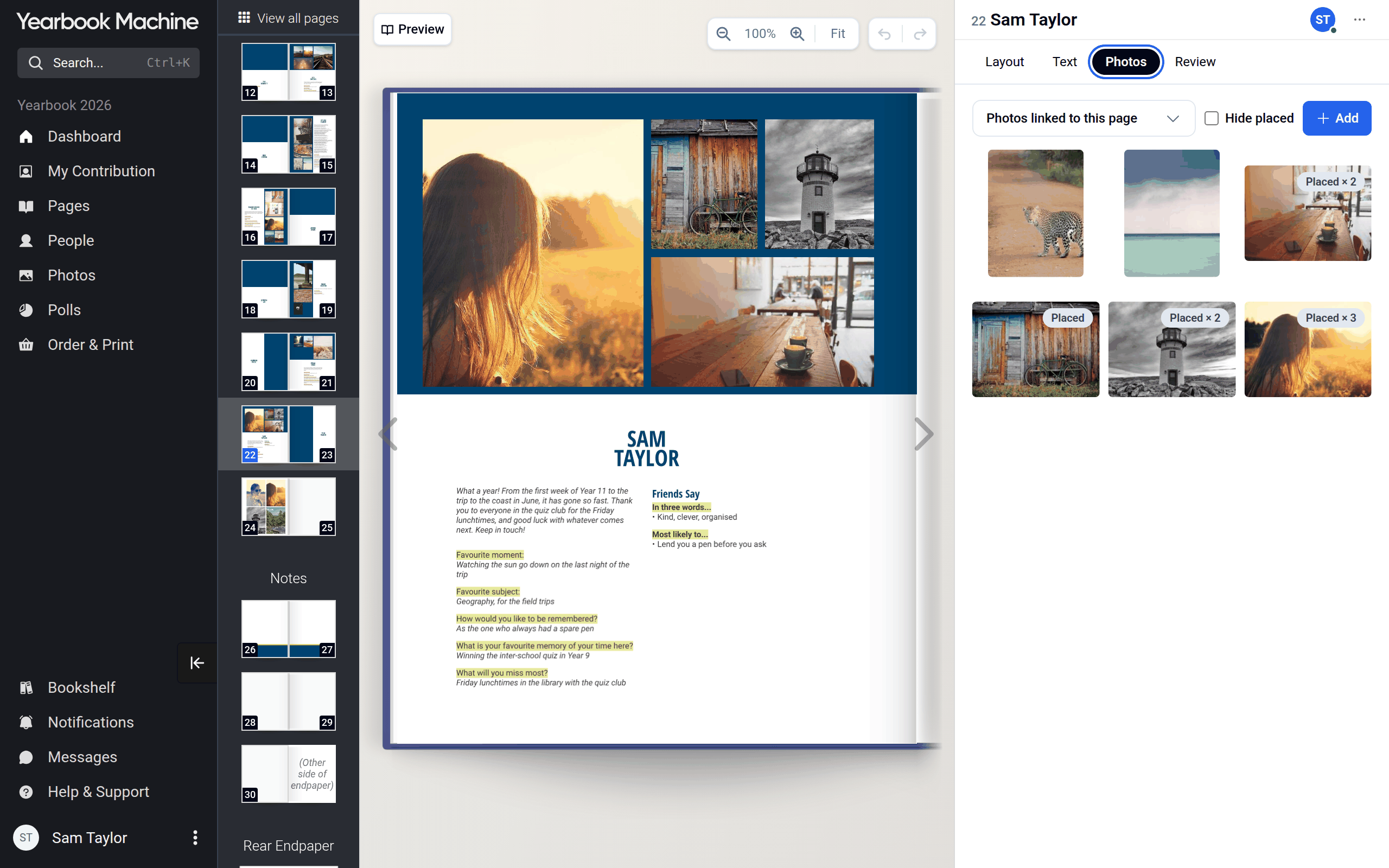
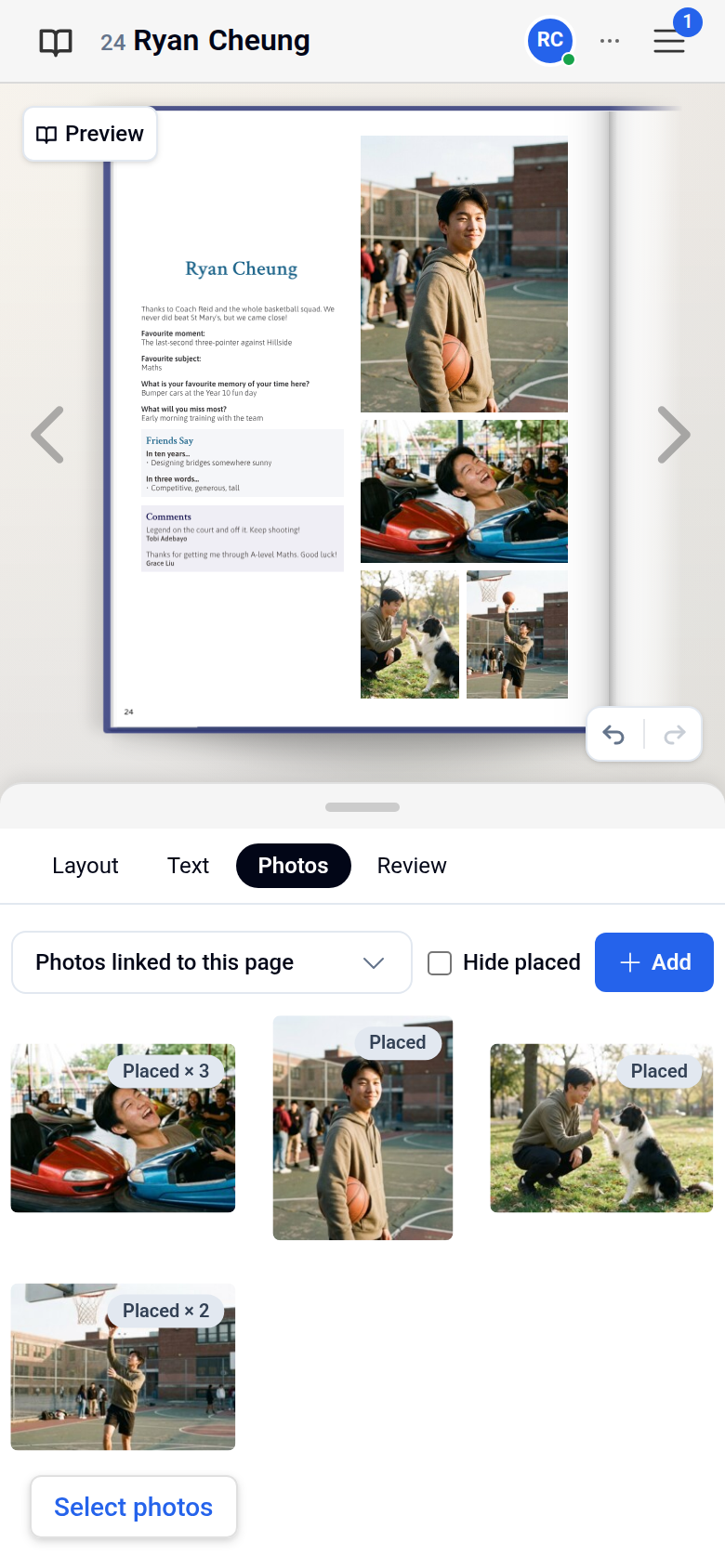
To add photos, open the Photos tab and drag photos onto your page.
Marking your profile as complete
Marking your profile as complete tells your editors it is finished and stops further changes from you.
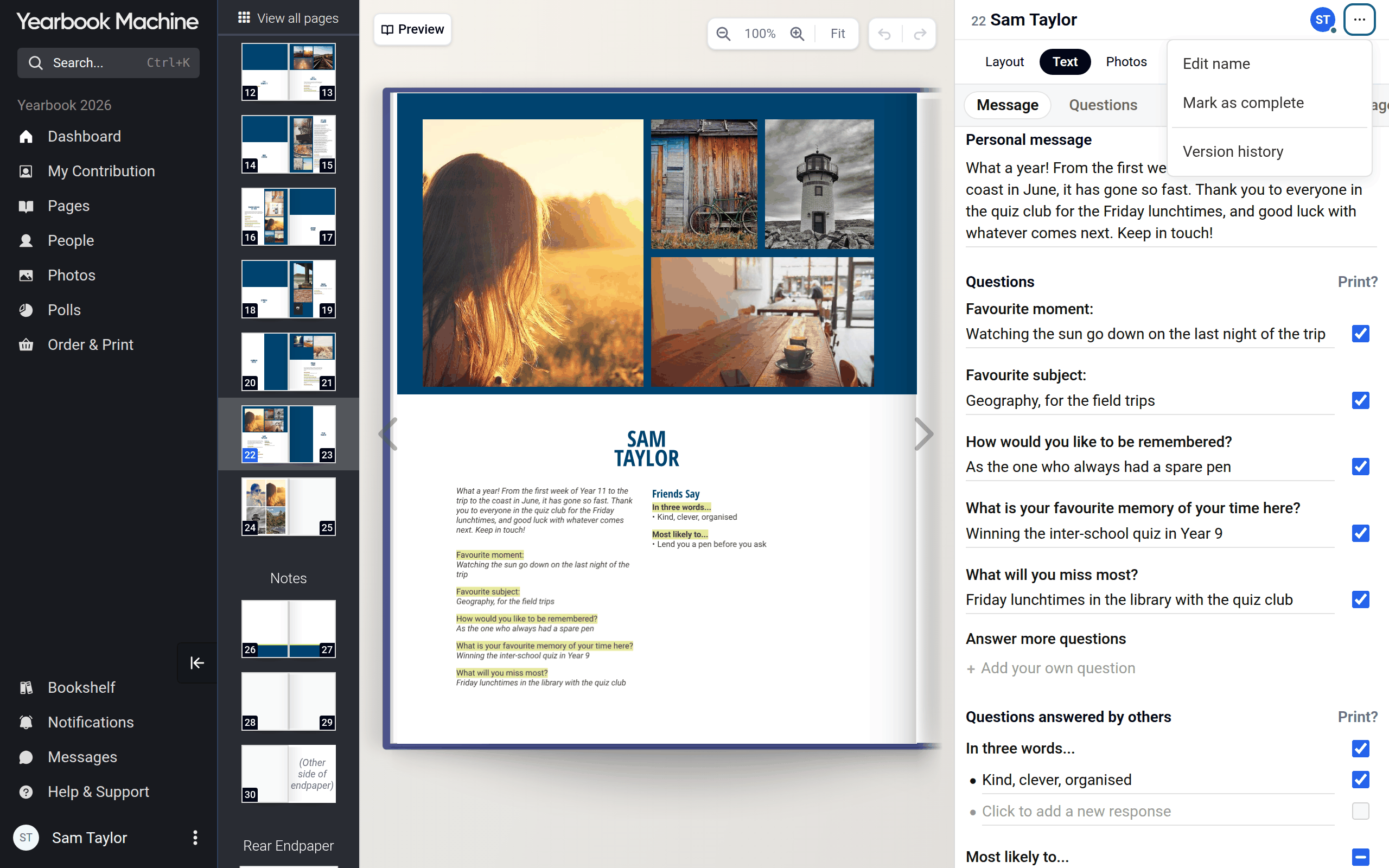
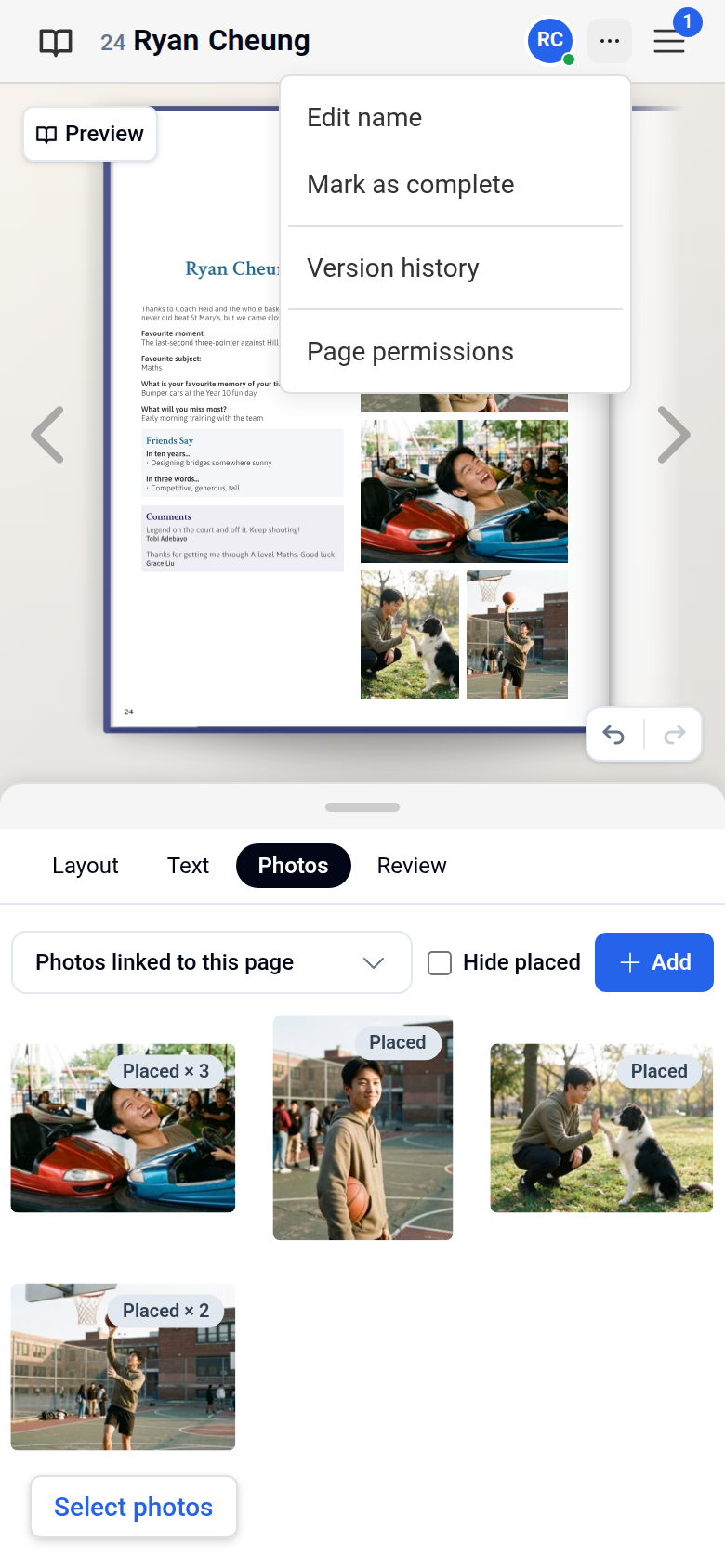
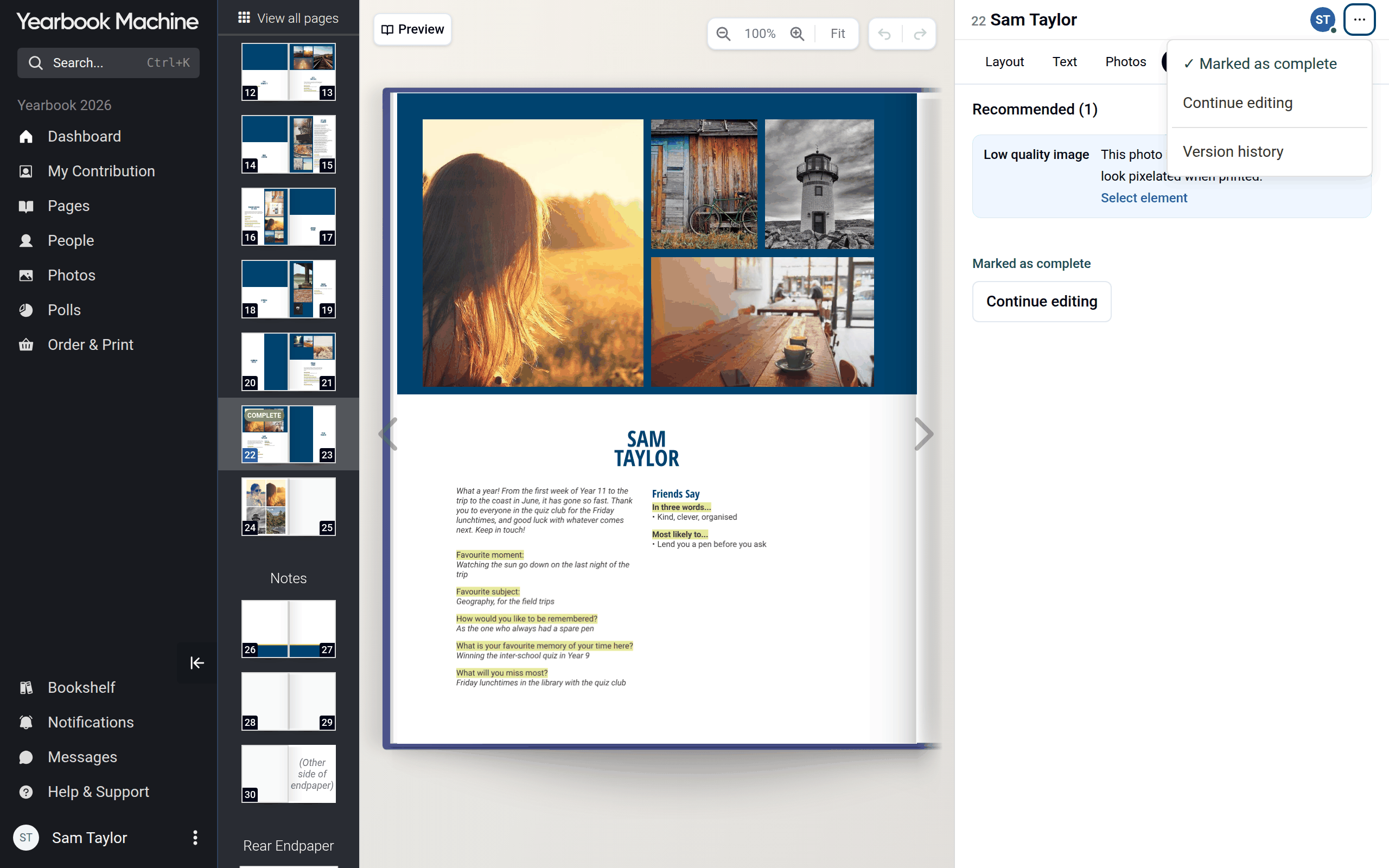
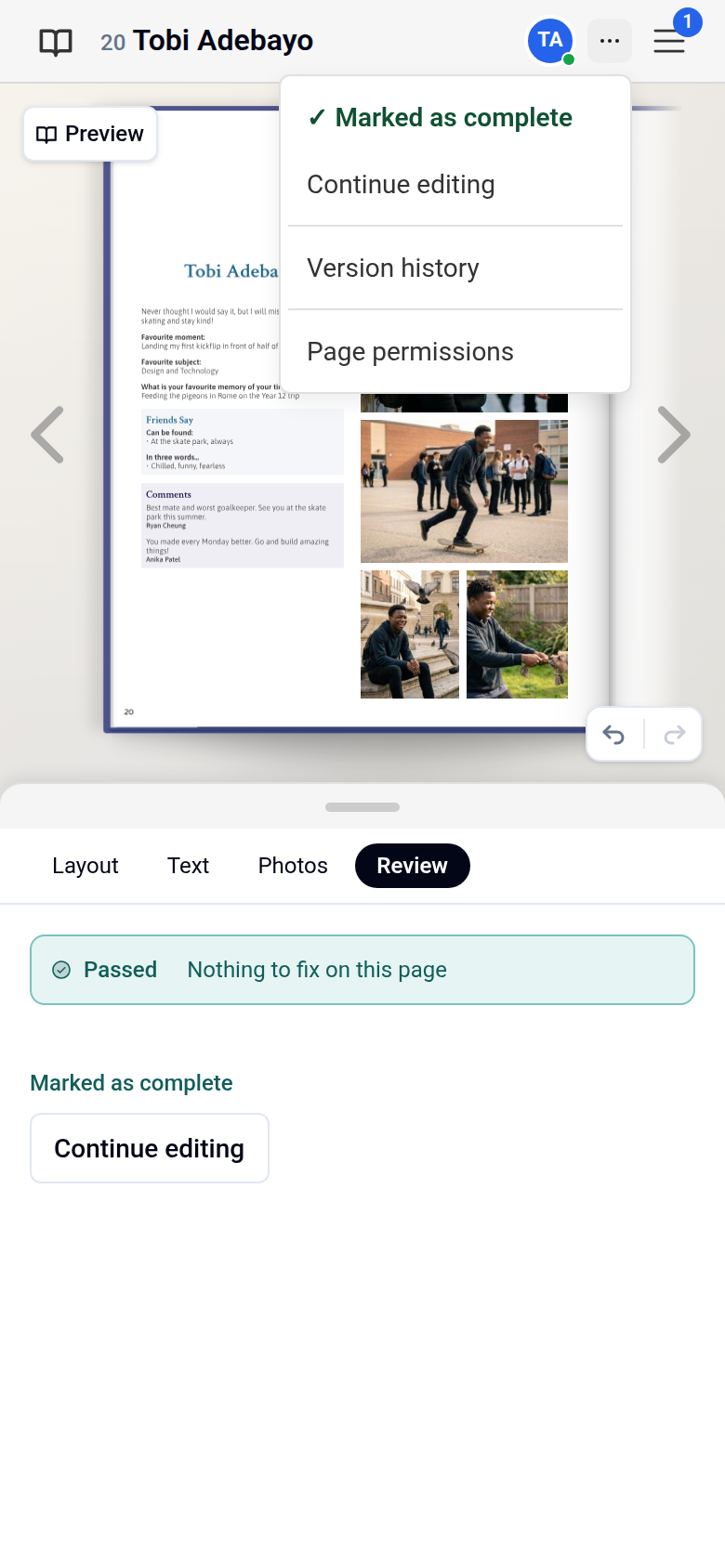
- Open the three-dot menu at the top of the panel and choose Mark as complete. The Review tab opens and checks your page. If nothing needs fixing, your page is marked as complete straight away. If something does, the checks stay open, in up to three groups:
- Required changes: things you must fix. Mark as complete can't be used until these are fixed.
- Strongly Recommended: advice we suggest you follow, though you can mark the page complete without it.
- Recommended: smaller suggestions you can take or leave.
- Fix anything listed under Required changes.
- Click Mark as complete at the bottom of the Review tab.
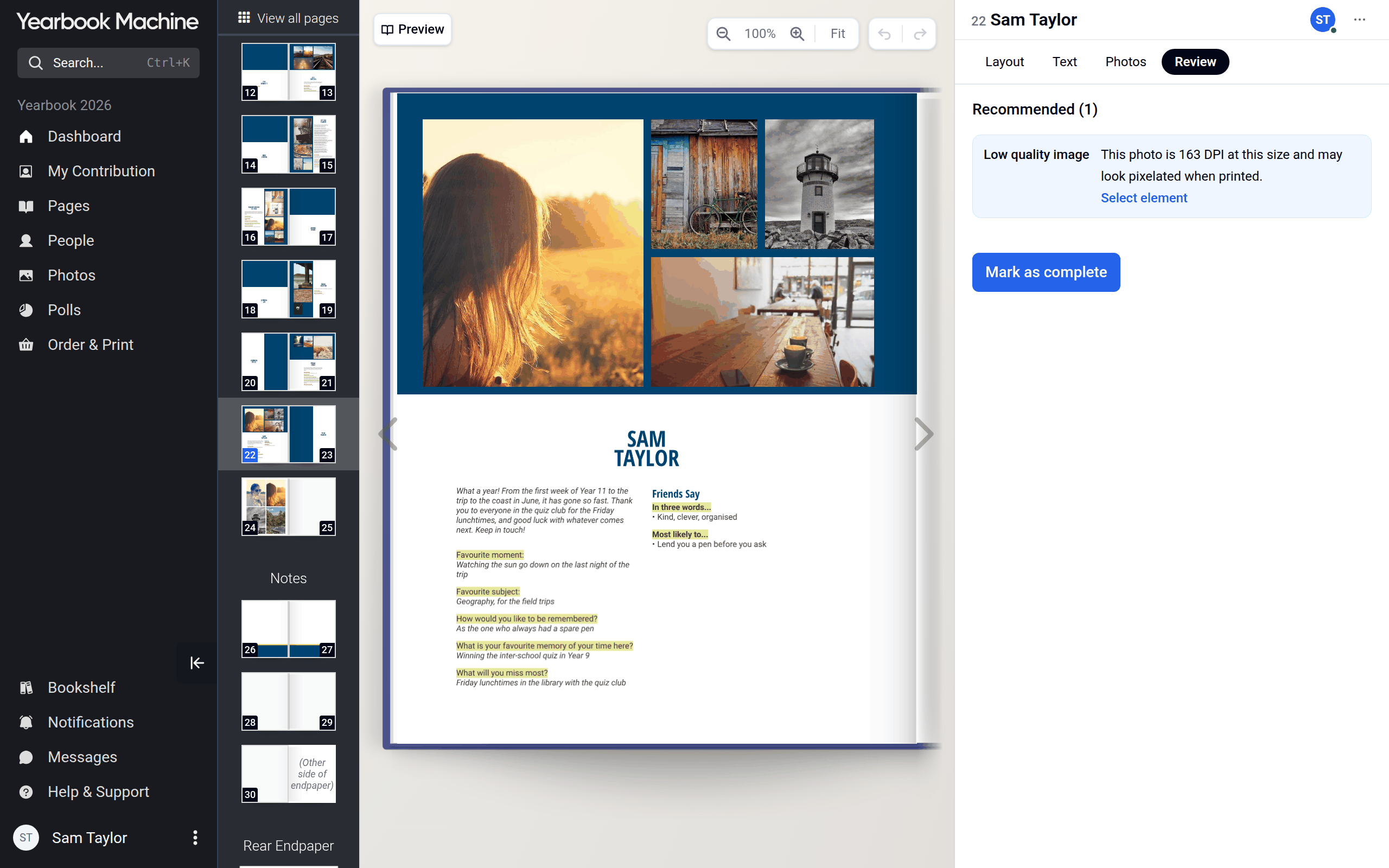
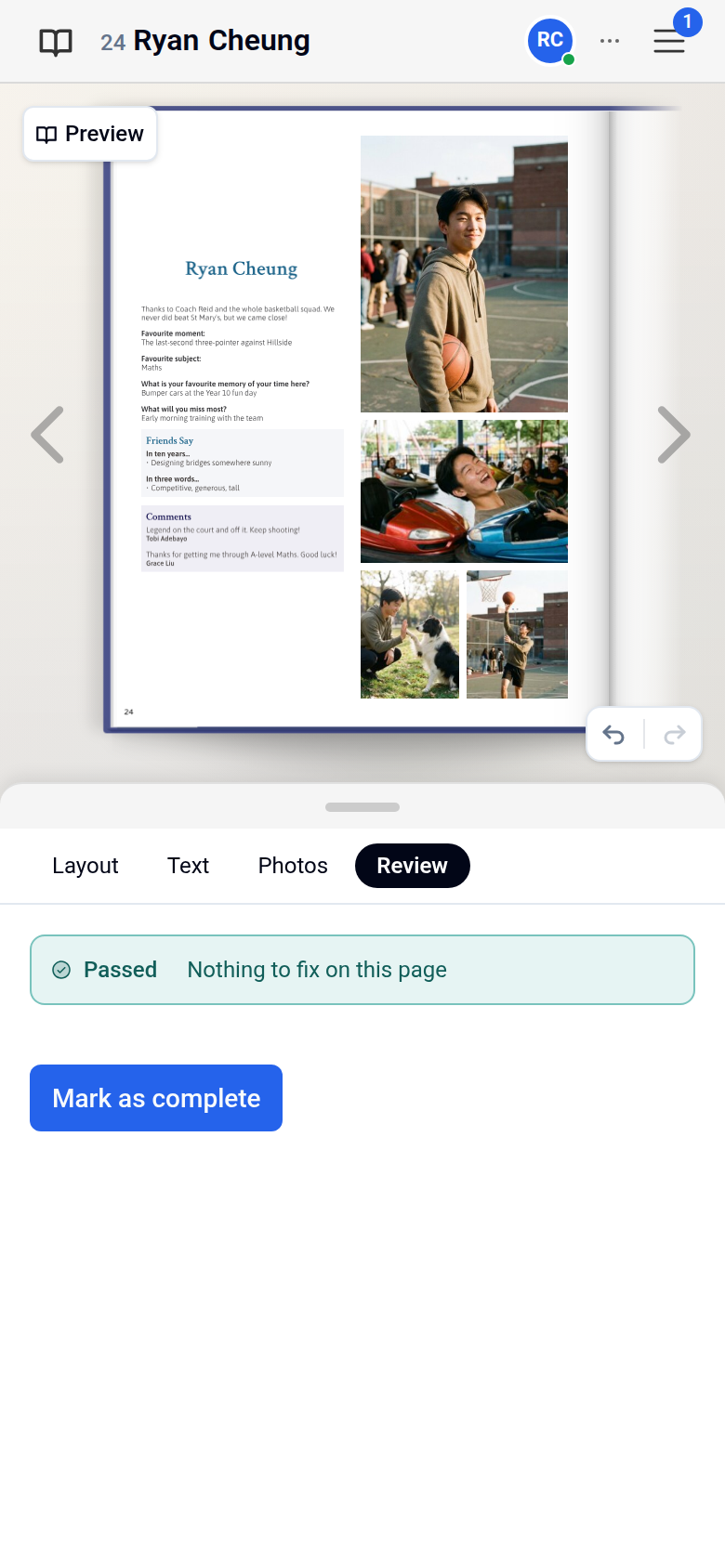
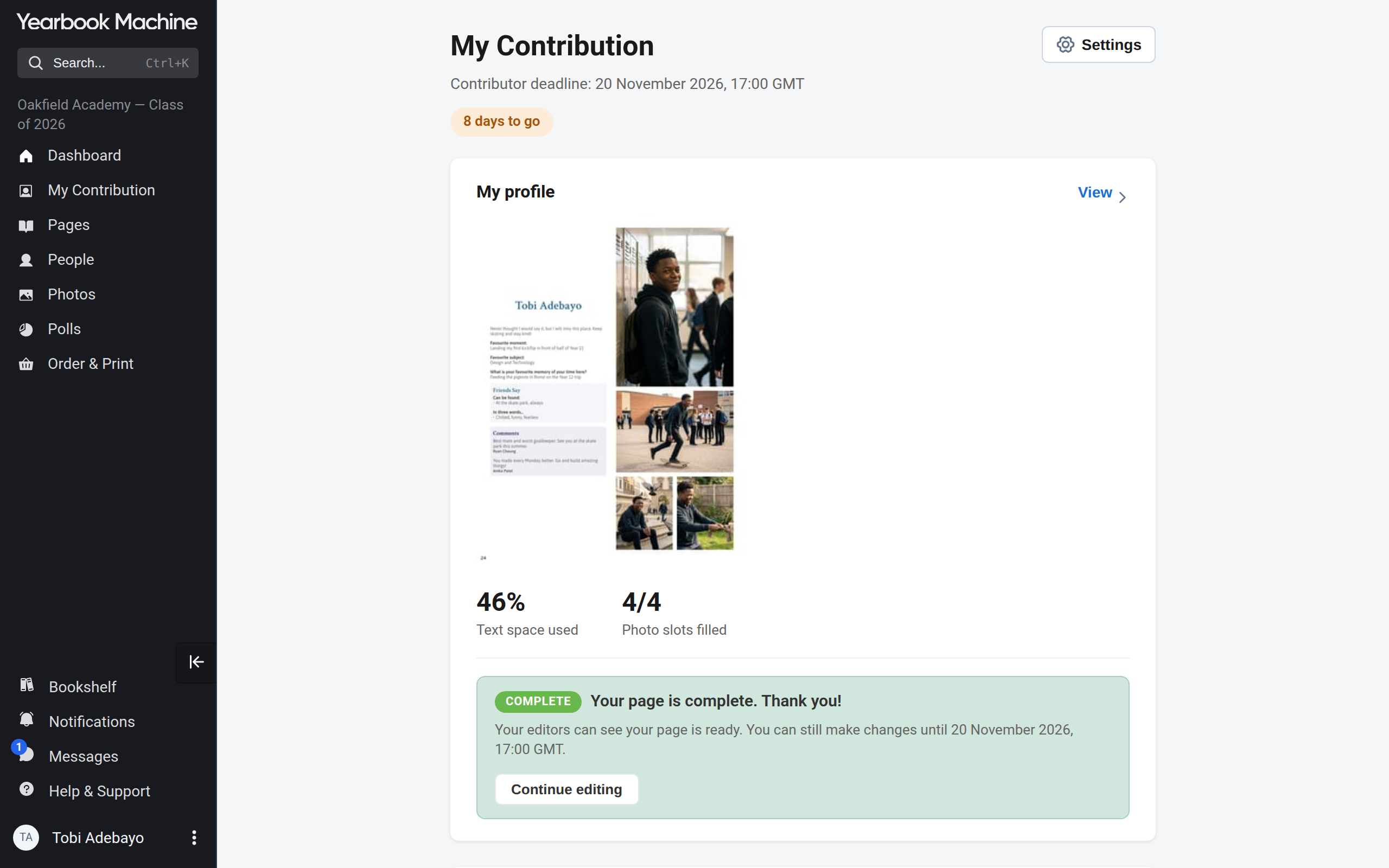
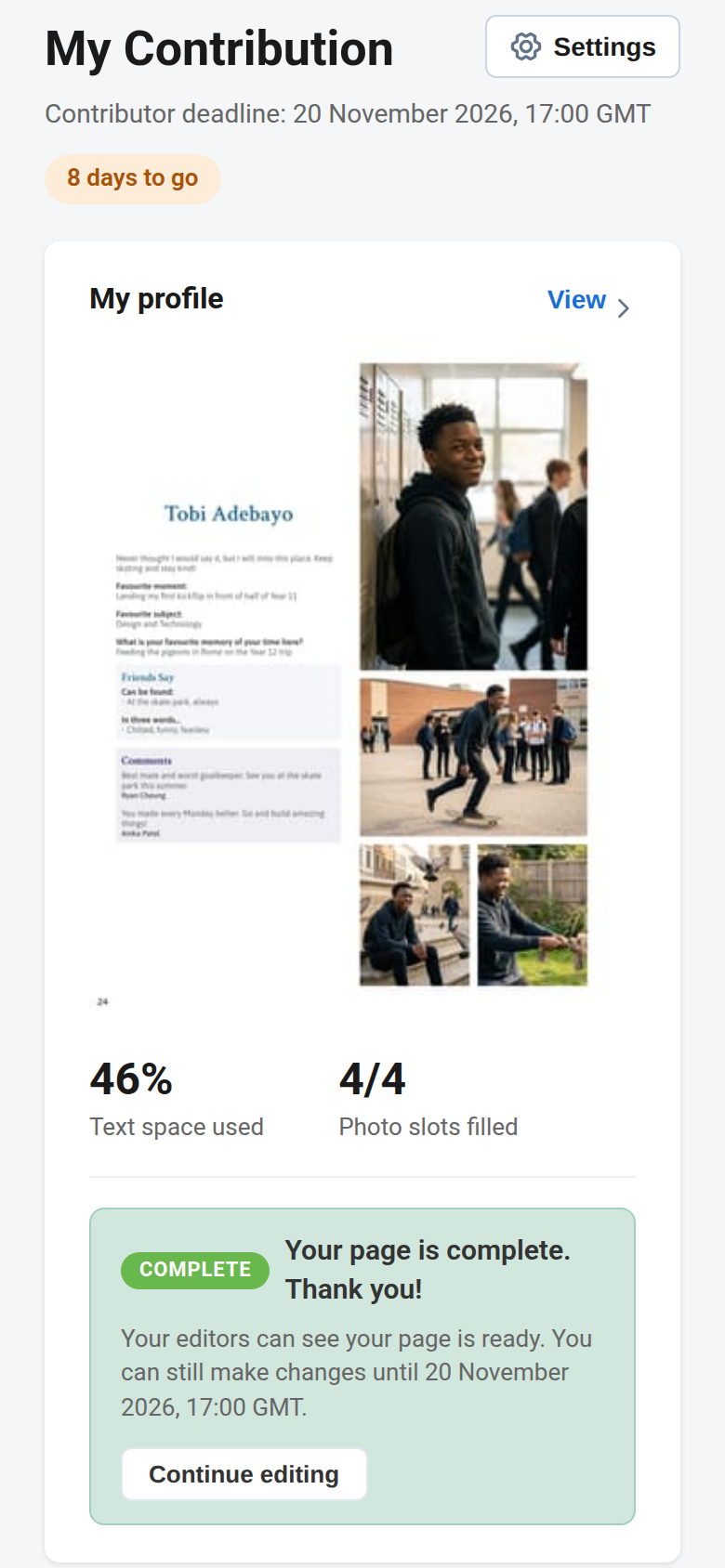
Your editors are notified that your profile is ready, and you are taken back to My Contribution. There the My profile card says your page is complete and shows the date until which you can still change it. You can also mark your profile as complete from that card.
Common questions
Do I have to mark my profile as complete for it to be printed?
No. Your page is printed with whatever you have ticked to print, whether or not it is marked as complete. Marking it complete tells your editors you have finished.
How do I make changes after marking it complete?
Open the three-dot menu and choose Continue editing, or do the same from the My profile card on My Contribution. After the book's deadline has passed you can no longer change your profile; ask an editor.
My friend's message isn't on my printed page. Why?
Messages and responses from others are only printed when you tick Print? beside them.
How do I know my text will fit?
The preview shows the page as it will print. If something doesn't fit, the section shows a warning and the Review tab lists it.
Can other people see my profile?
That depends on your book's settings in Settings > Contributor permissions, which only editors can change.
I don't see a Save button. Is my answer saved?
Yes. In the page editor, answers save when you click away from the box.
Was this article helpful?
Sorry, that didn't send. Please try again in a little while.
Thanks. That helps us improve this article.
Any other questions?
Email support@yearbook.com and we'll help you out.