
Fixing display glitches and finding your way around
If something on your screen doesn't look right, or you can't find the option you need while working on your yearbook, the quick fixes below should help you get back on track.
Page names or footers are missing
Sometimes page names, footers or other page elements don't appear, even though they're switched on in your settings. This is usually a temporary display glitch, and refreshing your session normally fixes it. (Page numbers are switched on in the page's Layout tab: click Page setup, then tick Show page numbers under Page numbers.)
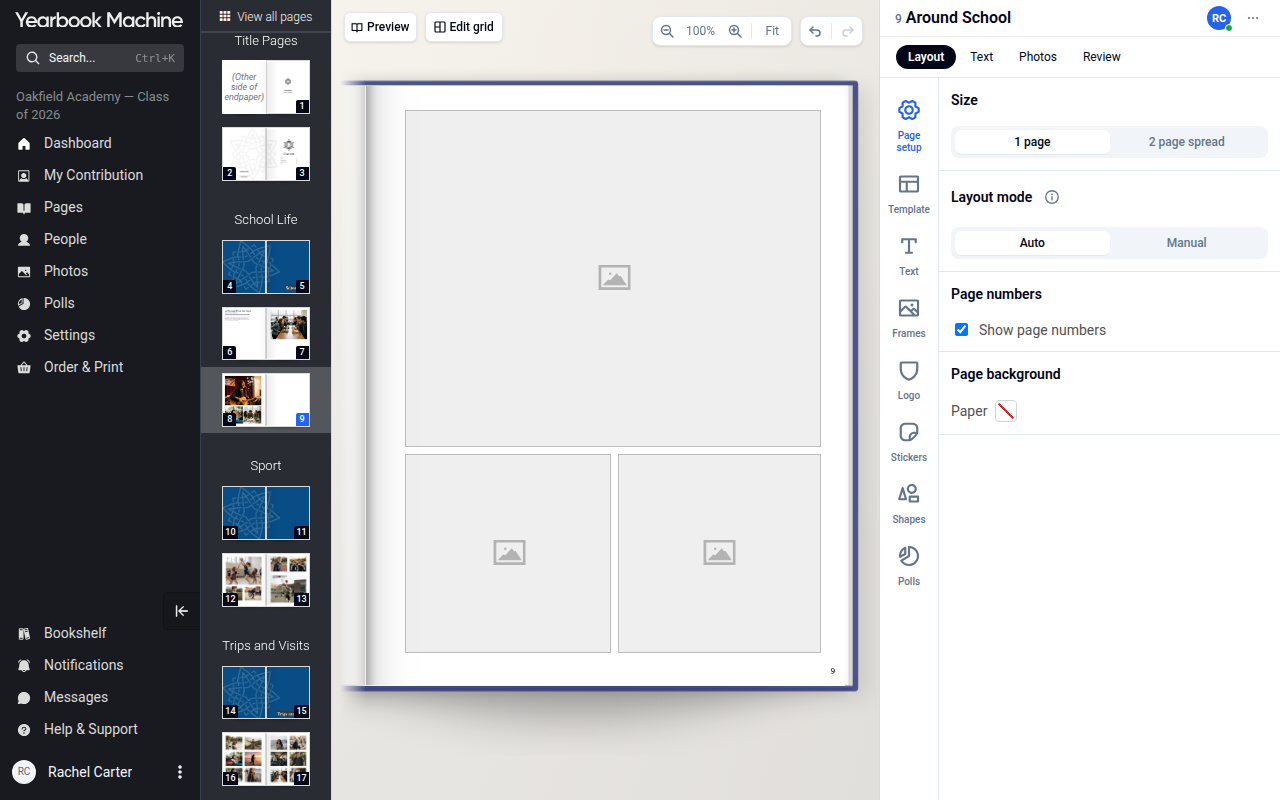
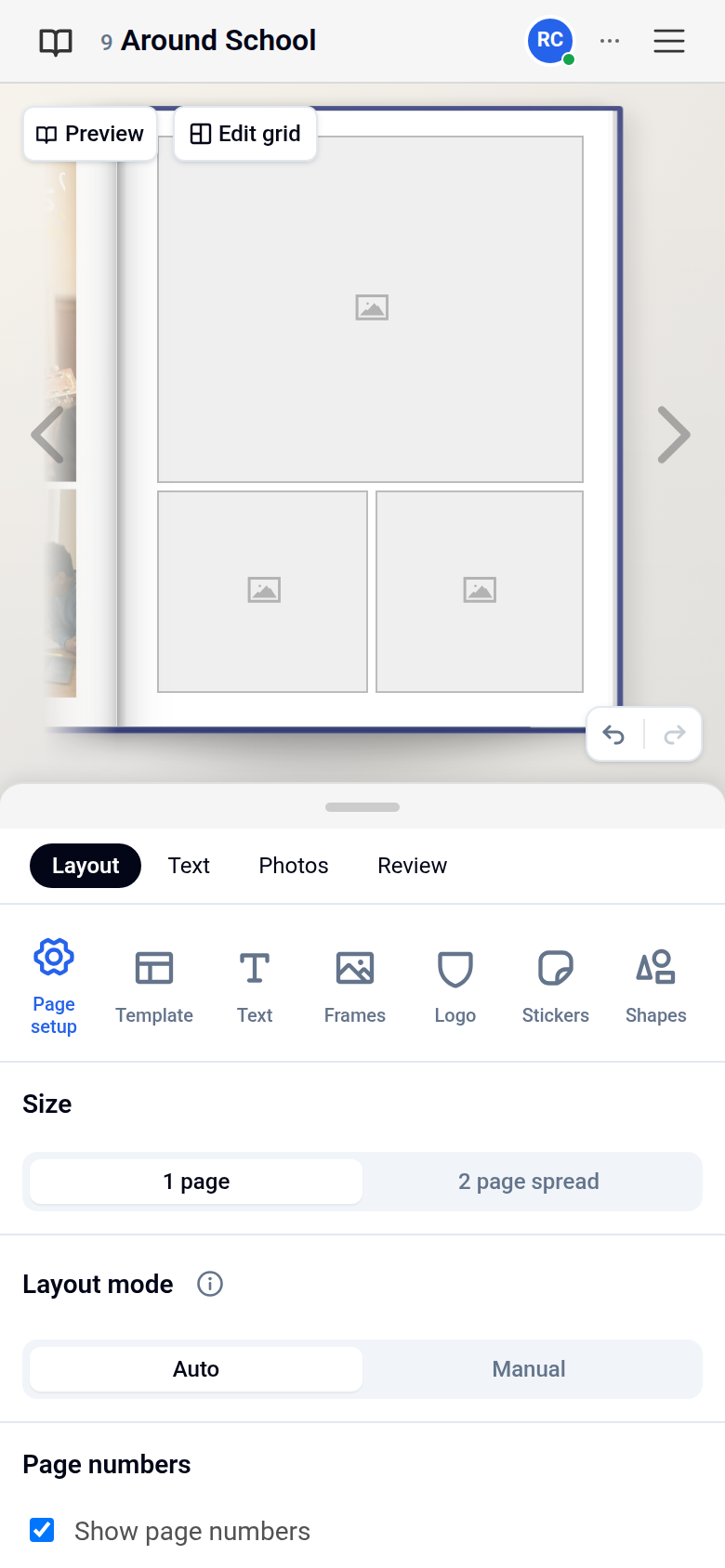
- Log out of your account.
- Log back in.
- Open your pages again. The missing page names and footers should now be showing.
If other parts of the page aren't displaying properly, logging out and back in is a good first thing to try.
Can't find where to mark a page as complete
When you've finished a page or section, you can mark it as complete:
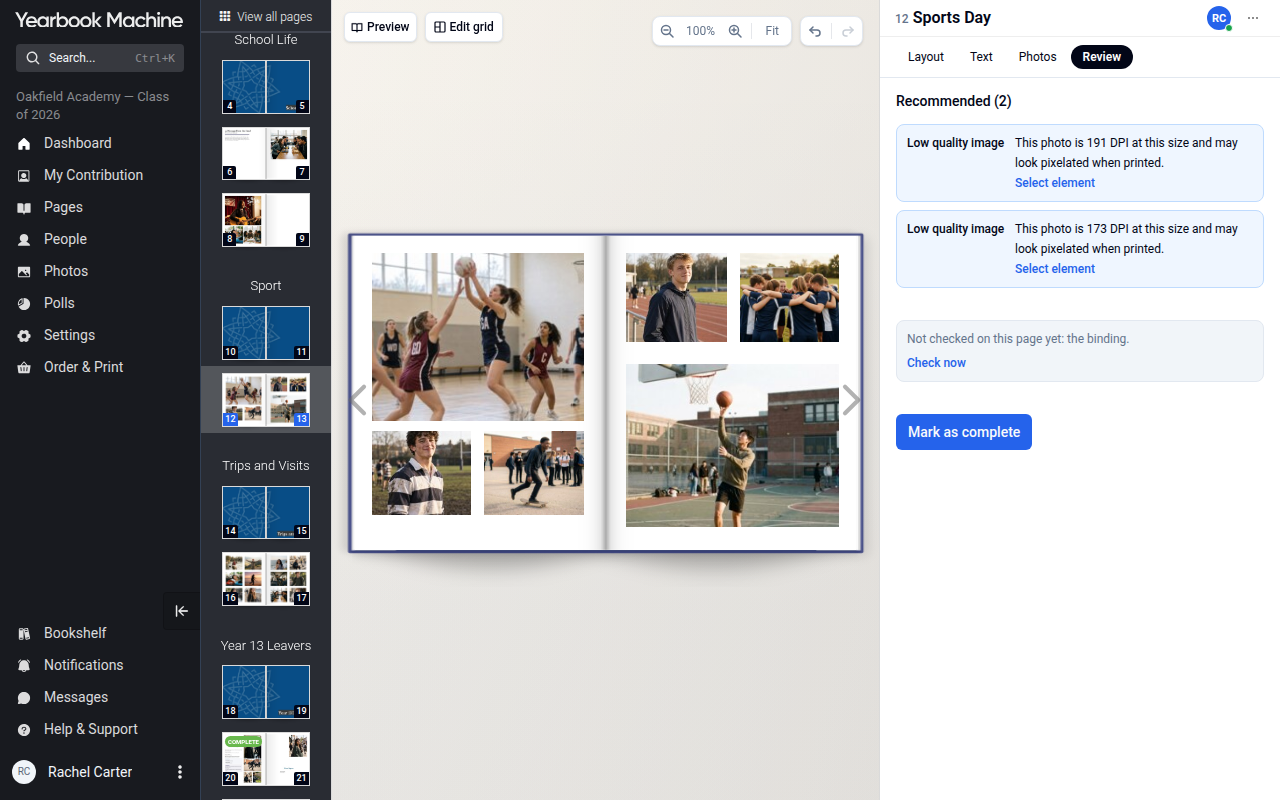
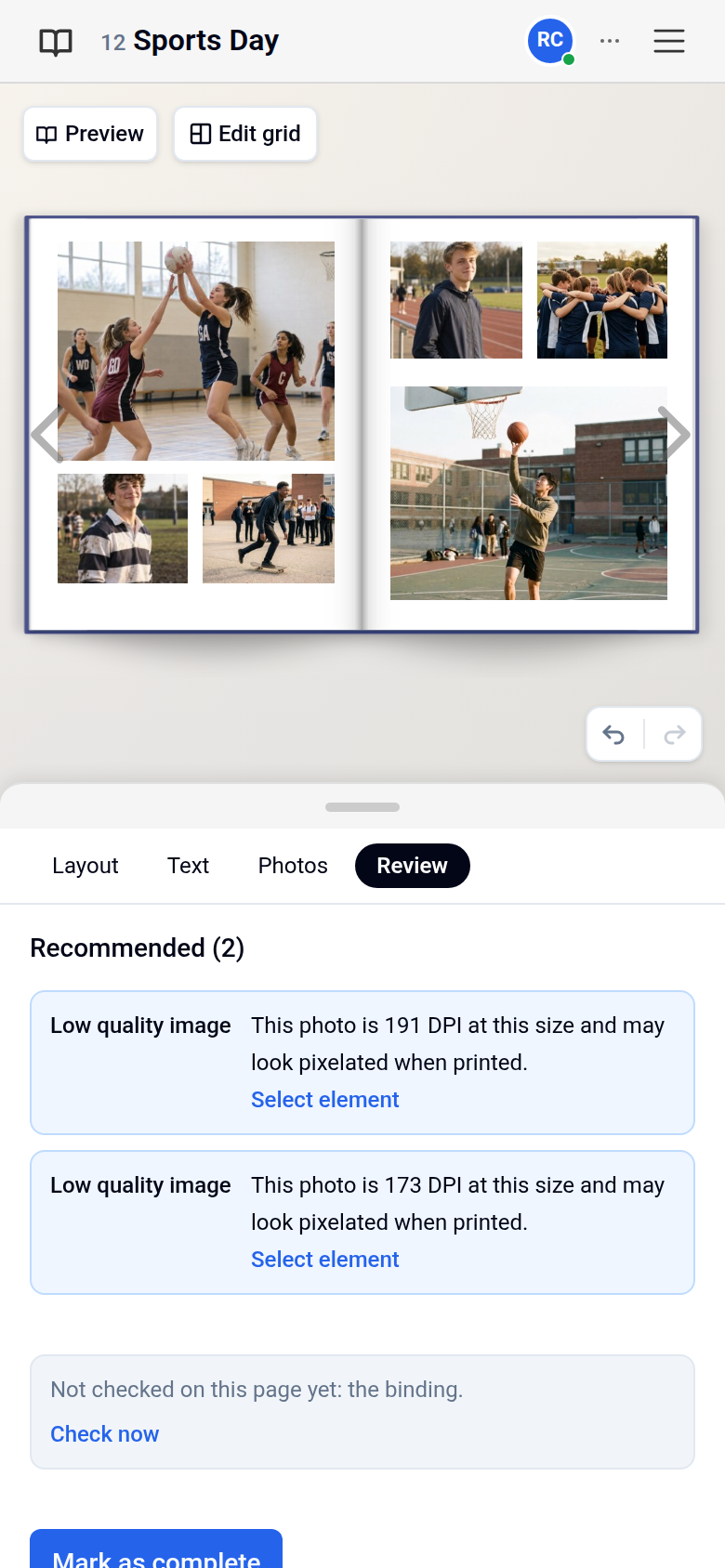
- Click the three dots in the top right corner of the screen and select Mark as complete. This opens the page's Review tab.
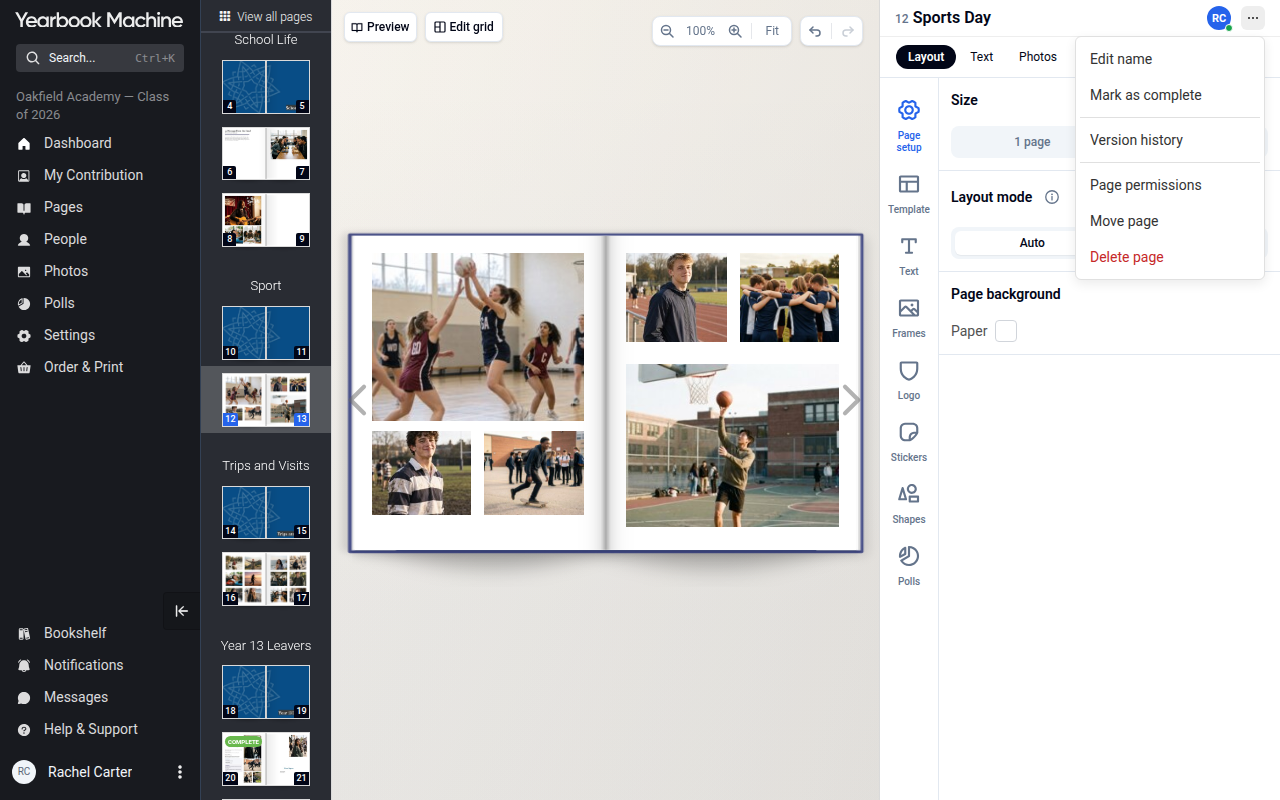
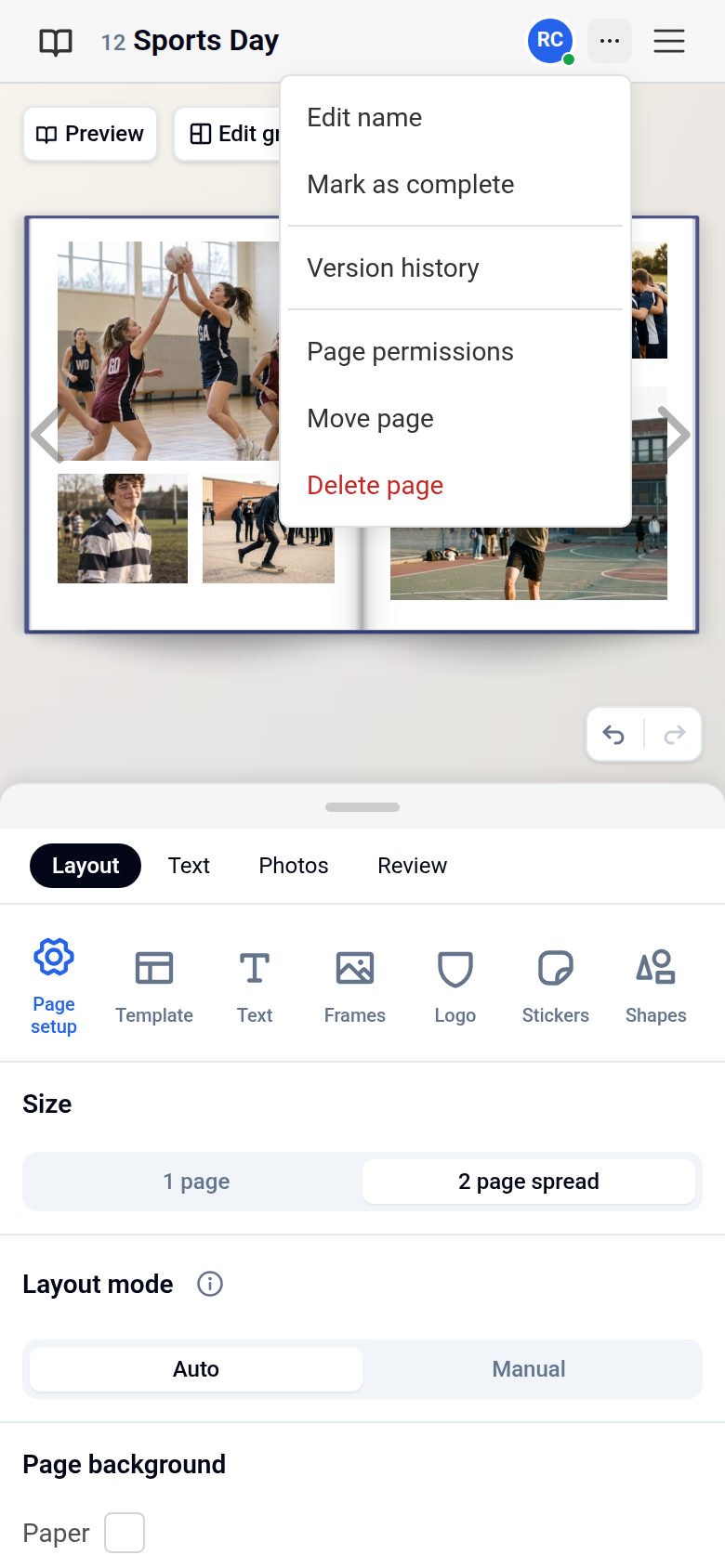
- Click Mark as complete on the Review tab.
Still having trouble?
If logging out and back in doesn't fix the problem, please get in touch with our support team. Let us know what you were doing, what you expected to see and what appeared instead. This helps us sort things out for you more quickly.
Was this article helpful?
Sorry, that didn't send. Please try again in a little while.
Thanks. That helps us improve this article.
Any other questions?
Email support@yearbook.com and we'll help you out.